Using Update Manager
Overview
Update Manager is a tool which is used for installing the service packs (.ppm file) over Applications Manager. The service pack may contain certain bug fixes and new feature additions. This document explains about how to use the Update manager to install service packs over Applications Manager.
Note: The Update Manager also has some useful validation incorporated. This validation includes compatibility checks. You cannot use update manager to install an incompatible service pack. For example, you cannot install a service pack of another product in Applications Manager or a service pack of one version of Applications Manager in another version.
Installing Service Pack using Update Manager
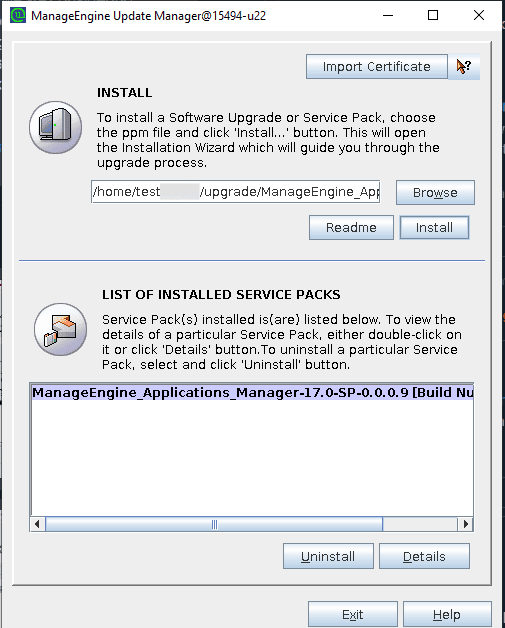
- Execute the updateManager.bat/sh file located in the <Applications Manager Home>/bin directory or invoke through Start → Programs → ManageEngine Applications Manager → Update Manager in Windows (For Windows, use 'Run as Administrator' option). The Update Manager tool is displayed. Click Update.
Provide the service pack (.ppm) file by clicking the Browse button. Only compatible service pack file will be opened. Once the file is specified, other buttons such as Readme and Install are enabled.
Note:
- Incase of internet unavailability, you will be asked to import ManageEngine public key certificate file during the upgrade process. Please download the ppmsigner_publickey.crt file and keep ready.
- If you are upgrading to Applications Manager Version 170100 and above, please download the latest.crt file.
Click the Readme button and the Readme file related to the service pack is displayed in a separate window.
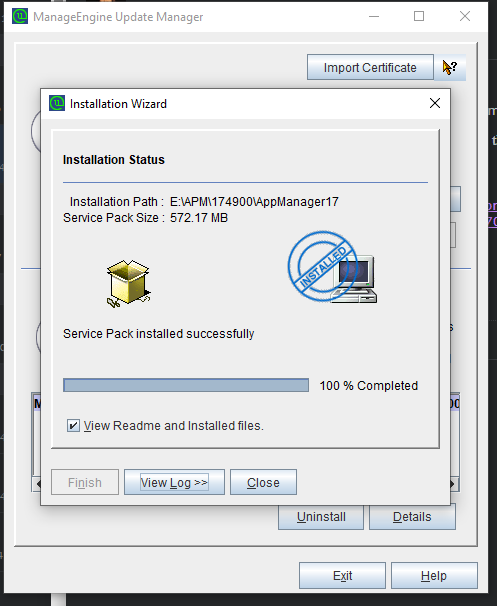
- Click Install. This opens a new panel where the installation process is displayed. On completion, a message "Service Pack installed successfully" is displayed and the service pack is listed in the Installed Patches section
To uninstall the service pack, click the Uninstall button. To know the service pack details, click the Details button in Update Manager.
Installing Service Pack using Update Manager (Command Line Option)
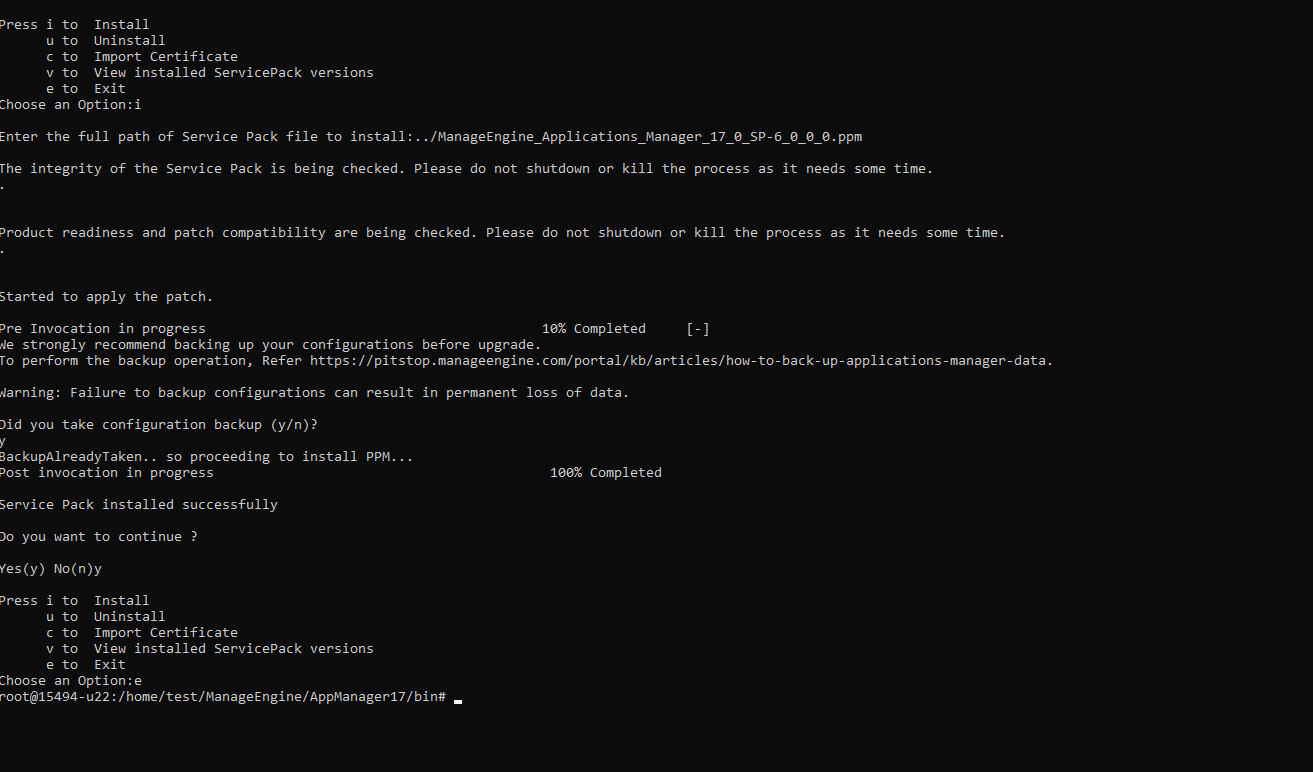
To invoke Update Manager, navigate to <Applications Manager Home>/bin directory and execute the following command:
For Windows: updateManager.bat -c
For Linux: ./updateManager.sh -c
To force quit Applications Manager, execute the following command:
For Windows: shutdownApplicationsManager -force
For Linux: ./shutdownApplicationsManager.sh -force
Using this command line option, you can install or uninstall a service pack or view its details. Press 'i' to install and specify the absolute path of the service pack file in your machine.
Troubleshooting
For troubleshooting steps, go to our Support Portal.