
- Description
- Security at various levels
- Security features
- Security configurations

AssetExplorer is robust IT asset management software trusted by clients around the globe. A large clientele comes with the exchange of a hefty amount of sensitive data every day. There's no room for compromise on the security of such data, as that could potentially expose organizations to serious risks. AssetExplorer is designed to offer tight data security starting at the time of installation and following into every phase of product usage, including user authentication, data transmission, and storage. In addition to the following summary of security measures already in place, ManageEngine constantly strives to enhance the security features in AssetExplorer.
This document outlines the security specifications of AssetExplorer.
Security at various levels
Encryption mechanism
The following encryption algorithms are used in AssetExplorer:
- AES-256
- bcrypt
- SHA-256
Authentication and authorization
- Integration with Microsoft Active Directory and LDAP-compliant directory services
- Local authentication mechanism with bcrypt algorithm
- Enforced password resets for local authentication
- Option to disable concurrent logins
- Single sign-on (SSO)
- SAML 2.0 SSO
Data integrity
- User data is encrypted and sent over HTTPS
- SSL mode for client connections
- Password-protected file attachments
Access control measures
- Granular access control mechanism
- Audit trails
Availability mechanism
- Failover server support
- Native apps for iOS and Android
Disaster recovery
- Periodic database backup
- Password-protected backup files
Security features
Encryption mechanism
Encryption in the application server
- AssetExplorer uses AES-256 encryption (the strongest known encryption, approved by the US government) to store all sensitive information.
- All user passwords are stored using the bcrypt algorithm, which is designed to prevent hackers from decrypting user passwords.
- To avoid vulnerabilities related to clear text passwords, the password is encrypted at the client side (browser) while submitting user credentials to the AssetExplorer server. The encryption key used for password encryption is unique to every AssetExplorer installation and is stored securely in the application.
Encryption in the database server
- The AssetExplorer database is secured through a unique, auto-generated key for every installation, which is stored securely in the application.
- The user can choose MSSQL as the back-end database and enable a secure database connection. The bundled Postgres database is designed to accept only local host connections.
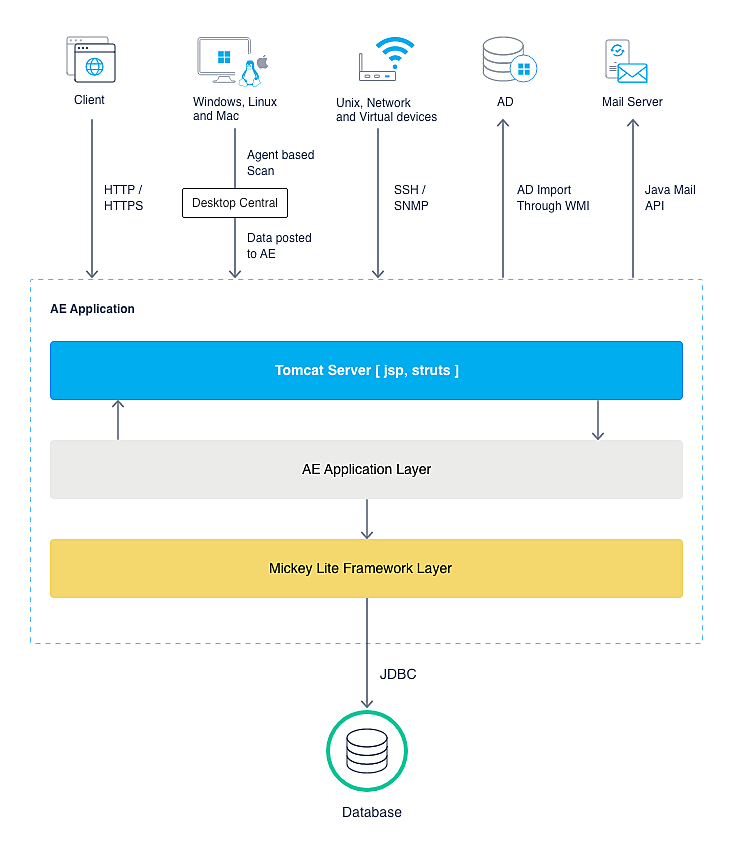
Authentication and authorization
Strong application-level authentication
AssetExplorer has four authentication options for accessing the application.
- Integration with identity stores: AssetExplorer seamlessly integrates with external identity stores such as Microsoft Active Directory and LDAP-compliant directory services. Users are identified in the identity stores by their corresponding accounts and can be imported to the AssetExplorer. They can choose the authentication mechanism they'd like to use.
- Unique accounts and strong local authentication: AssetExplorer comes with a local authentication mechanism in which unique accounts are created for users. The application can be accessed with personal credentials. AssetExplorer employs the bcrypt algorithm to store passwords, which ensures that each login password is irreversibly secure.
- Enforced password resets for local authentication: As a security precaution, AssetExplorer requires users to reset the local authentication password when they first start using the application.
- SAML-compliant services: AssetExplorer offers support for SAML 2.0, which facilitates integration with Federated Identity Management Solutions for SSO. The AssetExplorer tool acts as the service provider (SP) and integrates with identity providers (IdPs) using SAML 2.0. This integration involves exchanging information between the SP and the IdP, and it allows users to log in to the AssetExplorer directly from the IdP without presenting their login credentials again.
Data integrity
Data transmission
- Data transmission between the AssetExplorer user interface and the server is encrypted and takes place through HTTPS.
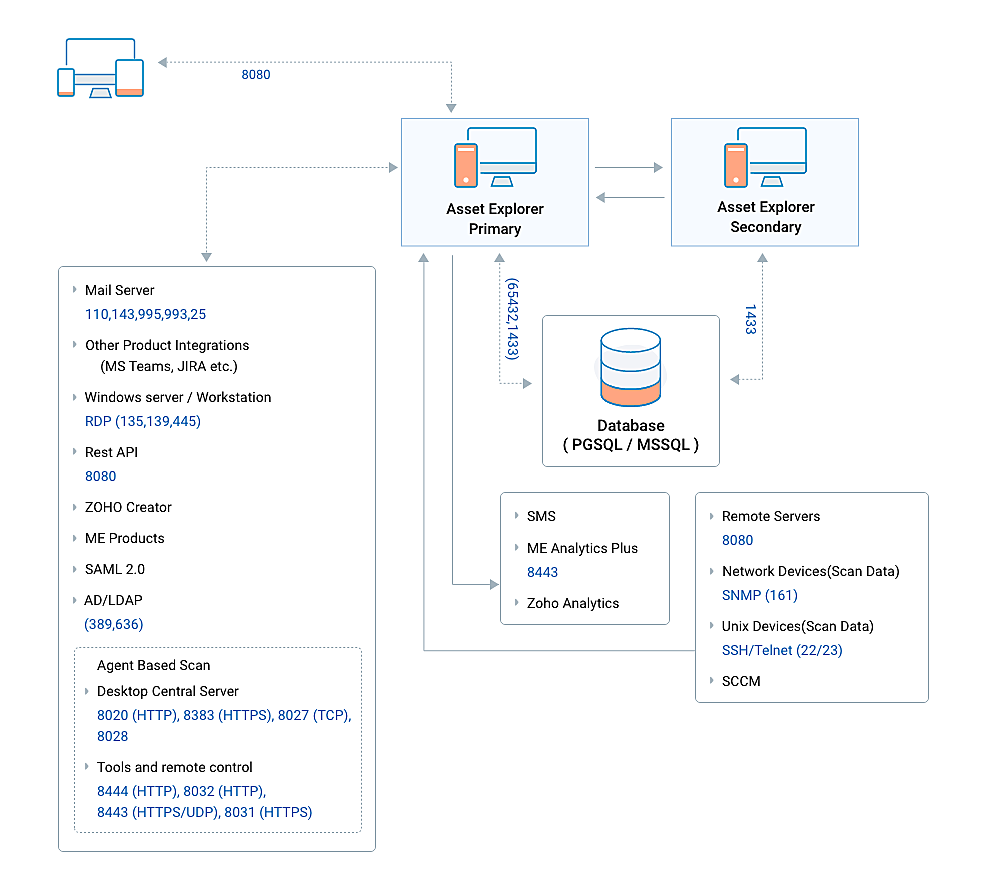
- Data flow diagram
- Data transmission between the AssetExplorer server and the MSSQL database occurs over SSL.
- Communication between AssetExplorer and Endpoint Central (formerly Desktop Central): AssetExplorer requires installing ManageEngine Endpoint Central for scanning of Windows, Linux, and macOS machines. Endpoint Central allows the deployment of agents that can connect to the server. Data transmission between the AssetExplorer server and Endpoint Central takes place over SSL with key-based authentication. Any data transfer from the agent application to the server happens using strong encryption protocol, HTTPS.
- Communication between AssetExplorer and remote servers: Data transmission between AssetExplorer and remote servers takes place over SSL with key-based authentication. The remote server accepts connections only from the AssetExplorer server. The remote server sends the data as a ZIP file to the AssetExplorer server, which checks the ZIP file for the Zip Slip vulnerability before processing the file.
- Communication between the AssetExplorer server and mobile apps: Data transmission between AssetExplorer and mobile apps occurs over SSL. Mobile apps connect to the AssetExplorer server using an auth token.
- Communication between AssetExplorer and other integrated ManageEngine products: Data transmission between AssetExplorer and the remote server occurs over SSL. ManageEngine products connect to the AssetExplorer server using an auth token.
Data storage with encryption
- AssetExplorer is designed as a web application with a web server for business logic and an RDBMS for data storage.
- The encrypted additional fields data is pushed to the RDBMS for storage using SQL queries.
Web GUI input validation
AssetExplorer validates all inputs in the GUI. Usage of special characters and HTML code are filtered, and the application is guarded against common attacks such as SQL injection, cross-site scripting (XSS), and buffer overflow.
Access control measures
Data access control
All data access in AssetExplorer is subjected to the role-based access control mechanism.
Audit trails
- In AssetExplorer, alerts and notifications can be set for various events, including access, modification, deletion, or a change in permissions.
- The audit module records all user actions.
- Audit information, which contains details such as what operation was performed, the person responsible for it, and the time and location of the action, is stored in the database.
Deduction capabilities
AssetExplorer has the capability to detect the following attacks:
- Brute-force attacks
- Malicious requests and DoS attacks
Availability mechanism
Failover server
- Constant access to the AssetExplorer tool is crucial to maintain uninterrupted IT services. Unexpected hardware or software failure can lead to downtime in the AssetExplorer, which could potentially have a huge impact on business. AssetExplorer's Fail Over Service feature addresses this issue and ensures the application is available even during a software or hardware failure.
- At any point in time, data in both the primary and secondary servers will be in sync with each other. Data replication happens through a secure, encrypted channel.
Offline access
AssetExplorer facilitates secure export of reports as password-protected files for offline access. The password is stored securely in the database server.
Mobile access
AssetExplorer's native apps for iOS and Android enable quick access and easy use of the AssetExplorer on the go without compromising data security.
Disaster recovery
Provision for backup
- AssetExplorer offers a provision for database backup as well as periodic backup through scheduled tasks.
- All sensitive data, such as personal information in the backup file, is stored in encrypted form in a ZIP file in or under the destination directory configured by the admin.
System failure and recovery
In the event of a disaster leading to data loss, users can quickly carry out a fresh install of the same version of AssetExplorer and restore the backed-up data to the database.
Security configurations
How to enable secure data transmission
- Configure HTTPS under Admin > General > Security Settings to avoid man-in-the-middle attacks.
- Buy and apply a genuine SSL certificate under Admin > General > Security Settings.
- Apply the recommended TLS protocol and ciphers.
- Sweet32 (CVE-2016-2183)
- BEAST (CVE-2011-3389)
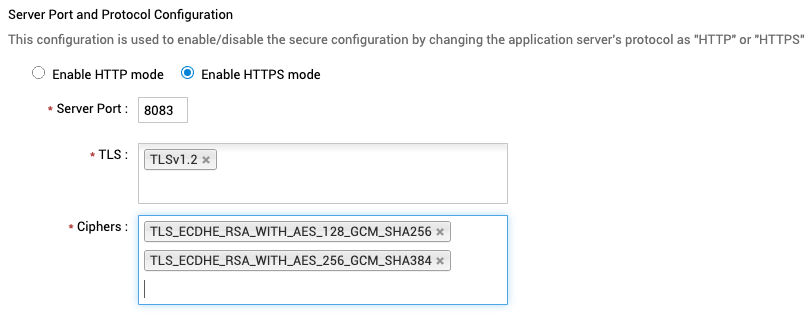
AssetExplorer is free from the below SSL vulnerabilities after applying strong TLS and ciphers:
How to configure security response headers
Content-Security-Policy (CSP) is an added layer of security that helps detect and mitigate certain types of attacks, including XSS and data injection attacks.
CSP gives you control over both inline and external scripts, which can pose a threat to your website's security. In case of an attack, the scripts will be blocked by CSP.
Recommended value (Version 7700 or above) :
default-src 'self' data: https://salesiq.zoho.com https://js.zohostatic.com
https://outlook-1.cdn.office.net https://css.zohostatic.com
https://salesiq.zohopublic.com https://appsforoffice.microsoft.com
https://img.zohostatic.com https://www.manageengine.com
https://manageengine.com https://connect.zoho.com https://www.youtube.com
https://s.ytimg.com ws://vts.zohopublic.com https://i.ytimg.com; script-src 'self' 'nonce-${csp_nonce}'
https://appsforoffice.microsoft.com https://ajax.aspnetcdn.com; style-src
'self' 'unsafe-inline'; img-src http: https: data: blob:; media-src 'self' blob:; frame-src 'self' blob:; worker-src 'self' blob:;
Previous versions :
default-src 'unsafe-inline' 'unsafe-eval' 'self' data: https://salesiq.zoho.com
https://js.zohostatic.com https://css.zohostatic.com https://salesiq.zohopublic.com
https://img.zohostatic.com https://www.manageengine.com
https://manageengine.com https://connect.zoho.com https://www.youtube.com https://s.ytimg.com ws://
vts.zohopublic.com ws://server-name:port wss://server-name:port
Note : Find the highlighted text in the header configuration and replace "server-name" and "port" with AssetExplorer server's name/IP and AssetExplorer server's port respectively.
HTTP Strict-Transport-Security is a response header (often abbreviated as HSTS) that enables browsers to access websites only using HTTPS instead of HTTP.
Recommended value:
max-age=31536000; includesubdomains; preload
On configuring this header, AssetExplorer is free from the Strict TLS vulnerability as well as CWE-523. HSTS headers are valid only over HTTPS connections, which guarantees that no unencrypted HTTP traffic is received. Combined with preloading, HSTS also improves page load time by eliminating server redirects from HTTP to HTTPS.
Cache-Control holds directives (instructions) for caching in both requests and responses.
Recommended value:
public, max-age=8640000
Benefits of configuring this header:
- Minimize bandwidth by reducing the number of network hops required to satisfy a request.
- Reduce latency by satisfying requests closer to the client.
- Cut down server load by allowing caches to serve requests.
- Increase robustness by allowing caches to serve content, even if the origin server is unavailable.
X-Content-Type-Options is used to protect against MIME sniffing vulnerabilities, which occur when a website allows users to upload malicious content, creating an opportunity for XSS to compromise the integrity of the website.
Recommended value:
nosniff
On configuring this header, AssetExplorer is free from content sniffing vulnerabilities.
X-Frame-Options can be used to indicate whether a browser should be allowed to render a page in a <frame>, <iframe>, <embed>, or <object>. Sites can use this to avoid clickjacking attacks by ensuring that their content is not embedded in other sites.
Recommended value:
SAMEORIGIN
On configuring this security response header, AssetExplorer is free from clickjacking vulnerabilities.
X-XSS-Protection is designed to enable the XSS filter built into modern web browsers.
Recommended value:
1;mode=block
On configuring this header, AssetExplorer is free from reflected XSS vulnerabilities.
Access-Control-Allow-Origin indicates whether the response can be shared by requesting the code from the given origin.
Recommended value:
https://www.zoho.com, https://www.google.com
To allow cross origin requests, the "Access-Control-Allow-Origin" header value needs to be set as "trusted"
trusted
The Referrer-Policy HTTP header controls how much referrer information (sent via the Referrer header) should be included with requests.
Recommended value:
same-origin
The Expect-CT header lets sites choose reporting and enforcement of certificate transparency requirements to prevent the use of mis-issued certificates for that site.
Recommended value:
enforce,max-age=300
How to add new security response headers
You can add new response headers to improve application security by following the steps below:
- Go to [AE_Home]/conf.
- Open the securitysettings.json file.
- Add your response headers under the "response_headers" array.
- Save the file and restart the application.
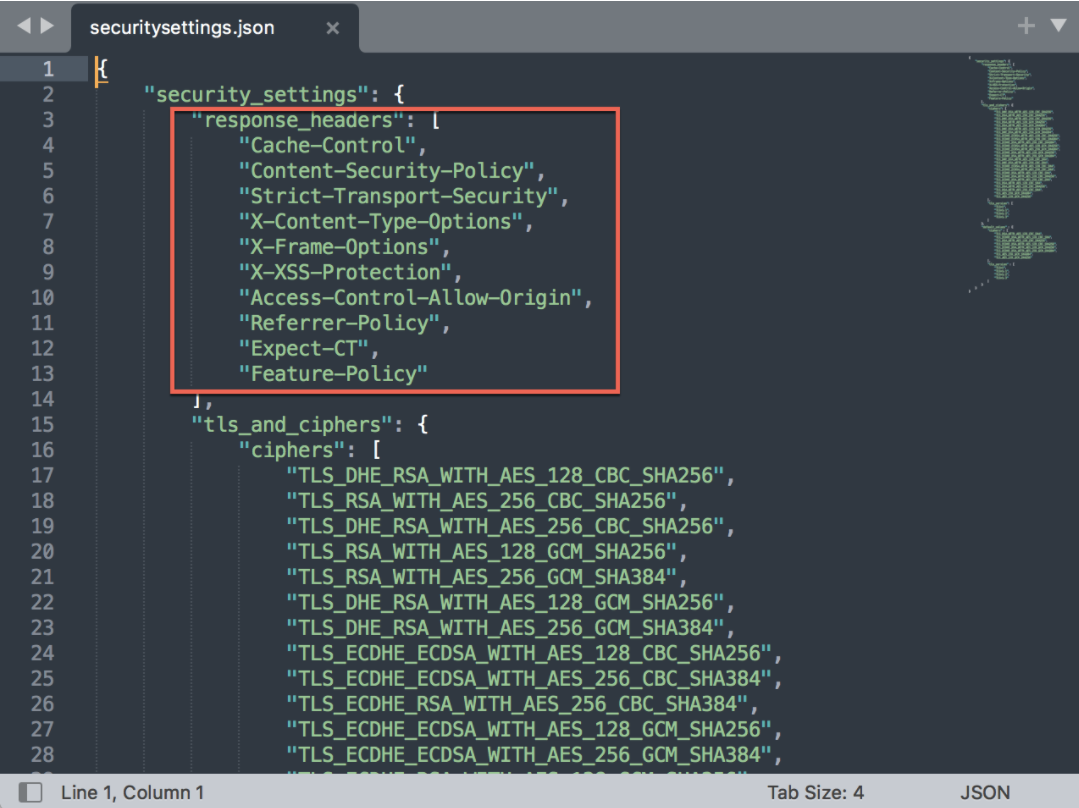
The newly added response headers will be reflected in application UI under Admin > Security Settings. You can choose the required headers to set them as security response headers.
How to prevent brute-force attacks
A brute-force attack uses trial-and-error to guess login info or encryption keys, or find a hidden webpage. Hackers work through all possible combinations hoping to guess information correctly.
Solution: Enable the Configure account lockout threshold and duration security configuration under Admin > General > Security Settings > Advanced.
How to disable concurrent user logins
Concurrent logins can lead to illegitimate personnel using valid credentials to authenticate access to the network. This could cause multiple security issues within the organization, such as misuse of the legitimate user's personal information and resources to perform unauthorized actions.
Solution: Enable the Disable concurrent logins security configuration under Admin > General > Security Settings.
How to set permissions for the application's installation directories
The installation directory of AssetExplorer contains files that are necessary for the product to function. Files required to start and stop the product, database configuration files, and the license file are saved in the directory. Therefore, any unauthorized access to the installation directory can lead to security risks such as data exposure or even render the product unusable. We have followed two different approaches to set up necessary folder and file permissions for new and older installations.
How does the application set folder and file permission for fresh installations
During product installation, the application will automatically assign the necessary file permissions to all admin users and to the user who installed the application. After this, no other users can access the installation directory. These file permissions will be automatically set for AssetExplorer version 7004
How does the application set folder and file permission for older installations
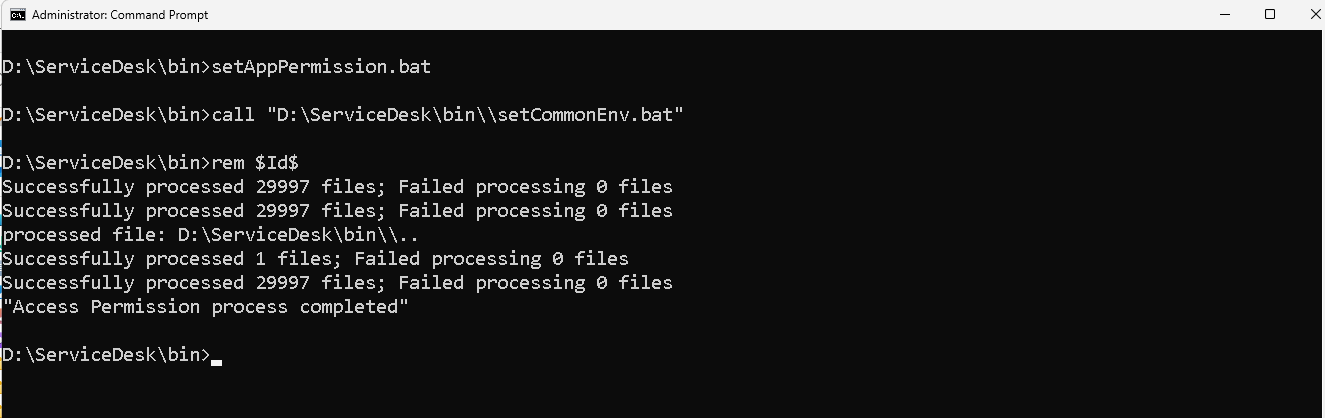
This will not happen by default for older installations (AssetExplorer < 7004). Application users must set the file permissions manually, as follows:
Step1: Go to the "<application home directory>\bin" directory.
Step2: Run the `setPermission.bat` or `setPermission.sh` file to set necessary file permissions. After this, only admin users and the user who installed the application can access the application installation directories and files.
Note: It is necessary to run the setPermission.bat file with an admin-privileged user. To do this, right-click on the command prompt and select the 'Run as administrator' option.

How to enable encrypted password transmission
Clear text passwords are a serious security risk. There is no scenario where it’s possible to transmit such passwords without risks.
Solution: Open product-config.xml and enable password encryption by changing the below configuration value to “true”. You must restart AssetExplorer to apply this configuration.
<configuration name="user.password.encrypt" value="true"/>
How to disable the Keep me signed in feature
The Keep me signed in functionality decreases the security of an application and should ideally be avoided, because selecting "Remember me" permanently stores a session token, which a hacker could find and use to gain access to the application.
Solution: Disable the Keep me signed in feature under Admin > General > Security Settings.
How to solve the Domain Enumeration security issue (CVE-2018–7248)
Unauthenticated users can validate domain user accounts by sending a request containing the username to an API endpoint, which then sends back the user's logon domain if the account exists.
Solution: Disable the Enable Domain dropdown during login security configuration in Admin > General > Security Settings > Advanced.
How to avoid using unauthenticated URLs
Generally, a non-login URL is generated to upload asset details to AssetExplorer. It's recommended to disable this URL in the following scenarios:
- Script-based scanning is not being used in AssetExplorer.
- AssetExplorer is not integrated for MDM functionality with Endpoint Central.
- AssetExplorer is not integrated with ME Mobile Device Manager Plus.
- AssetExplorer is configured to be accessed via the internet (cloud version).
To disable this URL, enable the Stop uploading scanned XMLs via non-login URL security configuration under Admin > General > Security Settings.
A non-login URL is provided for approvals. It is recommended to enable login for all non-login approval URLs.
Solution: Follow the steps below to enable login for the approvals.
Step 1: Execute the below-mentioned update query in the database query console.
update GlobalConfig SET PARAMVALUE = 'true' where PARAMETER = 'RequiresLogin' and category='ApprovalAction';
Step 2: Restart the application server.
How to disable the option to copy and paste in password input fields
To disable the option to copy and paste, enable the Disable paste for password fields security configuration under Admin > General > Security Settings.
How to remove vulnerable HTTP methods
A few HTTP methods have been identified as vulnerable and can therefore be disabled in AssetExplorer.
Solution: Follow the steps below to disable vulnerable HTTP methods.
Step 1: Execute the below update query in the database query console.
update GlobalConfig SET PARAMVALUE = 'OPTIONS,TRACE' where PARAMETER = 'DISABLED_HTTP_METHODS';
Step 2: Restart the application server.
How to prevent the Logjam security issue (CVE-2015-4000)
Vulnerability description: Diffi-Helmen insufficient group strength 1024 bits or 83875 - SSL/TLS Diffie-Hellman Modulus <= 1024 Bits
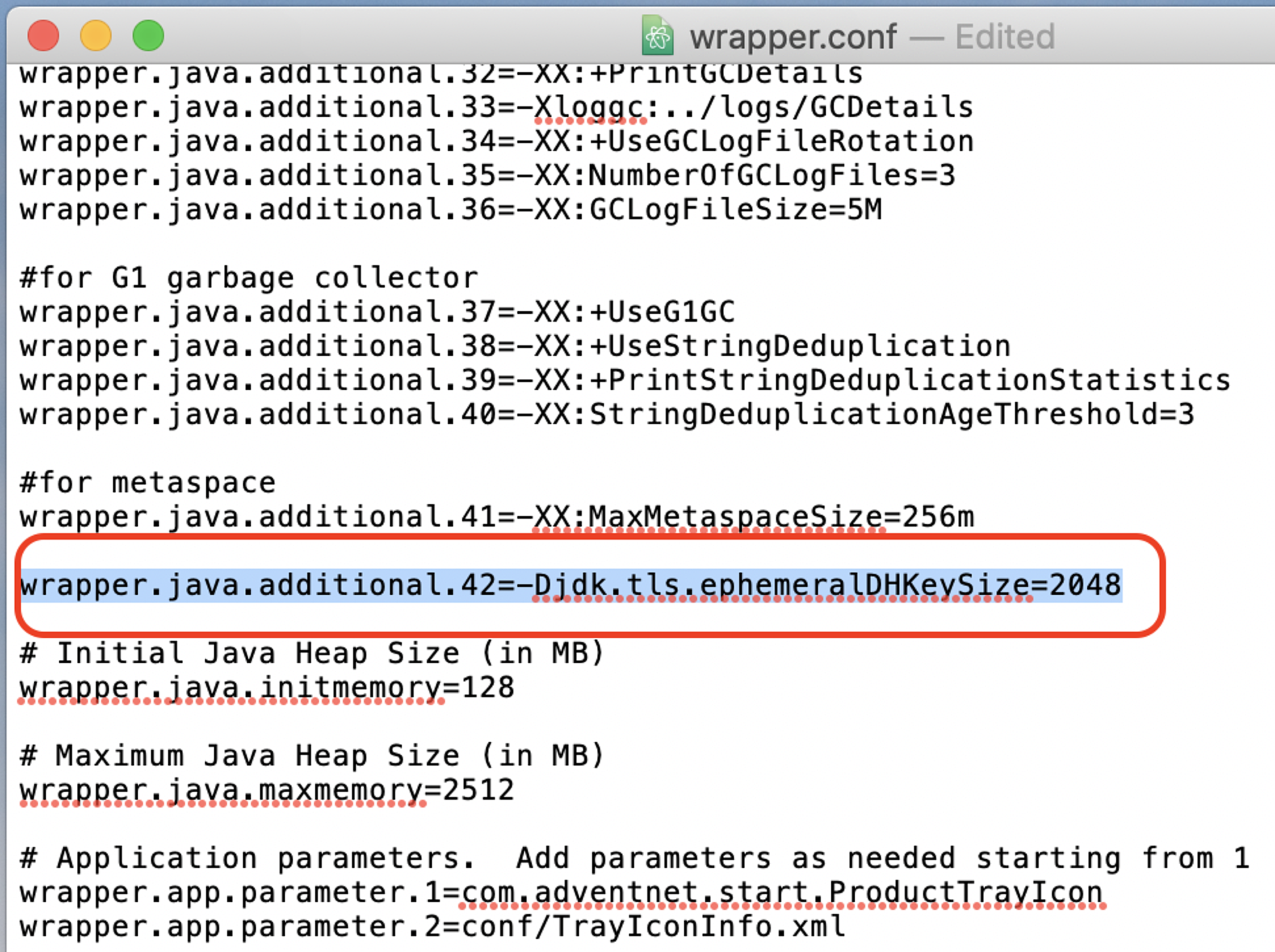
Configure Java to use a Diffie-Hellman 2048-bit group. Set jdk.tls.ephemeralDHKeySize to “2048” in the JVM parameters (e.g., -Djdk.tls.ephemeralDHKeySize=2048).
Follow the steps below to configure the JVM parameter.
Step 1: Open the wrapper.conf file, which is available under \conf directory.
Step 2: Add the line marked in the screenshot below in the wrapper.conf file.
How to prevent a BREACH attack (CVE-2013-3587)
To prevent a BREACH attack, enable the Disable HTTP compression security configuration under Admin > General > Security Settings.
How to reset default passwords
It is recommended to reset the default password in these areas:
- Administrator account user password
- Guest account user password
- Backup file password
Solution: Reset the bundled user accounts using the Change Password option. Reset the backup password at Admin > General > Backup Scheduling.
How to reset the common user password
In AssetExplorer, all newly imported users will have a common password that they can use to access each other's accounts.
Solution: Select the Enable Force password reset at first login security configuration to reset the password for all new users. This feature is available under Admin > General > Security Settings > Password Policy.
How to enable password protection for file attachments
In AssetExplorer, file attachments are stored in the AssetExplorer server. This gives users access to these files. To prevent this, enable password protection for file attachments.
Solution: Select the Enable password protection for all file attachments configuration under Admin > General > Security Settings.
Note: The application includes a password-protected attachment feature that zips the attachments during upload and stores them in the file attachments folder. This continuous zipping process may be mistakenly flagged as ransomware by antivirus software. However, please note this behavior is intentional and Should not be a cause for concern. The zipping process occurs within the attachment folder initiated by java.exe process (associated with the AssetExplorer Service). Therefore, any alerts related to this process can be safely ignored.
How to enable a password for all exported report files
Sending reports to unauthorized users leads to security issues; enabling password protection for report attachments helps prevent this.
Solution: Select the Enable File Protection Password configuration under Admin > General > Privacy Settings.
How to strengthen the user password policy
A password policy is a set of rules designed to enhance AssetExplorer's security by encouraging users to employ strong passwords and use them correctly.
Solution: Enable the password policy feature under Admin > General > Security Settings > Password Policy.
Handling sensitive cookies
AssetExplorer comes with Secure and HttpOnly cookie attributes for all cookies containing sensitive information.
Note : The Secure attribute will be enabled only when the application is running in https protocol.
How to configure SameSite attribute for the cookies :
Execute the below update query in the database query console.
update globalconfig set paramvalue={value} where parameter like '%SAMESITECOOKIE%';
You can set the "{value}" as one of the following values: Strict, Lax, or None. By default, "None" will be selected
Insecure HTTP methods
The PUT & DELETE methods are used by the application and are enabled securely. Proper validations are done to all these methods. Hence, there are no security issues on these methods.
HEAD - is similar to GET, it requires only the metadata of the response as opposed to GET that will fetch the full response. Hence this doesn’t pose any security concern.
Session hijacking vulnerability
A hacker can launch attacks over active sessions and hijack them. It is therefore mandatory to set expiration timeouts for every session. Insufficient session expiration by AssetExplorer increases exposure to other session-based attacks. To avoid this, configure Session Timeout under Admin > General > Security Settings.
AssetExplorer is free from the below security issues:
- Session fixation
- XML external entity injection
- Insecure deserialization
- Autocomplete enabled for all password fields
- Local file inclusion
- Remote file inclusion
- Access restriction bypass via origin spoof
- Clipboard data stealing attack
- Remote code execution (RCE)
- Denial-of-service (DoS) attack reported in Apache Commons FileUpload library (CVE-2014-0050 and CVE-2016-3092)
- Apache Commons FileUpload RCE vulnerability (CVE-2016-1000031)
- Apache Struts RCE vulnerability discovered by Semmle (CVE-2018-11776)
- ClassLoader vulnerability in Apache Struts 1.1 (CVE-2014-0114)
- Vulnerabilities in Apache Struts validator framework (CVE-2016-1182, CVE-2016-1181, CVE-2015-0899, and CVE-2012-1007)
- Zip Slip vulnerability
- Vulnerabilities in TRACE method
- Multiple vulnerabilities in the jQuery framework (CVE-2016-7103 and CVE-2015-9251)
- Host header injection (CWE-644)
- Multiple vulnerabilities in the DOMPurify framework
- Multiple vulnerabilities in the Bootstrap framework (CVE-2019-8331, CVE-2018-14041, CVE-2018-14040, CVE-2018-14042, and CVE-2018-20677)
- Bundled moment JS (2.11.0) regular expression DoS vulnerability (CVE-2016-4055)
- Multiple vulnerabilities in the Handlebars framework (v4.5.7)
- Cookies with an overly broad path
- Moment module (before 2.19.3) for Node.js regular expression DoS via a crafted date string (CVE-2017-18214)
- Spring4Shell RCE vulnerability (CVE-2022-22965)
- Log4Shell Vulnerability (CVE-2021-44228)
- The jabswitch.exe file is not used by our application and can be safely removed from its appropriate folder. It is also scheduled to remove the file automatically in the next service pack.
The bundled Tomcat server (9.0.54) is free from the following security issues:
- HTTP/2 DoS (CVE-2020-11996 and CVE-2020-13934)
- WebSocket DoS (CVE-2020-13935)
- HTTP/2 request mix-up (CVE-2020-13943)
- HTTP/2 request header mix-up (CVE-2020-17527)
- Information disclosure (CVE-2021-24122)
- Request mix-up with h2c (CVE-2021-25122)
- Denial of Service (CVE-2021-41079, CVE-2021-30639 and CVE-2021-42340)
- Authentication weakness (CVE-2021-30640)
- Request Smuggling (CVE-2021-33037)
- Tomcat RCE vulnerabilities (CVE-2017-12615, CVE-2017-12617, and CVE-2019-0232)
- Slowloris DoS vulnerability (CVE-2012-5568)
- Apache Struts Jakarta RCE vulnerability (CVE-2017-5638)
- ETag Inode number vulnerability (CVE-2003-1418)
- Ghostcat vulnerability (CVE-2020-1938)
- HTTP Request Smuggling (CVE-2020-1935 and CVE-2019-17569)
- RCE attack (CVE-2020-9484)
- Generation of error message containing sensitive information vulnerability in Apache Tomcat (CVE-2024-21733).
- CVE-2023-24998 - DoS attack using multiple file uploads in Apache common file-uploads
- CVE-2022-45143 - User data not properly handled by JsonErrorReportValve
- CVE-2023-28708 - Possibility of session cookies shared via insecure channel when using Tomcat's RemoteIpFilter with reverse proxy.
The bundled Postgres server (15.2) is free from the following vulnerabilities
- CVE-2020-10733: Windows installer runs executables from uncontrolled directories
- CVE-2020-14349: Uncontrolled search path element in logical replication
- CVE-2020-14350: Uncontrolled search path element in CREATE EXTENSION
- CVE-2020-25694: Reconnection can downgrade connection security settings
- CVE-2020-25695: Multiple features escape the "security restricted operation" sandbox
- CVE-2021-32027: Buffer overrun from integer overflow in array subscripting calculations
- CVE-2017-12172: Start scripts permit the database administrator to modify root-owned files
- CVE-2017-15098: Memory disclosure in JSON functions
- CVE-2017-15099: INSERT ... ON CONFLICT DO UPDATE fails to enforce SELECT privileges
- CVE-2024-0985 - PostgreSQL non-owner REFRESH MATERIALIZED VIEW CONCURRENTLY executes arbitrary SQL
If you have any questions, please feel free to write to us at assetexplorer.