Mentioned below are the minimum requirements to run AssetExplorer. You may require more RAM space and high-end processors depending upon the support load, simultaneous access load, and other applications' load installed on the same server.
| No of Nodes | Hard Disk Type | RAM | Processor | OS |
|---|---|---|---|---|
| 250-2000 | 500GB SDD | 16GB | 1.7GHz to 2.4GHz 10MB to 12MB Cache 4 cores to 8 cores or Any entry-level server grade processor E.g Intel Xeon Scalable -Bronze/Silver Intel Xeon E Family | Windows Server OS (2019, 2022, 2025) Linux RedHat Linux (RHEL): 7 and above Ubuntu: 20 and above Ubuntu 24.04 Pro Cent OS: 8 and above Debian: 10 and above Rocky Linux 9.5, 8.6 |
| 2000-10000 | 1TB - SDD | 16GB | 2.4GHz to 3.0GHz 12MB to 20MB Cache 6 cores to 8 cores or equivalent technology E.g Intel Xeon E Family | |
| 10000-30000# | 2TB/3TB* - SDD | 16GB | 3.0GHz to 4.5GHz 12MB to 30 MB Cache 10 cores to 20 cores or equivalent technology E.g |
* - PostgreSQL bundled is configured as a database.
 If you have more than 30k scannable nodes, it is recommended to have separate remote servers for every 30k nodes to minimize the load on the central server.
Non-GUI Windows machines (or server core installation) are not supported.
Requirements for Scanning Assets
AssetExplorer uses Endpoint Central agent to scan assets. Endpoint Central is auto-installed in the same folder as AssetExplorer, by default.
Disk Space | Maximum of 1GB free space is required in the folder where AssetExplorer and Endpoint Central is installed. |
Server OS | Endpoint Central can be installed only on a Windows server. If AssetExplorer is installed on a Linux server, install EndpointCentral manually in a Windows server and integrate it with AssetExplorer under Admin > Integrations > UEM Products. |
If EndpointCentral is purchased separately, please refer here for detailed hardware requirements based on the number of assets purchased.
Refer to the below link for more details on the EndpointCentral agent: EndpointCentral Agent in AssetExplorer.
Additional Requirements
Supported Browsers
We recommend you update to your browsers to the latest version for better performance and security. AssetExplorer can be accessed from the following browsers:
- Mozilla Firefox
- Google Chrome
- Microsoft Edge
Recommended screen resolution: 1366 x 768 pixels.
Post upgrade to build 6977, AssetExplorer will not be accessible in Internet Explorer 11.
MSSQL
If AssetExplorer runs on MSSQL setup, ensure the database server is hosted in a separate machine under the same network as the application server. The database server configuration solely depends on number of databases configured and usage. Consult with your DBA or Microsoft MSSQL support for system requirements.
Supported MSSQL Versions: 2016, 2017, 2019, 2022 and 2025.
Enable Read Committed Snapshot Isolation (RCSI)
Enable read committed snapshot isolation (RCSI) to prevent MSSQL lock issues from affecting AssetExplorer's performance.
 It is recommended to schedule this activity over a weekend since it takes time to complete and involves service downtime.
- Stop AssetExplorer application.
- Log in to SQL Management studio.
- Take the AssetExplorer database offline by executing:
- USE master
- GO
- ALTER DATABASE <db_name> SET OFFLINE WITH ROLLBACK IMMEDIATE
- GO
- Enable the read committed snapshot by running
- ALTER DATABASE <db_name> SET READ_COMMITTED_SNAPSHOT ON WITH ROLLBACK IMMEDIATE
- GO
- Bring the database online using
- USE master
- GO
- ALTER DATABASE <db_name> SET ONLINE
- GO
- Check if you have enabled RCSI successfully by running the following query
- SELECT is_read_committed_snapshot_on FROM sys.databases WHERE [name] = '<db_name>'
- If the query output is 1, RCSI is successfully enabled. You can start the application.
For more information on MSSQL databases and RCSI, go here.
Benefits of enabling the MSSQL Snapshot Mode
- Simultaneous user-querying of the database without any delay or disruption (although load on the application might exceed the usual limits).
- User querying records will be maintained in a separate tempdb, which will not be affected by other user queries occurring in parallel or subsequently.
- Database tables will be updated only after a transaction reaches completion.
MSSQL Database Configuration
We strongly recommend you to have an initial database capacity of at least 5GB and extend it periodically by monitoring the current database file size to avoid triggering auto-growth event unnecessarily. This will ensure optimum application performance and smooth data processing.
To configure fIle autogrowth for the database file, click here.
Creating Database:
Run the following query to create a database:
- USE master;
- GO
- CREATE DATABASE <db_name>
- ON(
- NAME=<db_name>,
- FILENAME='D:\AE\<db_name>.mdf',
- SIZE=5GB);
- GO
Extending Database Size:
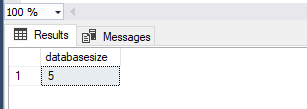
- Find the current database size by running the query below
- USE master;
- GO
- select (size*8)/(1024*1024) from sys.master_files where DB_NAME(database_id)=assetexplorer and physical_name like '%.mdf%';
- GO
- Run the following query to add 5 GB to the current database size
- USE master;
- GO
- ALTER DATABASE assetexplorer
- MODIFY FILE
- (NAME = <dbname>,
- SIZE = <currentdbsize+5GB>);
- GO
Configure File Autogrowth Settings
Default autogrowth settings in the SQL Server engine may lead to disk fragmentation and performance issues. We recommend that you configure default values as fixed values instead of percentages to ensure optimum application performance.
| Autogrowth Settings | Default Value | Recommended Value |
|---|---|---|
Data File | 1MB | 256MB |
Log File autogrowth | 10% | 128MB |
Follow these steps to configure File Autogrowth:
- Log in to SQL Management studio and run the following query:
- USE <db_name>
- EXEC sp_helpfile
- GO
- If the configured growth values for Data (.mdf) and Log (.ldf) files are less than the recommended values, run the following query:
- USE master;
- GO
- CREATE DATABASE <db_name>
- MODIFY FILE ( NAME = N'
', FILEGROWTH = 256MB ) - GO
- ALTER DATABASE <db_name>
- MODIFY FILE ( NAME = N'
_log', FILEGROWTH = 128MB ) - GO

- Re-run the query in step 1 and check if the autogrowth values now correspond to the recommended values.
PostgreSQL (Applicable for versions 10.0 and earlier)
Since PostgreSQL 9.2 requires users to modify kernel resources to allot required resources for Postgres server,
- Add the the below mentioned entry in /etc/sysctl.conf
- kernel.shmmax=536870912
- kernel.shmall=131072
- Execute sudo sysctl -p /etc/sysctl.conf to reload the configured change.
This is only applicable for Linux OS installations that use bundled Postgres.
Anti-virus Scan Exemption
Any anti-virus software such as Symantec running on the same system as AssetExplorer can affect the performance of your application. If you have any anti-virus software set up in your system, we recommend you exempt AssetExplorer directories from the antivirus scan or be cautious about using anti-virus software on the same system.
If the output to this query is 1, you've successfully enabled RCSI.
You can now start the application. For more information on MSSQL databases and RSCI, go here.
Have questions regarding the System requirements to run AssetExplorer? Please let us help you. Kindly mail us your requirement by clicking assetexplorer-support@manageengine.com.