Just-In-Time Application Access
Grant time-bound, task-specific application access without permanently expanding your allowlist.
For the Endpoint Central add-on, confirm Application Control is enabled for your subscription or trial. Do not assume a missing JIT menu always means a separate purchase is required; review your edition, add-on and trial availability first.
Just-in-Time Access is supported on Windows and macOS devices.
Overview
Just-in-Time Access overview
JIT access grants temporary, limited privileges for specific tasks — and automatically revokes them when the window closes.
Time-bound access on demand
Just-in-Time (JIT) access allows administrators to grant temporary, limited privileges to specific devices for specific tasks. Rather than permanently expanding the allowlist or granting continuous administrative rights, access is provided only when needed — and only for the duration required.
Use rule criteria to target specific applications and keep each JIT grant as narrow as possible.
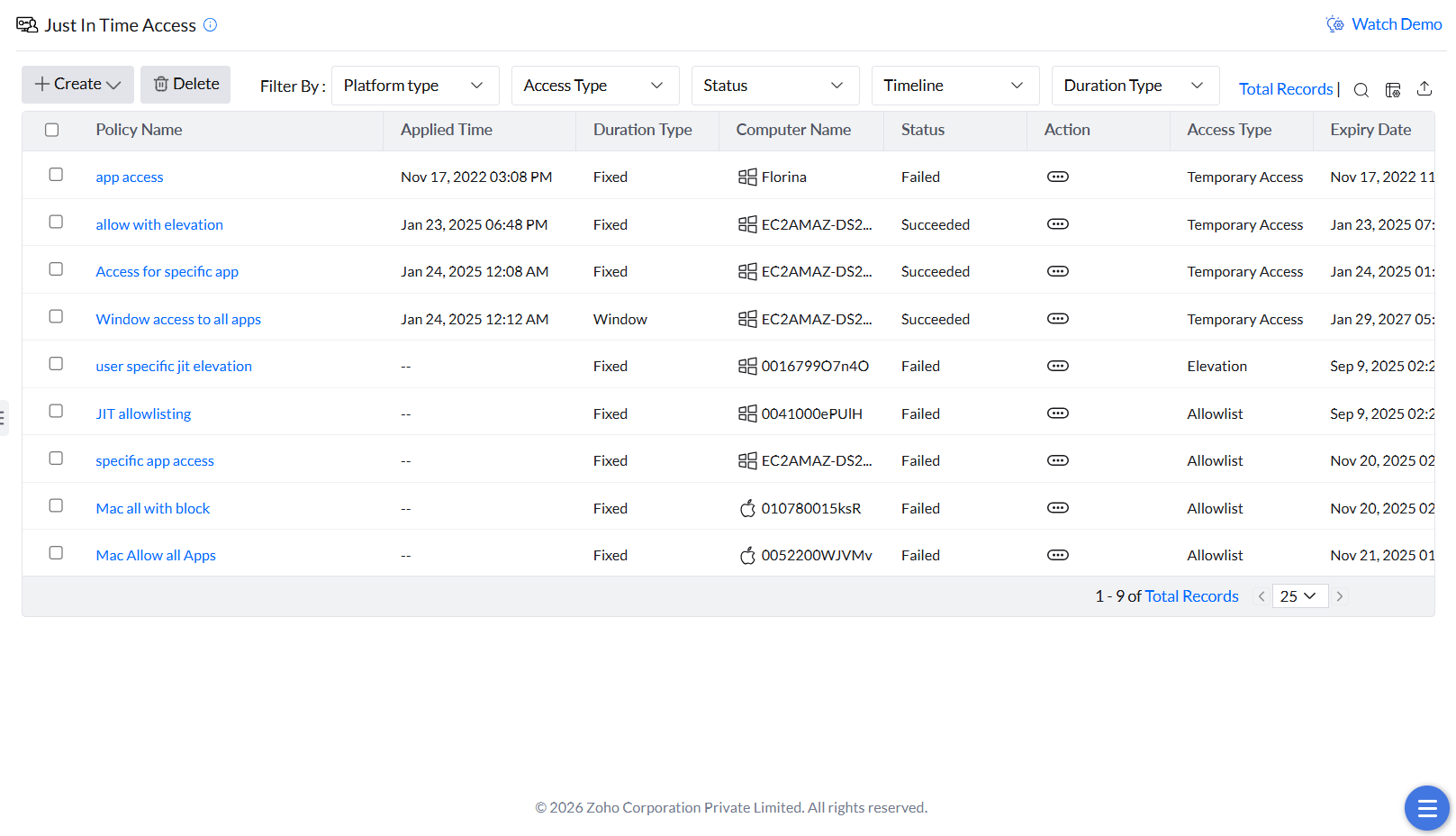
Benefits of JIT access
Continuous administrative rights create persistent security risks. JIT access eliminates that exposure by ensuring endpoints have only the access they need for the duration they need it.
- Minimizes the window of exposure for elevated privileges.
- Reduces the risk of insider threats and lateral movement.
- Supports a least-privilege security posture without blocking legitimate work.
- Every grant is time-limited and auditable.
Choose Application Allowlisting to grant temporary permission to run applications on the selected computer. It does not itself grant administrator privileges and does not select one named user. For temporary elevation with a selected user, use Application Elevation JIT.
Setup
Create a JIT access policy
JIT policies specify the target device, the duration, and exactly which applications the user can access.
Policy creation steps
- Go to Just in Time Access under Deploy Policy.
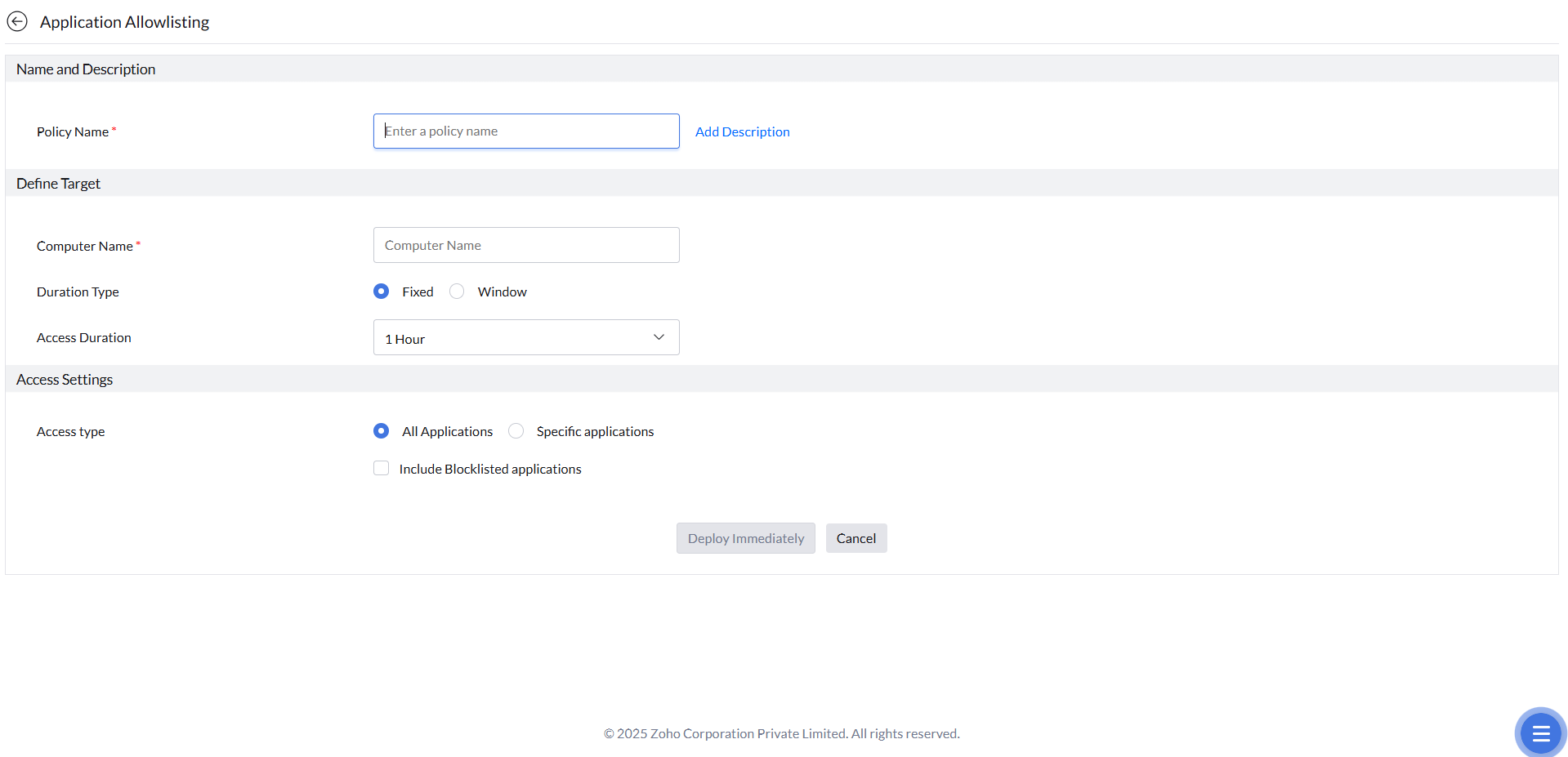
- Click Create to start a new JIT policy and select Application Allowlisting.
- Enter a name and description for the policy.
- Specify the Computer Name of the device that should receive access.
- Set the duration type: Fixed (a set length of time) or Window (a defined time frame within which access is active).
- In Access Settings, choose the scope of access: All Applications (any unmanaged app), Include Blocklisted Applications (adds blocked apps to scope), or Specific Applications (only the applications you explicitly define).
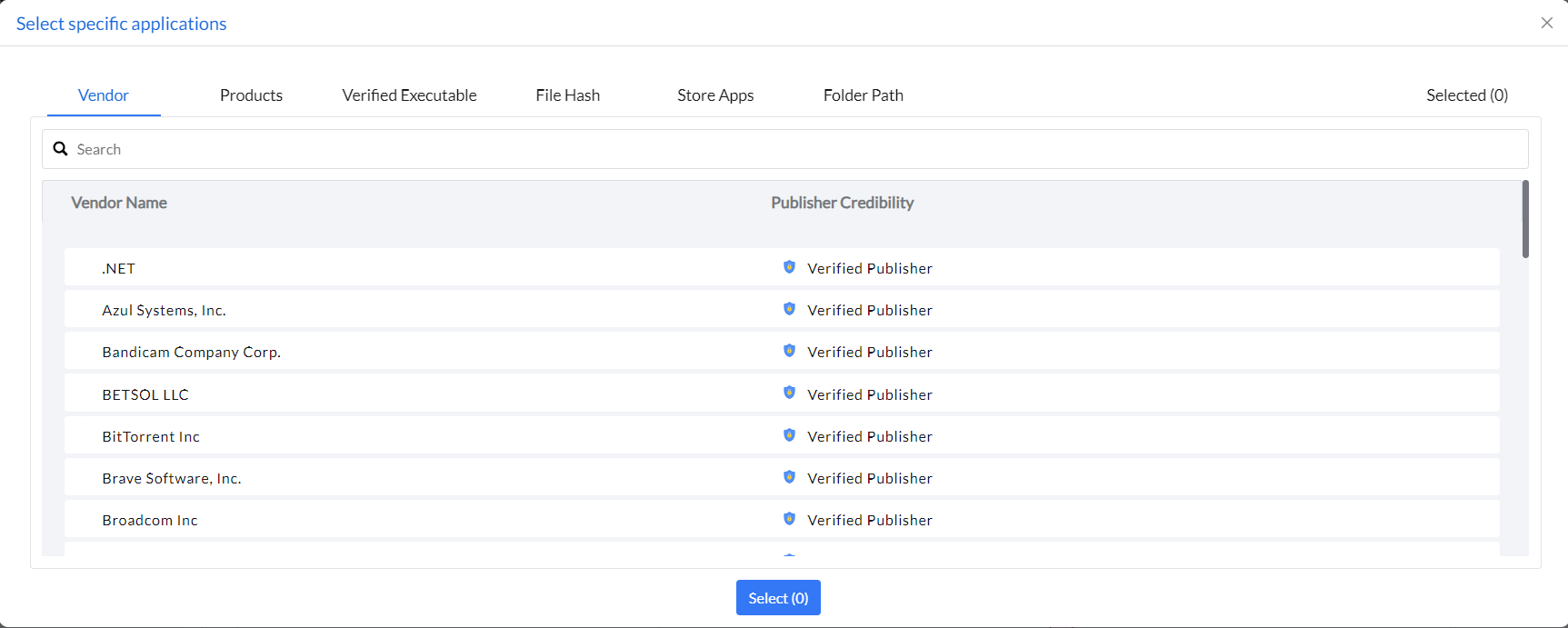
- If using Specific Applications, define the target applications using rule types such as Vendor, Product, Verified Executable, File Hash, Store Apps, or Folder Path.
- Click Deploy Immediately.
The Specific Applications option (scoping JIT access to named apps) is currently supported on Windows only. On macOS, JIT policies can scope to Application Allowlisting only, not individual named applications.
A JIT Access policy can target only a single machine and cannot currently target a custom group.
If a JIT deployment fails, record the policy name, target computer, deployment status and remarks. Check whether the target agent is online and communicating. For Endpoint Central, use the Agent Troubleshooting Tool to investigate agent communication. A successful tool check does not prove JIT enforcement. If the issue persists, provide the status/remarks and agent logs to support.
Review
Review JIT activity
Every access event under a JIT policy is logged for audits.
JIT Events Report
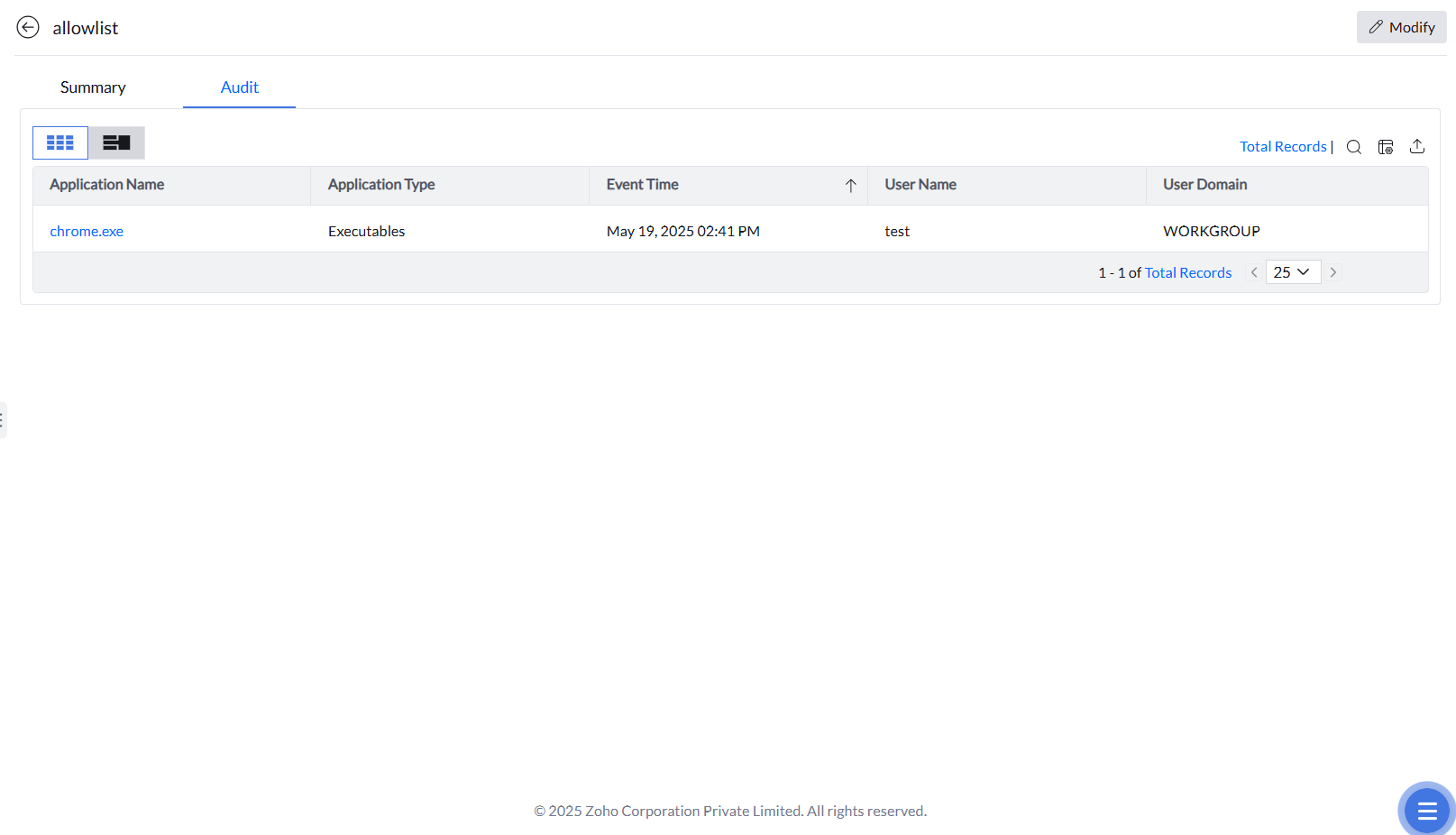
To review events for a specific JIT policy, click the policy name and open the Audit tab. The report shows all application access activity that occurred under that policy during its active window.
Under the Summary tab, review Deployment Status and Status separately. The policy's Deployment Status is displayed under Summary section, while its Status is displayed under Target Details section. A published JIT policy does not by itself confirm successful deployment to the computer. Review the deployment result and Remarks for the target agent.
If deployment fails or remains pending, use the communication checks above and provide the policy, computer, status, remarks and diagnostic results to support. Do not use the status label alone to select a remedy.