Understanding BitLocker Management
How the BitLocker agent, policy deployment, recovery key storage, and report fields actually work under the hood.
Agent
Specifications of agent processes
Resource usage for each BitLocker-related agent process.
Agent process footprint
Discovery
Initial status and device data collection
The agent scans drives right after installation, with a few coverage limits worth knowing.
What gets scanned
The BitLocker component installs immediately after agent installation, containing the binaries for the module's functions. The Endpoint Central agent then scans internal drives and displays their encryption status in Managed Computers under the BitLocker Management module's Insights section.
Coverage limitations
- External drives — encryption of external drives isn't currently supported by Endpoint Central.
- Drives locked by other tools — drives locked by Windows Native BitLocker or third-party encryption tools are reported as decrypted and can't be managed by Endpoint Central until unlocked with the recovery key. Examples include drives encrypted via Windows native BitLocker UI, Device Encryption (built-in Windows encryption), MBAM (legacy Microsoft BitLocker Administration and Monitoring), or third-party encryption tools before agent installation. The Reported Status in BitLocker Management might show:
- Encryption Status: "Fully Decrypted (0%)"
- Encryption Method: "None"
- Protection Status: "Disabled"
For understanding how manually encrypted drives are reported and how to bring them under Endpoint Central management, see Recovery Key Troubleshooting > Manually Encrypted Drives.
To manage a device's encryption through Endpoint Central, you have to create and deploy an Endpoint Central BitLocker policy on it.
Deployment
How policy deployment actually rolls out
The two deployment options move at different speeds, especially at scale.
Deploy Immediately vs. Deploy
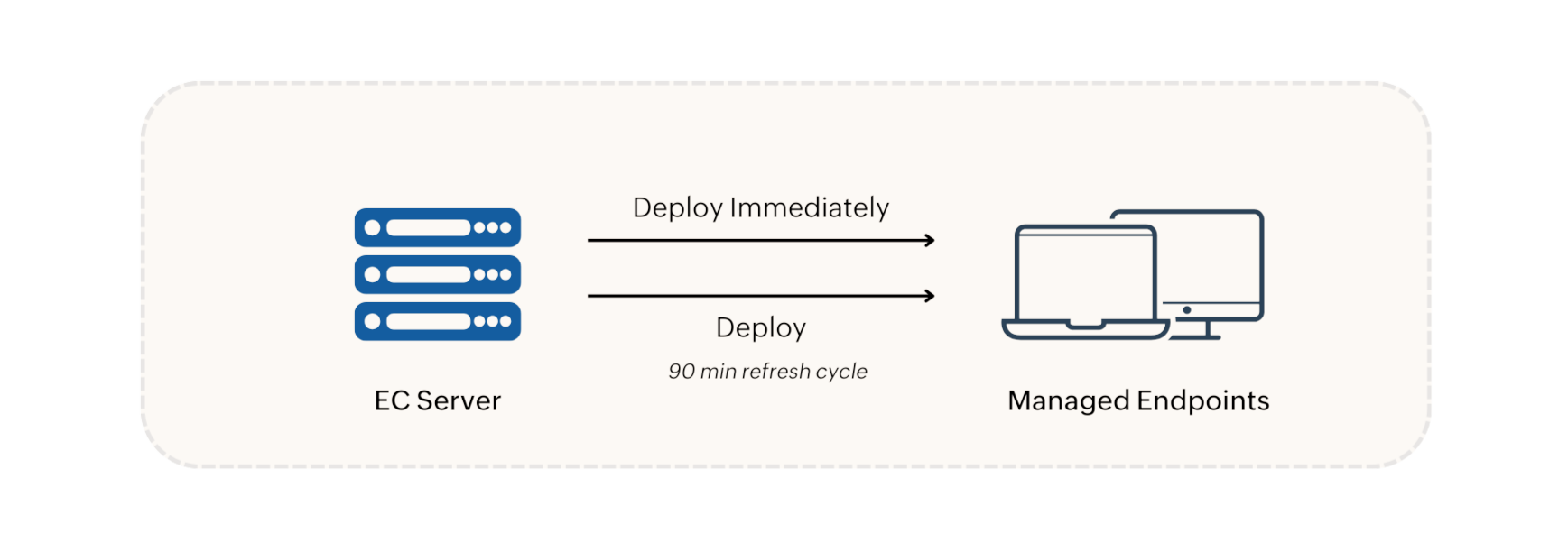
- Deploy Immediately — pushes the policy right away to agent machines currently online. For groups over 200 machines, it applies to the first 200 immediately, with the rest following in the next refresh cycle.
- Deploy — schedules the policy for the next 90-minute refresh cycle.
Devices then encrypt or decrypt according to the policy that was implemented. Deployment status is visible by drilling into the applied policy.
Enforcement
How the agent enforces policy
Timing, non-TPM handling, edits, deletions, and conflicts each behave a bit differently.
When encryption actually starts
The agent starts BitLocker processes during its refresh cycle; how long it takes depends on the individual machine's performance. Drive encryption only begins once the recovery key is stored successfully on the server. If encryption fails, check whether all encryption prerequisites are met.
Effect on non-TPM machines
Non-TPM machines can only encrypt by way of a passphrase — end users see a password prompt, and encryption starts only once that password is provided. A single policy is enough to configure encryption for both TPM and non-TPM machines together.
Effect of modifying a policy
Editing encryption settings creates a difference between the edited and old policy, which causes every machine under that policy to decrypt and then re-encrypt with the new settings. If the change only touches advanced settings — like recovery key rotation or domain controller backup — those settings apply on their own, with no decrypt/re-encrypt cycle.
Effect of deleting a policy
If a policy is deleted, dissociated, or the machine is removed from the Scope of Management (SoM), existing encryption on the drives stays intact. A decryption policy has to be deployed to actually decrypt the drives.
Policy conflict precedence
When multiple BitLocker policies are deployed to the same endpoint, the most recently deployed one takes effect. Check which policy is currently active by drilling into the system's view under Managed Systems.
Recovery keys
How recovery keys are stored
The key is stored before encryption ever starts, and retained for a while even after a device leaves management.
Storage and retention
The recovery key is created and updated on the server before encryption starts — encryption begins only after the server confirms the key was updated safely. Endpoint Central also supports updating the key to both Active Directory and Azure AD.
Because of how sensitive the key is, any technician who accesses a recovery key has that action captured in the Action Log Viewer.
With Periodic Rotation of the Recovery Keys enabled in a policy, the key updates on the agent after the set period and uploads to the server on the next refresh cycle, repeating at that interval. A key also changes on the agent at the machine's next reboot if it's ever been accessed.
Resetting the BitLocker password
The encryption key — PIN, password, or passphrase — can be reset by logging in with the recovery key. If an end user forgets their encryption key, giving them the recovery key is the way through: logging in with it prompts them to reconfigure their password or PIN.
Reports
Keywords in BitLocker reports
What each report field actually means, including a few states that look alarming but aren't.
Report field reference
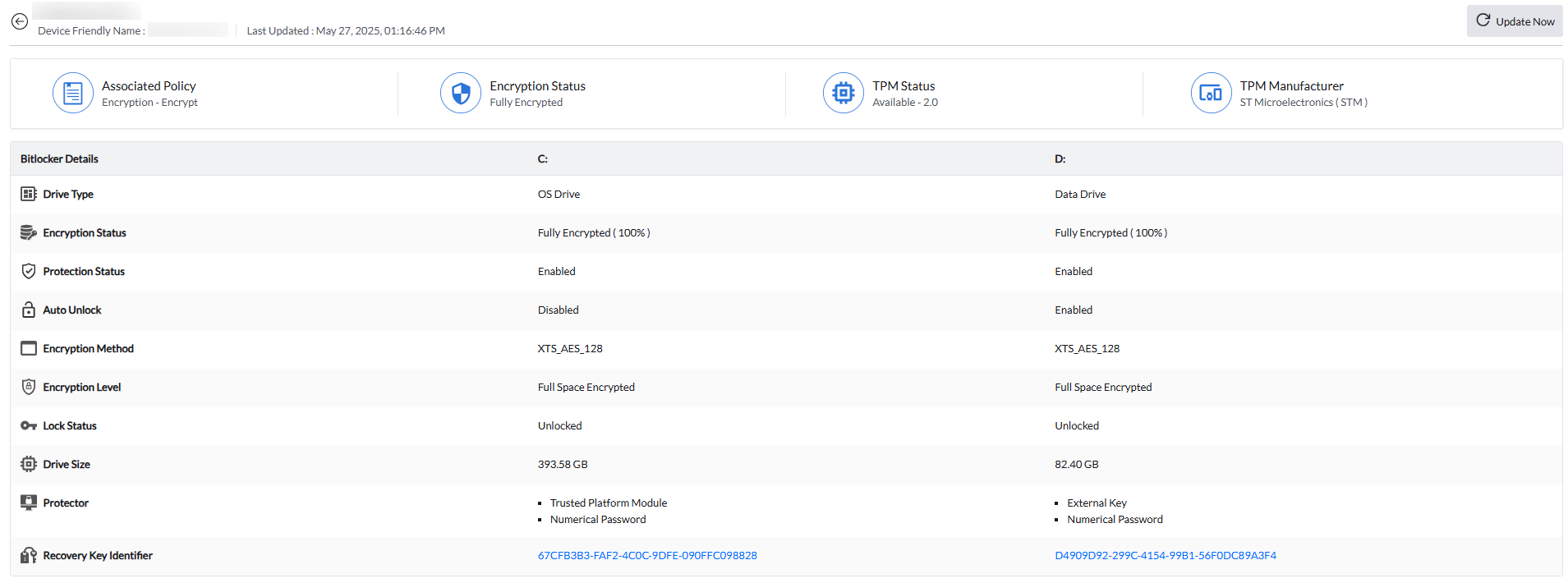
Protector types
A protector is the key that allows access to encrypted data on a Windows device. Every drive also has a numerical password protector that serves as the recovery key, and data drives additionally carry an 'external key' for auto unlock.