Possible Causes of BitLocker Encryption Failure
This page explains the possible causes of BitLocker encryption failure in Endpoint Central and provides resolution steps for each scenario. If your machine is not getting encrypted, work through the checks below in order.
If the console page itself fails to load, start with Managed Computers display troubleshooting. The encryption checks below apply to devices whose policy and drive status can be inspected.
License Validation
If a limited license for BitLocker has been purchased, ensure the system is added to Endpoint Security before expecting encryption to proceed.
This check concerns the BitLocker Management add-on or the applicable security entitlement. For edition and access guidance, see BitLocker Management licensing and the license FAQ. Confirm entitlement and managed scope before diagnosing a policy-delivery problem.
A trial or promotional activation page enables the add-on workflow. It does not replace the managed-computer selection check for a limited add-on. After activation, return to Endpoint Security and verify that the intended computer is included in managed scope. Then inspect the BitLocker component and policy status. Do not treat successful activation as proof of endpoint encryption.
Review purchased and managed counts for both Endpoint Central and the applicable security add-on. Where workstation and server counts are shown separately, check each applicable category. Verify that the intended computer is actually in security managed scope before troubleshooting policy delivery. Group membership alone does not grant add-on entitlement. If a bulk/all-computer option is unavailable, capture the license and scope details for support instead of assuming that a trial, group type or license overage is the confirmed cause.
Check the managed-scope selector
In the selected-computer workflow, open Endpoint Security managed computers and use the action to add computers. You can select individual computers or available static computer groups. Dynamic groups are not offered by this managed-scope group selector. These choices are separate from BitLocker policy deployment targets.
The selector checks newly selected, unique computers against the remaining add-on capacity. It counts a computer once when it appears in multiple selected groups or as both an individual selection and a group member. Computers already in managed scope do not count as new selections.
If the selection exceeds the remaining capacity, reduce the selection or review the add-on entitlement. A difference between base-product and add-on license counts does not by itself mean that you must add computers one at a time. The Free add-on and summary-server selection dialogs do not offer group selection.
- Open the Endpoint Central console and navigate to Admin → Global Settings → Endpoint Security.
- Add the system to Endpoint Security. Once added, the BitLocker component will be enabled during the next agent refresh, and the Drive Encryption Policy will be applied.
For recovery key retrieval issues related to missing keys or WMI collection failures, see Recovery Key Troubleshooting > Recovery Key Not Found.
Agent-Server / Distribution Server Connectivity
Verify that the agent can communicate with the server or Distribution Server without issues.
For The agent did not contact the server to start deploying the policy, Agent has not contacted the server to initiate policy deployment, or a pending deployment, follow the pending-policy troubleshooting checklist. If communication tests pass but the status does not advance, provide the deployment remarks, agent/server builds, policy and diagnostic results to support. Do not infer a specific backend defect from this message alone.
Policy Deployment Conflicts
Check whether the machine is part of multiple custom groups. When a machine belongs to more than one custom group, only the last deployed policy is applied — all other policies remain in a Yet to apply state.
To resolve this, ensure the machine belongs to only one custom group, or review the group targeting of your BitLocker policies to avoid overlap.
Encryption changes to decryption unexpectedly
Check the active policy and its encryption/decryption action for the affected computer. Compare group membership, the most recently deployed policy, deployment timestamps and any other tool or Windows policy that manages BitLocker. Run manage-bde -status in an elevated Command Prompt and compare the same drive with the console. Preserve recovery information and collect the current policy, conversion status and agent diagnostics before changing assignments.
Encryption Prerequisites
Confirm whether all encryption prerequisites are satisfied. Prerequisite failures can be viewed in either of the following ways:
- Navigate to BitLocker Management → Managed Computers and view the status of the specific computer.
- Navigate to BitLocker Management → Encryption Prerequisites — all prerequisite failures are listed here.
Policy applied successfully, but the drive is still Fully Decrypted
Deployment status and drive conversion are separate results. On the affected device, run manage-bde -status from an elevated Command Prompt and compare the same drive with the console. Check the active policy’s encryption action, TPM/non-TPM authentication, password setup, prerequisites, latest contact and reported remarks. If the states still disagree, provide both status results and agent/server builds to support. Do not assume manual encryption, missing TPM or a product defect from the mismatch alone.
Server OS Consideration
If the device runs a server operating system, confirm that BitLocker is supported and enabled on that OS edition. Refer to the BitLocker availability reference for the list of supported server OS editions.
BitLocker component is not installed or remains Yet to enable
Check the computer’s Endpoint Security managed scope, BitLocker component status and remarks, and latest agent contact. The normal refresh interval is 90 minutes, but it is not a guaranteed installation deadline. Use the agent’s troubleshooting results to check communication. If the component remains unavailable with valid scope and healthy communication, provide builds, status/remarks and diagnostics to support. Do not assume a full agent reinstall or an undocumented component command is required. A Staged-to-Managed transition needs the same checks; its cause cannot be identified from the elapsed time alone.
For Yet to enable with Could not establish with agent, first verify communication using the Agent Troubleshooting Tool. Record component status/remarks and the diagnostic results. If agent checks pass but the component or deployment remains pending, collect logs and the current policy details for support. Passing connectivity checks does not establish a known backend defect or guarantee that the component installed.
BitLockerMgmt.exe CLR error
If Windows reports BitLockerMgmt.exe - Fatal error: CLR error: 80004005. The program will now terminate., record the exact message, event time, Windows build and BitLocker component version. Collect the relevant application-event and agent diagnostic details for support. This process failure is different from a BitLocker FVE_E_* policy error. The message alone does not establish corrupted files or a specific reinstall remedy.
Non-TPM Devices
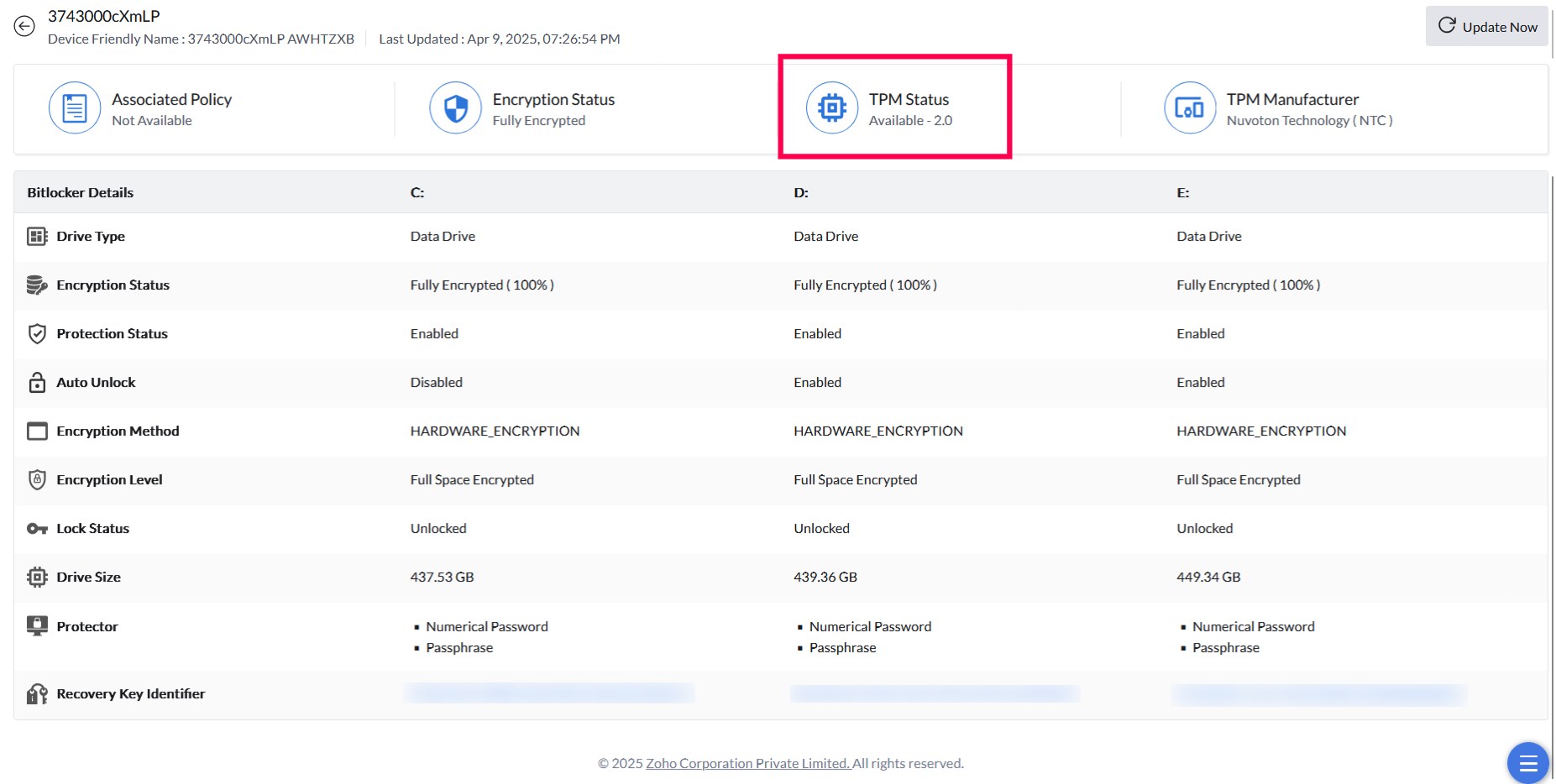
For machines without a TPM chip, ensure the associated BitLocker policy is configured to use Passphrase as the key protector. Policies that require TPM will fail silently on non-TPM hardware.
To check TPM availability, navigate to BitLocker Management → Managed Computers and review the TPM Status column for the specific machine.
A non-TPM encryption policy needs the Passphrase option and a completed user password setup. If the agent displays a restart prompt, arrange the restart and then recheck conversion status. Do not assume that restarting alone resolves a failed deployment or an unmet prerequisite.
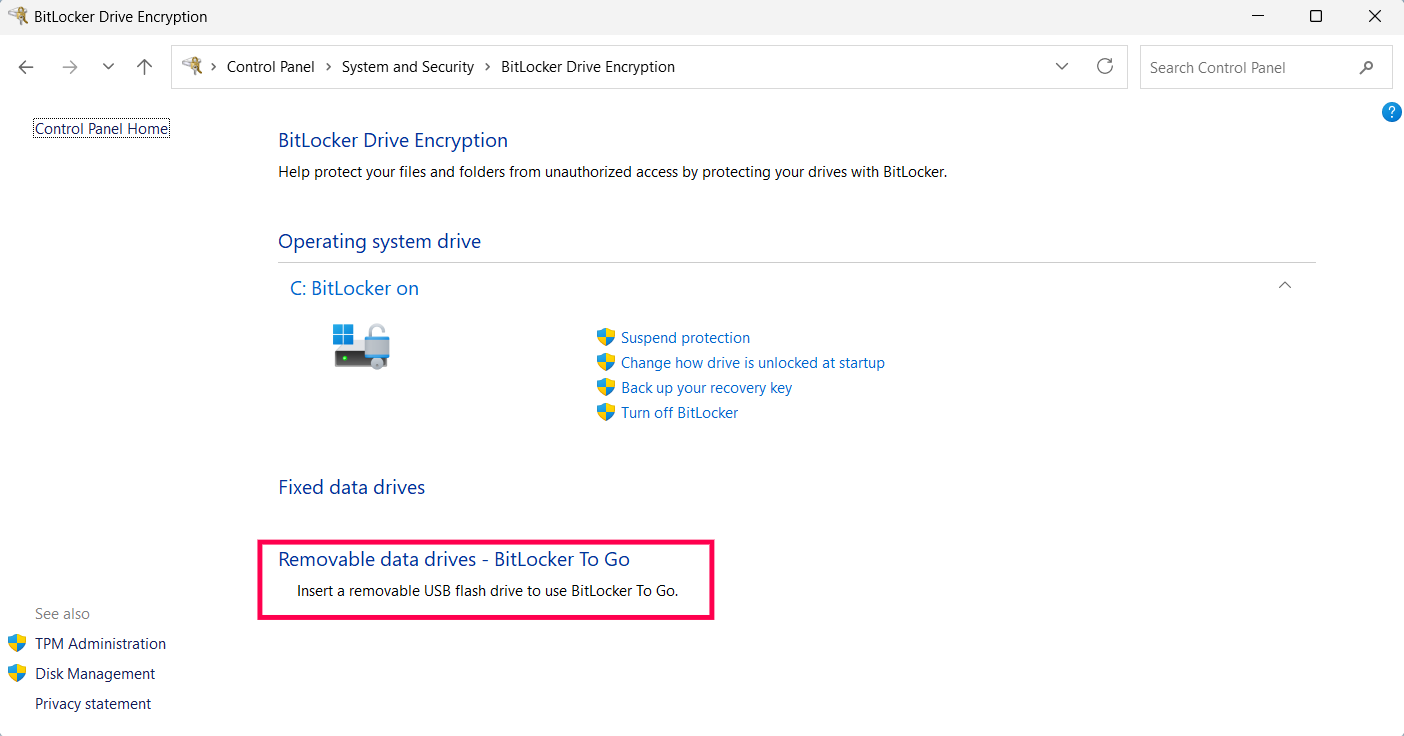
Portable Drives (Unsupported)
BitLocker Management does not support encryption of portable or removable drives. To confirm whether a drive is classified as removable, open Control Panel → System and Security → BitLocker Drive Encryption and check whether the drive appears under Removable data drives.
Locked Data Drive
Verify whether the data drive (for example, D:) is unlocked. Navigate to BitLocker Management → Managed Computers and review the Lock Status column for the specific machine.
If the drive is locked, it must be unlocked before BitLocker operations can proceed. Retrieve the recovery key using your tool or the medium through which it was originally encrypted, then unlock the drive before retrying.
If the recovery password itself cannot be retrieved, check Recovery Key updated in server and the matching recovery identifier first. A missing timestamp or -- does not prove that a usable password was stored. For Oops, Something went wrong / Data yet to update from agent, follow the retrieval-error FAQ. Use a confirmed existing backup if the server has no matching password. Investigate component collection and communication separately from an Inventory scan.
Further assistance
If the encryption failure persists after working through all the checks above, upload the log file and contact endpointcentral-support@manageengine.com with the logs attached.