Create Device Control Policy
Create granular policies that manage and restrict peripheral device use across Windows and macOS endpoints.
Setup
Create platform-specific policies
Choose the endpoint platform, name the policy, and define its purpose before configuring controls.
Review supported devices
Device control policies provide centralized, granular control over peripheral usage. Review the supported device types before defining a policy.
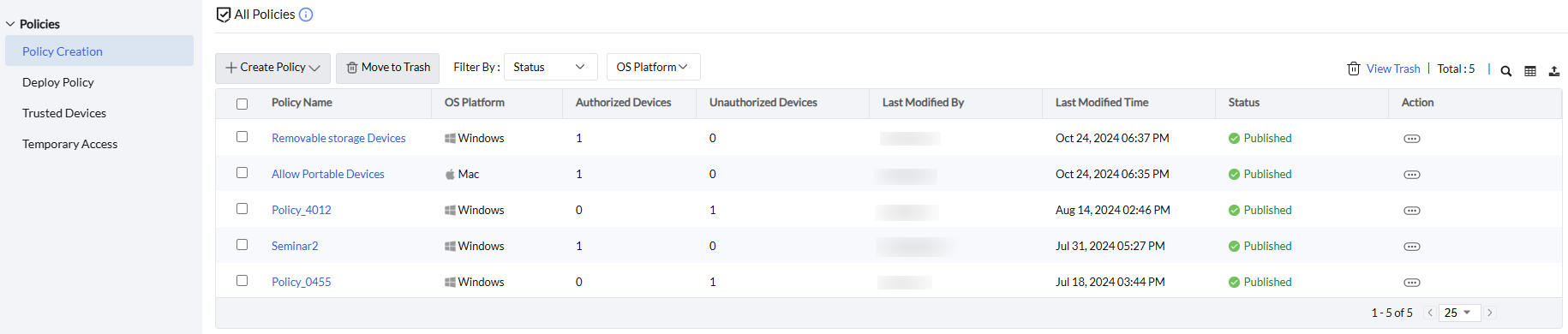
Start a Windows policy
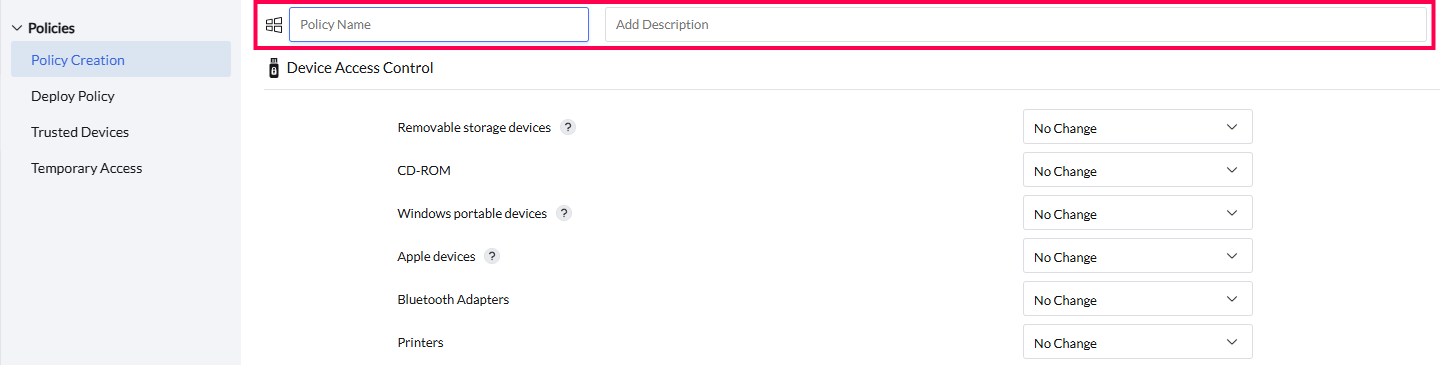
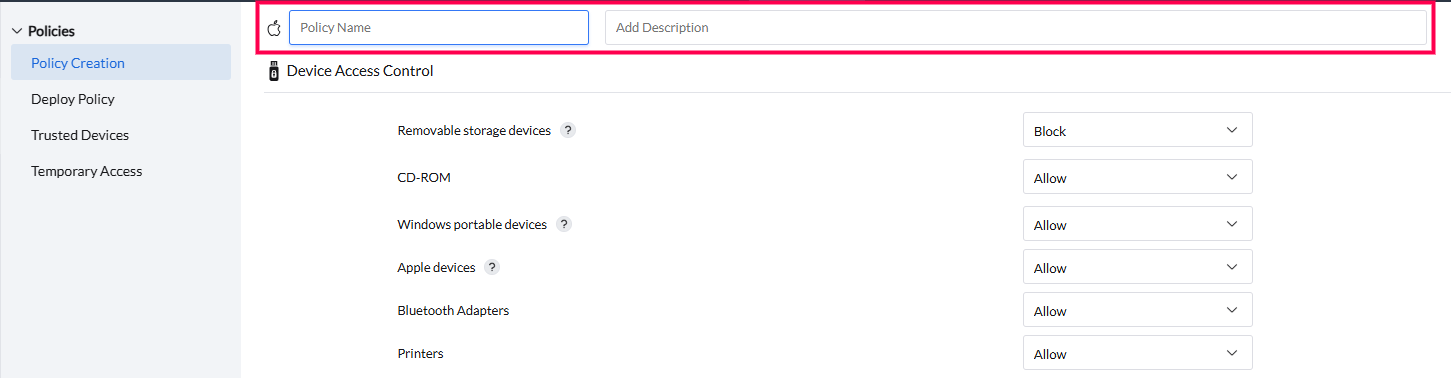
- Navigate to Policies → Policy Creation → Create Policy → Select Windows.
- Enter the Policy name.
- Optionally add a Description that explains the policy's purpose or key details.
Start a macOS policy
- Navigate to Policies → Policy Creation → Create Policy → Select Mac.
- Enter the Policy name.
- Optionally add a Description that explains the policy's purpose or key details.
Windows
Configure Windows access controls
Select a base control option, then refine removable storage, CD-ROM, and Bluetooth behavior.
Choose the control option
Device Access Control provides five policy states for peripheral devices on Windows:
- Allow — provides full peripheral functionality and exposes advanced controls for supported device types.
- Block — disables every peripheral function. Advanced controls for Removable Storage and CD-ROM devices can block connection types such as USB or SCSI.
- Allow Trusted Devices — permits devices in a trusted devices list while blocking other devices.
- No Change — prevents the agent from applying allow or block policies, which is suitable when a Group Policy Object (GPO) already governs the endpoints.
- Read Only — lets users view data while preventing transfer or modification on the device.
Control removable storage
Advanced Settings become available for USB drives, external hard drives, and virtual drives when you select Allow or Allow Trusted Devices.
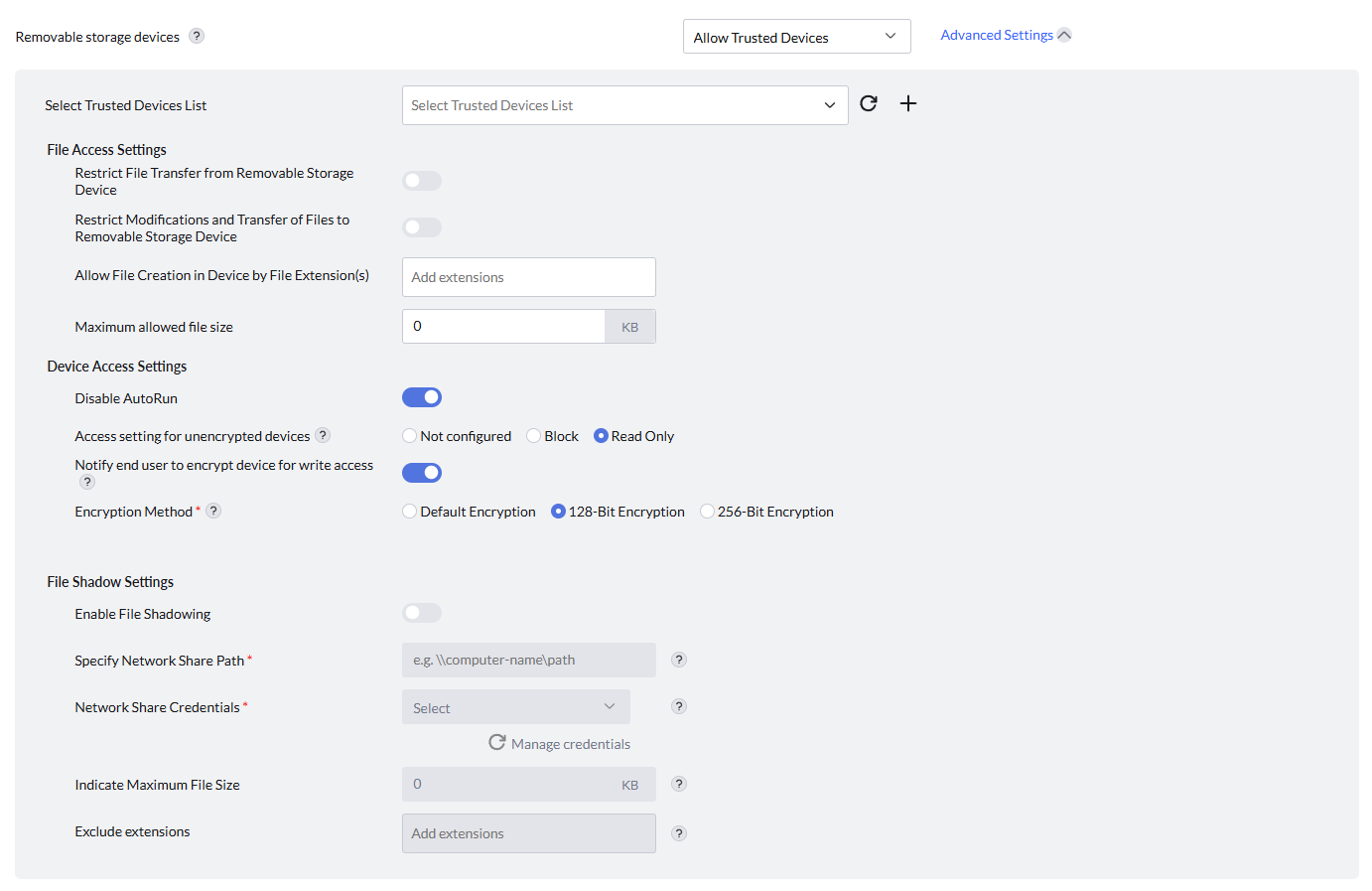
File Access settings control the direction and scope of file transfers:
- Restrict transfers from a connected removable storage device to the computer.
- Restrict file modifications on the removable device and transfers from the computer to the device.
- Allow transfers to removable storage according to specific file extensions and their corresponding file sizes.
Device Access settings control automatic execution and unencrypted devices:
- Disable Auto-Run blocks automatic execution when removable storage connects.
- Not Configured places no restriction on unencrypted devices.
- Block prevents use of unencrypted removable storage.
- Read-Only permits an unencrypted device to connect without write access.
- When Read Only is selected, a pop-up can tell the end user to encrypt the device to restore write access.
- Choose Default Encryption, 128-bit Encryption, or 256-bit Encryption as the encryption method.
Configure file shadowing
- Enable file shadowing.
- Specify the remote network shared-folder path.
- Select credentials for the authorized users who can access the network share.
- Set the maximum file size that can be shadowed.
The size limit accepts values from 0 KB through 1,048,576 KB (1 GB). A value of 0 KB removes the size restriction, so files of any size can be shadowed.
File shadowing occurs only when a file moves from a computer to a removable storage device. Files whose extensions appear under Exclude Extensions are not shadowed.
Control CD-ROM and Bluetooth adapters
For CD-ROM devices, set permissions for CD/DVD drives, restrict write operations, and enforce read-only access. When Allow is selected, Advanced Settings can enable or disable auto-run.

For Bluetooth Adapters, set access permissions and allow or block file transfers when Allow is selected.

macOS
Configure Mac access controls
Apply the same base policy states, with removable-storage controls designed for macOS endpoints.
Choose the control option
- Allow — provides full peripheral functionality and exposes advanced controls for supported device types.
- Block — disables every peripheral function. Advanced controls for Removable Storage and CD-ROM devices can block connection types such as USB or SCSI.
- Allow Trusted Devices — permits devices in a trusted devices list and blocks all other devices.
- No Change — prevents the agent from applying allow or block policies, which is suitable when an administrator already uses a Group Policy Object (GPO).
- Read Only — lets users view data while preventing transfer or modification on the device.
Restrict removable-storage changes
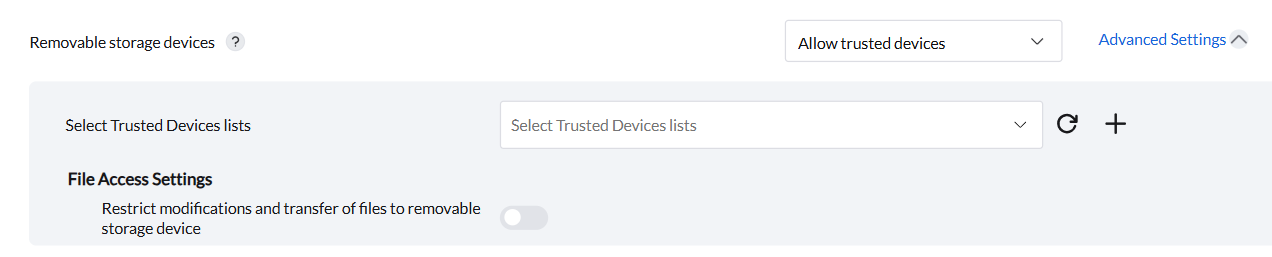
On macOS, Removable Storage Devices covers USB drives, external hard drives, and virtual drives. Use Restrict Modifications and Transfer of Files to Removable Storage Device to prevent changes to file content and block transfers from the computer to the device.
Auditing
Configure device activity auditing
Control which device interactions are recorded and when reports reach the server.
Set audit behavior
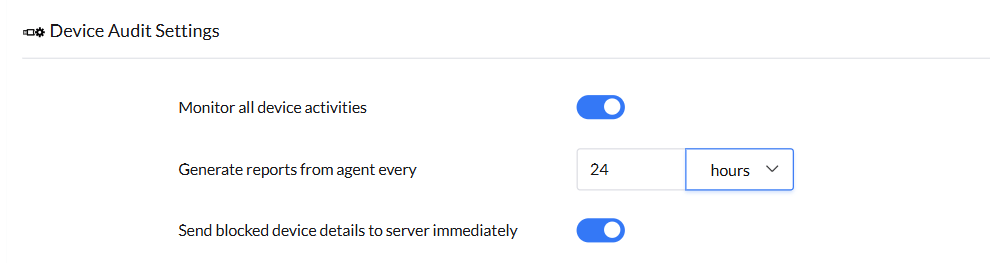
- Enable Monitor All Device Activities for comprehensive tracking of device activity.
- Set how frequently the agent generates audit reports.
- Enable Send Blocked Device Details to Server Immediately to send blocked-device reports in real time. When disabled, these details arrive during the next scheduled agent report period.
Alerts
Notify users about blocked devices
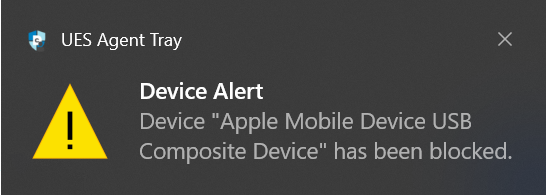
Choose whether users see no alert, a default message, or a custom notification with temporary-access requests.
Select the notification mode
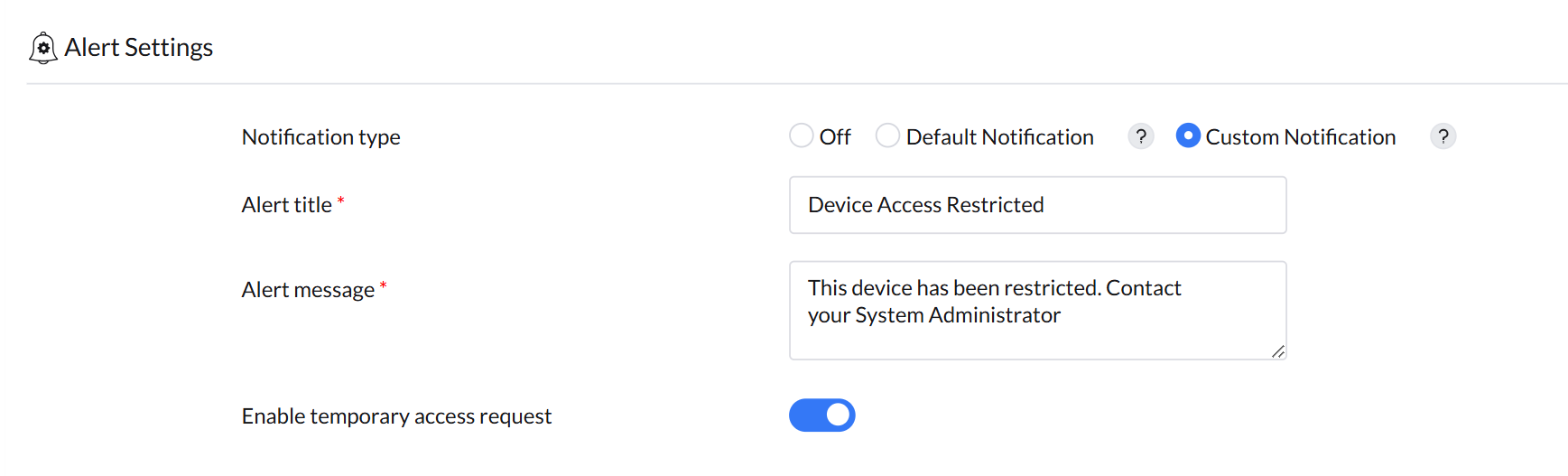
- Off — users receive no notification that the device was blocked.
- Default Notification — users receive a standard blocked-device message.
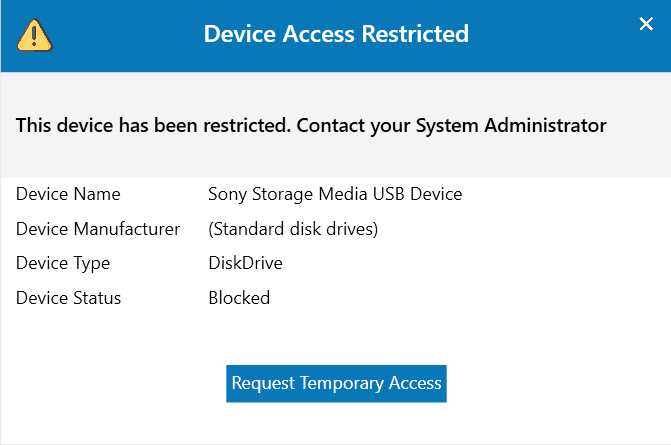
- Custom Notification — define the alert title and message shown when a blocked device is inserted. You can also let users request temporary device access.