×![]()
×
×![]()
×
×
Browser Customization Configurations
Configuring Browser Customization
Browser Customization allows administrators to tailor the browser environment to their specific needs. This includes settings for the home page and startup behavior, default browser configuration, content blocking, security maintenance, proxy settings, bookmark management, default browser selection, and legacy settings. This document will explain how to create the policy and about each configuration provided by Endpoint Central.
Kindly follow the steps given below to successfully create and deploy Browser Customization policy:
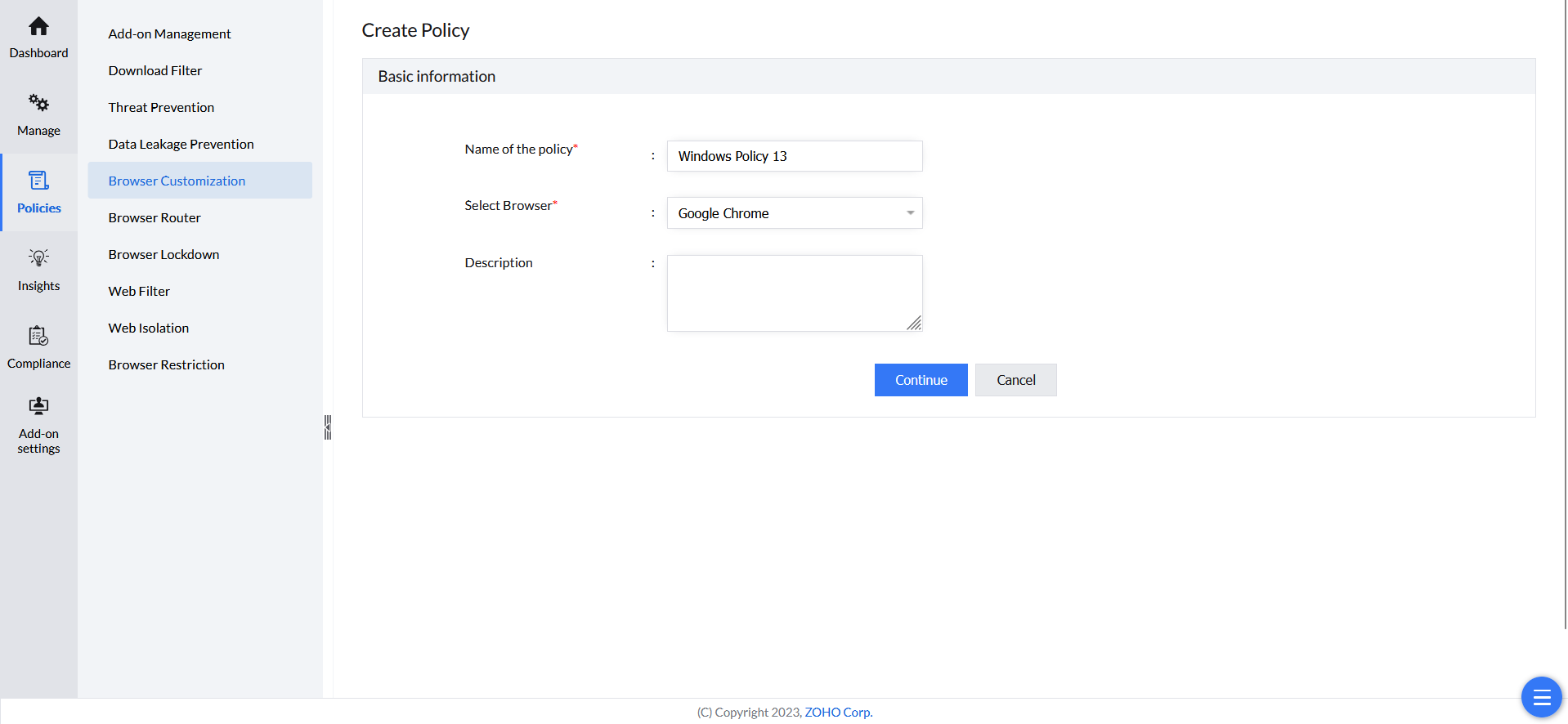
- Open Endpoint Central console and navigate to Browsers -> Policies -> Browser Customization.
- Click Create Policy and select the OS platform.
- Give a name and description for the policy.
- Choose the desired browser from the drop-down.
- Refer below to know more about the Browser Customization settings.
- Click Save and Publish to save the policy.
- Associate the policy to computers/groups of computers in which you want the isolation of web-applications to take place.
Settings under Browser Customization
The below are the configurations offered under Browser Customizations and the browsers and OS platforms it is applicable for:
| Policy | Configuration | Description | Supported Browsers | Supported Platforms |
| Content Restrictions | Web Bluetooth Guard | By Restricting this setting, website that accessing the Bluetooth option will get disabled | Chrome, Edge, Ulaa, Chromium | Windows, Mac |
| Display Image | Disabling Image in the Website will be disabled | Chrome, Edge, Ulaa, Chromium | Windows, Mac | |
| Javascript | By restricting this option, Javascript execution prevented in the websites. | Chrome, Edge, Ulaa, Chromium | Windows, Mac | |
| Popups | By restricting this option, Popups get blocked | Chrome, Edge, Ulaa, Chromium, Firefox | Windows, Mac | |
| Audio Capture | By restricting this option, Microphone access by the website get Blocked | Chrome, Edge, Ulaa, Chromium, Firefox | Windows, Mac | |
| Video Capture | By restriction this option, Camera access to the website get Blocked | Chrome, Edge, Ulaa, Chromium, Firefox | Windows, Mac | |
| Media Autoplay | By restricting this option, auto playing of the video in the website will be disabled | Chrome, Edge, Ulaa, Chromium, Firefox | Windows, Mac | |
| Allow Usage of Serial API | This policy allows the usage of the Serial API in the browser, enabling websites to access and communicate with serial devices, such as printers and sensors, via the browser. | Chrome, Edge, Ulaa, Chromium | Windows, Mac | |
| Default Sensors | Browse uses sensors such as Motion & Light sensor to enhance user experience, Gaming, etc., By restricting this option, Usage of sensors by the website will be disabled | Chrome, Edge, Ulaa, Chromium | Windows, Mac | |
| Cookies | Allow - Allow Site to accept Cookies Block - Block Site to accept Cookies | Chrome, Edge, Ulaa, Chromium | Windows, Mac | |
| Insecure Content | The Secure Site(HTTPS) either loads or download the content from Insecure Site (HTTP) is known as Insecure Content. By restricting this, loading of Insecure Content will be blocked | Chrome, Edge, Ulaa, Chromium | Windows, Mac | |
| Web USB Guard setting | By restricting this, Accessing of USB Devices by the website will be restricted. | Chrome, Edge, Ulaa, Chromium | Windows, Mac | |
| Geolocation | By restricting this, consumption of Geolocation setting by Website will be blocked | Chrome, Edge, Ulaa, Chromium, Firefox | Windows, Mac | |
| Notifications | By restricting this, Notification display by the website will be blocked | Chrome, Edge, Ulaa, Chromium, Firefox | Windows, Mac | |
| Content Restrictions for URLs | Each Settings Configured will be works only for the site mentioned in the website group | Chrome, Edge, Ulaa, Chromium, Firefox | ||
| Chrome, Edge, Ulaa, Chromium, Firefox | ||||
| Security Restrictions > Browser Functionality | Media Router | Enable | Disable Google Cast Feature | Chrome, Edge, Ulaa, Chromium | Windows, Mac |
| Audio Sandbox | By enabling this policy controls whether the audio sandbox is enabled to provide enhanced security for audio processing in Browser. | Chrome, Edge, Ulaa, Chromium | Windows, Mac | |
| Component Updates | By enabling this policy controls whether the browser is allowed to download and install component updates automatically | Chrome, Edge, Ulaa, Chromium | Windows, Mac | |
| Allow Add-ons Enterprise Hardware Platform API Access | This policy controls whether Extension can access the Enterprise Hardware Platform API to retrieve device-specific identifiers like Manufacturer, Hostname, Serial Number. By default, this option is disabled in Browser | Chrome, Edge, Ulaa, Chromium | ||
| Chrome Variations | This policy lets you control whether Chromium can run experiments and tests from Google to try out new features. | Chrome, Ulaa, Chromium | ||
| Show Cast Icon in Toolbar | Show | Hide the Google Cast Icon in the Browser's Toolbar | Chrome, Edge, Ulaa, Chromium | Windows, Mac | |
| Autofill | Enable or Disable Auto Fill of address, Passwords, etc to the Forms | Chrome, Edge, Ulaa, Chromium | Windows, Mac | |
| Developer Tools | Enable or Disable the Developer tools option > Developer tools include Inspect Element >Settings > More Tools > Developer tools | Chrome, Edge, Ulaa, Chromium, Firefox | Windows, Mac | |
| Capture screenshots | Screenshot button | Preventing the screenshot taken by Browser Extension | Browser APIs | Chrome, Edge, Ulaa, Chromium, Firefox | Windows, Mac | |
| Print webpage | Prevent Printing the webpage using ctrl+p shortcut | Right click a page > Print | Chrome, Edge, Ulaa, Chromium, Internet Explorer | Windows, Mac | |
| File upload to webpages | It prevent local File upload to web pages | Chrome, Edge, Ulaa, Chromium | Windows, Mac | |
| Allow user to install Chrome Beta, Dev, Canary | Google Chrome Beta, Canary, Beta is Beta version of chrome Browser, where It allow | blocks the Installation of same | Chrome, Edge | Windows | |
| Google Update | Microsoft Edge Update | App Update | Install new versions of Internet Explorer automatically | Auto Update for Browsers | Chrome, Edge, Firefox, Internet Explorer | Windows | |
| Default Search Engine Name | Default Search Engine URL | Default Search Engine Name & URL | Chrome, Edge, Ulaa, Chromium, Firefox | Windows, Mac | |
| Default Search Provider Encoding | Default Search Provider Encoding Technique Should be used | Chrome, Edge, Ulaa, Chromium, Firefox | Windows, Mac | |
| Security Restrictions > Privacy & Safety | Over-ride certificate errors | Restricting this setting prevents the user from clicking "Proceed" to continue on a website with an untrusted SSL certificate. | Chrome, Edge, Ulaa, Chromium, Internet Explorer | Windows, Mac |
| Phishing filter | Microsoft Smart Screen | Enabling this setting, protect browser against malware, abusive sites and extensions, phishing, malicious and intrusive ads, and social engineering attacks. | Chrome, Edge, Ulaa, Chromium | Windows, Mac | |
| Save browser history | Configuring the setting either Allow | Block saving the browser history | Chrome, Edge, Ulaa, Chromium | Windows, Mac | |
| Block third-party cookies | Enable | Disable Third party cookies. Third Party Cookies are the one that from the site that other than Visited | Chrome, Edge, Ulaa, Chromium | Windows, Mac | |
| Disable Safe Browsing Proceed Anyway | Prevent Smartscreen Prompt Override | By Restricting this option, End User can't override the block when website is blocked by Safe browsing | Chrome, Edge, Ulaa, Chromium | Windows, Mac | |
| Force Google Safe Search | Enabling Google Safe Search in order to prevent showing unsafe Search Results | Chrome, Edge, Ulaa, Chromium | Windows, Mac | |
| End processes in Task Manager | By Restricting this option, user can't Kill the Browser Process (chrome.exe, msedge.exe,..) Process from Task Manager | Chrome, Edge, Ulaa, Chromium | Windows, Mac | |
| Sync | By disabling this, syncing details such as Bookmarks, passwords, browser themes will be disabled | Chrome, Edge, Ulaa, Chromium | Windows, Mac | |
| Restrict Youtube forcefully | Select the level of restriction that allows to run the youtube in Restricted mode https://support.google.com/youtube/answer/7354993?hl=en | Chrome, Edge, Ulaa, Chromium | Windows, Mac | |
| Incognito mode | Inprivate Browsing | Private browsing |
| Chrome, Edge, Ulaa, Chromium, Firefox | Windows, Mac | |
| Clear Browsing Data | Choosing this option, clear the Chosen Data when Browser closure | Chrome, Edge, Ulaa, Chromium, Firefox | Windows | |
| Enable Secure DNS | Enable Secure DNS is a browser setting that encrypts DNS queries using DNS over HTTPS (DoH) or DNS over TLS (DoT) to enhance privacy and security | Chrome, Edge, Ulaa, Chromium, Firefox | Windows, Mac | |
| Network Timestamp Query | By disabling this option, Browser doesn't validate the current time from its Server in order to verify the Certificate Expiration time. | Chrome, Edge, Ulaa, Chromium | Windows, Mac | |
| Online Revocation Checks | By disabling this option, Browser doesn't Validate the Certificate Revocation List in Online where as it only verify the Certificate Revocation List present in Local Machine | Chrome, Edge, Ulaa, Chromium | Windows, Mac | |
| SafeSites URL Filter | By Enabling this option, Sites Contains Adult, Pornography Content gets Blocked | Chrome, Ulaa, Chromium | Windows, Mac | |
| DNS Interpretation Checks | By enabling this policy, controls DNS interception checks, which detect proxy-based redirections of unknown hostnames, and can be disabled to reduce startup and DNS-related traffic. | Chrome, Edge, Ulaa, Chromium | Windows, Mac | |
| Command-Line Flag Security Warnings | By enabling this, when Browser is invoked with Insecure Command Lines, a warning message is thrown to the user. | Chrome, Edge, Ulaa, Chromium | Windows, Mac | |
| Block Unsupported OS Warning | By enabling this option, when Browser is running in unsupported OS, a warning message is thrown | Chrome, Edge, Ulaa, Chromium | Windows, Mac | |
| Relaunch Notification Period, Relaunch Notification | By enabling this option, When Browser is updated & waiting for restart, a notification Prompt will be shown. (based on the Notification period if configured.) | Chrome, Edge, Ulaa, Chromium | Windows, Mac | |
| Payment Methods Query | By disabling this option, It disables the Querying of Payment methods from Extension | Chrome, Edge, Ulaa, Chromium | Windows, Mac | |
| Alternate Error Pages | By disabling this option, It disables configuring alternate Error Pages by the websites | Chrome, Edge, Ulaa, Chromium | Windows, Mac | |
| Enable Translation | By disabling this option, Translate option in the Browser Get Blocked | Chrome, Edge, Ulaa, Chromium | Windows, Mac | |
| User Feedback | By disabling this option, User Feedback option under Help > Report an issue get blocked | Chrome, Edge, Ulaa, Chromium, Firefox | Windows, Mac | |
| Spell Check Service | By disabling this option, Spell check service provided by the Browser is disabled | Chrome, Ulaa, Chromium | Windows, Mac | |
| WebRTC Event Log Collection | By disabling this, Web RTC Event log collection will be disabled. Web RTC is the one which helps to Live screen sharing those event logs are collected by Browser. | Chrome, Ulaa, Chromium | Windows, Mac | |
| URL-keyed Anonymized Data Collection | By disabling this, data Collection from the URL by the Browser will be disabled | Chrome | Windows, Mac | |
| External Extensions | By disabling this, External Extension that are not present in webstore get Blocked | Chrome, Edge, Ulaa, Chromium | Windows, Mac | |
| Block Insecure Extension Types | By disabling this, Insecure Extension are Blocked | Chrome, Edge, Ulaa, Chromium | Windows, Mac | |
| Cross-Origin Authentication Prompt | By disabling this Cross Origin Auth Prompt will be disabled. Controls whether third-party images on a page can show an authentication prompt. Typically, this is disabled as a phishing defense. If you don't configure this policy, it's disabled and third-party images can't show an authentication prompt. | Chrome, Edge, Ulaa, Chromium | Windows, Mac | |
| Disable Certificate Transparency Enforcement for subjectPublicKeyInfo hashes | Certificate Transparency Enforcement Verification for this Public Key Info Hashes | Chrome, Edge, Ulaa, Chromium | Windows, Mac | |
| Authentication Schemes | Configuring Authentication Scheme for the Browser | Chrome, Edge, Ulaa, Chromium | Windows, Mac | |
| Remote Access Host Service | By disabling this Google Remote Desktop Service will get Blocked | Chrome | Windows, Mac | |
| Disk Cache Size | Configuring the Size of Cache can be stored by the Browser | Chrome, Edge, Ulaa, Chromium | Windows, Mac | |
| Online Revocation Checks for Local Anchors | By enabling this, the local Links are verified with Online Certificate Revocation List | Chrome, Edge, Ulaa, Chromium | Windows, Mac | |
| Globally Scoped HTTP Authentication Cache | By Enabling this policy leaves sites open to some types of cross-site attacks, and allows users to be tracked across sites even without cookies by adding entries to the HTTP auth cache using credentials embedded in URLs. | Chrome, Edge, Ulaa, Chromium | Windows, Mac | |
| HSTS Policy Bypass List | List of URLs that can be By Pass the HSTS Verification | Chrome, Edge, Ulaa, Chromium | Windows, Mac | |
| Enable Safe Browsing Extended Reporting | By enabling this, Browser will send the Extended Reporting of safe Browsing detection in your Machine | Chrome, Edge, Ulaa, Chromium | Windows, Mac | |
| Enable Safe Browsing for Trusted Sources | By enabling this option, the Safe Browsing Validation will be happens for the Secure Site as well (HTTPS Sites). | Chrome, Edge, Ulaa, Chromium | Windows, Mac | |
| Quic Protocol | By disabling this option, Quic Protocol will be disabled. https://www.chromium.org/quic/ | Chrome, Edge, Ulaa, Chromium | Windows, Mac | |
| Desktop Sharing Hub | By disabling this, sharing option of the site such as Send to mobile Devices, Generate QR Code get blocked | Chrome, Edge, Ulaa, Chromium | Windows, Mac | |
| Privacy Sandbox Prompt | If you set this policy to Enabled or keep it unset, then Google Chrome determines whether the Privacy Sandbox prompt can be shown or not and then show it if possible. | Chrome, Ulaa, Chromium | Windows, Mac | |
| Privacy Sandbox Ad Topics | If you set this policy to Enabled or keep it unset, your users will be able to turn on or off the Privacy Sandbox Ad topics setting on their device. | Chrome, Ulaa, Chromium | Windows, Mac | |
| Privacy Sandbox Ad Measurement | If you set this policy to Enabled or keep it unset, your users will be able to turn on or off the Privacy Sandbox Ad measurement setting on their device. | Chrome, Ulaa, Chromium | Windows, Mac | |
| Privacy Sandbox Site Enabled Ads | If you set this policy to Enabled or keep it unset, your users will be able to turn on or off the Privacy Sandbox Site-suggested ads setting on their device. | Chrome, Ulaa, Chromium | Windows, Mac | |
| HTTPS-Only Mode | By enabling this, all the request will be send in HTTPS | Chrome, Edge, Ulaa, Chromium, Firefox | Windows, Mac | |
| Security Restrictions > GPU Rendering | Hardware Acceleration Mode | In order to show the site with Graphics, chrome accelerates Hardware. by blocking this setting chrome doesn't do the same | Chrome, Edge, Ulaa, Chromium, Firefox | Windows, Mac |
| 3D APIs | Browser uses some of the setting to show the 3D View of website. By disabling this, it won't render this pages where as allowing the page renders the page | Chrome, Edge, Ulaa, Chromium | Windows, Mac | |
| Security Restrictions For URLs | Each Settings Configured will be works only for the site mentioned in the website group | Chrome, Edge, Ulaa, Chromium | ||
| User Account Settings | Browser sign-in | This policy controls browser sign-in, determining whether users can sign in to the browser with their account for syncing data like bookmarks, history, passwords, and settings across devices. | Chrome, Edge, Chromium | Windows, Mac |
| Allow users to use guest mode | Guest Mode configuration | Chrome, Edge, Chromium | Windows, Mac | |
| Force ephemeral mode | This policy forces ephemeral mode in the browser, meaning user profiles and browsing data are automatically deleted when the browser is closed, ensuring no data is stored between sessions. NOTE: Features like browser history, extensions and their data, web data like cookies and web databases are not preserved after the browser is closed. However this does not prevent the user from downloading any data to disk manually, save pages or print them. | Chrome, Edge, Chromium | Windows, Mac | |
| Allow users to add people | This policy controls whether users can add new people (profiles) in the browser, allowing or preventing the creation of additional user profiles for separate browsing experiences. | Chrome, Edge, Chromium | Windows, Mac | |
| Import Search Engines | This policy controls whether search engines are imported from other installed browsers during the first run of the browser, helping users transition smoothly with their preferred search settings. | Chrome, Edge, Ulaa, Chromium | Windows, Mac | |
| Define primary browser account | This policy sets the primary browser account, allowing administrators to define which account is used by default for browser sign-in, syncing, and personalization features. | Chrome, Edge | Windows, Mac | |
| Define download directory | This policy specifies the default download directory where the browser should save downloaded files, overriding the user’s manual selection. For Chrome, here are the supported directory variables. | Chrome, Edge, Ulaa, Chromium, Firefox | Windows, Mac | |
| Windows SSO for Microsoft sites | This policy allows the browser to automatically use Windows login credentials to sign in to Microsoft sites, such as office.com, outlook.com, and other related services, enabling seamless single sign-on for users. | Chrome, Edge, Ulaa, Chromium, Firefox | Windows | |
| Define accounts to access enterprise Google apps | Domain that access the Google Apps let’s say: @zykler.com, is the Domain mentioned, End user can’t login with @sendee.com to the Google Apps. Google Apps mentioned here are Google Accounts, Google Sheets, Gmail, etc. | Chrome, Edge, Ulaa, Chromium, Firefox | Windows, Mac | |
| Homepage & Startup | Import saved passwords | Import Autofill form data | Import Home Page | Importing the contents such as Saved passwords, autofill form data, Home page, from the other Installed Browser at first Run | Chrome, Edge, Ulaa, Chromium | Windows, Mac |
| Make New Tab as Homepage | Home Page URL | setting Browser’s default New tab as Homepage, On Setting No, You can able to set the Custom URL for Homepage. | Chrome, Edge, Ulaa, Chromium, Firefox | Windows, Mac | |
| Show Home Button | Enabling or Disabling the Home button display near search bar | Chrome, Edge, Ulaa, Chromium, Firefox | Windows, Mac | |
| Default New Tab page URL | Page should be opened when new tab is created | Chrome, Edge, Ulaa, Chromium | Windows, Mac | |
| Action on Startup | What are the URLs needs to be opened on Browser Startup | Chrome, Edge, Ulaa, Chromium | Windows, Mac | |
| Chrome, Edge, Ulaa, Chromium | ||||
| Proxy | Proxy Settings for Corresponding Browser | Configure the Browser’s Proxy setting | Chrome, Edge, Ulaa, Chromium, Firefox | Windows, Mac |
| Bookmarks Manager | Bookmarks | Configure the Bookmarks URL | Chrome, Edge, Ulaa, Chromium | Windows, Mac |
| Default Browser | Setting the Browser as Default Browser Supported only for Domain Joined Devices | Chrome, Edge, Ulaa, Chromium, Firefox, Internet Explorer | Windows | |
| Legacy settings | Legacy same site cookie behavior for specific urls | List of URLs that should use Legacy Cookie Behaviour. | Chrome, Edge, Ulaa, Chromium | Windows, Mac |
| Turn on encryption standard | Encryption Standard Should be used for network Communication such as TLS, SSL Versions | Chrome, Edge, Ulaa, Chromium, Internet Explorer | Windows, Mac | |
| Disable Certificate Transparency Enforcement for Legacy CAs | Certificate Transparency verification enforcement disabled for this CAs | Chrome, Edge, Ulaa, Chromium | Windows, Mac | |
| Content Restrictions (Edge) | Adobe Flash | By disabling this, Adobe Flash Plugins are restricted from running in the sites. | Microsoft Edge (Legacy) | Windows |
| Automatic search suggestions in address bar | By disabling this, Search suggestion shown will not be shown further | Microsoft Edge (Legacy) | Windows | |
| Security Restrictions > Privacy & Safety (Edge) | Usage of extensions | Extension Usage in the browser | Microsoft Edge (Legacy) | Windows |
| Prevent Access to about Flags | This policy blocks users from opening about:flags in legacy Microsoft Edge, preventing them from changing experimental browser settings | Microsoft Edge (Legacy) | Windows | |
| Donation in Microsoft Wallet | By disabling this policy, Wallet donation through https://wallet.microsoft.com/donation get disabled | Edge | ||
| Show Search Suggestions | Recommendation Feature by Microsoft Edge | Edge | Windows, Mac | |
| Allow CV list | The "Allow CV List" policy in legacy Microsoft Edge controls whether the browser can use a Compatibility View (CV) list to display websites in a way that’s compatible with older versions of Internet Explorer | Microsoft Edge (Legacy) | Windows | |
| Password Manager | By restricting this, Password manager is disabled, which means Remember Now this password? Prompt is disabled further | Edge, Microsoft Edge (Legacy) | Windows, Mac | |
| Prevent Smartscreen Prompt Override for files | This policy prevents users from bypassing Microsoft Defender SmartScreen warnings when downloading unverified or potentially dangerous files in Microsoft Edge. | Edge | Windows, Mac | |
| Allow Do not Track | This policy in legacy Microsoft Edge lets you control whether users can enable the "Do Not Track" setting, which requests that websites don’t track their browsing activity. | Microsoft Edge (Legacy) | Windows | |
| Show Microsoft Rewards experiences | This policy controls whether users see Microsoft Rewards features, like points and promotions, while browsing | Edge | Windows, Mac | |
| Microsoft Defender SmartScreen | This policy controls whether SmartScreen is enabled to help protect users from malicious websites, downloads, and phishing attacks | Edge | Windows, Mac | |
| Microsoft Shopping Assistant | This policy in Microsoft Edge controls whether users can see shopping features like price comparisons, coupons, and deals while browsing online stores | Edge | Windows, Mac | |
| Startup boost | Allows Microsoft Edge processes to start at OS sign-in and restart in background after the last browser window is closed. | Edge | Windows | |
| Security Restrictions (Firefox) | About add-ons page | This policy blocks users from accessing the about:addons page, preventing them from managing browser extensions. | Firefox | Windows, Mac |
| About configurations page | This policy blocks users from accessing the about:config page, preventing them from viewing or changing advanced browser settings. | Firefox | Windows, Mac | |
| About support page | This policy blocks users from accessing the about:support page, preventing them from viewing technical details and troubleshooting information about the browser. | Firefox | Windows, Mac | |
| Built in PDF viewer | This policy controls whether the browser’s built-in PDF viewer is enabled, allowing users to open PDF files directly in the browser. | Firefox | Windows, Mac | |
| Bookmarks toolbar | This policy controls whether the bookmarks toolbar is shown in the browser, letting users quickly access their saved bookmarks. | Firefox | Windows, Mac | |
| Menu bar | This policy controls whether the menu bar is visible in the browser, allowing users to access options like File, Edit, View, and Tools. | Firefox | Windows, Mac | |
| User Account Settings (Firefox) | Accounts | This policy controls whether users can sign in to and manage Firefox accounts, which are used for syncing bookmarks, passwords, history, and other browser data across devices. | Firefox | Windows, Mac |
| About profiles page | This policy blocks users from accessing the about:profiles page in Firefox, preventing them from viewing or managing browser profiles. | Firefox | Windows, Mac | |
| Content Restrictions (Internet Explorer) | Auto-complete for web addresses | This policy controls whether AutoComplete for web addresses is enabled in Internet Explorer, allowing the browser to suggest URLs as users type in the address bar. | Internet Explorer | Windows |
| Zone Settings (Internet Explorer) | Local Intranet | Trusted Websites | Restricted Websites | Internet | This Setting configures the Internet options of Internet Explorer. To Verify the setting Go to Windows > Internet Options > Security Here you can find the appropriate settings | Internet Explorer | Windows |
| Zone Settings > Common Settings (Internet Explorer) | Prevent users from adding/deleting websites in zones | This policy prevents users from adding or deleting websites in security zones in Internet Explorer, restricting changes to the trusted sites, local intranet, or other security zones. | Internet Explorer | Windows |
| Prevent users from changing security level for each zone | This policy prevents users from changing the security level for each zone in Internet Explorer, ensuring that security settings for zones like Trusted Sites or Internet remain fixed. | Internet Explorer | Windows | |
| Lock Down > Tabs (Internet Explorer) | General Page | This policy blocks users from accessing the General page in Internet Explorer’s settings, preventing them from modifying basic browser settings like homepage, startup options, and search settings. | Internet Explorer | Windows |
| Security Page | This policy blocks users from accessing the Security page in Internet Explorer’s settings, preventing them from changing security-related options like zone settings and ActiveX controls. | Internet Explorer | Windows | |
| Content Page | This policy blocks users from accessing the Content page in Internet Explorer’s settings, preventing them from modifying content-related settings like Certificates, AutoComplete, and Content Advisor. | Internet Explorer | Windows | |
| Connections Page | This policy blocks users from accessing the Connections page in Internet Explorer’s settings, preventing them from modifying network and proxy settings. | Internet Explorer | Windows | |
| Programs Page | This policy blocks users from accessing the Programs page in Internet Explorer’s settings, preventing them from changing default programs, managing add-ons, or configuring other program-related options. | Internet Explorer | Windows | |
| Privacy Page | This policy blocks users from accessing the Privacy page in Internet Explorer’s settings, preventing them from adjusting privacy-related settings such as cookie handling, pop-up blockers, and tracking protection. | Internet Explorer | Windows | |
| Advanced Page | This policy blocks users from accessing the Advanced page in Internet Explorer’s settings, preventing them from modifying advanced options like browsing, accessibility, and security settings. | Internet Explorer | Windows | |
| Lock Down > Tools (Internet Explorer) | Full screen mode | By Enabling this policy, IE Works in Full Screen Mode | Internet Explorer | Windows |
| Hide The Command Bar | This policy hides the Command Bar in Internet Explorer, preventing users from accessing features like home, favorites, and other commands directly from the toolbar. | Internet Explorer | Windows | |
| Hide The Status Bar | This policy hides the Status Bar in Internet Explorer, preventing users from viewing information about the current page, such as the URL or loading progress, in the status area at the bottom of the window. | Internet Explorer | Windows | |
| Lock All Tool Bars | This policy locks all toolbars in Internet Explorer, preventing users from moving, resizing, or customizing the toolbar layout. | Internet Explorer | Windows | |
| Inprivate Tools | This policy controls whether InPrivate Tools are available in Internet Explorer, allowing users to access features like InPrivate browsing, InPrivate filtering, and InPrivate blocking of cookies. | Internet Explorer | Windows | |
| Reset IE settings | This policy prevents users from resetting Internet Explorer settings, blocking them from restoring default configurations for settings like homepage, search engines, and security zones. | Internet Explorer | Windows | |
| Change proxy settings | This policy prevents users from changing proxy settings in Internet Explorer, ensuring that network configurations such as proxies remain fixed and cannot be modified. | Internet Explorer | Windows | |
| Disable Changing Automatic Configuration Settings | This policy prevents users from changing automatic configuration settings in Internet Explorer, ensuring that settings like automatic proxy detection or script configurations remain unchanged. | Internet Explorer | Windows | |
| Disable changing connection settings | This policy prevents users from changing connection settings in Internet Explorer, ensuring that network and proxy configurations cannot be modified. | Internet Explorer | Windows | |
| Security Restrictions (Internet Explorer) | Turn on certificate address mismatch warning | This policy enables the certificate address mismatch warning in Internet Explorer, alerting users when the domain name in a website’s SSL certificate does not match the address they are visiting. | Internet Explorer | Windows |
| Allow software to run or install even if the signature is invalid | This policy allows software to run or install in Internet Explorer even if its digital signature is invalid, bypassing security warnings about unverified or unsigned software. | Internet Explorer | Windows | |
| Check for signatures on downloaded programs | This policy enables Internet Explorer to check for signatures on downloaded programs, ensuring that files are verified with a digital signature to confirm their authenticity and prevent the installation of potentially unsafe software. | Internet Explorer | Windows | |
| Use HTTP 1.1 | This policy allows or denies the usage of HTTP/1.1 in Internet Explorer, controlling whether the browser can use this version of the protocol. | Internet Explorer | Windows | |
| Use HTTP 1.1 through proxy connections | This policy allows or denies the usage of HTTP/1.1 through proxy connections in Internet Explorer, controlling whether the browser uses the older protocol when communicating through a proxy server. | Internet Explorer | Windows | |
| Do not save encrypted pages to disk | This policy prevents encrypted pages from being saved to disk in Internet Explorer, ensuring that secure (HTTPS) pages are not cached or stored locally on the user’s device. | Internet Explorer | Windows | |
| Consistent Mime Handling for Internet Explorer Processes | This policy ensures consistent MIME handling across all Internet Explorer processes, making sure that MIME types (like text, images, or video) are handled. | Internet Explorer | Windows | |
| Empty Temporary Internet Files folder when browser is closed | This policy automatically clears the Temporary Internet Files folder when Internet Explorer is closed, helping protect user privacy and free up disk space. | Internet Explorer | Windows | |
| Check for server certificate revocation | This policy enables Internet Explorer to check for server certificate revocation, ensuring that the browser verifies whether a website’s security certificate has been revoked before establishing a secure connection. | Internet Explorer | Windows | |
| Turn off the Security Settings Check feature | This policy turns off the Security Settings Check feature in Internet Explorer, preventing the browser from warning users when their security settings might put them at risk. | Internet Explorer | Windows | |
| Protection From Zone Elevation for Internet Explorer Processes | This policy enables Protection from Zone Elevation in Internet Explorer, preventing lower-trust content (like from the Internet zone) from interacting with or elevating privileges to higher-trust zones (like Local Intranet or Trusted Sites). | Internet Explorer | Windows | |
| Restrict File Download for Internet Explorer Processes | This policy restricts file downloads in Internet Explorer, preventing users from downloading files through the browser to enhance security and reduce the risk of malware. | Internet Explorer | Windows | |
| Turn off encryption support | This policy turns off encryption support in Internet Explorer by disabling selected protocols such as SSL 1.0, SSL 2.0, SSL 3.0, TLS 1.1, and TLS 1.2, restricting which encryption standards the browser can use for secure connections. | Internet Explorer | Windows | |
| Add-On Management (Internet Explorer) | Prevent the computer from loading toolbars and Browser Helper Objects when InPrivate Browsing starts | This policy prevents the computer from loading toolbars and Browser Helper Objects (BHOs) when InPrivate Browsing starts in Internet Explorer, enhancing privacy by blocking potentially tracking or logging extensions. | Internet Explorer | Windows |
| Prevent the computer from loading toolbars and Browser Helper Objects when InPrivate Browsing starts | This policy prevents the computer from loading toolbars and Browser Helper Objects (BHOs) when InPrivate Browsing starts in Internet Explorer, enhancing privacy by blocking potentially tracking or logging extensions. | Internet Explorer | Windows | |
| Third-party browser extensions | This policy enables or disables third-party browser extensions in Internet Explorer, controlling whether external add-ons and toolbars can be loaded with the browser. | Internet Explorer | Windows | |
| Control Add-ons | This policy controls the use of add-ons in Internet Explorer, allows Windows administrators to manage, enable, or restrict specific browser extensions and toolbars. | Internet Explorer | Windows | |
| Automatically activate newly installed add-ons | This policy controls whether newly installed add-ons are automatically activated in Internet Explorer, allows Windows administrators to require manual activation for better control and security. | Internet Explorer | Windows | |
| Restrict ActiveX Install for Internet Explorer Processes | This policy restricts ActiveX installations in Internet Explorer, preventing users from installing ActiveX controls unless explicitly allowed, enhancing security by reducing the risk of malicious controls. | Internet Explorer | Windows | |
| Remove "Run this time" button for outdated ActiveX controls in Internet Explorer | This policy removes the "Run this time" button for outdated ActiveX controls in Internet Explorer, preventing users from bypassing security warnings and running potentially unsafe controls. | Internet Explorer | Windows | |
| Turn off blocking of outdated ActiveX controls for Internet Explorer | This policy turns off the blocking of outdated ActiveX controls in Internet Explorer, allows Windows users to run older ActiveX controls even if they are considered insecure or outdated. | Internet Explorer | Windows |