Web Filtering
About Web Filtering
Web filtering manages user access to enterprise-approved websites based on pre-determined security policies. It can enforce internet usage policies, block malicious sites, or restrict non-work-related content. Web filters are typically implemented at the network level to improve productivity and security.
Benefits of Web Filtering
Web filtering is essential for a secure, compliant, and productive online environment. It protects networks from threats, ensures compliance with industry regulations (HIPAA, GDPR), improves employee focus by blocking non-work-related sites during work hours, optimizes network performance, mitigates legal risks, and safeguards sensitive data by blocking unauthorized file-sharing sites.
Endpoint Central's web filter helps prevent malware, improves productivity, and ensures security. It lets IT admins control downloads, set browsing times, block harmful sites, manage policies centrally, and protect remote workers.
Implementing Web Filtering
The steps below will aid you in configuring and deploying a web filter policy using Endpoint Central:
- Navigate to Browsers -> Policies -> Web Filter.
- Click Create Policy and provide a name for the policy.
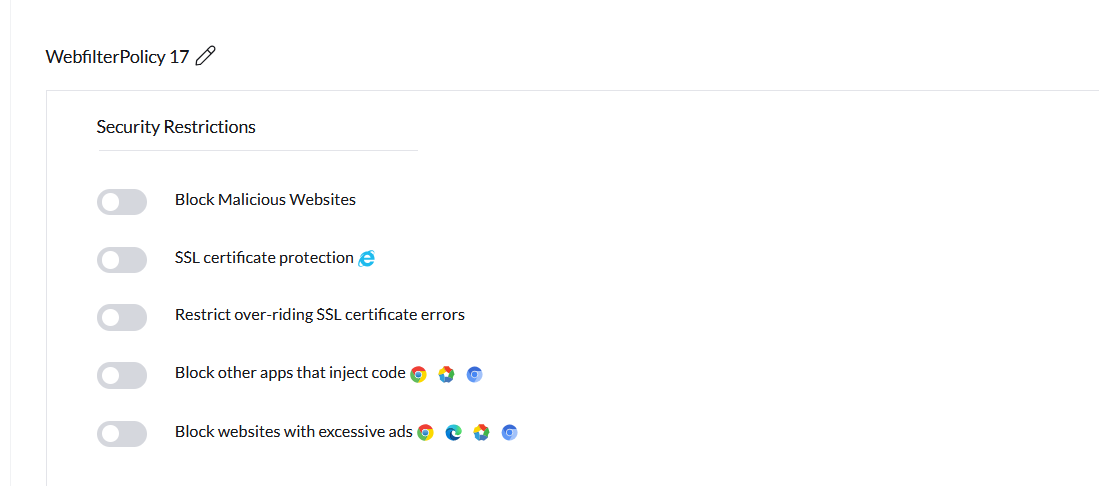
- Enable the toggle of Block Malicious Websites to block access to malware sites.
- Enable the toggle of SSL certificate protection to ensure SSL certificate encryption.
- Enable the toggle of Restrict over-riding SSL certificate errors to prevent users from ignoring or bypassing warnings about invalid or untrusted SSL certificates.
- Enable the toggle of Block third party websites that inject code to prevent websites from loading content from external sources, that could potentially inject malicious code into the page.
Enable Block websites with excessive ads to prevent users from accessing websites that display an excessive amount of advertising.
The URL Filter enables you to control website access based on specific time intervals. You can choose to allow or block access by either selecting from AI-classified categories—such as Education, News, Entertainment, and so on—or by specifying individual websites or website groups. To override a blocked domain within a category, use the Override Category Restriction feature; all such requests will be recorded under Web Activity in the Insights tab. While configuring website groups, you can also exclude certain sites from filtering by using the Define exclusion list for URL filter option. Access time windows should be specified in the HH:MM:SS format.
Note: The Web Category feature is currently in closed beta. If you’d like to participate, please reach out to our support team for access. To learn more about web category based filtering, refer here.

You can also customize the message and logo displayed on blocked pages or even redirect the pages to a different site. The Allow users to contact admin from a blocked page option will allow the end-users to send mail to the administrator.
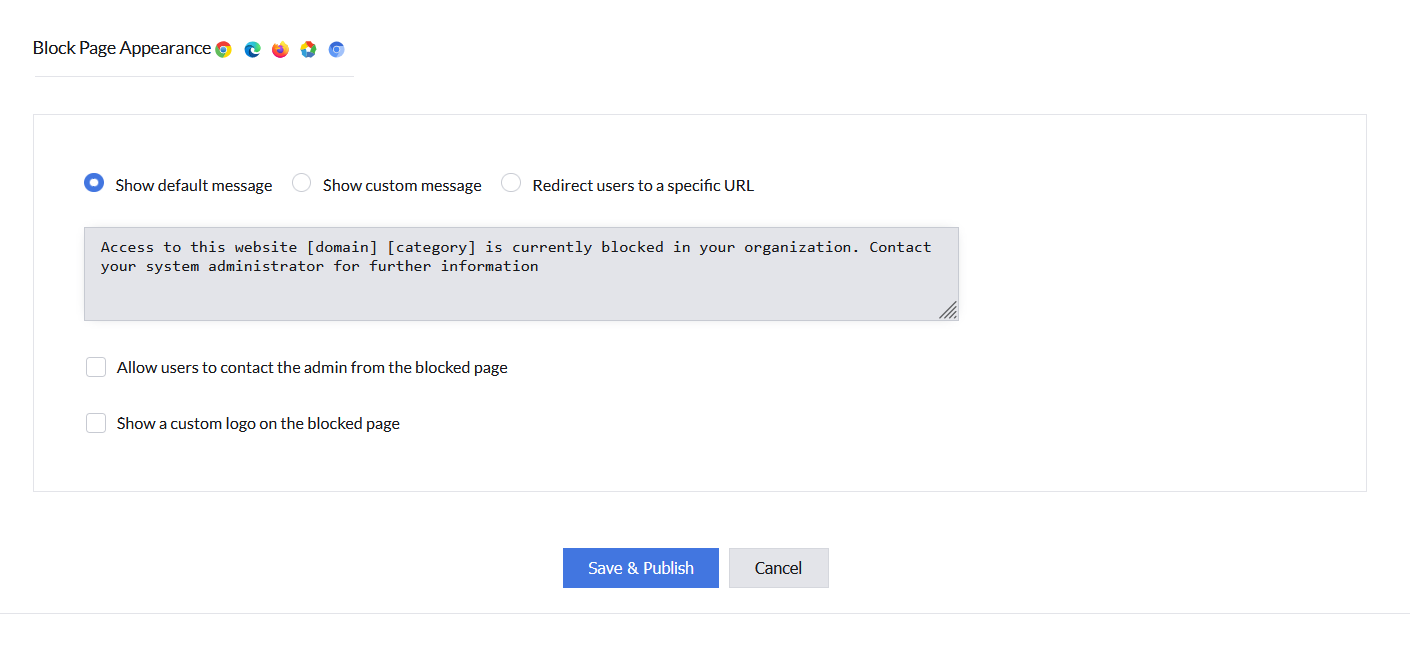
- Click Save & Publish to save the policy.
Associate the policy to computers/groups of computers in which you want to restrict access to web-applications.
Note: The web filter policy is not supported within Incognito mode and Guest mode of browsers. Alternatively, Incognito mode can be disabled under Policies -> Browser Customization -> Security Restriction -> Disable Incognito Policy while Guest mode can be disabled under Policies -> Browser Customization -> User Account Settings -> Allow users to use guest mode.
If you have any further questions, please refer to our Frequently Asked Questions section for more information.




