GPO Configurations | Computer configuration
Introduction to GPO Configurations
Group Policy Objects (GPOs) are a core feature in Windows that allow administrators to centrally manage and configure operating system settings, security policies, and user environments. Through GPOs, IT teams can enforce consistent configurations across all endpoints in a domain, ensuring compliance, security, and ease of administration.
In Endpoint Central, GPO Configuration simplifies the process of deploying these policies by providing a centralized console to manage Administrative Template. Instead of manually editing settings on each device via the Local Group Policy Editor (gpedit.msc), administrators can create, modify, and deploy GPO configurations directly from Endpoint Central, saving time and reducing errors.
What are Administrative templates
Administrative Templates are policy definitions used in Windows Group Policy Management to standardize configurations across devices. In Endpoint Central, they allow administrators to configure OS and application settings without writing custom scripts.
Administrative Templates use ADMX (policy definitions) and ADML (language-specific resources) files to expose settings in the Local Group Policy Editor and map them to registry keys. By leveraging these templates, IT admins can enforce security baselines, improve user productivity, and ensure compliance with organizational standards.
Examples of what you can configure:
- Enforcing password complexity requirements
- Restricting access to Control Panel or specific applications
- Managing Windows Update behavior
- Configuring network, printer, and desktop settings
Deploying Administrative templates
To create and deploy administrative templates:
- Click on Configurations → Administrative Templates → Create Configuration → Computer Configuration
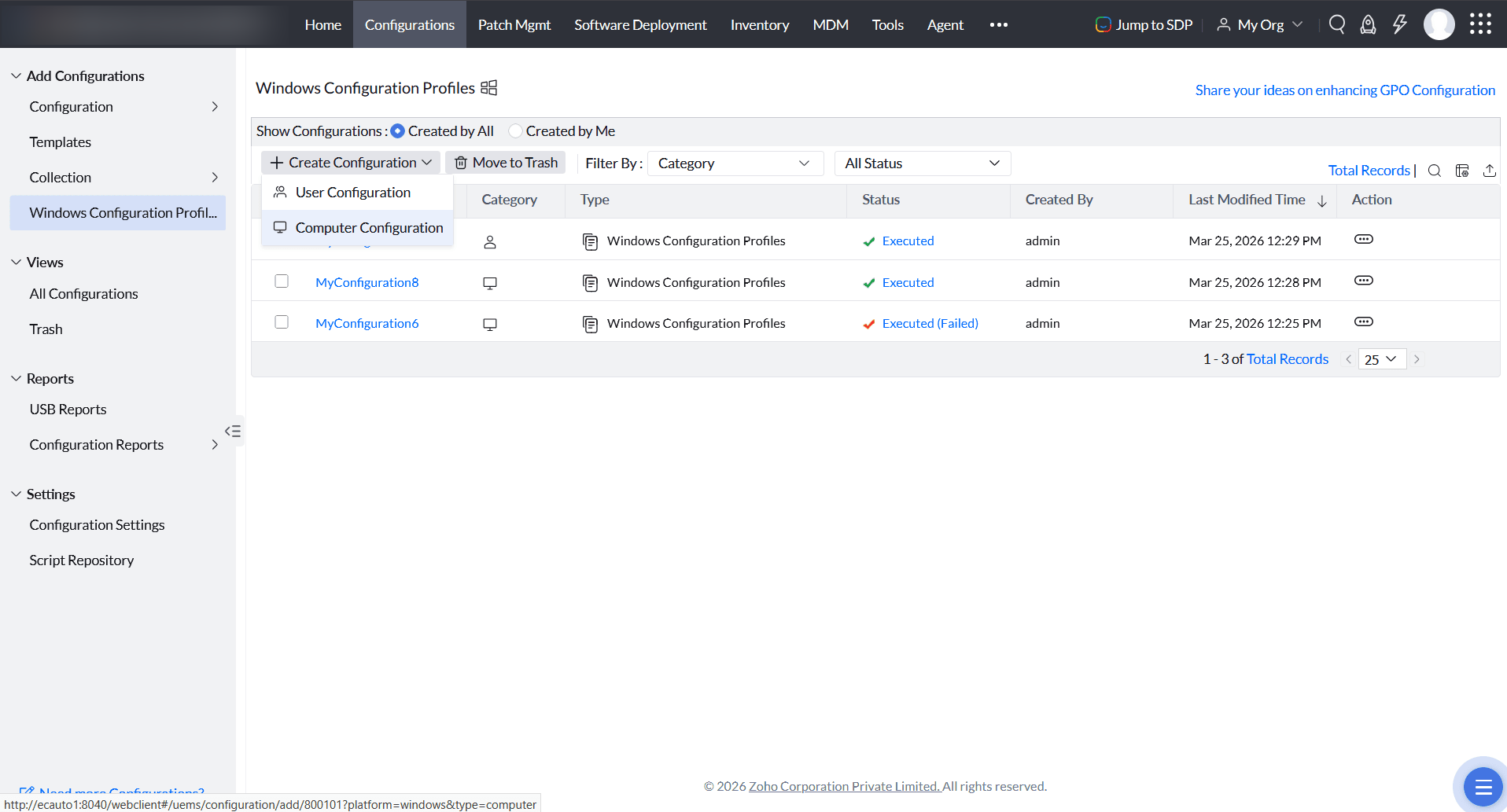
- Enter a descriptive Name and description for your configuration
- In the left pane, expand the nodes step by step until you reach the required setting
- In the right pane, you'll see all the policies under the selected tree node. Scroll to find the exact policy you want to configure.
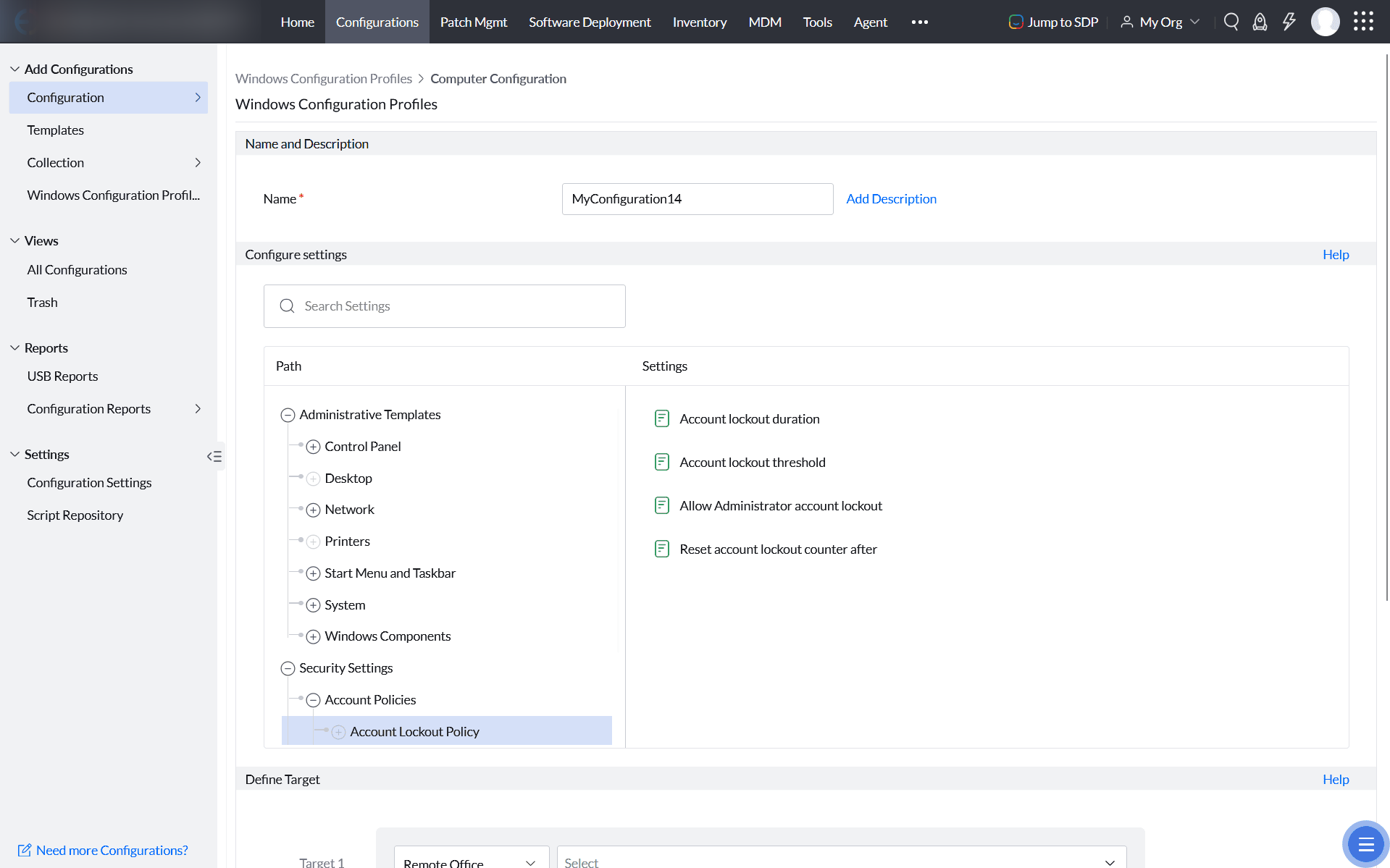
- Click on the Setting. A dialog box will open with three main options:
- Not Configured
- Enabled
- Disabled
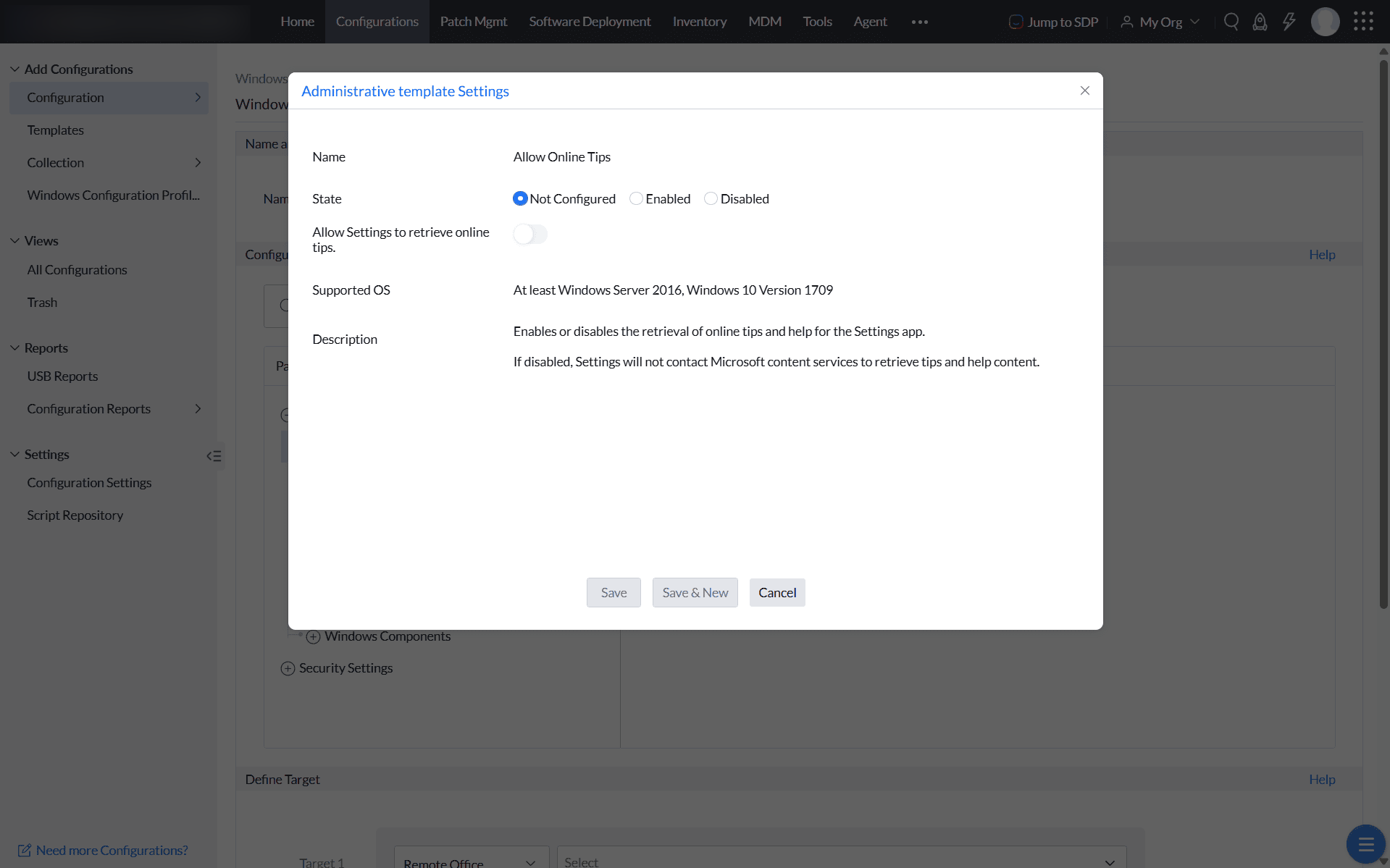
- Select Enabled or Disabled, depending on your requirement. If the policy supports extra input fields (e.g., entering a server name, file path, or numeric value), fill in the required information.
- Click Save or Save & New.
- Select all the required settings
- The policies you selected will be listed in the table below. Review and proceed.
- Define the Target
- You can also enable notifications to receive emails based on the specified frequency.
- Click on the Deploy button to deploy the Administrative Templates configuration in all the targets.
- To save the configuration as draft, click Save as
Permissions Required for Using Administrative Template
By default, Administrative Templates are visible to all users with Configuration Write or Full Control access.
To restrict access:
- Navigate to Admin → User Administration → Role
- Click Add Role
- Assign Write or Full Control for the Configuration module, then click Restrict Functions
- In the pop-up, uncheck Administrative Template
For more details about granular access, refer to the document