Install and Use the DEX Browser Extension
Overview
The DEX Browser Extension lets technicians look up managed devices, review experience and compliance data, and run available remediation workflows from a browser sidebar. This guide explains how to install and connect the extension, use its device views, and configure automatic device-name detection on supported web applications.
For a summary of the extension's capabilities and limitations, see DEX Browser Extension overview.
Prerequisites
- Google Chrome, Microsoft Edge, or Mozilla Firefox.
- A Zoho account that can access Endpoint Central.
- An administrator or technician role with permission to view DEX device data and run the required workflows.
- The installation link supplied by your administrator.
Install the extension
- Open the browser extension store or the installation link supplied by your administrator.
- Select the DEX Browser Extension and click Add to browser.
- Confirm the browser prompt to finish the installation.
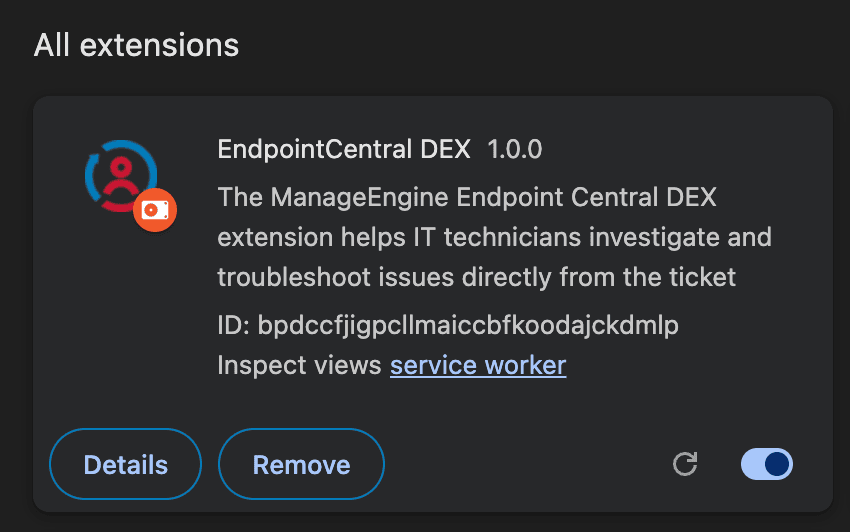
- Verify that the extension is enabled in your browser's extension manager: chrome://extensions in Chrome, edge://extensions in Edge, or about:addons in Firefox.
Connect the extension to DEX
- Click the DEX Browser Extension icon in the browser toolbar.
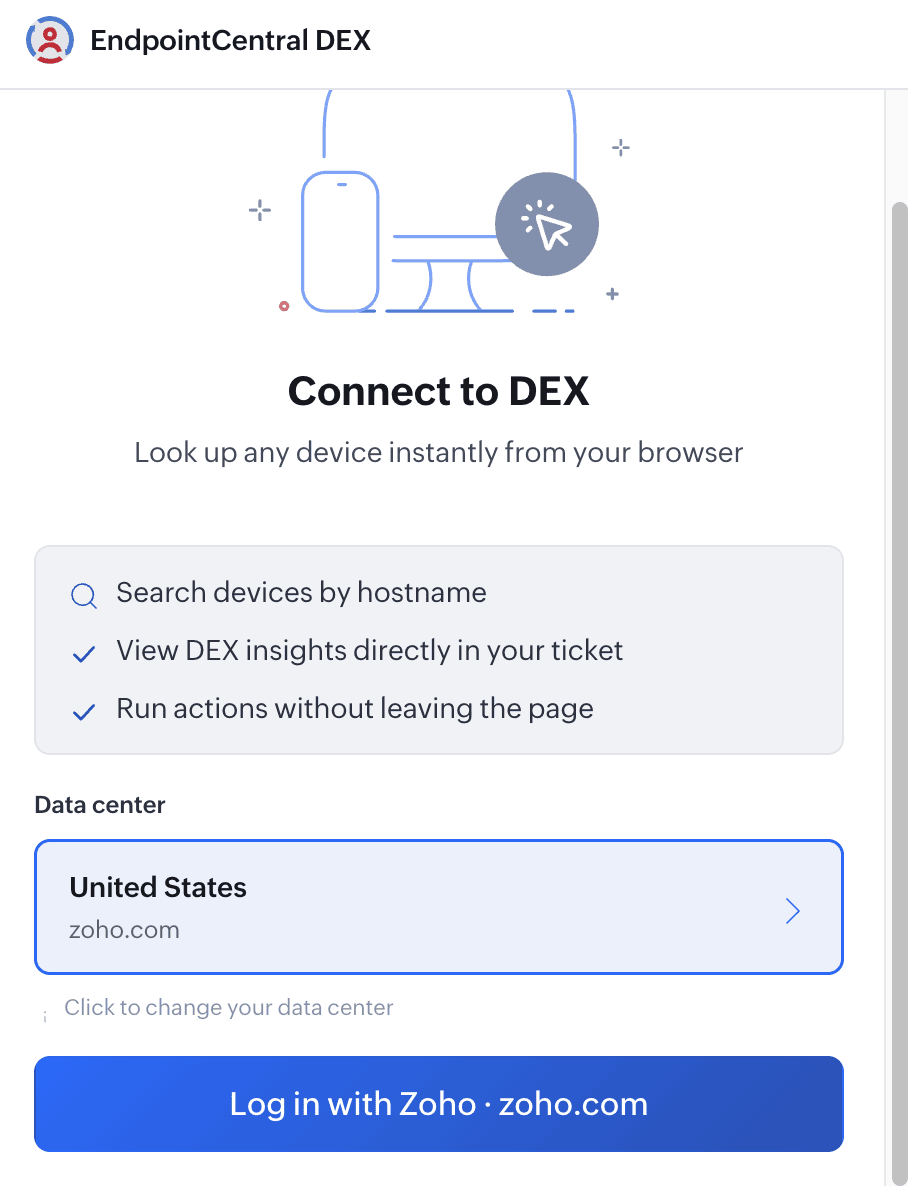
- On the Connect to DEX screen, select the data center that hosts your Endpoint Central organization.
- Click Log in with Zoho.
- Review the requested permissions, select the consent checkbox, and click Accept. Rejecting the request cancels setup and prevents the extension from accessing DEX data.
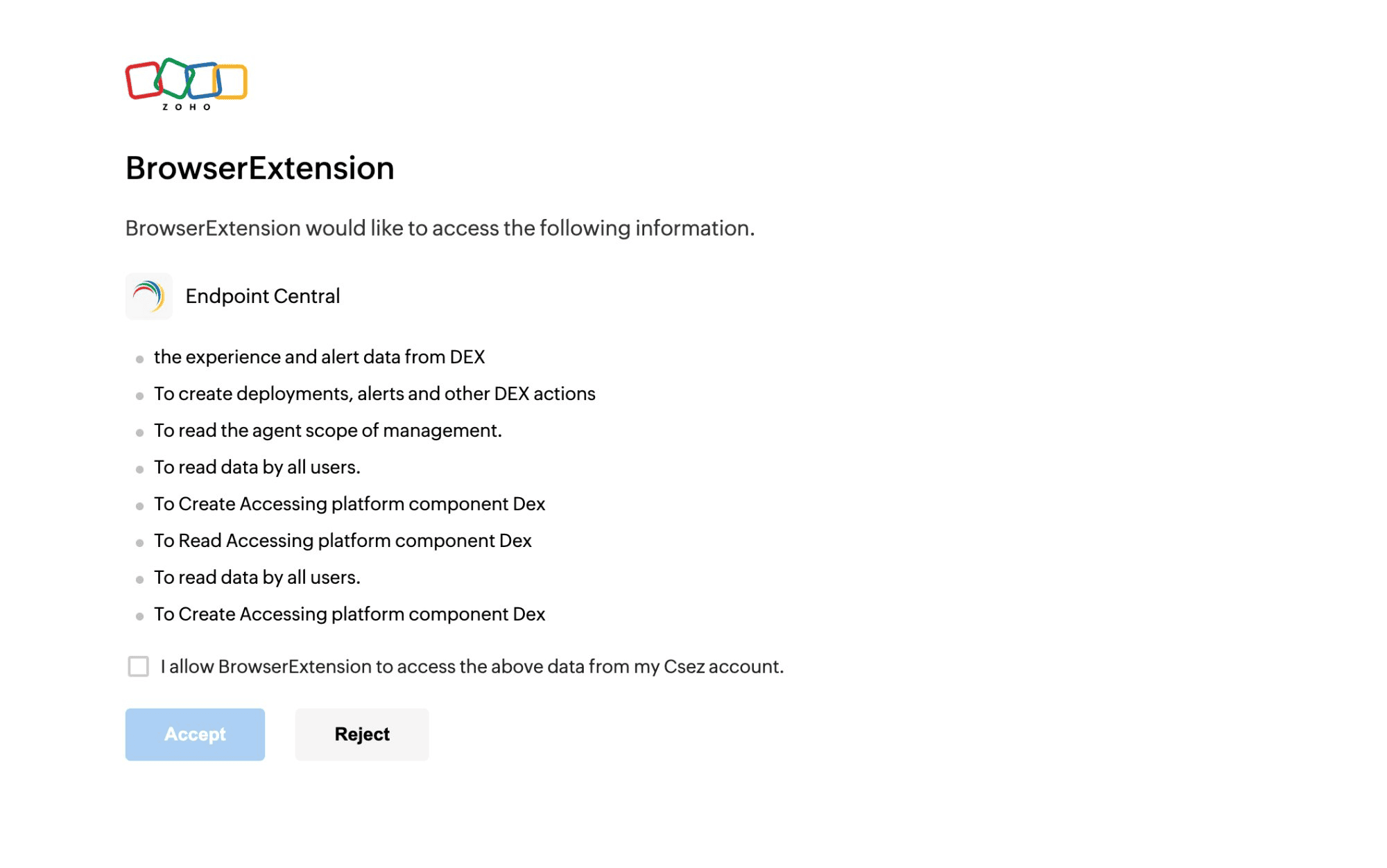
The extension requests access to read DEX experience, alert, agent-scope, and user-visible device data, and to create DEX actions such as deployments and alerts. These permissions let it display device insights and trigger authorized workflows.
Find and monitor devices
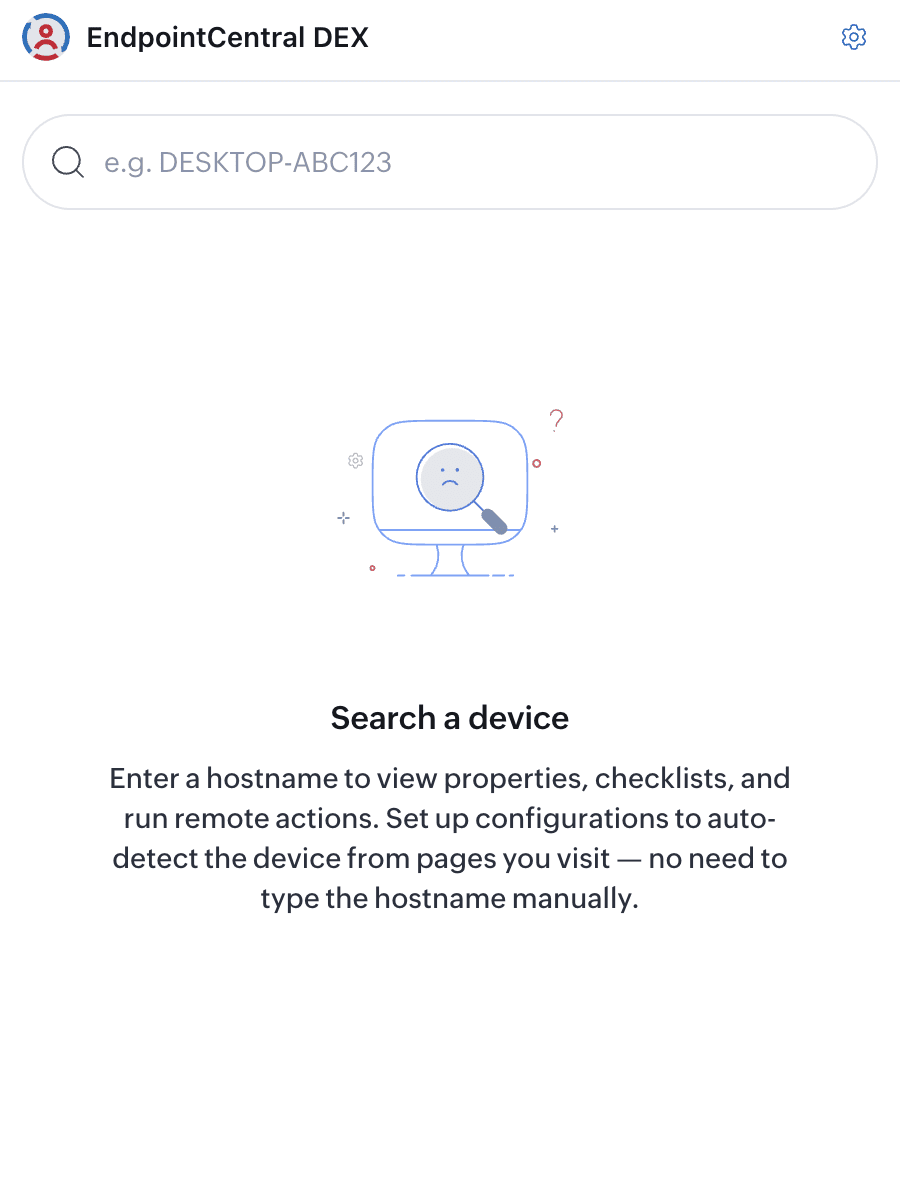
After authentication, enter the hostname of a managed device in the search bar. The extension displays the device's information across the following tabs:
| Tab | Information and actions |
|---|---|
| Properties | Experience Score, Application Reliability, Baseline Score, Device Stability, Device Performance, Device Responsiveness, IP address, MAC address, serial number, and processor information. |
| Checklist | L1 and L2 compliance and health results, including available CPU, memory, GPU, Wi-Fi, application-crash, and system-stability checks. |
| Actions | Workflows available for the selected device, their current status, and the control used to run them. |
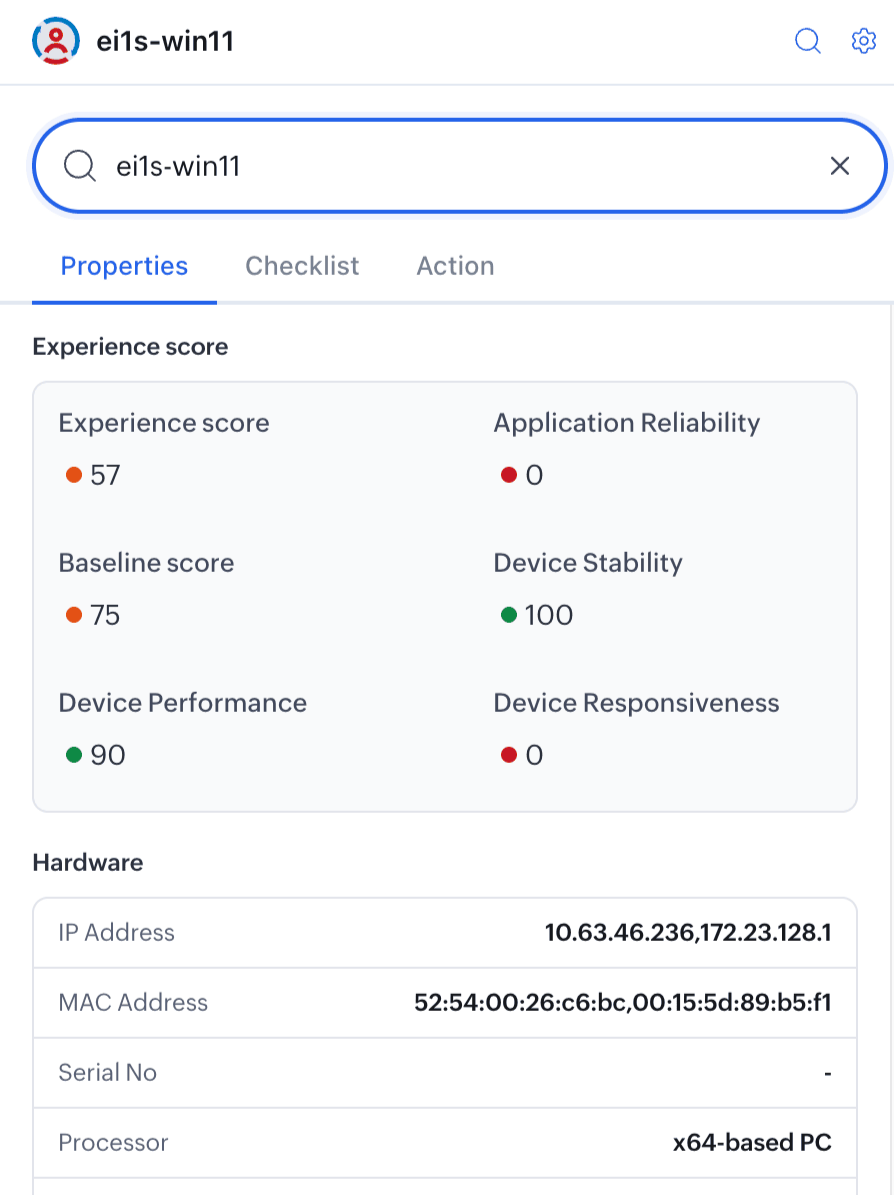
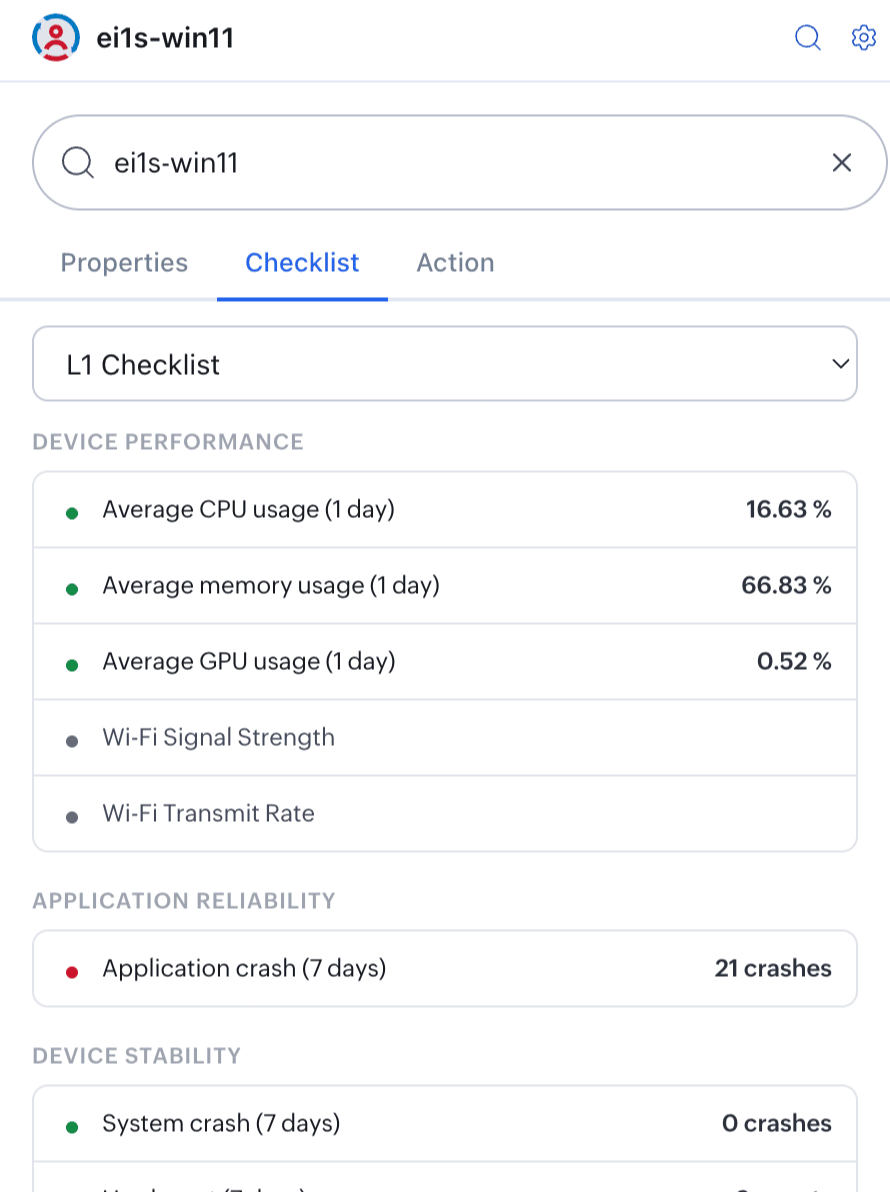
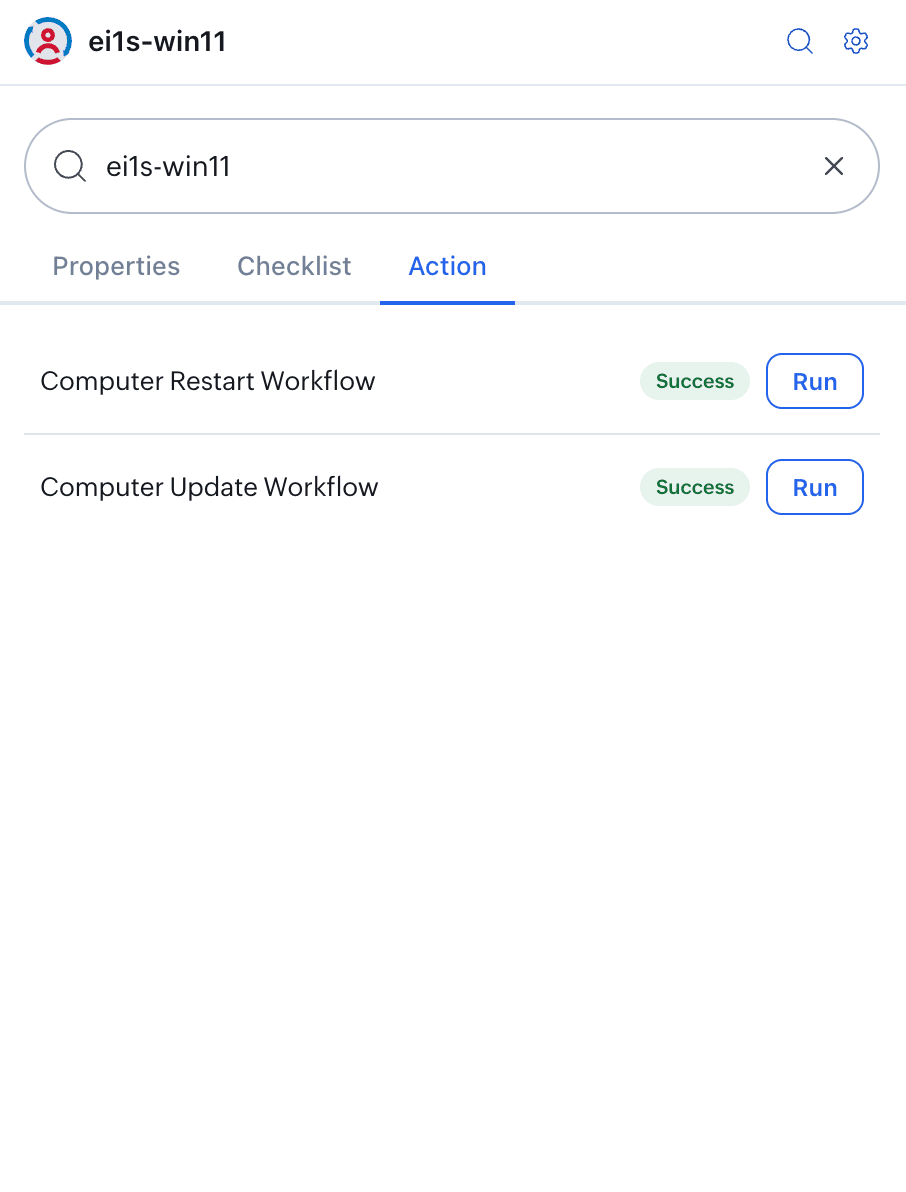
Score indicators use color to distinguish healthy, moderate, and critical conditions. A workflow marked Triggered has been dispatched and is awaiting or undergoing execution.
Configure automatic device detection
A page configuration adds a floating DEX button to a matching help desk, ITSM, or internal web page. The configuration identifies an element containing a device name, reads its value, and opens the sidebar with that device selected.
Create a page configuration
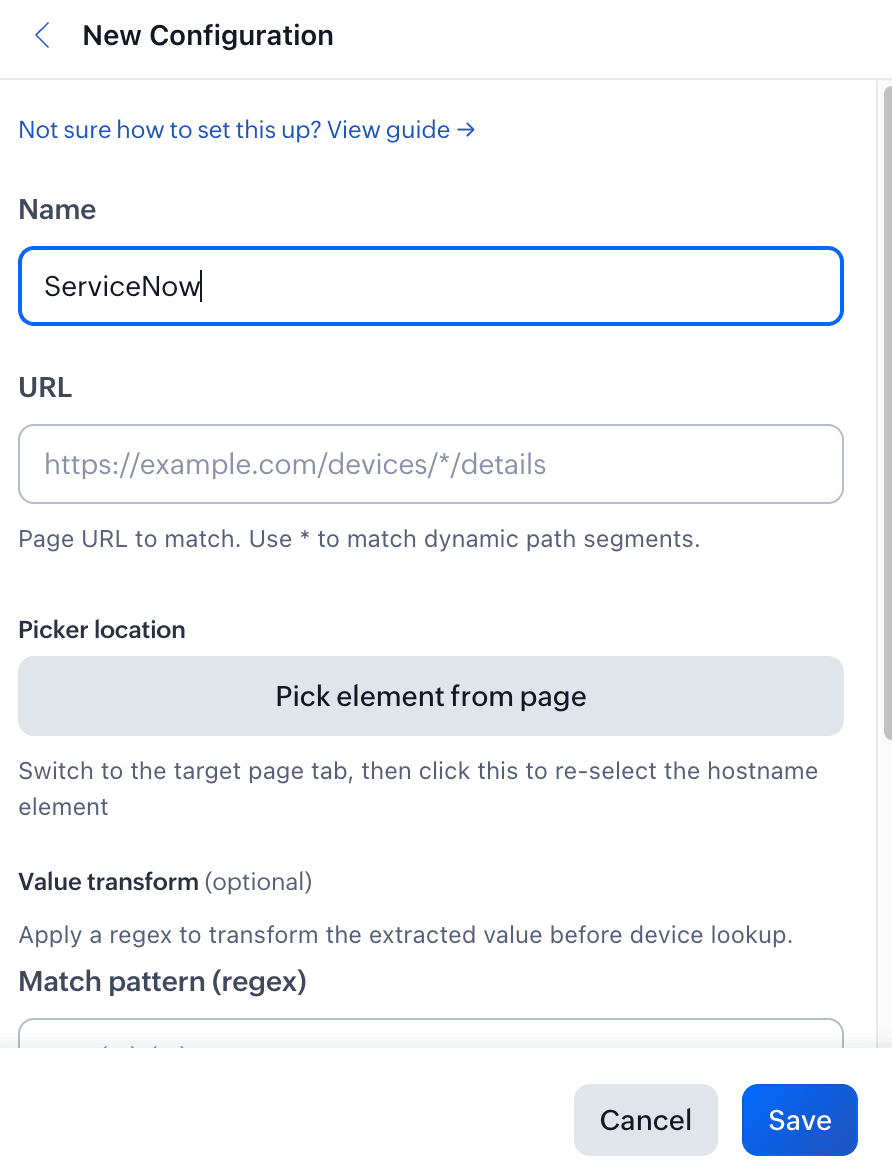
- Open the extension settings and select New Configuration.
- Enter a descriptive Name.
- Enter the HTTPS URL where the floating button should appear. Use an asterisk as a wildcard for a dynamic path segment when required.
- Click Click any element on the page, switch to the target browser tab, and select the element that displays the hostname.
- If the selected element contains extra text, optionally provide a regular-expression Match pattern and a Replace with value.
- Save the configuration and reload a matching page to verify that the floating button appears and opens the correct device.
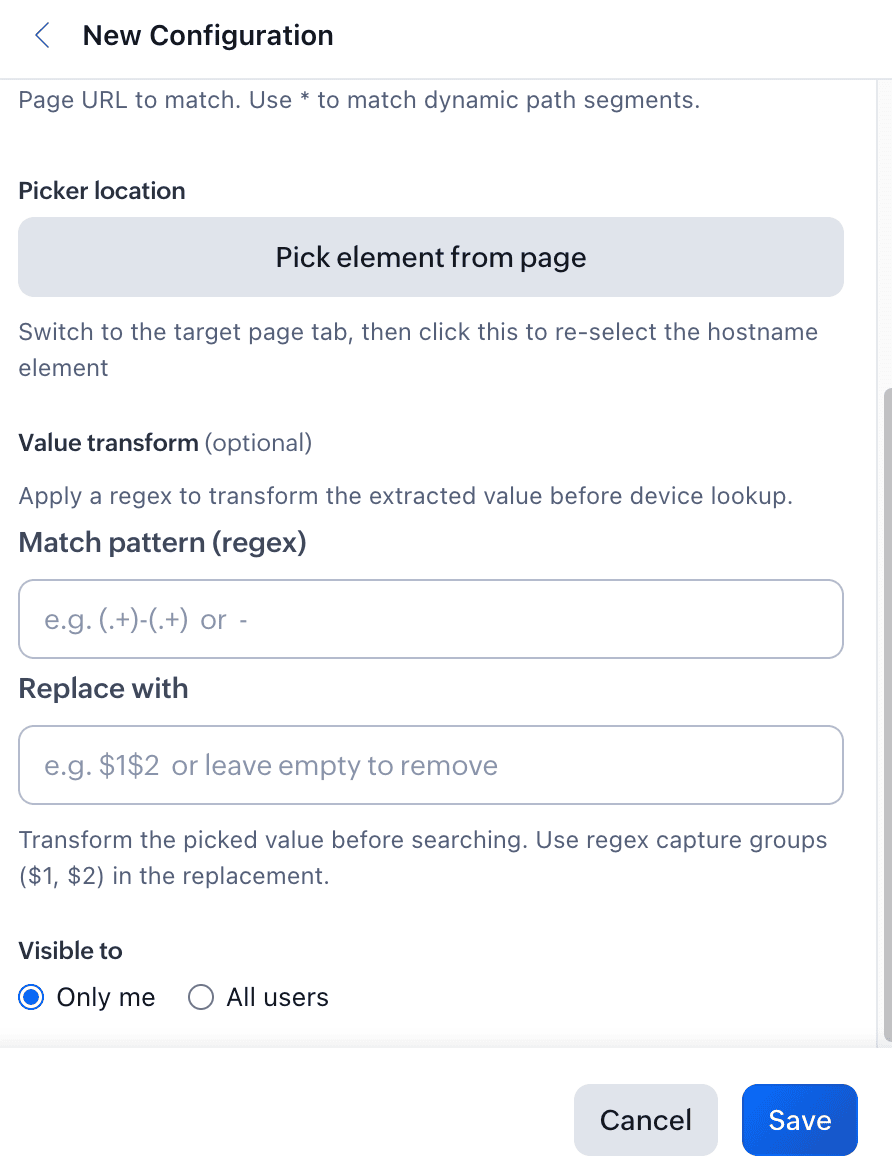
Transform the detected value
Use a regular-expression transform when a page displays the hostname inside a longer value. For example, a capture group can extract device-01 from DOMAIN\device-01. Test the configuration on a representative page and confirm the hostname shown in the extension before using its actions.
Limitations
- The extension displays data only for devices enrolled in and managed by the connected Endpoint Central organization.
- Current metrics depend on the device being online and reporting to the server. Offline devices can show stale or incomplete data.
- The extension must remain authenticated. Sign in again when the browser session expires.
- Automatic device detection works only on pages that match a saved URL configuration and expose the configured hostname element.