Configuring and Managing Alerts
Overview
DEX Alerts help IT teams detect and respond to user-impacting device issues before they become support escalations. You can create alert profiles for built-in DEX metrics, use sensor fields as alert inputs, combine multiple conditions with criteria patterns, and customize alert notifications for the people who need to act on them.
Use DEX Alerts when you want to:
- Monitor built-in performance and experience metrics such as CPU, memory, storage, battery, and similar endpoint health signals
- Trigger alerts from sensor fields that collect custom device data
- Define advanced multi-condition logic with criteria patterns such as (1 AND 2) or ((1 AND 2) OR 3)
- Customize notification subjects and message content with alert variables
- Draft and refine alert profiles with Zia by using natural language prompts
How Alerts Work
The alert lifecycle typically follows these steps:
- Create an alert profile and define one or more alert conditions.
- Select the metric or sensor field to evaluate and configure the threshold, aggregation, and evaluation window.
- If the profile uses multiple conditions, define the criteria pattern that controls how those conditions are evaluated together.
- Configure how often the profile is evaluated and how alert notifications should be handled.
- Deploy the alert profile to the required devices.
- When the configured criteria are met, DEX generates an alert and notifies the configured recipients.
Create an Alert Profile
To create a new alert profile:
- Go to DEX > Alerts.
- Open the Alert Profiles tab.
- Click Create Alert Profile.
- Enter a profile name and, if required, add a description.
- Add one or more alert conditions.
- Configure the trigger behavior, monitoring interval, cool off period, priority, and notification settings.
- Save the profile and deploy it to the required devices.
Metrics and Sensor Fields
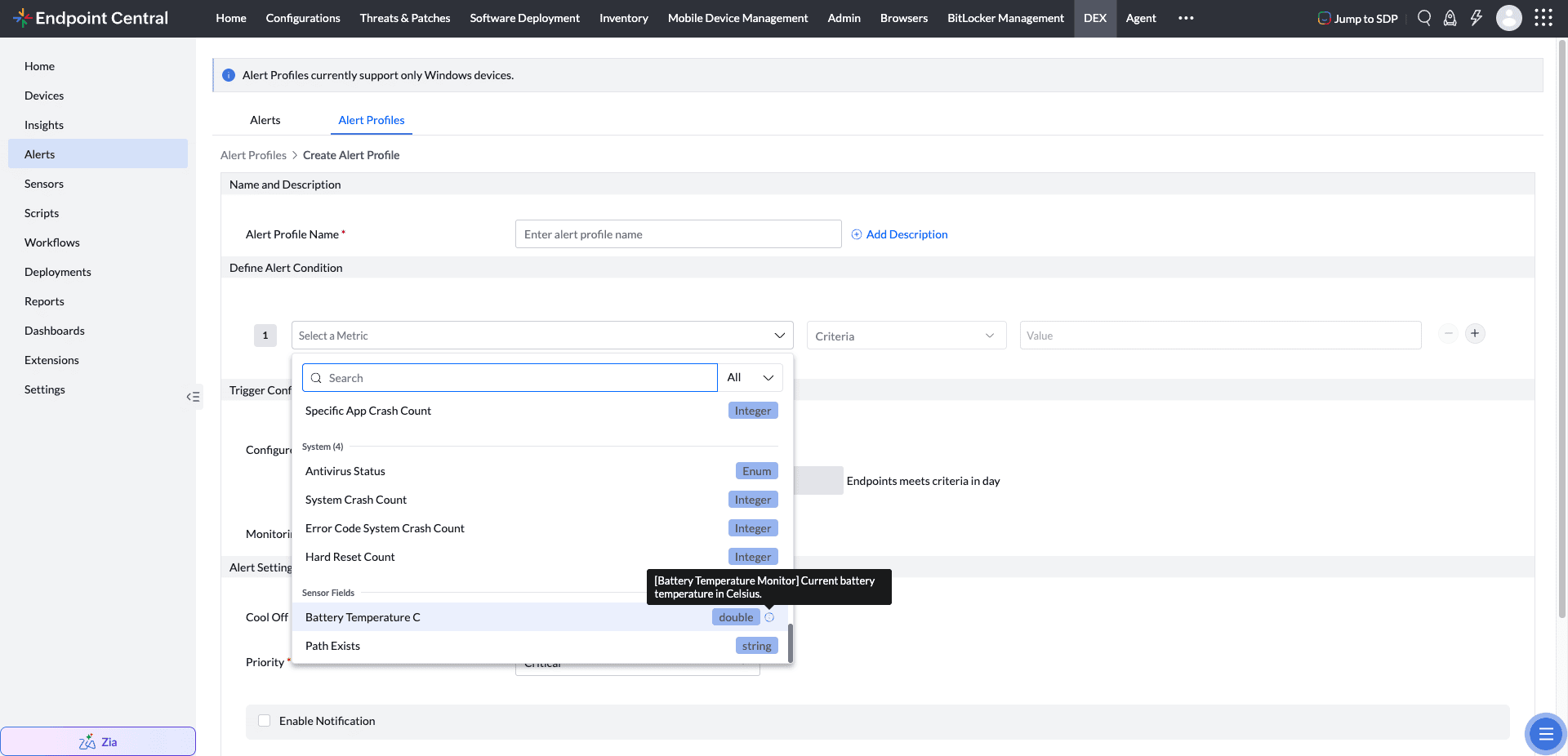
Each alert condition starts with a metric selection. DEX Alerts support both built-in metrics and sensor fields.
- Built-in metrics are the standard DEX metrics available in the alert builder.
- Sensor Fields let you use values collected by sensors as alert inputs.
To use a sensor field in an alert:
- Create the required sensor and deploy it so the field begins returning values.
- Open the alert profile builder and add a condition.
- Open the metric picker and expand Sensor Fields.
- Select the required field and define the evaluation rule.
See Sensors for the sensor creation workflow.
Criteria Patterns
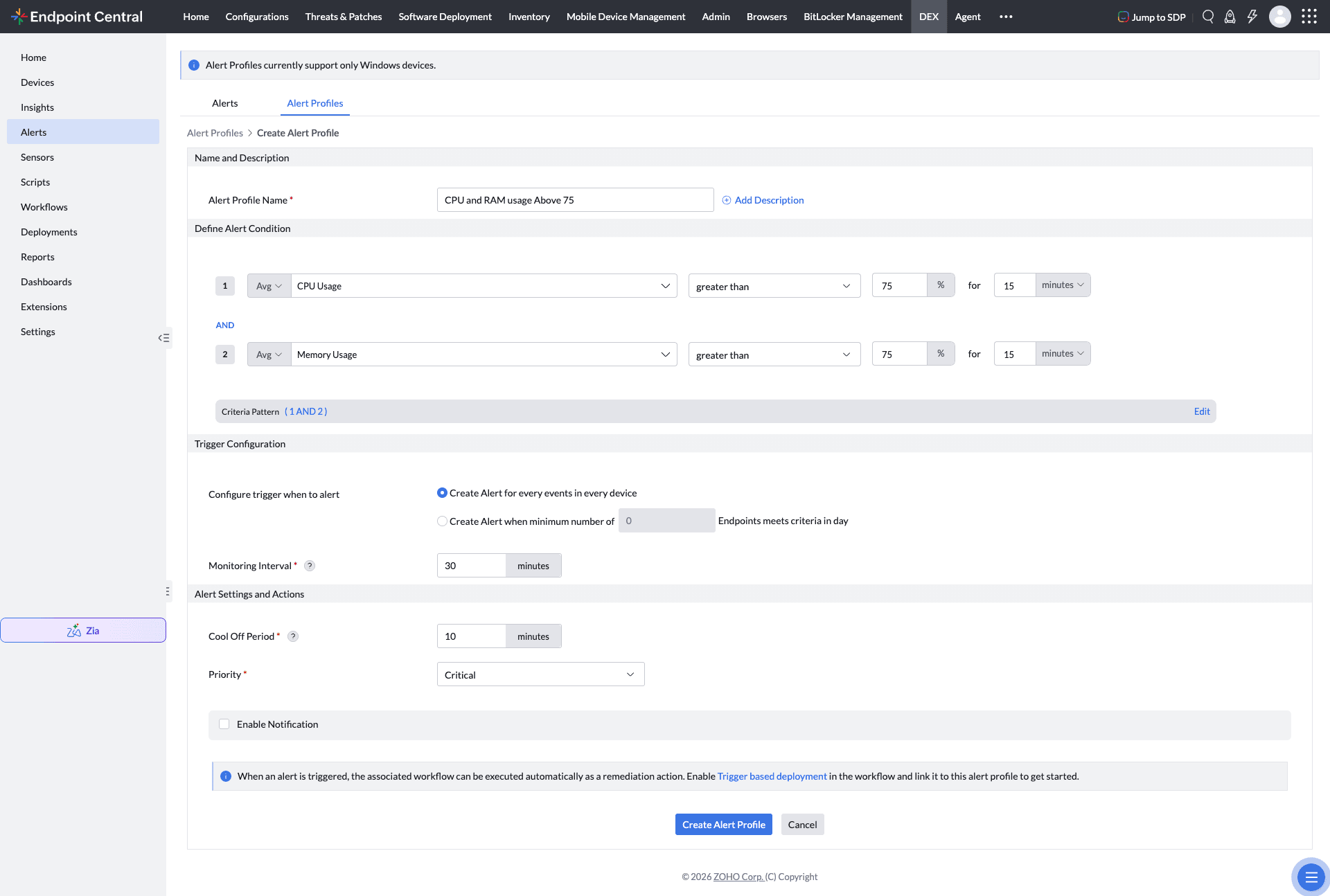
When you add more than one condition to an alert profile, you can define how those conditions are evaluated together by using a criteria pattern.
Common examples include:
- (1 AND 2) to trigger only when both conditions are true
- (1 OR 2) to trigger when either condition is true
- ((1 AND 2) OR 3) to mix strict and fallback conditions in a single alert profile
Use parentheses whenever you want to control precedence across more complex rules.
Alert Trigger Behavior
The Monitoring Interval and Cool Off Period work together to control when an alert profile is evaluated and how frequently it can generate alerts on each device.
| Setting | What it controls | When it applies |
|---|---|---|
| Monitoring Interval | How frequently DEX evaluates the alert profile criteria on the device. | Continuously, from the moment the profile is deployed. |
| Cool Off Period | How long the profile is suppressed after it generates an alert. | Only after the criteria are met and an alert is raised. |
How an Evaluation Cycle Works
- At each monitoring interval, DEX checks whether the alert profile is in a cool-off state on that device. If it is, the cycle is skipped: the criteria are not evaluated and no alert or notification is generated.
- If the profile is not in cool off, DEX evaluates its alert criteria, including any criteria pattern used to combine multiple conditions.
- If the criteria are met, DEX generates an alert, sends the configured notifications, and starts the cool-off timer for that alert profile on that device. If the criteria are not met, the next monitoring cycle proceeds normally.
- Cool off starts only when an alert is generated. A cycle in which the criteria are not met does not consume cool-off time.
- Cool off is tracked per device and per alert profile. A device in cool off does not suppress alerts on other devices in the same deployment scope.
Monitoring and Cool-Off Guidance
- For predictable repeat-alert spacing, configure the cool-off period as a multiple of the monitoring interval. For example, with a 15-minute monitoring interval, a 20-minute cool off is effectively evaluated again at the 30-minute mark.
- A shorter monitoring interval improves detection speed. Use the cool-off period to control the frequency of repeat alerts.
- A cool-off period shorter than the monitoring interval is redundant because the profile cannot be evaluated again before the next monitoring cycle.
- Align the monitoring interval with the longest evaluation window in the profile. For example, a condition averaged over 10 minutes should not use a monitoring interval shorter than 10 minutes.
See Alert Condition Variables for the supported variables, aggregation choices, comparators, values, and evaluation windows.
Notifications and Actions
You can enable notifications directly from the alert profile and define the recipients who should receive them.
Use Recustomize in the notification section to edit the notification subject and body. While editing the notification template, type $ or use the Variables panel to insert supported alert variables.
To use a variable:
- Open an alert profile and enable notifications.
- Click Recustomize in the notification section.
- Edit the subject or message body.
- Type $ or choose a value from the Variables panel.
- Save the notification template and then save the alert profile.
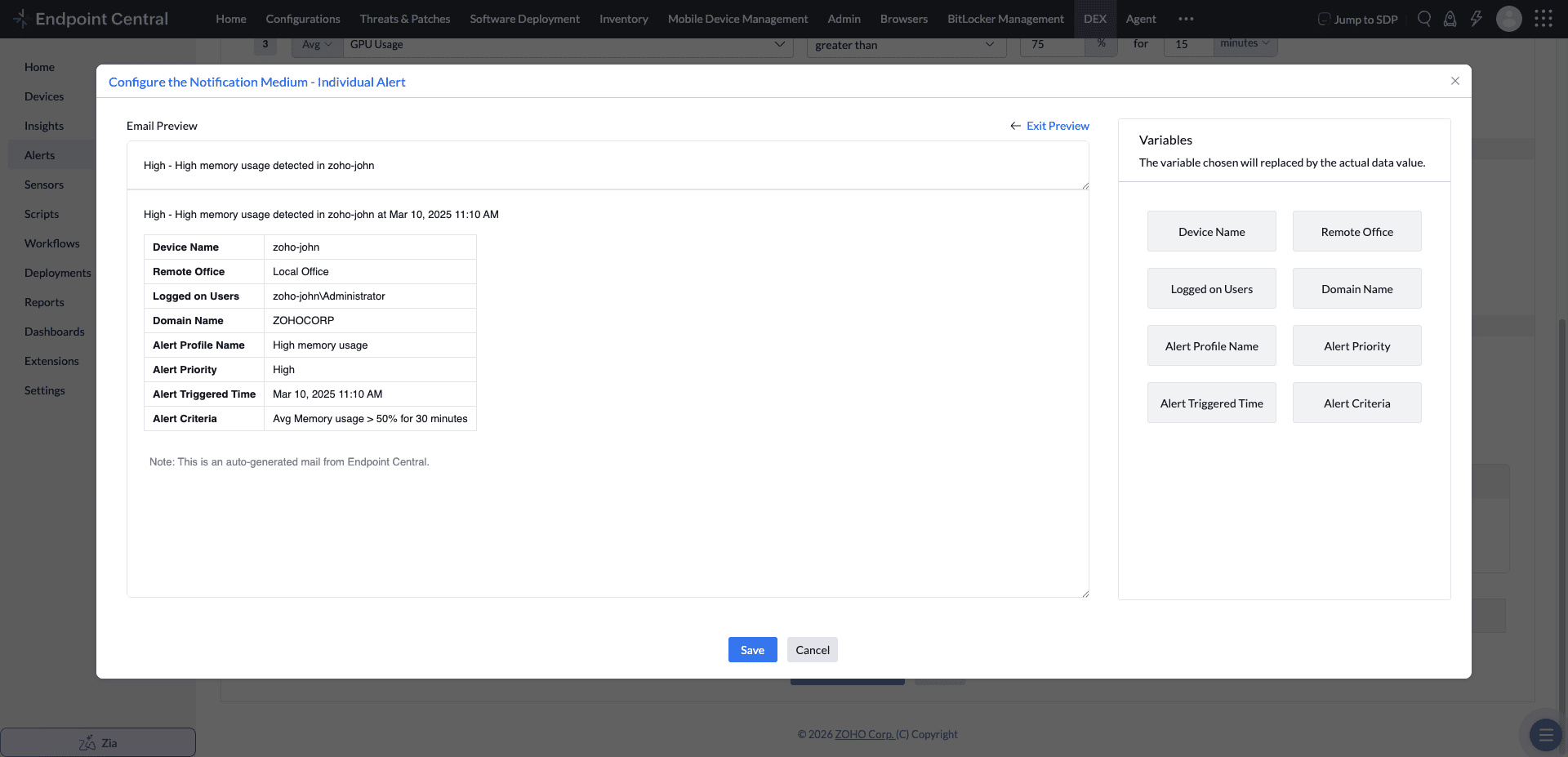
Example Template
Example subject:
$alert.priority$ - $alert.name$ detected in $device.name$
Example message body:
| Field | Value |
| Device Name | $device.name$ |
| Remote Office | $device.remoteoffice$ |
| Logged on Users | $device.userloggedon$ |
| Domain Name | $device.domainname$ |
| Alert Profile Name | $alert.name$ |
| Alert Priority | $alert.priority$ |
| Alert Triggered Time | $alert.triggeredtime$ |
| Alert Criteria | $alert.criteria$ |
Alerts with Zia
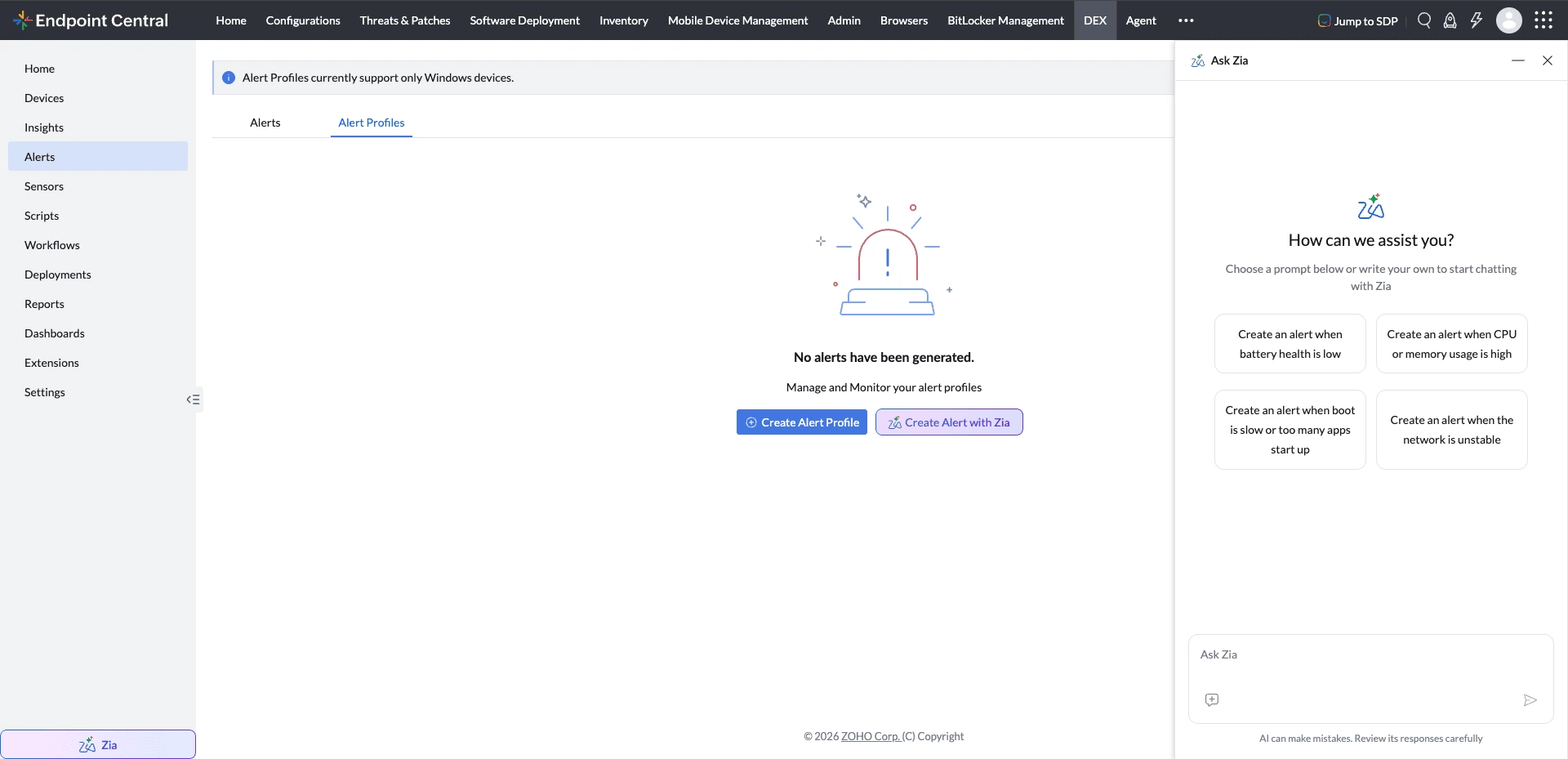
Zia can help you draft alert profiles by converting a natural language request into alert conditions and profile settings.
A typical flow is:
- Open Zia from the DEX module or from the alert creation flow.
- Describe the alert you want to create. For example, ask Zia to monitor a built-in metric, a sensor field, or a multi-condition rule.
- Review the generated draft and confirm the metric selection, thresholds, criteria pattern, and priority.
- Refine the draft further if required before saving the alert profile.
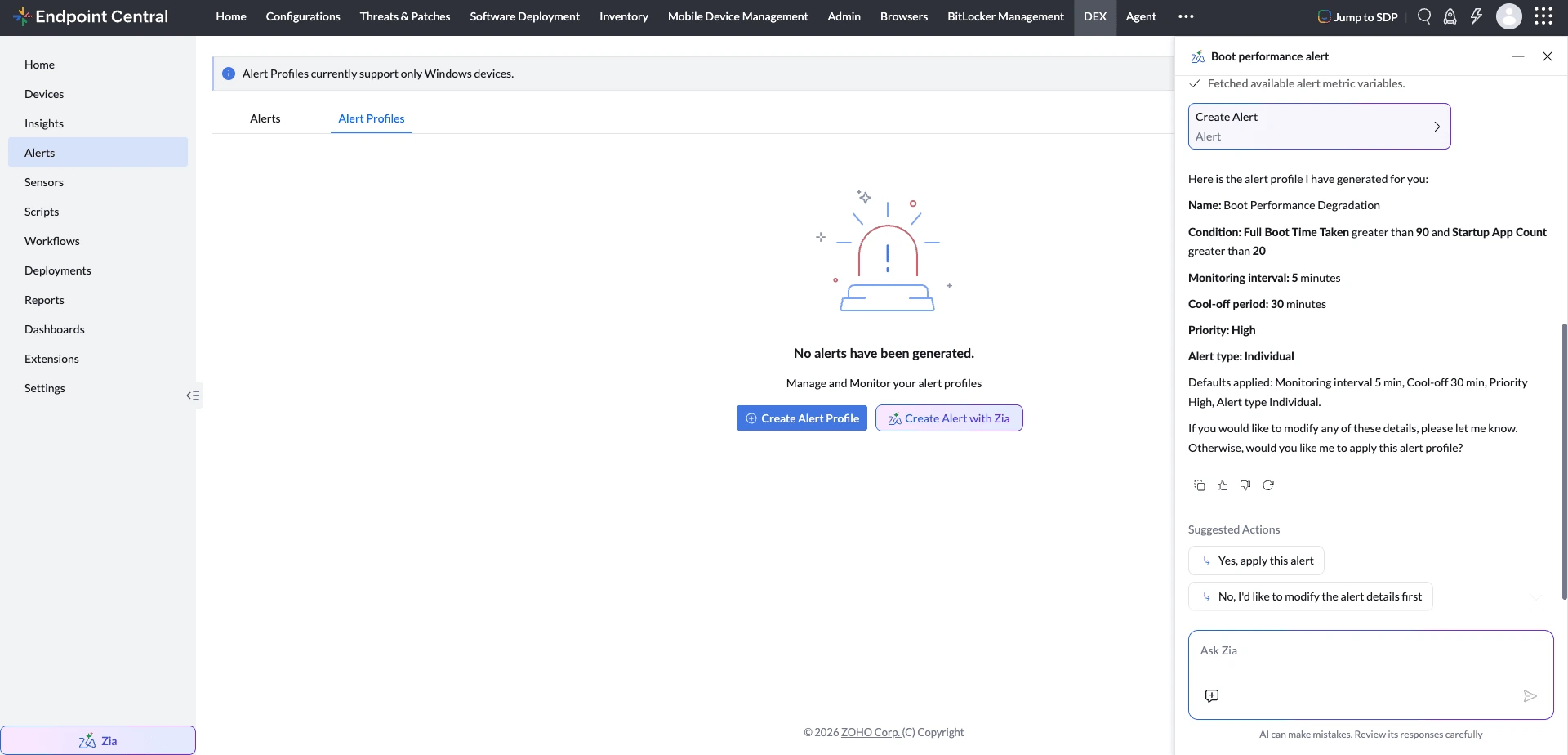
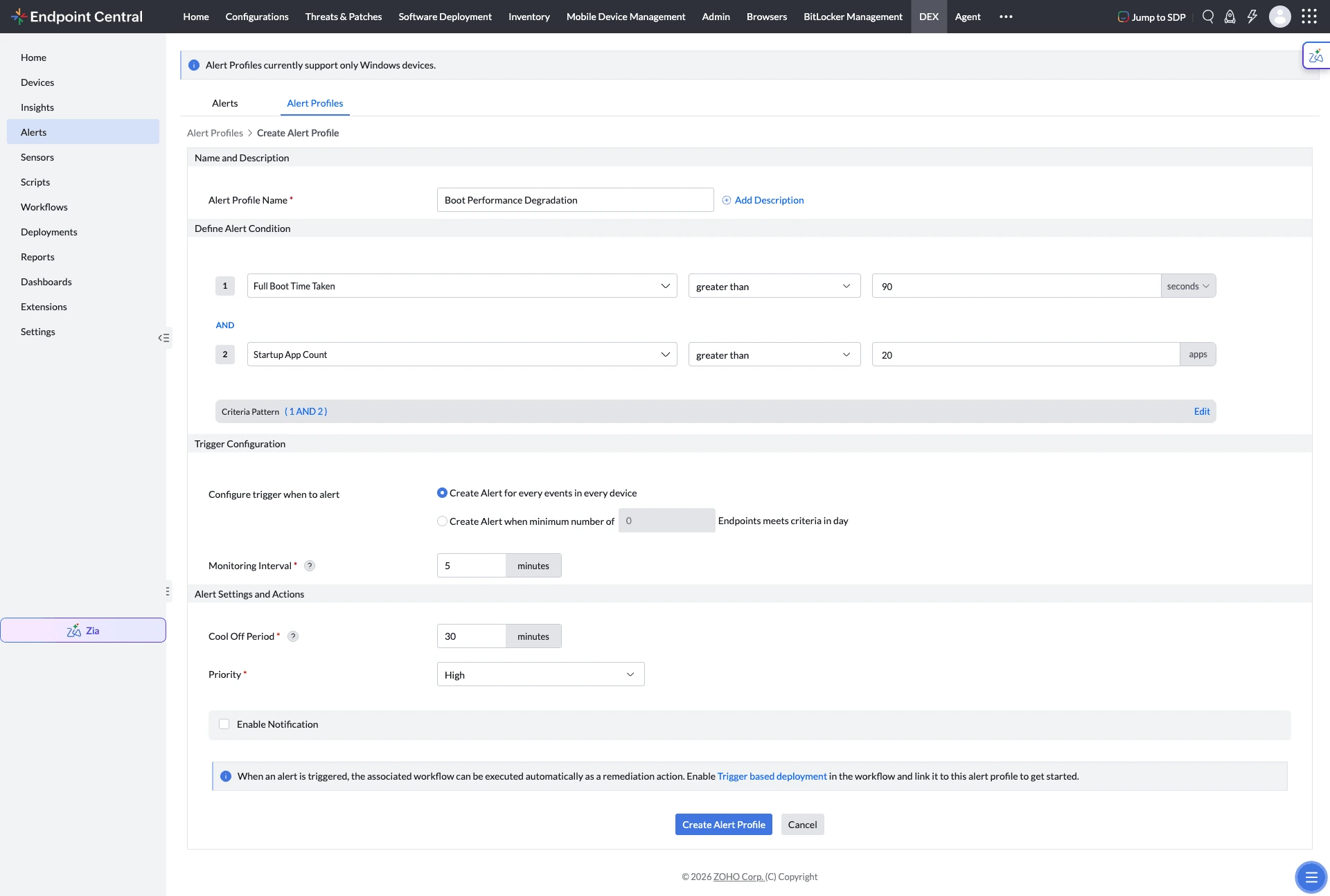
Example: Create a Boot Performance Alert with Zia
This example shows a complete Zia-assisted alert authoring flow for a built-in alert profile.
- Open DEX > Alerts > Alert Profiles and launch Ask Zia.
- Enter a prompt that describes the boot performance issue you want to monitor.
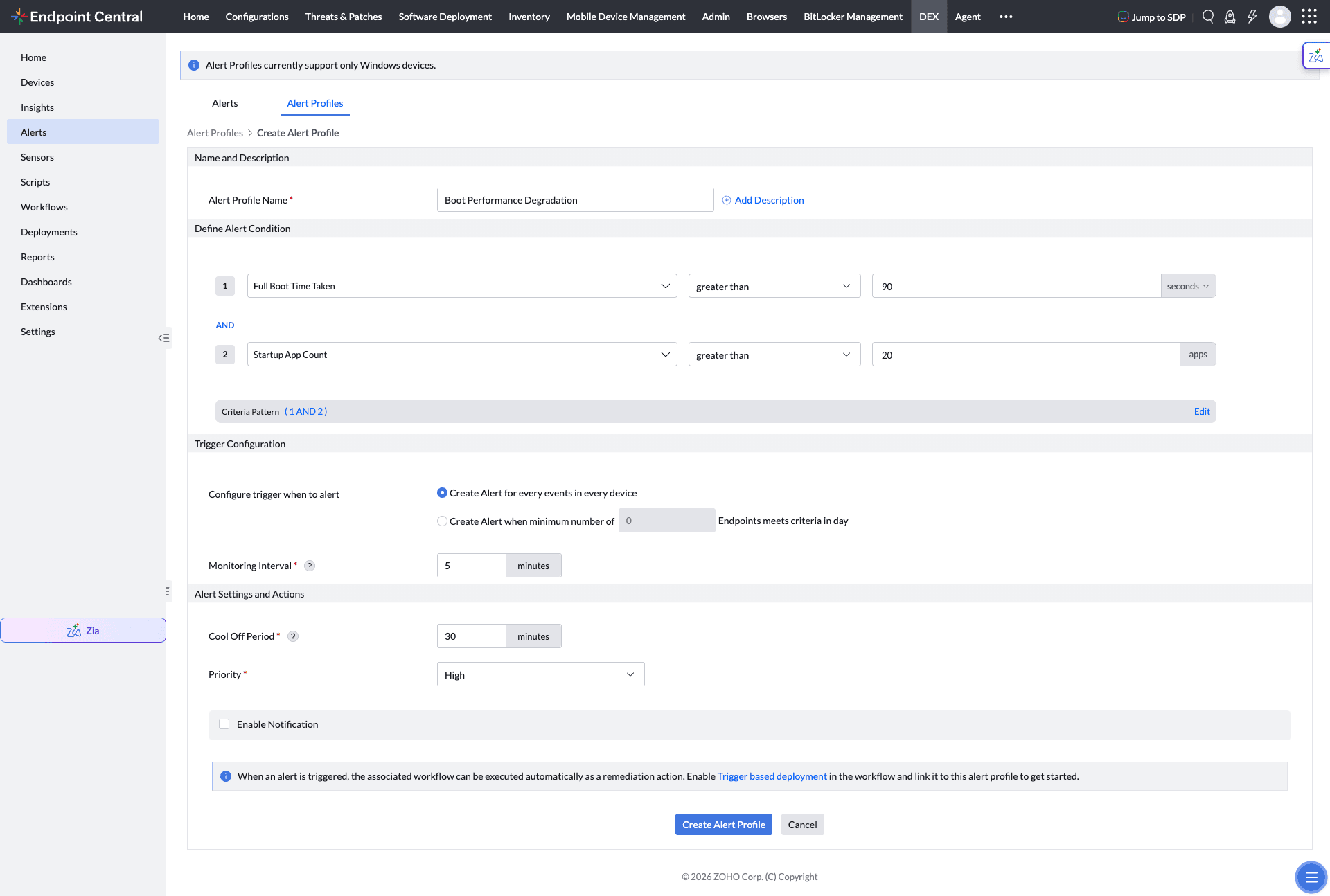
- Review the generated draft and apply it to open the populated alert profile form.
- Validate the thresholds, monitoring interval, cool off period, and priority before saving.
Sample Prompts
Network
- High latency or packet loss
Alert when gateway latency exceeds 150 ms OR packet loss exceeds 3%. Set priority to High. - Low Wi-Fi throughput
Alert when Wi-Fi receive rate is less than 1000 KBps OR Wi-Fi transmit rate is less than 1000 KBps. Set priority to Medium. - Complete network connectivity lost
Alert when Wi-Fi connection status equals Disconnected AND Ethernet connection status equals Disconnected. Set priority to Critical.
Performance
- Memory usage
Alert when memory usage exceeds 90%, averaged over 10 minutes. Set priority to Critical. - Memory swap rate high RAM exhausted
Alert when memory swap rate exceeds 500 pages, averaged over 5 minutes, OR memory swap size exceeds 4 GB, averaged over 5 minutes. Set priority to High.
Disk
- Disk health degrading
Alert when disk health status equals Warning OR disk health status equals Critical. Set priority to Critical. - Legacy disk type detected
Alert when OS disk type equals HDD. Set priority to Low.
Battery
- Battery health check
Alert when battery health percentage drops below 60% OR cycle count exceeds 800. Set priority to High. - Short battery backup time
Alert when battery full backup time drops below 1 hour. Set priority to Medium.
Startup
- Too many startup apps slowing boot
Alert when the last boot startup app count exceeds 20 apps. Set priority to Medium. - Startup driver adding significant delay
Alert when the startup driver total time for driver VirtualBox exceeds 20 seconds. Set priority to Medium.
Security
- High app crash rate stability issue
Alert when app crash count exceeds 5 in the last 3 days for any application. Set priority to High. - Antivirus disabled
Alert when antivirus status is Disabled. Set priority to Critical.
Assets
- Warranty expiring soon
Alert when warranty expiry date is within 30 days. Set priority to Medium. - Unexpected local user accounts
Alert when total local user count exceeds 3.
If the Required Alert Variable Is Unavailable
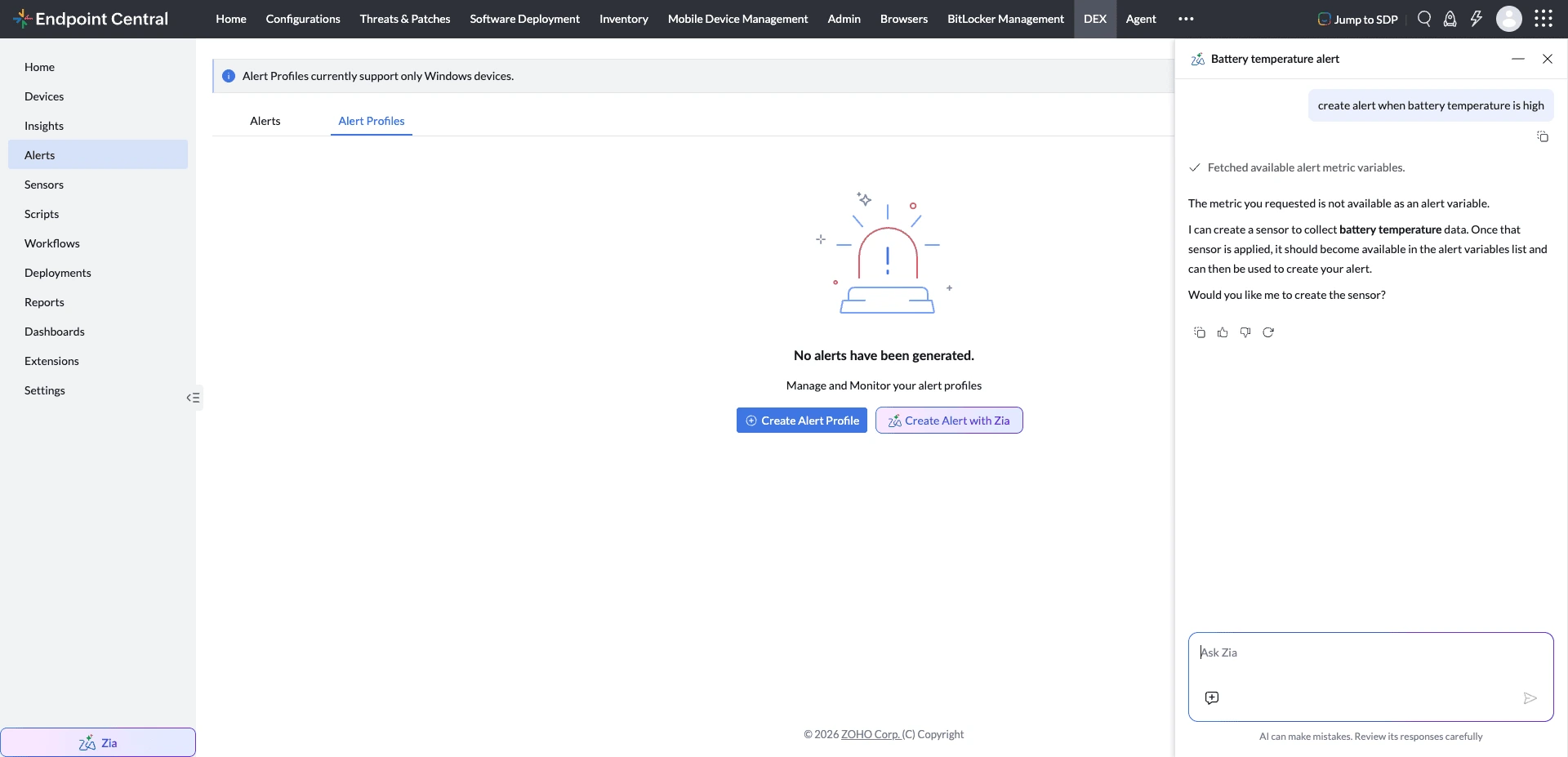
If the alert profile you want to create is not available in the predefined alert variables, create a sensor for that value from within the Alerts screen and then use the new sensor field in the alert profile.
- Start the alert flow in Zia or in the regular alert profile builder.
- If the requested value is unavailable, create a sensor for that value and deploy it to the required devices.
- Return to the alert profile, open the metric picker, expand Sensor Fields, and select the new field.
- Complete the remaining thresholds and save the profile.
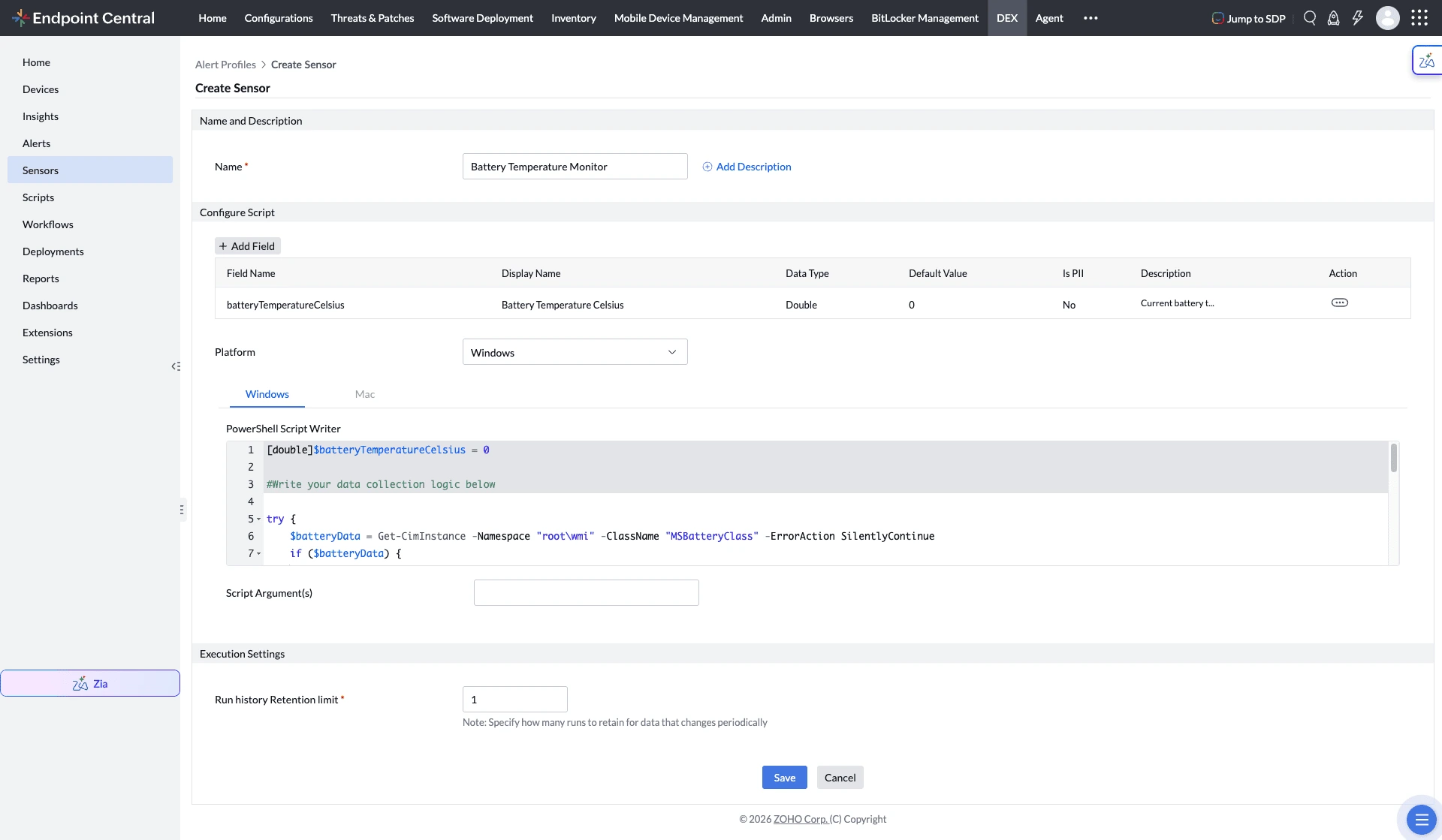
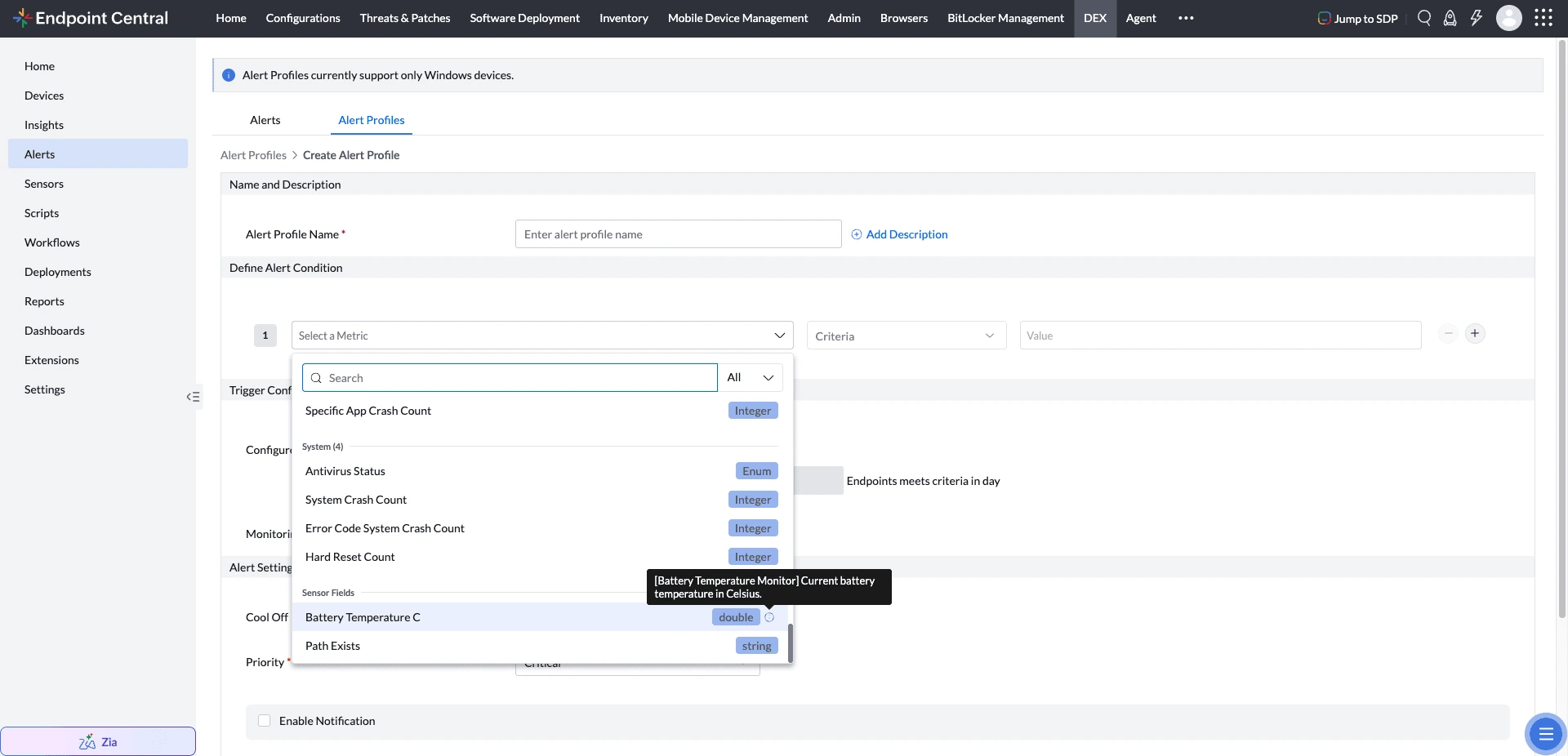
Use Ask Zia for additional Zia examples and prompt ideas.
Deploy Alert Profiles
After saving an alert profile, deploy it to the devices that should be monitored. Deployment activates the monitoring logic on the target devices, allowing DEX to start evaluating the configured rules.
Before deployment, confirm that the selected devices are reporting the required built-in metric data or sensor field values.
Alert Profiles can also be used to trigger workflow deployments automatically. To set this up, enable the workflow's deployment trigger, map the required alert profile, and then deploy the workflow in Trigger mode. For the complete steps, see Run a Workflow Automatically on an Alert (Enable Deployment Trigger).
View Generated Alerts
Generated alerts are available from the Alerts view. Use this view to:
- Review the affected device and alert priority
- Understand which metric, sensor field, or combined criteria triggered the alert
- Track when the alert was generated
- Investigate the impacted endpoints and start remediation actions
FAQ
Can I use sensor data in an alert profile?
Yes. Sensor fields can be selected from the metric picker after the relevant sensor has been created, deployed, and starts returning values.
Can I mix built-in metrics and sensor fields in the same profile?
Yes. You can create multi-condition profiles that combine built-in DEX metrics with sensor field based conditions and then control the evaluation with a criteria pattern.
Can I customize alert emails?
Yes. Use the notification customization dialog to edit the subject and body and insert supported alert variables.
Does Zia save the profile automatically?
No. Zia helps draft and refine the profile, but you should review the generated configuration before saving it.