Analyzing a Malware Threat
Use this step-by-step process to investigate and respond to a possible malware intrusion. Analyze the intrusion promptly and accurately to determine the extent of the security breach and apply appropriate countermeasures.
Understand the alert
Endpoint Central's threat detection engine has flagged suspicious activity on your network. Verify the nature of the intrusion before you categorize the breach. This helps you assess the situation accurately.
Review intrusion details
Use the Incidents tab for key information:
- Infected Devices: The number of affected devices
- Incident Status: Resolution stage
- Detected On: When the intrusion occurred
- Alerts: The number of alerts generated
- Action: Option to classify the intrusion as True/False Positive
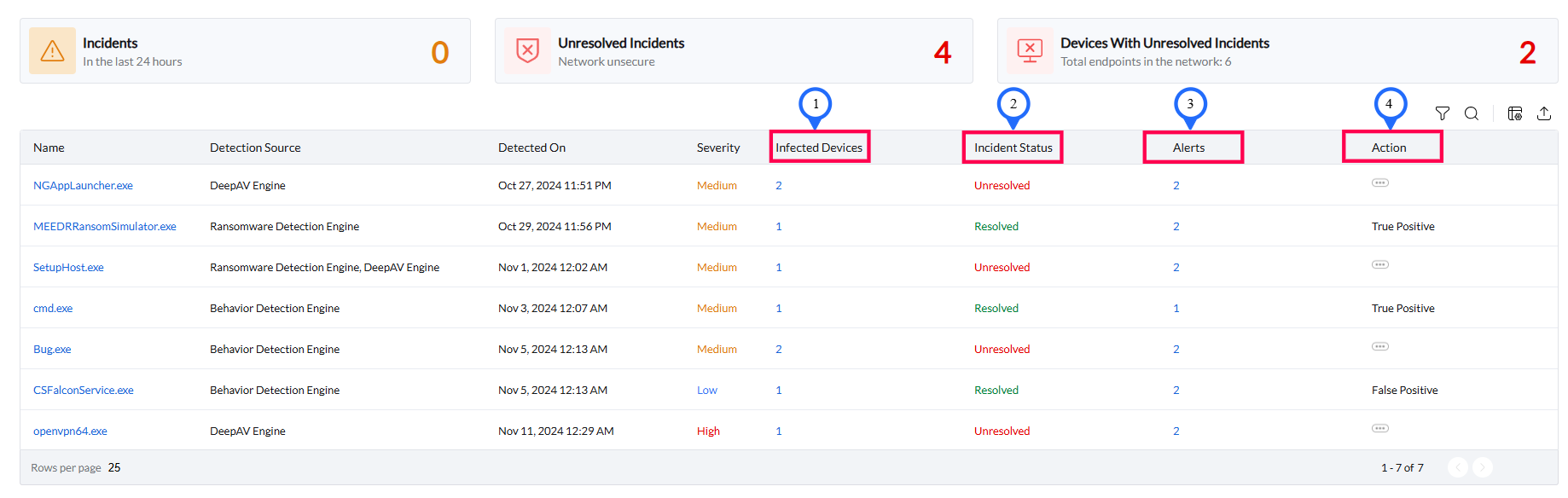
Analyze the received alert
Click the incident and open the Summary section to view key incident details.
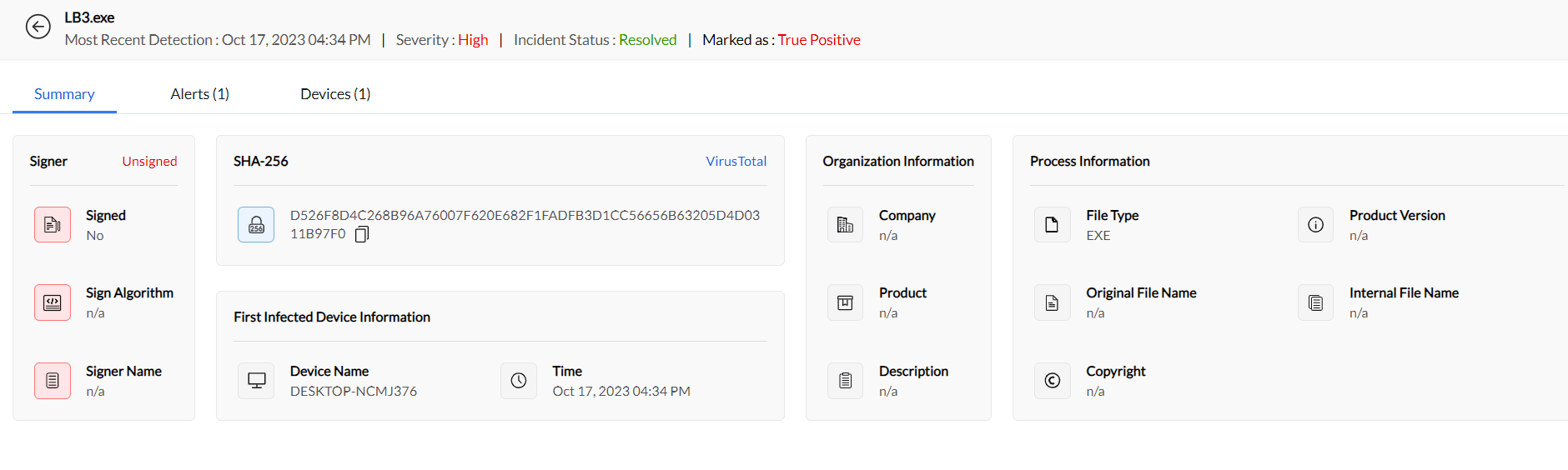
Perform first-level analysis
- Verify that the application signature is authentic. Check for possible tampering or unauthorized changes.
- Check the SHA-256 value on VirusTotal to verify the value and check for signs of malicious activity.
- Get details about the first infected device, including the timestamp. Use this information to track and analyze the incident.
- Use organizational and process details to assess whether the alert is credible. Distinguish between true and false positives.
- Depending on the configurations, you can further classify the received alert as:
- Incident detected
- Incident prevented
- Incident blocked
| Parameter | Detected Incident | Prevented Incident | Blocked Intrusion |
|---|---|---|---|
| Initial Status | The incident was detected. | The incident was prevented. | The attempted intrusion was blocked. |
| Urgency | Urgent attention is required. | Immediate attention is not required because the incident was prevented. | The intrusion is blocked, but urgent attention may be required. |
| User Action Required | Investigate and label the intrusion as true/false positive. | You can analyze the incident further to improve security. | The intrusion is blocked, but immediate user action may be required. |
| Proactive Measures | Investigate and label the intrusion to keep the system secure. | Use further analysis to improve security measures. | Prevent and block the intrusion to keep the network stable. |
| Follow-up Action | Change configurations to enable prevention/blocking for future incidents. | Investigate further details to improve security measures. | Monitor for possible future incidents. |
| File Modifications | Restore the device to its pre-malware state if file modifications occurred. | None required | Restore the device to its pre-malware state if file modifications occurred. |
| System Stability | System integrity and security may be affected. | The system remains secure and stable. | System integrity and security remain unchanged. |
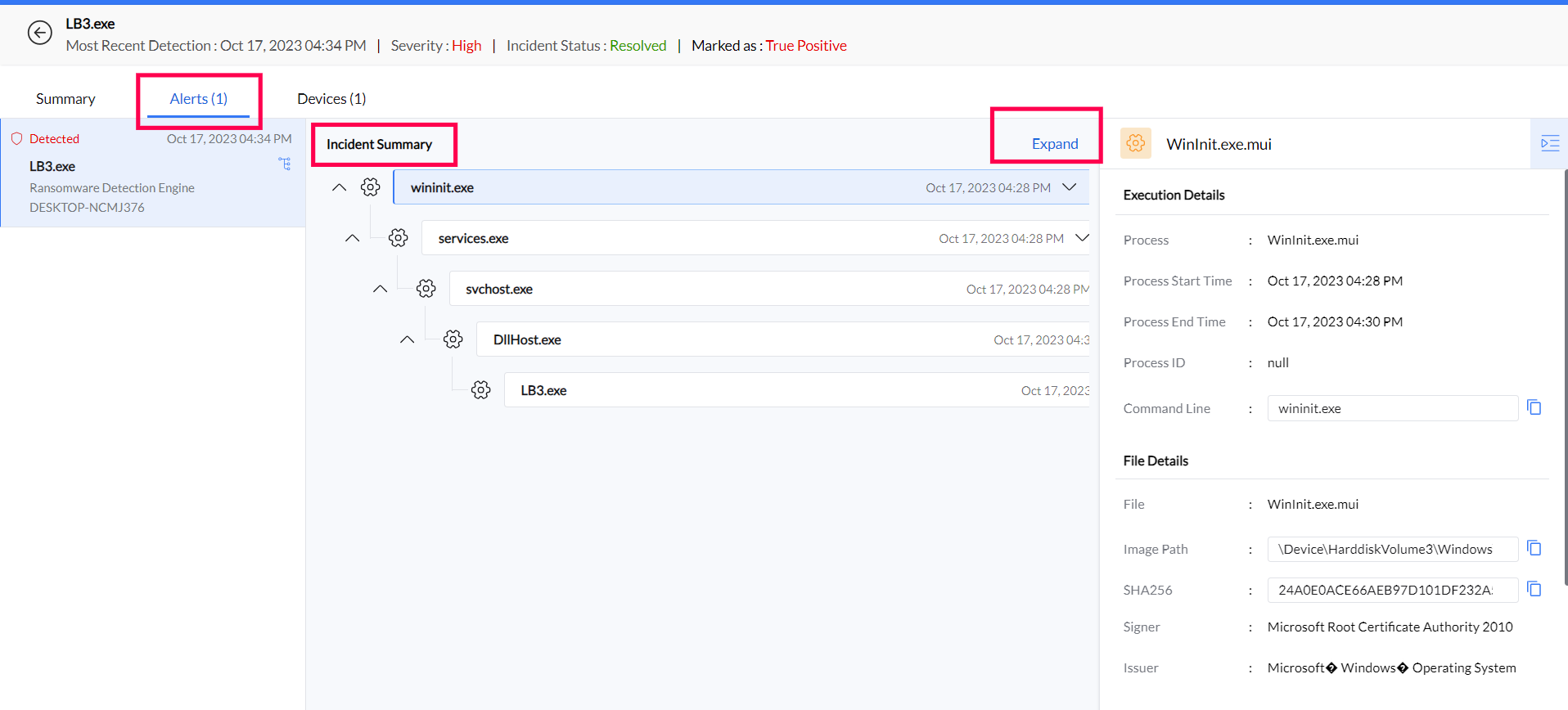
Perform second-level analysis
Expand the Incident Summary in the Alerts tab. Examine the process source, child processes, and command-line tools for more detail. Click a child process to view its SHA value, image path, and command line details.
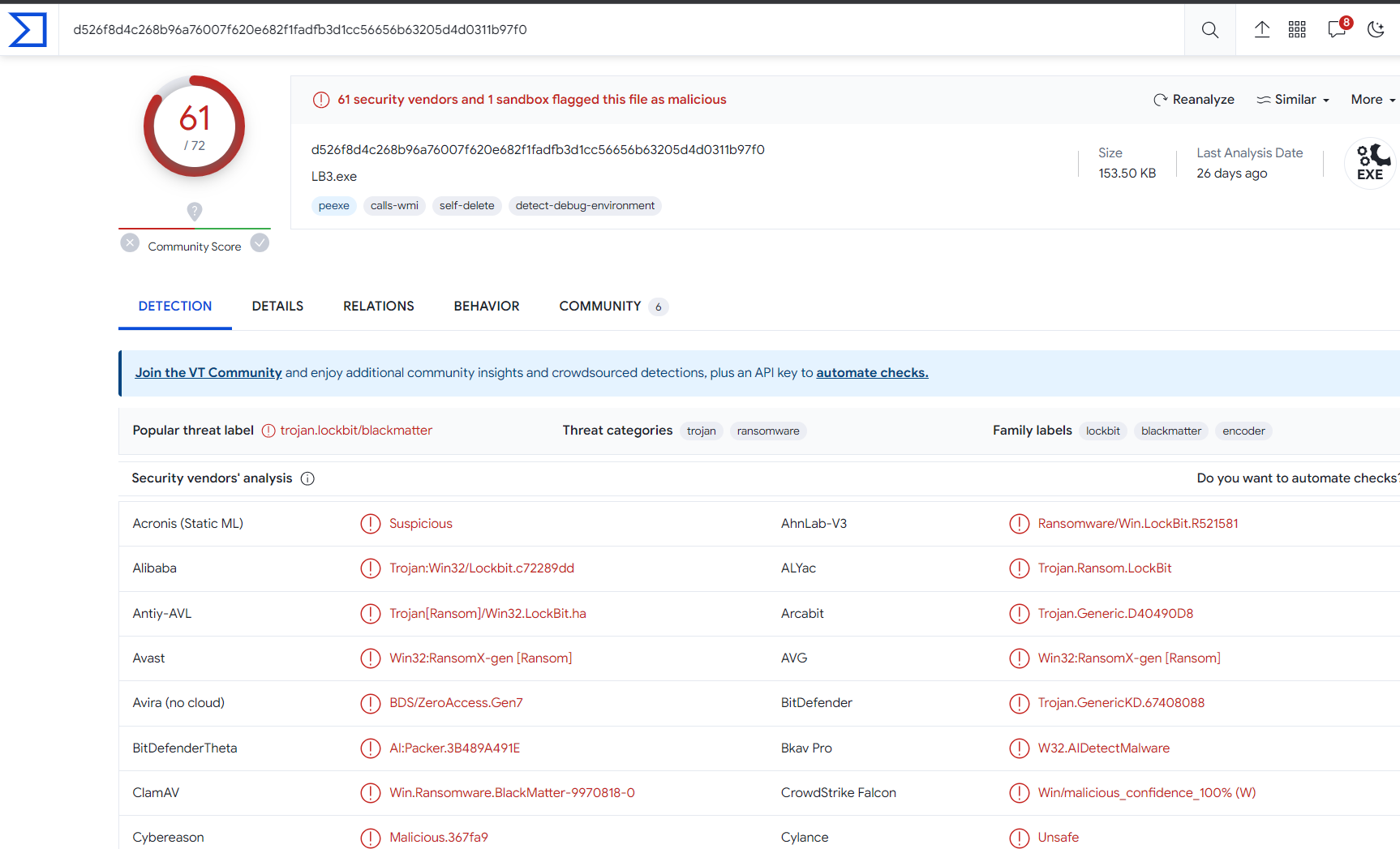
Verify with VirusTotal
True Positive:
Verification through VirusTotal can confirm the hash as a true positive. This provides conclusive evidence of an attempted malware intrusion. VirusTotal uses multiple antivirus scan engines to analyze files thoroughly for possible threats. After verification, quarantine the infected device as a proactive security measure.Proceed to quarantine the infected device.
Unclear/ No Results:
VirusTotal may return unclear results or no results when you click it. If this occurs, investigate further.- Remotely access or manually check the affected device.
- Look for unusual disk activity, new accounts, signs of ransomware and file encryption.
- If it is a true positive, proceed with an incident response plan.
- If it is a false positive, refer here to mark it as false positive.