Patch Scanning
As vulnerabilities increase, accurate and current patch scans help manage risk. Proactive scanning identifies systems missing critical patches so you can remediate them promptly. Endpoint Central performs continuous, automated scans without the need for scheduling. A lightweight agent performs the scan in the background with minimal CPU and memory use. The entire scanning process is quick, typically completing within a few minutes.
This page describes patch scanning for an on-premises server. For a Cloud deployment, use the Cloud patch scan guide. Before applying scan troubleshooting steps, confirm that the reported failure is from Threats & Patches → Systems → Scan Systems, rather than an inventory scan.
The scan detects only supported applications as missing. Installed software that is not on the supported applications list is not listed as missing. Refer to the supported applications list.
Pre-Requisites of Patch Scanning
Vulnerability DB Sync
Before scanning the agent computer, check that the Vulnerability DB is synchronized. The Vulnerability Database is automatically updated every day. You can also update it manually. This is not required for cloud-based servers. To update the Vulnerability DB manually, navigate to the Threats & Patches tab on the Endpoint Central console. In the left pane, open the Update Now tab and click Update Now under Update Vulnerability DB. If Threats & Patches is not available, navigate to Patches → Update Now. A patch scan runs after the Vulnerability DB update. To change the vulnerability database update schedule, click Change. The Patch Database Settings page opens. You can also select the patches to manage using Endpoint Central. To learn more about Patch Database Settings, refer to this page. In a Summary Server and Probe setup, start Update Now from the Summary Server console. The Probe Server console does not show that button.
Agent Onboarding
Install and onboard the agent on the endpoint. A patch scan can be initiated after the agent installation. This patch scan occurs only if the Perform Patch Scanning checkbox has been enabled. To enable this checkbox, navigate to Admin -> Agent settings -> General Settings tab. Under Actions to be performed after agent installation, enable the checkbox "Perform Patch Scanning".
Validate Patch Scan Status
A scan timeout does not identify the failed stage. Check local scan execution, scan-data generation and delivery of the result to the server separately. Record the scan time and collect the complete agent logs.
For Problem while generating patch scan data., follow scan-data generation troubleshooting. Use the Windows-specific steps in Manual Scan Timed Out only on Windows. For Linux, use the Linux collection procedure in the Patch Manager Plus log-upload instructions or Vulnerability Manager Plus log-upload instructions.
If logs show resource-download error 12029 and an HTTP 501 response when posting scan status, investigate the requests separately. Record each URL, HTTP method, responding host and timestamp. A status-reporting response does not identify why a scan resource or installer download failed.
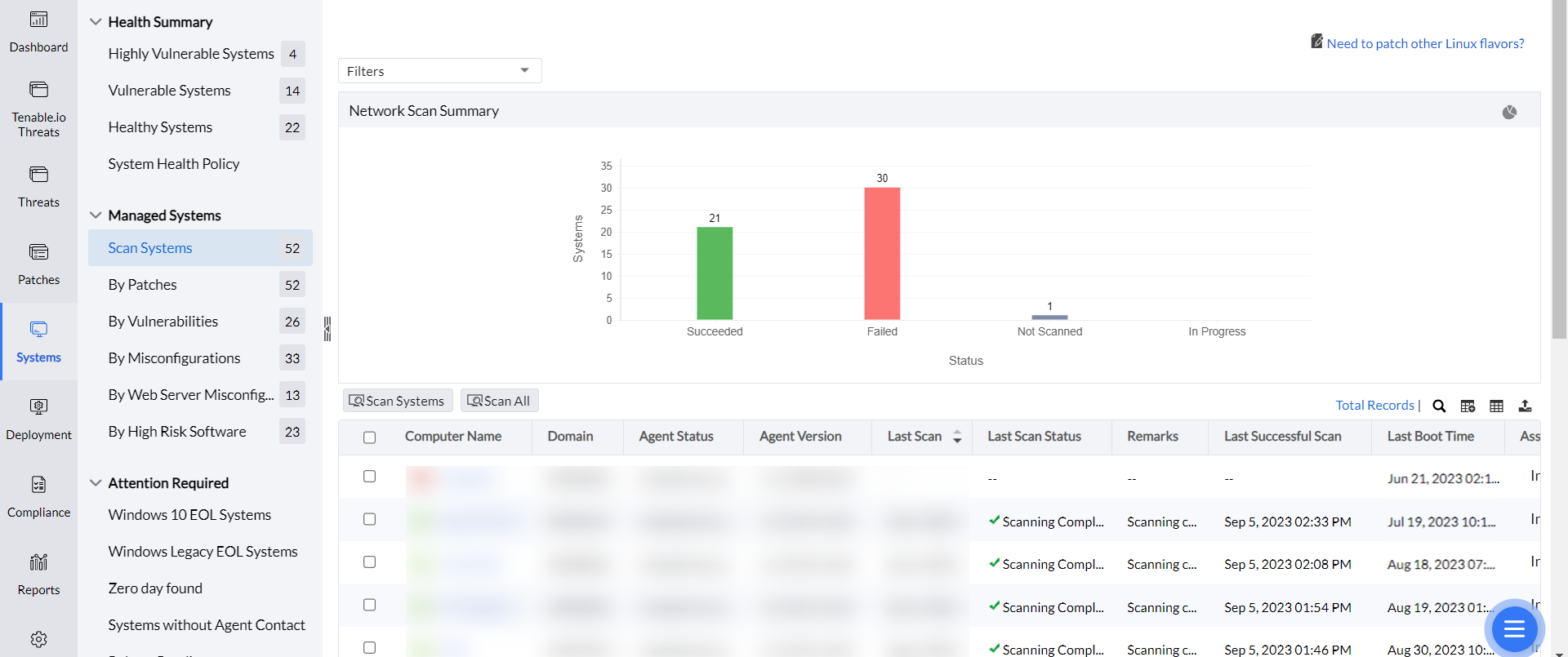
Verify the scan's successful execution by navigating to Systems -> Scan Systems under the Threats & Patches tab. This page displays a graphical representation of the scanned systems, along with the following details for each system:
- Computer Name: The DNS name of the computer being scanned.
- OS Name: The operating system of the computer being scanned.
- Agent Status: Specifies whether the agent is installed in the system or not.
- Agent Version: Specifies the agent version.
- Last Scan Status: The status of the previous scan.
- Last Scan Time: Time at which the scan was performed.
If a Windows patch scan shows No data available after agent installation or reinstallation, check the current scan status and full remark. Patch scanning requires scan-data files to be downloaded, validated, and extracted. A successful inventory scan or connectivity test does not confirm that these files are ready.
For a scan-file download or extraction error, follow scan-file download troubleshooting. Use the platform and file path shown in the actual error. After the required synchronization or file transfer completes, retry the patch scan. If the scan fails again, collect the agent logs.
On Windows, a patch scan typically takes 12 to 18 minutes. If the scan runs for more than an hour, the agent times out the scan. On the affected Windows computer, check whether dcpatchscan.exe is running in Task Manager. If the scan remains in progress or resource health is unknown, collect the agent logs from Support → Upload Logs, under the Patch Related Issue category, for that managed computer.
To confirm the last scan from a Windows endpoint, open C:\Program Files (x86)\ManageEngine\UEMS_Agent\logs\devicescanaccess.log. This log shows the scan result in one line. To check when the patch scan data was uploaded, open devicepatchaccess.log. A successful DBSYNC entry identifies when the patch scan data was posted.
If Linux scan remarks report a package-manager file download failure, check access to the required vendor repositories for that Linux distribution. Use the reported URL and error to identify the failed transfer. Allowlist the required Linux vendor domains if network restrictions block access. Do not use a generic list of vendor hostnames.
Patch Scan Scenarios
A patch scan is triggered under the following conditions:
- Database Synchronization: After daily automatic or manual updates to the Vulnerability Database.
- Patch Installation: Following patch installation via Install Patch Configuration, APD Deployment or Test and Approve.
- System Reboot: Post-reboot of systems that required a reboot after patch installation.
- APD/Test Group Actions: When patches within an APD task or Test Group are approved, not approved, or declined.
- Manual Scan: Initiated manually through the console or Agent Tray icon.
- Agent Installation: After agent installation, if the Perform Patch Scanning option is enabled in SoM Settings.
Scan after restart
When does a patch scan run automatically after a restart?
The automatic scan after a restart runs when a vulnerability-database sync completed before that restart.
Last patched time
Why does the last_patched_time field in the REST API stay unchanged immediately after a successful patch deployment?
The field updates when the patch scan that follows installation finishes.
Patch scan PowerShell activity
Is the PowerShell process started by dcpatchscan.exe during a patch scan expected?
During a patch scan, dcpatchscan.exe may start PowerShell to read installed Windows updates. That activity is part of the scan.
On-Demand Patch Scan
You can also start a patch scan manually through the console or the Agent Tray icon.
Through Agent Installed Computer
Choose the Initiate Patch Scan option by right-clicking on the Agent Tray icon -> Scan -> Initiate Patch Scan.
Through Server Console
To start a patch scan manually through the console:
- Open Endpoint Central console and navigate to Threats & Patches -> Systems -> Scan Systems.
- Choose the computers to be scanned for patches. To scan a group, apply the filter Custom Group → Equals → <group name>, then select the required computers.
- Click Scan Systems.
- To scan all systems, click Scan All if that option is available. If the console limits a manual scan request, select a smaller batch. If it reports a waiting period, wait for that period before submitting another request; completion of the previous scans may not reset the request limit.
An out-of-band patch that is already supported can be searched under Supported Patches. It appears under Missing Patches after a patch scan completes on the managed computers.
If a Linux computer appears in Inventory but not under Scan Systems, the distribution may require a later server build. Upgrade the server, then run a patch scan. See Linux Patch Management.
Continuous Scanning
After synchronizing with the patch database, Endpoint Central collects information on the latest patches, newly disclosed vulnerabilities, and supported misconfigurations. The agents then automatically scan computers for missing patches, unaddressed vulnerabilities, and misconfigurations. The scan happens right after the database is synced. You can change the sync times in the patch DB settings.
Following the first successful scan after agent installation or onboarding, the product identifies the applications installed on the managed endpoint where vulnerabilities are detected or patches are missing. You can view these applications by navigating to Systems -> Scan Systems, clicking on your computer name, and selecting Installed Software.
After that, the agents will scan the endpoints in the above-mentioned scenarios. The latest scan data about detected vulnerabilities, misconfigurations and missing patches is then updated in the product.
After the scan completes, you can get reports of missing patches, detected vulnerabilities and misconfigurations. Navigate to Reports -> Schedule Reports -> Scan Report. Schedule the reports to be emailed 2 hours after the database sync, or configure another frequency.