Troubleshooting package manager metadata files download failure
Problem 1:
- Remark following a successful scan - Linux package manager metadata files are missing on the Server.
- Remark following a deployment failure - Deployment failed due to missing Linux package manager metadata files on the Server.
Cause:
The issue may be due to linux package manager metadata files download failure or because the files have not yet been downloaded on the server.
Resolution:
The following steps will help you in resolving the issue when files are missing on the Distribution server:
- Verify the status of DS replication for any failures:
- Navigate to the Agent tab in the Endpoint Central console, select 'Remote Offices' under the Scope of Management section, and verify the DS Sync Status and Remarks. Incase of failures, kindly reach the support for further assistance.
- Navigate to Threats & Patches --> Update Now and initiate a Patch DB synchronization to refresh the package manager metadata files.
- Whitelist the below-mentioned domains in the firewall/proxy server:
- Ubuntu — http://archive.ubuntu.com
- Oracle — http://yum.oracle.com
- Pardus — http://depo.pardus.org.tr
- CentOS — http://mirror.centos.org, http://mirror.stream.centos.org
- Debian — http://security.debian.org, http://ftp.debian.org, http://security-cdn.debian.org
- Rocky — http://dl.rockylinux.org
- SUSE — http://updates.suse.com
- Amazon Linux — https://cdn.amazonlinux.com
- Red Hat — https://cdn.redhat.com, https://access.redhat.com
- Alma Linux — https://repo.almalinux.org
- Whitelist the below-mentioned file extension in the firewall/proxy server:
- .gz
- .xz
- .gpg
Then navigate to Threats & Patches, select Update Now and click Re-initiatedownload to retrieve the Linux package manager metadata files.
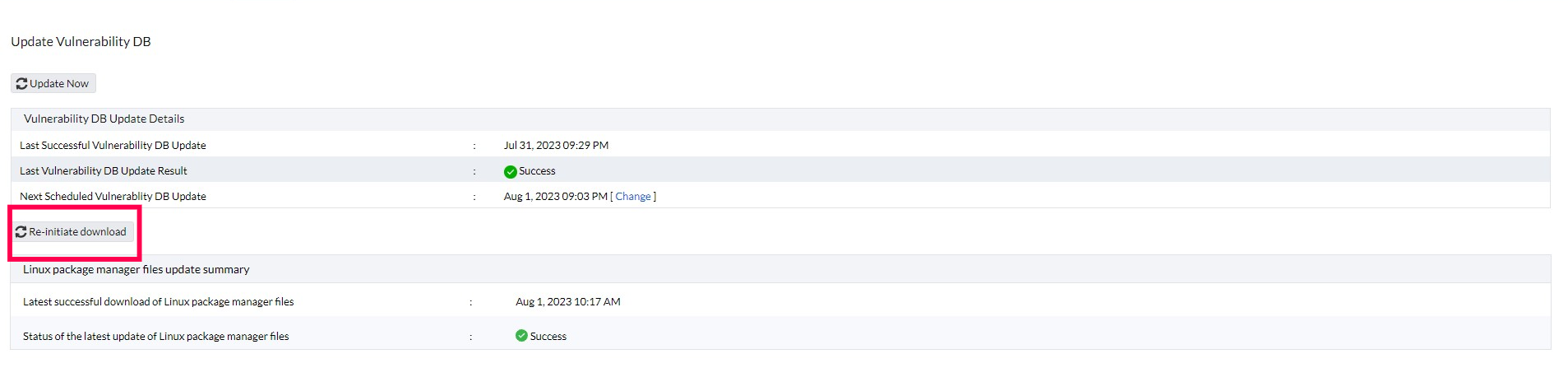
- Upon successful download of Linux package manager metadata files, you can proceed to initiate scan or patch deployments.
Problem 2:
- Remark following a successful scan - Linux package manager metadata files are missing on the Distribution Server.
- Remark following a deployment failure - Deployment failed due to missing Linux package manager metadata files on the Distribution Server.
Cause:
The following are the possible causes for Problem 2:
- Communication issues between the Distribution Server and the Server.
- Issues replicating files to the Distribution Server.
Resolution:
The following steps will help you in resolving the issue when files are missing on the Distribution Server:
- Verify the status of DS replication for any failures.
- Then navigate to Threats & Patches --> Update Now and check the Status of the latest update of Linux package manager metadata files.

- If the download fails, then whitelist the mentioned domains and then click Re-initiatedownload to retrieve the Linux package manager metadata files.
- If the download is in progress, wait until it has successfully completed.
- After the files have been downloaded to the server, wait for the next replication cycle and ensure the files are successfully replicated to the distribution server (DS) before proceeding with scan or patch deployments.
- If Linux package manager metadata files are missing in the Distribution server for oracle flavor, ensure DS replications steps are followed or not.
Further Assistance:
In case you are not able to troubleshoot the error, and the problem still persists, then contact support team with the Log files.




