N-1 patching: Stay in control of your patching strategy
Patch management requirements vary across environments. The operating systems, software versions, and business-critical applications you run all influence the type of patching strategy you need. Some applications require frequent updates, while others only support specific software versions. To support these scenarios, we’ve introduced N-1 patching, which lets you deploy older, superseded patches when needed.
This document explains what the feature does, how to enable it, and what to expect once it’s configured.
Table of contents
What is N-1 patching?
In IT, N-1 patching refers to installing a version of software that is one release behind the latest update. Depending on your requirements, this may extend to N-2, N-3, and so on.
What are superseded patches?
When a vendor releases an update that includes or replaces an earlier patch, the new patch is called the superseding patch, and the older one becomes a superseded patch.
How to identify superseded patches
In ManageEngine’s patch management products, go to Threats & Patches → Patches → Supported patches. Create a filter where Status = Superseded to view all supported superseded patches.
When is N-1 patching required?
Server patching
Admins who patch servers sequentially may not complete deployment before a new update is released. As a result, servers may run different patch versions. N-1 patching allows you to install superseded patches to maintain consistency.
Organizational policies
Some organizations intentionally deploy older patches, waiting a few weeks to ensure new releases are stable. The N-1 patching option supports this workflow.
Compatibility requirements
Certain applications may only support older software versions. If a newer patch introduces issues, you can deploy a stable, superseded version instead.
ManageEngine N-1 patch settings
The reasons stated above are only a few of the actual requirements that enterprises have. It is to tackle such situations that ManageEngine has introduced its latest settings — N-1 patch settings. N-1 patching is available for Windows and Linux platforms (Red Hat and Debian).
Viewing and managing schedules
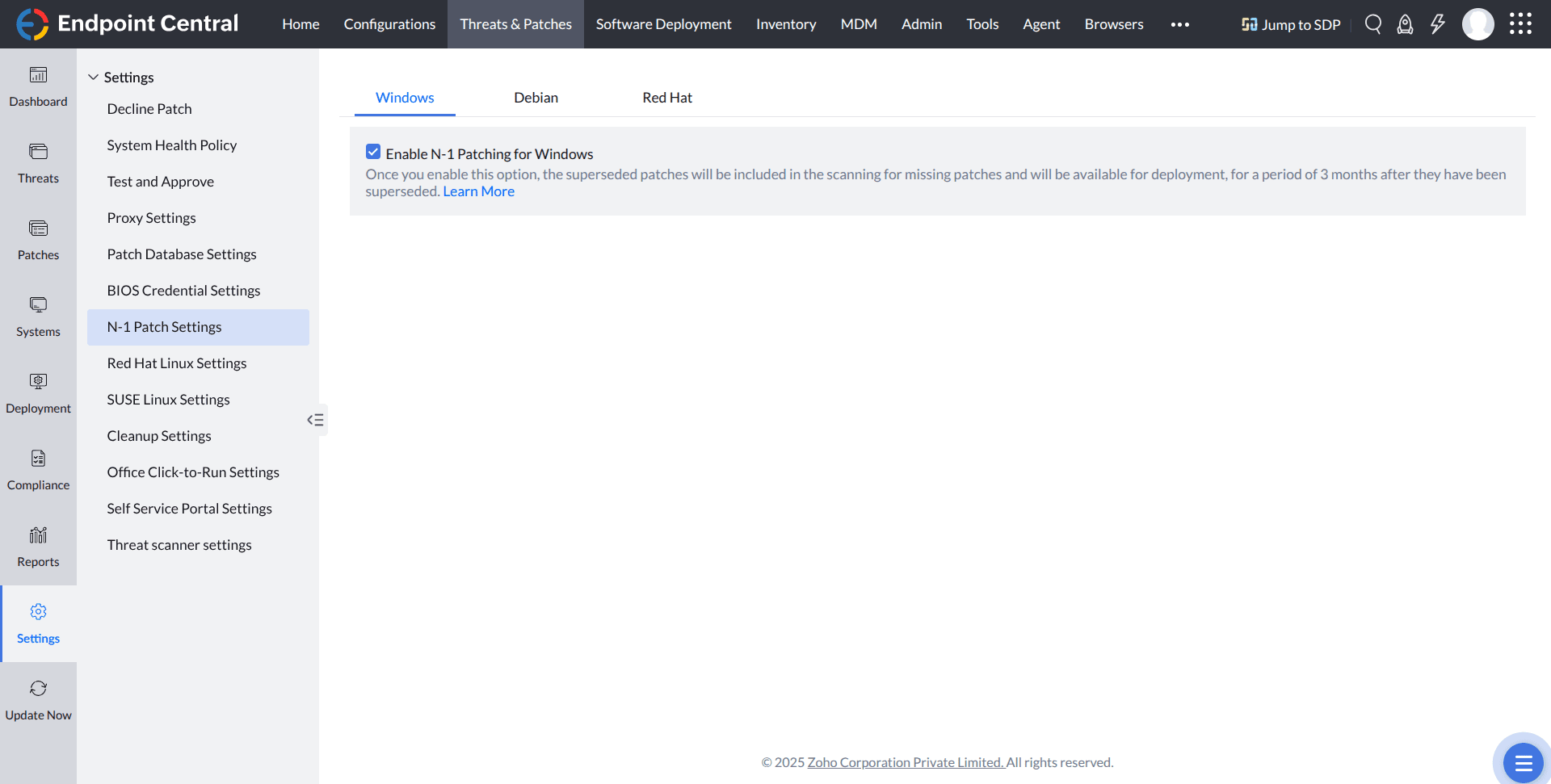
Enable N-1 patching (Windows)
- Navigate to Threats & Patches → Settings → N-1 patch settings.
- Select Enable N-1 patching for Windows to retain superseded patches for 3 months.
- After enabling the feature, superseded patches appear across patch views once the Central Patch Repository synchronizes with the Central Server. You can deploy superseded patches from the Missing patches view.
Best practices for N-1 patching (Windows)
- Enable Download the patches missing in the network under Patches → Settings → Cleanup settings → Patch download settings.
- Disable Remove superseded patches under Patches → Settings → Cleanup settings → Patch cleanup.
- Adjust the cleanup schedule under Patches → Settings → Cleanup settings → Patch cleanup → Remove the patches that are older than to suit your N-1 patching needs.
Enable N-1 patching (Linux)
For detailed steps and management instructions, see:
FAQ
What happens when this option is enabled?
For Windows, superseded OS and third-party patches from the past 3 months appear under Missing patches, Installed patches, Applicable patches, and Supported patches.
For Linux, superseded patches from the past 6 months are shown.
What happens if I deploy all patches from previous months at once?
The agent installs the oldest patches first.
How are third-party patches with dynamic URLs handled?
Some vendors host the latest patch version at the same download URL. If you enable N-1 patching, download older patches before they are replaced by the latest version.
How does this option affect the Decline patches feature?
When enabled, both superseded and latest patches appear under Missing patches. You can decline superseded patches individually based on your requirements.