×![]()
×
×![]()
×
×
CrowdStrike Spotlight Integration
Note
If CrowdStrike Falcon Spotlight is not available on your Endpoint Central server, contact endpointcentral-support@manageengine.com.
CrowdStrike Falcon Spotlight integration imports vulnerability details and affected-computer details into the Endpoint Central console. You can then deploy the patches that the product maps to those vulnerabilities.
Steps to integrate Spotlight with Endpoint Central
Generate API client in Spotlight
- To generate a Spotlight API client, you need the Falcon Administrator role. This role can view, create, or modify API clients and keys.
- If you have Administrator privileges, generate the API client with this Spotlight user-guide.
- When you generate the API client, select these permissions under API Scopes:
- Detections (Read)
- Hosts (Read)
- Vulnerabilities (Read) - Select Save. Spotlight then generates the Client ID and Client Secret.
- Store the Client ID and Client Secret in a secure location.
Configure API Settings in Endpoint Central
- Navigate to Admin > Integration > All Integrations, or open Threat scanner settings. CrowdStrike Falcon Spotlight is not a separate console tab matching the help-article screenshot. Integrate now and Spotlight are available under Threat scanner settings. Only users with Administrator privileges can configure the API Settings.
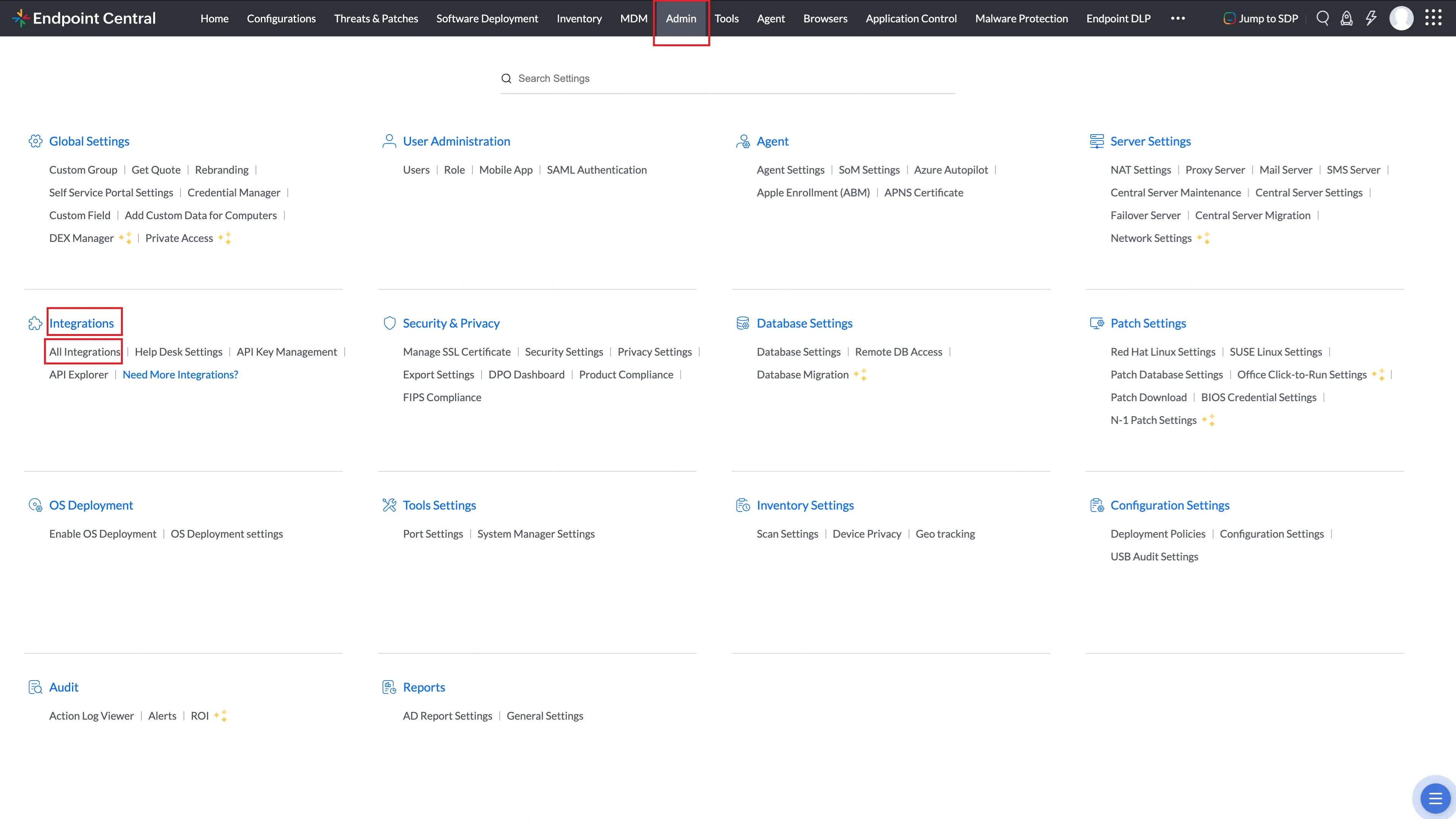
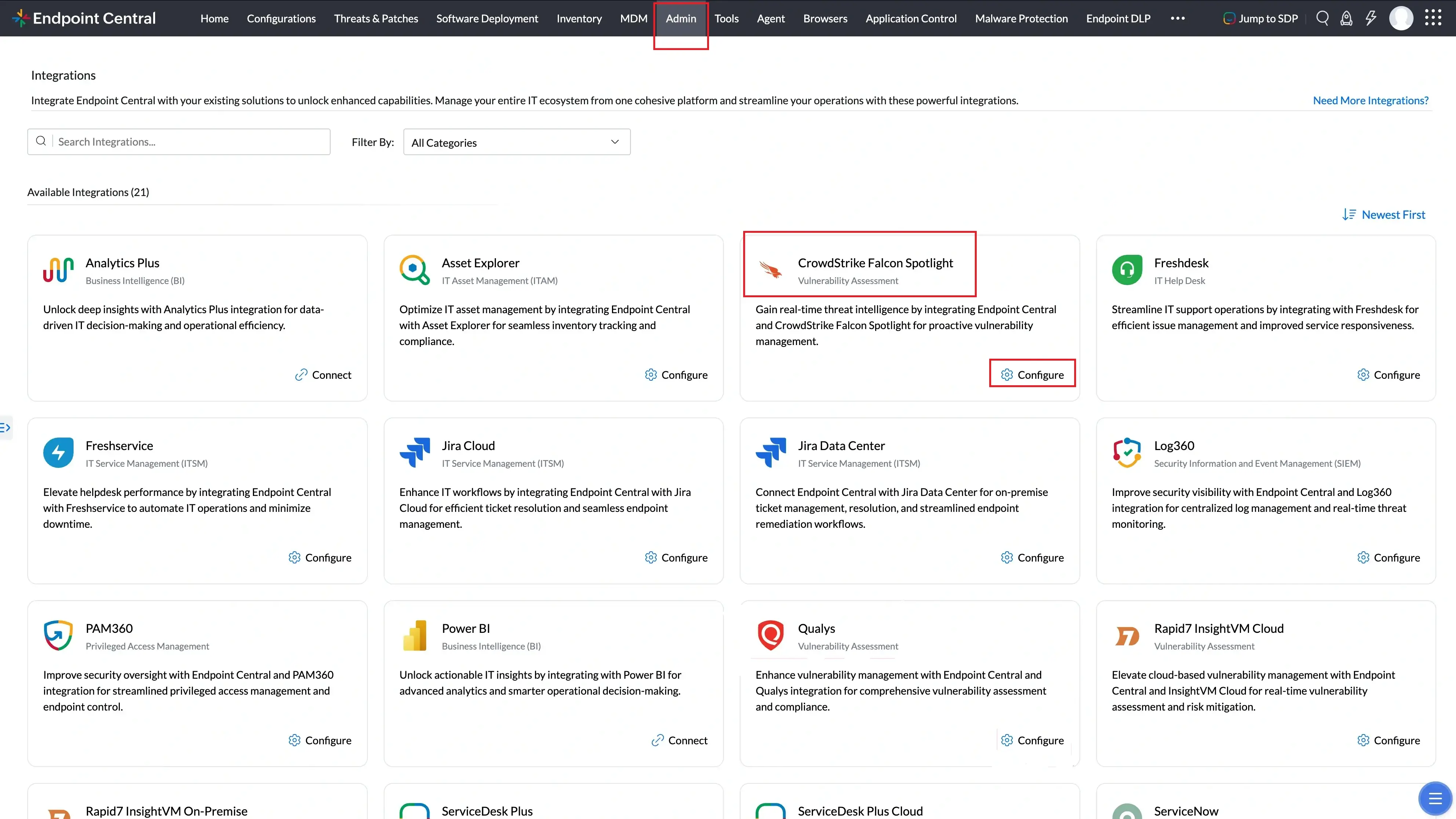
- Search for CrowdStrike Spotlight and select Configure.
- Enter the Spotlight base URL, Client ID, and Client Secret.
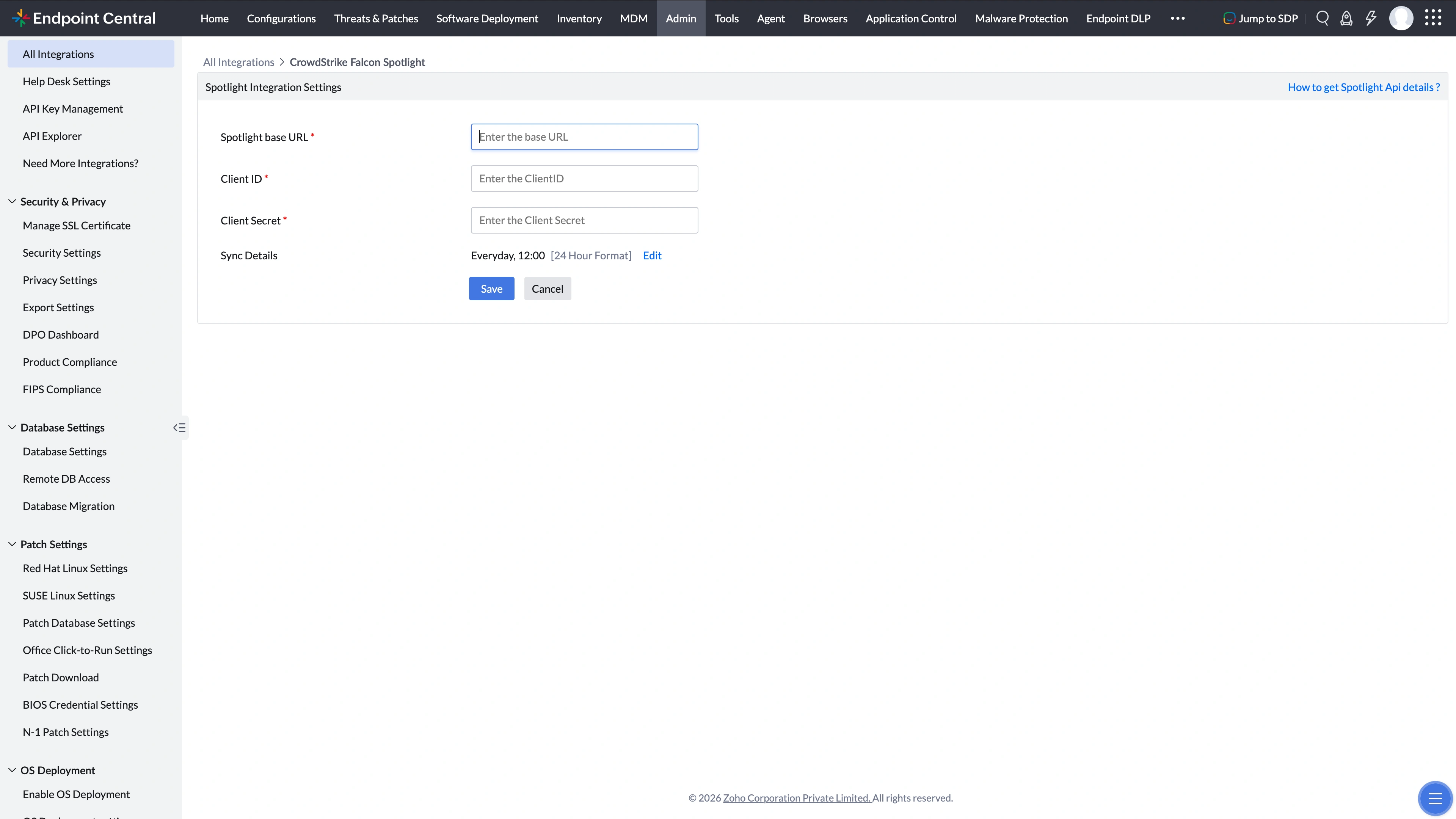
- Set the frequency for the data sync.
- Select Save to enable the integration.
Workflow
- After you enable the integration, Endpoint Central imports vulnerability details and affected-computer details from Spotlight.
- Match each vulnerability to its patch/fix, then install that patch.
- Spotlight threats that have a patch are listed under Threats & Patches > Spotlight Threats. You can deploy those patches from this view.
Sync status on Spotlight Threats
Open Threats & Patches > Spotlight Threats. The view shows Last Successful Sync, Next Scheduled Sync, and either Sync In Progress or Sync Failed.
Sync In Progress means a Spotlight import is running.
- Last Successful Sync stays at the previous completed import. It changes when that import finishes.
- Next Scheduled Sync is the next run of the saved schedule. That time can be in the future while Sync In Progress is shown.
- Refresh is not available while Sync In Progress is shown.
The product does not set how long Sync In Progress remains on the view.
Sync Failed means the import stopped. Use the message on the view:
- Unable to establish a connection to the Spotlight server. Review your network or proxy configuration and try again. Select Retry after you correct the server network or proxy configuration.
- API authentication has failed. Insufficient permission to import data. The export request was refused. Confirm the API scopes under Generate API client in Spotlight.
- Spotlight Security Manager privileges required. The token request was refused. Confirm the API client and the same API scopes.
- Spotlight sync failed due to an interruption in the server connection. The Endpoint Central server started while the import was still in progress. Select Retry.
- Error encountered when importing details. The import stopped without one of the messages above. Retry uses the saved Spotlight base URL, Client ID, and Client Secret. To change those values, open Threat scanner settings.
For more questions, see the Frequently Asked Questions.