Can an external scheduler initiate patch deployment?
Yes. An external scheduler can call the documented patch-installation API to create a product-managed deployment. Select the required patch IDs and target computers, and use the appropriate deployment policy. Submit Windows and Linux deployments separately.
For severity and patch-age requirements, select matching patch IDs from the information returned by the supported read APIs. Use the installation request's approved-only option when approval is required.
Configure reboot behavior through the deployment policy. Monitor deployment status and individual patch results after you submit the request. A successful API response does not confirm that patch installation has completed.
What happens if Microsoft releases a faulty patch in the new distributed model? How can Endpoint Central remove it?
Use the "Test and Approve" feature to test patches on lab machines and approve them automatically before deployment. You can also use the patch removal/roll back option for a faulty patch.
How can I add patches for applications that aren't supported by the product?
To add patches for applications that aren't supported by the product, please fill out the feature request form. Your request helps us understand your needs and consider support for those applications in future updates. Your feedback helps us improve the product.
Is it possible to target specific device types, like laptops or desktops, for patch deployment?
Yes. Define target machines by system type, such as laptops and desktops. You can also create a custom group with system type as a criterion.
Can I schedule reboots for servers and desktops after patch installation?
Reboot scheduling is available in the deployment policy through Reboot Window and Specify Reboot Time. When an installed patch requires a restart, the reboot prompt appears after installation succeeds. If the user postpones the restart, the configured Force Reboot interval determines when the computer restarts.
Can we create a restore point before deploying a Windows update?
Yes. Configure a pre-deployment script in the deployment policy to create a restore point before you deploy the Windows update.
Create a script that generates a system restore point on the target Windows device.
Add that script to the product and select it under the Deployment Policy as a pre-deployment script.
Test the policy on a pilot group first, verify restore point creation, and then roll it out to the wider environment.
How can I be notified about zero-day patches availability for download to ensure timely deployment instead of having to wait for the scheduled policy?
You can create an Automated Patch Deployment task to deploy patches with critical severity, including zero-day patches. Set the deployment policy timeframe to 'as soon as possible'.
How does the patch scan process work? Does it scan all computers simultaneously or one at a time?
Scanning is initiated incrementally to avoid bandwidth bottlenecks. If an update is installed outside Endpoint Central, run a fresh patch scan on the computer, then recheck Missing Patches and Installed Patches for the updated status.
Will an automatic scan overburden the server with multiple requests? Will it choke the network traffic?
No. The scan runs immediately after database synchronization. Each scan detects the latest missing patches and downloads them to the server. Only the diff scan data is posted: the difference between two consecutive scans. This prevents server overload. Network traffic is not affected because the server does not initiate an on-demand scan.
Does the computer need to be logged into an admin account for patch deployment?
No. The agent on the managed computers has the privileges to install patches. You can use a regular user account for patch deployment.
Some third-party Mac installers can request administrator authorization for a privileged helper. See Mac application helper prompts.
How are patch languages selected?
Endpoint Central will automatically detect the language based on the operating system.
What happens if a user accidentally turns off the computer while patches are being installed?
Endpoint Central will retry to install the patch during the subsequent deployment window, and the installation status will be updated.
Is it possible to schedule patch installations followed by automatic reboot and shutdown?
You can configure the Deployment Policy to schedule patch installation, as well as reboot or shutdown tasks, within pre- or post-deployment activities.
How can we switch from WSUS to Endpoint Central for MS patch management?
You can disable auto-updates from WSUS and install Endpoint Central agent on the computers to be managed, scan the computers and start deploying the patches. To know how to disable automatic updates, refer to the Windows automatic-update procedure.
How can I selectively deploy Mozilla updates to specific computers while excluding others?
Create a custom group containing the computers you want to exclude. Decline the application by navigating to Threats & Patches -> Settings -> Decline Patch -> Decline Patch for Group and specifying the application.
How can I prevent individual computers from downloading patches directly from the internet, ensuring that all updates are sourced from the centralized patch management system?
In the patch deployment details, use Deployed Date, Deployed Using, and Deployed By to identify when and how a patch was installed. If Windows Update installed the patch outside Endpoint Central, these fields will not attribute the installation to an Endpoint Central deployment. To manage Windows automatic updates from Endpoint Central, open Patch Mgmt > Patches > Supported Patches, search for Patch ID 105427, and deploy it to the required computers. For details, see Disable Windows automatic updates.
Is there a way to configure the lists of computers, etc., to permanently display more than 25 at a time?
You can customize the count of computers displayed. Your changes persist only for that technician and view.
If I want to schedule patches to run in the next 20 minutes, is there a way to force the Endpoint Central agent on client machines to talk to the server, thus getting that task quicker than the 90-minute policy refresh? (Example - McAfee anti-virus has a feature called "wake up agent" that tells the agent to pull down fresh)
Use the “Deploy Immediately" option when you deploy a patch configuration. This will wake up the target computer on-demand to perform the task initiated by Endpoint Central.
Is it possible to allow a Java update for compatibility with an application and preserve the legacy version for compatibility with another application?
Create a dynamic custom group and decline patches for the specific application, such as JRE. This lets you maintain multiple JRE versions in your network.
What changes should I make in my firewall and proxy to patch computers?
How do you make a separate policy that is specifically for server OSs and does not automatically restart the server?
Configure the deployment policy and exclude servers from reboot. Navigate to Threats & Patches -> Deployment -> Deployment Policies -> Create Policy ->Deployment Window -> Reboot Policy -> Exclude Servers from Reboot.
We currently use McAfee encryption on some of our devices. We are trying to figure out how to continue auto deployment after hours once everything is encrypted. Does Endpoint Central have a method of handling this?
Configure deployment to run after the encryption time window. You can configure it from Threats & Patches -> Deployment -> Deployment Policies -> Create Policy -> Deployment Schedule.
How does the "wake and deploy" feature work for patching offline computers?
You can wake up the computers and deploy the patches by configuring Threats & Patches -> Deployment -> Deployment Policies -> Create Policy -> Pre-deployment Activities -> Wake-on LAN.
Why are updates for Windows 10 or MS 2016 not visible?
Both Windows 10 and Microsoft Office 2016 are supported by Endpoint Central. Ensure that your Patch Database has synchronized successfully recently. Verify it from Threats & Patches -> Update Now -> Last Successful Vulnerability DB Update.
Can I use Endpoint Central to manage 3rd Party applications?
Does the patch catalog include every vulnerability in a Microsoft security release?
Endpoint Central supports vulnerabilities for which Microsoft publishes an applicable fix through the Microsoft Update Catalog. Search Supported Patches for the Microsoft update before deployment.
An advisory or detection identifier is not itself a deployable package. For Secure Boot certificate readiness and updates, see Secure Boot advisory checks.
How to manage patches and vulnerabilities via the product without overlapping with Windows Update? Is there any option to disable Windows automatic updates provided in the product?
To manage patches and vulnerabilities without overlapping with Windows Update, deploy Patch ID 105427 from Threats & Patches → Patches → Supported Patches to the required Windows computers. Enable the Optional Updates category in Patch Database Settings if this patch is not listed. Endpoint Central does not disable native Windows automatic updates by default; deploy the control only to the computers where it is required. For the complete procedure and policy considerations, see Disable Windows Automatic Updates.
In Patch Manager Plus, open Patches > Supported Patches to find the configuration patch. Open Patch Database Settings from the patch settings or Admin entry available in your interface. Enable the required update category. Other product interfaces can use Threats & Patches as the module name. See Patch Database Settings.
Do we need to disable automatic Windows updates on user PCs, and what happens if we do?
Coordinate native Windows automatic updates with your centrally managed patching policy to avoid overlapping deployments. Disabling automatic updates does not deploy replacement patches; maintain the required patch deployment tasks.
In Endpoint Central environments where your technician has access to Configurations, use the packaged script template:
Open Configurations > Script Repository > Templates.
Search for AutomaticUpdates.exe and add the template to the repository.
Create a computer configuration from the template and use its documented settings to disable Windows automatic updates.
Select the required Windows computers and deploy the configuration.
Verify the resulting automatic-update policy on a test computer before deploying to the wider group.
To turn off macOS automatic updates, open Patches → Supported Patches. Find Turn off Mac Automatic Update (Deployment-Only), Patch ID 604011, and deploy it to the required Macs through Manual Deployment.
This control turns off automatic update checks, downloads and installation, including critical updates and configuration-data updates. It is not a major-upgrade-only control. Continue to deploy the required security updates through your managed patching workflow. Verify the automatic-update settings on the target Mac after deployment, and check any device-management policy if the settings do not take effect.
If automatic updates are turned off, do we need to manually deploy patches for each user?
No. You do not need to deploy patches manually for each user. Endpoint Central supports end-to-end centralized patching using Test and Approve for pilot validation, automatic or manual approval workflows, Automated Patch Deployment (APD) for rollout, and Decline Patches for controlled exclusions. It also provides comprehensive patch reporting, including missing and installed patch status, deployment results, failures, reboot status, and compliance.
How can End-of-Life patches such as Windows 10 ESU be managed using Endpoint Central, and how can you identify which devices have ESU licenses applied for patching?
Is one reboot enough to complete client patching (including Windows critical and security updates), or are multiple reboots required?
Usually, one reboot is enough, as long as the previous update has fully installed. If an earlier update is still pending and a newer update is applied on top of it, two reboots may be needed: one to finish the previous update and another after applying the current update.
How can we efficiently deploy patches to laptops that are infrequently connected to the domain via VPN, while minimizing user impact and avoiding firewall compromises?
When these computers connect to the network via VPN, the deployment will be initiated during the next refresh cycle (90 minutes).
Are all patches released by Microsoft available for patching via Endpoint Central?
Yes, most patches that have a download URL will be supported. You can get the list of patches that we support from here.
What is the typical turnaround time for updating patches?
Our Service Level Agreements (SLA) specify patch delivery times. Third-party application updates are typically available within 6-9 hours after the vendor release. Operating system security updates are deployed within 12-18 hours. Non-security updates are completed within 24 hours. Linux security updates are available within 24-48 hours. Linux non-security updates are ready within 72 hours, depending on the distribution. macOS updates are provided within 7 hours.
If you do the cleanup and then put a newer machine and it needs an older patch, what will happen?
It will automatically be downloaded and installed.
How do I know which updates to run and the order to run them?
Patch interdependencies and sequencing will be automatically taken care of by Endpoint Central.
After the initial agent deployment, will patch scan subnets for new machines that do not have the agent going forward?
No. Deploy the agent before scanning. Define a SoM Sync Policy to identify new computers added to Active Directory and install agents automatically.
What is the process of disabling Windows 10 creep update for Windows 7 computers?
Under Configuration Templates, we have a template to disable the Windows 10 creep update (Disable Windows 10 Notification).
How much disk space does a Distribution Server need to cache patches?
The space depends on the number of maintained systems and patches, and may be up to 1 GB. Configure patch Cleanup Settings to remove older patches automatically. This also cleans up the distribution server. The Distribution Server patch store contains the patch binaries replicated to that server. Configure retention and automatic removal through Cleanup Settings instead of deleting store files manually.
Can one Distribution Server support multiple remote offices?
Yes, if all remote offices use the same agent and all their computers can reach the Distribution Server. This does not apply to Endpoint Central Cloud since every remote office needs a unique Distribution Server.
Will the client devices be able to communicate with the main server if the Distribution Server is stopped?
Yes, the agents will contact the server to post the failure messages. But no deployment will happen.
Where do managed agents obtain patch content?
Agents managed directly by the Central Server obtain patch content through the Central Server. Agents assigned to a Distribution Server obtain patch content through that Distribution Server.
Is it possible to deploy patches to specific computers?
Yes. Go to the All Systems View, select the computer, and install all its missing patches.
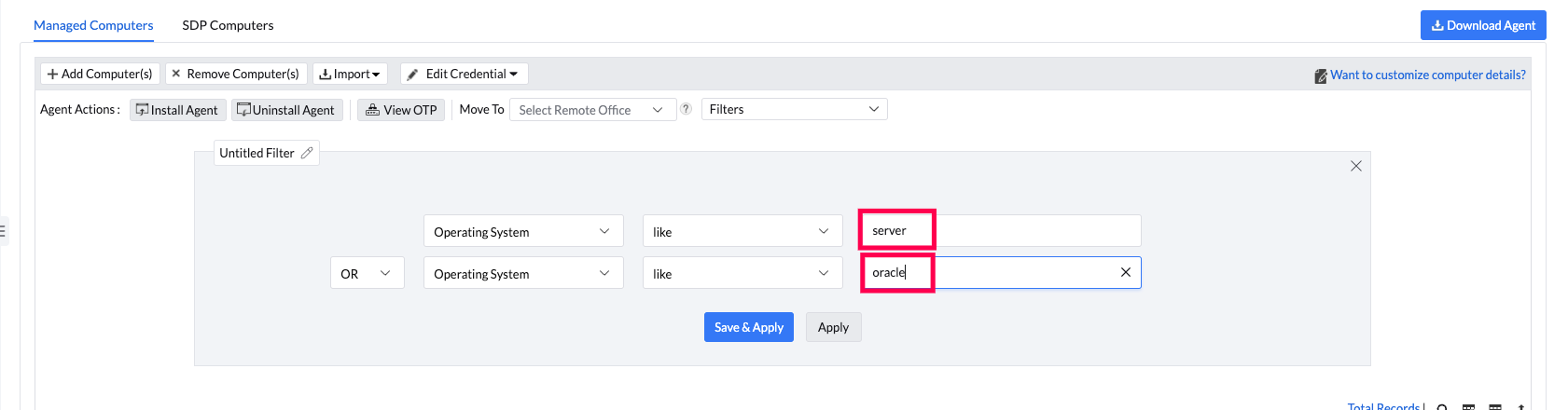
How to identify servers from the Endpoint Central web console?
Navigate to Agent --> Computers in the console interface. Create a filter for Operating System with tags "server" and "Oracle". The Red Hat Enterprise Linux OS server machines cannot be identified using the web console as its subscription has to be checked.
Can Endpoint Central limit the storage space used for downloading patches?
You can configure Patch Cleanup Settings, which will automatically remove superseded/unused patches from the patch repository.
How do I handle superseded patches?
If a patch is marked as superseded, it indicates that a newer patch has been released for the same update. Installing the latest patch will cover all previous updates. In most cases, you can skip the superseded patch and deploy the latest patch listed under Missing Patches. For an older version required for compatibility, review N-1 patching eligibility.
Why is a patch visible on the endpoint but not shown in Missing Patches?
Endpoint update history can include installed or superseded updates that do not appear in Missing Patches. Compare the exact Patch ID or KB, installed version and the latest completed patch scan. The Missing, Applicable and Installed Patches views answer different questions.
If an older update is superseded, review the N-1 eligibility and retention settings rather than assuming that a missing entry means the endpoint still needs that update. For a persistent mismatch, follow patch visibility checks and collect the scan evidence.
How can I resolve patch deployment errors related to user sessions?
For a supported application installed for an individual user, verify that the application owner is signed in to the affected computer when deployment runs. Signing in to another computer with a roaming profile does not meet this requirement. See user-based application patching. Wake-on-LAN wakes the computer; it does not sign in that user. If a logged-out-user remark appears while a user is signed in, compare the application owner and deployment time, then collect the agent logs if the mismatch remains. See User-based vs system-based applications for installation-scope prerequisites.
Can we use a single store for all Mac patches?
Endpoint Central maintains a single patch store for all the patches, including Windows, Mac, Linux, and 3rd party patches. You can customize it from Threats & Patches -> Settings -> Cleanup Settings -> Patch Download Settings.
How can I host my Patch Repository on another computer?
Go to Threats & Patches -> Settings -> Cleanup Settings -> Patch Download Location. Against Patch Repository Location, enter the new Patch Repository location. For example, \\machine_name\example_patch_repository.
Should I update the vulnerability database before configuring patch deployments?
The vulnerability database will be synchronized automatically as per the built-in scheduler. Navigate to Threats & Patches -> Settings -> Patch Database Settings -> Enable Schedule. You can verify the latest sync time from Threats & Patches -> Update Now -> Last Successful Vulnerability DB Update. However, you can sync it manually using the “Update Now” option.
On what basis can I filter patches in Endpoint Central?
Go to Threats & Patches -> Patches -> and select any of the Missing Patches/ Installed Patches/ Applicable Patches/ Top-Priority Patches/ Supported Patches/ Latest Patches. In these sections you can filter the patches based on: 1.Patches: Operating System, Application, Severity, Hardware, Bulletin ID, KB Number, CVE ID, Vendor, Patch Type, Approved Status, Approved Time, Download Status, Patch Uninstallation, Deployment Status, Release Date, Supported Date, Deployed Date and Supersede Status 2. Systems: Computer Name, Platform, Domain Name, Branch Office, Custom Group, Operating System, Language and Agent Live Status.
Does Endpoint Central support Windows Store updates?
No. Windows Store Updates are not supported.
Does Endpoint Central provide a built-in option to push required registry changes for certain Microsoft updates, or do we need to create a custom Reg Add task to deploy them?
Yes. Endpoint Central offers a built-in feature to apply necessary registry changes with custom scripts during pre-deployment and post-deployment activities when creating a Deployment Policy. Upload your desired script to the script repository to implement the required registry changes for the update. You can then configure these changes as a pre- or post-deployment activity using the Custom Script option in your customized Deployment Policy.
These scripts run as part of a patch task. A maintenance patch is not a no-operation carrier for a standalone script. See pre/post-deployment script scope.
Can the patch deployment be scheduled to start at a specific time instead of within a deployment window?
A specific start time for patch deployment tasks is not currently supported.
Why does a patch show "Not Applicable"?
A patch deployment status might appear as "Not Applicable" because the patch is not missing or the product is not installed on the agent computer.
Why does deployment show "This version is not applicable for this target"?
The remark This version is not applicable for this target can occur when the update is not missing or the relevant product is not installed on the target. The remark alone does not identify which condition applies. Compare the exact Patch ID, installed product edition and version, target OS and latest completed patch scan before selecting another update.
How to resolve patch deployment issues?
For patch deployment troubleshooting, refer to this page.
How to configure email notifications for patch deployment tasks?
Configure notification settings while creating a manual deployment task by clicking the Enable Notifications option. Under this, you have to select the email ID for receiving the notification and set the frequency for deployment activity notifications. If you have configured the mobile app, you can also select the technician(s) to be notified under these settings.
Can I access the Self Service Portal using a local administrator account?
No, Self Service Portal can be accessed only by Domain User accounts present in the Domain joined machines.
How to change patch settings and download location?
To change patch settings and download location, configure Cleanup Settings.
How do I identify which patch requires a reboot on a server?
The Reboot column, available in patch views such as Missing Patches and Applicable Patches, indicates whether a system reboot will be required after the patch is installed.
Can I upload custom patches that are not supported by Endpoint Central?
No. Endpoint Central does not allow the upload of custom patches that are not supported. For a list of supported applications and patches, refer to the documentation here. If you need support for a specific patch, submit a request using this form.
Why does the "Reboot Pending" message remain after rebooting?
Ensure the agent is in contact with the server after rebooting. To verify machines that still require a reboot, navigate to Systems > Attention Required > Reboot Pending, which lists devices flagged with this status.
Even after a restart, Windows may still report a “pending reboot” if certain registry keys or Windows Update operations remain uncleared. Endpoint Central detects this status based on these system flags, so running a fresh scan after verifying them can help update the status.
How do I confirm a patch installation is complete when a reboot is required, and how can I identify the patch causing the pending reboot?
Go to Patches → Detailed View, apply the filter Patch Status = Installed, and search for the machine name to see all patches installed on that system.
The Deployed Using column shows the task used to deploy the patch, Deployed Date shows when it was installed, and Deployed By indicates the administrator who created the deployment task. This helps confirm the installation and identify the patch associated with the pending reboot.
Can I create a patch rule to deploy patches only when the system is idle (no activity for 10 minutes)?
Yes, this can be achieved using custom scripts. Although Endpoint Central does not provide a native option to trigger patch deployment based on user inactivity, you can use the custom script option available in the Patch Deployment Policy. By configuring a pre-deployment script, you can check the system’s idle time and ensure that the patch installation proceeds only when there has been no user activity for the defined duration (for example, 10 minutes). If the system is not idle, the script can delay or skip the deployment until the condition is met. This approach allows you to incorporate idle-time based logic into the deployment workflow, ensuring patches are applied with minimal impact to active users.
Why does patch installation fail with error code -1073741515?
This issue occurs in certain builds where patches that include pre-dependency patches fail during installation. Due to changes in the lib files directory structure in the affected build, the agent is unable to locate the required library files while processing the dependency patches. As a result, the patch installation fails and returns the error code -1073741515.
To resolve this issue, upgrade the Endpoint Central server to the latest available build, which includes the required fixes for the library directory changes and ensures that dependency patches are installed correctly.
Why does the installation remark show "Class does not exist"?
For Class does not exist or an unlisted installer result, follow Other Installation Failures and collect the exact numeric result, Patch ID, application/version and setup logs before selecting a repair.
Can an approved patch be deployed to machines excluded from an APD task?
Yes, an approved patch can be deployed to machines that are excluded from an APD task. You can create a manual deployment task and deploy the patch to those specific machines that were excluded from the custom groups in the APD task.
Can we ignore patches from certain vendors if we want to manage them using another method?
Yes, you can ignore patches from specific vendors or applications by declining them. Configure them under the Decline Patches section. When a patch or an application's patches are declined, they will not be considered missing, will not impact the system health status, and will not be deployed through automated patch deployment. This allows you to exclude those patches from regular patch management workflows and manage them using another method as required.
Why did an application update remove or replace an older version?
Application installation, replacement, and uninstall behavior follows the package instructions supplied by the software vendor. Endpoint Central deploys that package to the selected computers. If both versions must remain installed, confirm with the vendor that the update package supports side-by-side installation before deployment.
How can I deploy security fixes without applying a major application upgrade?
Review the patch type and version before deployment, and select the applicable security or vulnerability-fix package instead of a feature or major-version upgrade. Whether an update keeps the current application version or installs a newer version depends on how the vendor packages that update.
The patch management solution that we are using currently tells us what we need to download, and then we manually download the patches. After the patches are deployed, we can remove the downloaded patches which we no longer need. But this is manually done. How does Endpoint Central handle this requirement?
Endpoint Central will allow you to automate the complete process. You can create an APD task, which will automatically scan computers, detect missing patches, automatically download the required patches and deploy it to the target computers. You can configure the 'Cleanup Settings' to delete the unwanted patches automatically.
Can I receive notifications about the patches in the "Yet to apply" status after they have been deployed or failed to be installed?
Configure the APD task notification settings to receive repeated status reports for patch scanning, download and deployment.
How would I automatically download and deploy the latest flash updates as they are released?
Configure an “Automated Patch Deployment Task” to run every day and keep your computers up-to-date.
Is there a feature for creating a test group of several computers to pilot patch deployments before rolling them out to the entire organization?
Yes, you can use the Test & Approve feature to create a test group of computers and pilot patch deployments before rolling them out to the entire organization. This allows you to test the patches for compatibility and performance issues. You can configure automatic approval after a specified period if no issues are detected, or manually approve the patches based on test results.
How does the feature of 'Test & Approve' of patches work? Is there an option for automatic approval or does each patch need to be approved manually?
Test patches before deployment. You can approve patches manually based on the test results or automatically after a specified number of days. For automatic approval, specify the testing period. If no failures are found during that period, the tested patches are approved automatically.
For regular operating-system and third-party patches, Approve Patches uses one approval mode within the customer environment. You cannot use Test and Approve for operating-system patches while automatically approving third-party patches without testing. To use different testing schedules, configure separate test groups with the required application selections and deployment policies. Review Patch Approval Settings before changing the approval mode.
Where can the Antivirus definition updates be deployed in Endpoint Central?
The Antivirus definition updates can be scheduled by navigating to Threats & Patches -> Deployment -> Automate Patch Deployment and creating an Automated Patch Deployment task with Anti-virus Updates.
How can the status of the automated patch deployment tasks be monitored since it is not making a configuration deployment?
Automated patch tasks are not regular configurations. You can view the status of the Automated Patch Deployment task by navigating to Threats & Patches -> Deployment -> Automate Patch Deployment. The status of the tasks can be viewed under 'Current Status'. You can also configure notification settings by navigating to Threats & Patches -> Deployment -> Automate Patch Deployment and modifying the task's 'Configure Notifications' setting to receive email updates whenever there is any change in task status.
How do I approve patches in the 'Test & Approve' feature?
“Mark As” - option will be available only when you choose to approve patches manually by navigating to Threats & Patches -> Settings -> Test & Approve and going to the specific test group. Click Patch View and approve the patches manually. If you have chosen to approve all patches automatically, all the patches will be marked as approved by default.
What does DC-SYSTEM-USER mean in the Approved By column?
DC-SYSTEM-USER is the built-in system identity shown when a patch is approved automatically. For a system-declined patch, review application and family rules for All Computers in Decline Patch. See Test and Approve approval details.
Is it possible to set the patch deployment policy schedule to run every 3rd Sunday of the month?
Yes, when you create a Deployment Policy, under Scheduler Settings, select Monthly option and choose 3rd Sunday.
Will the APD task retry in subsequent deployments?
Retries depend on the task's remaining retries, configured triggers, target availability and deployment window. If the task reports Retry attempts exhausted, first correct the reported cause, such as Distribution Server communication. Open the APD task, click Modify, and save or deploy it without other changes to reset the retry process. The next eligible deployment window governs the retry. See APD retry conditions.
How can I remove computers from a "Test and Approve" group?
To remove a computer from a Test and Approve group, go to Admin ----> Custom Groups (under Global Settings). Under this, you can see all the custom groups created. Now click on the custom group for which you have configured Test and Approve. By doing so, you can see all the details regarding this custom group. Click on Actions and select Edit Group. A new window will open, where you can add or remove computers. These changes also apply to the configured Test and Approve task.
Will deleted Automate Patch Deployment tasks appear in the trash?
No. Deleted APD tasks do not show up in trash. You cannot recover a deleted Automate Patch Deployment task.
Is it possible to configure a Test and Approve task with a Dynamic Custom Group?
No. The Test and Approve task can be configured only for static and static unique custom groups.
What happens if a patch is not approved?
If a patch is not approved, it will not be deployed through Automate Patch Deployment (APD) tasks, since APD only deploys approved patches. However, such patches can still be deployed using a manual deployment task, provided they are not declined. If a patch is declined, it is completely restricted and cannot be deployed using either APD or manual deployment tasks. Approval status controls deployments initiated by Endpoint Central; it does not prevent native Windows Update from installing the update. To control native automatic updates, see How to disable automatic updates.
When does a newly approved patch appear in an Automated Patch Deployment task?
A newly approved patch becomes eligible for the task after the subsequent agent refresh and patch scan update the task's applicable patch information. It may not appear immediately after approval.
Should unrated missing patches be installed on devices?
"Unrated" means the vendor has not assigned a severity level to that patch yet. This may be due to delayed vendor classification, newly released updates pending analysis, metadata synchronization delay, or updates that are not explicitly categorized as security-critical. Before a patch is supported in Endpoint Central, its authenticity and applicability are validated by the security research team. As a best practice, deploy it first to a pilot group, validate stability, and then roll it out to the wider organization.
For Test and Approve, is it recommended to test all patches or only critical patches?
It is recommended to test all patches in a pilot group before broad deployment to ensure compatibility and stability across your environment. In practice, prioritize critical and security patches first with a shorter validation window, then validate the remaining patches in the same cycle or next phase. This approach reduces risk while maintaining timely remediation.
No. Only the mentioned Drivers and BIOS in this page are supported by Endpoint Central for patching.
Can I change a patch's severity in the console?
No. Patch severity follows the metadata assigned by the respective vendor and cannot be changed manually in the console.
For the icon beside a Patch ID, point to its tooltip or read the Severity column. See patch severity versus system health; the icon does not indicate approval or deployment status.
Why is the latest BIOS/Firmware version available on the vendor website but not visible in Endpoint Central?
This can occur when one of the following conditions is true:
BIOS and Driver categories are not enabled in Patch Database Settings.
Patch Database synchronization has not completed successfully.
Endpoint refresh and patch scan have not run after the latest sync.
The vendor-released version is still in catalog processing.
BIOS/Firmware version currently installed on the endpoint.
BIOS/Firmware version currently shown in Endpoint Central.
Latest BIOS/Firmware version published by the vendor.
Vendor release date.
If the version is still missing after validation, record endpoint model, OS version, current BIOS/Firmware version, expected vendor version, vendor reference URL, last Patch DB Sync timestamp, and last endpoint scan timestamp, then recheck after the next database sync cycle and update the same ticket with the outcome.
Why do Office applications close during an update?
Review the Office Click-to-Run setting for applications that are in use. It controls whether to close the applications, defer installation while they are open, or let the user choose. See Microsoft 365 patch deployment. Supersedence alone does not explain an application crash. For a crash after updating, retain the application event and setup logs for investigation.
Why is an Office update not applicable after an update-channel change?
Compare the installed Office edition, architecture, update channel and build with the selected update. Run a fresh patch scan after the channel change and use a currently applicable update. Follow Office update-channel mismatch troubleshooting. Do not use a patch ID or channel configuration for a different Office channel.
Where do the Office patches get downloaded, once the Click-to-Run settings are enabled?
After you enable Click-to-Run Settings, Office patches download to the server's configured Patch Repository Location. When you use a Distribution Server, patches download to the configured repositories on both the Central Server and Distribution Server.
How to enhance bandwidth usage while using Office Click-to-Run?
To improve bandwidth usage, open Office Click-to-Run Settings and set the Download source for Distribution Servers to Microsoft CDN. Office patches then download directly from Microsoft CDN to the Distribution Servers. This reduces bandwidth usage between the Central Server and Distribution Servers.
Note
Note: If the download source is set as Microsoft CDN, the patches will be downloaded to the Distribution Servers while a copy of the patches (as ZIP) will also be downloaded to the Central Server as a backup. This backup lets systems continue to receive updates if a technical problem occurs in Office Click-to-Run Settings.
Why is there a size mismatch between the office patch shown in the Endpoint Central console and the patch downloaded on the server?
The Office patch and size displayed on the console are that of the Office deployment tool and not the installation files. After the executable downloads to the Patch Repository, it is extracted automatically to obtain the required setup and configuration files. The language packs and proofing tools selected in Click-to-Run Settings are automatically applied to the configuration files. This changes their size.
Why does a 404 error occur when downloading Microsoft Office patches?
The 404 error occurs when customers try to download superseded patches i.e. old patches or patches removed/modified by vendors. Refer to this page to learn more.
For Office download failures, follow Office Patch Download Failure. Use the complete error and failed download stage to select the relevant checks.
How are Linux servers identified? Are all Linux machines considered servers?
The product considers an operating system a server if it meets any of these criteria:
If the operating systems' name contains the keyword "server"
If the machine with Red Hat Enterprise Linux OS has a Server subscription
If the machine has Oracle Linux OS
We recommend purchasing server licenses for any Linux machine when deploying them as servers within the organization.
Does Endpoint Central now patch Linux?
Yes, refer to this page to see supported Linux flavors.
What third-party application patches are supported by Endpoint Central for Linux servers?
Refer to this page to see supported third-party application patches for Linux.
What should I do if my Linux distribution has reached End-of-Life (EOL) and I can no longer apply patches or updates?
If your Linux distribution has reached End-of-Life (EOL), upgrade to a supported Linux distribution. refer to this page to see supported Linux flavors and to check which distributions have reached EOL.
Can I collect local logs of failed deployments from Endpoint Central?
Yes, you can pull local agent logs from remote computers and upload them to support for analysis from Support -> Create Support File.
Can I create a report for systems that need patches older than 30 days?
Yes, you can create a report from Threats & Patches -> Patches -> Missing Patches and create a filter based on the “Release Date”.
How to configure weekly reports for installed and missing patches and retrieve last patch dates?
To report on installed and missing patches and retrieve last patch dates, go to Reports ---> Schedule Report. Select Patch Report, then Installed Patches and Missing Patches. Set the scheduler frequency to weekly and configure the other required settings.
Will the required patches be updated automatically by Tenable or do we need to configure Endpoint Central to extract the scan result?
Configure the Tenable API details in the Endpoint Central console (one-time setup). Once the integration is set, the vulnerabilities scanned by Tenable would automatically be imported to the Endpoint Central console and the required patches will be mapped.
Do we need to perform scanning after patching or will the data be automatically updated to Tenable after Endpoint Central patches the vulnerabilities?
Once a Manual Deployment task is created in Endpoint Central and the patches are successfully deployed, run a scan in Tenable (this can also be scheduled). This will update the latest scan results.
Do we need to install both the Tenable and Endpoint Central agents on the systems for a successful integration?
Yes, both the Tenable and Endpoint Central agents need to be installed on the systems. This ensures that the patches are automatically mapped to the vulnerabilities scanned by Tenable.
Can I integrate Endpoint Central with Nessus?
Since Nessus does not support APIs for integration, it is not possible to integrate it with Endpoint Central.
How would patches be deployed to mitigate the vulnerabilities, post-integration?
Upon successful integration, the details of the vulnerabilities scanned by Tenable can be imported to the Endpoint Central console. Patches can then be deployed for the required vulnerabilities by creating a Manual Deployment task. Patches would not be automatically deployed (via Automate Patch Deployment tasks) for the imported vulnerabilities.
How can I selectively integrate data from Tenable for a specific group of systems?
Why are certain vulnerabilities marked as Not Available in terms of Patch Availability?
Patches for vulnerabilities detected by Tenable are mapped by comparing with the imported CVE information. Specifically, only patches supported by Endpoint Central will be associated with Tenable-detected vulnerabilities. Check the list of supported applications for reference. Note: Endpoint Central currently does not support patching user installed applications.
Why are the imported vulnerability details fewer than the data present in Tenable?
Only vulnerabilities associated with certain Tenable plugin families are imported. Additionally, vulnerability details are imported solely for systems accessible to or within the scope of the specific integrated user.
Threats detected by Tenable, with the patch availability, will be listed under Threats & Patches > Tenable.io Threats. Users can also deploy patches for vulnerabilities from this view.
How is InsightVM data imported into Endpoint Central?
Data is imported using the provided credentials and configurations. The Reports API also retrieves data from InsightVM.
How are patches correlated with vulnerabilities in Endpoint Central?
Patches are automatically correlated using the CVE IDs associated with the vulnerabilities.
Do we need to perform scanning post-patching, or does Insight VM automatically receive updated data once Endpoint Central patches the vulnerabilities?
After initiating a Manual Deployment task in Endpoint Central and successfully deploying the patches, run a scan in InsightVM to update the scan results.
Why are certain assets managed in Insight VM not listed in Endpoint Central?
Only assets with the Endpoint Central agent installed will be listed and their corresponding vulnerabilities will be added accordingly.
Why has the vulnerability not been remediated even after deploying the corresponding patch?
A healthy patch status does not confirm that every security finding has been remediated. Check the affected component and the scanner evidence to determine whether the finding requires a software update or a configuration change. Some vulnerabilities require more than one update. For a finding reported by Rapid7, also review its Remediation section.
How can I integrate only a specific set of computers into Rapid7?
To integrate a specific set of computers, add them to the Sites -> Asset Groups section on Rapid7.
Why are certain vulnerabilities marked as Not Available in terms of Patch Availability?
Patches for vulnerabilities detected by InsightVM are mapped by comparing with the imported CVE information. Specifically, only patches supported by Endpoint Central will be associated with InsightVM detected vulnerabilities. Check the list of supported applications for reference. You can find further instructions in the Remediation section on Rapid7. Note: Endpoint Central currently does not support patching user installed applications.
Will Spotlight automatically update the required patches, or do we need to configure Endpoint Central to extract the scan results?
The Spotlight API details must be configured in the Endpoint Central console (one-time setup). After integration, vulnerabilities scanned by Spotlight will be automatically imported into the Endpoint Central console and the required patches will be mapped.
Do we need to perform a scan after patching, or will the data automatically update to Spotlight once Endpoint Central patches the vulnerabilities?
After creating a Manual Deployment task in Endpoint Central and successfully deploying the patches, a scan must be performed in Spotlight to update the latest scan results. This scan can also be scheduled for convenience.
Is it necessary to install both the Spotlight and Endpoint Central agents on the systems for successful integration?
Yes, you need to install both the Spotlight and Endpoint Central agents on the systems. This lets the product automatically map patches to vulnerabilities identified by Spotlight.
How are patches deployed to mitigate vulnerabilities after integration?
Following integration, vulnerabilities identified by Spotlight can be imported into the Endpoint Central console. Patches can then be deployed manually by creating a Manual Deployment task.
Why are certain vulnerabilities marked as Not Available in terms of Patch Availability?
Patches for vulnerabilities detected by Spotlight are mapped by comparing with the imported CVE information. Specifically, only patches supported by Endpoint Central will be associated with Spotlight-detected vulnerabilities. Check the list of supported applications for reference. Note: Endpoint Central currently does not support patching user installed applications. Threats detected by Spotlight with available patches will be listed under Threats & Patches > Spotlight Threats. Users can also deploy patches for these vulnerabilities directly from this view.
Can Endpoint Central products integrate with third-party antivirus software and add vulnerability scan features for endpoints?
We currently do not have provision to integrate with third-party antivirus software, but we offer Malware and Ransomware Protection as part of our suite. Endpoint Central can be integrated with third-party vulnerability scanners such as Tenable, Rapid7, and Crowdstrike Falcon Spotlight.
What is a vulnerability scanner and do you have internal and external solutions?
Vulnerability Scanner is a tool that continuously scans your network, systems, and applications to identify vulnerabilities, misconfigurations, and other threats like high-risk software that could be exploited by attackers. It helps organizations proactively detect vulnerabilities, prioritize them based on risk levels, and provide remediations to these issues before they are exploited. For an external solution, integrate with the vulnerability scanners listed on this page. For an internal solution, use the Vulnerability Management feature in our security suite.
Can multiple vulnerability scanners such as Tenable VM and Rapid7 InsightVM be integrated with Endpoint Central at the same time?
No, multiple vulnerability scanners cannot be integrated with Endpoint Central at the same time.
How do I schedule a free demo for patch management?
You can schedule a free demo for patch management by visiting the request demo page and filling out the form.
What is the difference between Endpoint Central and Endpoint Central?
Endpoint Central is a full endpoint management solution that includes patching along with many other device management features. Its patch management is a module within the platform, alongside capabilities such as application control, BitLocker management, browser security, and other endpoint security features.
Endpoint Central is a standalone product focused primarily on patch management, offering automated operating system and third-party application patching along with related patch management capabilities.
Can I deploy/uninstall applications using the Patch Management module?
No, the Patch Management module is specifically designed for managing and deploying patches to operating systems and third-party applications that are installed in your endpoints. For application deployment and uninstallation, refer to the Software Deployment module.
Can the Patch Management module be used to upgrade third-party applications such as VMware?
No. The Patch Management module supports only patching third-party applications. Upgrading third-party applications, including version upgrades, can be performed through the Software Deployment module.
Why is the Threats & Patches section not visible in the Endpoint Central console, and why is only Patch Mgmt shown?
Vulnerability management can be performed only when the Vulnerability Management add-on or Endpoint Central Security Edition is purchased. The Threats & Patches section becomes available only in such cases; otherwise, only Patch Mgmt will be visible. Refer to this page to learn more about various editions of Endpoint Central.
We are using Endpoint Central and couldn’t find the Compliance option under Patch Mgmt. Is it available, and where can we access it?
Compliance is included in the Vulnerability Management add-on. Only if you purchase the Vulnerability Management add-on or Security Edition can you see Compliance listed under Threats & Patches. Refer to this page to learn more about various editions of Endpoint Central.