Auditing Compliance
This page explains how to group compliance policies, configure audit scans, and interpret compliance results at the target group, computer, and policy levels in Endpoint Central.
Grouping Policies for Audit
The first step in creating a compliance audit is to group the policies against which you want to audit a specific group of target systems for compliance.
To create a policy group:
- Navigate to Compliance → Policy Groups.
- If you are just starting out and have not created a Policy Group yet, click View Compliance Policies. This opens a wizard displaying all available policies along with details such as the category, OS platform, and total number of rules against which targets will be scanned.NoteOnce a policy group is created, the View Compliance Policies button changes to Create Policy Group.
- Give a meaningful name to the Policy Group.
- Select the policies you want to group together for audit. Clicking on a policy reveals a detailed breakdown. Refer to this document to learn more about the policies supported and how they are structured.
- Click Create Group.
The created group will be listed under the Policy Groups section. Click the created policy group to view the policies included in it. You can use filters to view policies by Deprecation Status and OS platform. Deprecated policies refer to obsolete policies superseded by their latest upgraded version — they appear greyed-out in the console. Endpoint Central immediately supports the superseded version of all deprecated policies. When you map target system groups to this policy group, they will appear under the Mapped Target Groups section.
Under Built-in Templates, policy group templates built by consolidating policies based on OS and profile levels are readily available. Click a template to view the policies included in it. To use a template policy group for audit, click the Add to Policy Groups button against the desired template. These templates will now be available under Policy Groups and can be used for audits.
If you need to exclude or customize rules before an audit, create and publish a custom policy before adding it to a policy group. Refer to CIS Compliance Customization for instructions.
Configuring a Compliance Audit
Once you have created a policy group, you need to link it to a target custom group where the compliance scan will run.
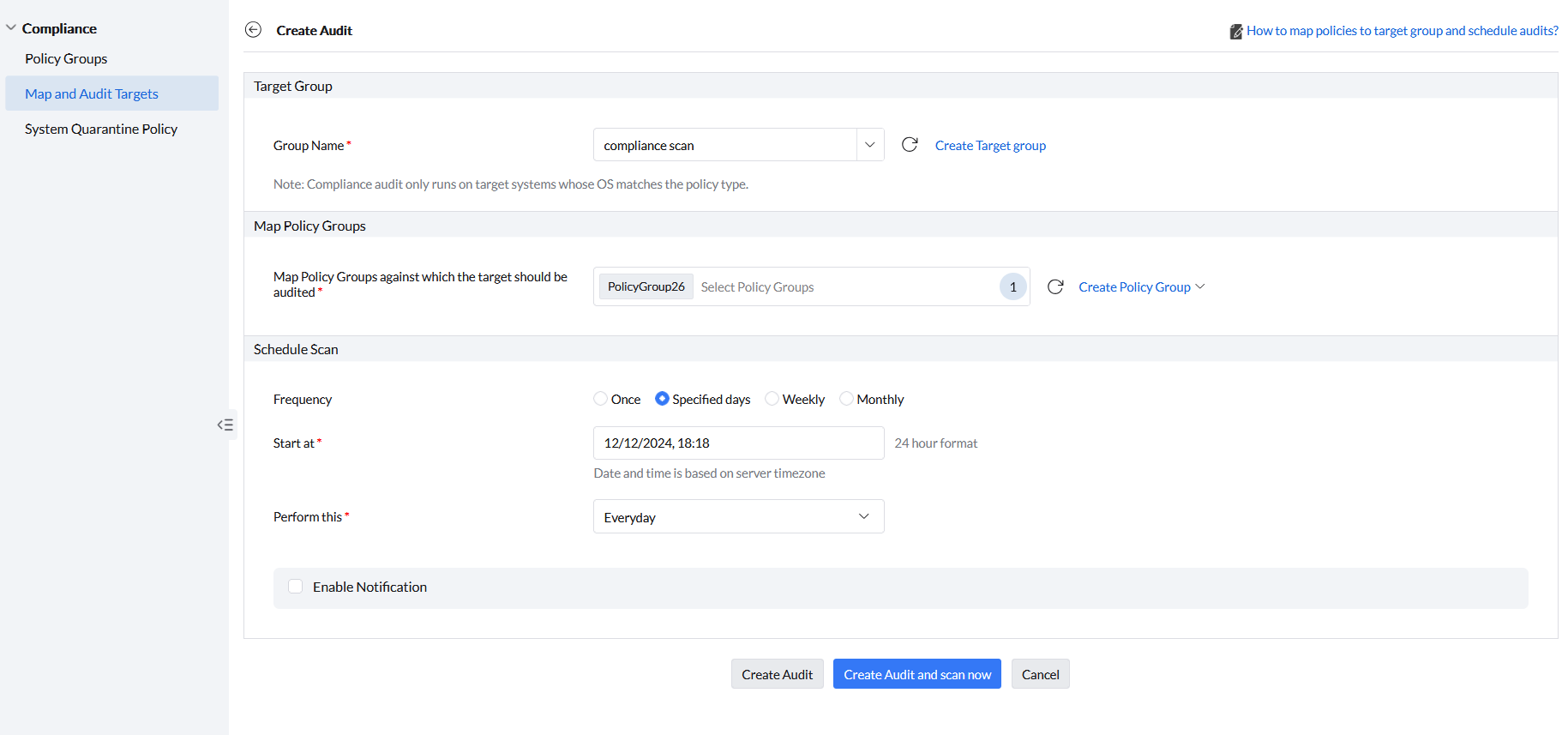
Navigate to Compliance → Map and Audit Targets → Create Audit.
A new window will open for creating the audit:
- Under Target Group, choose the custom group where you want to run the compliance check.
- Under Map Policy Groups, select the policy group you have created under the Map Policy Groups against which the target should be audited option.
- Under Schedule Scan, select the scan Frequency (daily is recommended so that any deviations from compliance can be tracked easily) and set the Start at date.
- If you want to receive notifications for this CIS compliance audit, enable Enable Notifications, enter the recipient email addresses, and specify when the notifications should be sent.
After configuring these settings, click Create Audit and Scan Now to run the compliance scan immediately, or click Create Audit to run the compliance scan in the subsequent refresh cycle.
Once an audit scan has been scheduled for a target group, it will appear in the table in the Map and Audit Targets view. Systems belonging to the target group will then be periodically assessed for compliance against all rules in the mapped policies based on the schedule. The resulting overall compliance percentage will be displayed for each target group.
The overall compliance percentage indicates the percentage of systems that are secure (systems that achieved a compliance percentage of at least 90%) out of the total systems scanned in the target group.
Overall compliance percentage = Number of secure systems (systems that achieved a compliance percentage of at least 90%) / Total scanned systems × 100
Inside the Target Group
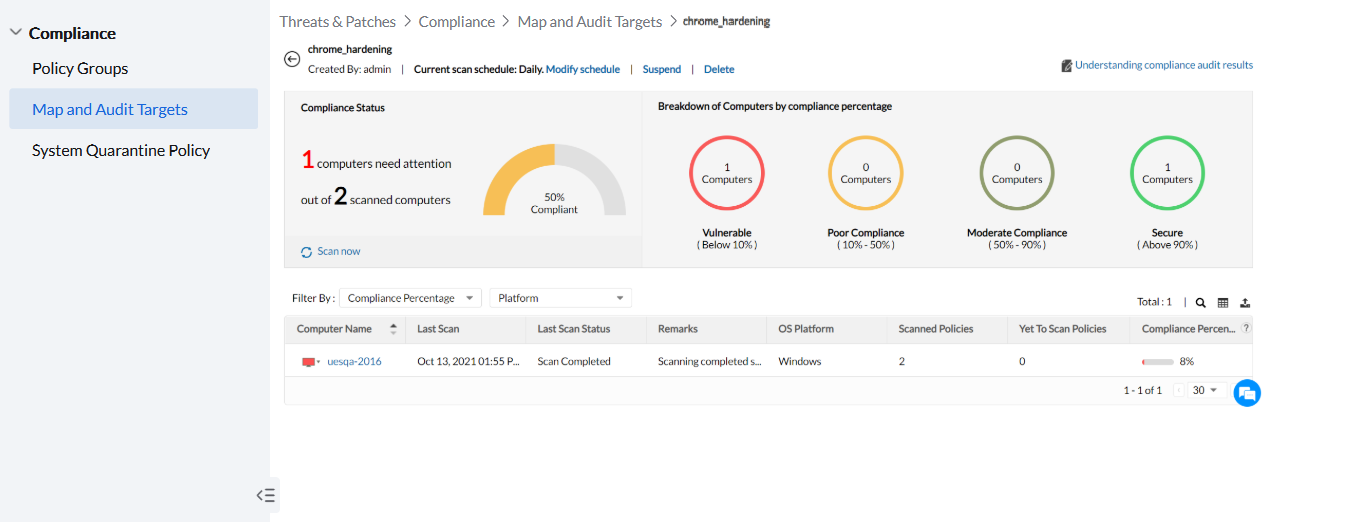
At the top, you can see the name of the target group, who scheduled the audit, and its scan schedule. To configure notifications for an existing audit, click Modify Schedule, enable Enable Notifications, enter the recipient email addresses, and specify when the notifications should be sent. Compliance audit notifications are configured through this schedule.
Compliance Status
This section indicates the number of computers that need attention (computers whose individual compliance is below 90%) out of total scanned computers. According to Endpoint Central, systems that have achieved a compliance of at least 90% are considered secure. The compliance percentage displayed here is the same as the overall compliance percentage of the target group.
Breakdown of Computers by Health
Computers are classified in this section by health based on their compliance percentage.
The Table View
The table below lists all computers belonging to this target group. Details such as OS platform, scanned and yet-to-scan policies, and compliance percentage for each computer are available here. If the audit is modified after a scan to map a new policy group, these policies will remain unscanned until the next scheduled scan and will be counted as Yet-to-scan policies.
The compliance percentage of each system indicates the percentage of rules the computer has passed out of the total scanned rules (excluding unscored rules) from all the mapped policies.
Compliance percentage = Rules passed / (Total scanned rules − unscored rules) × 100
- The rules belong to policies that are yet to be scanned.
- The rules belong to policies that are not applicable to the system — this can happen if the policy is designed for a particular OS that does not match the system's OS.
- The rules are labelled as unscored. While these rules are still counted towards the total rule count of a policy, their outcome will not be factored into the compliance percentage.
You can also view the compliance status and percentage of a computer on a per-policy basis by clicking on a computer.
Individual Computer View
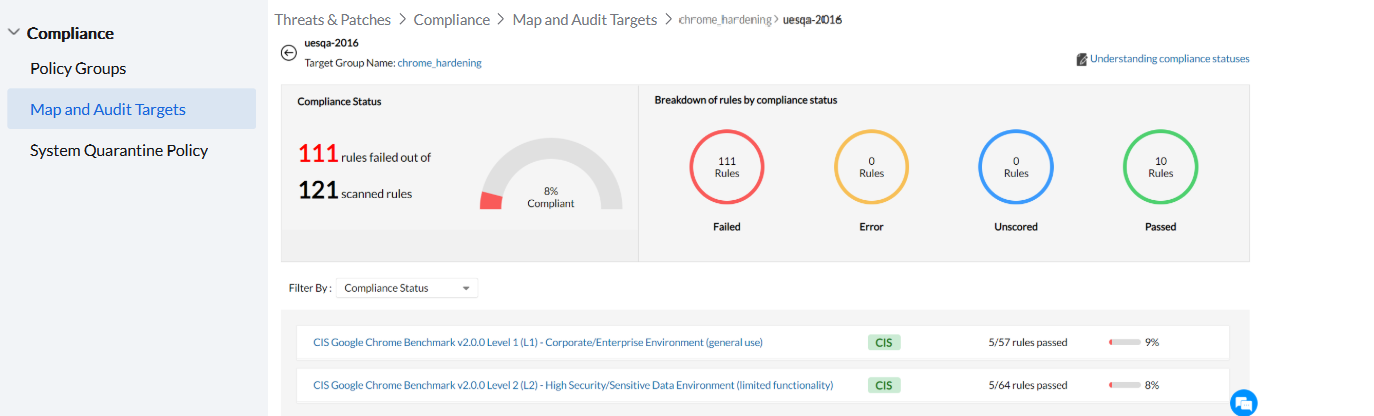
Compliance Status
This section indicates the number of rules the computer has failed to comply with out of the total scanned rules from all the mapped policies. The compliance percentage displayed here indicates the percentage of rules the computer has passed out of the total scanned rules (excluding unscored rules) from all the mapped policies.
Compliance percentage = Rules passed / (Total scanned rules − unscored rules) × 100
Breakdown of Rules by Compliance Status
All rules applicable to the computer are classified in this section based on compliance status:
- Failed — Rules that the computer configurations failed to comply with.
- Error — Rules that failed to be processed while scanning.
- Unscored — These rules are counted towards the total rule count of a policy, but their outcome will not be factored into the compliance percentage. According to CIS, rules are either "scored" or "not scored". Scored recommendations are mandatory to achieve CIS compliance, and if not met will lower the total benchmark compliance percentage. Recommendations that are not scored have no impact on the compliance percentage.
- Passed — Rules that the computer configurations successfully comply with.
The Table View
The table below lists all policies mapped to this computer along with the number of rules passed in each policy and the compliance percentage per policy. The compliance percentage for each policy indicates the percentage of rules the computer has passed out of the total scanned rules from that policy. You can use the filter option to view rules based on compliance status. For instance, selecting Failed in the compliance status filter displays all failed rules from every policy. Click View Resolution next to a failed rule to view the detailed steps to implement the recommended value.
You can also view the compliance status of a computer on a per-rule basis by clicking on a policy.
When a rule checks a registry value, it compares the computer's effective registry value with the value the policy expects. A Group Policy setting that shows Enabled can still fail when that registry value is different. Check the applied policy in gpedit.msc or with gpresult, then compare the registry value with the expected value.
Individual Policy View
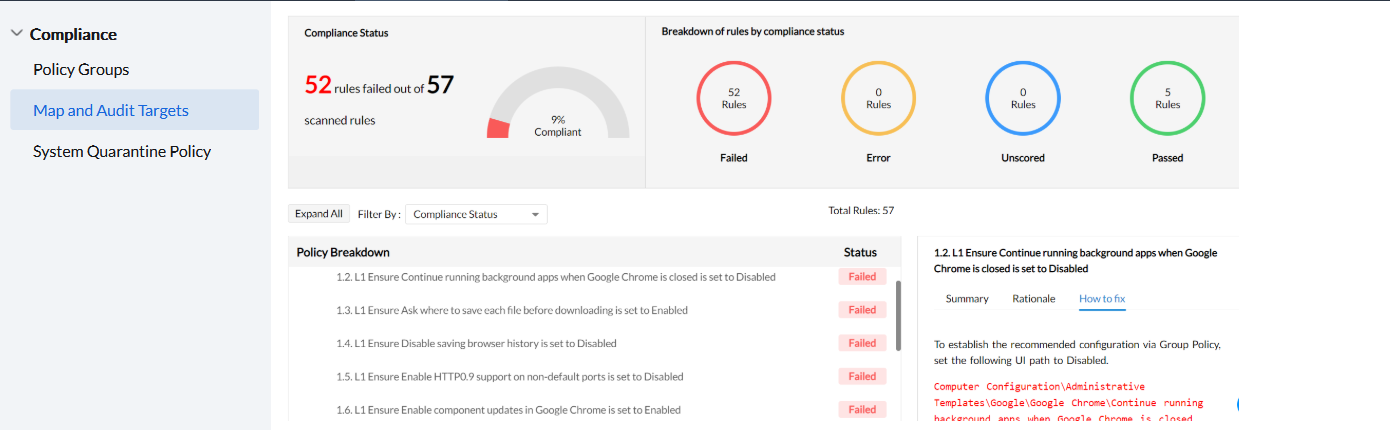
Compliance Status
This section indicates the number of rules the computer has failed to comply with out of the total scanned rules from this particular policy. The compliance percentage displayed here indicates the percentage of rules the computer has passed out of the total scanned rules from the policy.
Breakdown of Rules by Compliance Status
All rules from the policy are classified in this section based on the computer's compliance status:
- Failed — Rules that the computer configurations failed to comply with.
- Error — Rules that failed to be processed while scanning.
- Unscored — These rules are counted towards the total rule count of a policy, but their outcome will not be factored into the compliance percentage. According to CIS, rules are either "scored" or "not scored". Scored recommendations are mandatory to achieve CIS compliance, and if not met will lower the total benchmark compliance percentage. Recommendations that are not scored have no impact on the compliance percentage.
- Passed — Rules that the computer configurations successfully comply with.
The Policy Breakdown Table View
Refer to this page to learn more about how the policy is structured and for a detailed explanation of the terminologies used. For each title, you can view the number of rules the computer has passed. Click on a title to expand and reveal the rules pertaining to it. You can view the compliance status next to each rule. If you click on a rule, the detailed summary, rationale, and How to Fix columns will be visible. The How to Fix column offers detailed steps to implement the recommended value for each failed rule.
You can also create customized CIS Compliance Reports. Navigate to Reports → Executive Reports and choose CIS Compliance Reports. Refer to this page to learn more about creating one.