Google Cloud DNS Management
OpUtils supports the Google Cloud Platform (GCP) ecosystem for monitoring and managing Google Cloud DNS servers. Users can create Cloud DNS zones and records, and modify record configurations. With these management capabilities, OpUtils helps users manage and troubleshoot issues with Cloud DNS servers. Using the required GCP credentials, OpUtils discovers Google Cloud DNS servers and enables users to monitor and manage them.
This document provides the steps to generate the credentials required to begin managing Google Cloud DNS servers from the OpUtils console.
Generate JSON Key in Google Cloud Platform
To start monitoring Cloud DNS, begin by generating a JSON key in Google Cloud Platform. You can use the JSON key to authenticate your GCP credentials and add the DNS server to OpUtils.
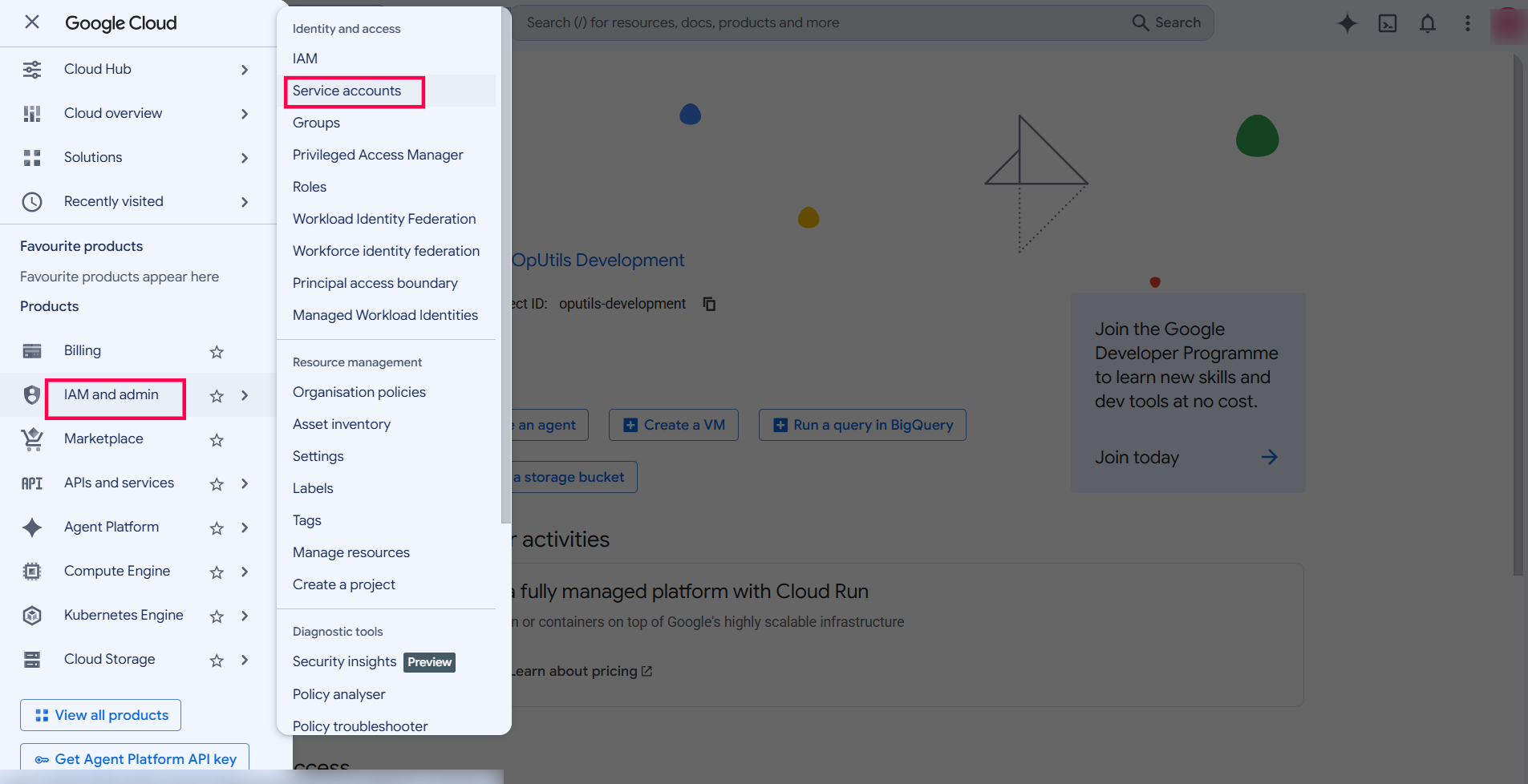
- Login into your Google cloud account and go to IAM & Admin -> Service Accounts.
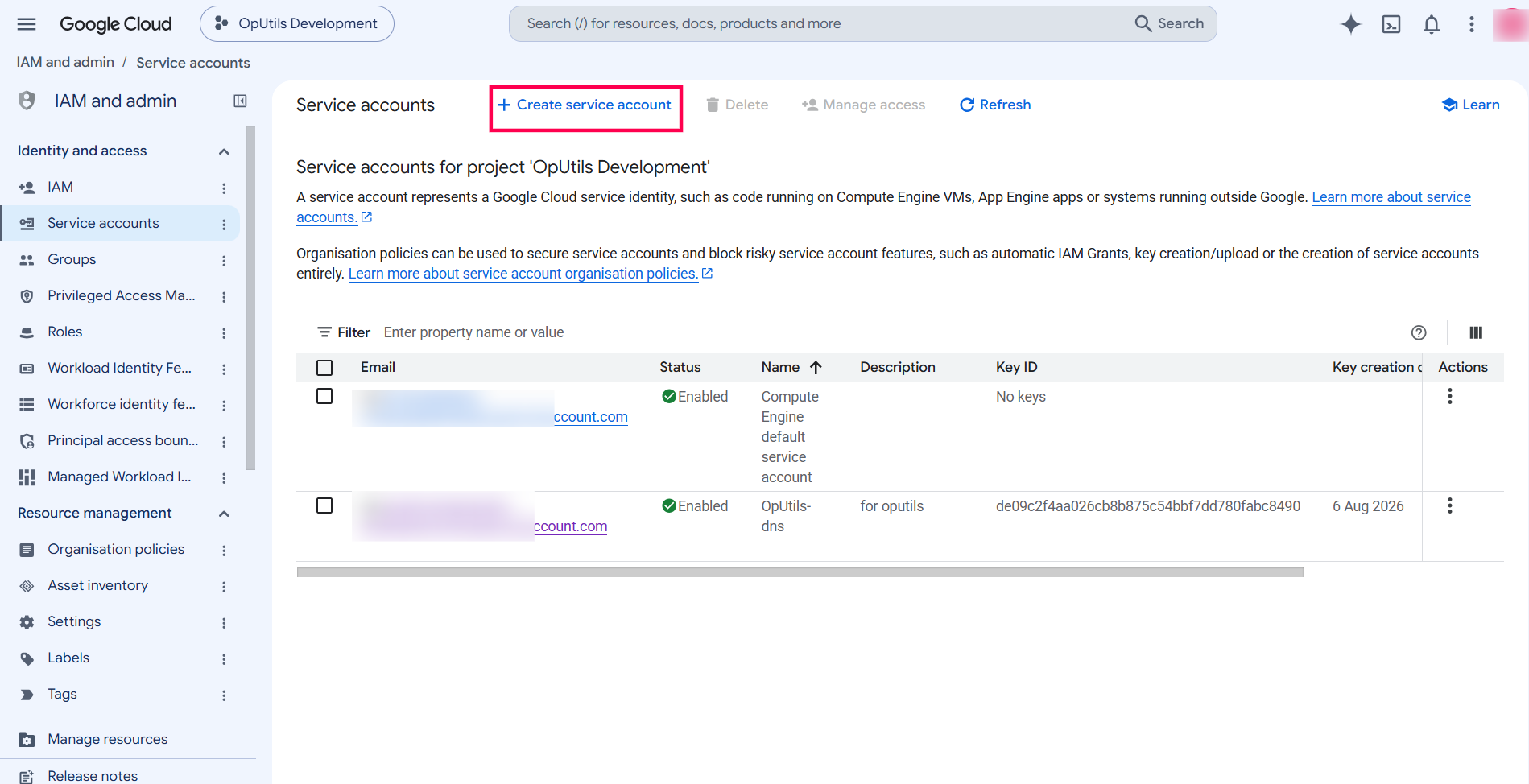
- Click Create Service Account, a service account is required to generate the JSON key.
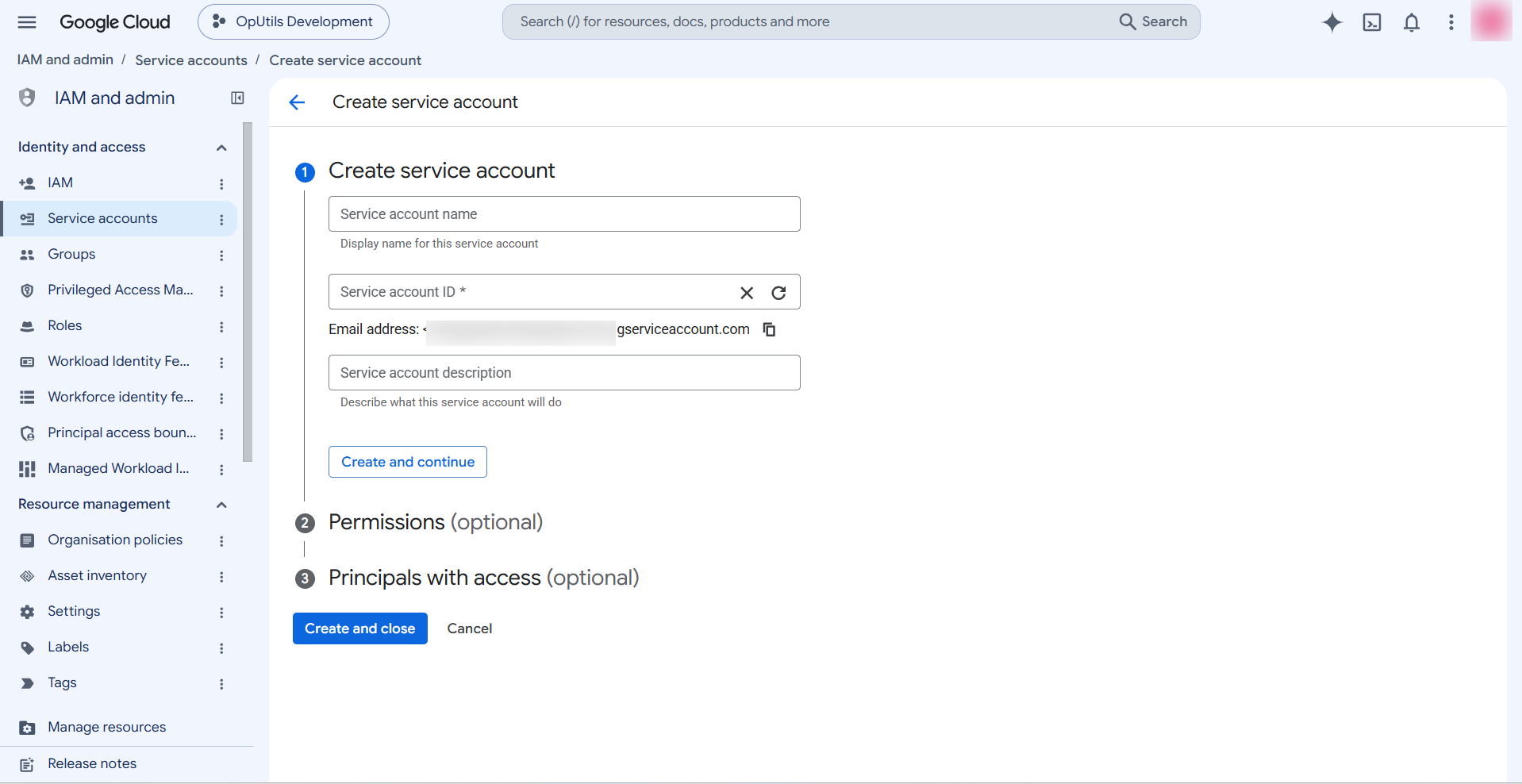
- Provide the required details and click Create and close.
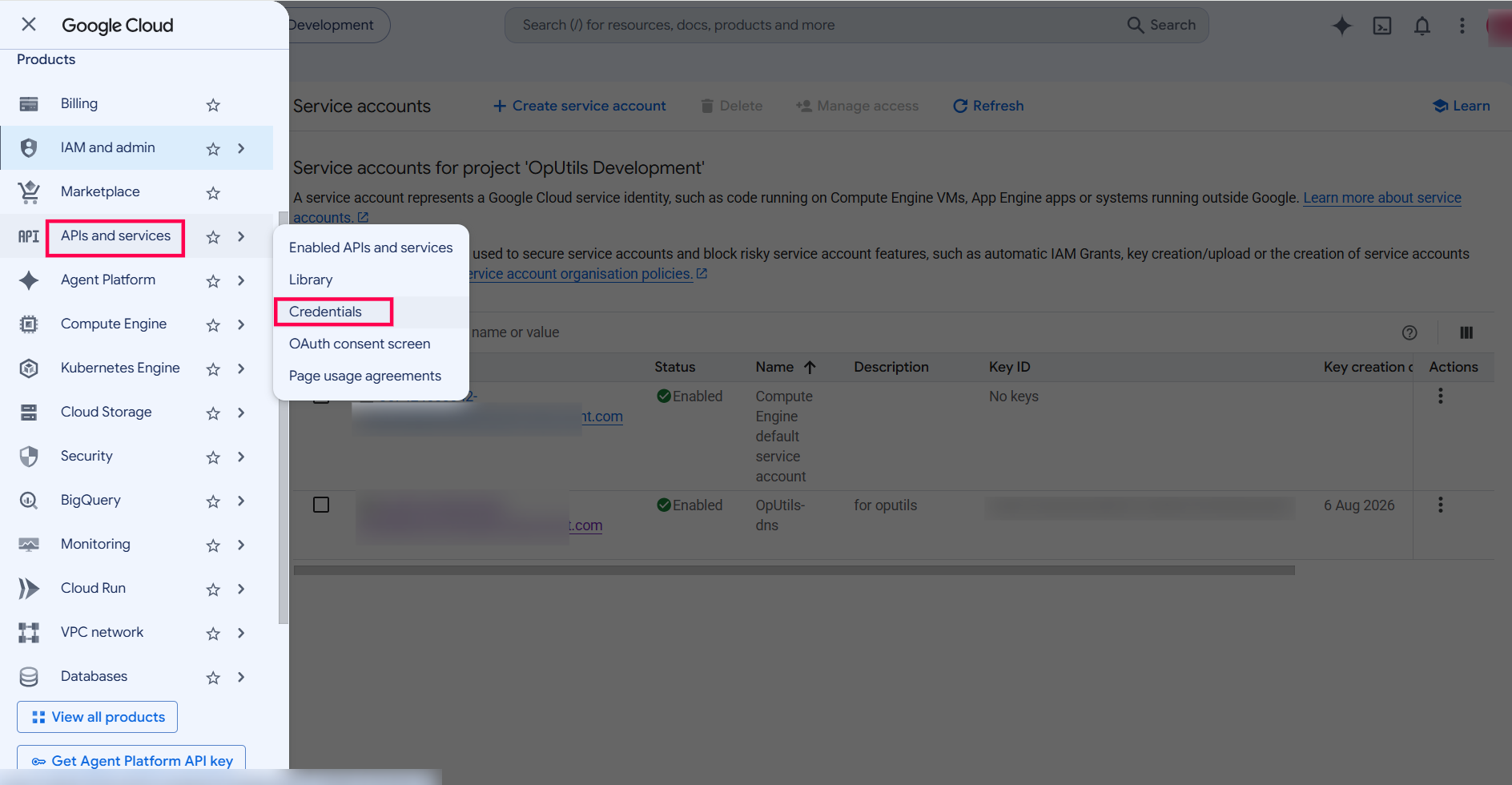
- Once the service account is created, navigate to APIs & Services -> Credentials.
- Click on the service account you created and navigate to the Keys tab.
- Under ADD KEY, select Create new key.
- Select JSON as the key type and click Create.
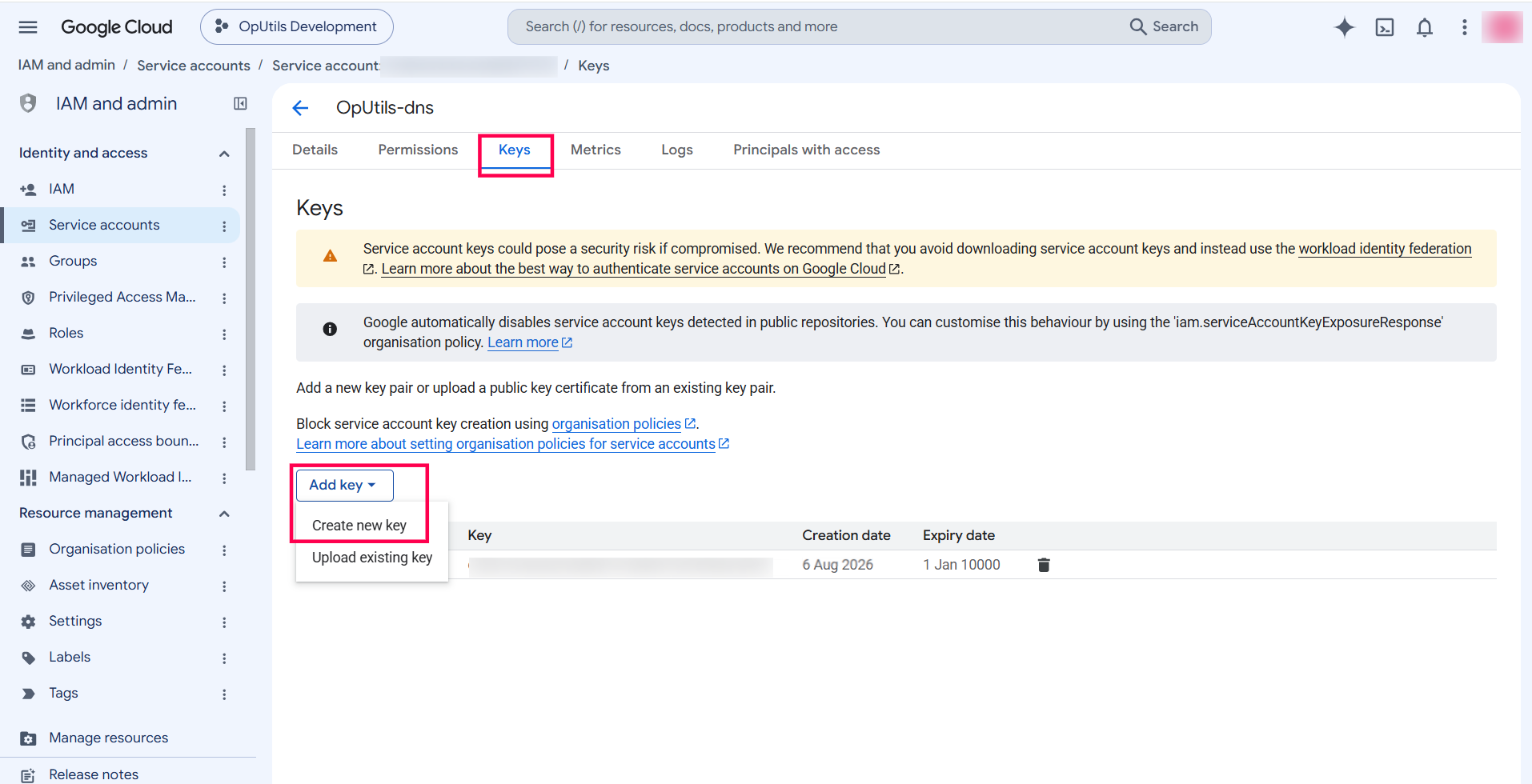
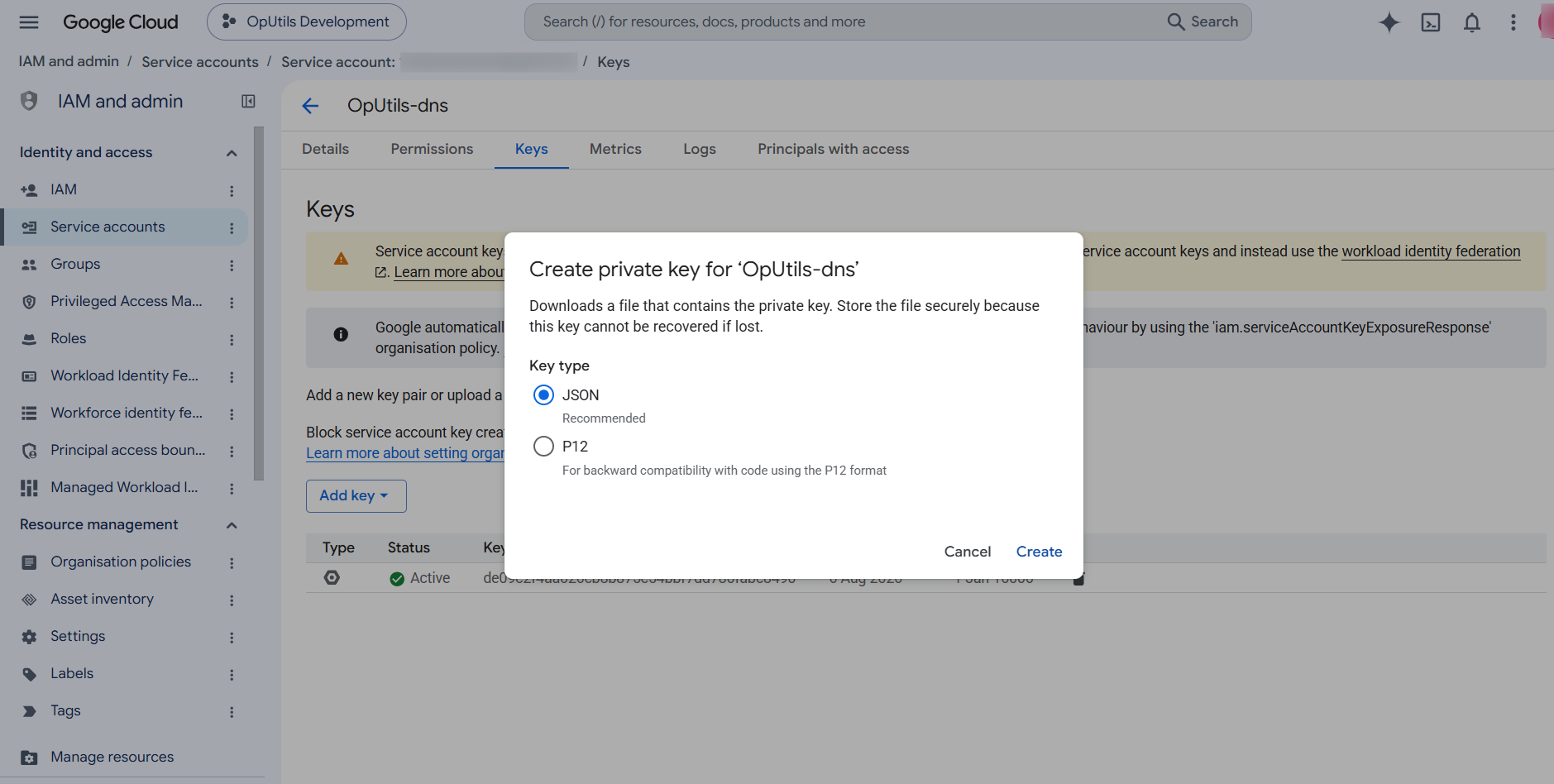
Once the key is created, download the JSON key to use it in OpUtils console.
Configuration Steps in OpUtils
In OpUtils, you can use the downloaded JSON key from Google Cloud to add a GCP credential and discover the DNS servers.
- Go to IP Address Manager -> Add ->DNS Management -> Add DNS Server.
- Provide a DNS Server Name and choose the DNS Server Type as Google Cloud DNS.
- Under GCP Credential, click Add Credential to add the required credential.
- Select the GCP Credential , then provide a Profile Name and Description .
- Paste the downloaded JSON Key under Service Account JSON Key.
- Click Save to add the GCP credential.
- You will be redirected to the Add DNS Server page. Select the GCP credential you added.
- Click Add.

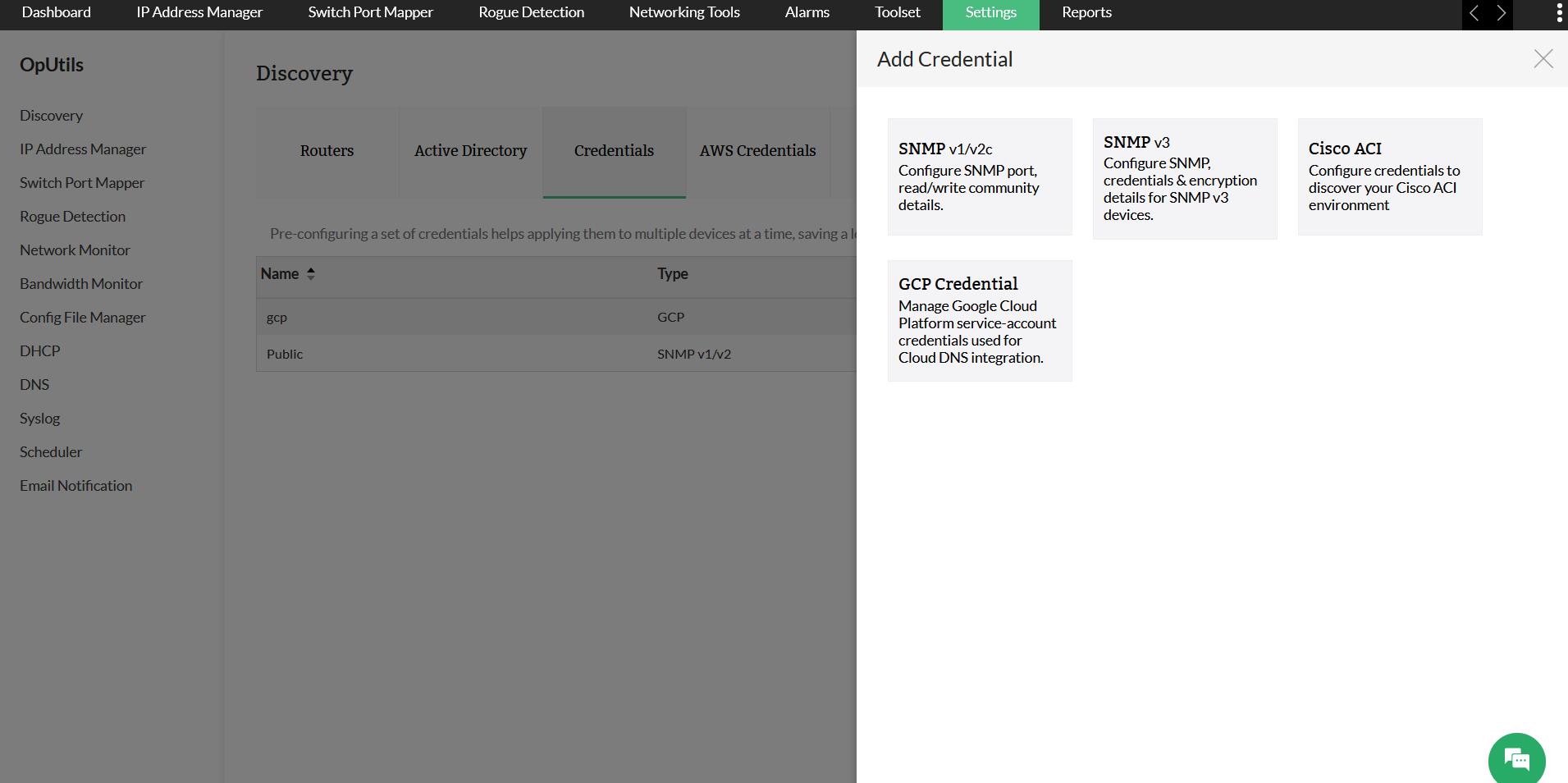
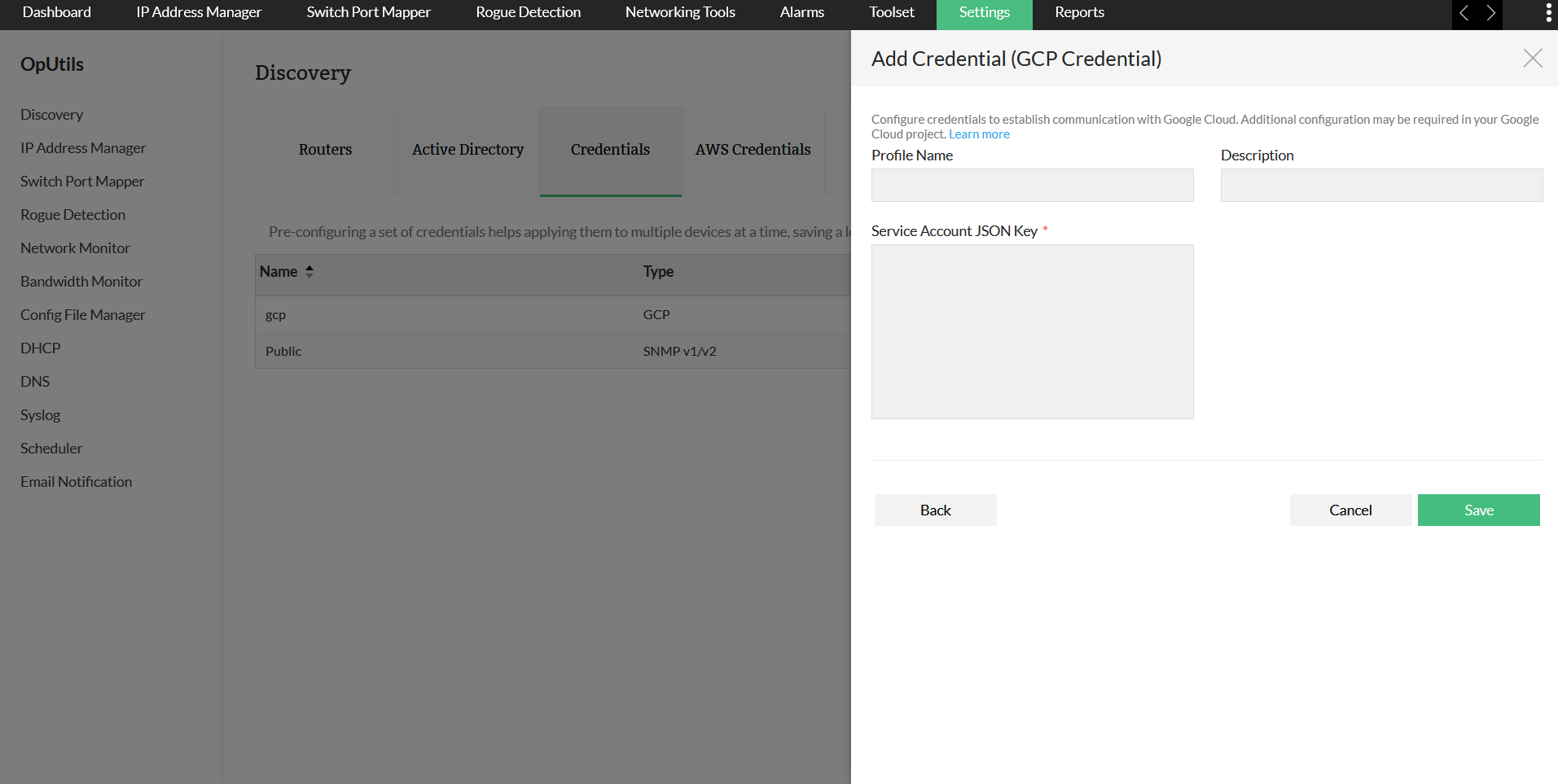
The Google Cloud DNS server will be added successfully in OpUtils.