Primary Server with a Read-Only Server
Note: Before proceeding with the configuration steps, we recommend reviewing this document to gain a clear understanding of the PostgreSQL-based High Availability architecture, its prerequisites, and the procedures for managing HA effectively.
This deployment features a single Primary server for all write operations, while a Read-Only server acts as a replica, updated in real time via streaming replication. This model is ideal for scenarios requiring secure, write-focused primary operations with offloading of reporting or analytical read operations to the secondary. It also serves as a disaster recovery mechanism, as the Read-Only server can be promoted in case of Primary failure.
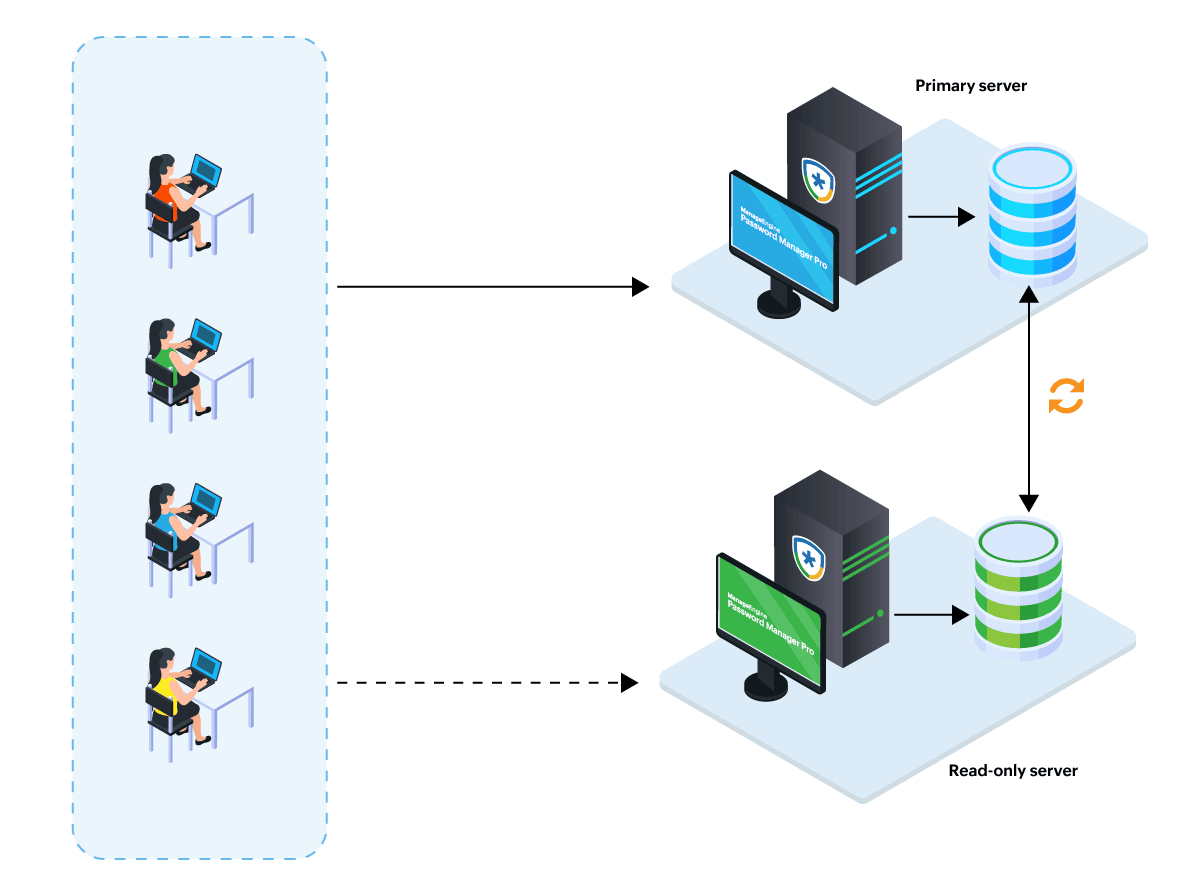
1. Generating the Setup Packs in the Primary Server
Follow these steps to configure the primary server and generate the setup pack for the fallback read-only server:
- Install the Password Manager Pro application on the server you intend to use as the primary server. During installation, select the server configuration as the High Availability Primary Server.
- Once the installation is complete, start the Password Manager Pro service to initialize the server and the database.
- If you have a running instance of Password Manager Pro, this will act as the primary server. You should disable any existing high availability configuration setup in your environment. If multiple read-only servers are configured in your environment, you should retain only one read-only server and remove the remaining read-only server configurations. Explore this link for the detailed steps to remove the read-only server configuration. If the key file is stored in a remote directory accessible by all the servers in your environment, ensure the full path of the remote location is updated in the manage_key.conf file.
- Stop the Password Manager Pro service on the primary server.
- To generate the setup pack for the read-only server, run the following command from the bin folder within the installation directory:
- Windows - ROSetup.bat <IPAddress><Username><Password><Slotname>
- Linux - ROSetup.sh <IPAddress><Username> <Password><Slotname>
- Running the above script will create the setup pack with the filename ROPack_<Slotname>.zip inside the Replication folder within the Password Manager Pro installation directory.
- After generating the setup pack, you should import the necessary certificates into the primary server by executing the following commands:
- Linux:
- sh importCert.sh ../conf/ServerCer.cer
- sh importCert.sh ../conf/CAcert.pem
- sh importCert.sh ../agent/ServerCer.cer
- Windows:
- importCert.bat ..\conf\ServerCer.cer
- importCert.bat ..\conf\CAcert.pem
- importCert.bat ..\agent\ServerCer.cer
- Start the Password Manager Pro service on the primary server.
Note: It is recommended to store the pmp_key.key file in a shared path accessible by all the servers in your environment.
Note: Replace the placeholders with the actual values of the target read-only server. The Slotname should be a unique identifier for the replication slot.
Note: To install custom certificates, replace the certificate paths in the above commands accordingly.
You have now successfully configured the primary server and generated the setup pack for the read-only server.
2. Configuring the Read-Only Server
Follow these steps to configure the read-only server in the PostgreSQL High Availability (HA) setup for Password Manager Pro:
- Install Password Manager Pro on the machine you intend to use as the read-only server. During the installation process, select the server configuration as the Read-Only Server.
- Navigate to the Password Manager Pro installation directory in the Read-Only server and extract the ROPack_<Slotname>.zip file. This will overwrite relevant files on the read-only server with those required for the read-only server configuration from the primary server.
- If the key file is stored in a remote directory, supply the full path of the remote location in the manage_key.conf file.
- If the shared path is unavailable, replace the pmp_key.key file available on the read-only server with the key file available on the primary server, place it in any local directory on the read-only server, and update the key file path in the <pmp-installation-directory>/conf/manage_key.conf file.
- If the manage_key.conf file is not available in the read-only server, then create a new file named manage_key.conf and specify the key file path.
- Import the necessary certificates into the read-only server by executing the following commands:
- Linux:
- sh importCert.sh ../conf/ServerCer.cer
- sh importCert.sh ../conf/CAcert.pem
- sh importCert.sh ../agent/ServerCer.cer
- Windows:
- importCert.bat ..\conf \ServerCer.cer
- importCert.bat ..\conf\CAcert.pem
- importCert.bat ..\agent\ServerCer.cer
- Start the Password Manager Pro service on the read-only server.
Note: If you are using a custom SSL certificate, copy it from the primary server and paste it into the conf folder within the installation directory on the read-only server. To install custom certificates, replace the certificate path in the above command.
You have successfully configured the High Availability setup using the PostgreSQL database. Log into the primary server and navigate to Admin >> Configurations >> Read-Only Server to view the status of the configured setup.
Note: Upon successful configuration, refer to this document to learn more about managing the HA, troubleshooting tips, etc.