Primary and Secondary Server with a Shared Database
Note: Before proceeding with the configuration steps, we recommend reviewing this document to gain a clear understanding of the PostgreSQL-based High Availability architecture, its prerequisites, and the procedures for managing HA effectively.
In this model, both Primary and Secondary servers are configured as active (read-write) nodes connected to a shared PostgreSQL database. PostgreSQL’s streaming replication ensures real-time data synchronization between the servers. This setup enables effective load balancing, as traffic can be distributed between the two servers. It also ensures high availability and minimizes downtime since either server can continue seamlessly in the event of an instance failure.
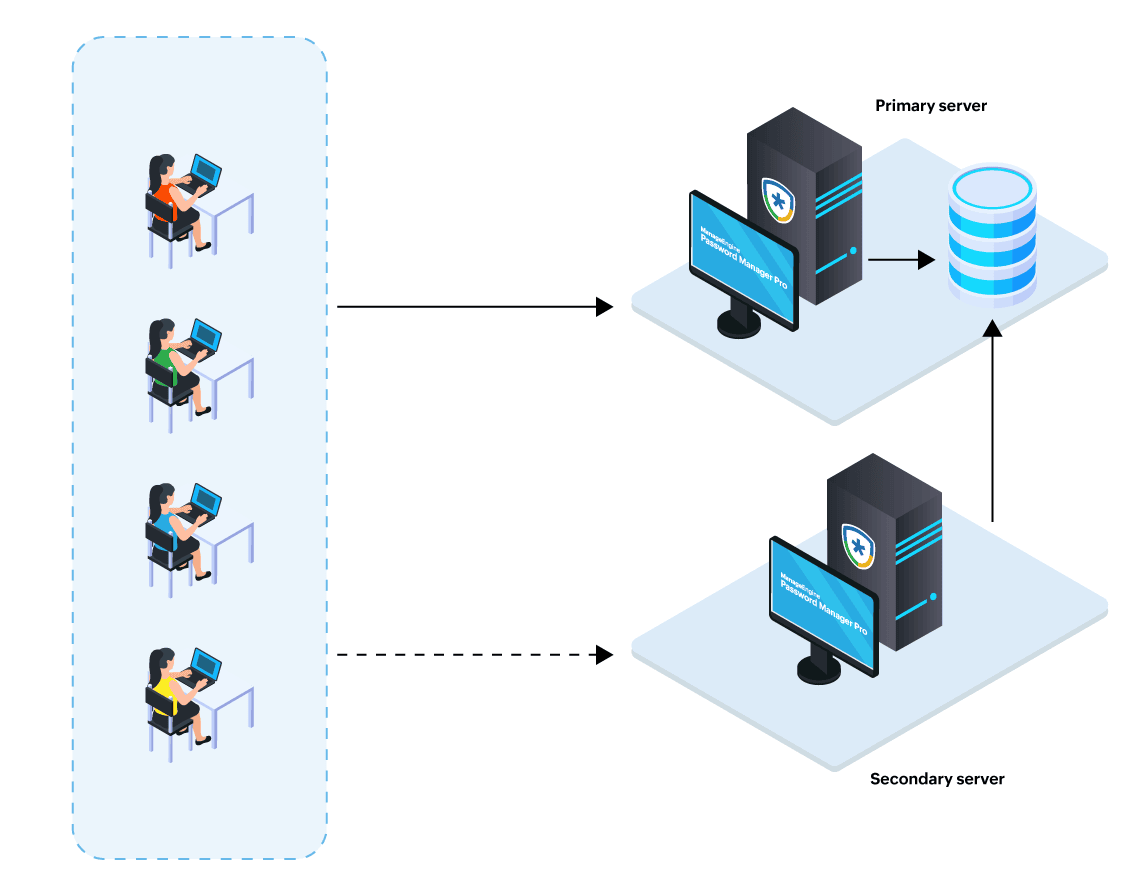
1. Generating the Setup Packs in the Primary Server
Follow these steps to configure the primary server and generate the setup pack for the secondary server:
- Install the Password Manager Pro application on the server you intend to use as the primary server. During installation, select the server configuration as the High Availability Primary Server.
- Once the installation is complete, start the Password Manager Pro service to initialize the server and the database.
- If you have a running instance of Password Manager Pro, this will act as the primary server. You should disable any existing high availability configuration setup in your environment. If multiple read-only servers are configured in your environment, you should retain only one read-only server and remove the remaining read-only server configurations. Explore this link for the detailed steps to remove the read-only server configuration. If the key file is stored in a remote directory accessible by all the servers in your environment, ensure the full path of the remote location is updated in the manage_key.conf file.
- Stop the Password Manager Pro service on the primary server, navigate to the bin folder within the installation directory, and run the following commands with administrator privilege:
- Windows - HAPostgreSQLAppSetup.bat <FQDN/IPAddress>
- Linux - HAPostgreSQLAppSetup.sh <FQDN/IPAddress>
- Running the above scripts will initialize the database as a standalone Password Manager Pro PostgreSQL service and generate the setup pack for the secondary server. The database will run as a separate service with the service name Password Manager Pro PostgreSQL. The setup pack, named AppServerPack_<FQDN/IPAddress>.zip, will be available in the replication folder within the installation directory.
- Restart the PostgreSQL database running as a standalone service on the primary server.
- Start the Password Manager Pro service on the primary server.
Note: It is recommended to store the pmp_key.key file in a shared path accessible by all the servers in your environment.
Note: In the above commands, replace <FQDN/IPAddress> with the fully qualified domain name or IP address of the machine you intend to use as the secondary server.
You have now successfully configured the primary server and generated the setup pack for the secondary server.
Note: Run the following commands from the bin folder within the installation directory to start or stop the PostgreSQL database running as a service on the primary server:
2. Configuring the Secondary Server
Follow these steps to configure the secondary server in the PostgreSQL high availability setup for Password Manager Pro:
- Install Password Manager Pro on the machine you intend to use as the secondary server. During installation, select the server configuration as the High Availability Primary Server.
- Copy the setup pack AppServerPack_<FQDN/IPAddress>.zip to the password manager pro installation directory and unzip its contents. This will overwrite relevant files on the secondary server with those required for configuration from the primary server.
- If the key file is stored in a remote directory accessible by all the server, enter the full path of the remote location in the manage_key.conf file.
- If the shared path is unavailable, replace the pmp_key.key file available on the secondary server with the key file available on the primary server, place it in any local directory on the secondary server, and update the key file path in the manage_key.conf within the installation directory.
- Start the Password Manager service on the secondary server.
Note: Ensure the <FQDN/IPAddress> used while generating the setup pack matches the hostname or IP address of the server on which you are installing Password Manager Pro to use as the secondary server. Do not start the Password Manager Pro service after installation.
You have successfully configured the High Availability setup using the PostgreSQL database. Log into the primary server and navigate to Admin >> High Availability to view the status of the configured setup.
Note: Upon successful configuration, refer to this document to learn more about managing the HA, troubleshooting tips, etc.