ChatGPT Integration
ChatGPT is an AI chatbot from OpenAI. It interacts with end users through conversational dialogue. ServiceDesk Plus MSP can now be integrated with ChatGPT to simplify help desk management and enhance Zia capabilities.
Note: In ServiceDesk Plus MSP, personally identifiable information (PII) is masked before it is sent to ChatGPT. ChatGPT retains this data for up to 30 days. Learn more about OpenAI’s data processing practices.
Contents:
Role Required: SDAdmin
Benefits of the Integration
-
Enable ChatGPT to act as a backup when Zia cannot predict approval actions.
-
Set ChatGPT as fallback option when Zia cannot predict reopening request actions.
-
Access ChatGPT within the Zia bot.
-
Search ChatGPT solutions in the Zia bot.
-
Generate solutions while creating a request through the Zia bot.
-
Generate content, generate replies, rephrase text, and check grammar when responding to or forwarding requests.
-
Generate a summary of the request details.
Prerequisites for Integration
-
Obtain the OpenAI organization ID. Click here for the details.
-
A unique secret key will be assigned to you in OpenAI. Store this key in a secure location. Click here to get the API key.
Note: A paid ChatGPT subscription is required to use ChatGPT within ServiceDesk Plus MSP. Depending on the plan purchased and the available credits, you can use ChatGPT in the application. Click here to check your credits.
Enable Integration
-
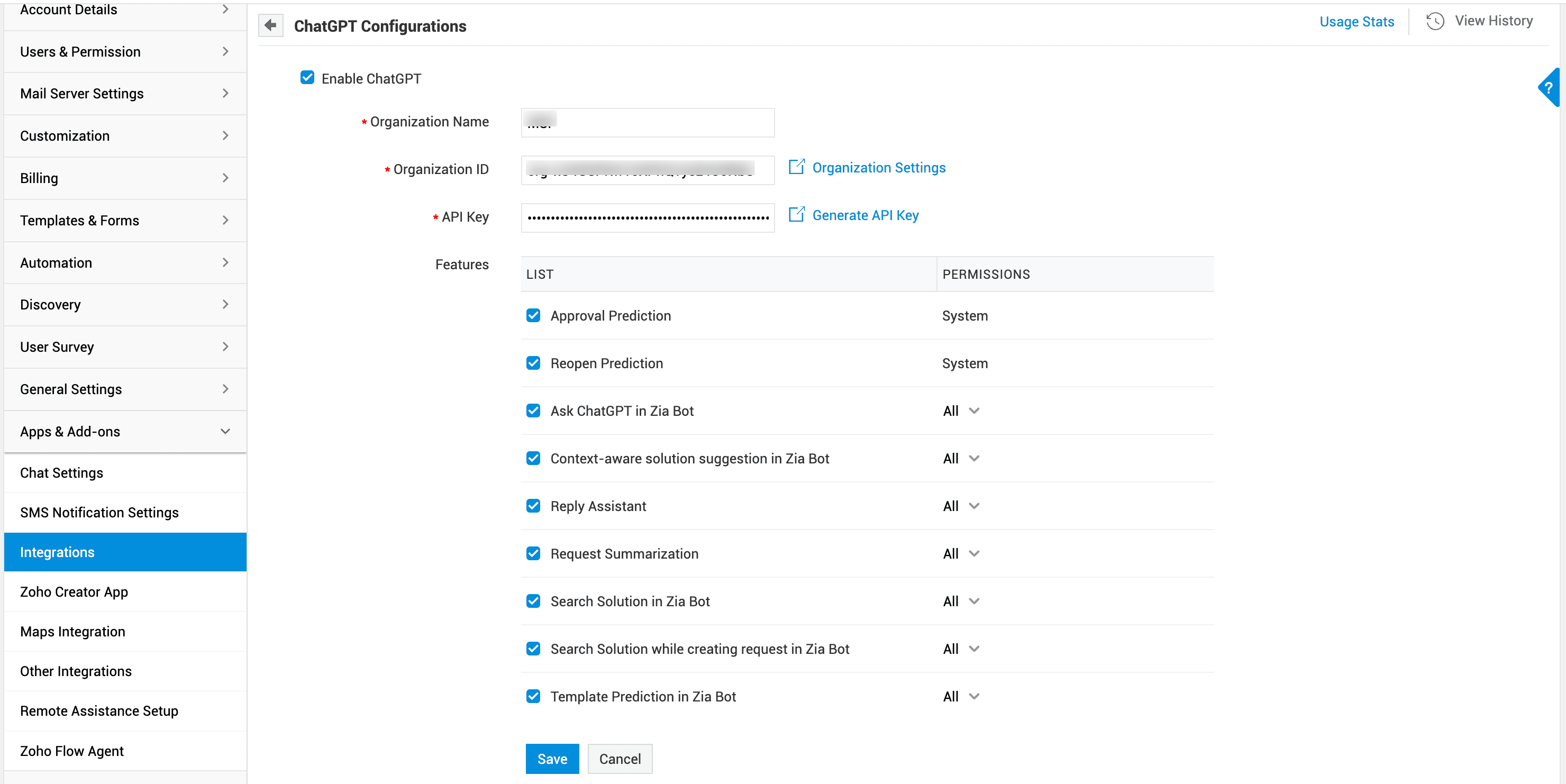
Go to Admin > Apps & Add-ons > Integrations > Third Party.
-
On the ChatGPT card, click Settings.
-
Select the Enable ChatGPT check box.
-
Enter your organization name, organization ID, and API key. Refer to the prerequisites to obtain the credentials.
-
Enable the features that you would like to access via this integration. Refer to the links below to learn more about them.
-
Set permissions for each feature: All, Requesters, or Technicians. Only selected users will be able to access this feature.
-
Click Save after you have configured the settings.
Note:
- Approval/reopen prediction permissions cannot be changed.
- Disabling ChatGPT integration will remove the configured details.
ChatGPT Integration Features
Approval Prediction
ChatGPT serves as a fallback option when Zia is unable to predict the user's approval actions via mail.
Zia predicts approval responses as Approval, Reject, or Need Clarification. If Zia cannot make a prediction based on the user's response, ChatGPT will take over the prediction.
When Zia's approval prediction is disabled, ChatGPT will predict the approval status.
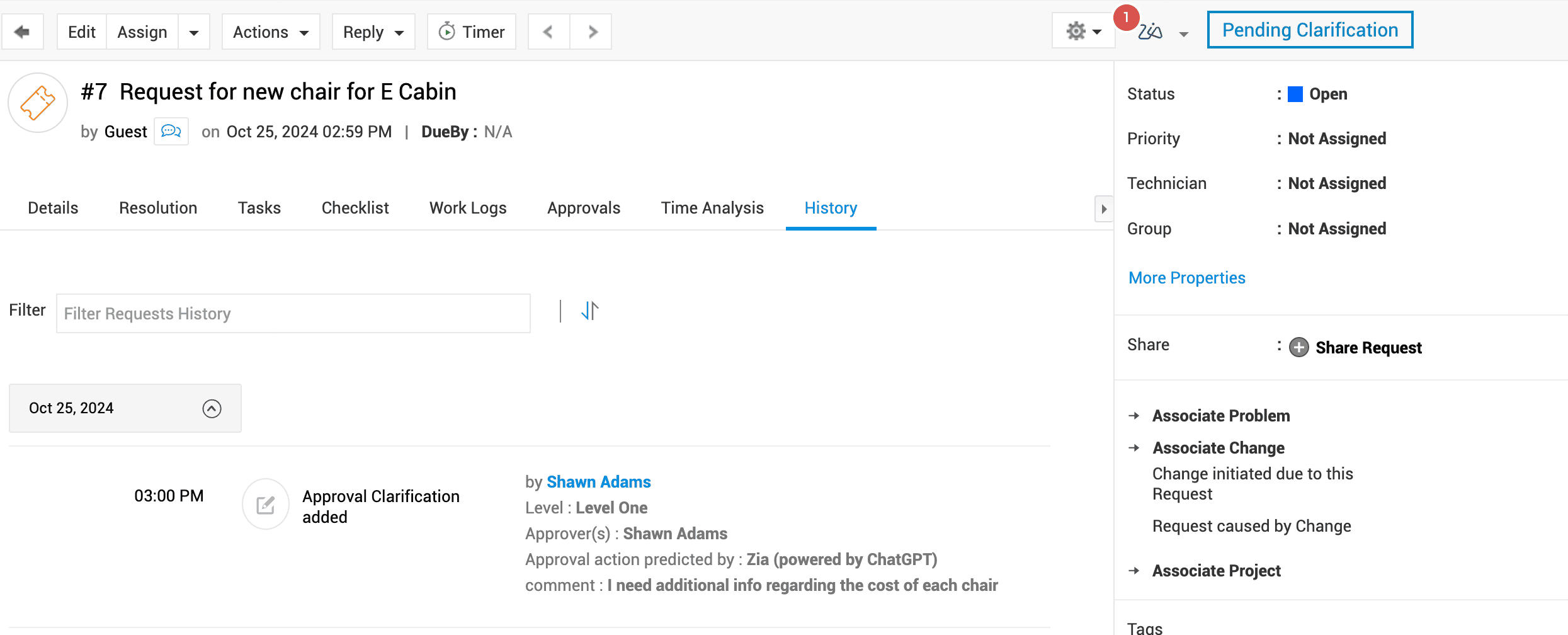
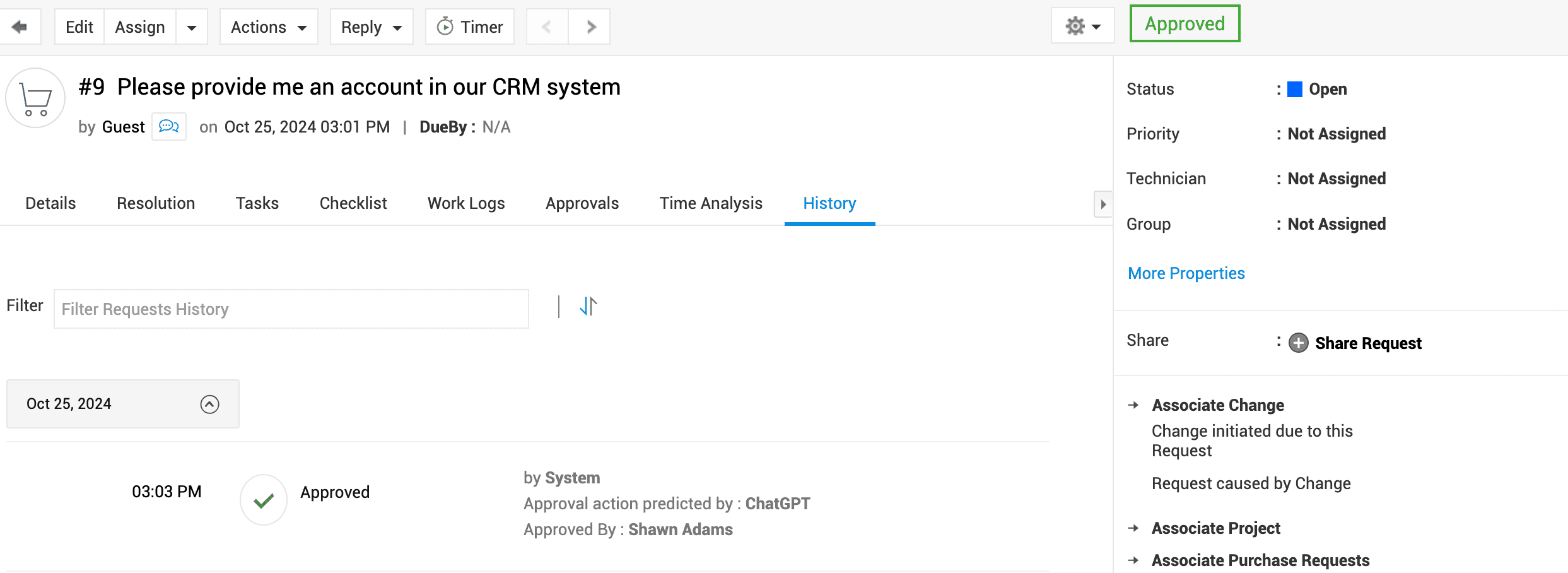
The approval prediction will be displayed in the request history as follows:
When ChatGPT makes a prediction as Zia's fallback:
When Zia is disabled and ChatGPT makes a prediction:
Reopen Prediction
ChatGPT serves as a fallback option if Zia cannot predict the user's request reopen actions.
ChatGPT will make the prediction when Zia is unable to determine whether the user intends to reopen or retain the completed status of a request.
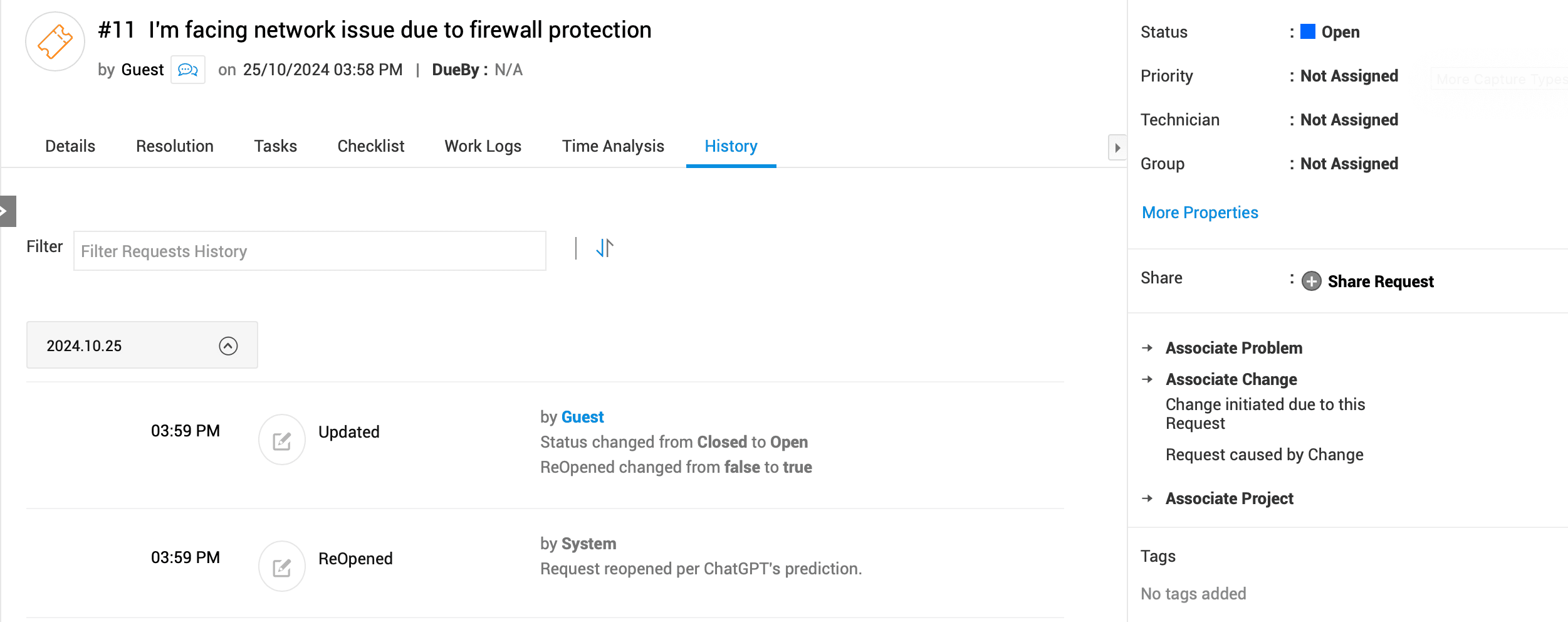
When Zia's reopen request prediction is disabled, ChatGPT will predict the reopen status.
When ChatGPT makes a prediction as Zia's fallback:
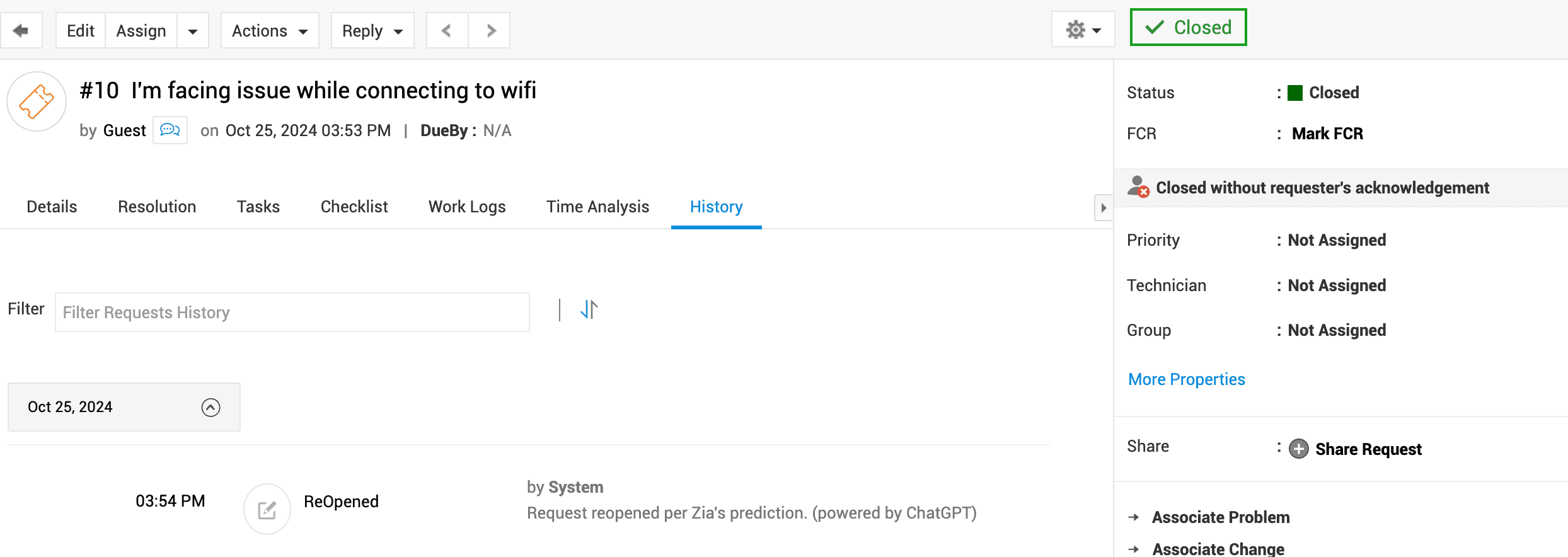
When Zia is disabled and ChatGPT makes a prediction:
Ask ChatGPT in Zia Bot
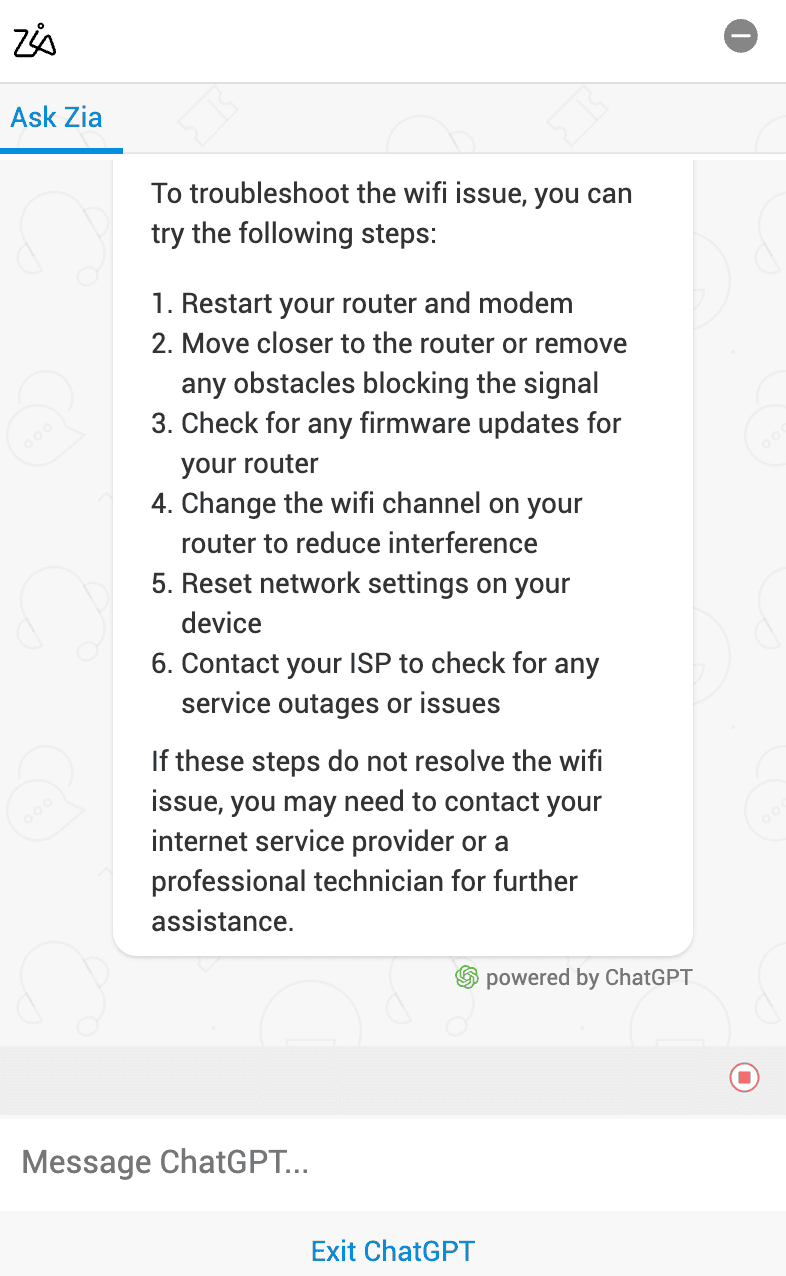
Use ChatGPT within the Zia bot to ask questions and receive responses. In the Zia bot, click Ask GPT and enter your query or prompt. You can provide additional prompts or queries to interact with the AI.
Note: You can submit queries or prompts of up to 2000 characters.
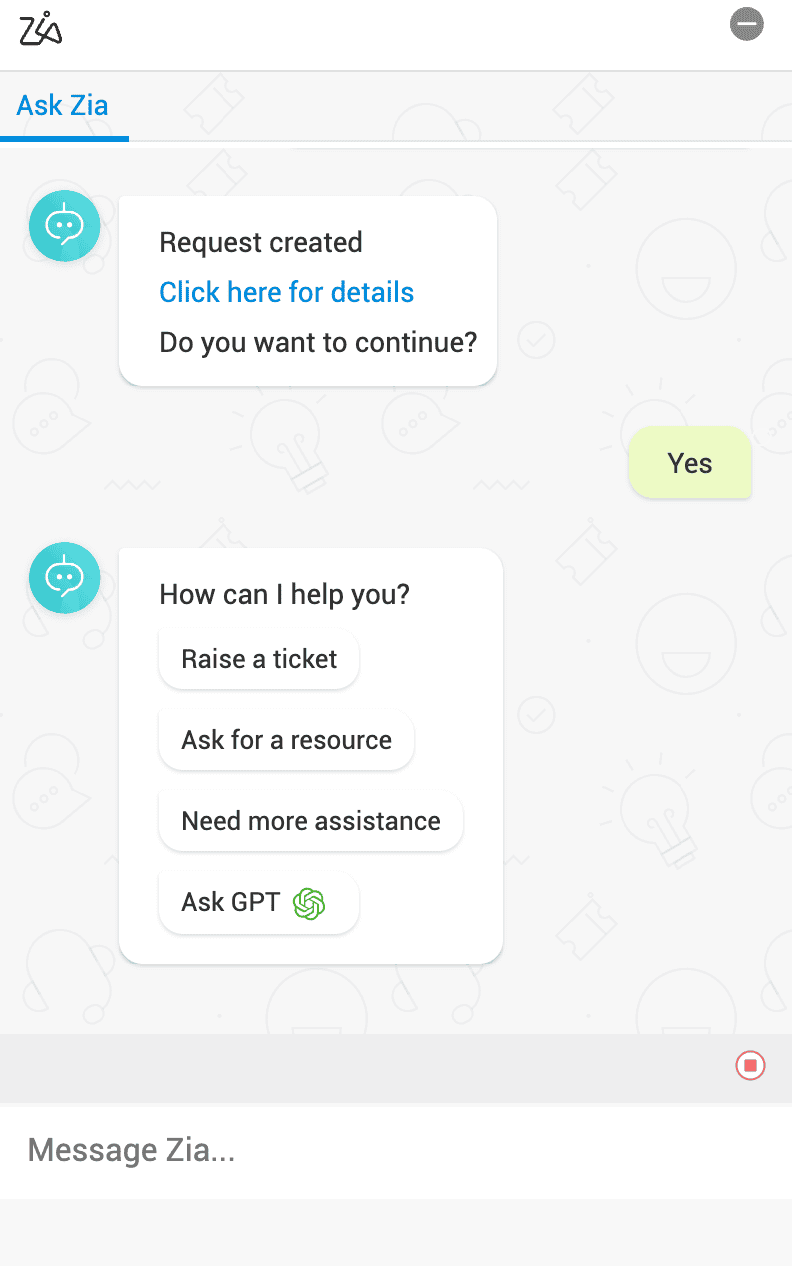
After you have completed your interaction with ChatGPT, click Exit ChatGPT displayed at the bottom of the chat.
Context-aware solution suggestion in Zia Bot
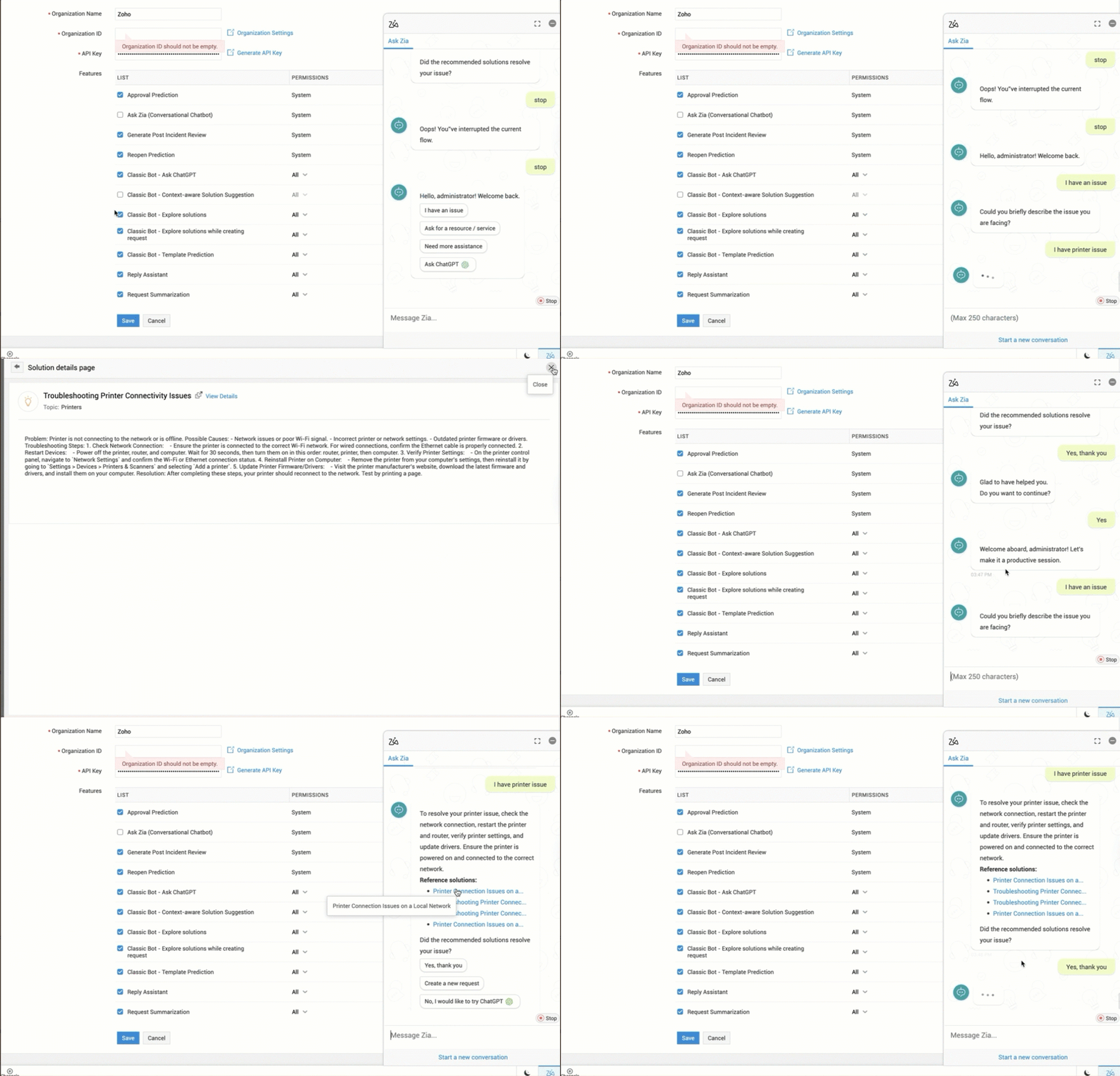
Use ChatGPT to get solution suggestion in Zia Bot. Retrieval-augmented generation (RAG) approach provides relevant and context-based solutions from the instance. Users are recommended to provide a brief description on their requirement to get accurate results.
Zia Bot’s behavior depends on the ChatGPT configuration.
ChatGPT Enabled: The solution summary with the link to the reference solution is displayed in Zia Bot.
If you are not satisfied with the search result, you can use No, I would like to try ChatGPT to get solutions from the web.
ChatGPT Disabled: Up to top 10 relevant solutions from the Solutions module are displayed in Zia Bot. To get more relevant solutions, you can try searching again with different search phrases.
Reply Assistant
Use ChatGPT to generate content, create replies, rephrase existing text, and check grammar when replying to or forwarding requests.
The ChatGPT icon  will be displayed in the text editor accessible via the Reply, Reply All, and Forward options on the request details page. The icon will also be available in the respective drafts.
Reply/Reply All:
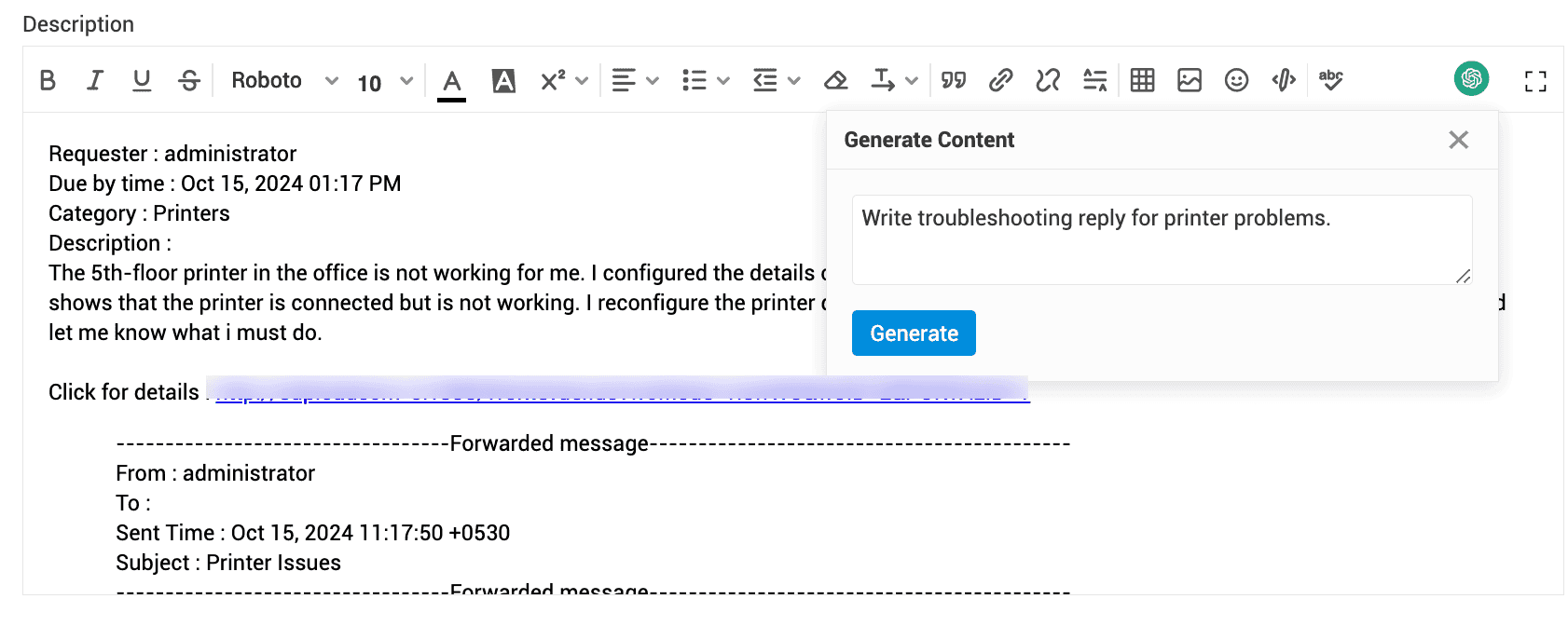
When replying to a request, you can generate content using a prompt, create a reply, rephrase, or check the grammar of the existing content.
To generate content with a prompt, select and provide a prompt of up to 10,000 characters, and then click Generate. You can regenerate, copy, append, or insert the content at the top.
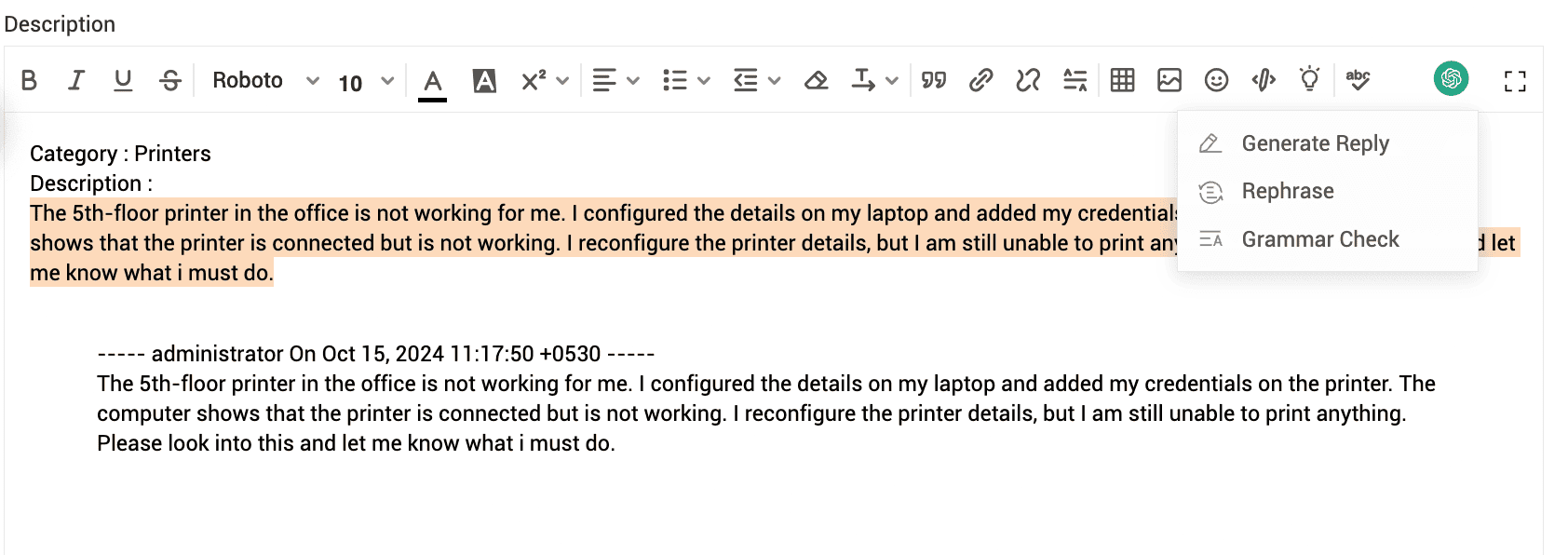
To generate a reply, rephrase, or check the grammar of the content, select the text, and click the respective options. You can replace the selected text with the generated reply, regenerate the content, or copy the generated text.
Forward:
When forwarding a request, you can generate content using a prompt, generate content using the existing content, rephrase the existing content, or check its grammar.
To generate content with a prompt, select and provide a prompt of up to 10,000 characters, then click Generate. You can regenerate, copy, append, or insert the content at the top.
To generate content, rephrase or check grammar using the existing content, select the text and click the respective options. You can replace the selected text with the generated reply, regenerate the content, or copy the generated text.
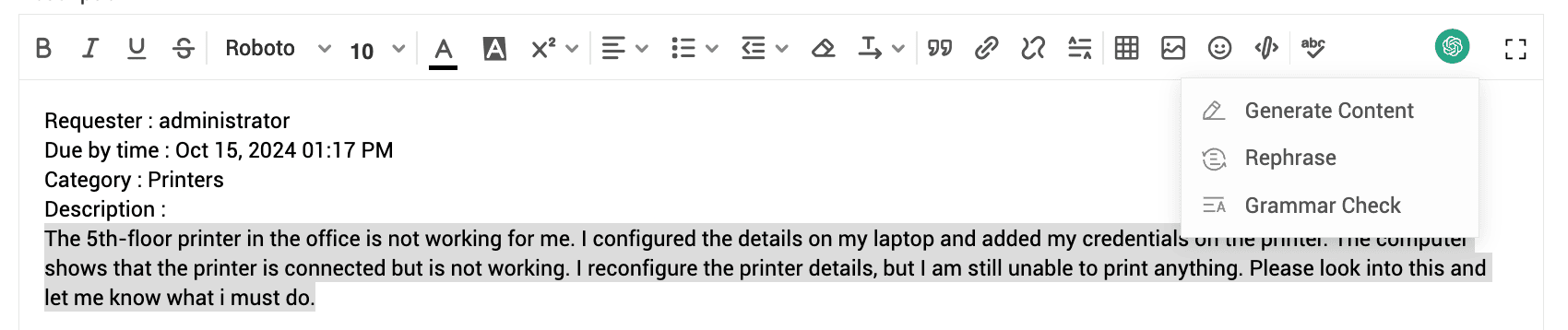
Note: You can select content only up to 10,000 characters for generating content/reply, rephrasing, and checking grammar.
Request Summarization
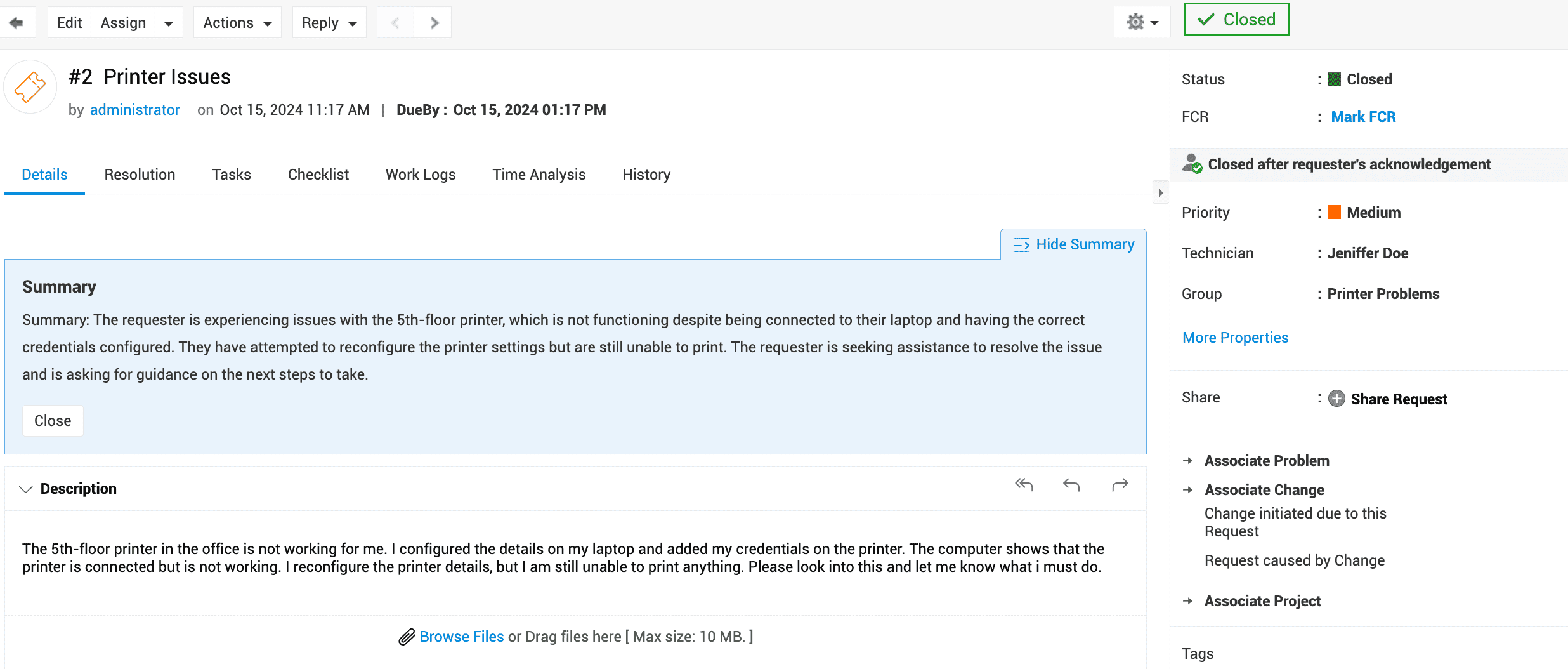
Use ChatGPT to summarize request details by clicking the Show Summary option on the request details page.
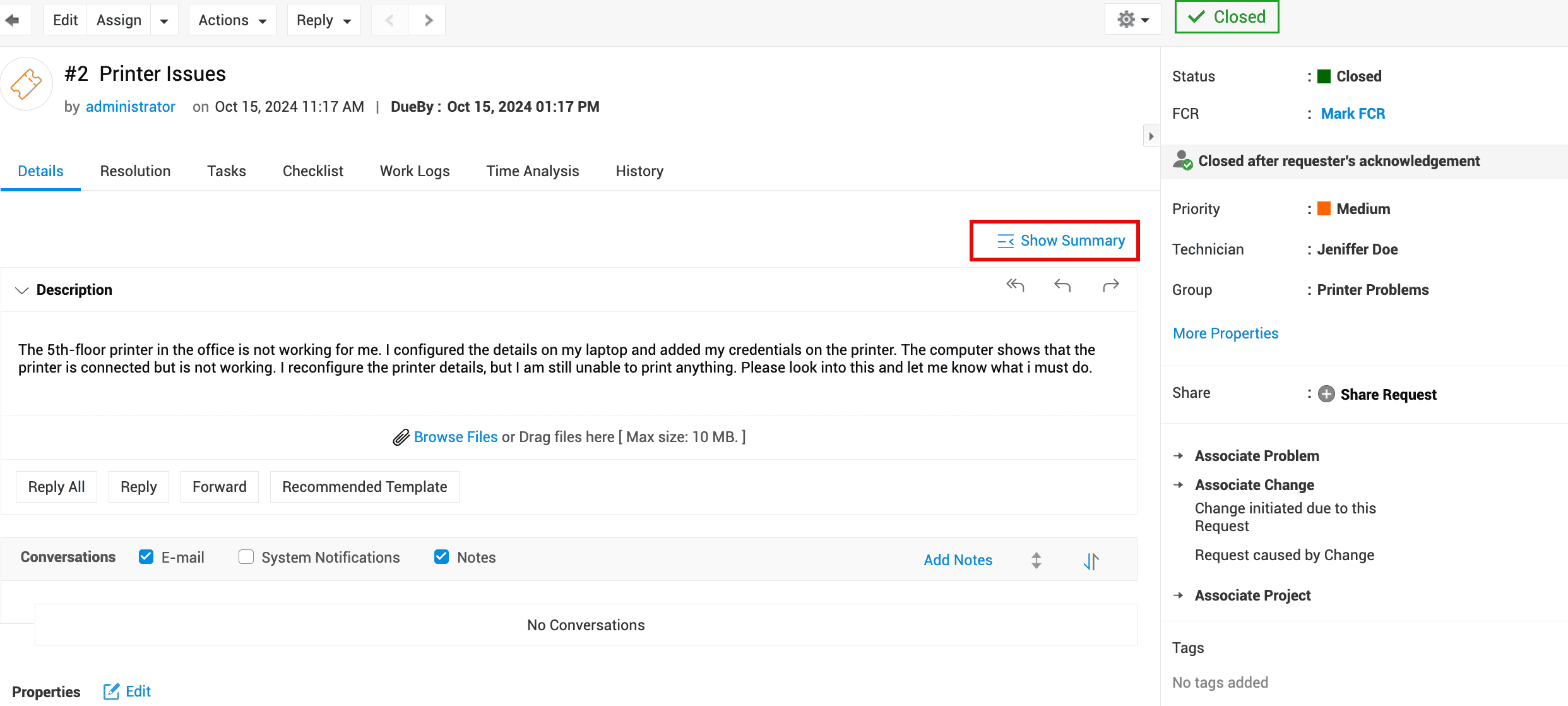
ChatGPT will analyze the latest 30,000 characters in the description, along with the last 10 conversations and 10 notes, to generate the summary.
For requesters, only the notes and conversations visible to them will be included in the summary.
Search Solutions in Zia Bot
Use ChatGPT in Zia bot to search for external solutions from the web and generate answers to resolve issues.
When searching for a solution in Zia bot, the Maybe explore ChatGPT option will be displayed with Zia's search results.
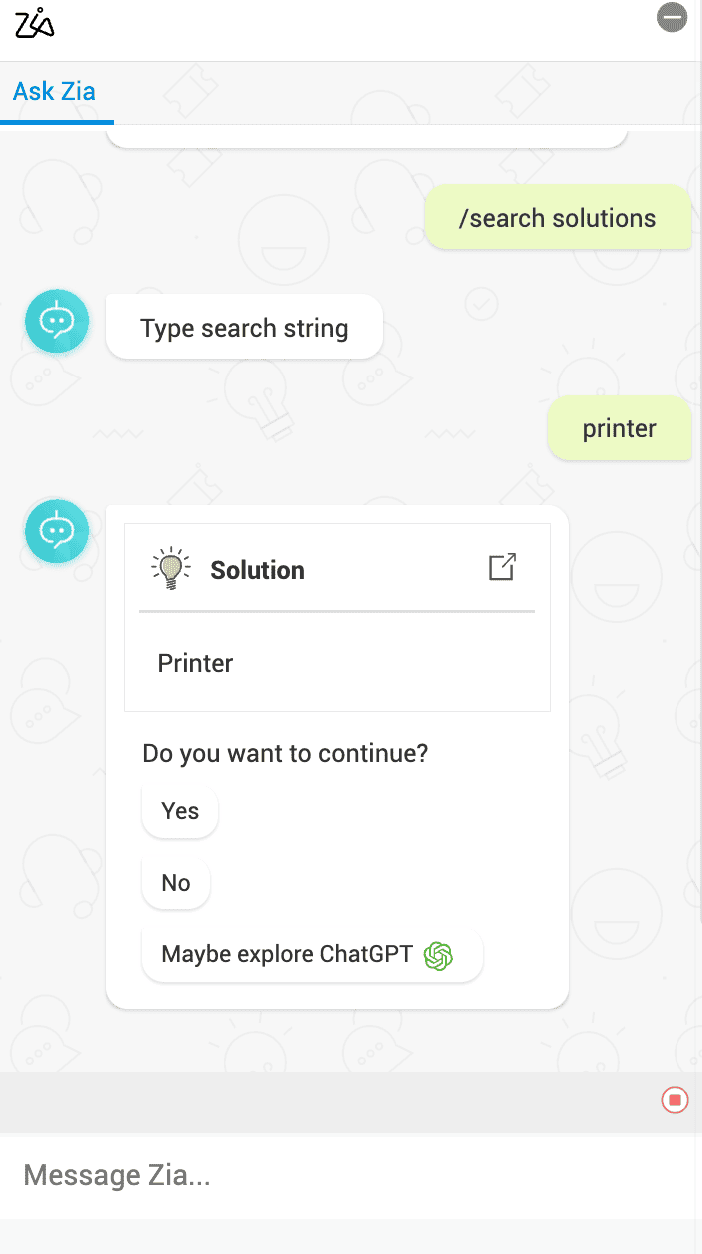
Based on your search string, ChatGPT will generate an external solution. You can provide additional prompts in the chat to look for more solutions.
Click Exit ChatGPT to end the interaction with ChatGPT.
Search Solution while creating request in Zia Bot
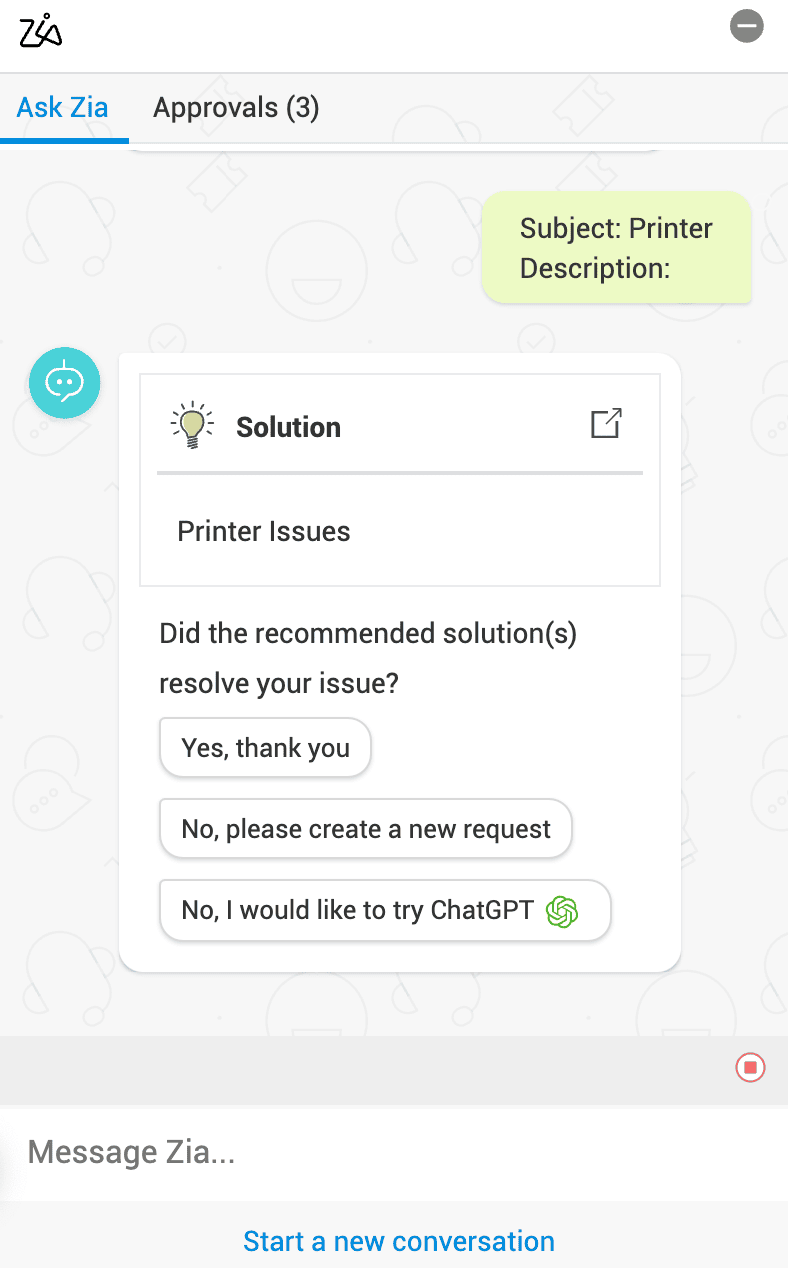
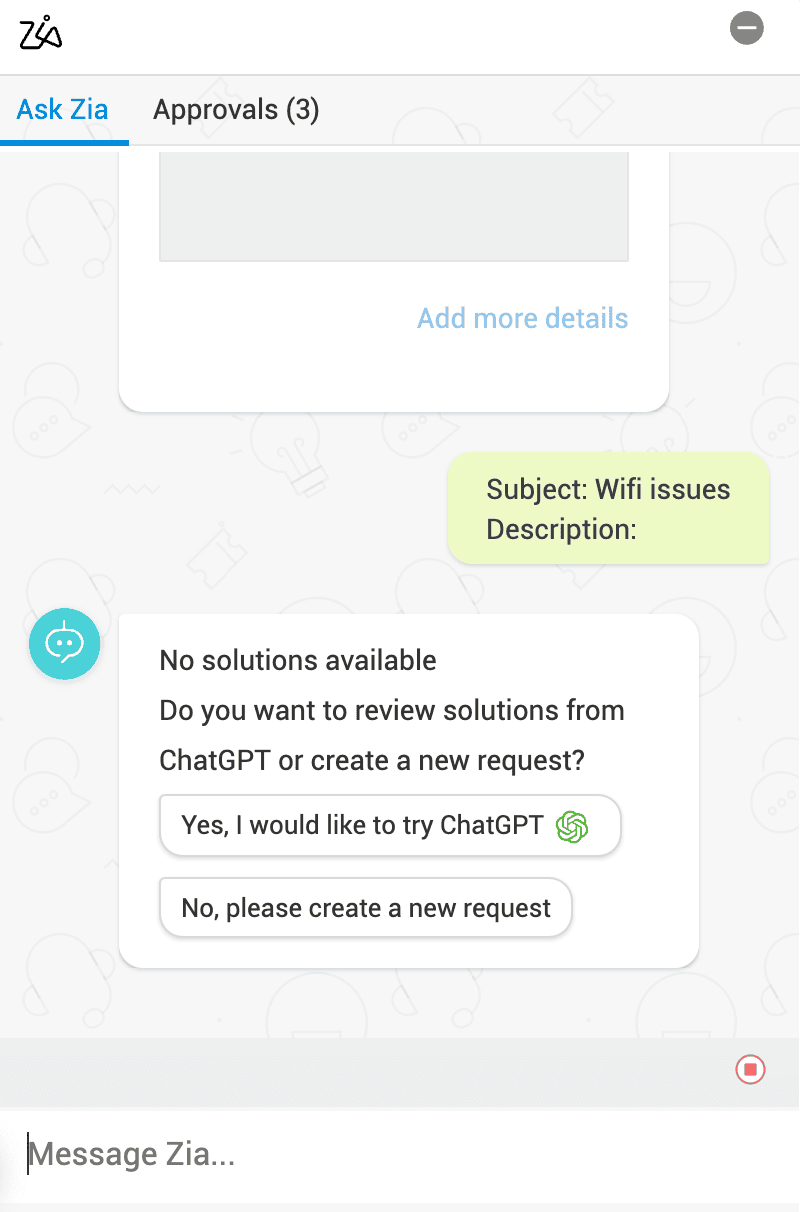
Use ChatGPT to generate solutions while creating requests via Zia Bot.
While creating a request, irrespective of Zia bot's solutions, you can use ChatGPT to find solutions for the issue from the web.
Click I would like to try ChatGPT to search for a solution.
When Zia suggests solutions:
When no solution is available:
Template Prediction in Zia Bot
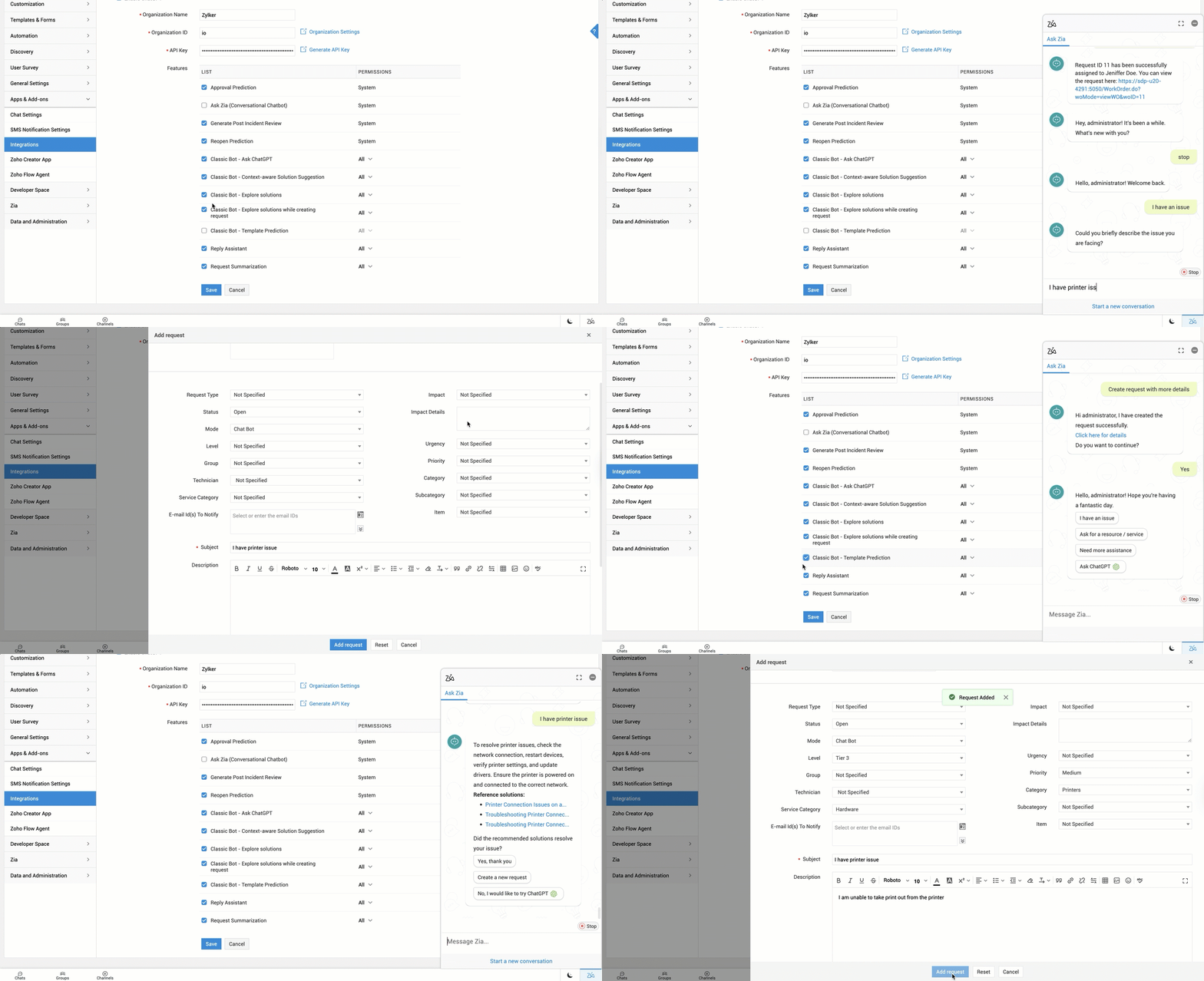
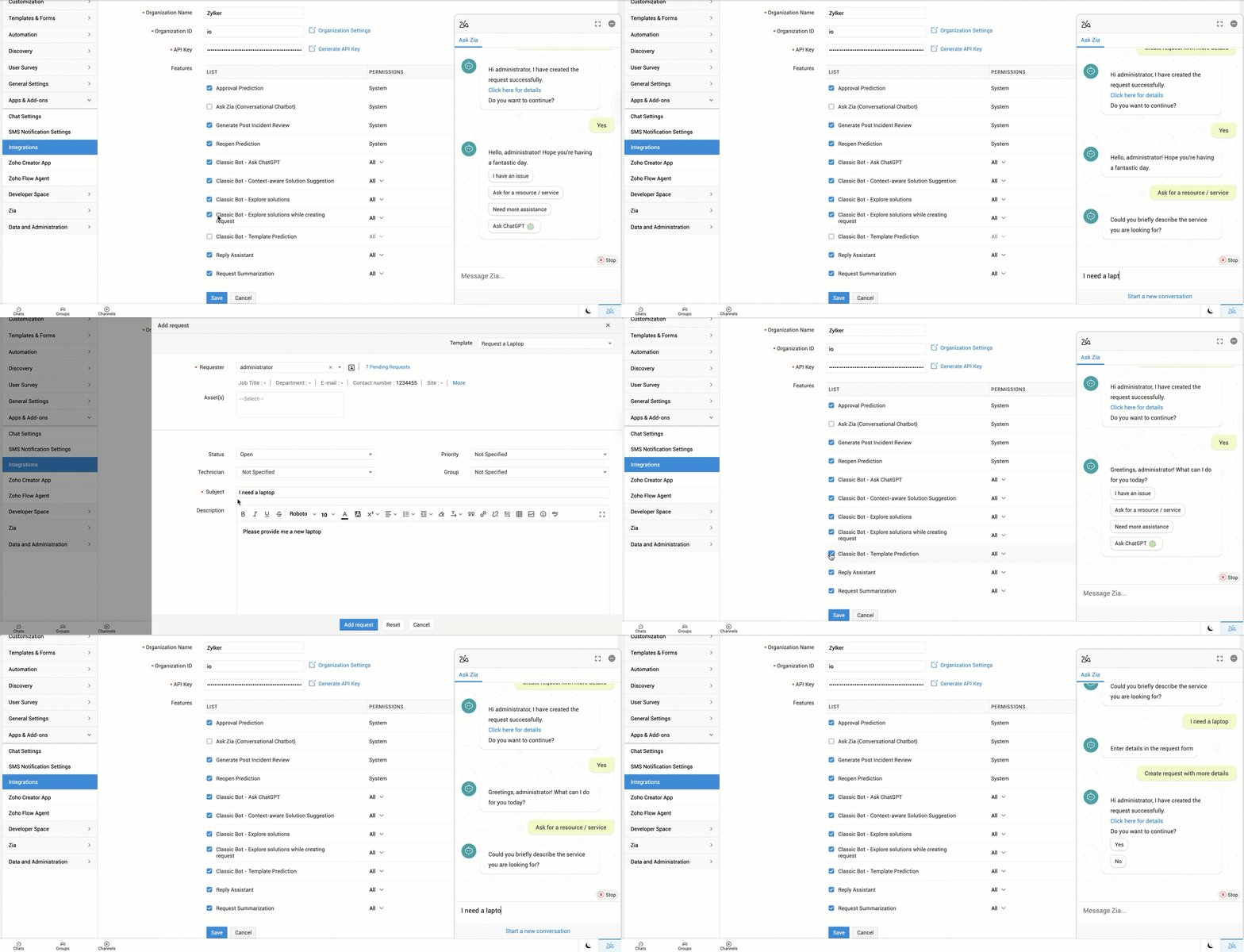
Use ChatGPT in Zia Bot to automatically predict the most relevant template during request creation.
Describe your issue or requirement in the bot, and it will identify the relevant request template.
ChatGPT Enabled
Zia Bot opens the request form in a slider window using the predicted template. If no matching template is found, the default template is displayed for incident requests, and a card view appears for service requests, allowing users to choose the appropriate template.
ChatGPT Disabled
-
If Template Prediction is enabled under Zia Configurations, Zia Bot suggests the relevant template.
-
If Template Prediction is disabled:
-
For incident requests, the default template is used.
-
For service requests, a card view is displayed to choose the relevant template.
Incident Template Prediction
Service Template Prediction
Data Shared With LLM
ServiceDesk Plus MSP uses LLMs in specific scenarios to enhance predictions, summarization, reply assistance, and chatbot responses.
Only the minimum information required to perform the requested action is sent to the LLM.
The table below outlines each feature and the type of data shared.
|
Feature |
Data Shared With LLM |
Purpose |
|
Approval Prediction |
Approver’s email reply content |
To classify the response as Approve or Reject. |
|
Reopen Prediction |
Email or reply sent by the user for a closed request |
To predict reopen intent. |
|
Ask ChatGPT in Zia Bot |
User’s chat queries |
To provide help desk or external solutions by using LLM |
|
Context-aware solution suggestion in Zia Bot |
User queries and relevant solutions from the ServiceDesk Plus MSP Solutions module |
To suggest the most relevant solution. |
|
Reply Assistant |
Text selected or entered in the reply editor |
For rewriting, grammar correction, and reply suggestions. |
|
Request Summarization |
Request description, last 10 conversations, and last 10 notes |
To generate a concise summary of the request. |
|
Search Solution in Zia Bot |
User queries |
To provide solutions related to help desk queries. |
|
Search Solution while creating request in Zia Bot |
User queries |
To provide relevant solutions during request creation. |
|
Template Prediction in Zia Bot
|
Request's subject, template name, and description |
To predict the best matching template. |
Data Used by Ask Zia to Perform ServiceDesk Plus MSP Operations
-
All operations mentioned in the table are executed within ServiceDesk Plus MSP; the LLM assists only with understanding or generating text.
-
The LLM receives only the minimum data needed to interpret the instruction and generate a response.
-
ServiceDesk Plus MSP does not share request details, modules, meta data, or any unnecessary fields with the LLM.
|
Modules/Subentities |
Operations |
Data Shared With LLM |
|
Requests |
Create, update, assign, pick up, close, summarize, review |
Only fields required for that specific operation |
|
Request Templates |
Retrieve service or incident templates |
Template name and description |
|
Request Tasks |
Add, update, assign, close tasks; fetch tasks/comments |
Only the specific fields involved in the task operation |
|
Request Resolutions |
Retrieve resolution details |
Only the text needed for response |
|
Request Notifications |
Retrieve notifications |
Notification message content only |
|
Changes |
Create changes; fetch stages, tasks, notes, approvals |
Only fields necessary for the user’s query |
|
Notes |
Add, update, or retrieve notes |
Note text only |
|
Approvals |
Approve or reject approvals |
Approval message |
|
Announcements |
Fetch announcements |
Announcements text only |
|
Solutions |
RAG search; retrieve solution details |
Only the relevant solution content |
|
Helpdesk Fields |
Levels, Priorities, Categories, Subcategories, Urgencies, Modes, Items, Status, Request Types, and Closure Codes. |
Field names with their values and descriptions |
|
Users / Technicians |
Fetch users list |
User name and other details available in the API |
Usage Stats
Usage stats record the user, feature, number of tokens used for the query and response, and the requested and received times of the response.
To view the usage stats of ChatGPT,
-
Go to Admin > Apps & Add-ons > Integrations > Third party Integrations.
-
On the ChatGPT card, click Usage Stats.
You can filter the usage stats by time, users, or features.
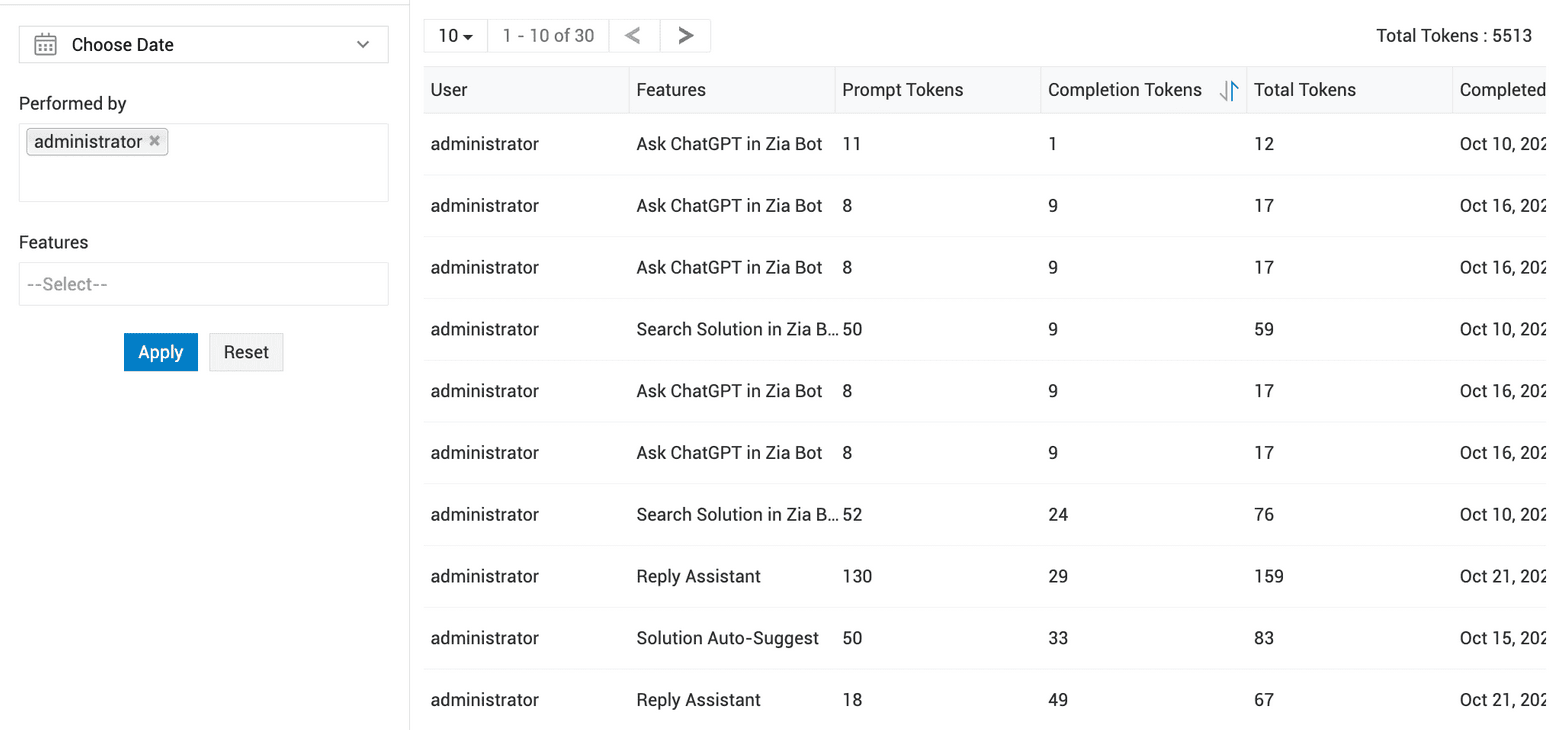
History
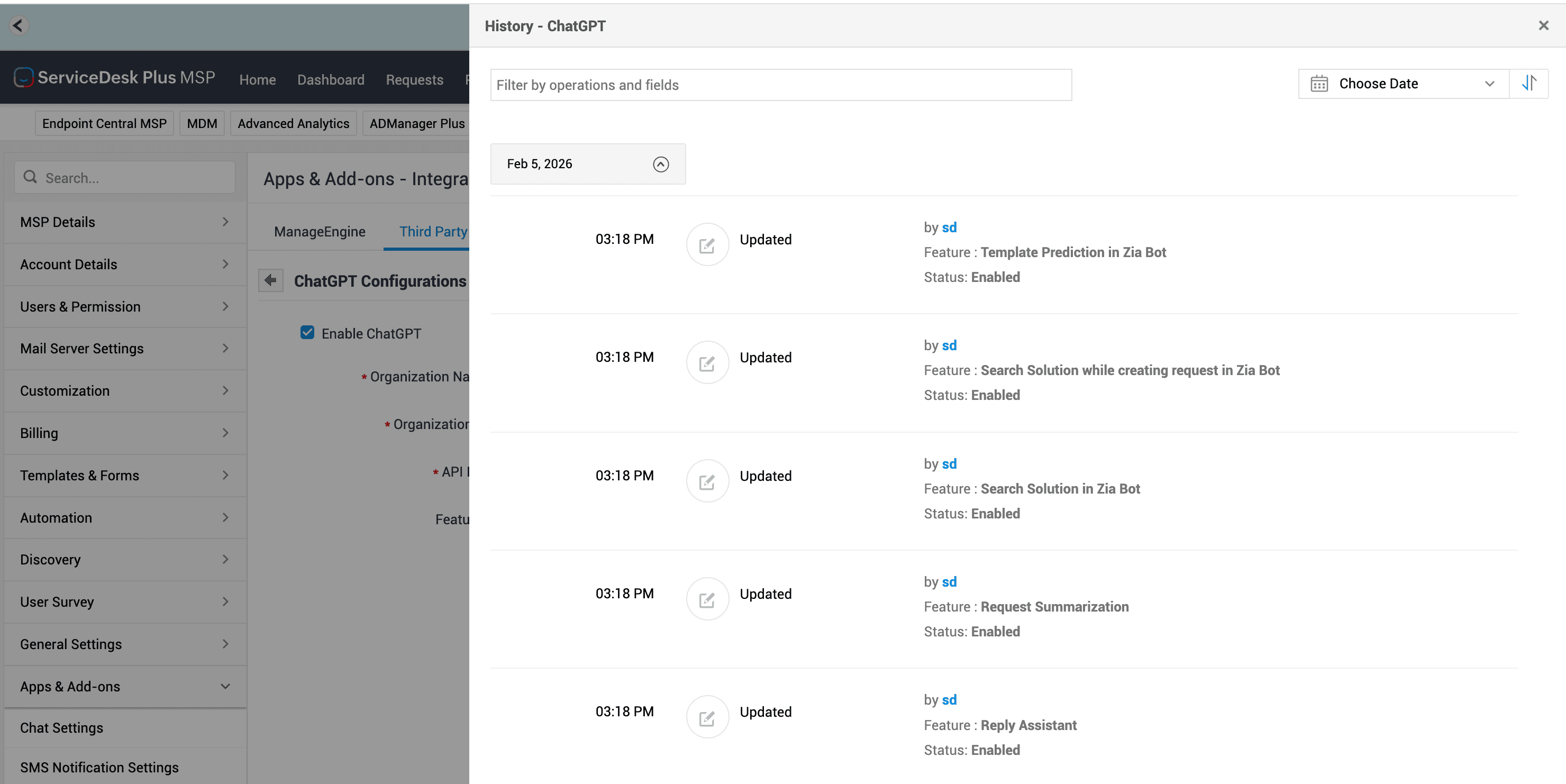
All actions related to this integration will be recorded in history.
To view the history,
-
Go to Admin > Apps & Add-ons > Integrations > Third Party Integrations.
-
On the ChatGPT card, click Settings.
-
Click View History on the top right.
You can filter the history by date, sort it in ascending or descending order, and search for actions based on the user who performed them.
Note: History will record when the integration is enabled or disabled, as well as when the configuration details are updated.