Deploy published patches using SCCM
Table of Contents
- What is SCCM patch deployment?
- Prerequisites for deploying patches through SCCM
- Step-by-step video guide for deploying patches through SCCM
- Deploying third-party patches using SCCM
- Common SCCM patch deployment errors and how to fix them
- When to use Automatic Deployment Rules instead of manual deployment
- Frequently asked questions
What is SCCM patch deployment?
SCCM patch deployment is the process of distributing software updates to managed endpoints through Microsoft System Center Configuration Manager (SCCM), now called Microsoft Configuration Manager. Admins publish patches to WSUS, then use the SCCM Deployment Wizard or Automatic Deployment Rules (ADRs) to push those updates to device collections based on schedule, severity, and maintenance windows. SCCM handles both Microsoft updates natively and third-party application patches when a publishing tool like Patch Connect Plus is used to extend the catalog.
Publish and deploy third-party patches directly through SCCM with Patch Connect Plus.
Prerequisites for deploying patches through SCCM
Before running the Deployment Wizard, confirm the following are in place:
- Software Update Point (SUP) role configured: SCCM needs an active SUP connected to WSUS to synchronize available updates. Verify the SUP is healthy in Monitoring > Site Hierarchy Status.
- WSUS synchronization completed: The SCCM console only shows updates that have been synchronized from WSUS. Run a manual sync or confirm the last successful sync time in Software Library > Software Updates > All Software Updates.
- Patches published and available: For Microsoft updates, these appear automatically after WSUS sync. For third-party updates, they must be published through a tool like Patch Connect Plus before they are visible in the SCCM console.
- Target device collection defined: Identify which devices will receive the deployment. You can use an existing collection or create a new one based on OU, hardware criteria, or manual membership.
- Distribution point or distribution point group available: The deployment package needs at least one distribution point to serve content to clients.
Step-by-step video guide for deploying patches through SCCM
Deploying third-party patches using SCCM
SCCM handles Microsoft updates natively through WSUS, but deploying third-party application patches requires an additional publishing step. Without a third-party patching tool, admins must manually download, package, and import each update before it can be deployed through the SCCM Deployment Wizard. Patch Connect Plus eliminates that manual step by maintaining a catalog of 800+ third-party applications and publishing them directly into the SCCM Software Updates workspace. Once published, third-party patches are deployed using the same Deployment Wizard steps shown below.
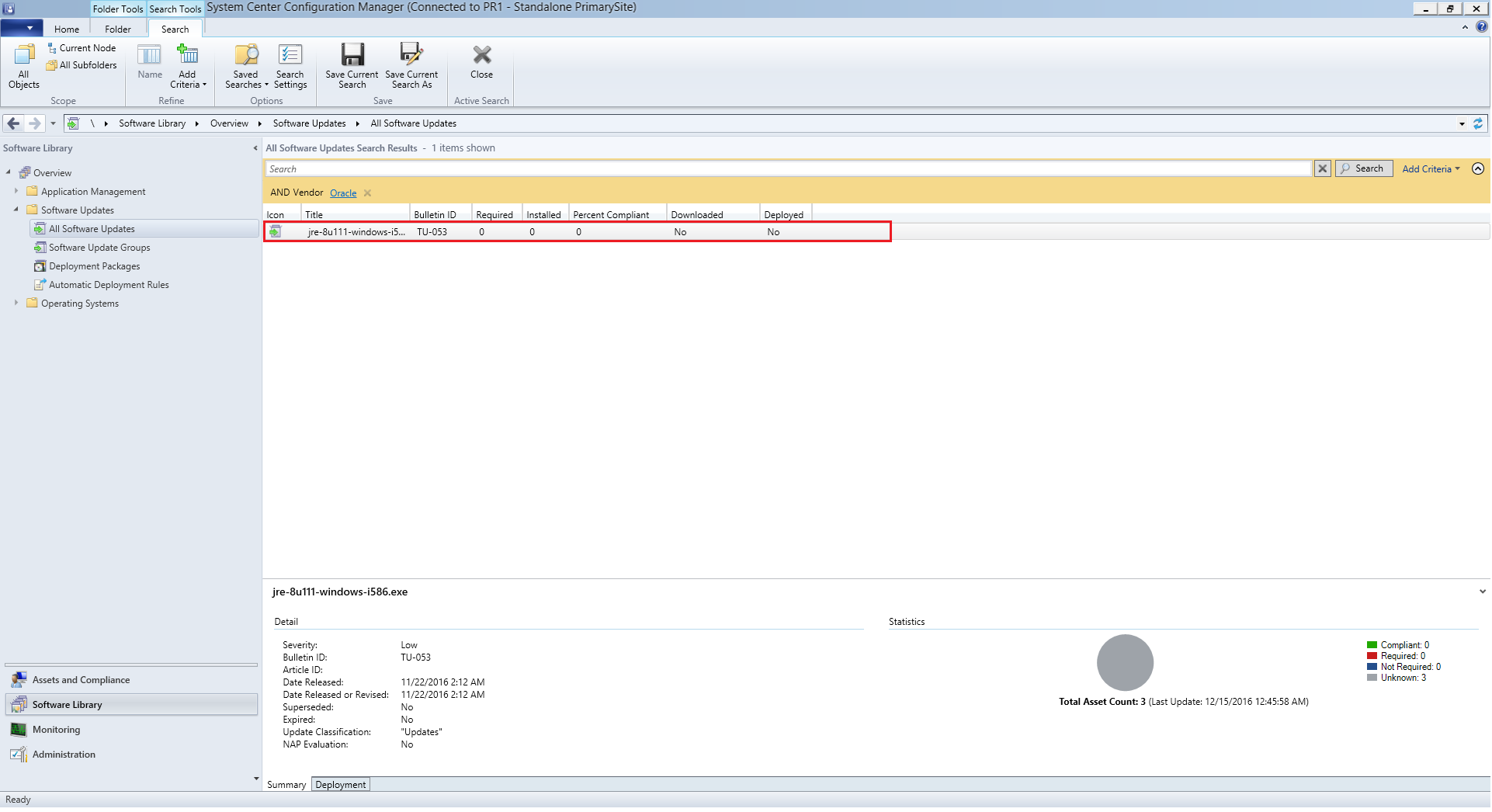
Go to SCCM All Software Updates and view the patches published using Patch Connect Plus.
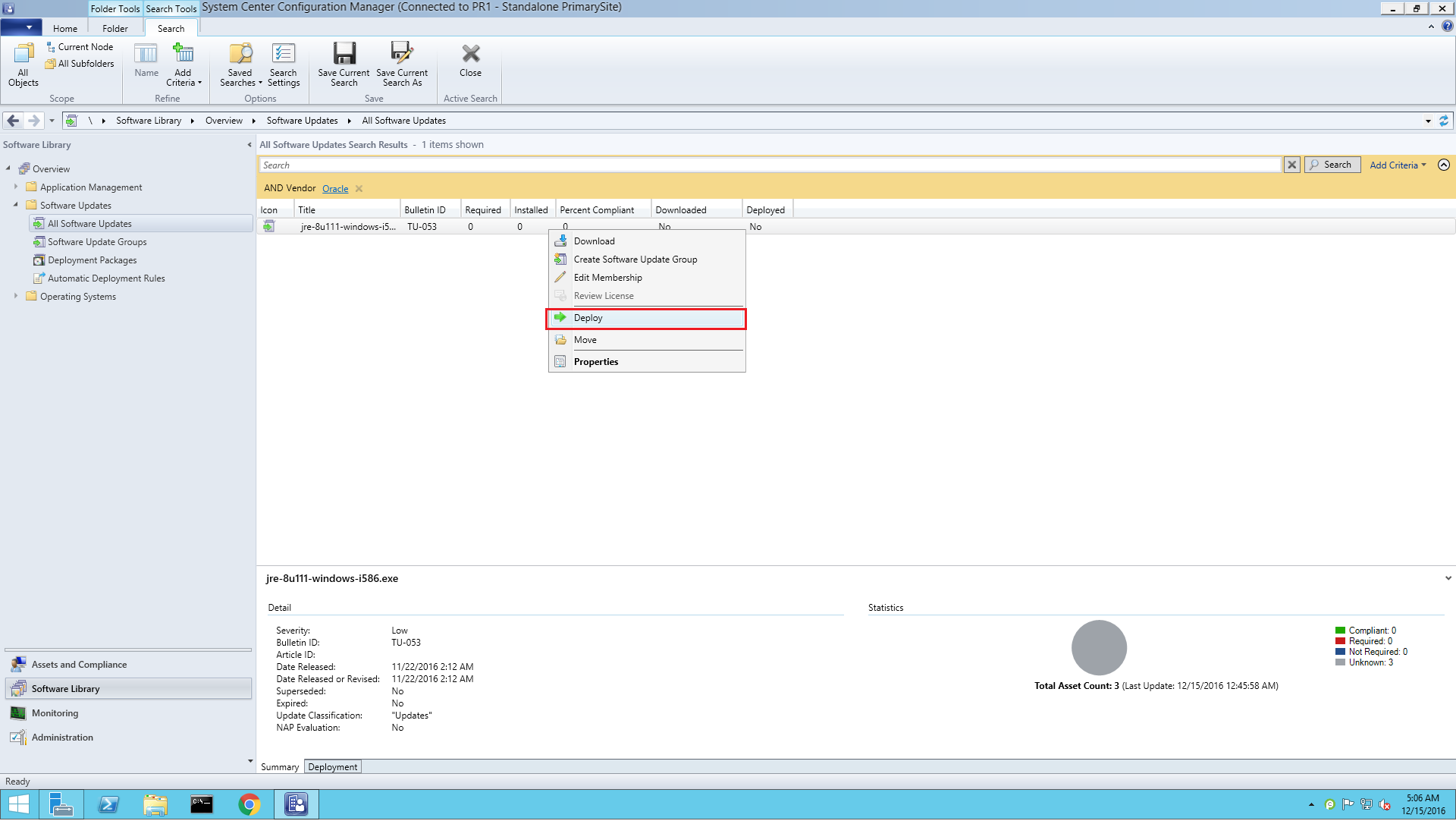
Select the patches to deploy, right-click and select Deploy.
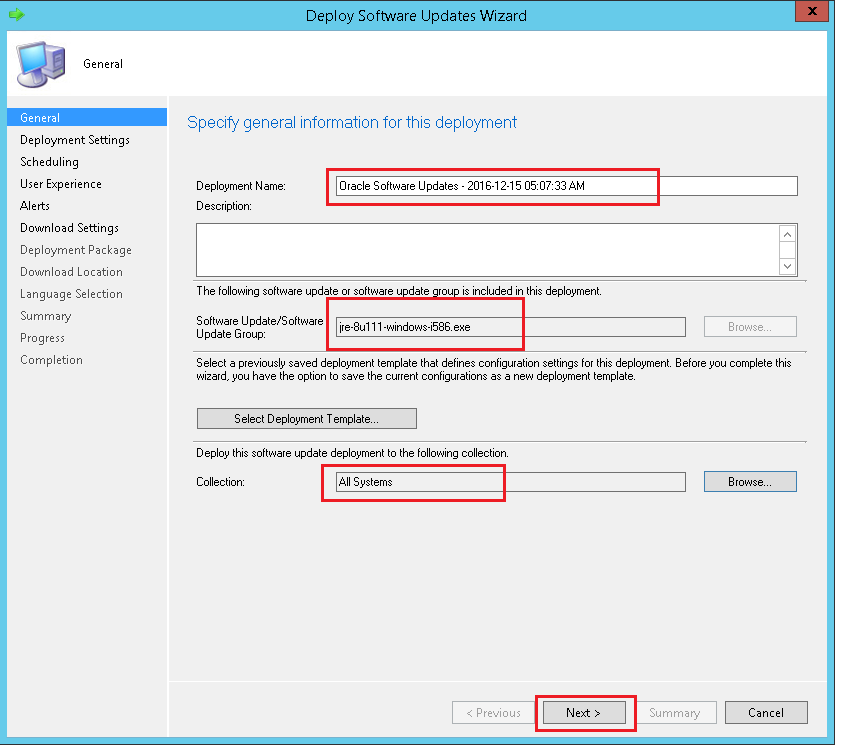
Deployment Wizard will open. Specify the name for deployment, software update or software update group, and target collection. Click Next.
Note: If deploying third-party patches published by Patch Connect Plus, select the Software Update Group containing those updates.
Specify the deployment settings for the deployment and click Next.

Configure the schedule details for the deployment and click Next.

Specify the user experience for the deployment and click Next.

Specify software update alert options for the deployment and click Next.

Configure download settings for the deployment and click Next.

Specify the deployment package details. Select Create new deployment package and specify the shared network folder path where the package will be created. Click Next.

Specify the distribution points or distribution point groups to which the package content will be distributed and click Next.

Specify the location from where the updates will be downloaded and click Next. This location is the shared WSUS server content folder to which the patches were published by Patch Connect Plus.
Folder example:
\\<wsus-server-name>\WSUSContent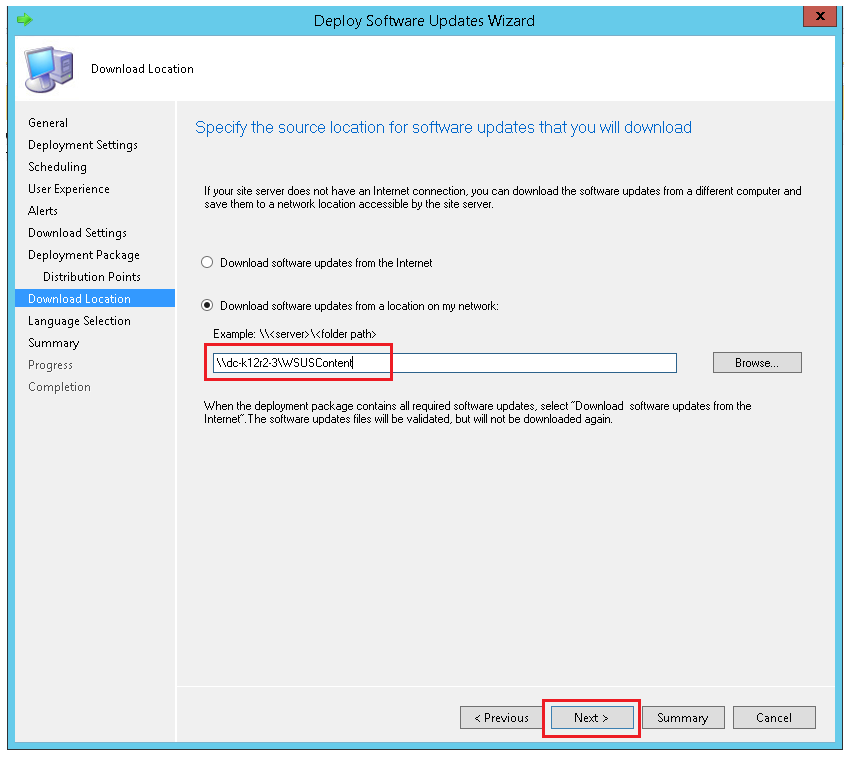
Select the required languages of the updates and click Next.

Review the settings and confirm. Click Next.

The deployment has been completed successfully. Click Close.

You have now successfully deployed the published patches using SCCM.
Common SCCM patch deployment errors and how to fix them
Error: 'Content not found' on client machines
The deployment package has not been distributed to the distribution point assigned to the client's boundary group. Open the deployment package in Monitoring > Distribution Status > Content Status, confirm distribution is complete, and verify boundary group assignments.
Error: Deployment shows 'Compliant' but the patch is not installed
The detection rule for the update may not match the installed version. This is common with third-party patches that use non-standard versioning. Re-check the detection logic in the update properties, or re-publish the patch through Patch Connect Plus, which generates accurate detection rules automatically.
Error: 'Download failed' during deployment
The WSUS content folder path in Step 11 is incorrect or inaccessible. Verify the network share path, confirm the SCCM service account has read access, and check that the content was fully downloaded during the publishing step.
Error: Deployment stuck at 'In Progress' indefinitely
Clients may be outside the maintenance window, offline, or have a pending reboot from a previous deployment. Check the client's Software Center for pending actions, and review the deployment's maintenance window settings in Step 5.
Error: 'Superseded' updates not deploying
SCCM may have automatically expired the update because a newer version superseded it. Check Software Updates > All Software Updates for the update's supersedence status. If using Patch Connect Plus, enable automatic supersedence handling in the publishing settings.
When to use Automatic Deployment Rules instead of manual deployment
The Deployment Wizard shown above is a manual process suited for one-time or ad hoc deployments. For recurring patch cycles, Automatic Deployment Rules (ADRs) remove the manual steps entirely.
An ADR scans for new updates matching your criteria (product, severity, vendor, classification), automatically downloads them, creates a deployment package, and deploys to the target collection on a schedule. You define the rule once and it runs on every synchronization cycle.
Use manual deployment when you need to push a specific set of patches with custom settings. Use ADRs when you want to automate the monthly or weekly patch cycle for both Microsoft and third-party updates. When third-party patches are published through Patch Connect Plus, they are eligible for ADRs the same way Microsoft updates are.
For Intune-managed endpoints, see the Intune third-party patch management guide.
Start your free trial and manage unlimited endpoints while keeping them patched and protected! Try Patch Connect Plus free for 30 days.
Frequently Asked Questions
How do I deploy third-party patches through SCCM?
Third-party patches must be published to WSUS before they can be deployed through SCCM. Use a tool like Patch Connect Plus to publish updates from its catalog of 800+ third-party applications into the SCCM Software Updates workspace. Once published, deploy them using the same Deployment Wizard or Automatic Deployment Rules you use for Microsoft patches.
Can I automate SCCM patch deployment?
Yes. Use Automatic Deployment Rules (ADRs) to automate the entire cycle: SCCM scans for new updates matching your criteria, downloads them, creates a deployment package, and deploys to target collections on a schedule. ADRs work for both Microsoft and third-party updates.
What is the difference between deploying patches and deploying applications in SCCM?
Patch deployment uses the Software Updates channel in SCCM. Updates are published to WSUS, synced to SCCM, and deployed through the Deploy Software Updates Wizard or ADRs. Application deployment uses the Application Management channel, where you create application packages with detection rules and deploy them through the Deploy Software Wizard. For third-party patching, the Software Updates channel is the standard approach because it supports compliance reporting, supersedence, and ADRs natively. For the application deployment method, see the SCCM application deployment step-by-step guide.
Why is my SCCM patch deployment failing?
The most common causes are: content not distributed to the client's distribution point, incorrect WSUS content folder path, detection rule mismatches for third-party updates, clients outside the maintenance window, and superseded updates being automatically expired. Check the common errors section above for detailed fixes.