Create a governance assigning rule
A governance assigning rule settles who handles a governance request once it has been raised and what happens at each point along the way. Where an access certification campaign names a single certifier, every decision in that campaign falls to one person. A rule instead lets you delegate review, approval, and execution to different technicians, name a stand-in for a stage, set a priority on the request, and raise a notification at each stage and outcome. Create a rule so that a review reaches the team accountable for the access rather than one individual, and so that each technician is told when a request reaches them. A rule takes effect only when a campaign names it, which is where the choice between a single certifier and a rule is made.
How it works
Behind every rule is a business workflow. The workflow decides which stages a request passes through. The rule decides what happens at each of those stages. Choosing a different workflow changes the stages, though any stage the new workflow also has keeps the settings already made against it.
A rule does not refer to what a sync brings in, such as an application instance, an entitlement, or an agent, so its settings cannot go out of date. Assignment resolves per stage, at the point a request reaches it. The review and approval stages take two kinds of assignee and can carry both at once: technicians named on the rule, and a macro evaluated against the request, which decides the technician per request rather than fixing one on the rule.
Where a macro returns no technician, the request goes to the fallback technician named in that stage. The execution stage takes named technicians only. Whichever route applies, a stage offers only the technicians whose workflow role matches it. You can set the workflow role per technician under Delegation.
Each run of a campaign that names the rule raises a request. The request carries the rule's stages and assignment as they stood at that moment, so a later edit to the rule does not reach a request already open. A disabled rule stays stored but out of use.
Prerequisites
- The Governance Assigning Rule permission, which is required to create or edit a rule. The Super Admin and Governance Manager roles include it.
- A workflow role on every technician the rule will call on, set under Delegation as Reviewer, Approver, or Executor. A stage offers only the technicians holding the matching role.
- The business workflow the rule is to follow, which determines the stages the rule presents. You can also create it while building the rule.
- A configured mail server, without which notification templates cannot be selected.
- The stages a rule presents come from the business workflow it follows. Adding a review or an approval stage means changing the workflow, not the rule.
- The requesting stage and the expiration stage carry a notification only. Neither can be assigned to a technician.
- Only one macro applies to a stage. %ObjectManager% and %ResourceOwner% are offered as alternatives to each other, not as a pair.
Configuration instructions
- Navigate to Governance > Access Certification > Governance Assigning Rule.
- Click Add New Rule.
- Enter a suitable name and description for the governance assigning rule in the respective fields.
- In the Business Workflow field, select the workflow the rule is to follow. The stages the workflow holds are summarized beneath it, and those stages are the ones the rule then presents in the Request Administration block. Where none of the supplied workflows matches, click Create Business Workflow and build one, then select it here.
- Under Request Administration, click the stage to be configured.
Stage What it covers What can be set Request Creation The request being raised A notification Request Review The assessment and recommendation Assignment, priority, notifications on both outcomes, and advanced settings Request Approval The authorization Assignment, priority, notifications on both outcomes, and advanced settings Request Execution The approved action being carried out Assignment, priority, notifications on both outcomes, and advanced settings Request Expiration The period running out A notification - Under Request Review, click Assign To and set how the stage reaches a technician.
- To route the request by ownership, click Macros, then select %ObjectManager% to reach the manager of the object under review, or %ResourceOwner% to reach the owner of the entitlement under review.
- Against Fallback Reviewer, click the edit icon and select the technician who is to receive the request where the macro returns no technician. Leaving it at None sends those requests to the built-in administrator account.
- To name technicians, click the edit icon next to Assign to technician under Custom Selection, check the box next to each technician who is to handle the stage, and click OK. Technicians that hold the workflow role for that stage are offered.
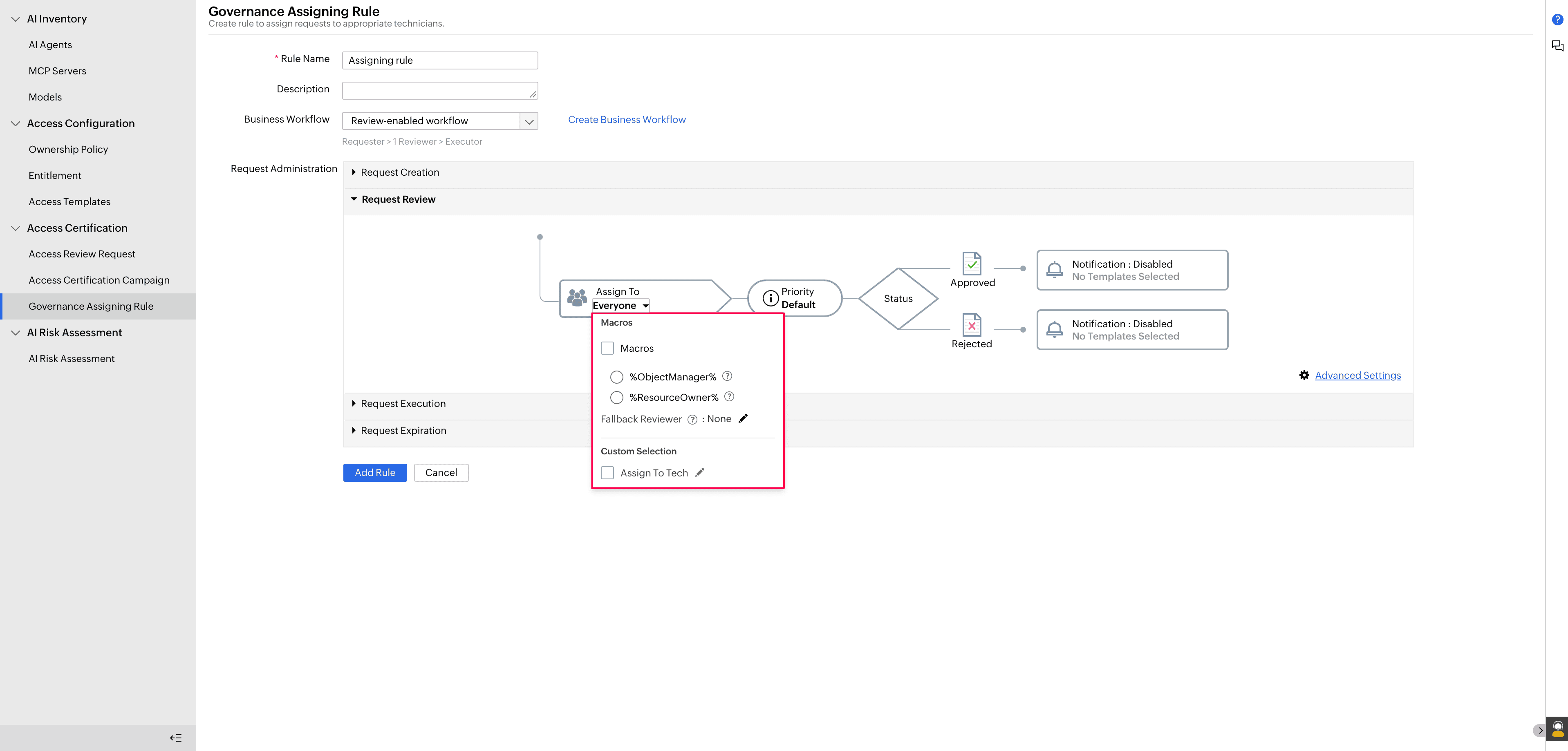
Figure 1. Assignment options on the review stage. - In the Priority field, select Default, Normal, High, Medium, or Low. The priority is carried on every request the stage handles.
- Set the notification on each Status outcome. The decision taken at the stage is recorded as the Status, which has two outcomes, and each outcome carries a notification of its own, so each notification can reach different people.
- Approved is the outcome where the request is approved at this stage. Click its notification, then click the Enable icon that appears.
- Rejected is the outcome where the request is rejected. Click its notification, then click the Enable icon that appears.
- For either outcome, click the edit icon, check the box for each template to be used, and click OK. Templates are listed under Email, SMS, and Both, and the selected template is previewed with its recipient, subject, attachment, and body. When none of the supplied templates fit, click Create New Template.
- Click Advanced Settings and set the condition that applies to the stage.
- Exclude Requester prevents the request being assigned to the technician who raised it.
- Configure Request Approve and Request Execution in the same way.
Note: Request Execution is assigned by naming technicians only, so clicking the edit icon next to Assign To opens the technician selection with no macro or fallback offered.
- Set the notification to be sent on Request Creation and on Request Expiration. Click the stage, click the single notification it offers, click the Enable icon that appears, click the edit icon, select the templates, and click OK. Enabling either without selecting a template prevents the rule from being saved.
- Click Add Rule. The rule is then listed and available to a campaign.
- Each rule carries its own controls where it is listed.
- To change a rule, click the edit icon against it, change the name, the description, the business workflow, or any stage setting, and click Update Rule.
- To take a rule out of use without removing it, click the disable icon against it. Click the enable icon to bring it back.
- To remove a rule, click the delete icon against it, and click OK.
Tips
- Where the agents under review change often, assign by macro rather than by name. Ownership is already kept current by the agent ownership policy, so the request follows it without anyone maintaining a list.
- Name a fallback technician who will actually act on what arrives. The fallback catches the requests where the intended assignment failed, so an unmonitored name turns a routing gap into a stalled review.
- Keep Exclude Requester selected wherever the technicians who raise requests also hold the workflow role for a later stage.
- Enable at least one notification on any rule that hands work to somebody other than the person who raised the request. Nothing else will notify an assigned technician that a request is waiting.
- Where certifiers report that nothing reached them, read the campaign's run history before changing the rule. A run that matched no agent raises no request at all, so no rule was ever consulted.