Risk assessment report
In ManageEngine SecureAI, the risk assessment report shows how securely each of your organization's AI vendor accounts is configured. Every account carries a risk score out of 100, drawn from the risk indicators that apply to it. The report rates each finding from critical to low and names the records behind it. Use the report to find misconfiguration across the AI platforms you have onboarded, to decide what to correct first, and to show an auditor that a control is in place. You make the corrections in the AI vendor's own administration console.
How it works
SecureAI connects to each AI vendor account configured under Application Settings using the administrator credential stored for that account, and it reads the configuration the vendor exposes through its APIs. What is available to read differs by AI vendor and governs which risk indicators the account carries.
Each risk indicator that a rule could evaluate returns a risk exposure, the proportion of the records checked that violate it, and carries a weight fixed by SecureAI. The account risk score is a weighted average of those exposures, counting only the indicators that failed:
Risk score = (Sum of (Exposure x Weight) / Sum of Weight) x 100
The result is capped at 100. A heavier indicator therefore moves the score further than a lighter one at the same exposure, and an indicator that returned no result is left out of the calculation altogether. The indicators available depend on the AI vendor, and the delegated role governs which accounts and figures a technician sees.
Prerequisites
Log in with permissions that include AI Risk Assessment. Of the default roles, the Risk & Audit Analyst role carries it.
- SecureAI assesses an account only once you enable risk assessment for it.
- A correction made in the AI vendor console changes nothing in the assessment until the next collection has completed.
- You cannot correct any of these problems from SecureAI. Make the correction in the AI vendor console.
Setting the data sync schedule
Complete the following to set how often SecureAI collects the records behind an assessment, and at what time.
- Navigate to Governance > AI Risk Assessment.
- Click Set Data Sync Time, then turn on Enable Data Sync Schedule.
- Choose a Schedule Frequency of Daily, Weekly, Monthly, or Custom to collect from a specific date. Set a starting date and a time, then set the Frequency to Run Once for a single collection, or to Repeat, and enter an interval in Day(s), Week(s), Month(s), or Year(s).
- Click Save.
Working with the risk assessment report
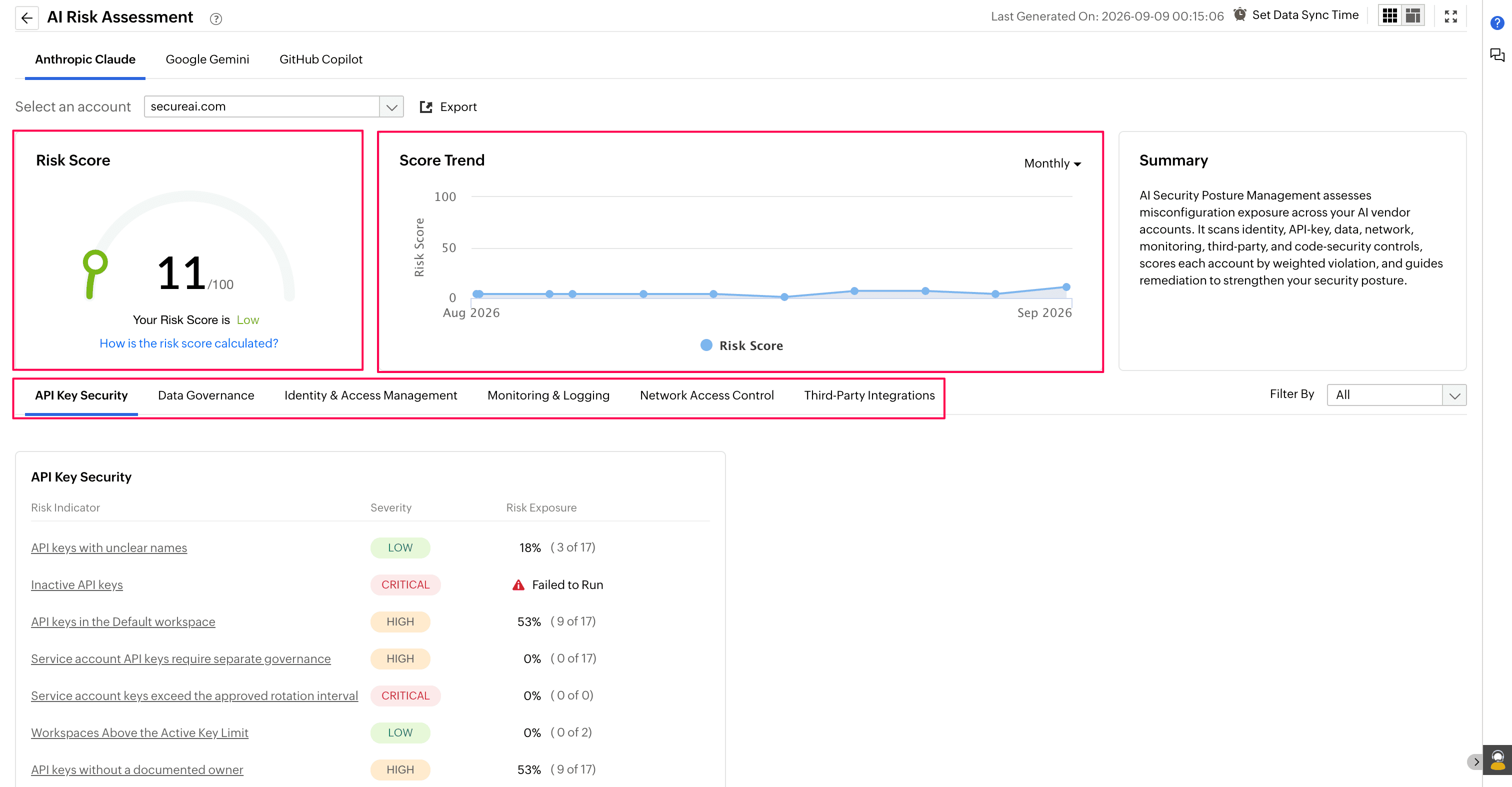
Each configured AI vendor account is assessed on its own, and you read one account at a time. You choose the AI vendor, then the account. An assessment is built from the records collected when it was generated, and it carries the date and time of that collection. Anything changed in the AI vendor console since then does not appear in it.
Each account carries a risk score out of 100, where a higher figure means more exposure. For how that figure is worked out, see Risk score computation.
A risk category groups the checks that cover one area of security, and it lists its indicators with their severity and the share of records at fault. Each indicator gives the records themselves and the steps that correct them. For what each check tests, and for a catalogue of every indicator each AI vendor offers, read about Risk indicators. You can narrow a listing to a single severity with Filter By. The severity you choose stays applied as you move between categories.
Click Export to export the assessment for the account on display, and send the file to whoever administers that account.
Tips
- Match the collection schedule to how often the AI vendor account actually changes. Collecting more often than the account changes adds nothing but load.
- Set collection to finish before the working day starts, so the assessment everyone reviews each morning is the current one.
- Work through every account rather than spot-checking one. Different AI vendors are checked against different indicators, so one account's result is not evidence about any other.
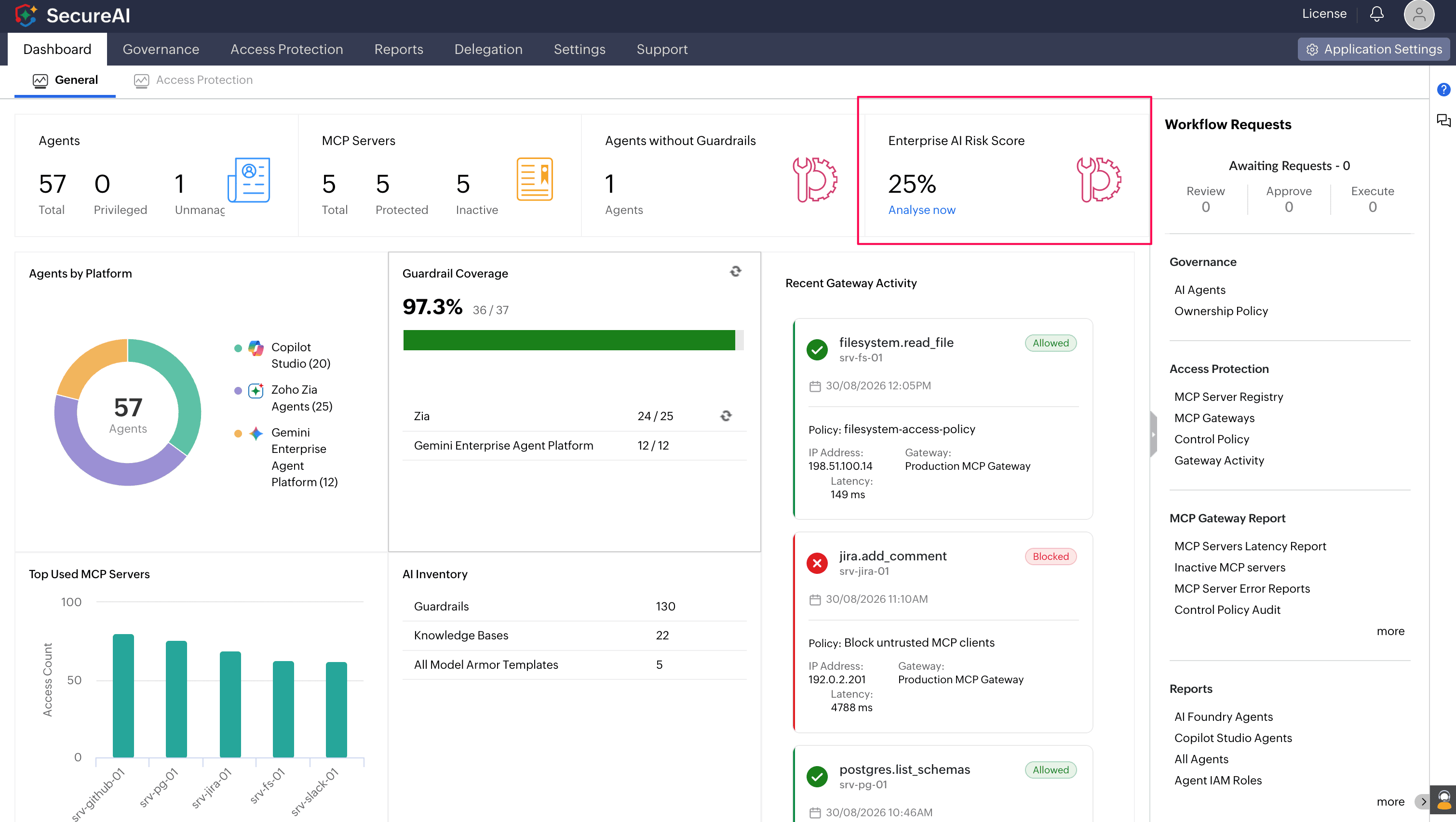
- Start at the dashboard tab when you do not already know which account needs attention. The Enterprise AI Risk Score tile offers the Analyze Now feature, which displays the assessment that figure came from.