

How to enable custom script in SharePoint Online
On this page
Custom script allows advanced customization of SharePoint pages using JavaScript, HTML, or legacy solutions. In modern environments, custom script is disabled by default in SharePoint Online to improve security and stability. This setting is controlled by the DenyAddAndCustomizePages (NoScriptSite) property at the site level within a SharePoint Online tenant.
Why enable custom script in SharePoint Online?
Enabling custom script restores legacy customization capabilities that modern sites block by default. This is usually required for migrations, classic solutions, or advanced site customization.
- Classic script web parts: Use Content Editor and Script Editor web parts to embed custom HTML, CSS, or JavaScript on pages.
- Legacy customization support: Allow solutions built with older tools (such as SharePoint Designer) to function correctly.
- Template saving capabilities: Restore options such as Save site as template, list templates, and saving document libraries.
- Access to legacy galleries and features: Re-enable galleries and legacy solution features, including Solution Gallery, Sandbox Solutions, Theme Gallery, and HTML Field Security.
- Script-based files and components: Permit uploading and using files that contain executable or scripted functionality, including:
.asmx, .ascx, .aspx, .htc, .jar, .master, .swf, .xap, .xsf
Enabling custom script resolves these limitations. However, it should be enabled only when necessary and governed carefully due to the associated security risks.
- SharePoint Online
- Windows PowerShell
Method 1: Enable custom script using the SharePoint Online admin center
The SharePoint admin center provides a tenant-level control to allow or block custom script on site collections without using scripts.
Prerequisites
- You must be a SharePoint Administrator or Global Administrator
- Access to the SharePoint Online admin center
- Target site collections identified
- Understanding of the security implications
Steps to enable custom script across a tenant
- Sign in to the Microsoft 365 admin portal
- Open the SharePoint admin center
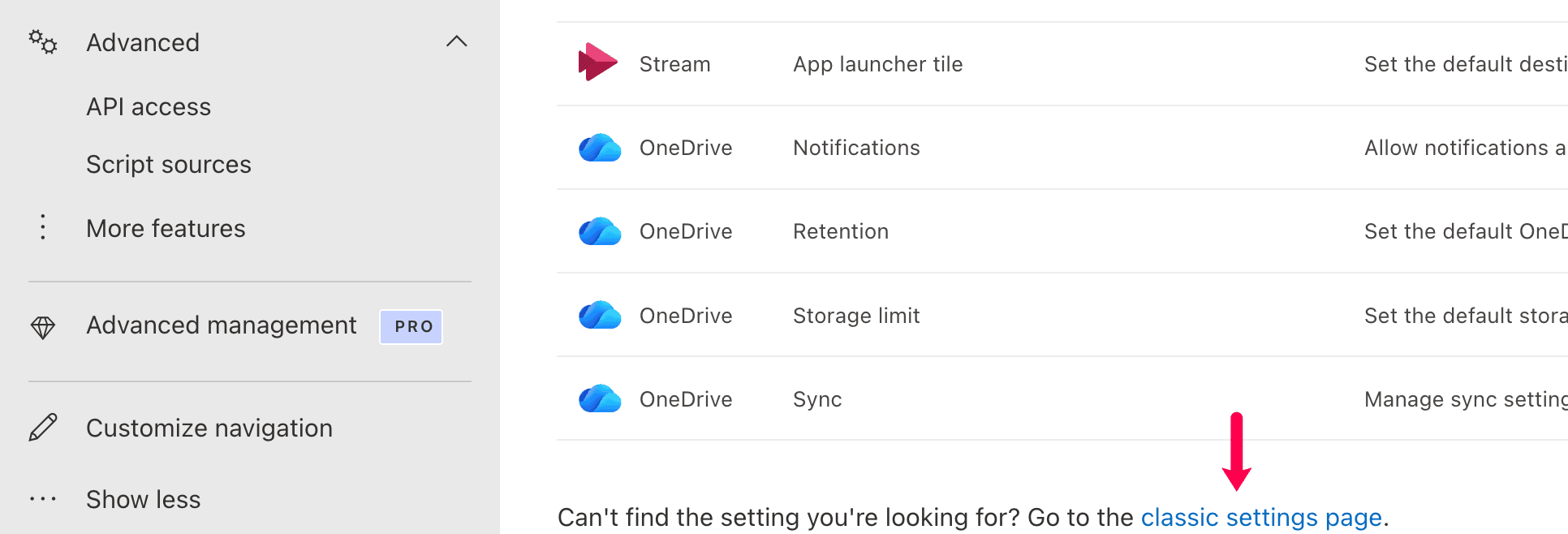
- Navigate to Settings from the left pane
- Click classic settings page at the bottom
- Locate the Custom script section and choose one of the options:
- Allow users to run custom script on personal sites
- Allow users to run custom script on self-service created sites
- Click OK.

Changes apply to applicable site collections in the tenant.
Steps to enable custom script for a site
- Sign in to the SharePoint Admin Center.
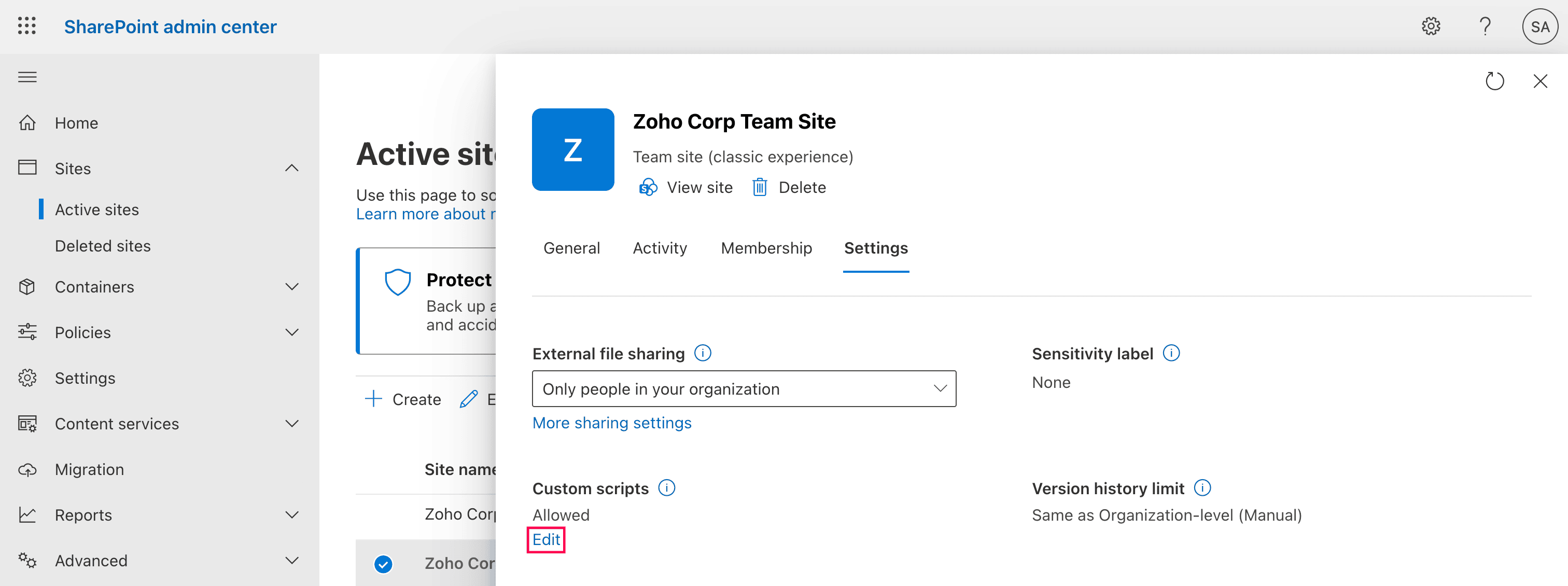
- Navigate to Sites > Active sites from the left pane.
- Select the site from the list.
- On the site properties pane, click the Settings tab.
- Click Edit under Custom scripts.
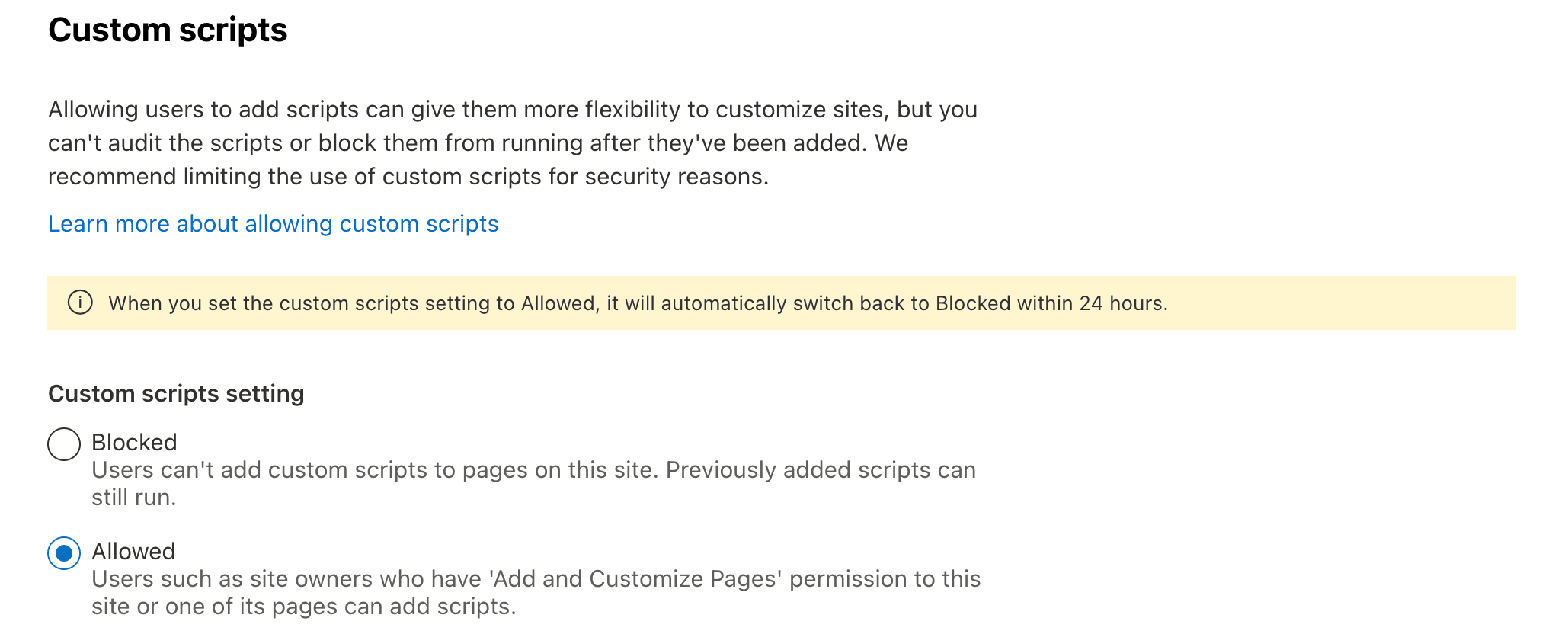
- Select Allowed and click Save.


Limitations to consider
- Modern sites still restrict many script capabilities
- Some blocked features remain unavailable even when enabled
- Changes may take time to propagate across site collections
- May introduce security risks if broadly enabled
Method 2: Enable custom script using PowerShell
PowerShell provides precise control to enable custom script on specific site collections by modifying the NoScriptSite (DenyAddAndCustomizePages) setting.
Prerequisites
Before using PowerShell, ensure that:
- You have SharePoint Administrator or Global Administrator rights
- The SharePoint Online Management Shell or PnP.PowerShell module is installed
- You know the target site collection URL
- You are connected to your SharePoint Online tenant
Install and connect:
Install-Module Microsoft.Online.SharePoint.PowerShell -Scope CurrentUser
Connect-SPOService -Url https://tenant-admin.sharepoint.com
Enable custom script for a specific site collection
Use this command to allow custom scripting on a particular site collection by disabling the NoScript setting (DenyAddAndCustomizePages).
Set-SPOSite -Identity https://tenant.sharepoint.com/sites/ProjectSite -DenyAddAndCustomizePages 0
Disable custom script again (recommended after use)
Use this command to re-enable SharePoint’s default protection by blocking custom script on the site after your task is complete.
Set-SPOSite -Identity https://tenant.sharepoint.com/sites/ProjectSite -DenyAddAndCustomizePages 1
Check current custom script status
Use this command to verify whether custom script is currently enabled or disabled for the site collection.
Get-SPOSite -Identity https://tenant.sharepoint.com/sites/ProjectSite | Select DenyAddAndCustomizePages
Supported parameters
The following parameters can be used to manage custom script settings in SharePoint:
| Parameter | Description |
|---|---|
| -Identity | Site collection URL |
| -DenyAddAndCustomizePages | Enables or disables custom script |
| -Url | Admin service connection URL |
| -Credential | Admin credentials (optional) |
Limitations to consider
- Requires administrative privileges and scripting knowledge
- Applies per site collection unless automated
- Some modern features still block custom script
- May conflict with organizational security policies
- Changes can revert automatically after 24 hours on certain site types
How to manage script-related risks and visibility
Enabling custom script can introduce governance challenges, especially across large environments. SharePoint Manager Plus helps administrators monitor and control the sites where such configurations may pose risks. Moreover, SharePoint Manager Plus provides built-in capabilities that accomplish custom scriptable tasks through a centralized GUI, reducing or even eliminating the need to enable custom script.
SharePoint activity auditing
Track changes to site configurations, permissions, and content to maintain accountability. View who performed each action, when it occurred, where it happened, and export reports for compliance.
Access management at scale
Grant, revoke, copy, and audit permissions for users and groups across sites, libraries, and items without custom code or SharePoint Designer workflows.
Eliminate reliance on legacy templates
Skip the whole process of having to save site templates (Solutions Gallery), list templates, and reapply them, as SharePoint Manager Plus' advanced copy capabilities simplify replication of structure and content.
Monitoring and performance visibility
Continuously monitor SharePoint Online health, site availability, storage usage, and service performance with dashboards and automated alerts.
Instant alerts on critical changes
Receive instant email notifications for important events like site changes, permission updates, deletions, or unusual activity, with severity levels, filters, and thresholds.
Important tips
Changes may auto-revert
Changes may auto-revert On many modern sites, enabling custom script can reset automatically after about 24 hours unless tenant settings permit it.
Evaluate alternatives first
Use supported approaches such as SharePoint Framework (SPFx) solutions or script-free third-party tools whenever possible instead of classic script injection.
Limit scope to necessary sites only
Avoid enabling custom script tenant-wide unless absolutely required. Instead, enable it only for specific site collections that depend on legacy customizations, and disable it afterwards to reduce security risks.
Frequently asked questions
Custom script allows users to insert client-side code (JavaScript, HTML, CSS) directly into pages and web parts to extend functionality beyond standard features.
While powerful, this is a legacy capability primarily associated with classic SharePoint experiences. In modern sites, it is disabled by default to protect against security risks such as cross-site scripting (XSS), performance degradation, and unsupported customizations that may break during updates.
Microsoft disables it by default to reduce security risks, prevent unsupported modifications, and ensure platform stability.

