How to share files with external users in SharePoint
On this page
- SharePoint Online
- Windows PowerShell
- SharePoint Manager Plus
Organizations often use SharePoint Online to collaborate with partners, vendors, and clients outside their organization. SharePoint external sharing allows administrators and site owners to securely share files, folders, or even a SharePoint site with external users while maintaining control over access permissions.
With the help of built-in features like share action, copy link, and link settings, users can instantly share SharePoint content with external users and assign the appropriate permission levels, such as view or edit. Admins can also automate sharing operations using PowerShell.
However, once files are shared externally, organizations must monitor them to prevent unintended exposure of sensitive data. SharePoint Manager Plus helps admins fetch audit reports on files shared with external users, providing visibility into external access and sharing activity across the environment.
Method 1: How to share files with external users in SharePoint Online (browser UI)
Prerequisites
Before sharing files externally, ensure that SharePoint external sharing settings are configured properly.
- External sharing must be enabled in the Microsoft 365 tenant.
- External sharing must also be enabled for the specific SharePoint site.
- You must be a Site Owner or have permission to share files.
- The file or folder must be stored in a SharePoint document library.
Steps
- Sign in to SharePoint Online.
- Navigate to the site containing the file or folder you want to share.
- Open the document library and locate the file.
- Select the file and click Share to perform the share action.
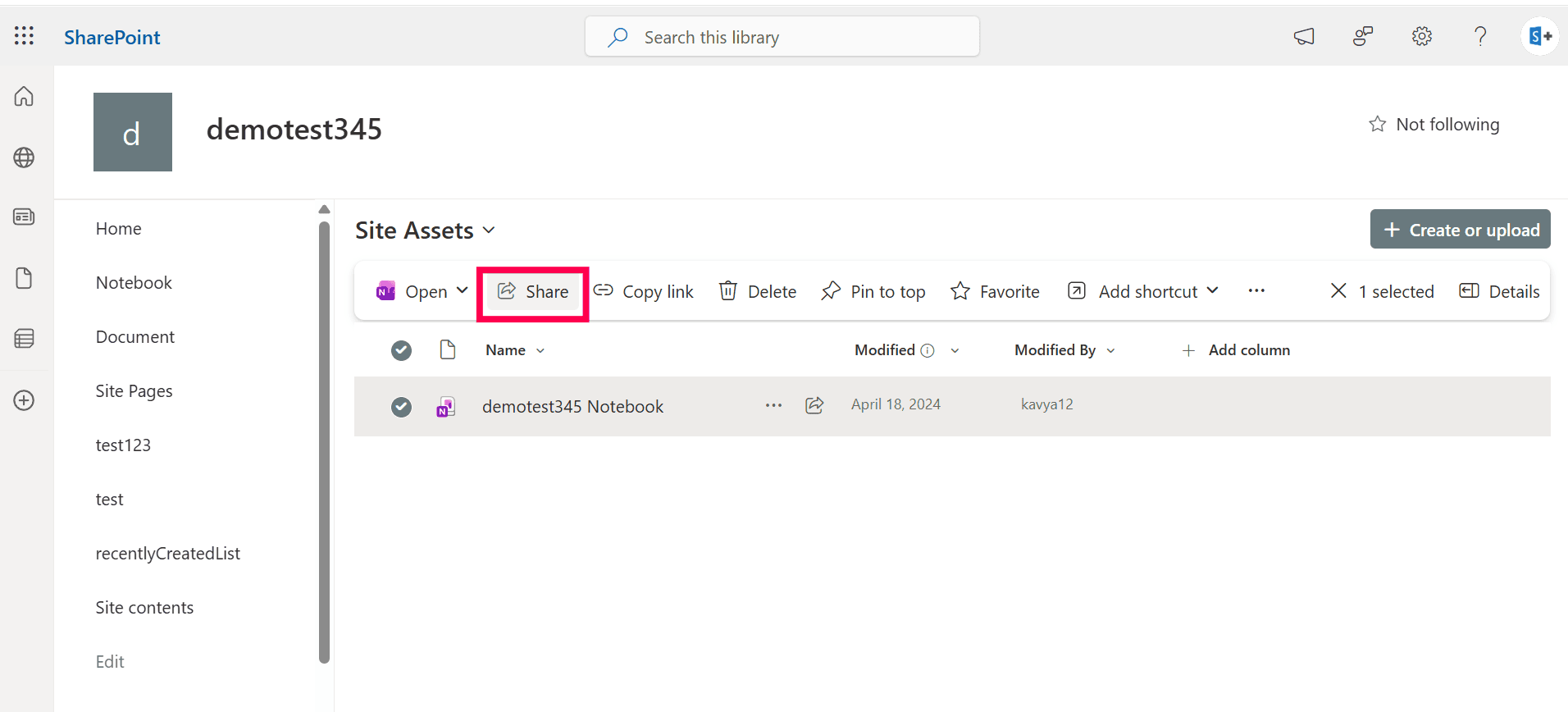
- Enter the external user's email address in the sharing dialog. External users are automatically added as guest users in SharePoint once they accept the sharing invitation.
- Configure Link settings to control how external users can access the file. Common options include:
- Specific people: Only invited external users can access the file.
- Anyone with the link: Generates an anonymous sharing link.
- People in your organization: Restricts access to internal users only.
- Select the appropriate permission level:
- Can view: External users can read the file.
- Can edit: External users can modify the file.
- Click Send to share the file.
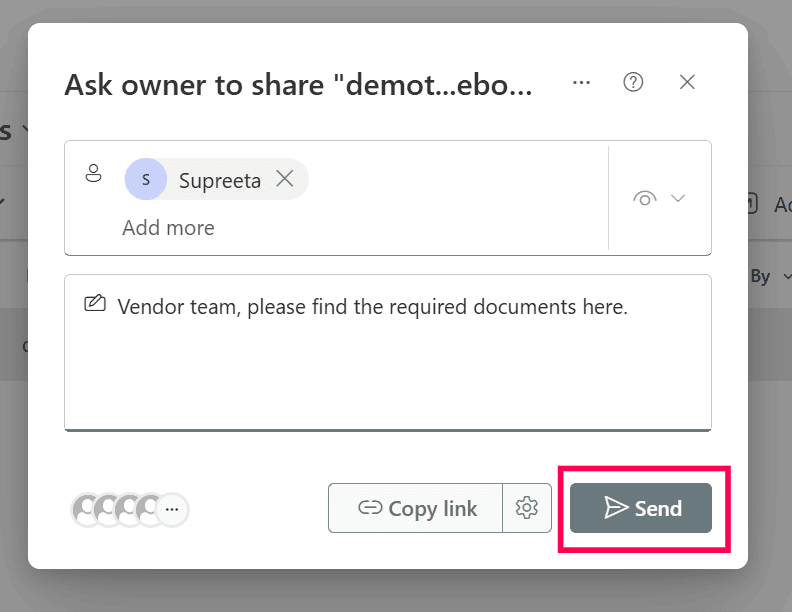


You can also use the Copy link option to generate a sharing link and distribute it manually.
The same steps given above can also be used to share a SharePoint folder with external users. These steps demonstrate how to share a SharePoint folder with external users, enabling them to collaborate on multiple files within that folder.
Permissions and inheritance considerations
SharePoint permissions follow a hierarchical structure. Files and folders inherit permissions from their parent library unless permission inheritance is broken.
When a file is shared individually, SharePoint may create unique permissions for that file. This means the file will have different permissions from the rest of the library.
Permissions can also be assigned through security groups, which allow admins to manage access for multiple users simultaneously.
If you are unsure whether a user already has access, you can verify permissions using the built-in Check Permissions tool.
Limitations to consider
- Tracking externally shared files across multiple SharePoint sites can be difficult.
- Native SharePoint tools provide limited centralized reporting for external sharing activity.
- Excessive unique permissions can complicate access management.
- Anonymous sharing links may increase the risk of accidental data exposure if not monitored.
Method 2: How to share SharePoint files with external users using PowerShell
Administrators who manage large environments often use PowerShell to automate SharePoint external sharing tasks. It also enables them to grant permissions, generate sharing links, and configure the sharing settings.
Prerequisites
- Before using PowerShell, ensure that:
- You have SharePoint Administrator or Global Administrator rights.
- The PnP.PowerShell module is installed.
- Install and connect to SharePoint Online using the script below.
Install-Module PnP.PowerShell -Scope CurrentUser
Connect-PnPOnline -Url https://tenant.sharepoint.com/sites/ProjectSite -Interactive
Grant external access to a file
Set-PnPListItemPermission `
-List "Documents" `
-Identity 1 `
-User "externaluser@example.com" `
-AddRole "Read"
This command grants the external user view permissions for the file.
Create a sharing link
PowerShell can also be used to generate a sharing link similar to the native copy link option.
Grant-PnPFileSharingLink `
-Url "/sites/ProjectSite/Shared Documents/ProjectPlan.docx" `
-Type View `
-Scope Anonymous
This creates a link that external users can use to access the file.
Supported parameters
The following parameters can be used while sharing files with external users in SharePoint.
| Parameter | Description |
|---|---|
| -Url | Specifies the file path. |
| -Type | Defines permission level (View or Edit). |
| -Scope | Determines sharing scope. |
| -User | Specifies the user email. |
| -AddRole | Assigns a permission role. |
How to audit externally shared files
While SharePoint provides native features to share SharePoint content with external users, it offers limited visibility into files already shared outside the organization.
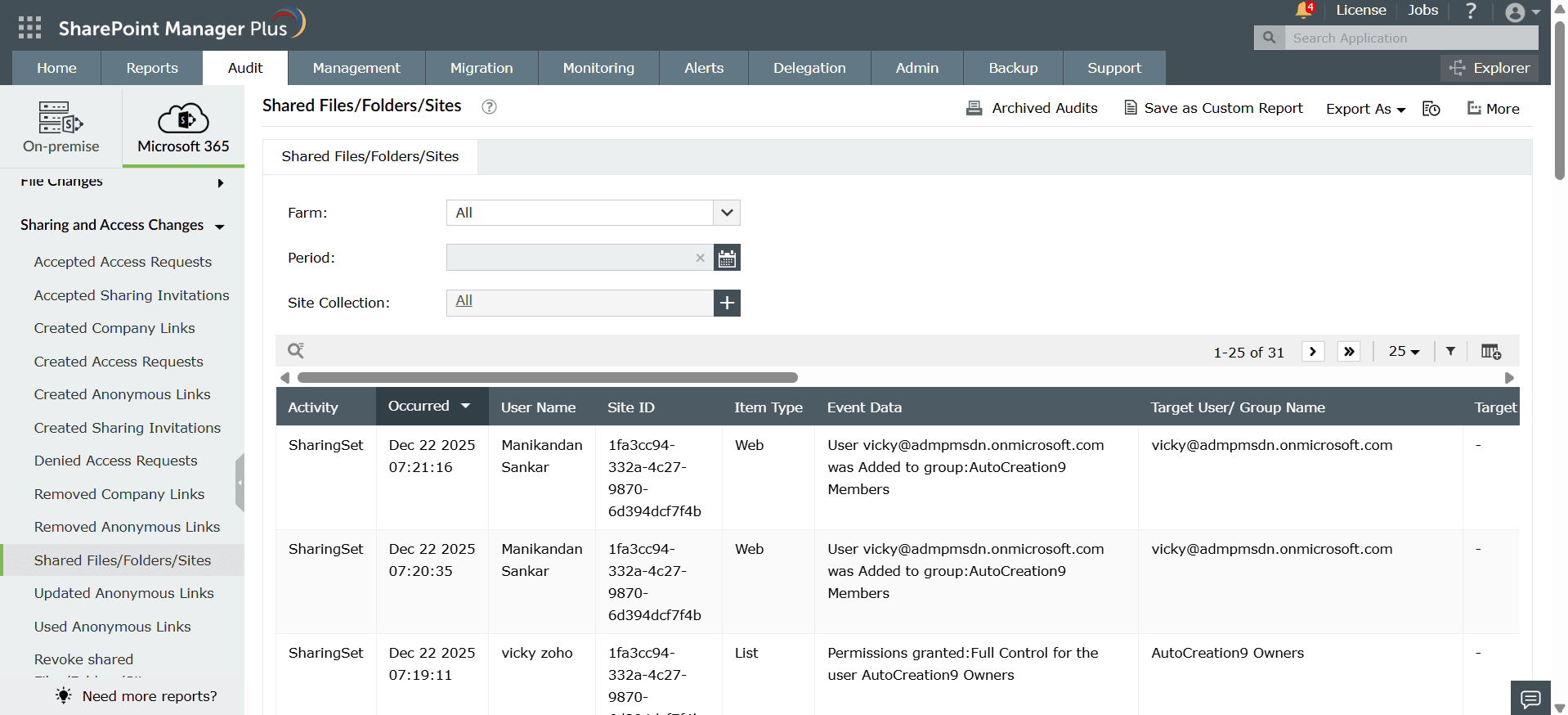
SharePoint Manager Plus helps admins monitor SharePoint external sharing activity through centralized reporting. Follow the steps given below to see how:
- Log in to SharePoint Manager Plus, navigate to Audit > Microsoft 365, and select your desired report under the Sharing and Access Changescategory. For this example, we will be selecting the Shared Files/Folders/Sites report.
- Select your desired tenant to view activity related to externally shared files.

How SharePoint Manager Plus helps improve external sharing visibility and control
After files are shared externally in SharePoint, administrators need visibility into which content is exposed outside the organization and who shared it. Regularly reviewing permissions and tracking changes helps ensure that external access remains controlled. SharePoint Manager Plus simplifies this process with comprehensive permission reports, detailed audit logs, visibility into external sharing, and centralized permission management from a script-free interface.
Comprehensive permission reports:
Provides prebuilt reports for site, file, and folder permissions, including unique permissions and broken inheritance, across SharePoint Online and on‑premises environments.
Detailed audit logging:
Tracks permission changes over time with detailed audit reports, showing who changed what, where, and when, which is crucial for security and compliance.
External sharing visibility:
Highlights external sharing and anonymous links so you can quickly identify where content is exposed outside the organization.
Manage SharePoint document access:
Using this tool, you can manage permissions to document libraries and folders to ensure least-privilege access. Quickly add or remove permissions in bulk with CSV imports to save time and eliminate repetitive effort.
SharePoint external sharing best practices
Follow these best practices to ensure secure collaboration and maintain control over files shared outside your organization:
Restrict external sharing where possible:
Choose to enable external sharing only for specific sites instead of the entire tenant.
Prefer specific user sharing over anonymous links:
Sharing with named external users is more secure than generating anonymous links through the link settings option.
Monitor externally shared files regularly:
Review reports on a regular basis to ensure sensitive files are not exposed externally.
Avoid excessive unique permissions:
Too many unique permissions can complicate access management and increase security risks.
Use security groups for easier management:
Always prefer to assign permissions to security groups instead of individual users whenever possible.
FAQ
SharePoint allows you to share files in two ways:
Direct sharing method: Use the Share action and select Grant access to add users directly. You can assign permission levels such as view or edit, and manage them later from the Manage Access panel.
Link sharing method: Generate a shareable link using the copy link option and configure it through link settings to control who can access the file, including external users through external sharing.
An external user is anyone outside your organization who is given access to SharePoint content through the external sharing option.
On the other hand, a guest user is an external user who has been added to your directory after accepting the sharing invitation. Guest users can be included in security groups and granted permissions through the grant access option like internal users.
Direct access means a user is added explicitly using the grant access option and assigned specific permission levels such as view or edit.
On the other hand, link sharing provides access through a generated link. The link can be configured using link settings to control who can access the file, including users outside the organization through external sharing.
No, external SharePoint users typically do not require a license to access shared files.
Admins can share files using the share action or copy link option, and grant access with specific permission levels. Access can later be reviewed from the Manage Access panel or third-party tools.

