How to create a SharePoint folder
Last updated on:In this page
Folders help organize content within a SharePoint document library by grouping related documents and files into a structured hierarchy. Creating folders in a SharePoint Online site allows teams to categorize files by department, project, or function, making navigation easier for users. While SharePoint supports both folders and views for organizing content, folders are often used for simple hierarchical grouping.
The following methods explain how to create a new folder in SharePoint using the browser interface and PowerShell.
- SharePoint Online
- Windows PowerShell
Method 1: How to create a folder in SharePoint Online (browser UI)
SharePoint Online allows users to create folders directly from the browser interface, making it easy to organize files without requiring scripts or administrative tools.
Prerequisites
Before creating a folder in SharePoint:
- You must have Owner, Designer, Edit, or Contribute permissions on the SharePoint document library.
- The Make "New Folder" command available setting must be enabled in the library’s Advanced settings.
- You must access the document library from the SharePoint Online site where the folder will be created.
Steps
- Sign in to your SharePoint Online site.
- Navigate to the document library where you want to create the folder.
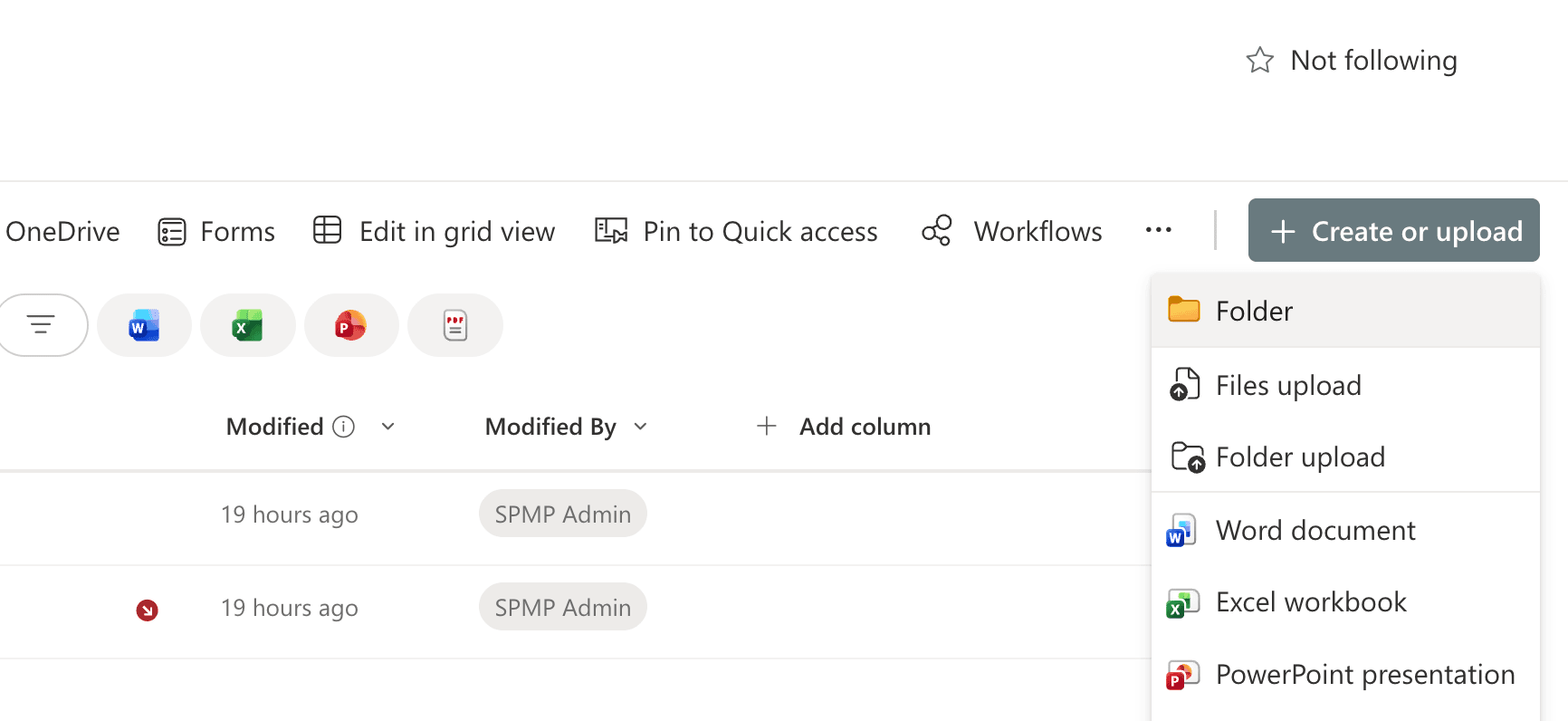
- Click + Create or upload and select Folder.
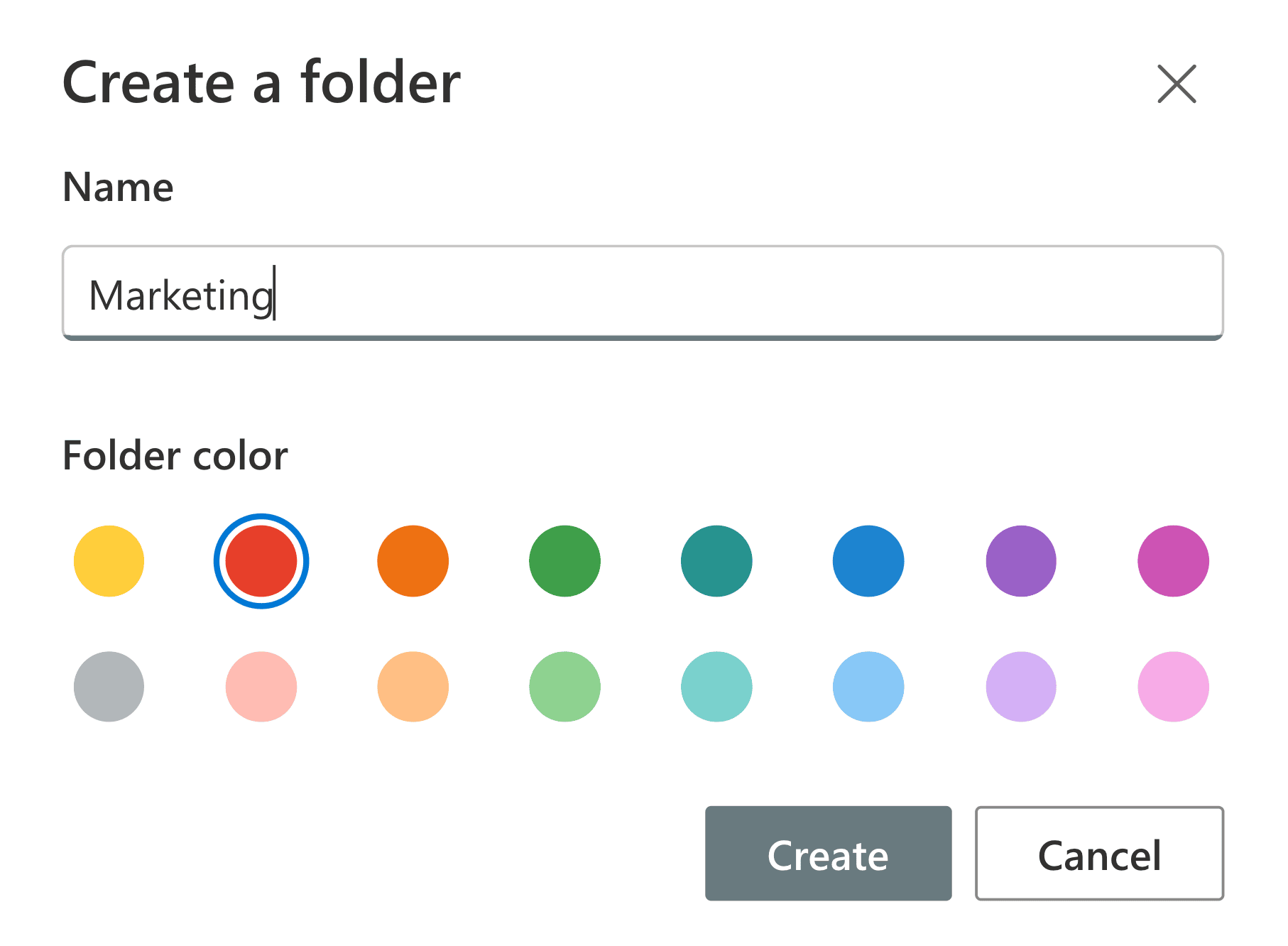
- Enter a folder Name and choose the Folder color.
- Click Create.


Once the folder is created, it is automatically shared with users who have access to the document library. To share the folder with users who don't have access, you can grant permissions directly to the folder. Learn how to share a SharePoint folder with external users. Learn how to share a SharePoint folder with external users.
Alternative method (classic experience)
Follow these steps to create a folder using the classic SharePoint experience:
- Open the document library.
- Click the Files tab in the ribbon.
- Select New Folder.

- Enter a folder Name and click Save.

Limitations to consider
- Folder creation must be performed one library at a time.
- SharePoint does not support bulk folder creation through the UI.
- Users must have sufficient permissions to create folders.
- Deep folder hierarchies can make navigation and search more difficult.
- Permissions applied to folders can become complex if inheritance is frequently broken.
Method 2: How to create a SharePoint folder using PowerShell
PowerShell allows administrators to create folders programmatically using the PnP PowerShell module, which is useful for automation or bulk folder creation across document libraries.
Prerequisites
Before running the script:
- You must have SharePoint Administrator or Global Administrator privileges.
- Install the PnP PowerShell module.
- Connect to the SharePoint site.
Install-Module PnP.PowerShell -Scope CurrentUser
Connect-PnPOnline -Url https://tenant.sharepoint.com/sites/ProjectSite -Interactive
Create a single folder
Use the following command to create a new folder in a SharePoint document library. This creates a folder called Project Documents inside the Shared Documents library.
Add-PnPFolder -Name "Project Documents" -Folder "Shared Documents"
Create multiple folders (bulk creation)
You can automate folder creation using a loop. This script creates multiple folders within the same SharePoint document library.
$folders = @("HR", "Finance", "Legal", "Marketing")
foreach ($folder in $folders) {
    Add-PnPFolder -Name $folder -Folder "Shared Documents"
}
Create nested folder structures
You can also create folders inside existing folders. This command creates a Reports folder inside the Finance folder.
Add-PnPFolder -Name "Reports" -Folder "Shared Documents/Finance"
Supported parameters
The following parameters can be used while creating folders in SharePoint:
| Parameter | Description |
| -Name | Name of the folder being created |
| -Folder | Path of the parent folder or document library |
| -Connection | Specifies the active SharePoint connection object |
| -Verbose | Displays detailed operation messages |
Limitations to consider
- You need PowerShell knowledge and administrative permissions.
- Scripts must be managed carefully to prevent incorrect folder structures.
- Additional scripts are required for large-scale automation across multiple sites.
How to enhance SharePoint folder management
While creating folders in SharePoint is straightforward, managing folder permissions, access, and activity across multiple SharePoint sites and document libraries can become complex. ManageEngine SharePoint Manager Plus helps administrators monitor folder activity, analyze permissions, and manage access across the entire SharePoint environment through a centralized interface.
Folder and document access reporting
Generate detailed reports showing who has access to specific folders and files within SharePoint document libraries. Schedule reports in different formats like CSV, PDF, XLSX, and HTML.
Audit folder activities
Track activities such as folder creation, deletion, file uploads, downloads, and permission changes to maintain a complete audit trail of user activity.
Permission governance
Identify folders with broken inheritance or excessive permissions, and ensure proper access using centralized permission management and bulk controls.
Important tips
Avoid deep folder hierarchies
A deep SharePoint folder structure can make navigation and search difficult. Consider using metadata and views instead of deeply nested folders.
Understand folders vs. views
SharePoint allows content to be organized using views, filters, and metadata, which can sometimes replace the need for complex folder structures.
Ensure folder creation is enabled
If you cannot see the New Folder command, check the library's Advanced settings and enable the Make "New Folder" command available setting.
Use consistent naming conventions
Use clear names such as HR Policies, Project Documents, or Finance Reports to make folders easier to identify.
Manage folder permissions carefully
Breaking permission inheritance on folders should be done sparingly to avoid complex and difficult-to-manage permission structures.
Frequently asked questions
You likely cannot create a folder in SharePoint due to the following reasons:
- Insufficient permissions: You need at least Contribute or Edit access. If you only have Read access, the option will be disabled.
- Folder creation disabled: A Site Owner may have turned off folders. Fix this in Library Settings > Advanced settings > Make "New Folder" command available? > Yes.
- URL character limits: SharePoint has a limit (usually 400 characters). If your folder path is too deep, try moving it closer to the root directory.
- Restricted content types: Some libraries only allow specific files. Check the Library Settings to see if Folder is an allowed content type.
- Sync/browser glitches: Clear your cache or refresh the page to resolve temporary UI issues.
Folders in SharePoint are automatically shared with users who have access to the document library. To share a folder with users who don't have library access, you can grant permissions by adding their names manually. View the detailed steps
You can make a folder private so only a specific user or group can see it, even if others have access to the rest of the library.
- Select the folder and click the three dots (...) > Manage Access.
- In the panel that opens, click the three dots (...) at the top and select Advanced settings.
- Click Stop Inheriting Permissions in the top ribbon. This disconnects the folder from the library's main list.
- Select the users or groups who should not have access and click Remove User Permissions.
- Use Grant Permissions to add the specific people who should have access.
You can copy the folder's URL and share it with users, or use Add shortcut to OneDrive to create quick access to the folder from your OneDrive interface.
Open the folder, copy its URL, and insert it into a SharePoint page, navigation menu, or document library link so users can access it easily.
SharePoint does not support password protection for folders. Instead, access is controlled using permissions and user authentication.
Go to the Documents tab in your site. Click the + Create or upload button and select the type of file you want to create (e.g., Word document, Excel workbook, PowerPoint presentation, or folder).
You can also add existing files to SharePoint from your local computer.

