
NTFS permissions: Best practices for configuring and managing file access

  •  
     
  • -Select-
By clicking 'Download PDF', you agree to processing of personal data according to the Privacy Policy.

Thank you!

The PDF link has been sent to your email.

We hope you enjoy reading and sharing these best practices.

NTFS permissions govern who can read, write, modify, or delete files and folders on Windows file servers, making them a foundational layer of enterprise data security. When permissions are misconfigured, over-assigned, or left unreviewed, they create the exact conditions that enable insider threats, data leaks, and lateral movement during attacks. The following best practices will help you design, enforce, and maintain a permissions structure that keeps access tight, auditable, and aligned with the principle of least privilege.

A guide to secure and manage NTFS permissions


Apply the principle of least privilege

  • Grant each user only the minimum level of access required to perform their job.
  • Allow only Read or Read & execute permission for most users. Limit Modify and Write permissions to a select few trusted users.
  • Gate access to sensitive files and folders with an administrator approval process.
  • Ensure no critical data is publicly accessible or open to Domain Users by default.
  • Treat every access approval as a business decision, not a convenience.
 

Maintain a clean folder hierarchy

  • Design your folder hierarchy before assigning permissions.
  • Grant Domain Users only List folder contents permission to allow navigation without exposing all folder contents.
  • Limit the number of top-level folders and avoid deep, sprawling folder trees to simplify governance.
  • Assign broad permissions for the top-level folders and tighten permissions as you go deeper.
  • Document the folder structure and its permission model and update the documentation with every structural change.
 

Preserve permission inheritance

  • Maintain permission inheritance by default to ensure consistent permissions across folder structures and minimize the need for explicit permission assignments.
  • Avoid breaking inheritance unless there is a clear, documented business reason as doing so can introduce permission inconsistencies.
  • When inheritance must be broken, explicitly document the following:
    • The folder or location where inheritance is broken or disabled
    • The business justification for the exception
    • The approver for the exception
    • The review or expiration date for the exception
  • Periodically audit your folder structure for unintended inheritance breaks.
 

Manage orphaned files and stale accounts

  • Establish a formal employee offboarding workflow:
    • Identify all files and folders owned by the departing user.
    • Transfer ownership to an appropriate administrator or manager.
    • Revoke the user's explicit permissions from all folders.
    • Remove the user from all AD security groups.
  • Maintain a record of ownership transfers and revocations for auditing purposes.
  • Set account expiration dates for contractors and project-based roles at the time of provisioning.
  • Regularly scan for and remove orphaned security identifiers (SIDs) as a reassigned SID can silently grant any new user every permission the deleted account held.
 

Restrict Full control assignments

  • Grant Full control permission—which includes read, write, modify, delete, and change permissions—only to a small, designated group of administrators.
  • If other users need broad access, assign Modify permission instead as it covers most legitimate use cases.
  • Review existing Full control assignments regularly and revoke any that are unwarranted or risky.
  • Ensure only limited designated administrators have the rights to grant Full control permission.
 

Align NTFS and share permissions

  • Keep NTFS permissions more restrictive than share permissions since NTFS governs both local and network access.
  • Set share permissions for a broad but defined group (e.g., Authenticated Users — Read/Change) and use NTFS permissions to narrow down permissions for groups further.
  • Enable access-based enumeration on shared folders so users see only the folders to which they have access.
  • Avoid nested shares because a subfolder shared independently creates a separate entry point that bypasses the parent share's restrictions entirely.
 

Monitor permission and SACL changes in real time

  • Configure SACLs on critical files and folders to log all access and permission change events. Specifically, monitor the following:
    • Permission changes on sensitive folders
    • Ownership transfers
    • Inheritance breaks or overrides
    • Failed access attempts on restricted resources
  • Set alerts for when any permission change is made outside approved change windows, when any permission change is made by non-administrator accounts, or when sudden spikes of permission changes are detected.
  • Retain permission change logs for the period required by applicable regulations such as SOX, HIPAA, and the PCI DSS.
 

Identify and remediate overexposed files

  • Run regular scans to locate the following:
    • Files and folders to which Everyone, Domain Users, or Authenticated Users have access
    • Folders with Full control assigned to non-admin groups
    • Files stored outside their designated folder hierarchy
  • Prioritize remediation based on the data risk and sensitivity; start with folders containing PII, financial records, or credentials.
    • Revoke broad access for these folders and replace it with specific group-based permissions.
  • Deny any new permission requests that would assign access to a broad group such as Everyone or Domain Users.
 

Assign permissions to groups, not individuals

  • Never set NTFS permissions directly on individual user accounts. Always use AD security groups.
  • Create permission-based groups (e.g., HR_Modify and HR_Read) and assign them to the relevant folders.
  • Nest role-based groups (e.g., HR_Manager and HR_Coordinator) within those permission-based groups.
  • Move users in and out of role-based groups as needed so their permissions update everywhere at once, without you touching individual folders.

Analyze NTFS permissions with DataSecurity Plus

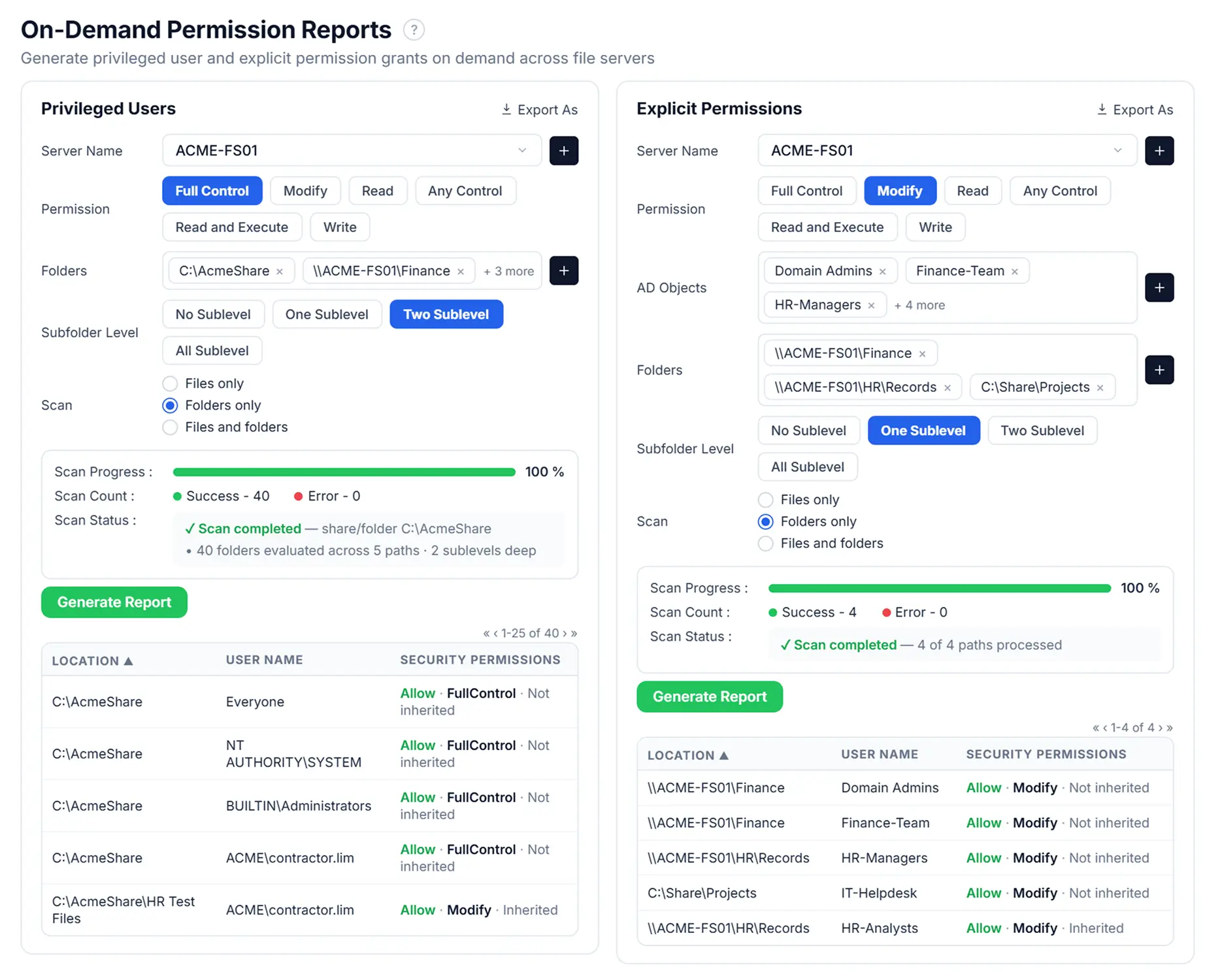
ManageEngine DataSecurity Plus gives your security and IT teams a centralized view of NTFS permissions across your file server environment, making it easier to enforce the principle of least privilege, identify overexposed data, and audit permission changes before they become security incidents. Learn more about DataSecurity Plus' file server permission analysis and permission auditing capabilities.

Analyze NTFS permissions with DataSecurity Plus

Frequently asked questions

Share permissions control whether a user can access a shared folder over the network and at what level. NTFS permissions control exactly what a user can do within a folder or file (read, write, modify, or delete), applying both locally and over the network.

When a folder is accessed over the network, Windows evaluates both types of permissions and applies the more restrictive of the two. Because NTFS permissions are more granular and apply regardless of how the folder is accessed, they should be treated as the primary access control layer. Share permissions should be set broadly, so that NTFS always determines the effective access.

Effective permissions represent the actual level of access a user has to a file or folder after all applicable permission layers have been evaluated. It includes explicit permissions, inherited permissions, group memberships, and share permissions. Because multiple permission assignments can apply simultaneously, effective permissions provide the definitive answer to what a user can actually do within a resource. This may differ from what any individual permission assignment appears to grant.

For example, a user may be a member of three groups with different permission levels for the same folder. In such cases, effective permissions reflect the cumulative result of all applicable permissions.

Every user account in AD is assigned a unique identifier called a SID. NTFS uses this SID to identify who has access to a file or folder. When an account is deleted, the associated SID remains in any ACLs it was assigned to, but it can no longer be resolved to a name. This is called an orphaned SID.

The security risk is that Windows recycles SIDs over time, so if a new account is created and assigned the same SID as a deleted account, the new account silently inherits every permission the original account held across your entire file server, with no approval process, no notification, and no audit trail.

Privilege creep is the gradual accumulation of access rights beyond what a user's current role requires. It typically happens when access granted for temporary projects or business needs is not revoked, when access is no longer needed, or when users change roles and retain permissions from their previous positions.

In NTFS environments, privilege creep manifests as users who are members of more AD security groups than their current job warrants, giving them Read or Write access to folders that are no longer relevant to their work. Over time, this creates a sprawling access footprint that becomes a serious vulnerability if the account is compromised.

The most effective countermeasures are RBAC (granting access based on the role rather than individually), time-limited group memberships for project-based access, and regular access reviews that compare current group memberships against current job functions.

An NTFS permissions audit involves systematically reviewing who has access to what across your file server and verifying that access aligns with current roles and business requirements. At the minimum, an audit should cover:

  • Identifying all explicit permission assignments and comparing them against your RBAC model.
  • Scanning for orphaned SIDs and broad group access such as Everyone or Domain Users.
  • Reviewing folders with broken inheritance.
  • Checking for Full control assignments outside the designated administrator group.

Run audits on a defined schedule—quarterly at least—and after any major structural change such as a reorganization, server migration, or AD group restructuring.

Get DataSecurity Plus easily
installed, configured and running within minutes.

Download Now  
Email Download Link