Notification profile
When a fault is detected in your network, an event occurs and multiple events correlate to trigger an alarm. You can configure OpManager to notify the network administrator or perform automatic actions based on the alarm raised for a device using notification profiles.
- Step 1: Choose the profile
- Step 2: Select the variables to customize the alert message
- Step 3: Configure the criteria to trigger notification
- Step 4: Apply the profile to devices
- Step 5: Apply the time window
Profile types
To configure notification profiles, go to Settings > Notifications > Notification Profiles, and click Add to create a new notification profile.
Select the relevant notification type below (email, SMS, and so on) and enter the required details. The available notification profile types are:
- Email-based SMS
- SMS
- Chat
- Run a system command
- Run a program
- Log a ticket
- Web alarm
- Syslog profile
- Trap profile
- Invoke a webhook
- Ansible integration
- Custom integration
- SIEM integration
Selecting variables
While configuring the notification profile details, you can select variables from the dropdown. Variables in OpManager let you include additional information in your alert message. You can select the dynamic subject, message, title, or argument variable to include in the message based on the notification type. Learn more about variables.
Choosing criteria for notification trigger
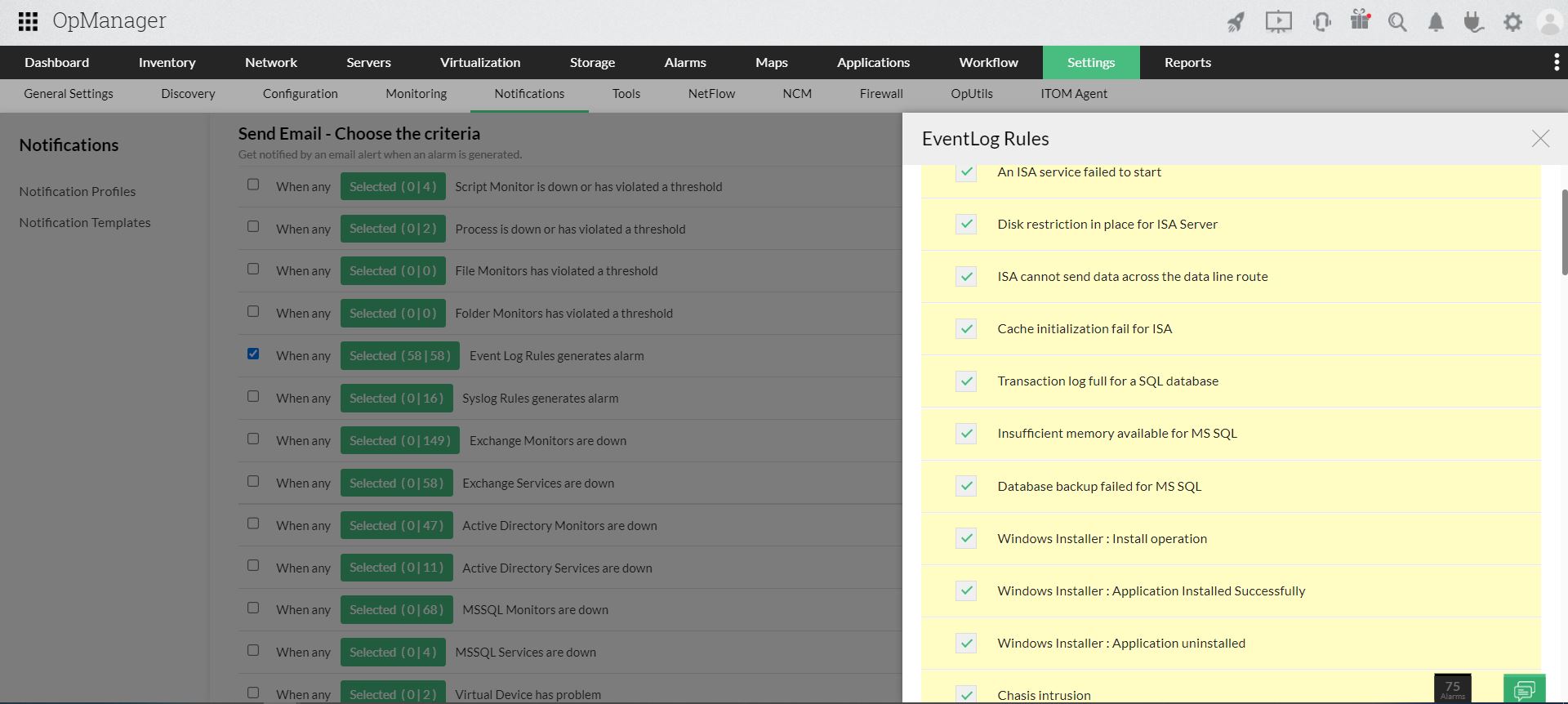
Once you have specified the details, configure the criteria based on which an alert notification will be triggered. You can select one or more criteria so that OpManager raises notifications accordingly.
For example, to raise a notification for critical events, select the Event Log Rule generate alarms box and choose the Windows events for which you want to receive notifications.
Selecting devices
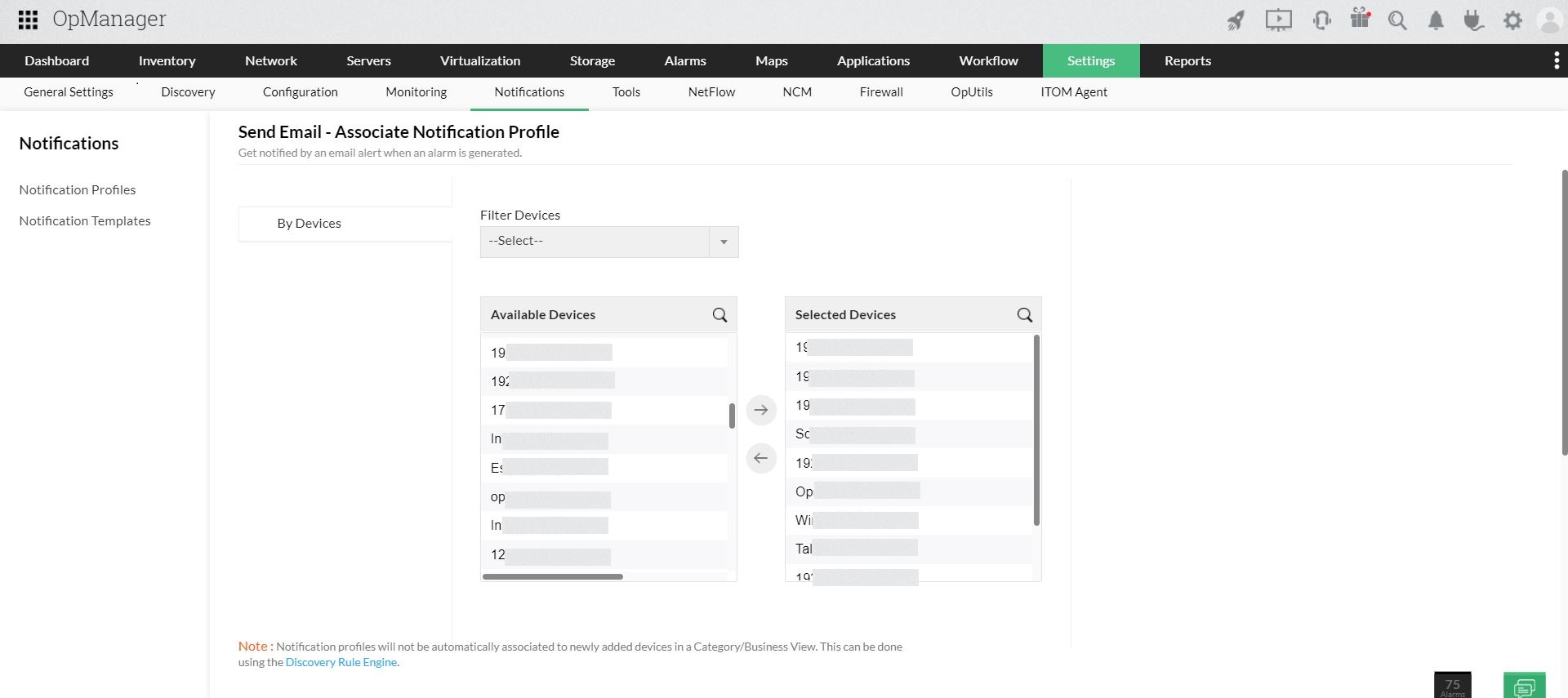
After configuring the criteria, select the devices for which you want to configure the notification profile.
Move the devices to the Selected Devices column and click Next.
Select device groups/interface groups
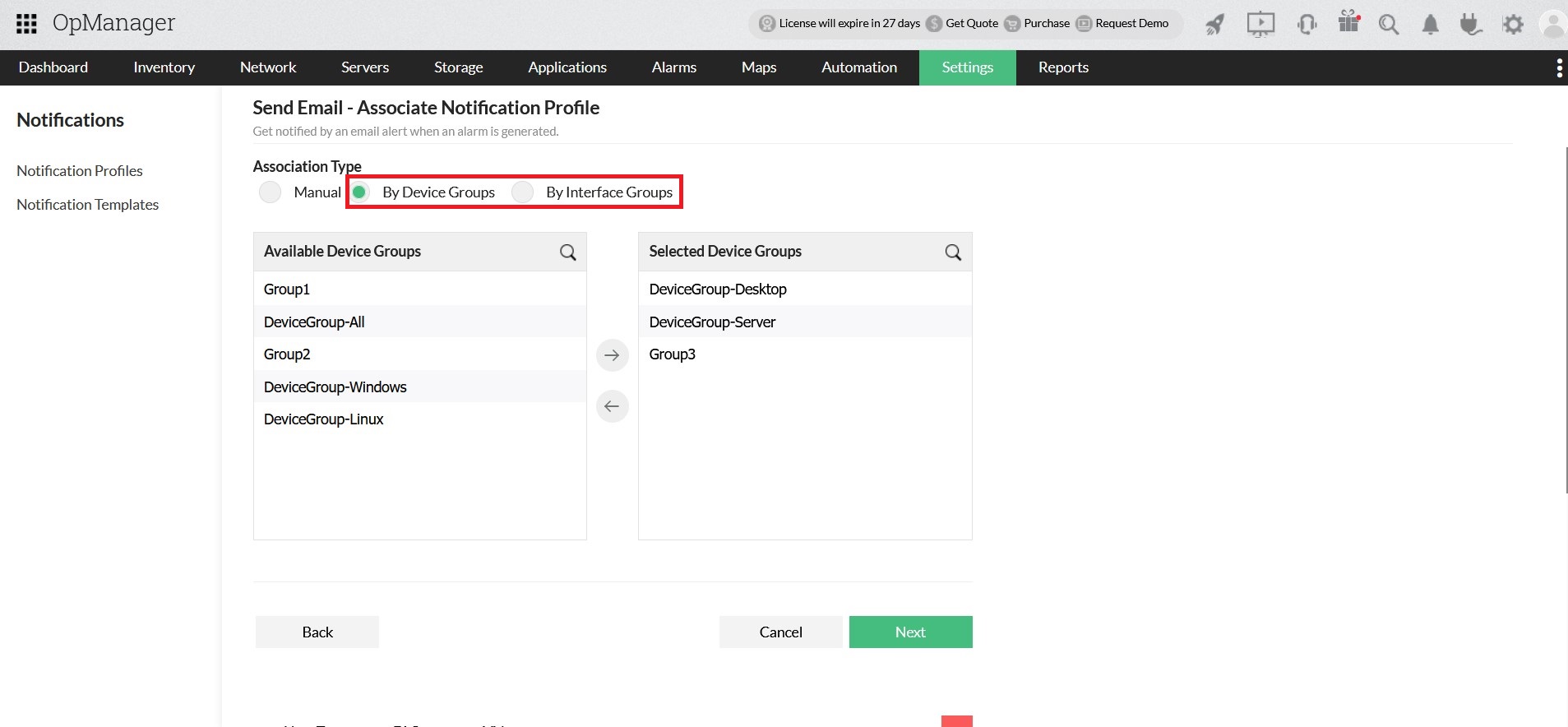
From version 128401, you can configure a notification profile with device groups or interface groups.
Managing duplicate notifications
If a device belongs to two groups (for example, DeviceGroup-Desktop and Group3 - see screenshot above), the profile will be triggered only once even if the device that raised the alarm belongs to more than one associated group. This is handled internally by default.
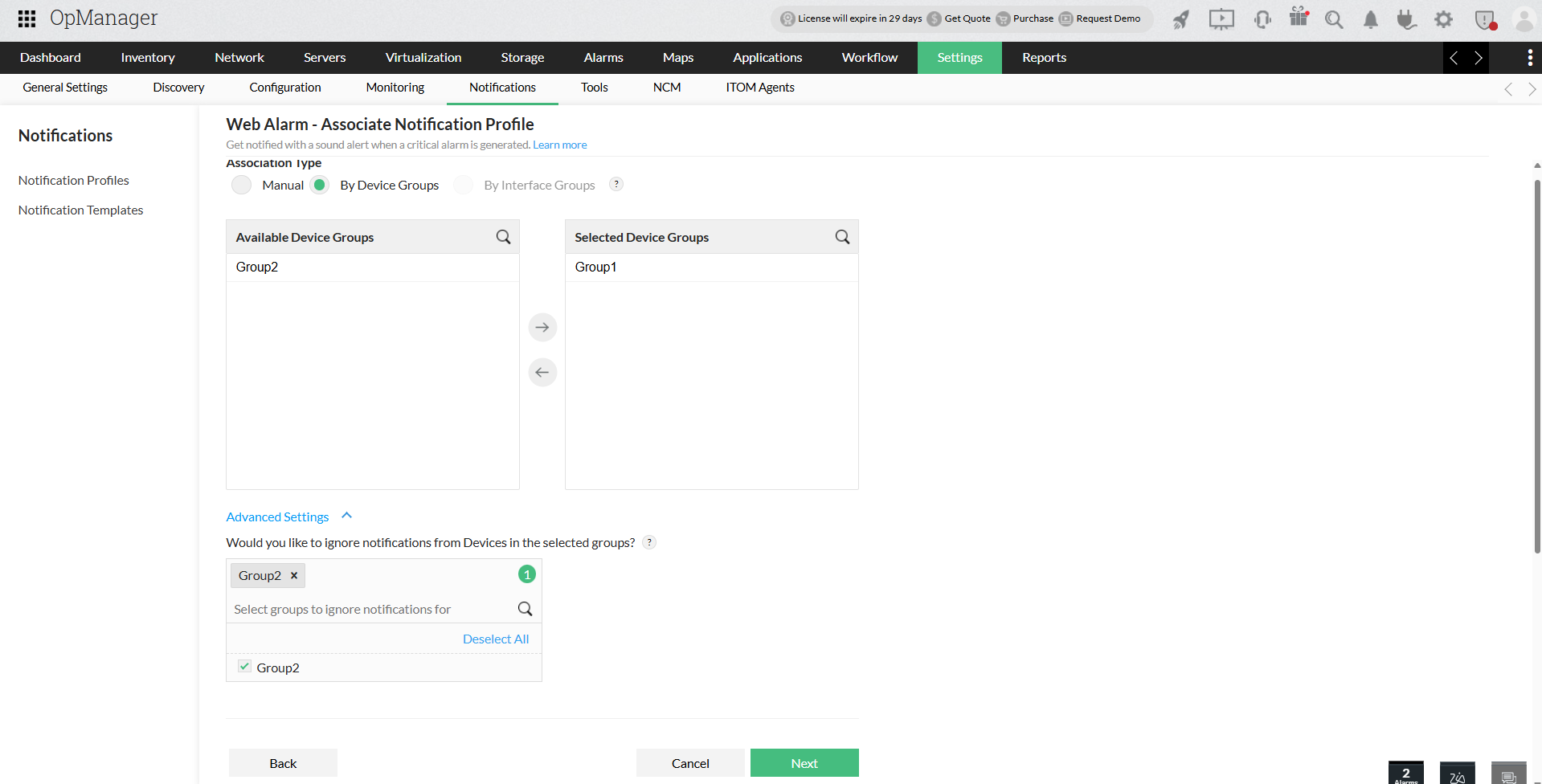
If a device belongs to more than one group and those groups are associated with different notification profiles, the Ignore Notifications for Group option must be configured to avoid duplicate notifications. (This option is available from version 128608.)
Applying time window
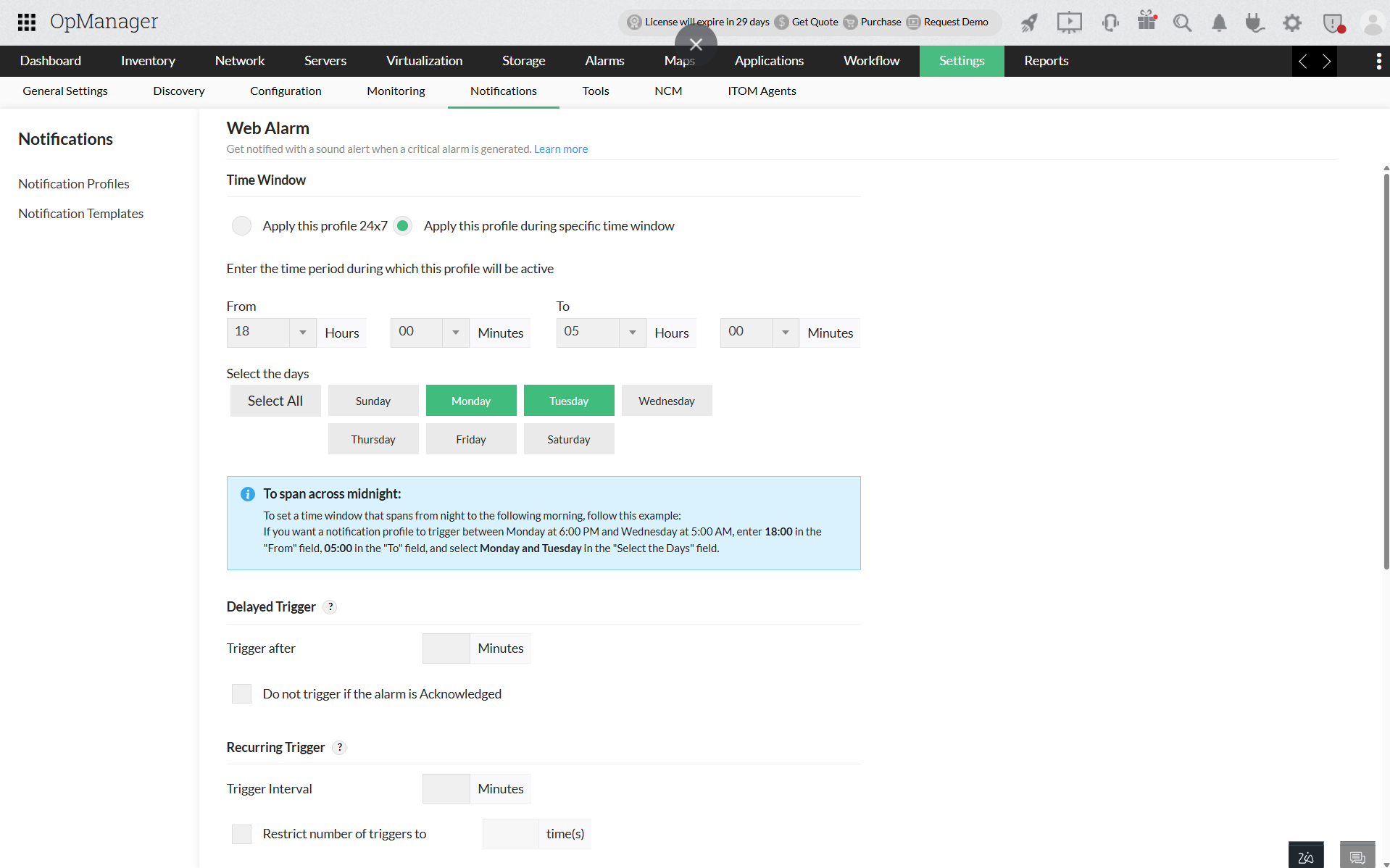
Time window: Select one of the following options:
- Apply this profile all the time - Notifies alerts matching the selected criteria at any time.
- Apply the profile for the selected time window - Specify the required time window.
- For example, if you set the values as From 09:30 To 18:30 and select Monday through Friday, alerts will only be notified during that interval on those days.
- To span across midnight, set the From time to a later point in the day than the To time. For example, to trigger notifications between 6 PM and 6 AM the following day, enter 18:00 in the From field and 06:00 in the To field. You can also select specific days as needed.
Delayed trigger: To trigger the notification profile after a delay, enter the delay time in Trigger after (in minutes). To avoid triggering the profile if the alarm has been acknowledged in the meantime, select the Do not trigger if alarm is acknowledged checkbox.
Recurring trigger: This option re-triggers the notification profile at regular intervals until the alarm is cleared. Enter the Trigger interval and Restrict the number of triggers to values. For example, if you set the trigger interval to 10 minutes and restrict the number of triggers to 5, an alert will be notified every 10 minutes for 5 times or until the alarm is cleared, whichever comes first. If the number of triggers is left empty, the alert will be notified at the given interval until the alarm is cleared. To avoid repeated triggering if the alarm has been acknowledged, select the Do not trigger if alarm is acknowledged checkbox.
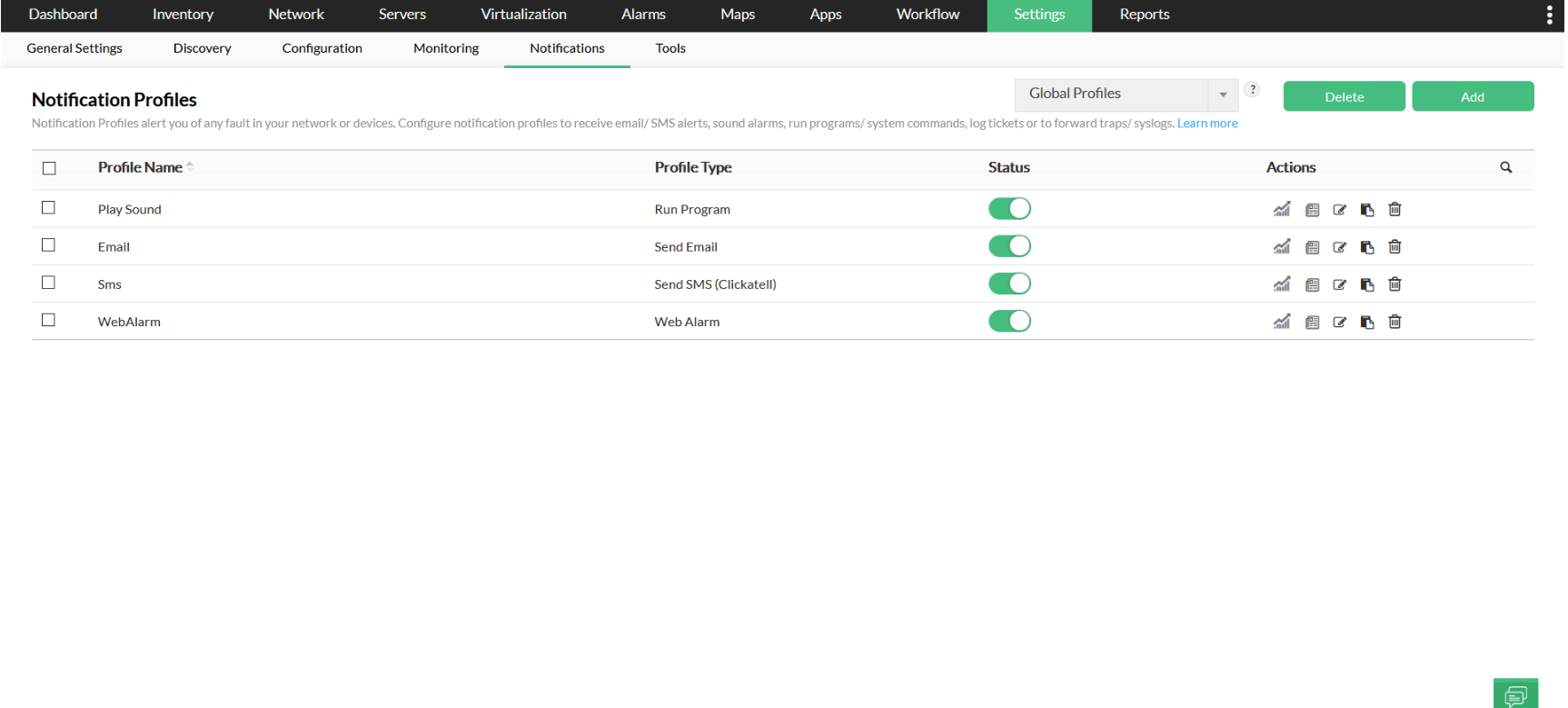
Enable/disable a notification profile
To temporarily disable a notification profile, follow the steps below:
- Go to Settings → Notifications → Notification Profiles. A list of all available notification profiles is displayed.
- Find the profile you wish to disable and click
 under Status. A confirmation message is displayed.
 - Click OK to proceed.
The notification profile is now disabled. To re-enable it, click the slider again.
Note: See scenarios in which multiple notification profiles need to be created.