Integrating OpManager with Splunk for centralized log analysis
OpManager integrates with Splunk to forward critical network events, audits, access logs, and alerts in real time, where they are pushed as syslogs. This integration allows OpManager to serve as a centralized monitoring point, enabling Splunk to collect, analyze, and correlate event data to detect threats, streamline incident response, and enhance overall network reliability.
Configure OpManager - Splunk integration
- Steps to configure OpManager’s Splunk integration
- Configure Notification Profiles
- Configuring Notification Templates
Steps to configure OpManager’s Splunk integration
- Go to Settings → General Settings → Integrations → Splunk.
- Click on Configure.
- Enter the Hostname/IP Address and Port Number.
- Note: The RFC-5424 is used for forwarding the logs..
- Check the Send Access Logs checkbox to forward access log files to Splunk.
- Select the required audit modules to forward their logs to Splunk.
- Accept Splunk’s privacy policy and click Save to complete the integration with OpManager.
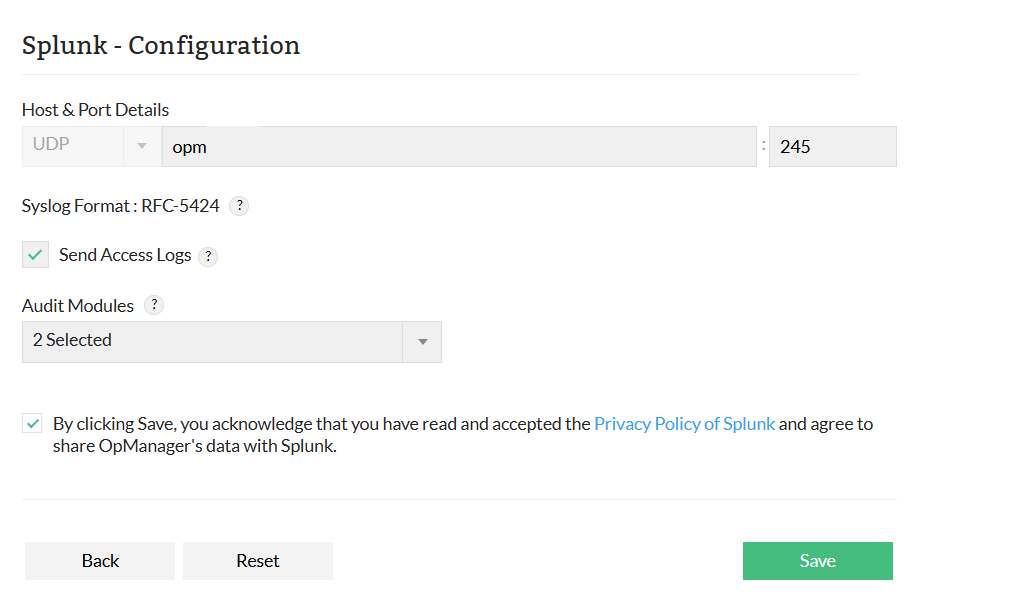
Note:
- UDP/syslog protocol is used for forwarding the logs.
- Ensure that Splunk is configured to listen on the specified UDP port.
Configuring Notification profile
You can set up a notification profile to forward alarms to Splunk platform automatically, based on defined criteria.
Follow the steps to configure:
- Go to Settings -> Notifications-> Notification profiles
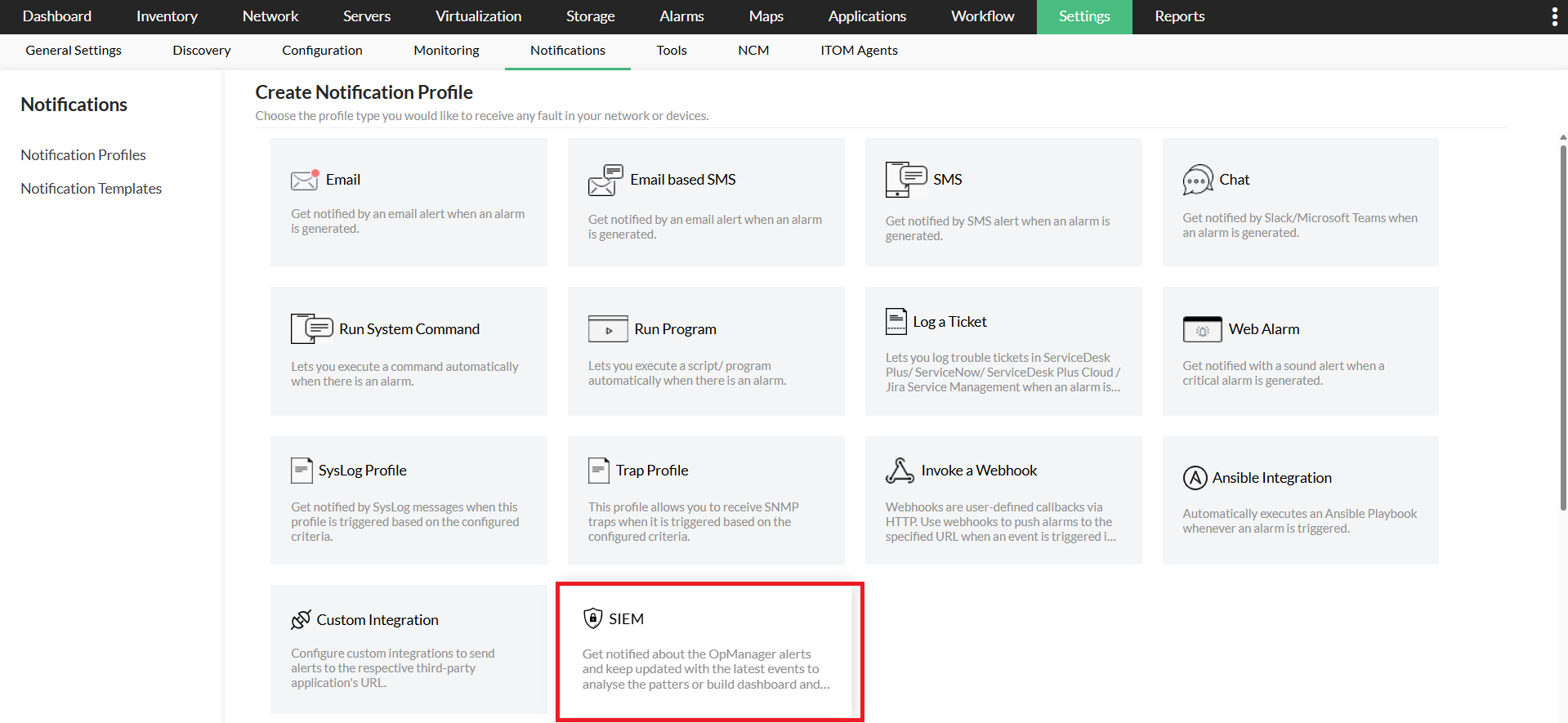
- Click Add on the top right corner to add a new notification profile, and select on SIEM -> Splunk.
- Provide inputs for the required parameters, such as Format, Severity, Facility, Description, and variables.
- If you enable the Structured message option, provide the required inputs as key value pair.
- You can use the Test Action option to send a sample syslog message to the configured host and port to verify the configuration.
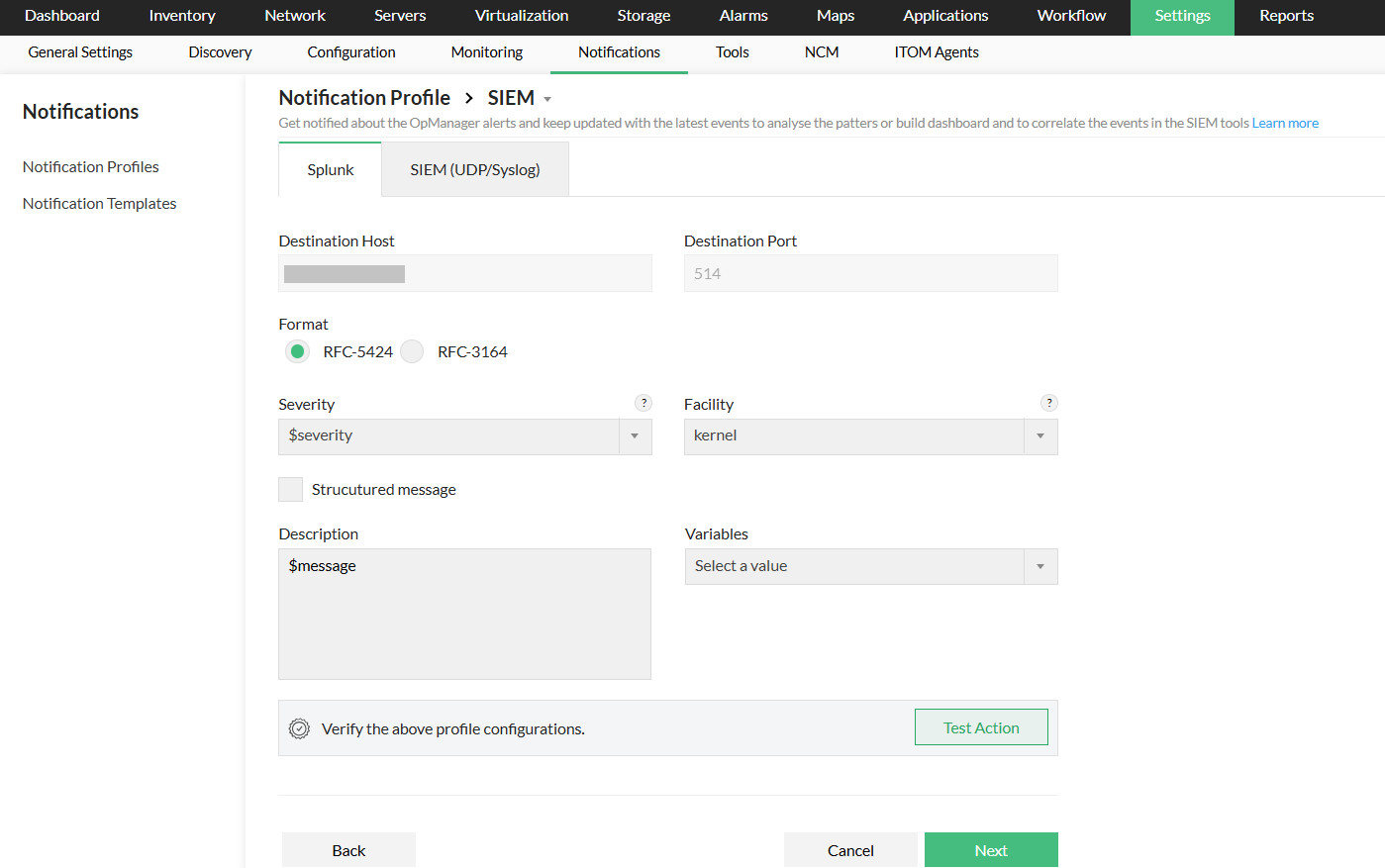
- Click Next to select the criteria,device, and configuration time window.
- Click Save
Configuring Notification Templates
You can create notification templates in OpManager to define how alerts are sent, when alarms are triggered and use them in alarm correlation rules to get notified when specific patterns of events occur.
- Go to Settings -> Notifications-> Notification templates
- Click on Add navigate to SIEM and select Splunk to add a notification template.
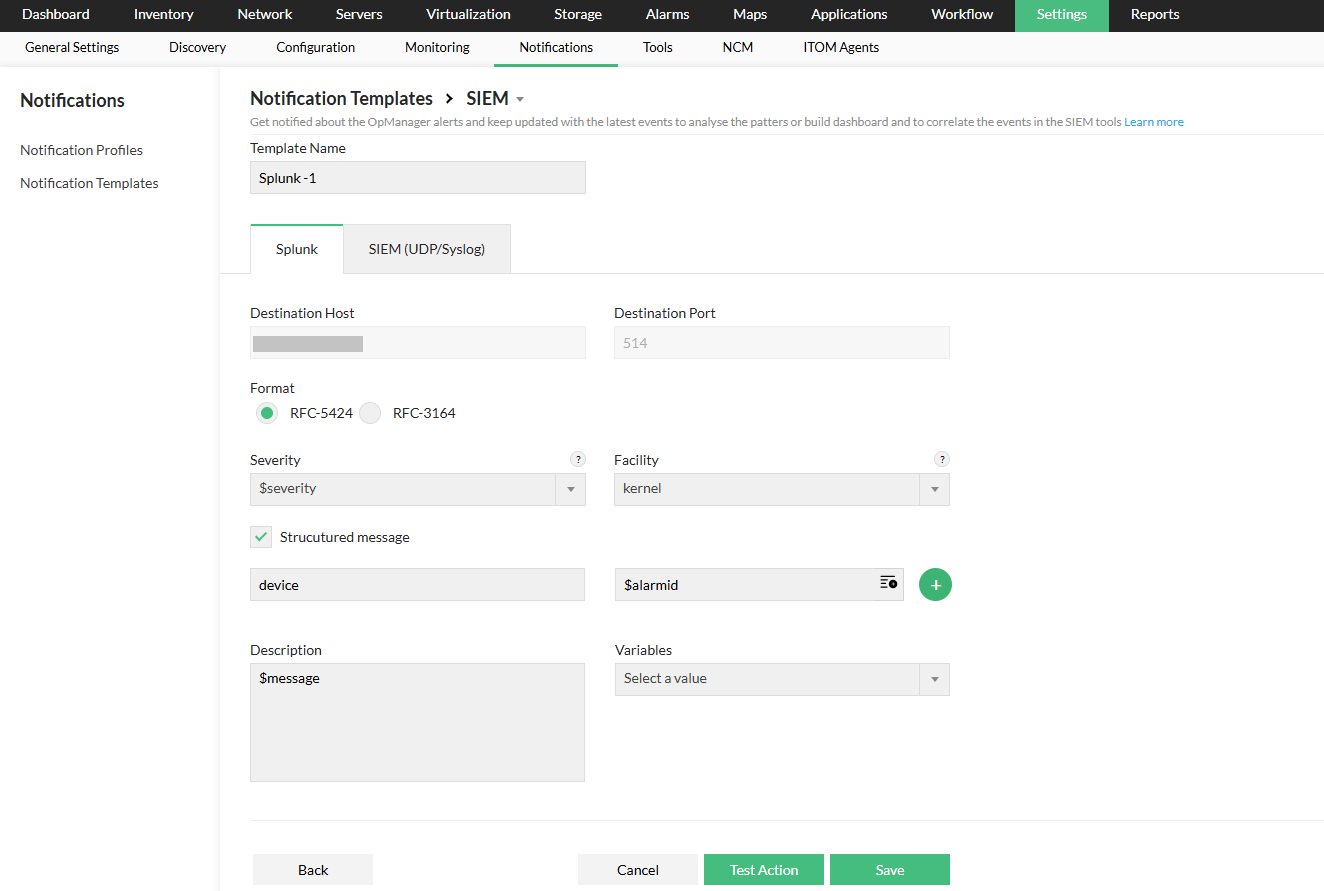
- Enter the required parameters, including Template Name, Format, Severity, Facility, Description, and relevant Variables.
- If you enable the Structured Message option, make sure to provide the required key-value pair inputs.
- To verify the template, click on Test Action.
- Click on Save.
Note: Please refer to the dynamic variables page for more information on the replaceable tags used in alarm details.