Windows 11 23H2 Feature Pack Deployment
This page explains how to download the Windows 11 23H2 dependency ISO file, upload it to the patch store, and deploy the October 2023 feature update using Patch Manager Plus, Patch Manager Plus, or Patch Manager Plus — covering all edition and upgrade-path combinations, the Enablement Package path for devices already on Windows 11 22H2, and language-specific ISO file names.
Overview
Released in October 2023, Windows 11 23H2 is the annual feature update for Windows 11. For a full list of what's new, refer to the official Microsoft Windows 11 release information page. To install the Windows 11 23H2 feature update, the device must be running Windows 10 version 2004 or a later version. For a complete list of system requirements, refer to the Windows 11 specifications page.
- Deployment of the Windows 11 23H2 feature pack is supported only in Patch Manager Plus build versions 10.0.147 and above.
- The SSP (Self-Service Portal) method is not applicable for performing a feature pack upgrade from Windows 10 to Windows 11 via Patch Management.
- For devices already running Windows 11 version 22H2, only the Enablement Package patch is required to upgrade to version 23H2. Refer to the Enablement Package section below.
Prerequisites
Complete the following checks before beginning the deployment.
- Run the Compatibility Check available at the end of the Microsoft Windows 11 specifications page to confirm all target systems meet the minimum requirements that affect upgradeability.
- Enable the Feature Pack option in Patch Database Settings:
- In Patch Manager Plus: navigate to Patch Mgmt → Settings → Patch Database Settings, click the Windows tab, and enable the Feature Pack option.
- In Patch Manager Plus: navigate to Admin → Settings → Patch Database Settings, click the Windows tab, and enable the Feature Pack option.
- Confirm that feature pack updates have not been declined under Decline Patches.
Patch IDs by Edition and Upgrade Path
Use the correct main patch ID and dependency patch ID based on the source OS version and the target edition. The dependency ISO must be uploaded before the main patch can be deployed. Devices already running Windows 11 version 22H2 only require the Enablement Package — no ISO upload is needed for that path.
Upload the ISO File
The dependency ISO file must be uploaded to the patch store before the main feature pack patch can be deployed. The steps below apply to all edition and upgrade-path combinations. Devices already running Windows 11 22H2 can skip this section and use the Enablement Package instead.
- Dependency patches will not appear in the Uploaded Patches view by default.
- The system will automatically handle ISO download and deployment during the Feature Pack deployment process.
- If the ISO download fails, the corresponding dependency patch will appear in the Uploaded Patches view, allowing manual intervention.
- If a previously uploaded ISO is available, deployment will continue using the manually uploaded file.
- If patches were previously uploaded and later deleted, the dependency patch will not appear in the Uploaded Patches view but will be automatically re-downloaded during the next deployment attempt.
Builds 10.1.2282.6 and Above (Patch Manager Plus and Endpoint Central)
Two upload methods are available for these build versions.
Method 1 — Upload from the Error Prompt
- Click Upload next to the Download failed error message.
- In the pop-up window, browse and select the downloaded ISO file.
- Choose a Checksum type (MD5 or SHA256).
- Enter the checksum value and wait for validation.
- Once validated, click Upload. The patch is ready to install once the upload completes.
Method 2 — Upload from Downloaded Patches
- In Patch Manager Plus: navigate to Patches → Downloaded Patches, search for the required patch, and click Upload under the Action column. Then follow Method 1 steps above.
- In Patch Manager Plus: navigate to Patch Mgmt → Downloaded Patches, search for the required patch, and click Upload under the Action column. Then follow Method 1 steps above.
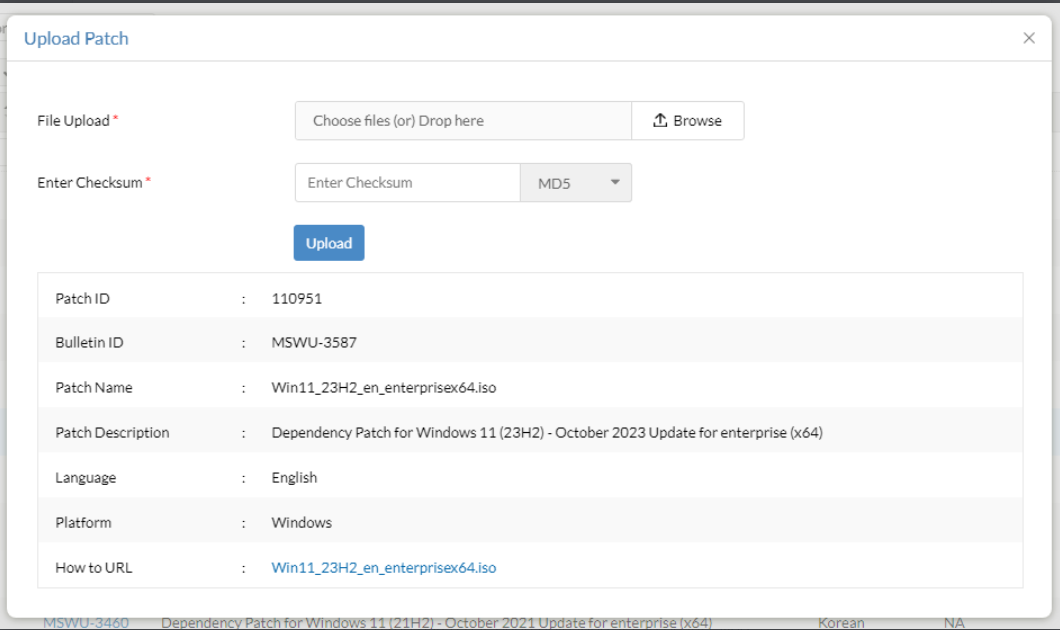
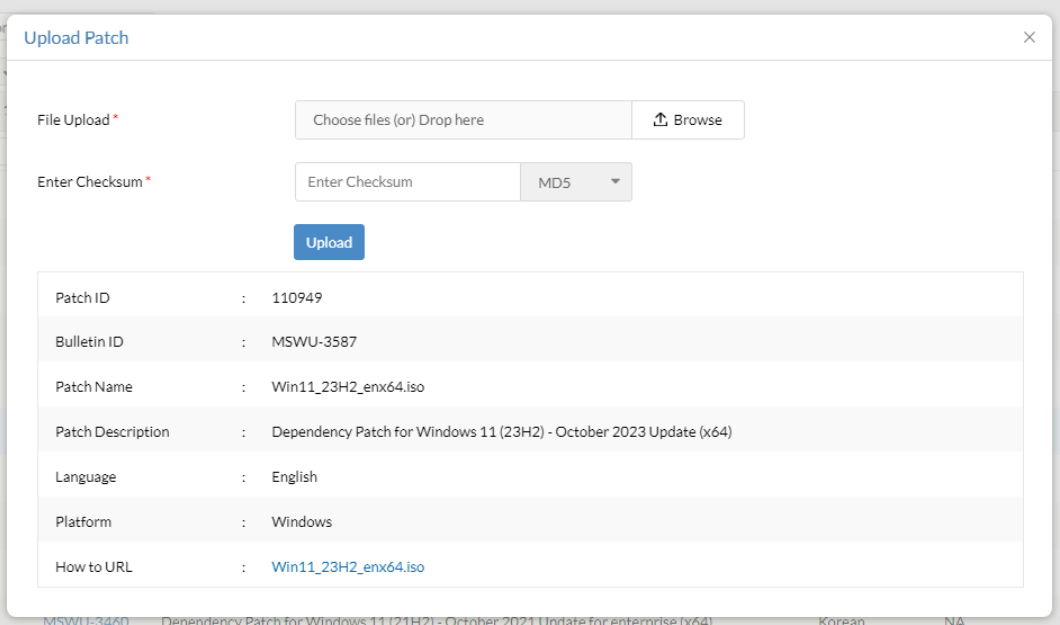
The screenshots below show the upload dialog for each edition.
Enterprise Edition (Dependency Patch ID 110951)
Professional and Other Editions (Dependency Patch ID 110949)
Builds Below 10.1.2282.6 (Patch Manager Plus, Endpoint Central, and Vulnerability Manager Plus)
For earlier build versions, copy the ISO file manually into the patch store directory.
- Download the Windows 11 23H2 ISO file from the Microsoft 365 Admin Center.
- Locate the patch store directory:
- In Patch Manager Plus: navigate to Patch Management → Downloaded Patches → Settings → Patch Repository Location.
- In Patch Manager Plus: navigate to Patches → Downloaded Patches → Settings → Patch Repository Location.
- In Patch Manager Plus: navigate to Patches → Downloaded Patches → Settings → Patch Repository Location.
- Copy the downloaded ISO file into the patch store directory and rename it according to the conventions below.
English ISO file names (64-Bit):
- Enterprise edition:
110951-Win11_23H2_en_enterprisex64.iso - All other editions:
110949-Win11_23H2_enx64.iso
For deployments in multiple languages, download the ISO for each required language and place all files in the patch store. See the language-specific ISO filename table below for the correct filename for each language.
Deploy the Windows 11 23H2 Feature Pack
Once the dependency ISO file has been uploaded, deploy the main patch from the console using either a manual configuration or an Automated Patch Deployment task.
Manual Deployment — Upgrading from Windows 11 Version 21H2
- In the server web console, navigate to the Missing Patches view.
- Select the applicable Windows 11 23H2 feature pack patch from the table above.
- Click Install Patch to deploy.
Manual Deployment — Upgrading from Windows 10
- In the server web console, navigate to the Supported Patches view.
- Select the applicable Windows 11 23H2 feature pack patch from the table above.
- Click Install Patch to deploy.
Automated Patch Deployment (APD)
- When creating an APD task, select the Feature Pack checkbox while defining the patch task criteria.
- Once the dependency ISO is in the patch store, the feature pack will deploy automatically to target computers during the next scheduled deployment window. A separate on-demand configuration can also be created for a specific patch if required.
Enablement Package (Windows 11 22H2 and 23H2)
Devices already running Windows 11 version 22H2 only need the Enablement Package to upgrade to version 23H2. No ISO download or manual upload is required for this upgrade path.
- Navigate to Missing Patches and filter by Patch Type = Feature Packs.
- Select patch 110035 and click Install Patch.
Language-Specific ISO File Names
Rename the downloaded ISO file to match your language and edition before placing it in the patch store. Use the table below to find the correct filename.
Frequently Asked Questions
To deploy the Windows 11 23H2 feature update via Patch Manager Plus, navigate to Admin → Settings → Patch Database Settings, click the Windows tab, and enable the Feature Pack option. Then follow the steps in the Deploy the Feature Pack section above.
To install the Windows 11 23H2 feature update, the device must be running Windows 10 version 2004 or a later version. For a complete list of system requirements, refer to the Windows 11 specifications page.
Related
- Deploy Windows 11 Version 22H2 Feature Update
- Deploy Windows 11 Version 21H1 Feature Update
- Deploy Windows 10 Version 21H1 Feature Update
- Deploy Windows 10 Version 20H2 Feature Update
- Deploy Windows 10 Version 1909 Feature Update
- Deploy Windows 10 Version 1903 Feature Update
- Deploy Windows 10 Version 1809 Feature Update
- Deploy Windows 10 Version 1803 Feature Update