Integrating PAM360 with ManageEngine EventLog Analyzer
PAM360 integrates with ManageEngine EventLog Analyzer to enhance visibility into remote session activities through centralized log management and analysis. EventLog Analyzer is a comprehensive log management solution that supports log collection, custom log parsing, and detailed reporting. When integrated with PAM360, it enables organizations to consolidate and visualize log data for remote sessions initiated from the PAM360 interface, providing deeper insights into user activities and improving audit readiness. This integration works by allowing EventLog Analyzer to retrieve session data from PAM360 via its API, using configured server details and authentication credentials. The collected log data is periodically synchronized and presented in an easily digestible format within EventLog Analyzer, allowing for more effective monitoring and forensic analysis.
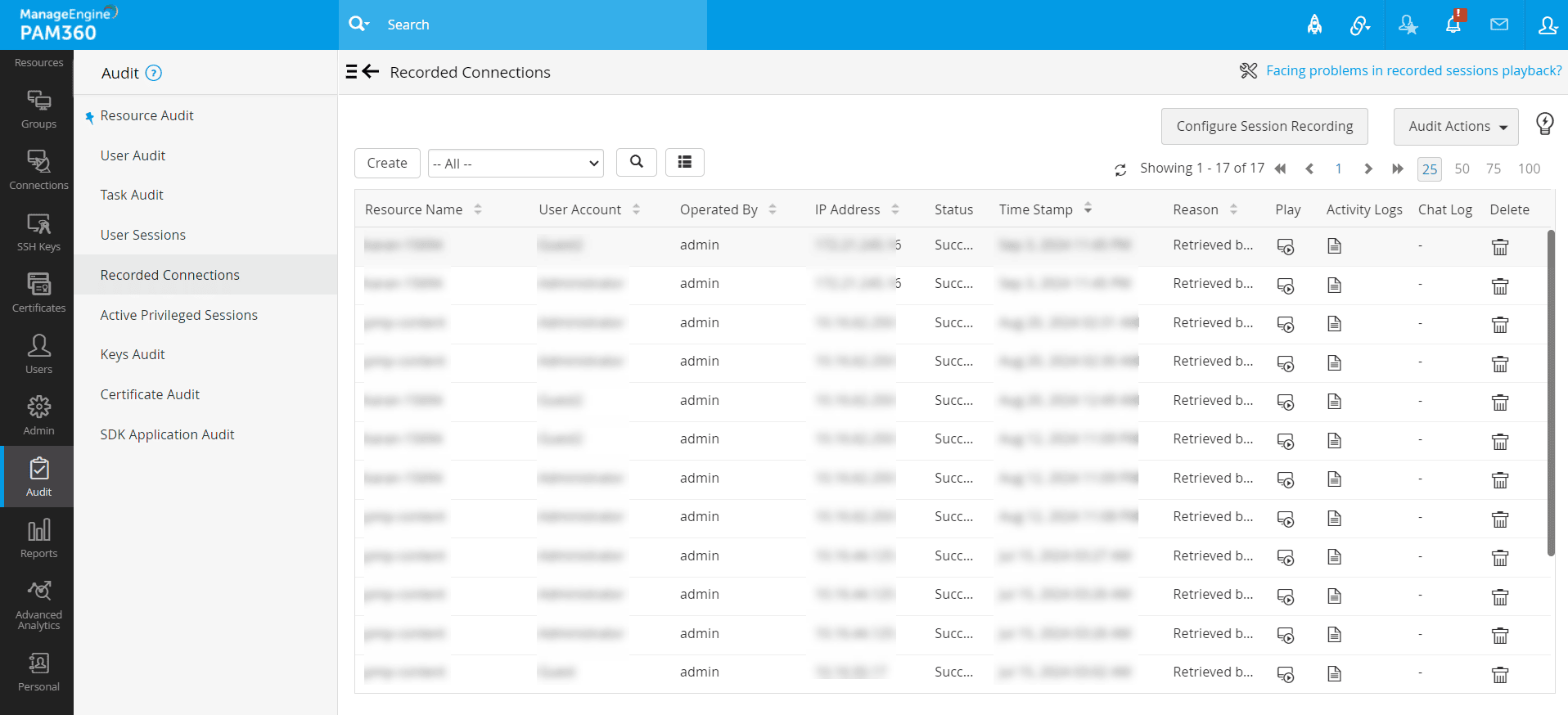
Once the integration is set up, administrators can access detailed logs for remote sessions (both active and closed) directly from the PAM360 interface under Audit >> Recorded Connections. Each session log provides a comprehensive view of events performed during the session, along with the associated machine log details, helping to ensure accountability and transparency in privileged access activities.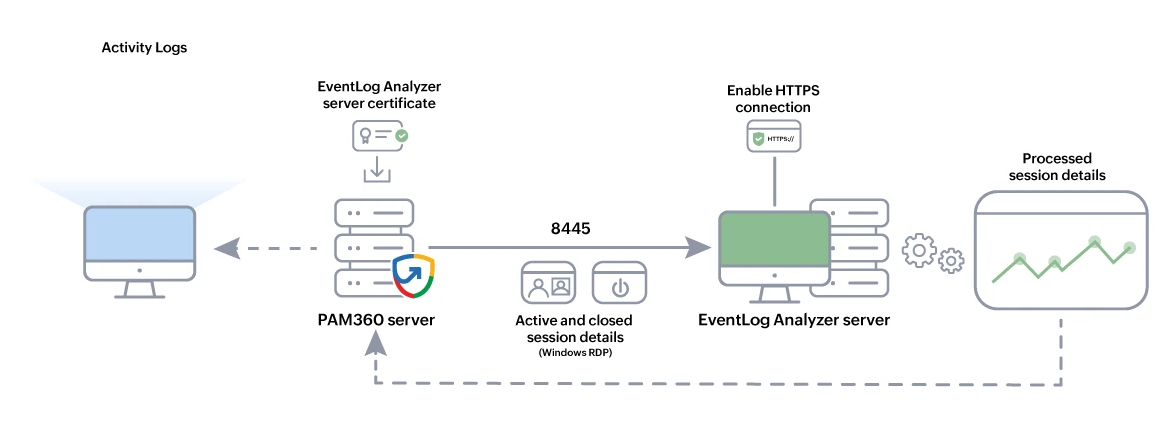
Caution
Currently, log data collection through the PAM360 - EventLog Analyzer integration is supported only for Windows RDP sessions.
This document discusses the process of integrating PAM360 with ManageEngine EventLog Analyzer. At the end of this document, you will have learned the following:
- Prerequisites
- Configuring the Integration in EventLog Analyzer
- Enabling the EventLog Analyzer Integration in PAM360
- Troubleshooting Tips
1. Prerequisites
1.1 Allowing Windows Resources to Accept Remote Sessions from PAM360
Execute the following commands in the Windows device for which a remote session will be initiated from PAM360. These commands have to be executed in every device for which a remote session will be launched from PAM360 for the first time. After the first time, you don't need to execute the commands again for future remote sessions. This can also be executed through a bulk GPO update on all the target end-points. These commands allow the log data to be sent from the particular Windows machine to EventLog Analyzer.
Open a command prompt from an Administrator account and execute the following:
auditpol /set /category:"Account Logon" /success:enable /failure:enable
gpupdate /force
1.2 Importing the EventLog Analyzer SSL Certificate
PAM360 lets you enable HTTPS to secure the remote connections. To enable HTTPS during the integration, it is mandatory to import a valid SSL certificate in the server. Follow the steps below to import a certificate in the server:
- Stop the PAM360 service.
- Open the command prompt with the administrative privilege, navigate to the <PAM360-Installation-Directory>/bin folder, and execute the following command:
importCert.bat <Absolute-Path-of-the-EventLog-Analyzer-Certificate>
- Restart the PAM360 service.
2. Configuring the Integration in EventLog Analyzer
Before you enable the EventLog Analyzer integration in PAM360, follow the below configuration steps in the EventLog Analyzer console to optimize EventLog Analyzer to receive the log data from PAM360.
2.1 Adding PAM360 and Resource as Devices in EventLog Analyzer
- Navigate to Log360 >> EventLog Analyzer.
- Add the following devices to the EventLog Analyzer console:
- Add the PAM360 server.
- Add all the resources for which a remote session will be launched from PAM360 and for which the corresponding logs to be collected from EventLog Analyzer.
- Please note that the resources or devices can be manually added using the discovery function in EventLog Analyzer. Click here for more information on workgroups in EventLog Analyzer.
2.2 Adding PAM360 as an Application in EventLog Analyzer
- In Log360 >> EventLog Analyzer, navigate to Settings >> Log Source Configuration >> Applications >> ME Applications, and click Add ME Application.
- On the page that appears, choose the Application as Password Manager Pro.
- Now, choose the machine in which PAM360 is running and click Add.
2.3 Enabling Activity Rules for PAM360 Sessions
- In Log360 >> EventLog Analyzer, navigate to Correlation >> Manage Rules >> Activity Rules.
- Click the red icon beside PMP Sessions to enable activity logs for remote sessions taken via PAM360.
Once you have completed the steps as instructed above, you can proceed to the next step and enable the EventLog Analyzer integration in PAM360.
3. Enabling EventLog Analyzer Integration in PAM360
Follow the steps detailed below to enable integration with ManageEngine Event Log Analyzer:
- Log in to your PAM360 account and navigate to Admin >> Integrations >> ManageEngine.
- Click the Enable button under the EventLog Analyzer logo on the ManageEngine Integrations page.
- In the window that appears, enter the following details:
- Host Name - The host name of the machine where the EventLog Analyzer is running.
- Port - The port where EventLog Analyzer is listening. Specify the HTTPS port number if the HTTPS mode is enabled.
- User Name - The username of an administrator account in EventLog Analyzer. Ensure the account has administrator privileges, not an operator or guest account.
- Password - The password of the specified administrator account.
- Enable HTTPS - Select this checkbox to enable connection via HTTPS. If the HTTPS mode is enabled, you must import a valid SSL certificate into the server. Click here for steps to import an SSL certificate.
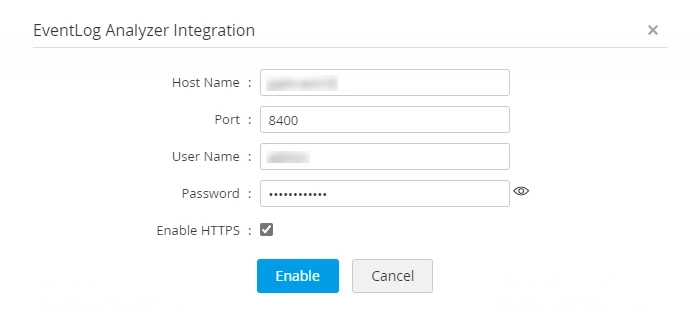
- Click Enable to complete the integration.
- To view the log data for the remote sessions initiated via the PAM360 interface, navigate to Audit >> Recorded Connections and click the Activity Logs icon beside the desired recorded session.
Additional Details
- Once EventLog Analyzer integration is enabled under Admin >> Integrations >> ManageEngine, the SIEM integration for EventLog Analyzer will also be enabled automatically under Admin >> Integrations >> SIEM Integration. This is to ensure that all the log details from PAM360 are sent to EventLog Analyzer in the form of syslog messages.
- To ensure that the EventLog Analyzer integration works smoothly, it is recommended that the SIEM integration with EventLog Analyzer is always enabled.
- Click here for more information on SIEM integration.
3.1 How to Set Up Alert Notifications in EventLog Analyzer?
Receive alerts for activities related to PAM360 in the form of email or SMS whenever your PAM360 server encounters unauthorized logins. Start configuring the alerts once the PAM360-EventLog Analyzer integration is complete. Remember, the alerts can be configured from the EventLog Analyzer console only. Create a new alert profile and specify your preferences. Here are the steps in detail:
- Navigate to Log360 >> EventLog Analyzer and switch to the Alerts tab.
- To add a new profile, click the Add icon at the top-right corner and select Configuration >> Alerts.
- Here, enter a name, choose a severity, and select the required device.
- Under the Select Alert option, click the Custom Alerts tab.
- Using the available dropdowns, specify the following criteria:
Source Device not equals pam360-server (choose the name of your PAM360 server)
+
Logon Type equals 10
+
Event ID equals 4624 (this ID signifies an unauthorized login)

The specified criteria will look like: Rule Criteria = (SOURCEHOST:pam360-server) AND (LOGONTYPE:10) AND (EVENTID:4624) - Click Save to save the criteria.
- Under Alert Notification, choose your preferred notification settings. Based on these settings, you will receive an alert through Email or SMS whenever an unauthorized login is detected in your PAM360 server. To invoke a workflow for the alert, click the Workflow tab, choose a predefined workflow from the dropdown and assign it to an admin or an operator. Click Save Profile to save all alert settings.
The alert profile creation is complete. Now, all alerts related to the selected criteria will be listed under the Alerts tab. To know more in detail about creating alert profiles, click here. To know more about creating new workflows in EventLog Analyzer, click here.
4. Troubleshooting Tips
By following these steps, you can identify and resolve common issues relevant to the integration:
- Check Time Zone Alignment: If activity logs are not being captured, verify the time settings on both the PAM360 server and the remote machines. The remote machine’s system time must be synchronized with or behind the PAM360 server’s time. Any mismatch can cause log capture failures due to time discrepancies.
- Review Logs for Data Correlation Issues: If all integrations are correctly configured but PAM360 is not correlating session data, examine the Syslog outputs. Ensure that Session Started and Session Ended events are being captured in the logs sent from PAM360. The absence of these events can prevent successful data correlation.
- Validate Remote Server Name in ELA: If PAM360 session data is not appearing in EventLog Analyzer (ELA), check the remote server name displayed in ELA. It must exactly match the DNS name of the corresponding resource in PAM360. Any mismatch in naming can cause ELA to fail in associating sessions with the correct resource.