Managing Resources in PAM360
After adding resources to PAM360, whether manually, through bulk import, or via Discovery, it is crucial to manage them efficiently to ensure seamless day-to-day privileged access operations. Once resources are onboarded, administrators must be able to edit their attributes, duplicate similar resources to save configuration effort, delete unused items, export resources for offline access, and transfer ownership when responsibilities change. This help document provides a detailed explanation of the various resource management operations available in PAM360.
- Editing Resources
- Copying Resources
- Deleting Resources
- Exporting Resources
- Transferring Resource Ownership
1. Editing Resources
Editing existing resources allows you to modify individual or multiple resource attributes without the need to re-import them. This is particularly helpful when bulk-discovered resources contain incorrect or outdated information. Follow these steps to edit a resource:
- Navigate to the Resources tab, click the Resource Actions icon beside the required resource and select Edit Resource.
- In the Edit Resource window, update the necessary resource attributes and click Save.
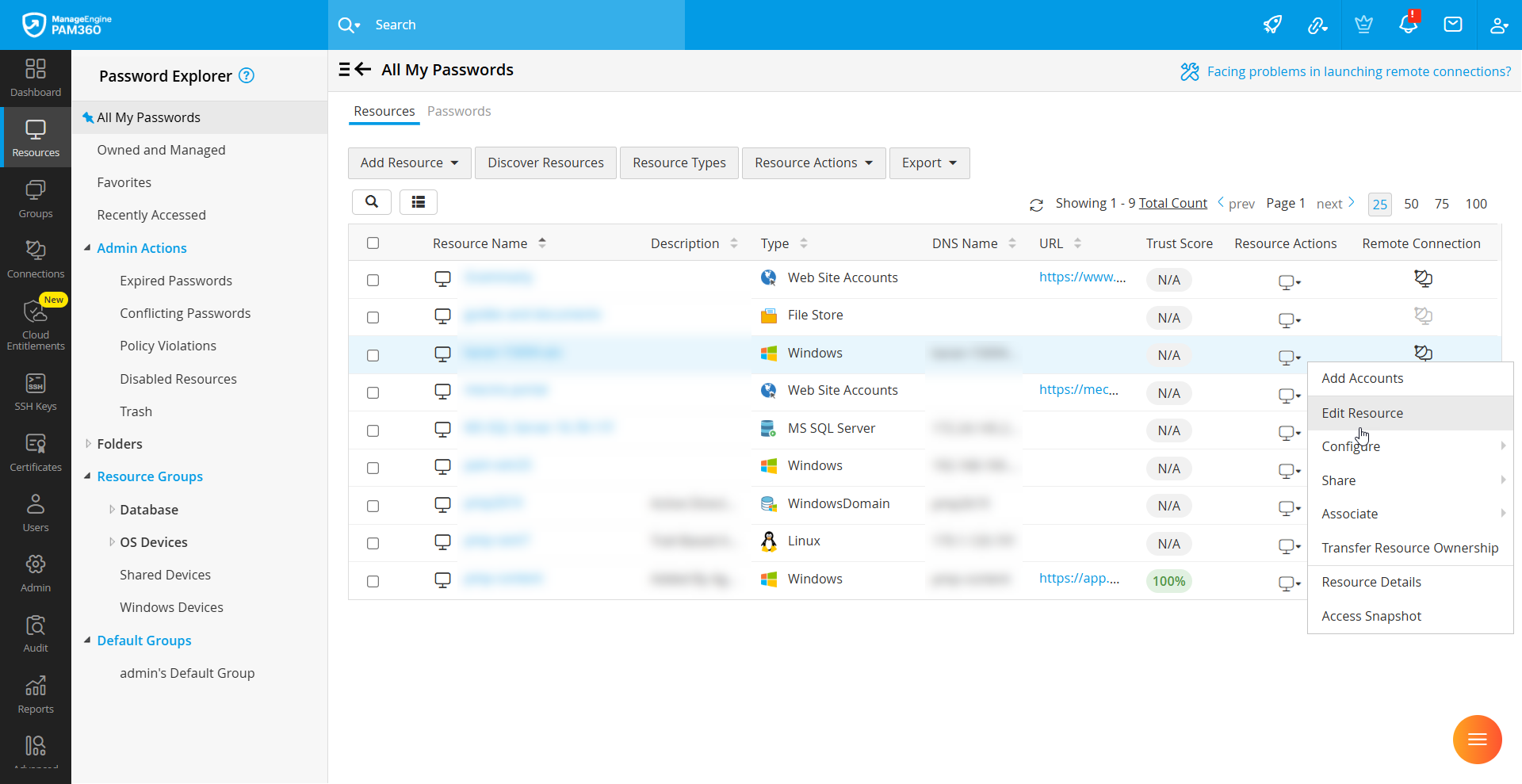
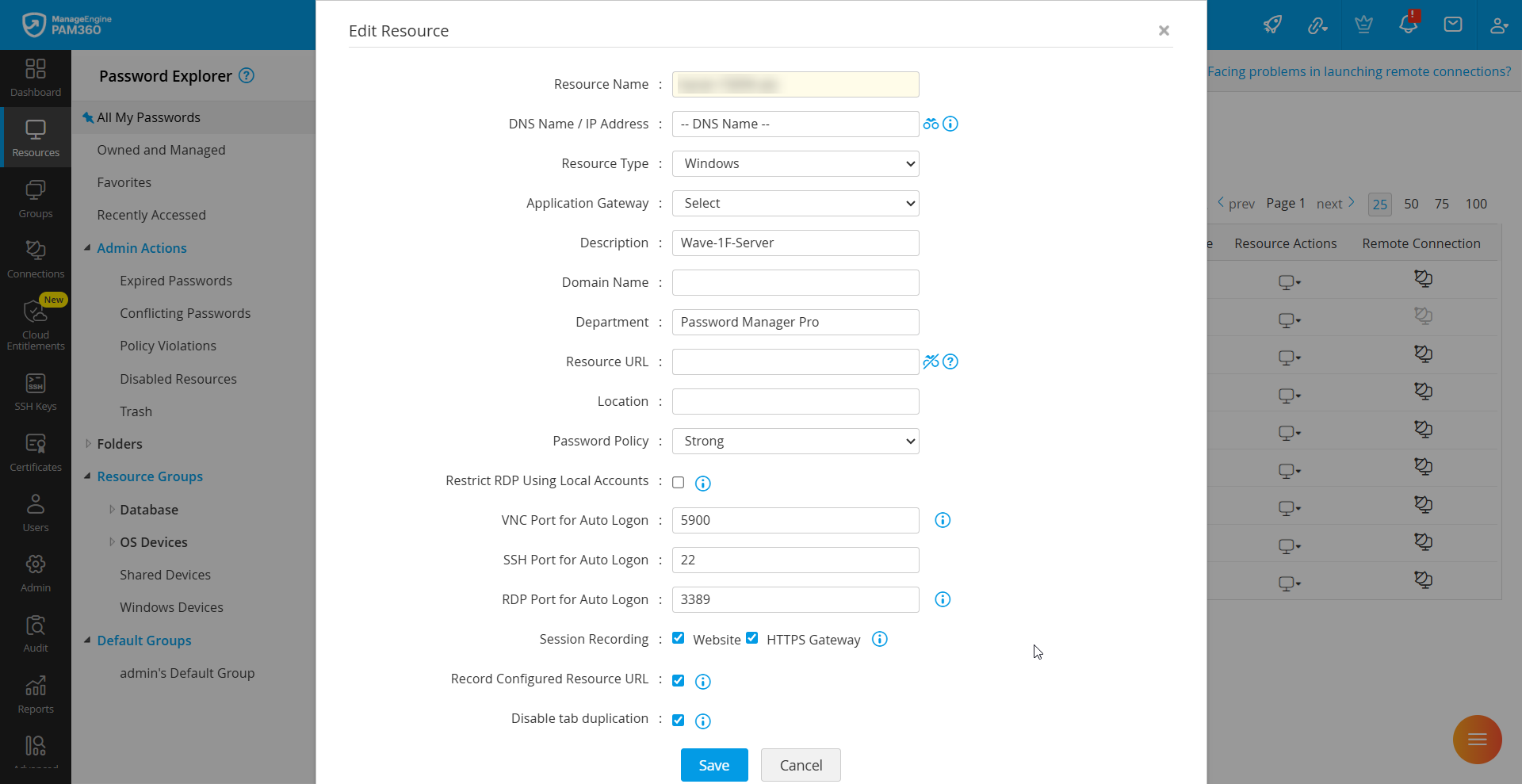
To edit the resources in bulk, follow these steps:
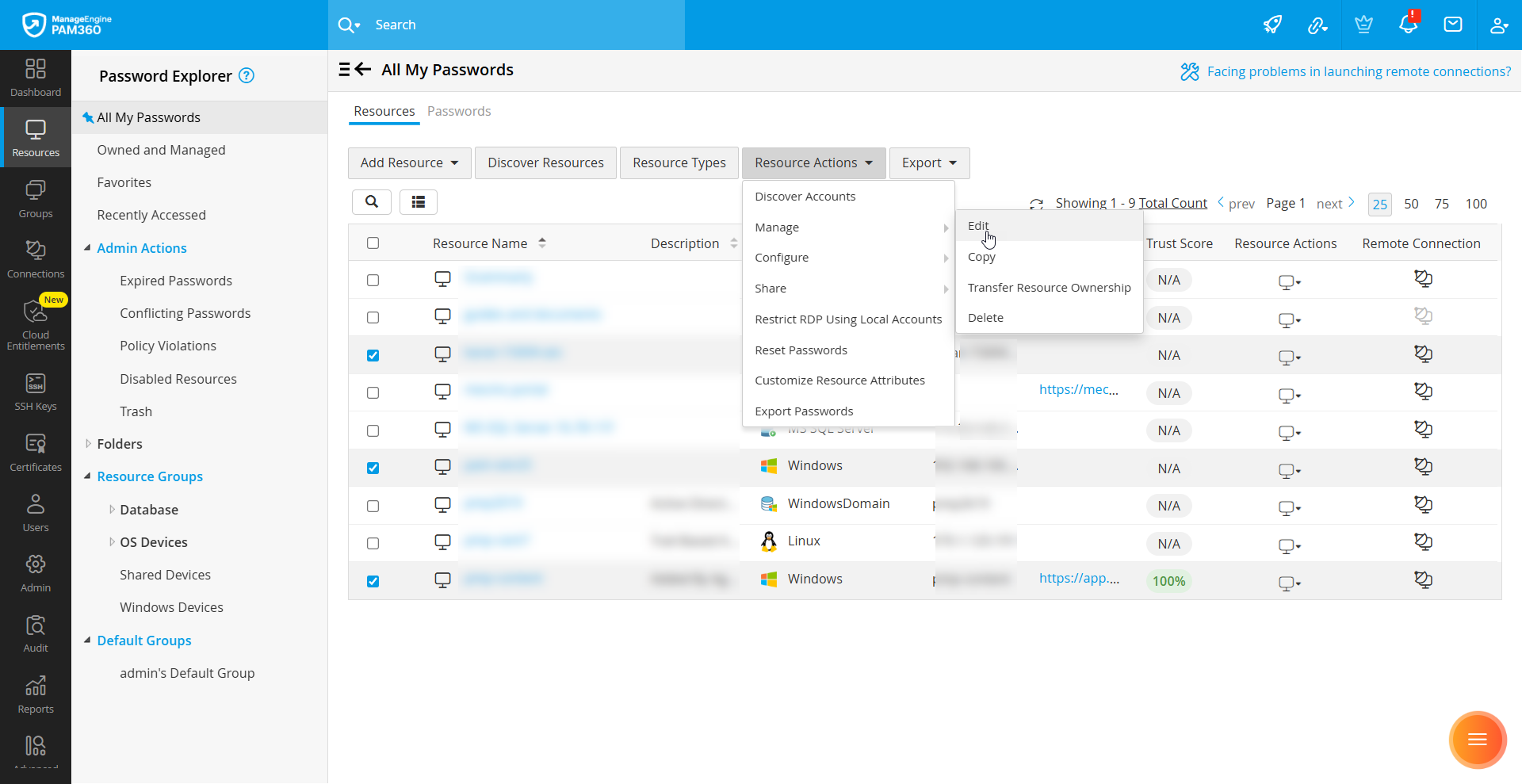
- From the Resources tab, select the resources to be edited and click Resource Actions >> Manage >> Edit.
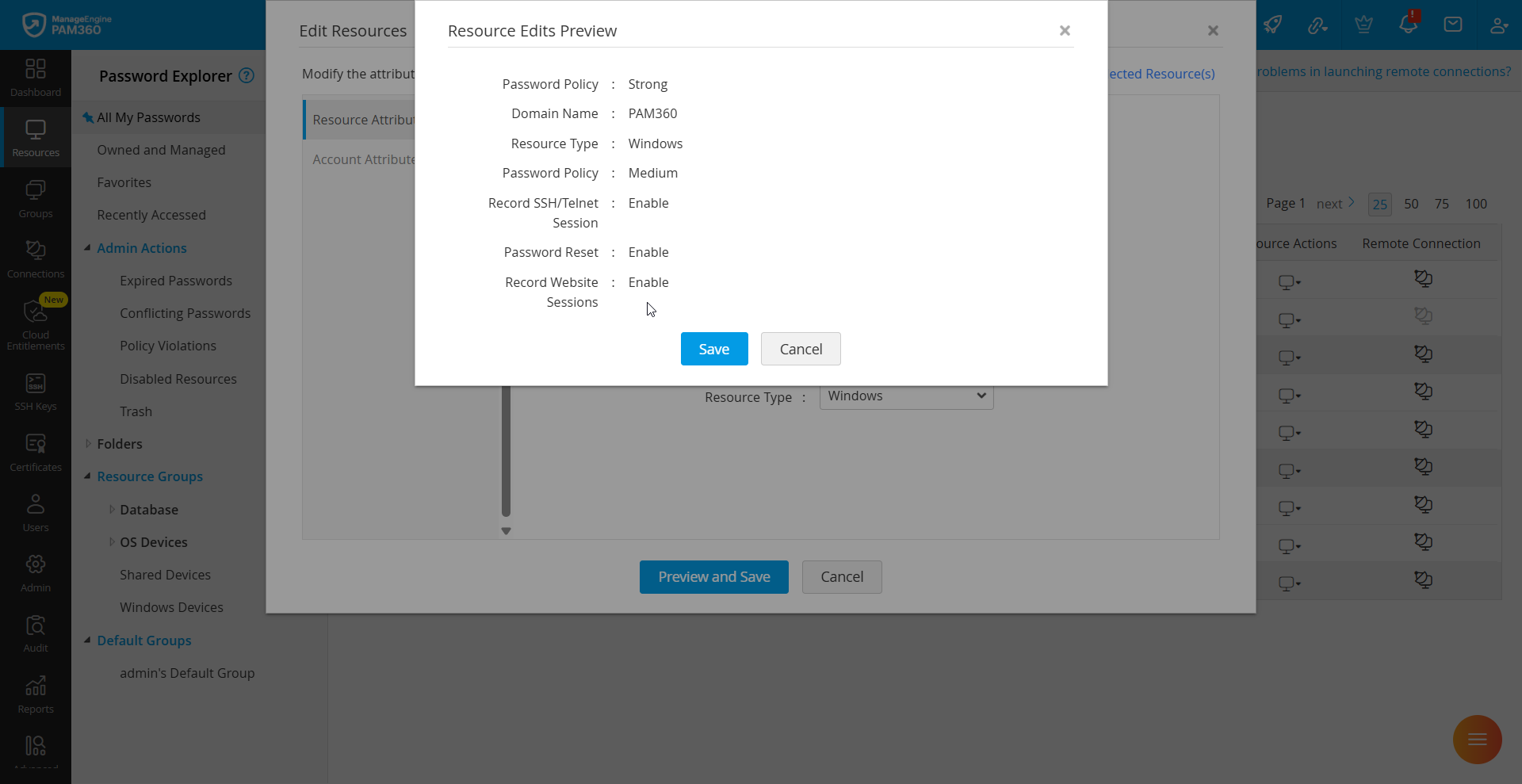
- In the Edit Resources window, update the Resource Attributes and/or Account Attributes.
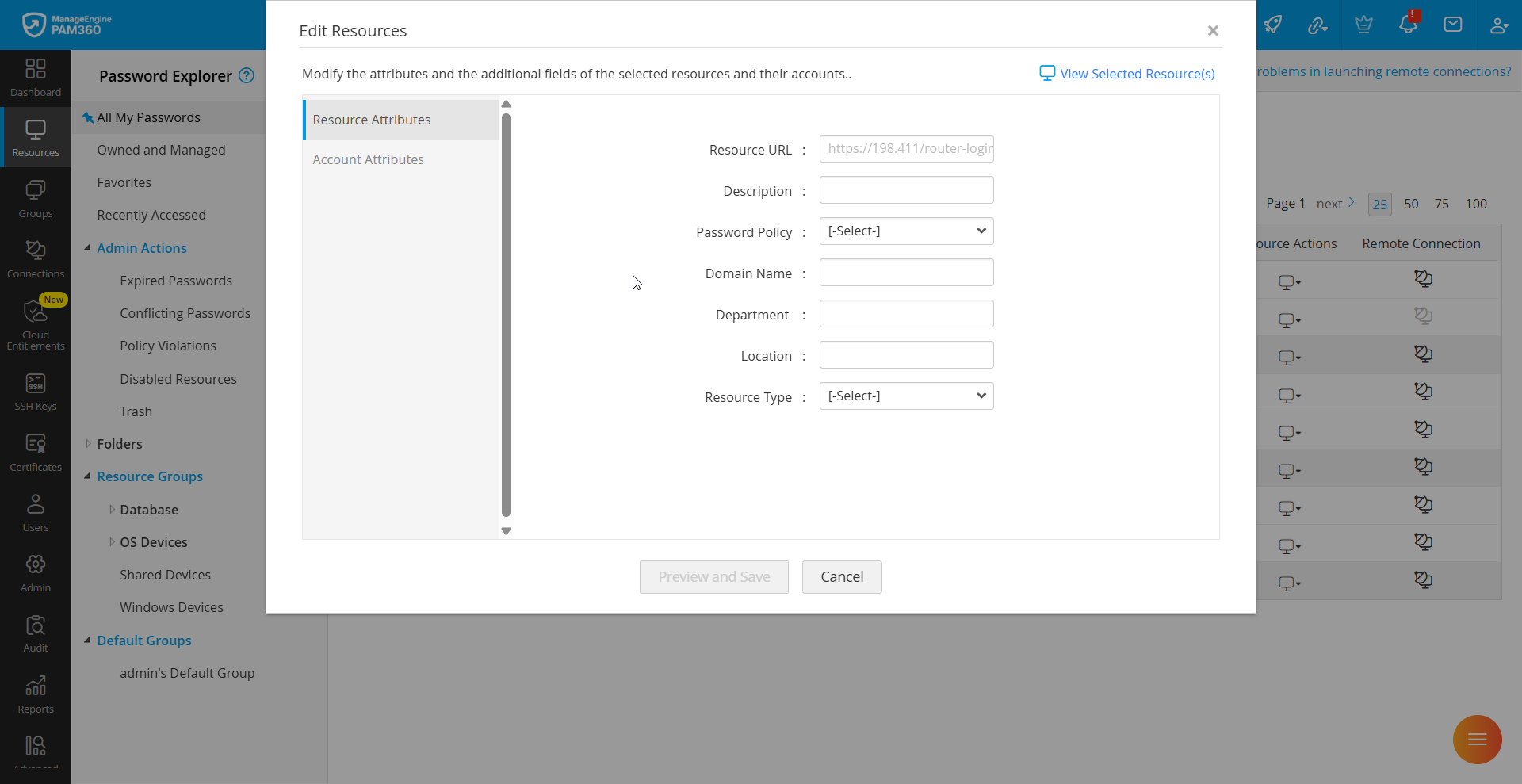
- Click Preview and Save. Review the changes in the Resource Edits Preview window and click Save.
| Editable Resource Attributes | Editable Accounts Attributes |
|---|---|
|
|
Caution
- If you have configured any additional fields, they will appear under the default attributes on both Resource Attributes and Account Attributes section. Click here to learn how to create additional fields.
- The Record Website Sessions and Record HTTPS Gateway Sessions fields are applicable from build 7400 only.
2. Copying Resources
Organizations commonly have multiple resources with the same or similar attributes and properties. Instead of individually adding identical resources, PAM360 allows you to duplicate an existing one. Follow these steps to copy a resource:
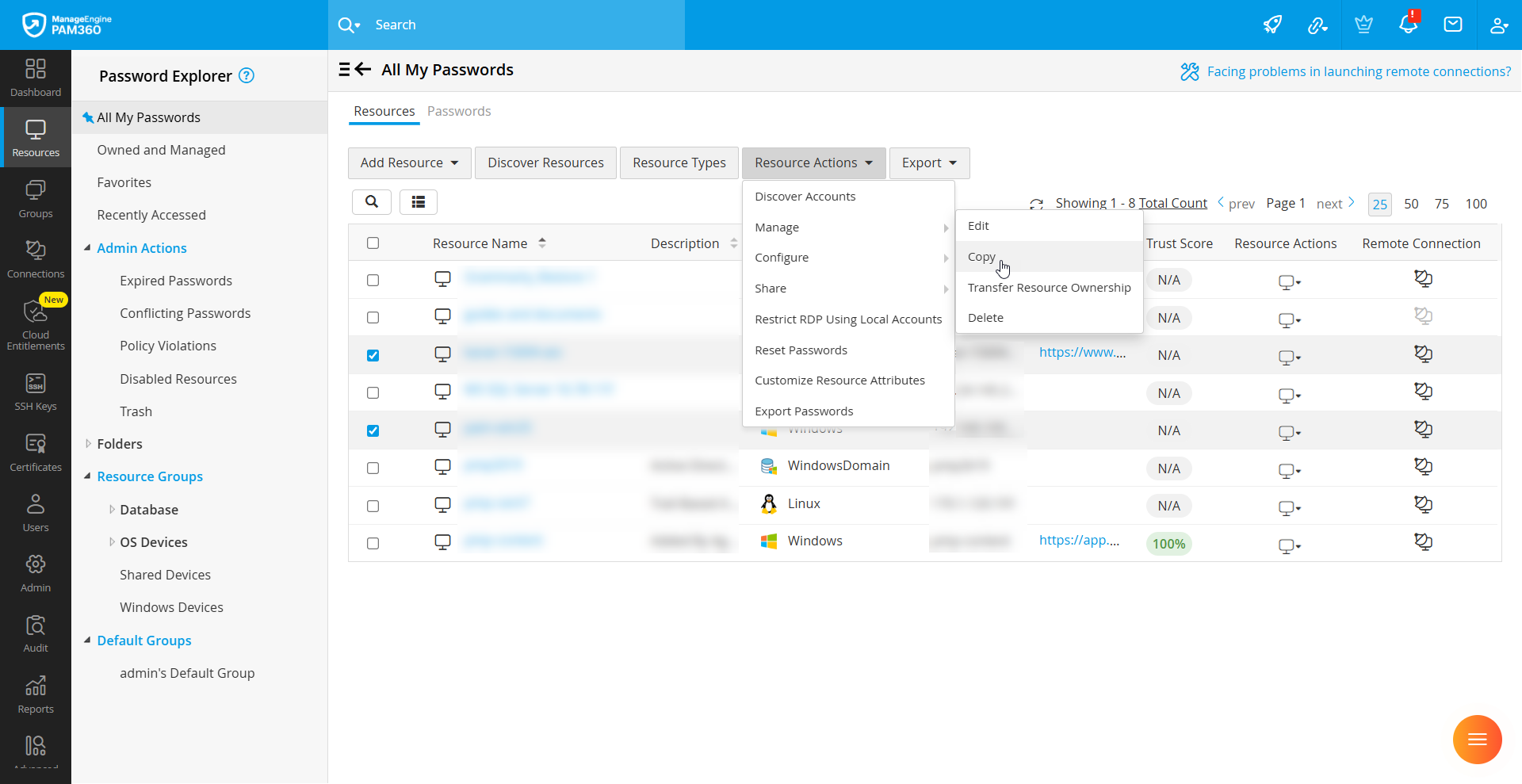
- Go to the Resources tab and select the resources to be copied.
- Click Resource Actions >> Manage >> Copy.
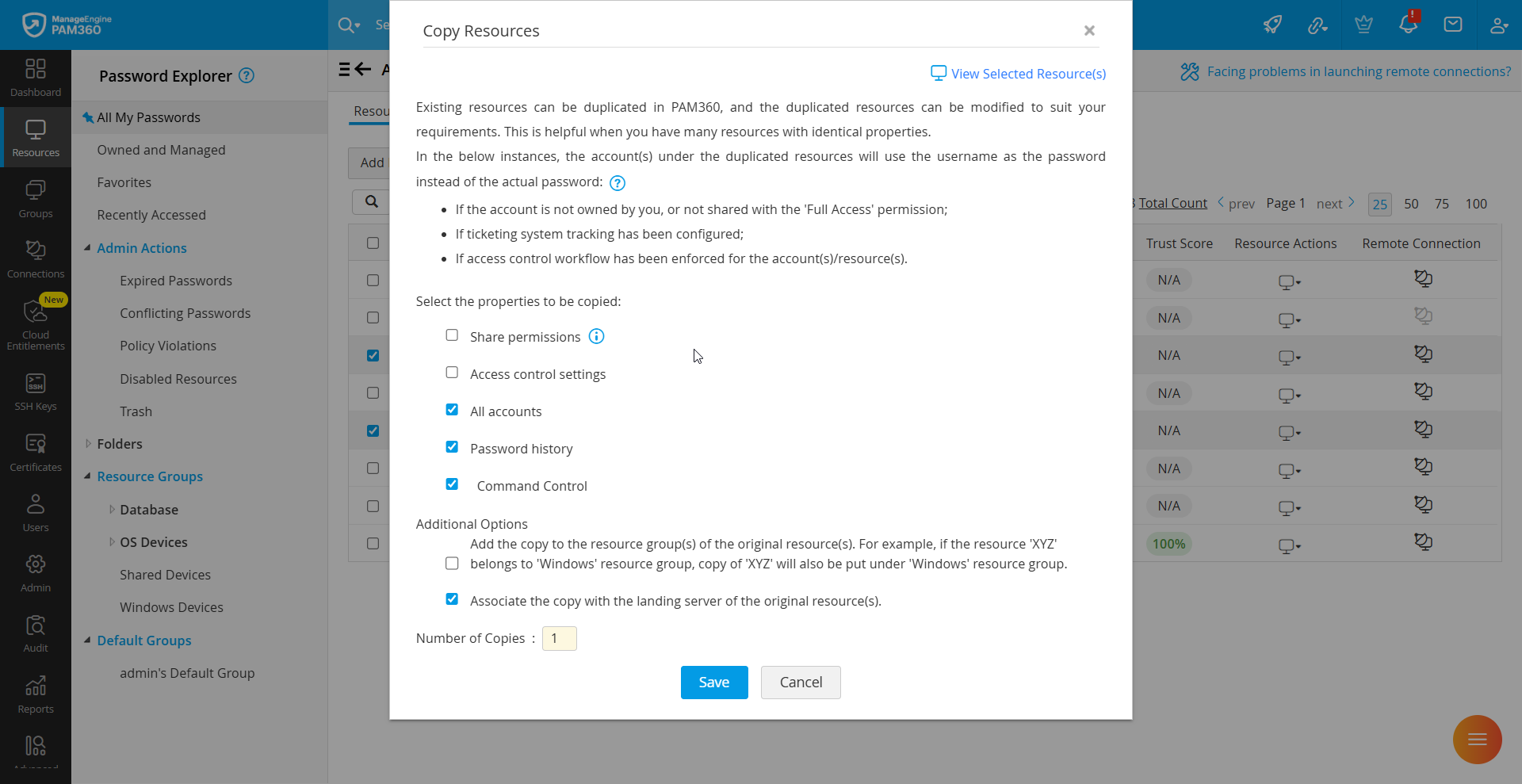
- In the pop-up window, select the properties to be inherited by the copies:
- Sharing permissions
- Access control settings
- All accounts
- Password history
- Select the additional options as required:
- Add the copies to the same resource groups as the original.
- Associate the copies with the landing server of the original. This is applicable only to the resources that can be connected over SSH or Telnet.
- Add the copies to the same resource groups as the original.
- Specify the Number of Copies and click Save.
3. Deleting Resources
Resources that are no longer required can be removed from the PAM360 interface. Deletion can be performed permanently or by moving the resource to trash, which enables restoration at a later point.
- Navigate to the Resources tab and select the resource you want to remove.
- Click ResourceActions >> Manage >> Delete.
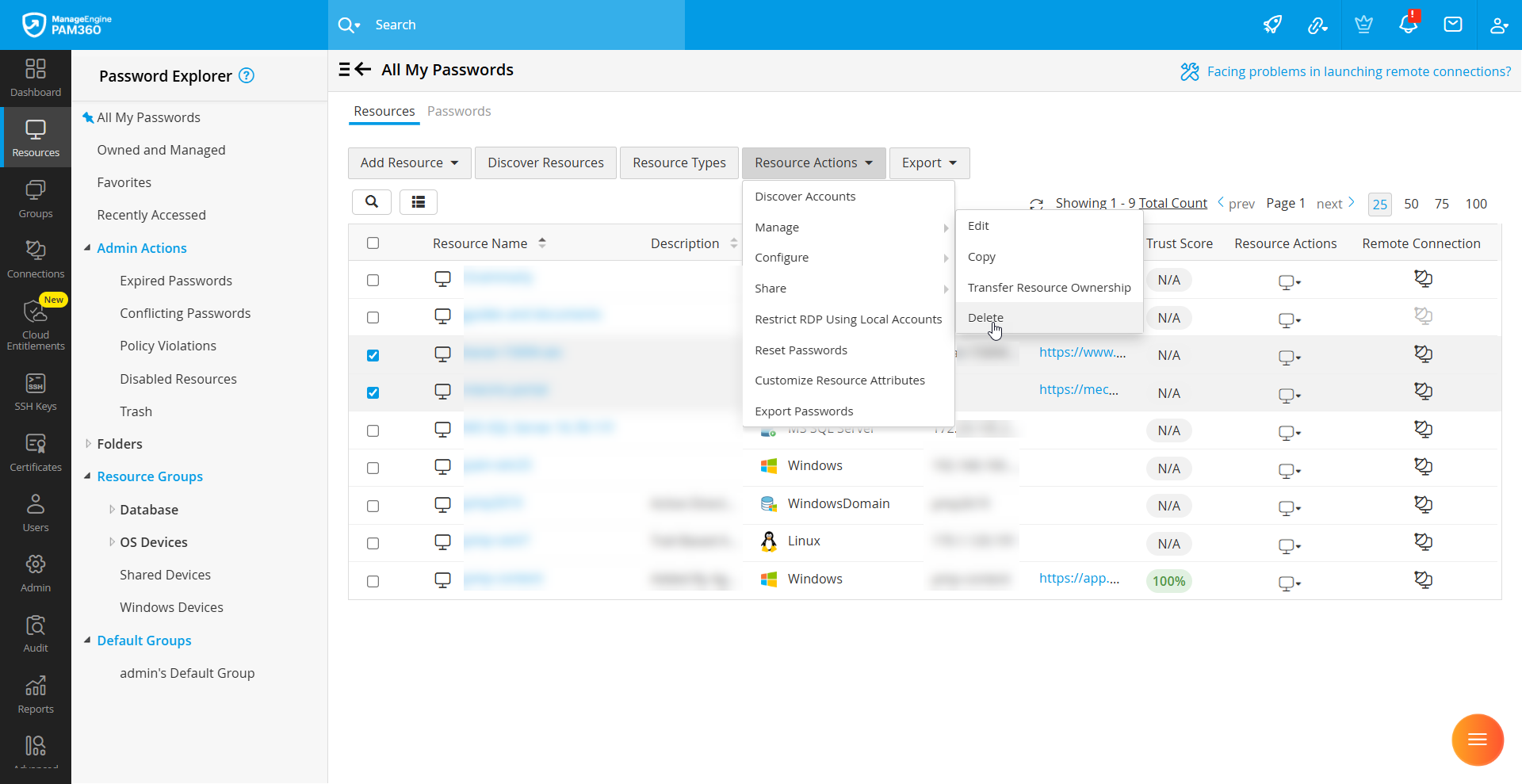
- In the confirmation window that opens, select the delete option as required:
- Delete - Permanently deletes the selected resources.
- Move to Trash - Moves the selected resources to trash.

Caution
- Only the resource owner can view and restore resources moved to trash.
- Resources in trash remain until the PAM360 encryption keys are rotated. After key rotation, all resources in trash and their associated privileged accounts are permanently removed.
- Resources imported from AD, Microsoft Entra ID, and LDAP directories cannot be moved to Trash.
To restore a resource from Trash, go to Resources >> Trash, choose the resource you want to recover, and click Restore.
4. Exporting Resource Credentials
PAM360 offers secure export options to maintain an offline copy of resource credentials. Administrators can:
- Export resource attributes in plain text to a spreadsheet containing resource name, account name, and passwords.
- Export passwords to an encrypted HTML file for enhanced security.
- Integrate with cloud-storage services such as Dropbox, Box, and Amazon S3 to automatically synchronize encrypted HTML files to preferred storage.
For the detailed procedure, refer to the help documentation on exporting resource credentials from PAM360.
5. Transferring Resource Ownership
When an administrator responsible for managing specific resources leaves the organization, PAM360 allows seamless transfer of ownership to another administrator with a single click. For the detailed procedure, refer to the help documentation on transferring resource ownership in PAM360.