Self-Service Privilege Elevation for Linux
Self-Service Privilege Elevation in Linux environments allows users to execute privileged commands with an elevated account privilege without sharing the passwords of highly privileged user accounts. Refer to this document to learn more about the Self-Service Privilege Elevation in PAM360. Refer to the following links to know more about configuring the Self-Service Privilege Elevation in Linux-based environments:
- Managing Commands and Command Groups
- Configuring Self-Service Privilege Elevation
- Executing Privileged Commands Using Self-Service Privilege Elevation in Linux
- Auditing and Reporting Self-Service Privilege Elevation Activities
- Self-Service Privilege Elevation Precedence in Real-Time
Caution
Before configuring Self-Service Plus Elevation, ensure that the PAM360 Agent with the Self-Service Privilege Elevation module is installed on the target machine where user privilege elevation is intended. This is a mandatory prerequisite for enabling elevation capabilities on the respective system.
1. Managing Commands and Command Groups
To begin with the configuration of Self-Service Privilege Elevation in PAM360, you must first define and manage the required command groups. Log in to the PAM360 interface and create command groups containing the specific privileged commands that users are permitted to execute in the remote sessions with the elevated rights. These command groups will later be mapped to the target accounts or resources for which elevation is to be enabled.Refer to this section for detailed steps on creating individual commands and organizing them into command groups in PAM360.
2. Configuring Self-Service Privilege Elevation
After ensuring that the PAM360 agent with the Self-Service Privilege Elevation module is installed on the desired target machines, and the command groups are configured, you can proceed to enable Self-Service Privilege Elevation for specific accounts or entire resources. This allows users to perform privileged operations without requiring direct access to privileged credentials. Follow the instructions below to configure Self-Service Privilege Elevation for either individual accounts or complete resources.
2.1 Self-Service Privilege Elevation for Accounts
- Navigate to Resources >> All My Passwords >> Resources and select the desired resource to view all associated accounts. Alternatively, go to Resources >> All My Passwords >> Passwords.
- Identify the required account, click the Account Actions dropdown beside the account and select Configure Self-Service Privilege Elevation.

- In the configuration window that opens:
- Enter the privileged account details in the Run As field.
Additional Detail
This account will be used to execute the privileged commands on the Linux-based target machines where the PAM360 agent is installed.
- Choose the appropriate command groups that contain the allowed privileged commands to be executed.
Additional Detail
Click the Available Command Groups link to view and verify the commands associated with each group.
- Click Configure to complete the setup.
- If needed, click Clear to revoke the Self-Service Privilege Elevation for the selected account.
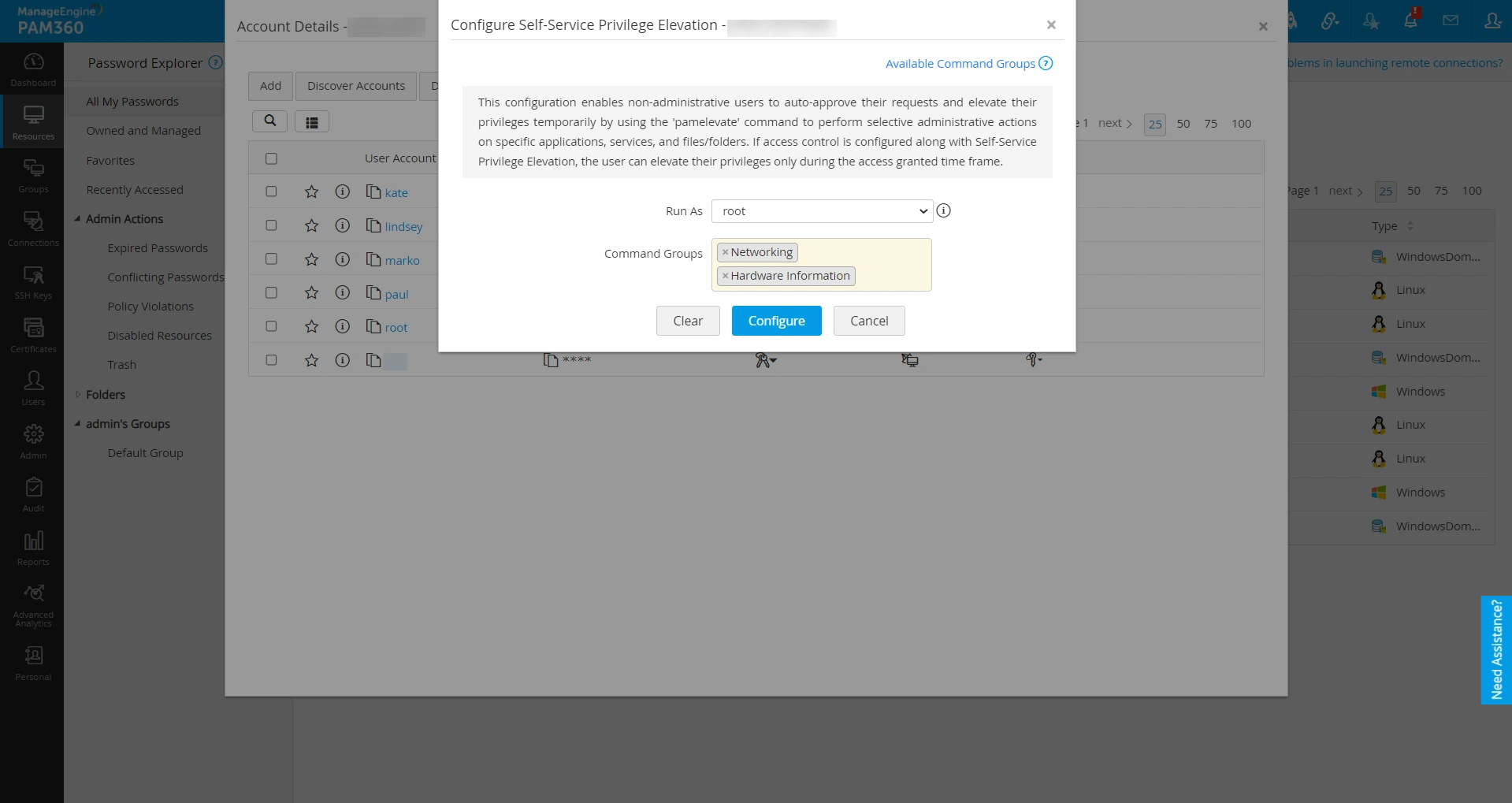
- Enter the privileged account details in the Run As field.
2.2 Self-Service Privilege Elevation for Resource
- Navigate to Resources >> All My Passwords >> Resources.
- Locate the desired resource, click the Resource Actions dropdown, and select Configure Self-Service Privilege Elevation.
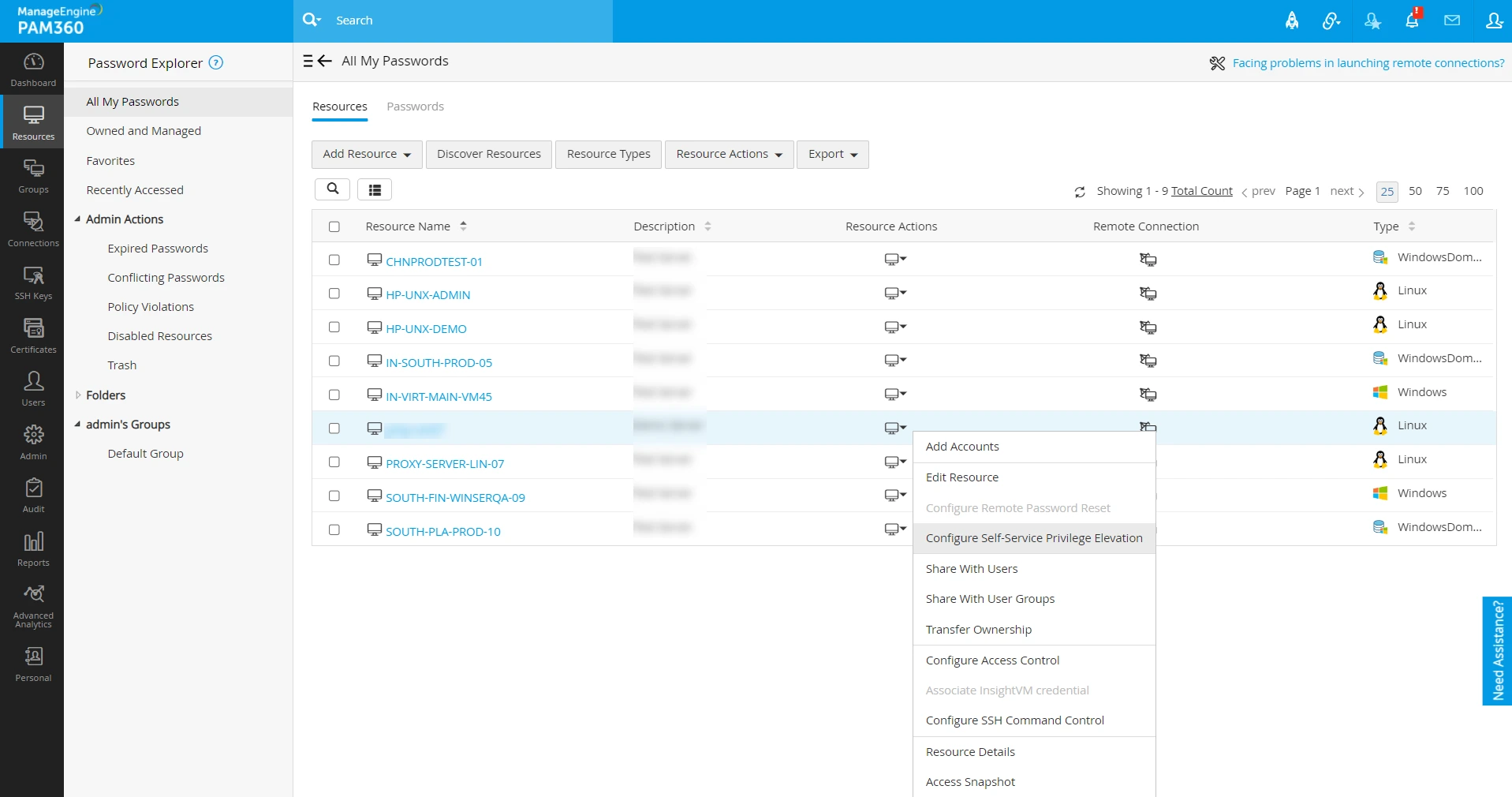
- In the configuration window that opens:
- Specify the privileged account in the Run As field.
Additional Detail
This account will be used by the PAM360 agent on the respective Linux systems to execute privileged commands.
- Select the relevant command groups with the predefined privileged commands.
Additional Detail
Click the Available Command Groups link to view the list of commands configured within each group.
- Click Configure to apply the settings.
- Click Clear to revoke elevation settings for the entire resource if required.
- Specify the privileged account in the Run As field.
3. Executing Privileged Commands Using Self-Service Privilege Elevation in Linux
Once Self-Service Privilege Elevation is successfully configured, users can perform privileged operations during remote sessions without knowing or accessing the actual privileged credentials. The execution process varies slightly depending on whether the account is configured with SSH Command Control or not.
In some cases, privilege elevation may not be immediately available if the user account was added after the PAM360 agent installation. To address this, execute the following command before running any elevated command:
export PATH="$PATH://PAM360Elevation/"
3.1 Privileged Command Execution via Accounts with SSH Command Control
- Launch a remote session for an account configured with both SSH Command Control and Self-Service Privilege Elevation.
- Once connected, a list of predefined allowed command lists associated with the logged-in SSH account will be displayed.
- Hover over the desired privileged command under the Elevate & Execute list and click the Execute icon to run it in the SSH console.
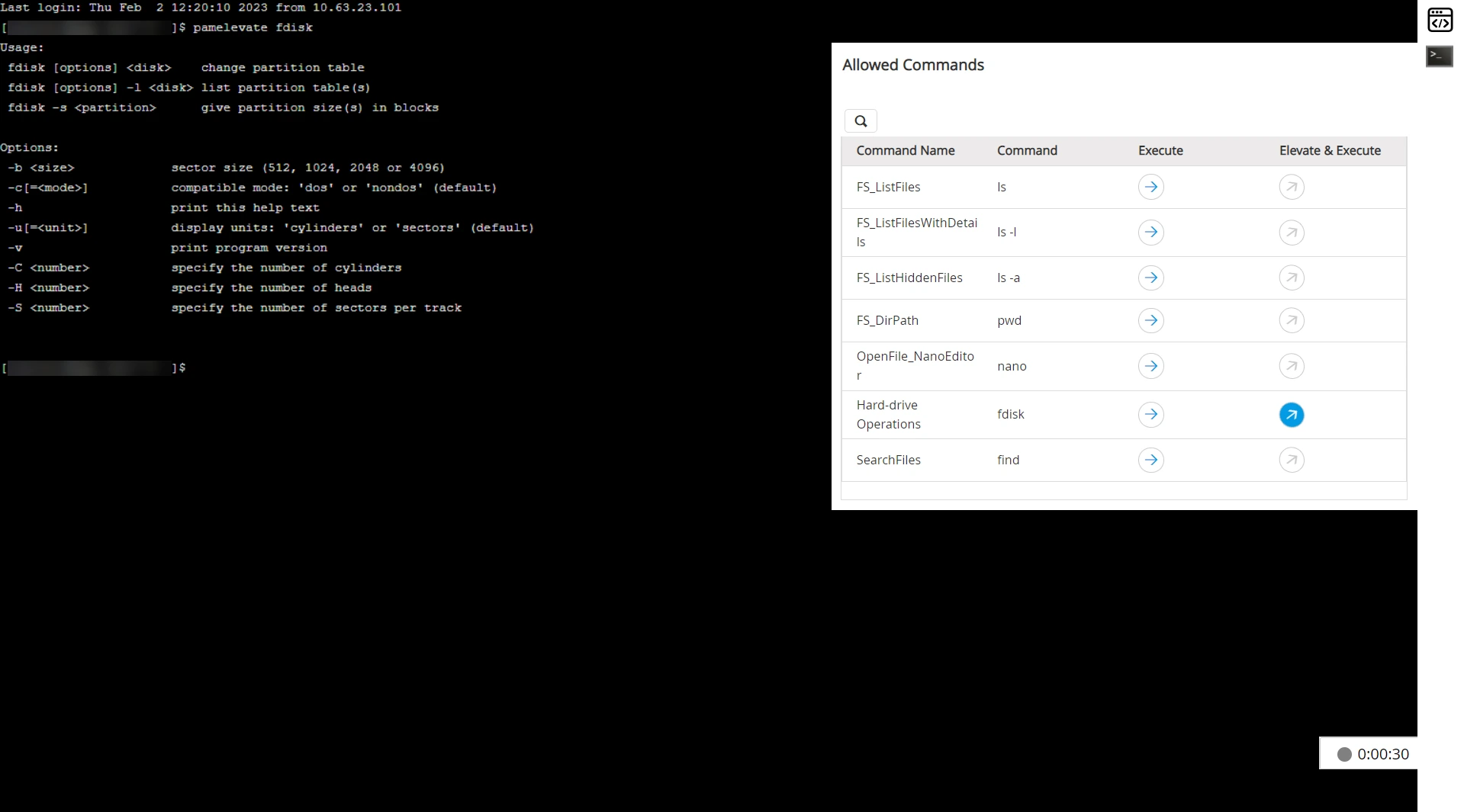
- Only commands configured for Self-Service Privilege Elevation will show an active execute icon.
- This feature is not supported through external SSH clients when SSH Command Control is enabled.
Caution
3.2 Privileged Command Execution via Accounts without SSH Command Control
- Initiate a remote session to the desired account using either PAM360 or any external SSH client such as Remote Connect, PuTTY, etc.
- Prefix the command with pamelevate to execute it with elevated privileges. For example, pamelevate fdisk. The command will execute successfully only if Self-Service Privilege Elevation is configured for the account and the command is mapped to it through the appropriate command groups.
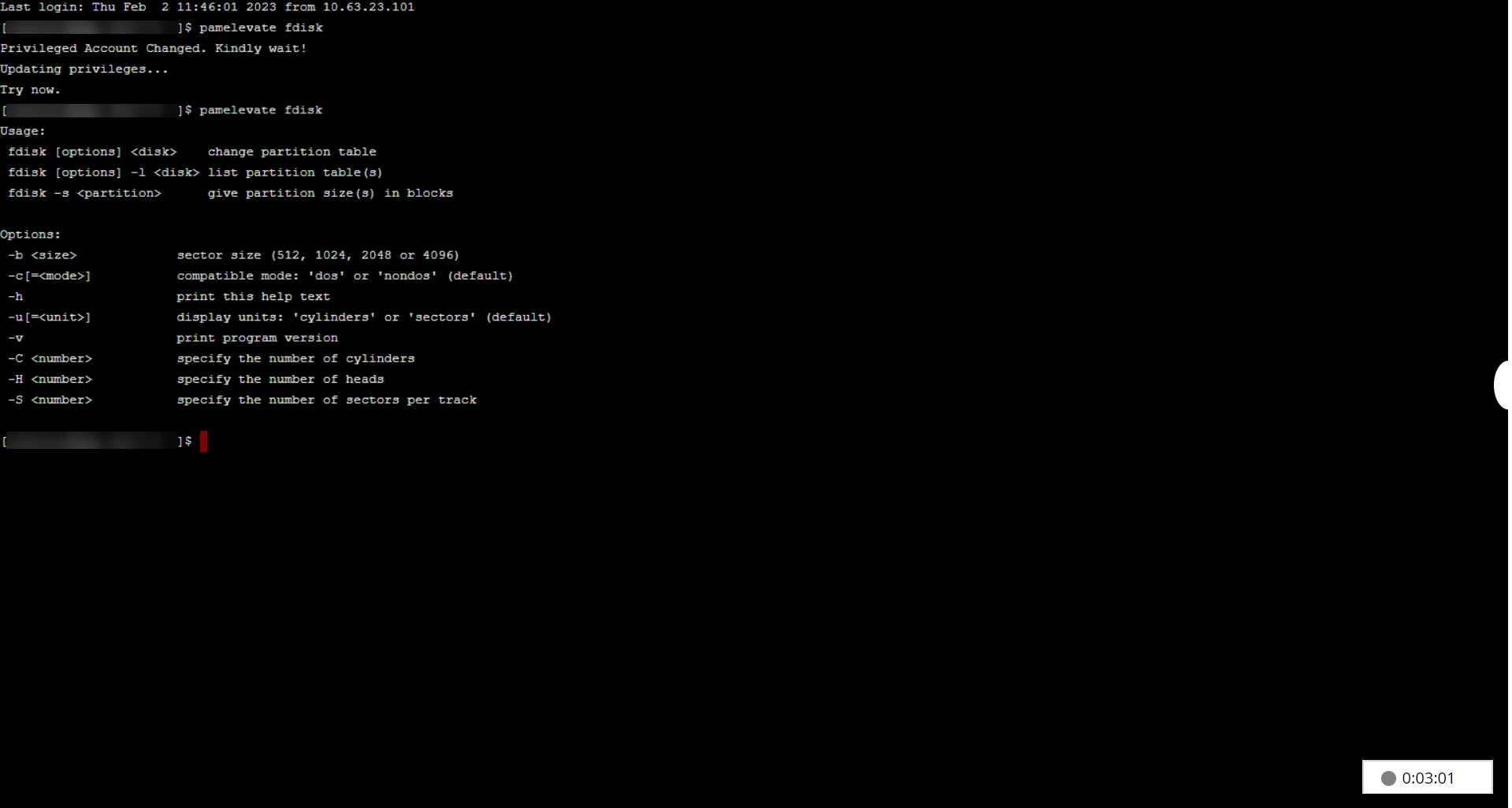
Caution
- The commands must belong to the pre-configured command groups for a successful execution.
- The Run As user must have the required privileges to successfully execute the command.
- If either of these conditions is not met, the command execution will be denied.
4. Auditing and Reporting Self-Service Privilege Elevation Activities
PAM360 maintains comprehensive audit trails and reports for all activities related to Self-Service Privilege Elevation. These logs are vital for maintaining transparency and compliance.
Navigate to Audit >> Resource Audit. This section provides detailed logs for:
- Agent installation and module modifications
- Command and command group configuration changes
- Self-Service Privilege Elevation configuration actions (additions/removals)
- Unauthorized command execution attempts
Navigate to Reports >> Query Reports. From here, generate a customized reports to track:
- Command group associations across accounts and resources,
- Unauthorized attempts to execute commands using Self-Service Privilege Elevation (`pamelevate`)
Refer to the documentation section for detailed guidance on report generation and management.
5. Self-Service Privilege Elevation Precedence in Real-Time
PAM360 applies specific precedence rules to determine how Self-Service Privilege Elevation operates during remote sessions, particularly in scenarios where both SSH Command Control and Self-Service Privilege Elevation are configured for user accounts. This section outlines how these configurations interact in real time and how switching between accounts within a session affects privilege elevation.
5.1 Precedence Matrix - SSH Command Control and Self-Service Privilege Elevation
Consider a scenario where the command fdisk is part of a command group and has been configured for Self-Service Privilege Elevation and/or SSH Command Control on a particular account. The following table explains the resulting elevation behavior based on different configurations of SSH Command Control and Self-Service Privilege Elevation.
| Self-Service Privilege Elevation | SSH Command Control | Command Configuration | Elevation Result in PAM360 Session |
|---|---|---|---|
Enabled | Enabled | Command fdisk is not configured for SSH Command Control | No Elevation: The command fdisk will not be listed in the allowed command list for execution. |
Enabled | Enabled | Command fdisk is configured for SSH Command Control and Self-Service Privilege Elevation | Allowed Elevation: The command fdisk will be listed in the allowed command list with the option Elevate & Execute. |
Enabled | Enabled | Command fdisk is not configured for Self-Service Privilege Elevation | No Elevation: The command fdisk will be listed in the allowed command list without the Elevate & Execute option. Existing account privileges can be used to execute the command. |
Enabled | Disabled | Command fdisk is configured for Self-Service Privilege Elevation | Allowed Elevation: The user can run the command by prefixing it with pamelevate in the terminal (e.g., pamelevate fdisk). |
Disabled | Enabled | Command fdisk is configured for SSH Command Control | No Elevation: TThe command fdisk will be listed in the allowed command list without the Elevate & Execute option. Existing account privileges can be used to execute the command. |
5.2 Behavior When Switching User Accounts in an SSH Session
In multi-user systems, it is common to switch between user accounts during SSH sessions. However, Self-Service Privilege Elevation operates only within the context of the configured user account. The following scenarios describe how Self-Service Privilege Elevation behaves when users switch between different accounts mid-session. Consider the following users account with different configuration for the upcoming scenarios:
- kate - PAM360-managed account with configured Self-Service Privilege Elevation
- marko - Non-PAM360 account
- lindsey - PAM360-managed account without Self-Service Privilege Elevation configuration
- paul - PAM360-managed account with configured Self-Service Privilege Elevation, but with a different set of privileged commands than kate
Scenario 1: Switching to a Non-PAM360 Account. User logs into kate via PAM360 and switches to marko. Self-Service Privilege Elevation is not available. Since marko is not a recognized PAM360 account, Self-Service Privilege Elevation cannot be applied, even if it was enabled for kate.
Scenario 2: Switching to a PAM360 Account Without Self-Service Privilege Elevation . User logs into kate and switches to lindsey. Self-Service Privilege Elevation is not available. Although lindsey is managed in PAM360, she is not configured for Self-Service Privilege Elevation , so elevation cannot be applied.
Scenario 3: Switching to Another PAM360 Account with Self-Service Privilege Elevation . User logs into kate and switches to paul. Self-Service Privilege Elevation is available, but only for the commands configured under paul. The Self-Service Privilege Elevation configuration dynamically adapts based on the active user context during the session.
Additional Detail
PAM360 evaluates Self-Service Privilege Elevation access based on the currently active user in the session. Elevation rights are not inherited or transferred from the previously logged-in user.