A frequent cause is cached credentials on secondary devices or services that retain old passwords after a user changes theirs, triggering repeated failed logons.
AD account lockouts are a common challenge that administrators deal with almost every day, especially when AD accounts keep getting locked out across the environment.
The most effective way to resolve these issues is to identify the source of the lockouts and address the root cause. However, this process can become tedious and time consuming when multiple users are affected and each lockout must be investigated individually. Below, you'll learn how to find the root cause of an AD account lockout using native tools and using ADAudit Plus.
- Native Windows tools
- ADAudit Plus
Method 1: Find what's locking out an AD account using native auditing
Native auditing can help identify the source behind AD account lockouts, although the process may become time consuming when AD accounts keep getting locked out across multiple users.
Steps to enable auditing using the GPMC
Perform the following actions on the domain controller (DC):
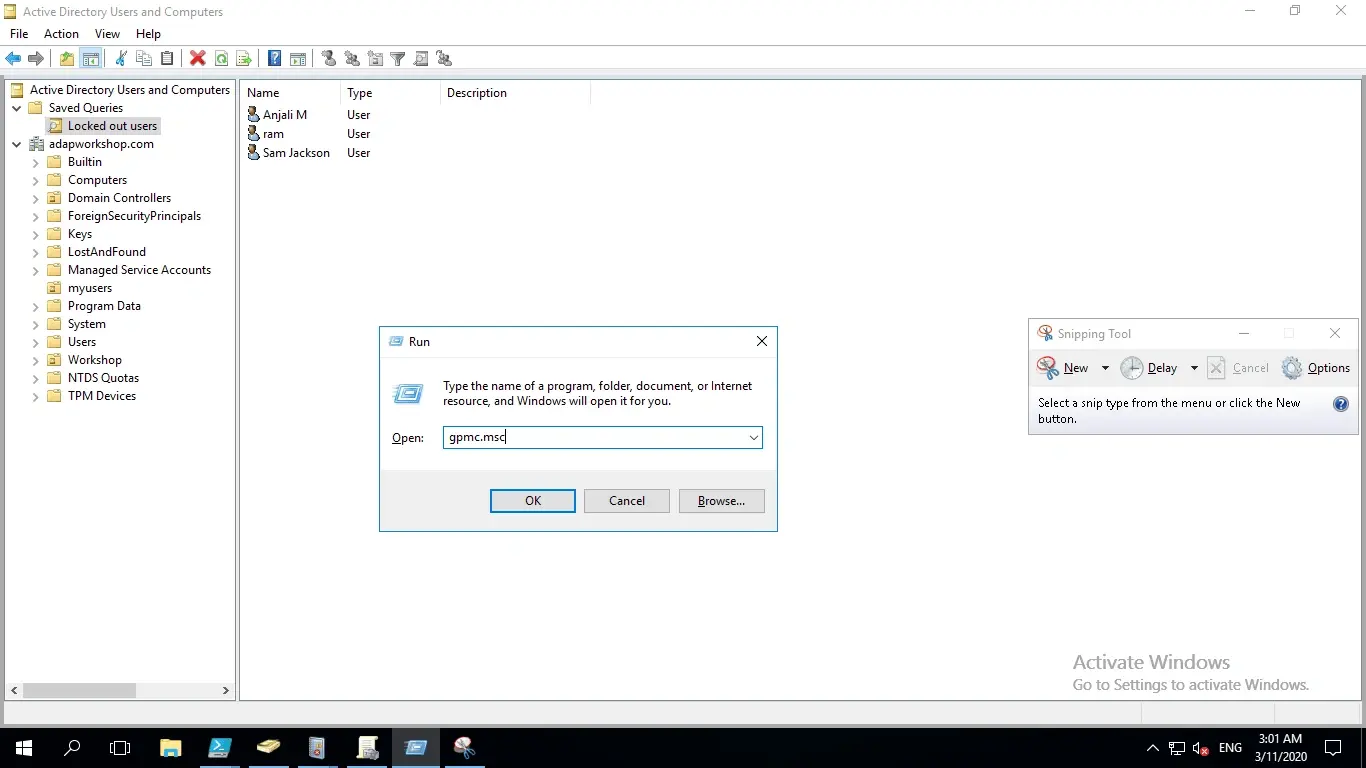
- Open the Start menu. Search for and open the Group Policy Management Console (GPMC). You can also run the command gpmc.msc.
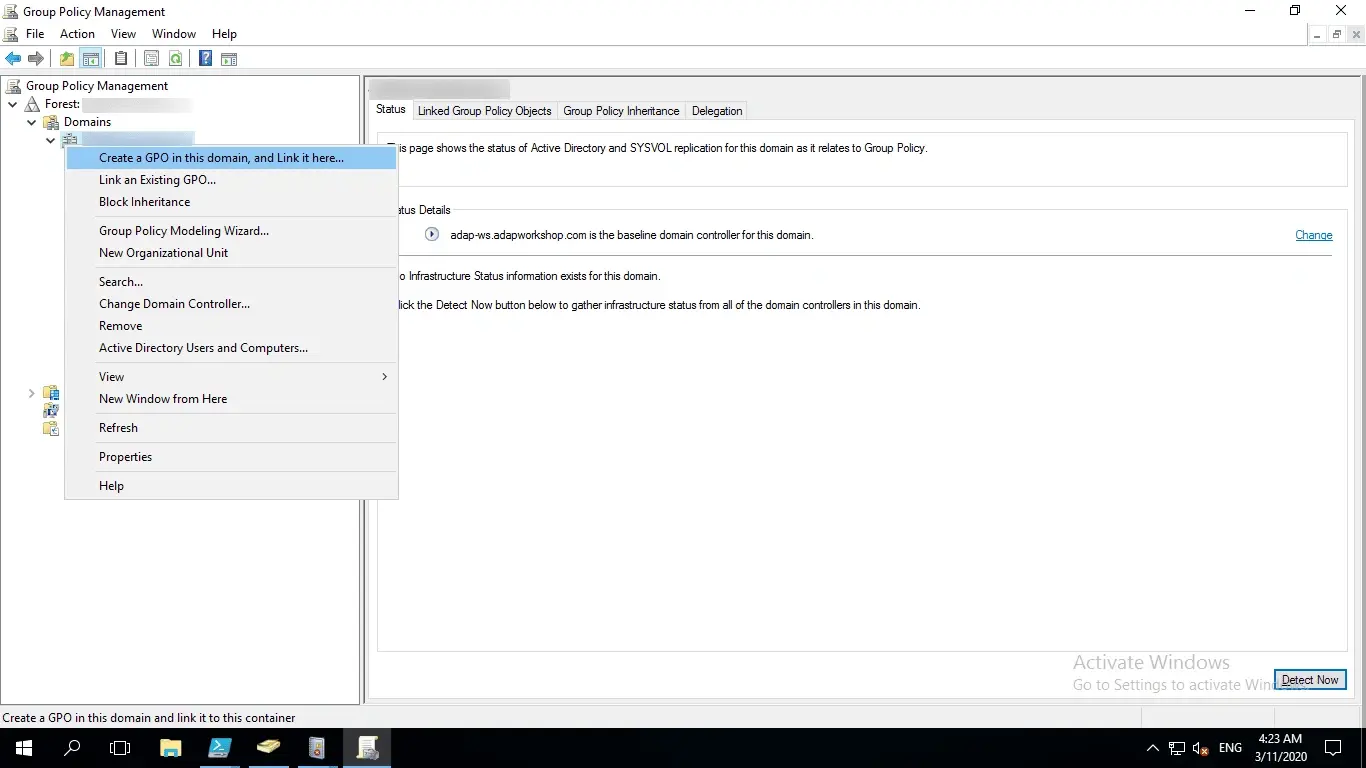
- Right-click the domain or organizational unit (OU) where you want to audit account lockouts, and click Create a GPO in this domain, and Link it here.
Note: If you have already created a GPO, click Link an Existing GPO.
- Name the GPO.
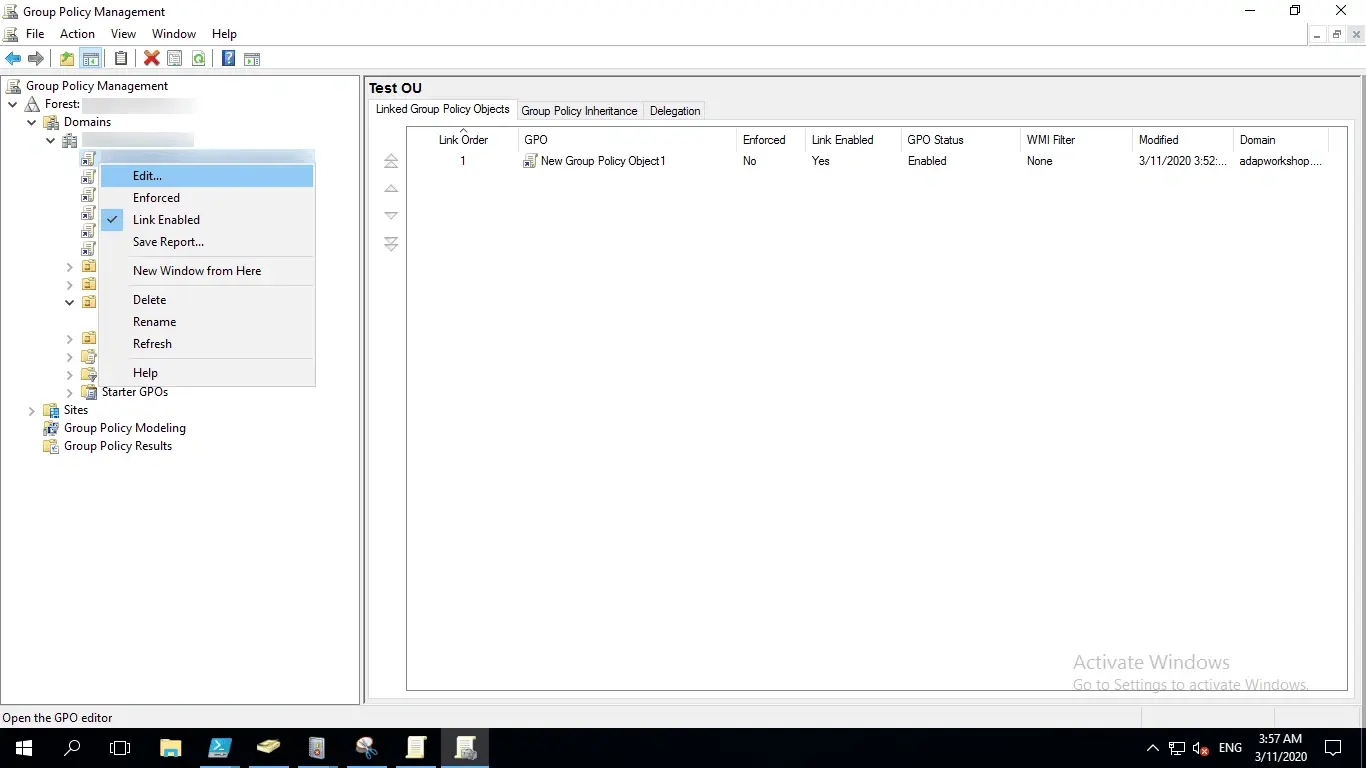
- Right-click the GPO and choose Edit.
- In the left pane of the Group Policy Management Editor, navigate to Computer Configuration > Policies > Windows Settings > Security Settings > Advanced Audit Policy Configuration > Audit Policies > Account Management.
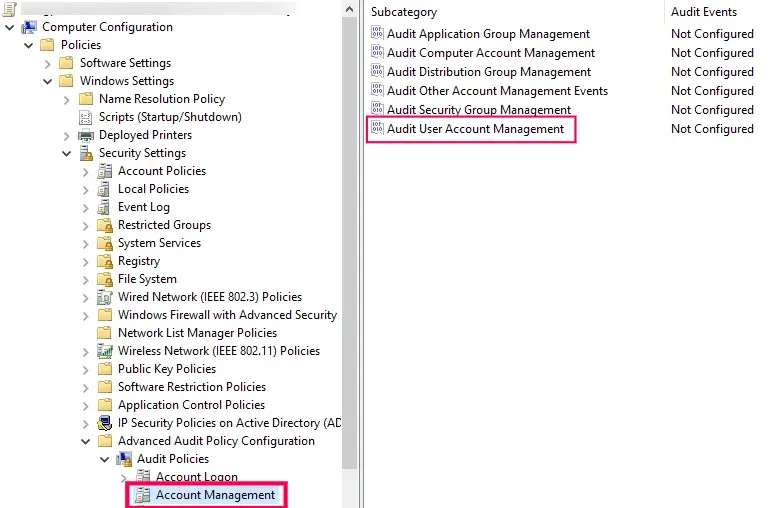
- In the right pane, you will see the list of policies under Account Management. Double-click Audit User Account Management and check the boxes labeled Configure the following audit events, Success, and Failure.
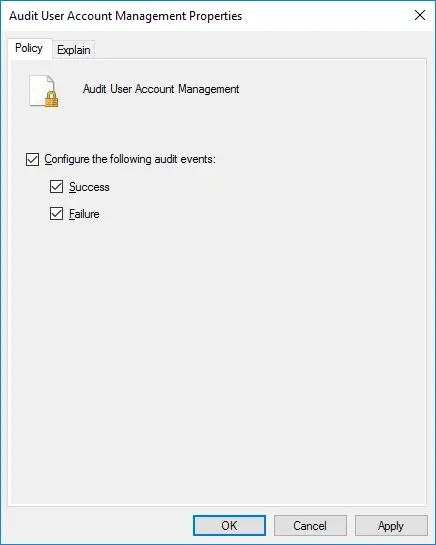
- Click Apply and then OK.
- Go back to the Group Policy Management Console. In the left pane, right-click the domain or OU that the GPO was linked to and click Group Policy Update. This step makes sure the new Group Policy settings are applied instantly instead of waiting for the next scheduled refresh.
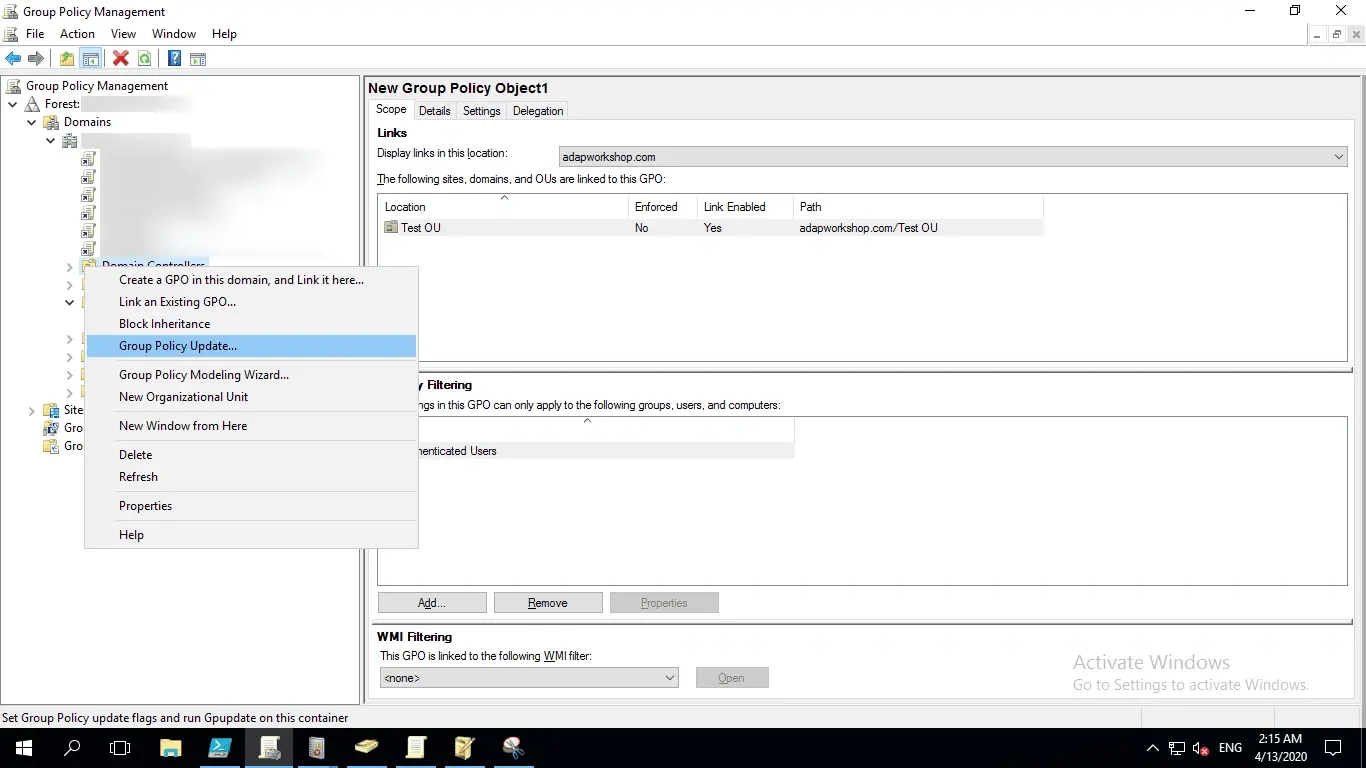
Steps to view the logged events in the Event Viewer
Once auditing is enabled, events will be logged and can be analyzed when a user keeps getting locked out of AD.
- Open the Start menu, search for Event Viewer, and click to open it.
- In the left pane of the Event Viewer window, navigate to Windows Logs > Security. Here, you will find a list of all the security events that are logged in the system.
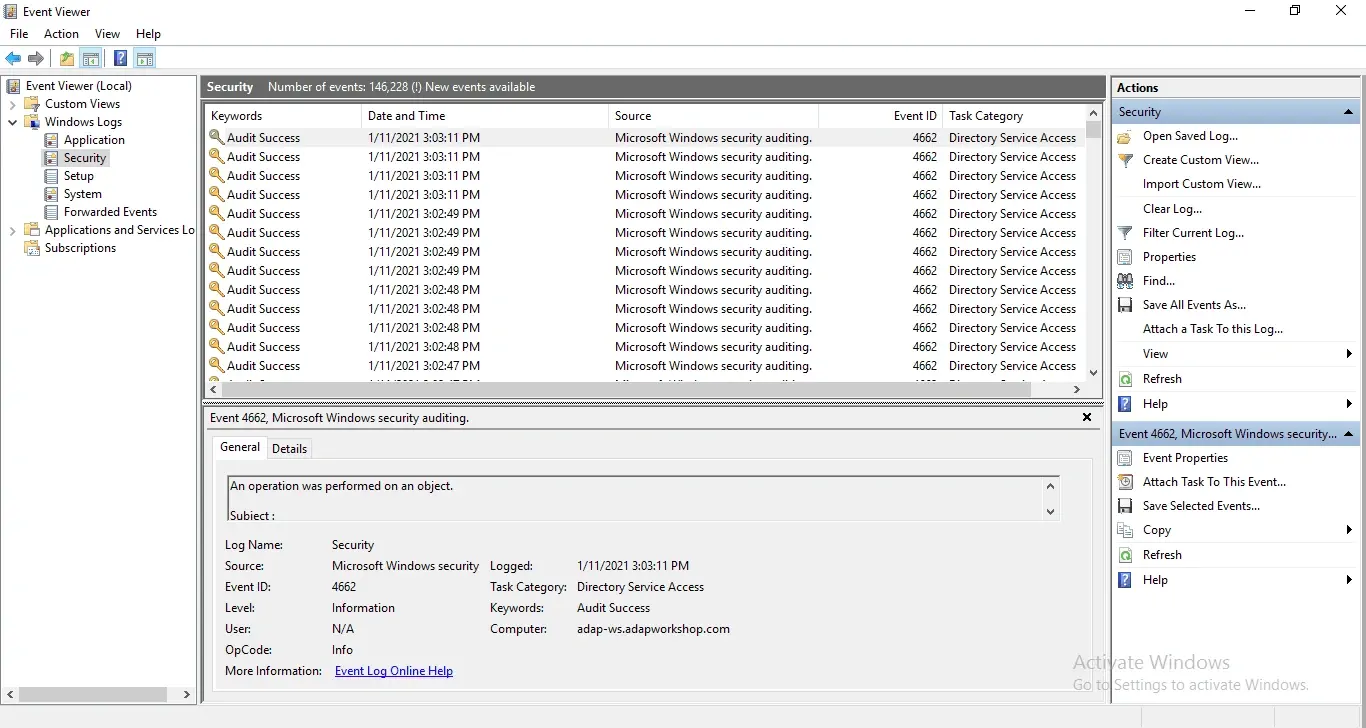
- In the right pane under Security, click Filter Current Log.
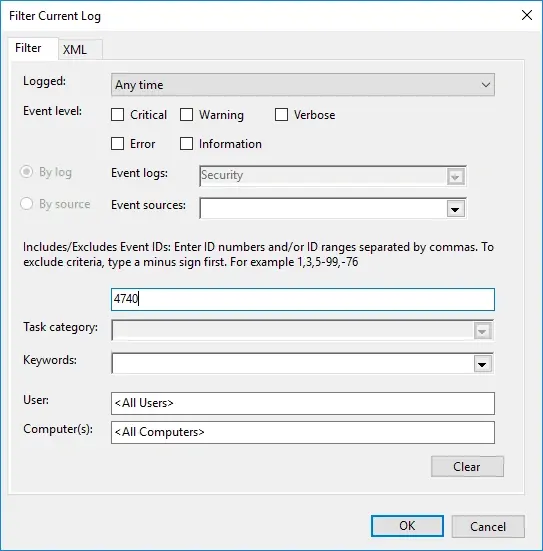
- In the pop-up window, enter 4740 in the field labeled <All Event IDs>.
- Click OK. This will provide a list of occurrences of the Event ID you entered.
- Double-click the Event ID to view its properties (description).
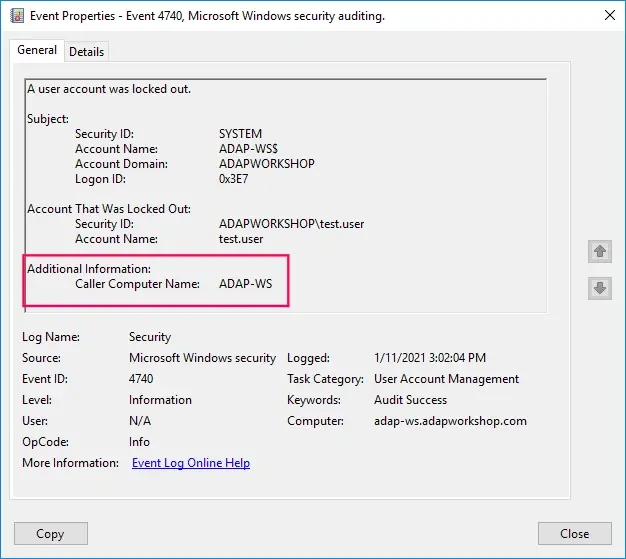
In the event description, the Caller Computer Name is shown.
To perform a more detailed analysis of the cause of this lockout, carry out the following actions on the DC:
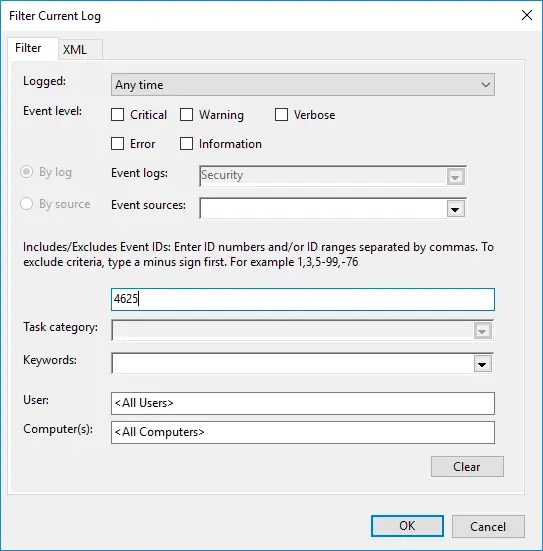
- In the Event Viewer, filter the current view to look for the Event ID 4625, which is logged when there is a failed logon.
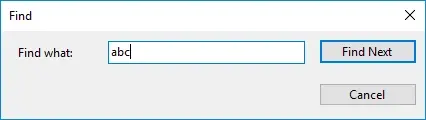
- On the right pane of the Event Viewer window, click Find, enter the name of the user that was locked out, and click Find Next.
- Look for an event that was logged after the account lockout time and view its properties.
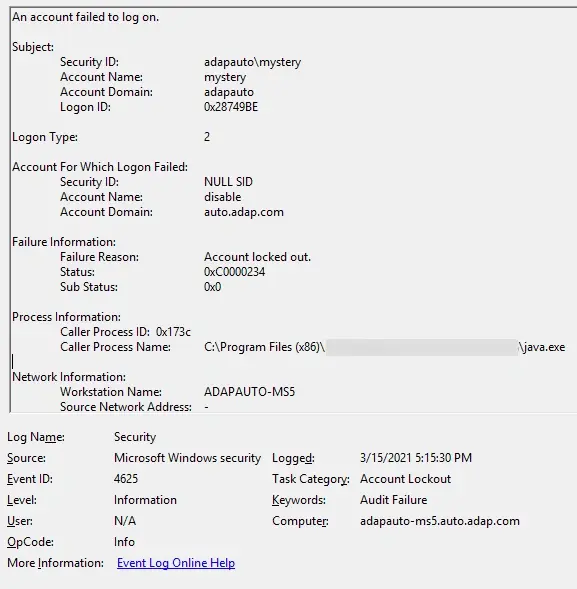
- Scroll down to Caller Process Name. This will show you the location of the process that possibly caused the lockout.
In the above case, the account lockout was called by the process java.exe.
While native auditing works, this manual process can be difficult to scale when multiple AD accounts keep getting locked out at the same time.
With ADAudit Plus, you can perform a thorough analysis of all possible sources of the lockout in just a click using the built-in Account Lockout Analyzer.
Method 2: Find what's locking out AD accounts using ManageEngine ADAudit Plus
When multiple users report that their AD account keeps locking, automated analysis significantly reduces troubleshooting time.
After enabling audit policies, follow these steps:
- Download and install ADAudit Plus.
- Find the steps to configure auditing on your domain controller here.
- Open the console and navigate to Active Directory > User Management > Account Lockout Analyzer.
This will show you a detailed report of locked out accounts sorted by time.
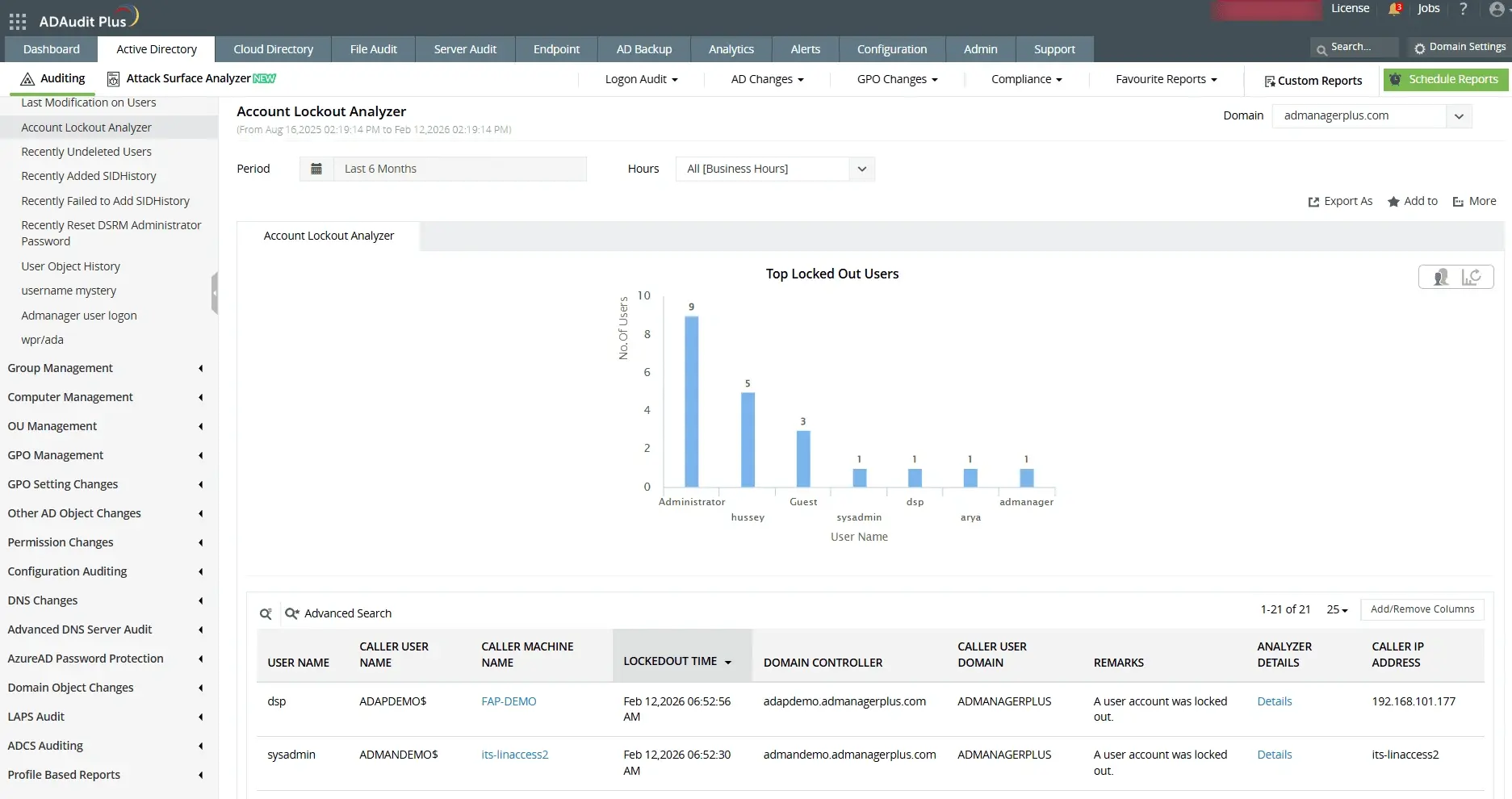
Click on Details under the Analyzer Details column to see the possible reasons behind each account lockout.
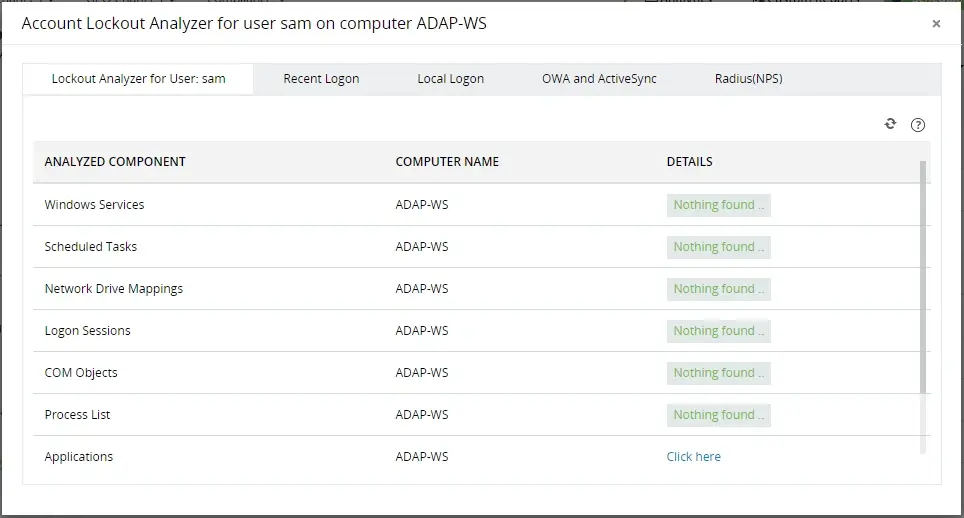
The Account Lockout Analyzer helps you analyze multiple potential sources behind an account getting locked out frequently in AD including:
- Analyze various components that could be causing the lockout with the account lockout analyzer.
- Old cached credentials being used by Windows services, scheduled tasks, or other components might be causing these lockouts.
Advantages of ADAudit Plus over native auditing
- View reports on all changes to AD objects, ensuring a foolproof audit trail.
- Get instant alerts for unusual user activity and automate responses to these alerts with its built in user behavior analytics engine.
- Prove compliance with IT regulations like SOX, HIPAA, GLBA, PCI DSS, FISMA, and the GDPR using out-of-the-box compliance reports.
A one-stop solution for all your IT auditing, compliance, and security needs
ADAudit Plus provides capabilities like change auditing, logon monitoring, file tracking, compliance reporting, attack surface analysis, response automation, and backup and recovery for diverse IT systems.
FAQ and troubleshooting
This often happens due to automated background processes like scheduled tasks, service accounts, shared drives, or mobile devices using expired credentials, which silently attempt logins and hit the lockout threshold.
An account lockout is a security feature in AD that temporarily disables a user account after multiple failed login attempts, typically 3-10 depending on policy settings. It protects against brute-force password attacks by blocking access until the lockout period ends or an admin intervenes.
Key events include 4740 (account locked out, logged on domain controllers with source details), 4625 (failed logon attempts on clients/servers), 4771 (bad password on PDC Emulator), and 4768/4776 (Kerberos failures). Use Event Viewer Security logs to filter these for troubleshooting.
Experience
ADAudit Plus for free
With ADAudit Plus, you can:
- Track logon failures by users
- Monitor day-based logon errors
- Detect attacks like Kerberoasting
- Monitor employee attendance
- And much more