Written by Santhoshkiran Boopathy, IT security team, ManageEngine Updated on April, 2026
As an IT administrator, one of the most frequent tasks you handle is unlocking user accounts and investigating failed logon attempts. When a user account gets locked out, you typically check Event ID 4740 in Event Viewer. While this event confirms the lockout, it does not always provide enough detail to identify the real source of repeated bad password attempts.
This is where Netlogon logging becomes essential.
Netlogon
ADAudit Plus
What Is Netlogon?
Netlogon is a Local Security Authority (LSA) service that runs in the background on domain controllers and domain-joined systems. It is responsible for authenticating users into the domain, maintaining secure communication between clients and domain controllers in an Active Directory environment.
When authentication issues occur, enabling Netlogon logging helps you gather detailed troubleshooting information directly from the Netlogon log file.
How to enable Netlogon logging using the Command Prompt
To enable Netlogon logging, follow these steps:
Open the Command Prompt as an Administrator.
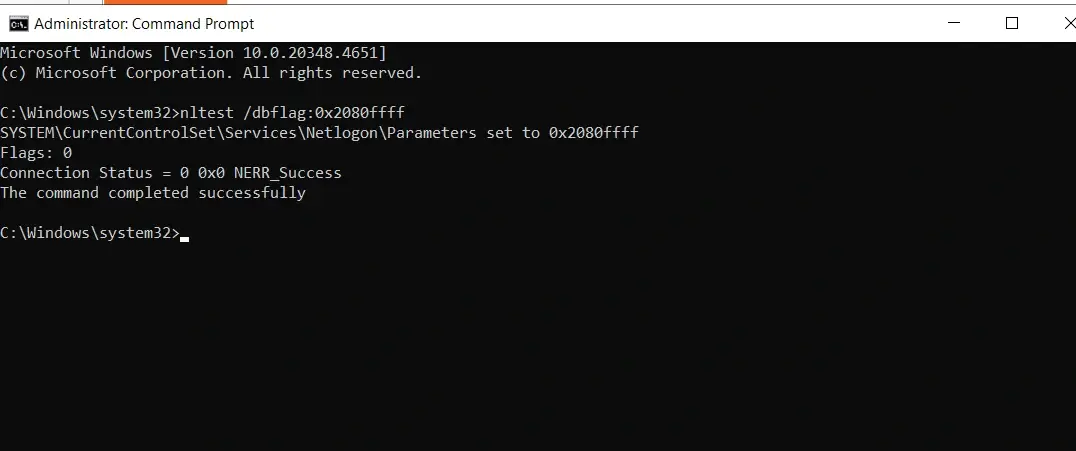
Run the following command:
nltest /dbflag:0x2080ffff
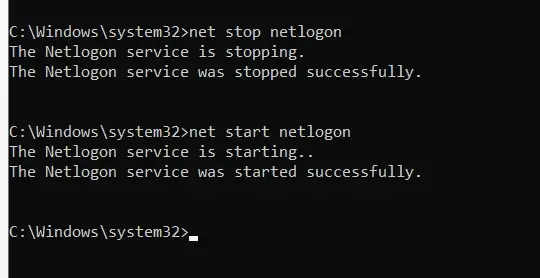
Restart the Netlogon service (optional but recommended):
net stop netlogon
net start netlogon
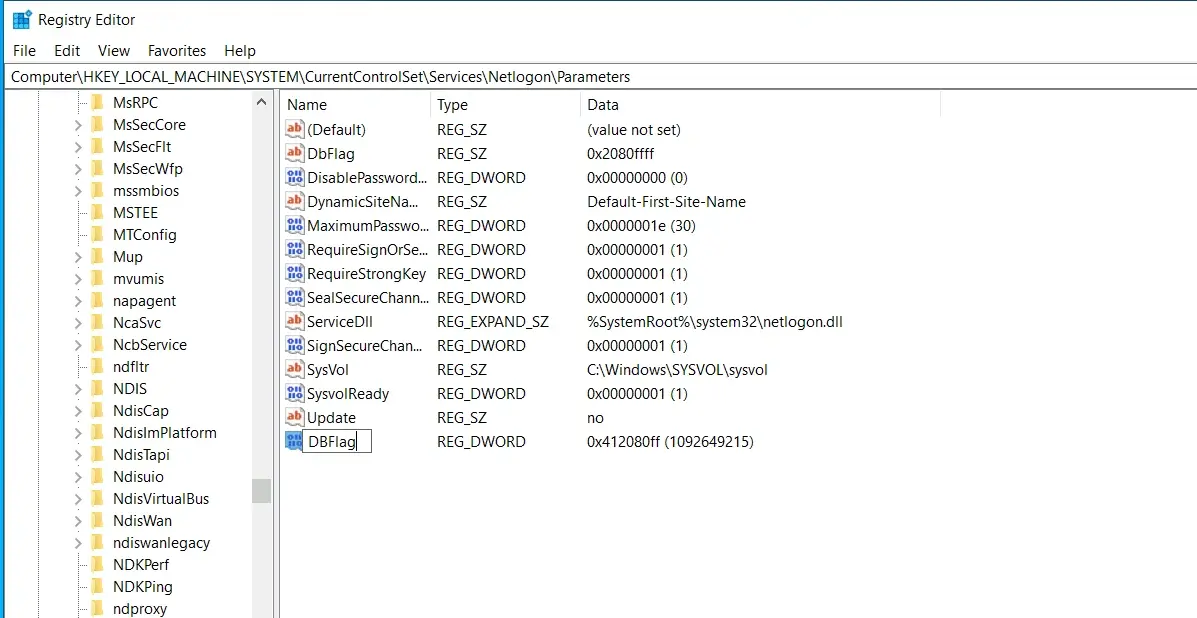
Enable Netlogon logging using Registry Editor (alternative method)
This method is useful if you prefer configuring settings through the registry or need to enable logging via Group Policy preferences or scripts.
Restart the Netlogon service via the Command Prompt.
Increase the Netlogon log file size
By default, the Netlogon log file size is limited to 20MB. When this maximum size is reached, the existing Netlogon.log file is automatically renamed to Netlogon.bak, and a new Netlogon.log file is created to continue recording events.
Important consideration
The disk space allocated for Netlogon logs should be double the configured log file size.
This is because:
One file stores the active log (Netlogon.log).
One file stores the backup log (Netlogon.bak).
Where to find the Netlogon log file
After enabling logging, you can access the log file on domain controllers and domain-joined machines at the default netlogon log path:
C:\Windows\debug\netlogon.log
The log file records:
Authentication requests
Secure channel activity
Bad password attempts
Domain controller communication
Trust relationship issues
By reviewing the entries, you can identify the exact machine or IP address that is sending incorrect credentials and causing account lockouts.
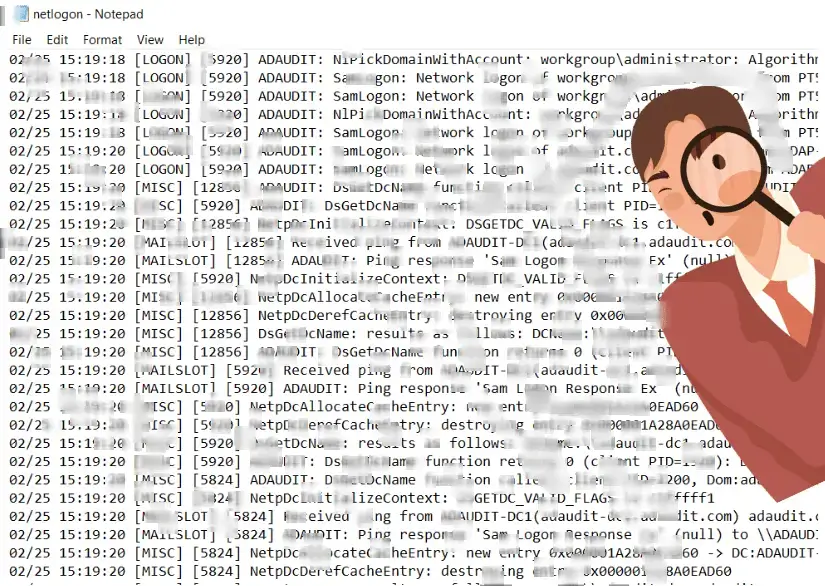
The challenge, however, is that the Netlogon log is a continuous debug file filled with verbose system entries, hexadecimal status codes, timestamps, and repetitive authentication traces.
In large environments, it can grow rapidly and become difficult to interpret. Manually scanning through the file to isolate a single bad password source can be time consuming and, at times, confusing.
Active Directory auditing just got easier!
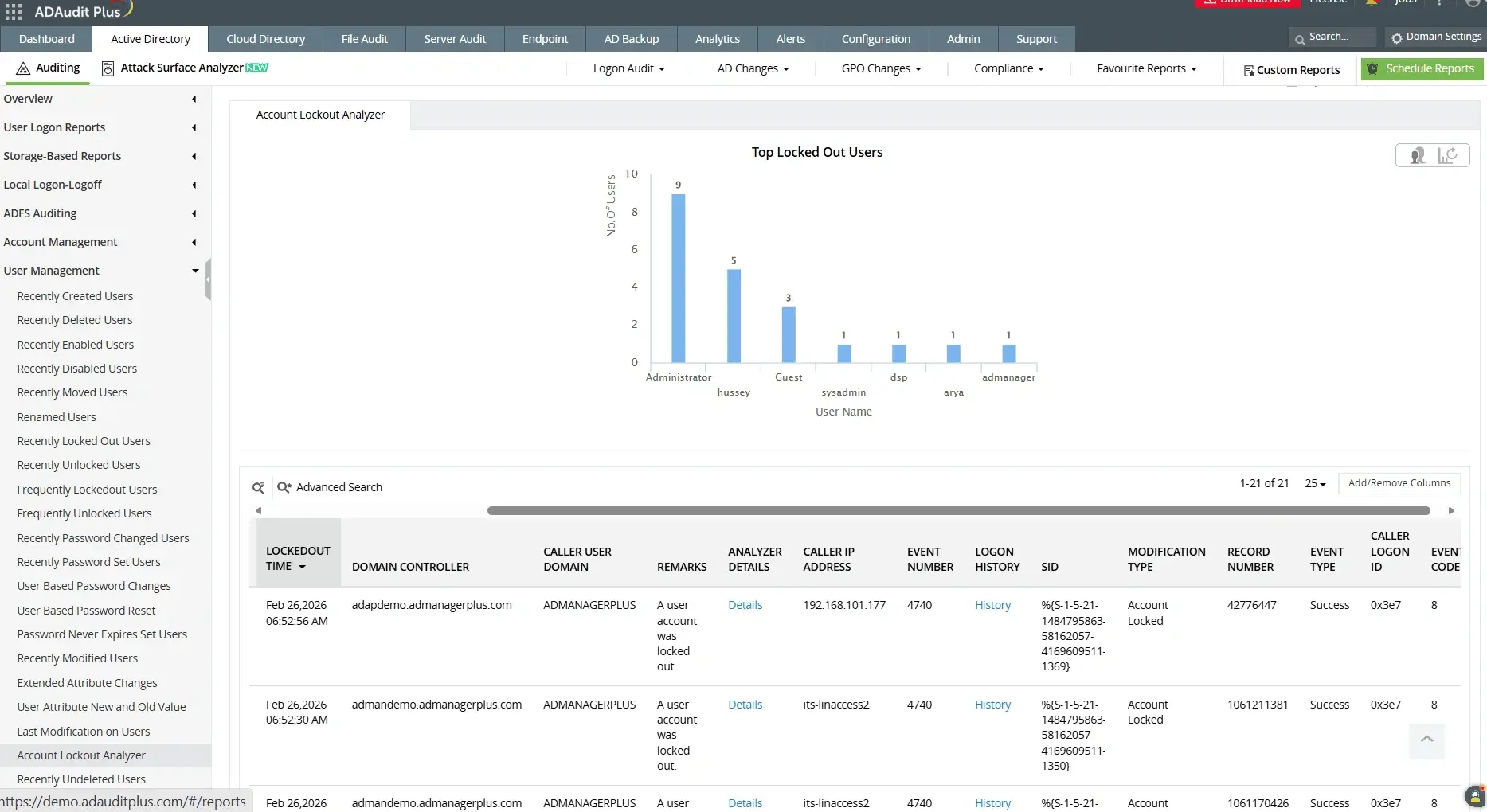
With ManageEngine ADAudit Plus, you can instantly identify the root cause of account lockouts using the built-in Account Lockout Analyzer.
ADAudit Plus comes bundled with over 300 predefined reports that simplify Active Directory auditing and provide complete visibility into user activity, logon failures, privilege changes, and security events. Real-time alerts notify you immediately when critical events occur, helping you respond faster and strengthen your overall security posture.
Find Locked out users instantly with ManageEngine ADAudit Plus
Find the steps to configure auditing on your domain controller here.
Navigate to Active Directory > User Management > Account Lockout Analyzer.
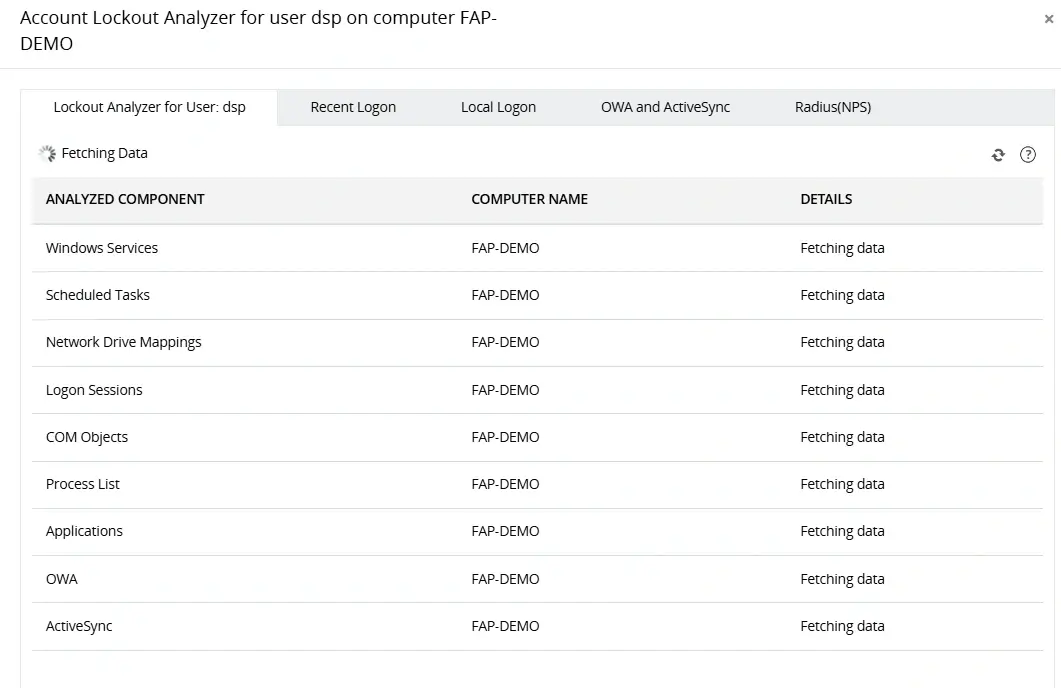
Instead of scanning Event ID 4740 entries or reviewing verbose Netlogon logs, the Lockout Analyzer provides a centralized, easy-to-read view of:
The exact source workstation triggering the lockout.
The domain controller that processed the request.
The caller computer name.
Timestamps and frequency of failed attempts.
A one-stop solution for all your IT auditing, compliance, and security needs
ADAudit Plus provides capabilities like change auditing, logon monitoring, file tracking, compliance reporting, attack surface analysis, response automation, and backup and recovery for diverse IT systems.
Here are some frequently seen logon status codes to help you understand authentication activity in the Netlogon log file:
Log code
Description
0x0
Successful login
0xC000006D
Unsuccessful attempt to log in due to bad username
0xC0000072
Disabled user account
0xC000006F
Unsuccessful login attempt due to time restrictions
0xC0000071
An account's password has expired
0xC000006A
Incorrect password entered
0xC000006C
Password policy has not been followed
0xC0000224
Password must be changed before the first login attempt
0xC000006E
Login has failed due to user account restrictions
0xC0000193
User account has expired
0xC0000234
User account has been automatically locked
0xC0000064
User does not exist
No. Netlogon should not be disabled on domain controllers or domain-joined machines. It is a critical service required for user authentication, secure channel communication, and domain operations. Disabling it can prevent users from logging in and disrupt Active Directory functionality.
Check the event logs
Scan System log for IDs 7000/7001/7003, Review %SystemRoot%\debug\Netlogon.log.
Verify dependencies
In Services.msc, set Netlogon to Automatic. Start LanmanWorkstation/Server/Browser.
Fix registry/files
Edit HKLM\SYSTEM\CurrentControlSet\Services\Netlogon (Start=2), Run SFC /scannow.