Enable auditing policies via GPO and configure auditing entries at the file and folder levels. Events will then appear in Event Viewer under the Security log. For a simpler approach, a real-time solution like ADAudit Plus provides this out of the box.
- Native auditing
- Powershell
- ADAudit Plus
- FAQ and troubleshooting
Tracking changes to files and folders in a shared folder helps organizations protect sensitive data, detect suspicious activity, and meet compliance requirements.
Changes made to a file or a folder under a shared directory shall be tracked using EventViewer, PowerShell commands and using an auditing solution like ADAudit Plus. This page covers the steps involved in tracking changes using each procedure.
1. Track file/folder changes in a shared folder using Native Auditing
1.1 Enable file auditing policy using GPMC
File Auditing policies must be enabled for the Windows Security to record file and folders changes as event logs in EventViewer.
To enable the file auditing policies, follow the below steps:
- Press Win+R or open the Run command. Execute gpmc.msc to launch the Group Policy Management Console (GPMC).
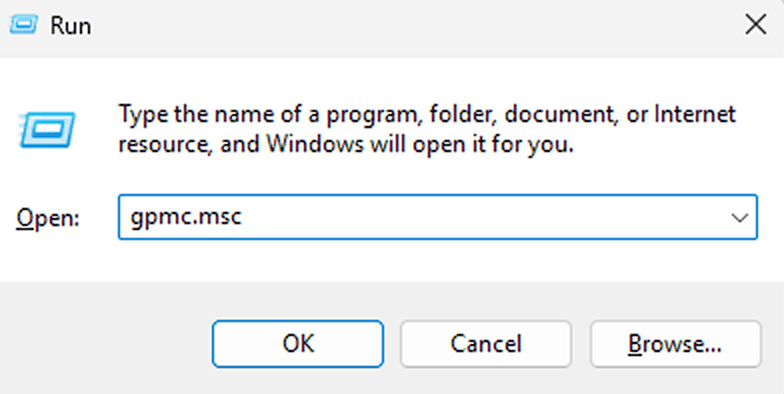
Fig 1: Windows Run with "gpmc.msc" command - Navigate to your desired domain.
- Right-click Default Domain Policy or any Group Policy created under Domain Controllers.
Note
Creating a separate GPO makes it easier to troubleshoot, manage, and modify auditing configurations without affecting other domain-wide policies.
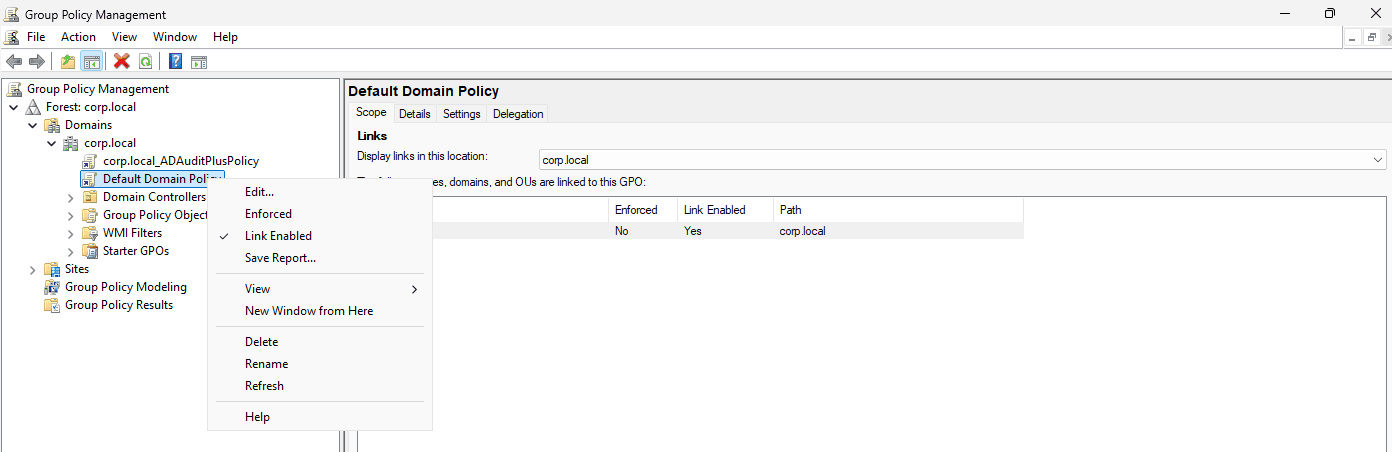
Fig 2: Default Domain Policy in GPMC - Click Edit and go to Computer Configuration > Windows Settings > Security Settings > Local Policies > Audit Policy.
- Under Audit Policy, double-click Audit object access to open its properties. Audit object access is enabled to ensure access attempts to files and folders are collected by Event Viewer.
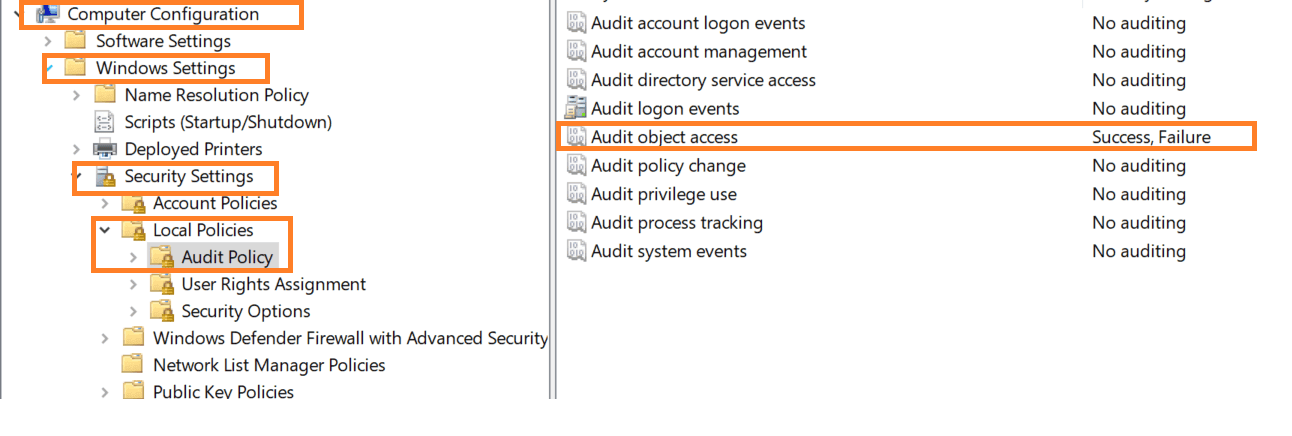
Fig 3: Audit Object access policy in GPO's - Select the Success and Failure check boxes to audit both attempts.
- Click Apply, then OK.
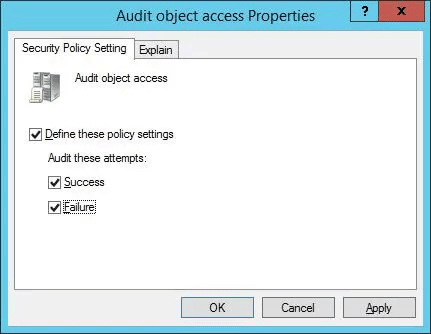
Fig 4: Audit object access policy properties
1.2 Enabling object-level auditing by adding SACLs
Auditing entries are added to track what exact actions were performed and by whom at the file or folder level. Below are the steps involved in adding an SACL entry to audit file activities:
- Open Windows Explorer and navigate to the file or folder from the preferred share you want to audit.
- Right-click it and select Properties.
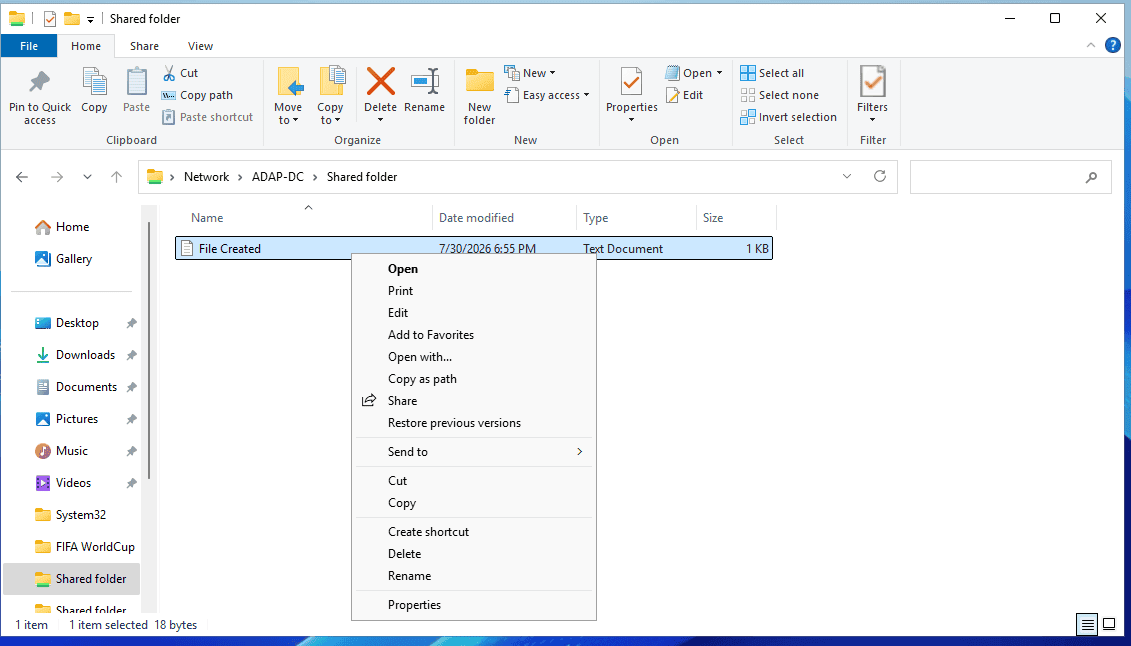
Fig 5: Access file properties with Windows Explorer - Switch to the Security tab and click Advanced to open the Advanced Security Settings.
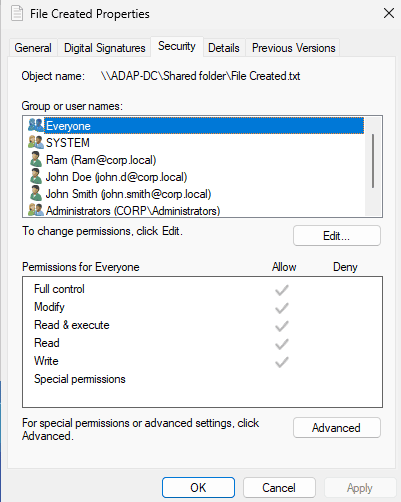
Fig 6: Advanced settings under Security tab - In the Advanced Security Settings window, switch to Auditing, which displays existing auditing entries.
- Click Add to create a new auditing entry.
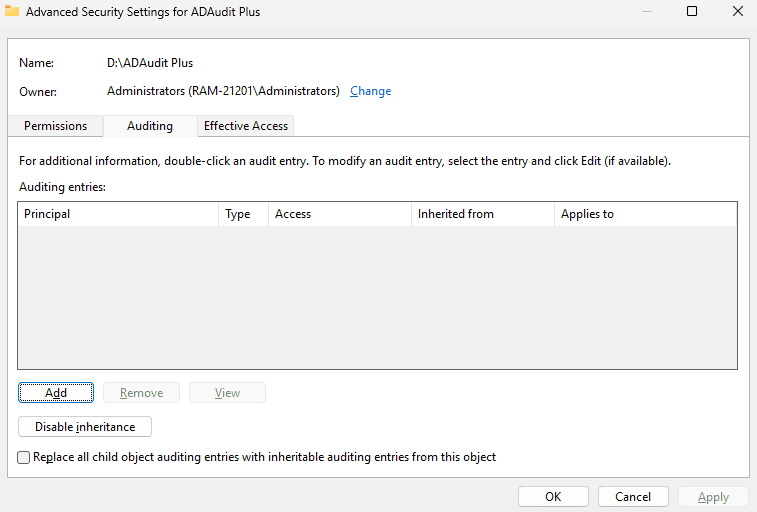
Fig 7: Adding a new SACL entry - In the Auditing Entry menu, configure:
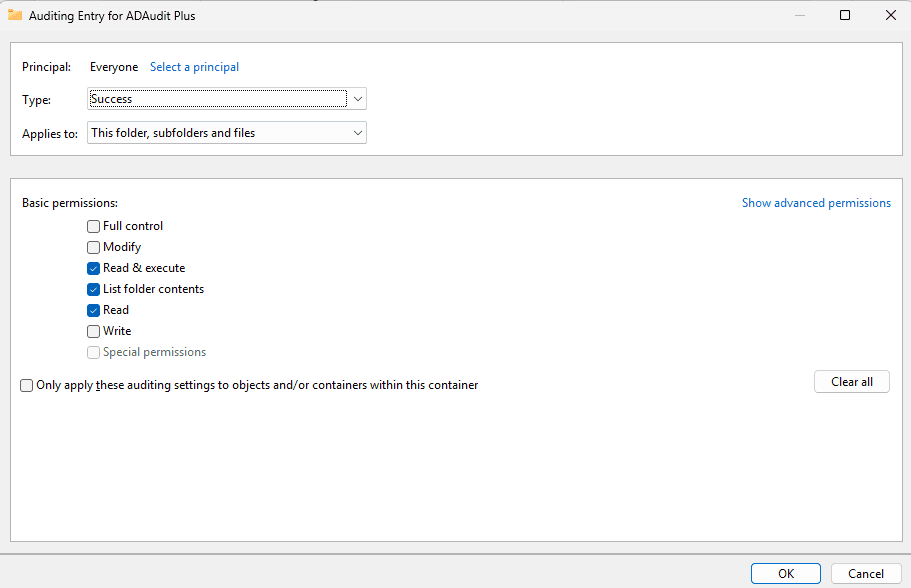
Fig 8: Auditing Entry properties - Principal: Click Select a principal and enter the username or account name. Click OK to proceed.
Note
To track changes made by all users, enter Everyone in the object name menu.
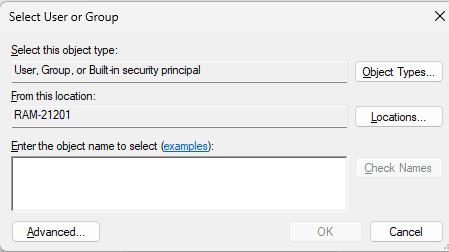
Fig 9: Selecting principal objects - Type: Select All to capture both successful and failed events.
- Applies to: Choose the scope — options are combinations of File, Folder, and Sub-folders.
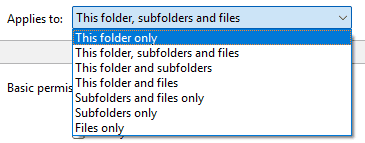
Fig 10: Configuring auditing scope
- Principal: Click Select a principal and enter the username or account name. Click OK to proceed.
- Click Advanced permissions to view all activities that can be monitored. The following options are recommended:
Permission What it tracks Create files/write data File creation and content overwrites Create folders/append data New subfolder creation and data appended to files Write attributes Changes to file or folder attributes Traverse folder/Execute file Users navigating through folders; files executed by programs List folder/Read data Folder browsing and file content access 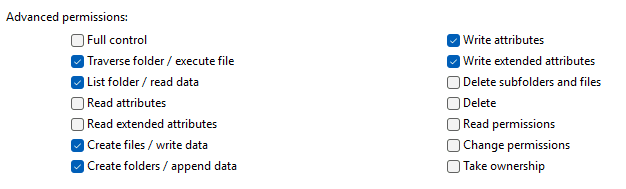
Fig 11: Advanced permissions for an auditing entry - Click OK to save the auditing entry, then click Apply and OK.
1.3 How to track file and folder changes in a shared folder using EventViewer
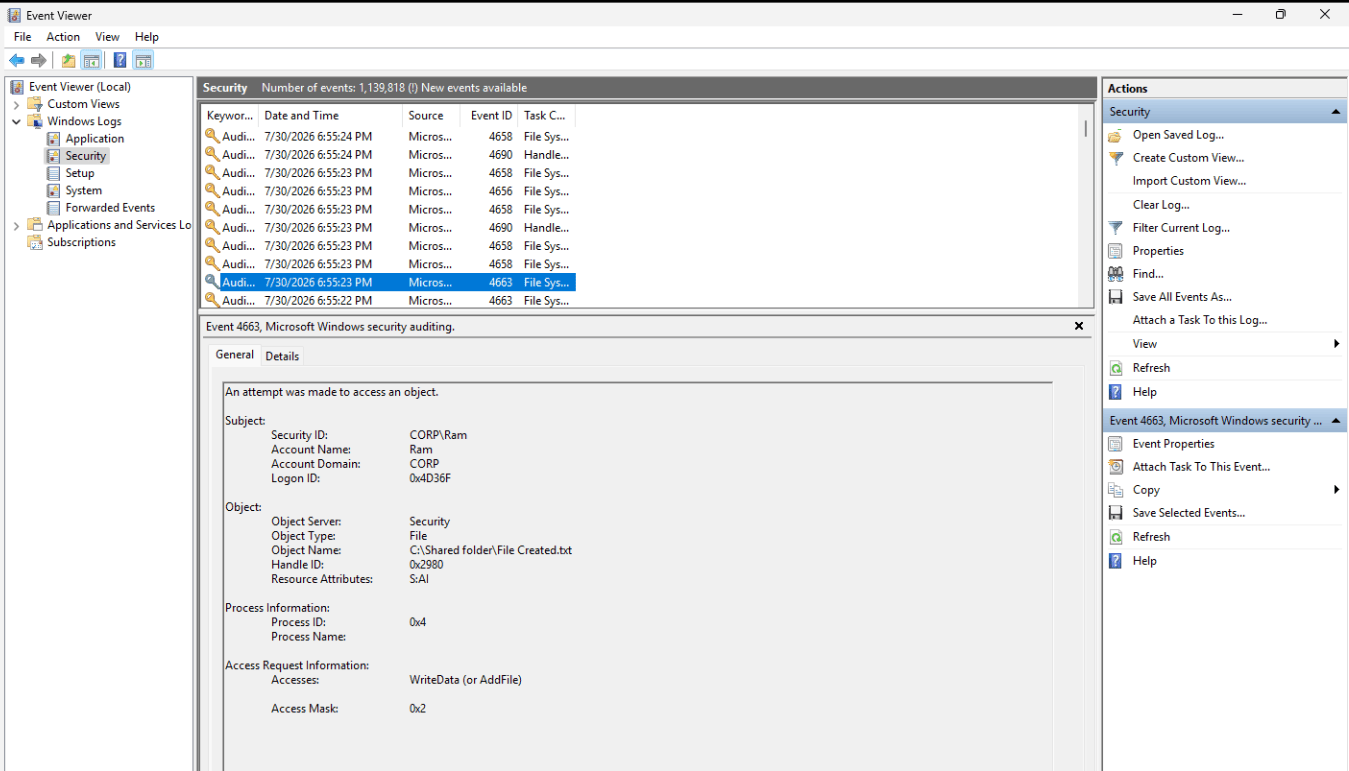
Once the policies and auditing entries are added, the events are recorded and can be viewed in Event Viewer. The following table lists out the event IDs associated with file or folder changes.
| Event ID | Description |
|---|---|
| Event ID 4663 An attempt was made to access an object. | This event is logged when a particular operation is performed on an object. It can be used to identify if any activity (read, write, delete) was performed on the file or folder. |
| Event ID 4656 A handle to an object was requested. | This event is logged when a specific access is requested for an object. It can be used to track access attempts to a file or folder within the shared folder. |
To track the above event IDs:
- Open Event Viewer.
- Navigate to Windows Logs > Security and click Filter Current Log from the Actions panel on the right.
- Enter the event IDs 4663 and 4656.
- Click an event to view the exact modification or access performed using the Accesses field.
Limitations of native auditing
- Auditing entries (SACL) must be added individually to every file and folder within the share.
- Modifications performed are only tracked from the file server the shared folder belongs to.
- Event ID 4663 is generated for every object, which produces a large number of events.
- Security event logs default to a 20MB size limit. Once full, older logs are overwritten unless the limit is increased.
How to track modified file/folder in a shared folder with PowerShell
Note
The configuration of audit policies in GPMC and object-level auditing is not required when executing the below PowerShell commands.
Get-Child Item is a PowerShell cmdlet that is used to retrieve the list of items (folders) and child items (files and subfolders within the folder). Using the "-Path" parameter, the cmdlet can be used to retrieve the lists from a specified path.
To track modified file/folder in a shared folder with PowerShell, the Get-Child Item -Path command can be used.
The below sample PowerShell command returns the file name, last modification time, and file size of the most recently modified file at the share level within the last 24 hours.
$folder = "path_of_your_shared_folder"
Get-ChildItem -Path $folder -Recurse -File |
Where-Object { $_.LastWriteTime -gt (Get-Date).AddHours(-24) } |
Sort-Object LastWriteTime -Descending |
Select-Object Name, LastWriteTime, Length
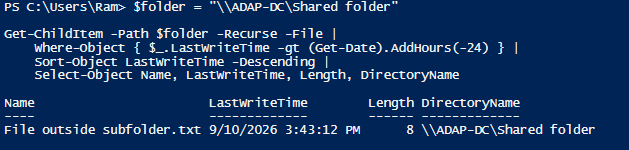
Example 1: Most recently modified file in a shared folder in the last 7 days.
$folder = "path_of_your_shared_folder"
Get-ChildItem -Path $folder -Recurse -File |
Where-Object { $_.LastWriteTime -gt (Get-Date).AddDays(-7) } |
Sort-Object LastWriteTime -Descending |
Select-Object Name, LastWriteTime, Length, DirectoryName
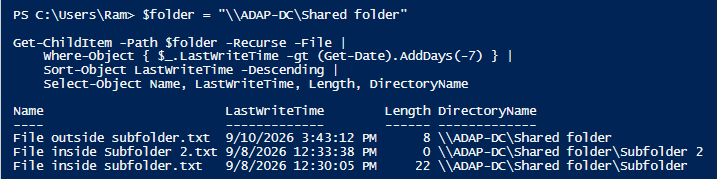
Example 2: To get the recently modified file in a share including subfolders.
$folder = "path_of_your_shared_folder"
Get-ChildItem -Path $folder -File -Recurse |
Sort-Object LastWriteTime -Descending |
Select-Object -First 1 |
Select-Object Name, LastWriteTime, Length, DirectoryName

3. How to track file and folder changes in a shared folder using ADAudit Plus
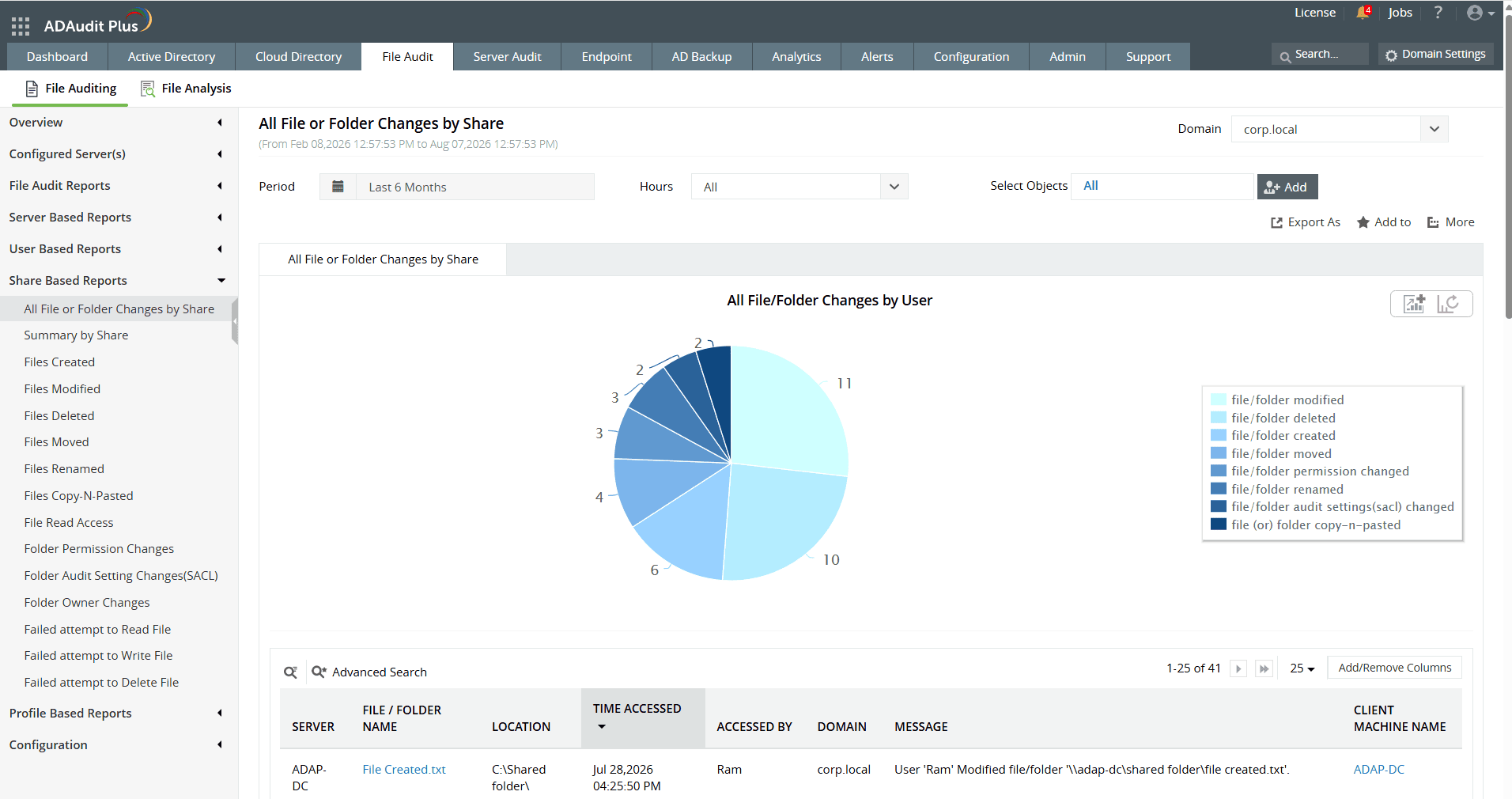
A real-time change auditing solution like ADAudit Plus audits specific file and folder changes based on shared folder. ADAudit Plus' Share Based Reports offer built-in and individual reports for tracking creation, deletion, moves, renames, permission changes, and more.
To track file/folder changes in a shared folder in ADAudit Plus,
- 1. Navigate File Audit > Share Based Reports
- 2. Select any of the reports under the navigated category
- 3. Each report provides information on:
- The name of the file or folder changed
- Who made the changes
- When the change was made
- The location of the file or folder

A one-stop solution for all your IT auditing, compliance, and security needs
ADAudit Plus provides capabilities like file change auditing, shared folder monitoring, compliance reporting, attack surface analysis, response automation, and more for diverse IT systems.
FAQ and Troubleshooting
No, security events are retained based on the configured security log size (20MB is the default value). Once the limit is reached, existing logs are overwritten.
- Group Policies enabled might not be enforced. Open Command Prompt and use gpupdate /force to force apply the policies.
- Logs might be overwritten due to small security log size. Open Event Viewer > right-click the Security log > click Properties > type the new limit in Maximum log size > Click Apply and OK.
- There are missing auditing entries for a file or folder. Verify if the auditing entries are configured for the specific file or folder by navigating to Properties > Security > Advanced > Auditing and add, if any.
Experience
ADAudit Plus for free
With ADAudit Plus, you can:
- Get full visibility into file changes
- Audit multi-vendor NAS file servers
- Detect anomalous file activities
- Generate file audit trails
- And much more