Auto RUM Injection
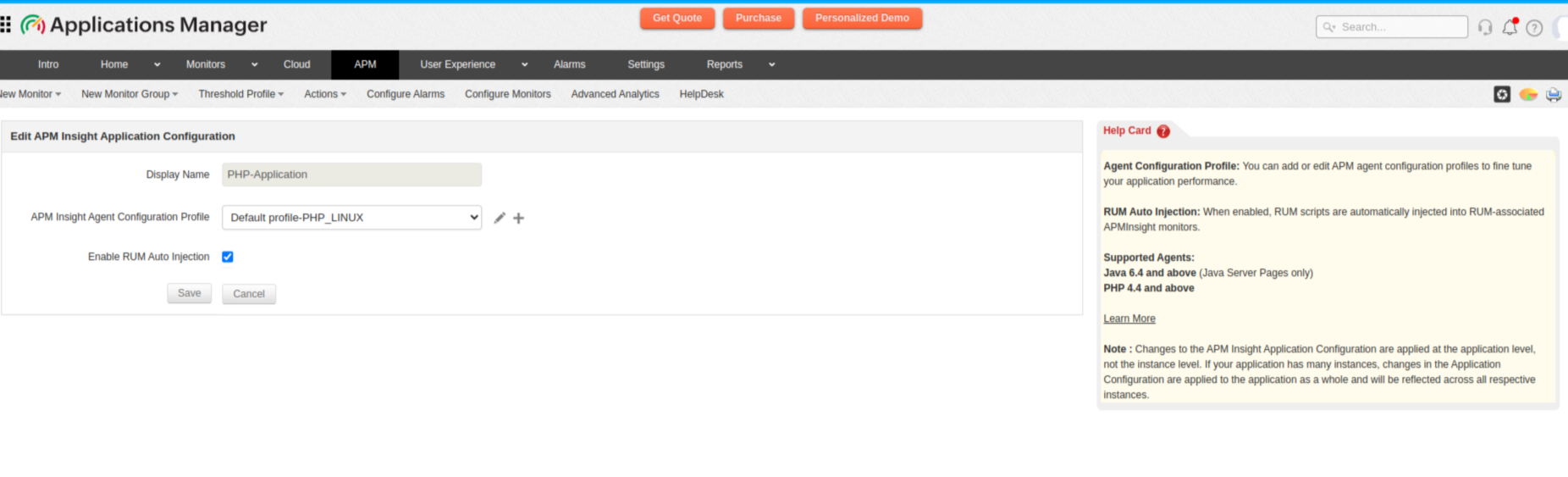
Real User Monitoring (RUM) helps you track and analyze how users experience your website or web application in real time. Using the Auto RUM Injection feature, you can add RUM monitors along with APM agents.
Agent Supported versions
| Agent | Supported versions |
|---|---|
| Java | Versions 6.4 and above Note: Auto RUM Injection is currently supported only for Java Server Pages (JSPs). |
| PHP | Versions 4.4 and above |
Prerequisites
Before enabling Auto RUM Injection, ensure that:
- The RUM agent is installed.
- The respective APM Insight agent (Java or PHP) is successfully installed for the application.
Use case
Consider an APM user who wants to add a RUM monitor to observe an application's performance along with its APM metrics. In this case, the user must manually add RUM monitors by configuring monitor details; copying and pasting the generated script into their application code; and mapping the RUM monitor to the APM application.
The Auto RUM Injection feature will automate this process, eliminating the need for manual code changes or redeployment.
How Auto RUM Injection works
Applications Manager’s APM agent identifies supported Java or PHP application environments and detects outgoing HTML responses sent from the server to end users.
Before the response reaches the user's browser, the agent injects the RUM script into the relevant HTML page. This script then loads on the user's browser and collects real user performance metrics, including Total PageLoads, Average Response Time, and other front-end performance data.
Adding RUM monitors using Auto RUM Injection
- Install the respective Java or PHP agent for your Application.
- After a successful APM Insight agent installation, navigate to APM → Java/PHP Application → RUM-Analytics Tab.
- Here you will see options to:
- Create a new RUM monitor, or
- Associate an existing RUM monitor with the APM application.
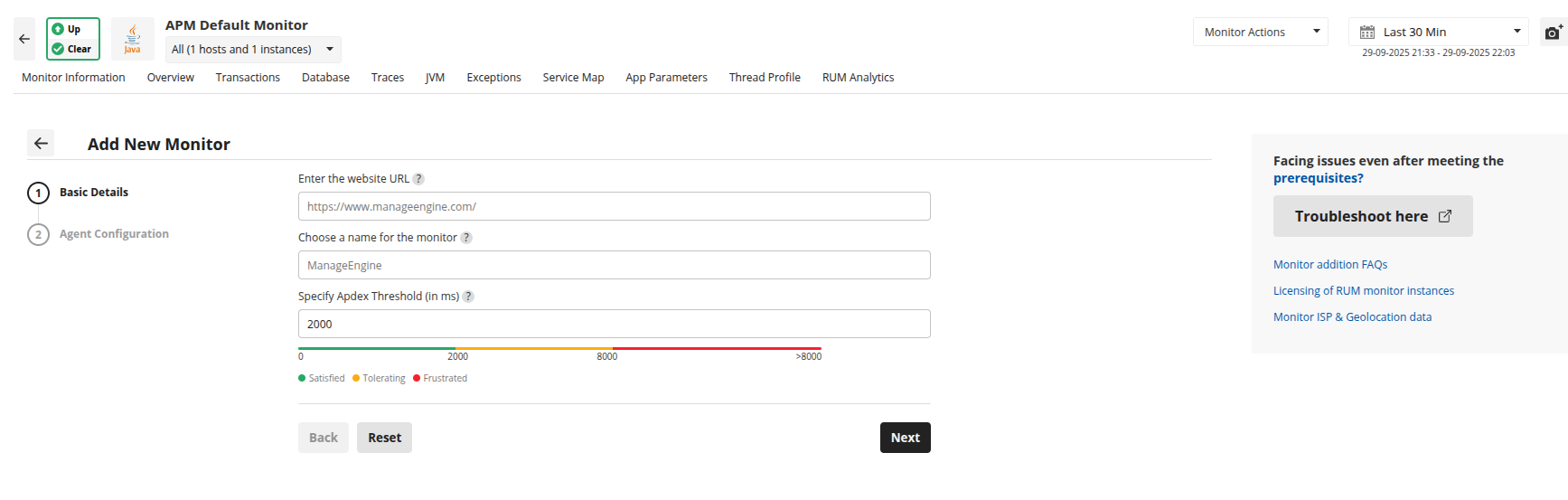
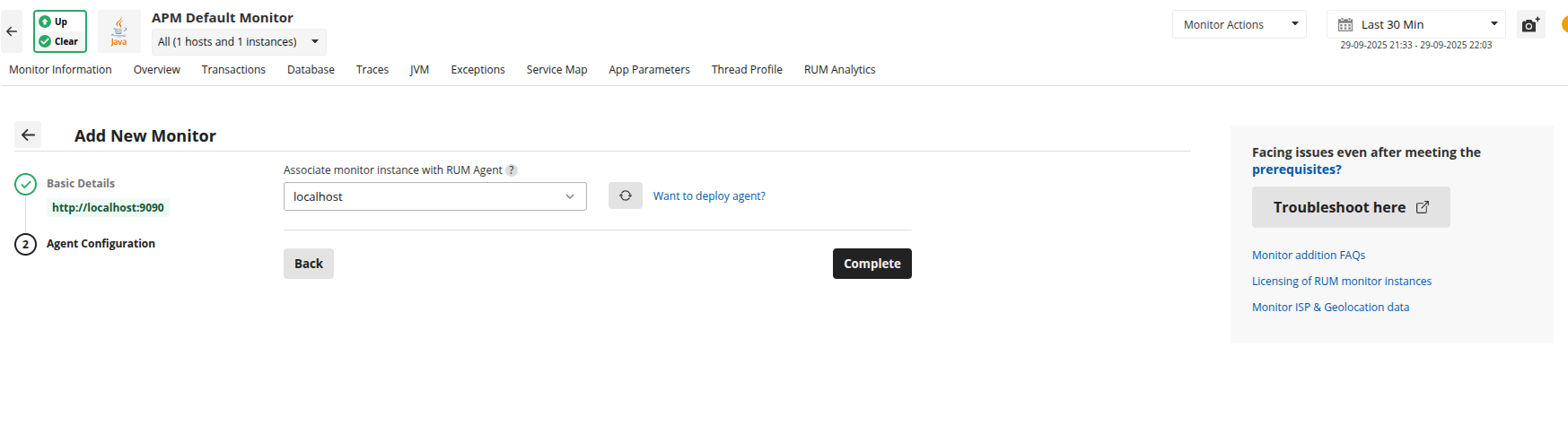
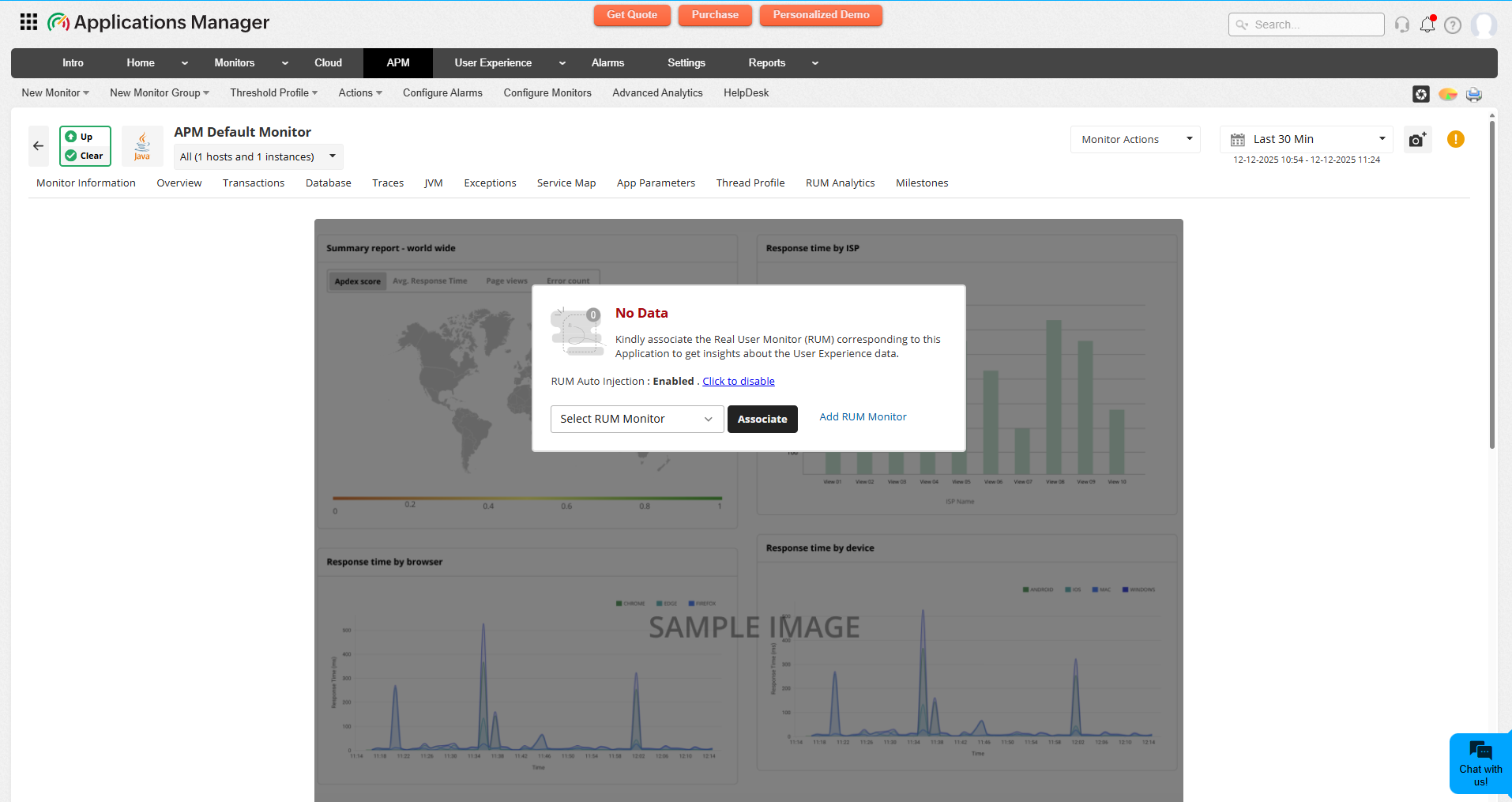 Note:RUM Script will be injected automatically only if the RUM Monitor is associated to that APMInsight Application.
 - If a new RUM monitor is created within APM Insight, it will be automatically associated with the application.
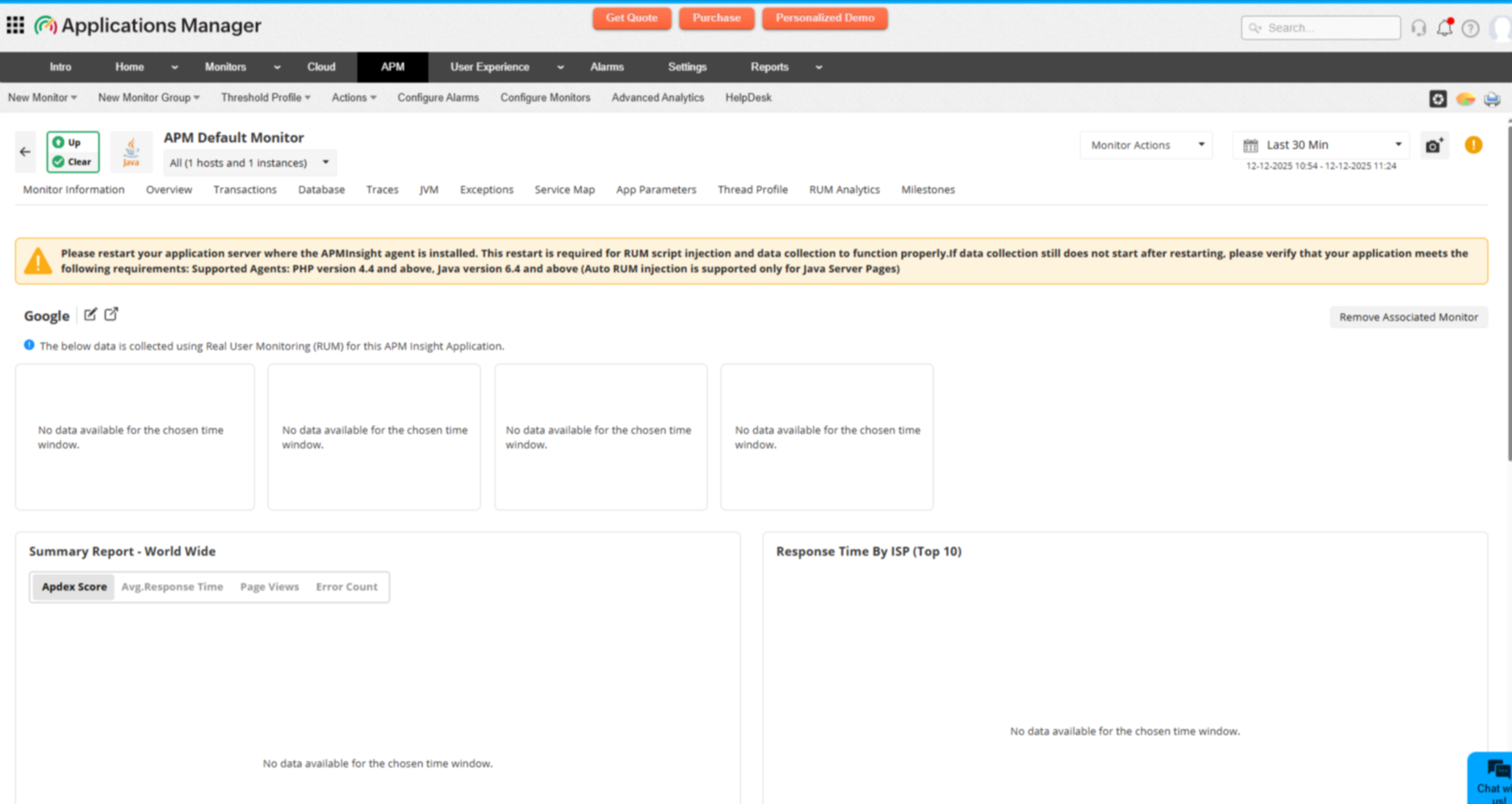
- Once the RUM monitor is associated, an application server restart is required for RUM data collection.
- After the restart, the RUM script will be automatically injected into the associated application without any manual intervention.
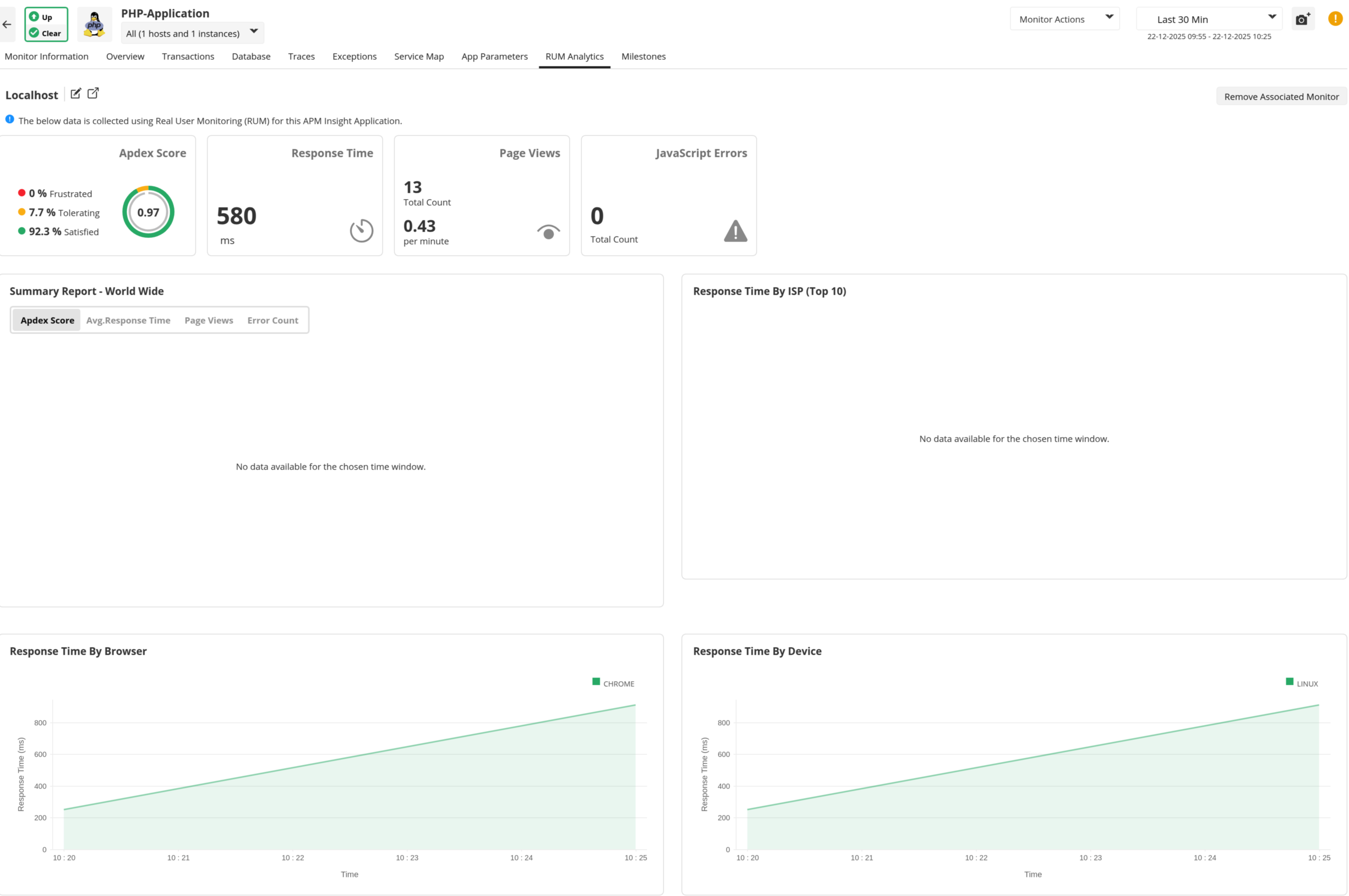
Viewing RUM monitor in APMInsight
To view the RUM monitor, navigate to APM → Application View → Click on the specific Application → RUM-Analytics Tab.