Add-on Restriction
Configure a policy to block risky browser add-ons and control the permissions the ones you keep can use.
Overview
Browser add-ons
Add-ons can improve productivity. Unmanaged add-ons can introduce security risks.
What add-ons are, and why they need managing
A browser add-on (plugin or extension) is a software module that adds specific capabilities to a web browser — features like ad blocking, password management, and integration with other applications. They can boost productivity, but they also pose security risks: a malicious add-on can steal personal information and compromise systems.
Unauthorized add-ons can lead to data breaches and non-compliance, so effective add-on management matters for security, compliance, and performance alike. Limiting unnecessary add-ons also improves productivity and browser speed.
Configuration
Managing add-ons
Build a policy that blocks specific add-ons or permissions, then control what the rest can access.
Create an add-on restriction policy
- Open the Endpoint Central console and go to Browsers → Policies → Add-on Management.
- Click Create Policy, select the browser and name the policy.
- Choose Yes or No for Allow users to install extensions. Review the corresponding selection mode before entering identifiers. In an exclusion/allowlist mode, Exclude Extensions identifies extensions to keep outside the general restriction; it is not a list to remove.
- Review Existing Extensions separately. Choose the available Allow, Disable or Remove behavior for the selected browser and configuration.
- In blocklist mode, use Remove selected extensions if already installed only when the selected blocked extensions must be removed. Review any configured permission restrictions, such as Desktop capture.
- Configure Native message communication for the required browser-to-native-application access on Windows.
- Configure Pin Extensions where supported.
- Configure Manage Runtime Host Access by associating the extension with the required Website Group.
- Save and publish, then deploy to the intended computers or groups. Verify the resulting browser policy and installed/enabled extension state.
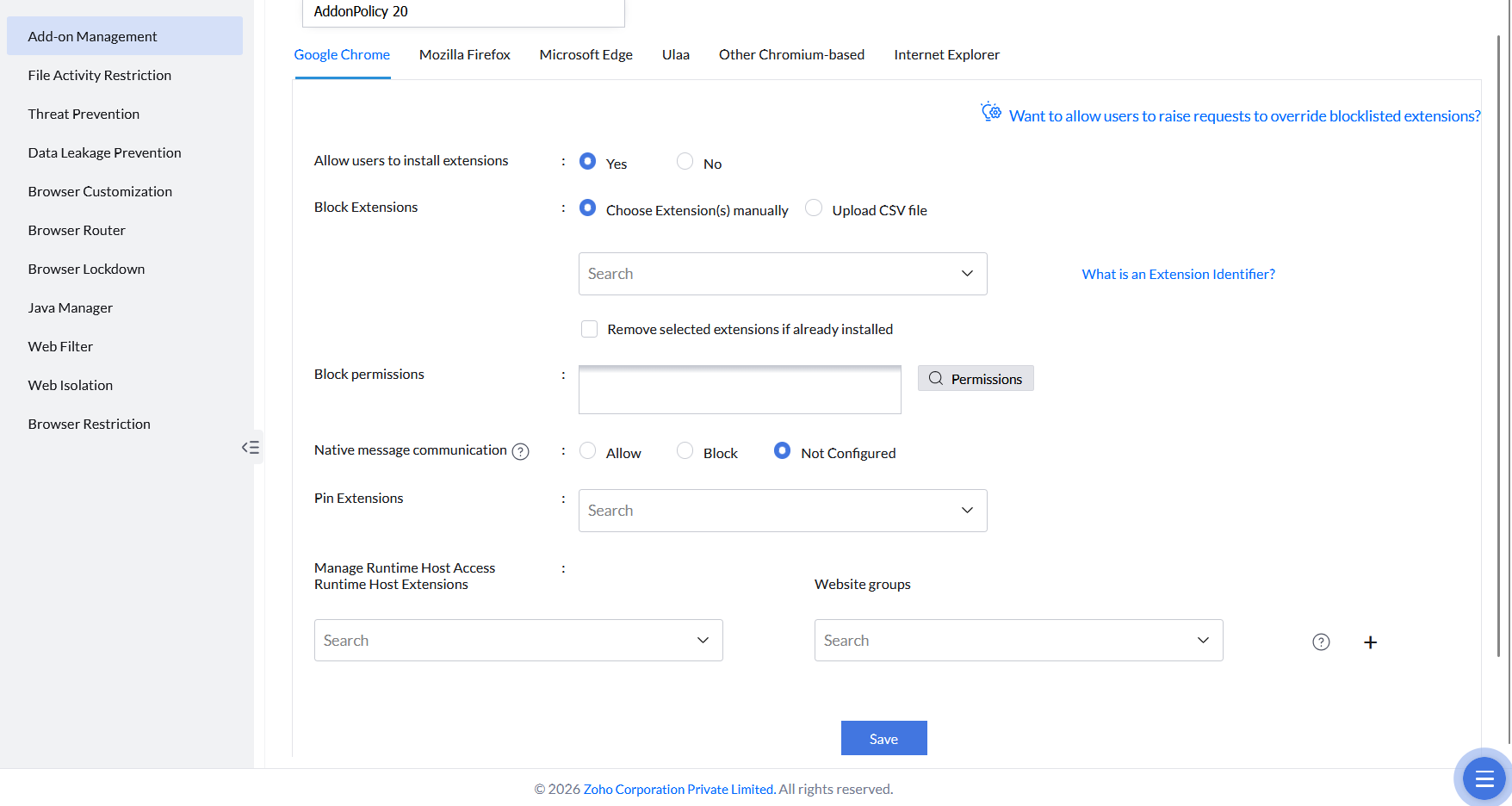
Configuring the Add-on Management policy.
Check extension selections and actions
| Control | Use |
|---|---|
| Allow users to install extensions | Sets the installation choice for the selected browser. |
| Exclude Extensions | In an allowlist/exclusion configuration, lists extensions to retain outside the general restriction. Use the browser-specific identifier; this is not the removal list. |
| Existing Extensions | Review Allow, Disable or Remove behavior for already installed extensions separately from selected IDs. |
| Native message communication | Controls browser-to-native-application communication. |
| Pin Extensions | Controls toolbar pinning where supported. |
Check the browser tab, exact identifier, action and effective policy. Inspect chrome://policy, edge://policy or Firefox about:policies as applicable. Publication alone does not confirm the extension state.
The Windows message Command-line that bypass managed extensions is restricted identifies a browser startup check. It can block a browser started with extension-disabling arguments even when the console shows no deployed browser policies. Changing an extension restriction or browser warning preference does not establish that this separate guard is disabled. See browser launch-block guidance.
Repository installation and restriction overlap
On Windows, an extension force-installed through Extension Repository has an installation state separate from its Add-on Management exception. Adding an identifier to Exclude Extensions does not itself install the extension or prove that its repository distribution completed.
When repository installation overlaps a restriction, the agent can retain the earlier restriction mode. Removing the repository deployment can restore that earlier mode. The restriction removal-list path does not replace an existing force-installed mode. Review both workflows for the same browser-specific identifier.
If an allowed extension remains blocked or an extension remains installed, compare the effective browser policy, repository distribution/removal status and Add-on Management action. Do not add every exception to Extension Repository solely to make it an exception. Escalate persistent differences with these details.
Configure the first-party extension
Open Browsers → Add-on Settings. Review Install Browser Security extensions on managed browsers, Enable tracking of users’ web activity and Enable tracking of users’ intranet web activity. Save the required choices.
These settings are saved for the customer and distributed through the agent-settings workflow. This screen has no computer/group target selector. Verify the result after the endpoint processes the settings. This is separate from Add-on Management and Extension Repository distribution.