Browser Restriction
Allowlist or blocklist browsers so employees stay on a single, secured browser.
About
About Browser Restriction
Control exactly which browsers are allowed to run on managed devices.
What it does
Browser Restriction lets admins control which browsers can be used on devices. By allowlisting or blocklisting specific browsers, admins can prevent unauthorized usage, ensure the best user experience and highest security, and prevent certain features from being available on specific browsers.
Benefits
Why mandate a single browser
Fewer browsers in play means fewer compatibility surprises and a smaller security surface.
Consistency at scale
Remote work has increased reliance on web browsers, and with many browsers available, each with unique features, IT admins face real challenges managing them all. Most web applications work across different browsers, but compatibility issues can still arise, leading to disruptions and increased help desk calls.
Browser Restriction lets IT admins mandate a single browser for employees, and test mission-critical web applications against just that browser. This keeps the user experience consistent and lets IT focus on securing one browser instead of several.
Configuration
Implementing Browser Restriction
Build an allowlist or blocklist policy and roll it out network-wide.
Create and deploy a Browser Restriction policy
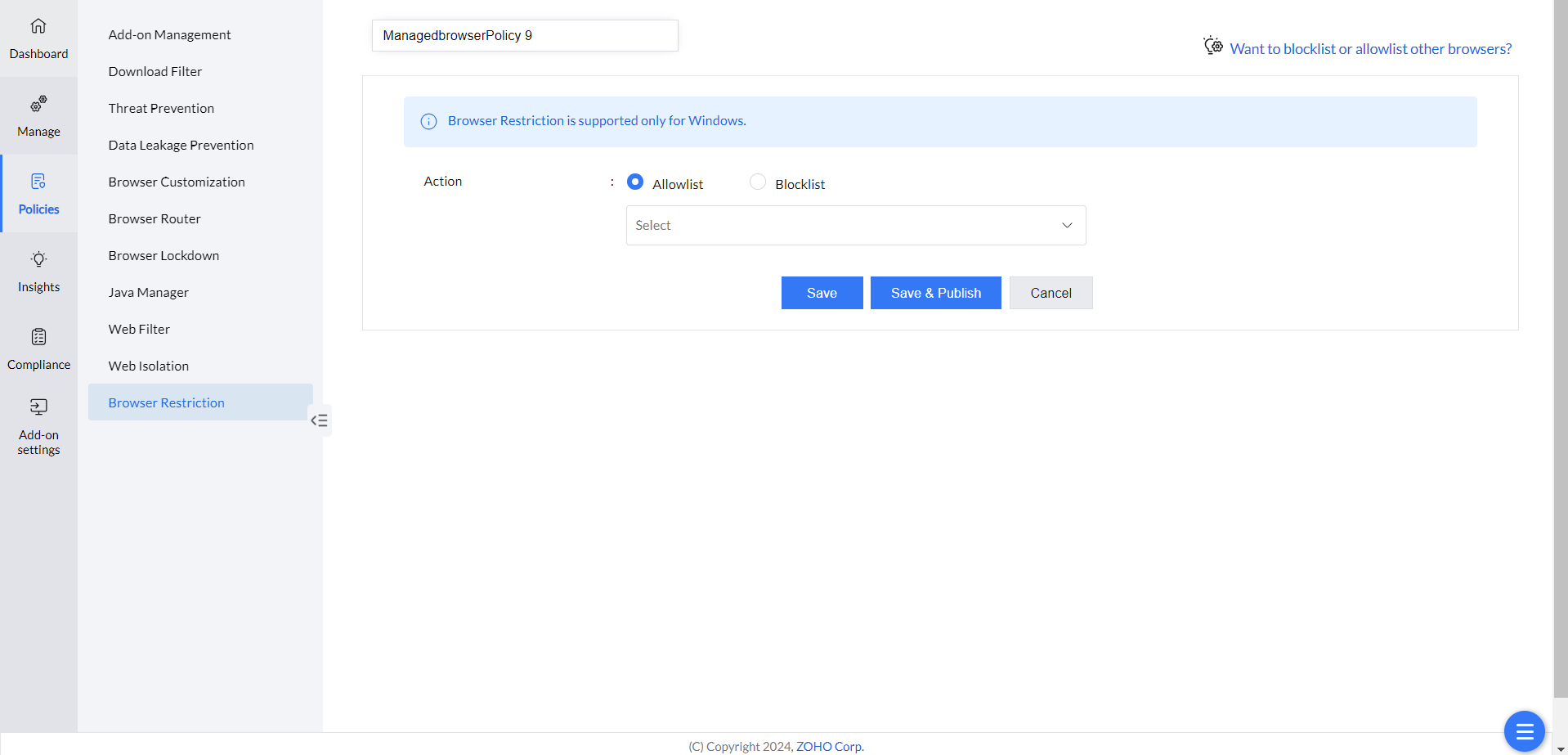
- Open the Endpoint Central console and go to Browsers → Policies → Browser Restriction.
- Click Create Policy.
- Select Allowlist or Blocklist to allow or block the respective browsers.
- Choose the browsers to allowlist or blocklist from the list.
- Click Save to save the policy as a draft.
- Click Save & Publish to publish the policy.
- Deploy the policy with the computers or groups where web-application access should be restricted.
For a Windows domain-login session using the AppLocker enforcement path, Browser Restriction checks domain-controller connectivity. If this check fails, deployment or removal can report Domain connection required but not connected. Restore the required connection and recheck the policy result. Computer/custom-group targeting does not bypass this endpoint check. This condition does not mean that every workgroup computer requires an Active Directory domain.
On Windows, Browser Restriction uses detected browser inventory when it builds the list of browsers outside an allowlist. Do not assume that every proprietary or unrecognized executable is included. Confirm that the browser appears in Browser Security inventory, then verify the applied restriction on the endpoint.
For a Microsoft Store-installed browser or an unexpected result, record the package/browser version, inventory state, policy status and last contact. A completed inventory scan and a successful policy command are separate results. If the browser still runs, provide these details to support; the scan alone does not explain the failure.
Browser Restriction controls Google Chrome, Mozilla Firefox, Naver Whale, Brave, Vivaldi, Coc Coc, Yandex, Ulaa, Microsoft Edge, Microsoft Edge (Legacy), and Internet Explorer. Unsupported browsers like Opera and UC Browser can be restricted indirectly — for example, allowing access only to Google Chrome effectively blocks Opera too, since every other browser is then restricted. Browser Restriction takes effect after the next asset scan when a new browser is installed.
The Windows AppLocker enforcement path can create rules identified as MEBSPAPPLOCKER with description ME Browser Security Plus Browser Restriction. For packaged applications, it can write a baseline publisher allow rule and additional package-specific deny rules. The baseline rule alone is not the complete restriction policy.
If another tool also manages AppLocker, collect both policy sets and the effective rules for support before changing them. Do not delete these rules as a general remedy.