Patch Database Synchronization
The Patch Database (also known as Vulnerability Database) serves as a centralized storage repository within the Endpoint Central website, containing all relevant data and information regarding patches and vulnerabilities released by various vendors. This database is periodically updated and maintained through rigorous analysis and testing by Endpoint Central.
Endpoint Central's Patch Repository is updated with the latest patch information from Microsoft, Apple, Linux, and other third-party vendors and other vulnerability databases. Regular synchronization between the Patch DB and the Endpoint Central Patch Repository ensures that every patch remains up-to-date as the vulnerabilities in the managed systems are swiftly detected and remediated. You can configure the Patch Database Settings to choose what patches to be managed by the product and set the frequency at which the patch database synchronizes with the Endpoint Central's Patch Repository. To access Patch Database Settings, go to Threats and Patches ----> Settings ------> Patch Database Settings.
Selection of Patches
With the daily release of patches, it's crucial for enterprises to evaluate and select necessary patches for their networks. Endpoint Central lets IT administrators configure preferences to download and apply patches for operating systems or third-party software. You can select patch categories for each provided OS in Patch Database Settings under the section: Select the patches that you wish to manage.
For a required non-security update, enable Non-Security Updates under Microsoft Updates before synchronizing the Patch Database and scanning the computers.
Endpoint Central receives updates from the patch repository regardless of the selected patch types. After the Patch Database sync completes, computers are scanned, and only missing patches from the selected categories are listed. Excluded patches won't be shown as missing. You can also use the Decline Patch feature if needed.
This enables targeted patch management. For instance, you might choose to install only patches related to the Mac operating system and third-party patches for Windows, excluding Windows BIOS updates. Scans will focus on identifying missing patches in these selected categories. As a result, patches like BIOS updates won't be listed as missing (even if they are missing in the managed computers), since you haven't configured the Patch Database Settings to include them.
To offer Microsoft Defender definition updates, enable Definition Updates under Microsoft Updates in Patch Database Settings. You can ignore the information alert if you do not use Defender.
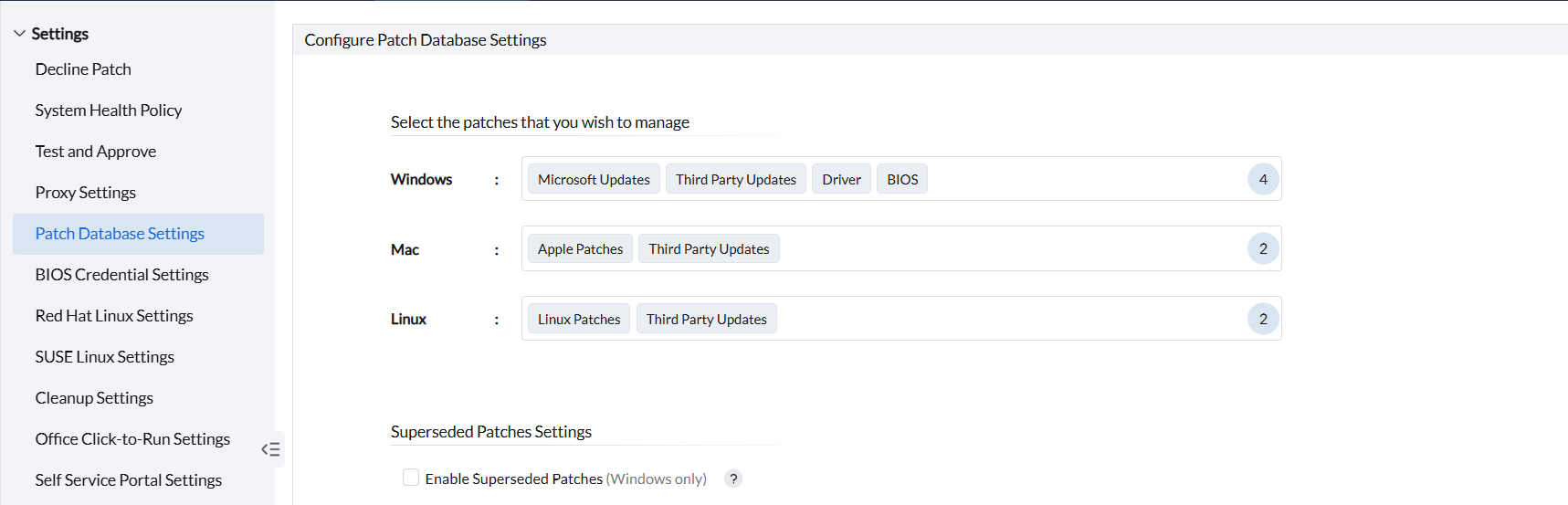
The macOS and Linux patch-selection options become available after at least one agent for the corresponding platform is installed and communicates with the server. The options can remain unavailable even when the operating system itself is supported if no agent for that platform has checked in.
Verify newly released third-party patches
After a Patch Database sync completes, verify that the update is listed under Supported Patches. Run a patch scan on the managed computers to detect the update as missing, then deploy it through the appropriate patch deployment workflow.
Superseded Patch Settings (Windows Only)
To manage superseded Windows patches, use N-1 Patch Settings. For configuration and retention details, see N-1 patching.
Schedule the Sync
You can schedule the time at which the vulnerability database information is updated. Enable the Schedule Vulnerability Database Update and fill in the required fields to activate the patch database sync. Setting the time in Start at field will enable patch sync to happen at that time on a daily basis.
Defender definition updates
Why do Microsoft Defender definition updates appear before the vulnerability database refresh?
Microsoft Defender definition updates are synchronized every hour. The vulnerability database for operating systems and third-party applications is synchronized daily.
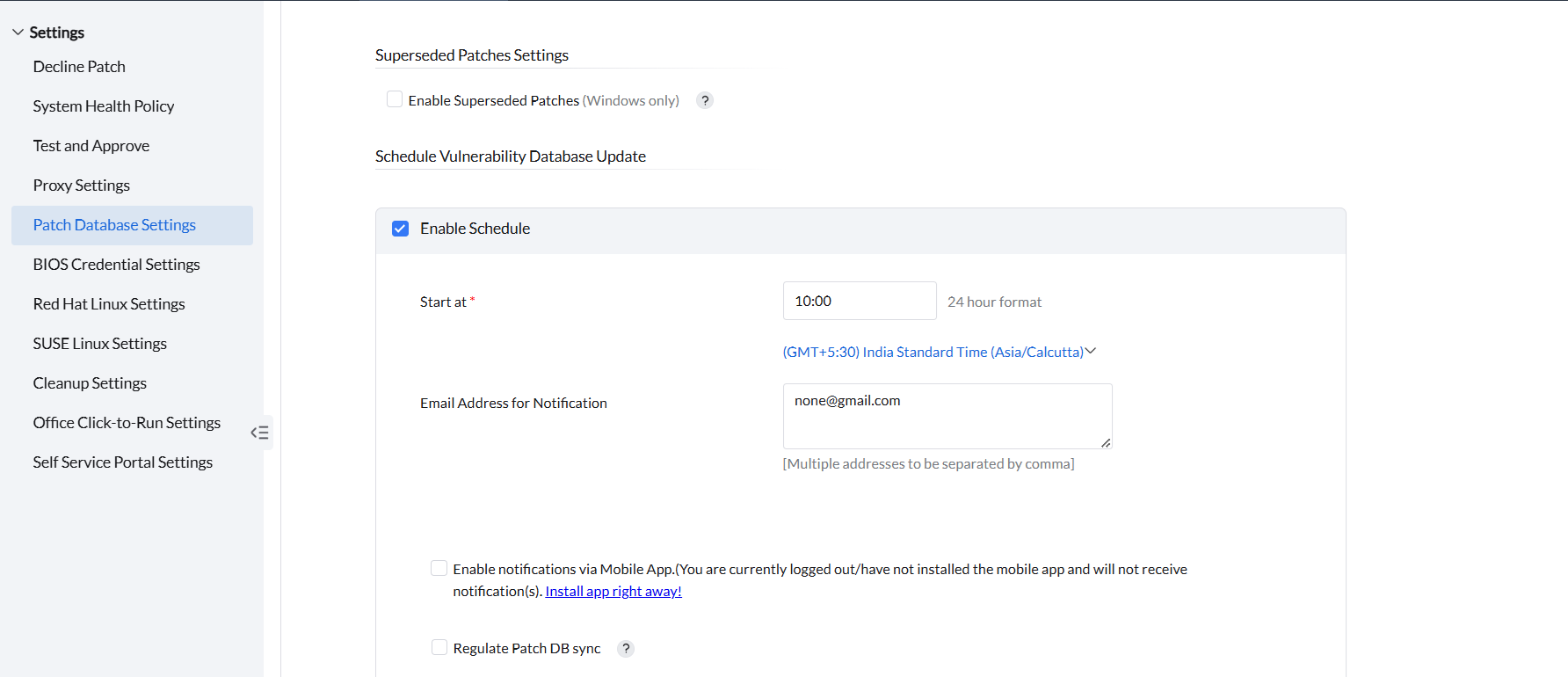
You can also get notified about the synchronization by configuring the notification server settings and provide your Email Address for Notification in the corresponding field. If you wish to receive mobile app notification, install the mobile application version of Endpoint Central and configure the changes here. For cloud versions, the notification settings will be displayed as a sepearate section as Configure Notification Settings under Patch Database Settings. You can also allow the server to regulate the Patch DB sync on critical instances by initiating/deferring the sync. To allow this, enable Regulate DB Sync. To learn more about Regulate DB Sync, refer to this page.
After configuring the required settings, click on Save. If a patch download failed before the change, run Sync Now, confirm that synchronization completes successfully, and retry the download. For persistent download errors, see Patch Download Failures. If synchronization itself fails, see Open Network DB Sync Failure; certificate and SSL inspection troubleshooting is maintained there.
The Patch scan will be initiated in the next agent refresh cycle after Vulnerability Database sync is successful.
The Patch Database sync setting applies to all managed operating systems. You cannot pause the sync for one operating system while continuing it for another.