Improving Azure AD password security
Just like AD domain passwords, Azure AD passwords are sensitive and must be secured to prevent infiltration into the enterprise network. Exposure of Azure AD passwords can also let hackers access other integrated cloud applications. Enabling password policies and banning weak passwords can enable the creation of stronger Azure AD passwords. Azure AD is equipped with password policies and the Azure AD Password Protection feature to achieve this, but they come with their downsides.
For example, password policies cannot restrict dictionary words, patterns, or palindromes. They also cannot be applied to only specific groups or OUs. The Azure AD Password Protection feature uses a database that has not been made public and relies on algorithms instead of data from breaches to expand the banned passwords list.
A better solution to secure Azure AD passwords
ManageEngine ADSelfService Plus, an integrated self-service password management and MFA solution for AD and cloud applications, supports advanced password policy settings for Azure AD. Some of the advantages of using this solution over Azure AD's native tools are:
- Application of password policies for specific OUs and groups.
- Restriction of patterns, palindromes, dictionary words, and character repetition in passwords.
- Access to the default weak passwords list.
- Enforcement of all four character groups (lowercase and uppercase alphabets, numbers, and symbols) in the password.
- Simple configuration to apply the password policies to on-premises AD, Azure AD, and other enterprise applications.
How to enable advanced password policies for Azure AD
Step 1: Synchronize ADSelfService Plus with Azure AD
- Log in to the ADSelfService Plus admin console with admin credentials.
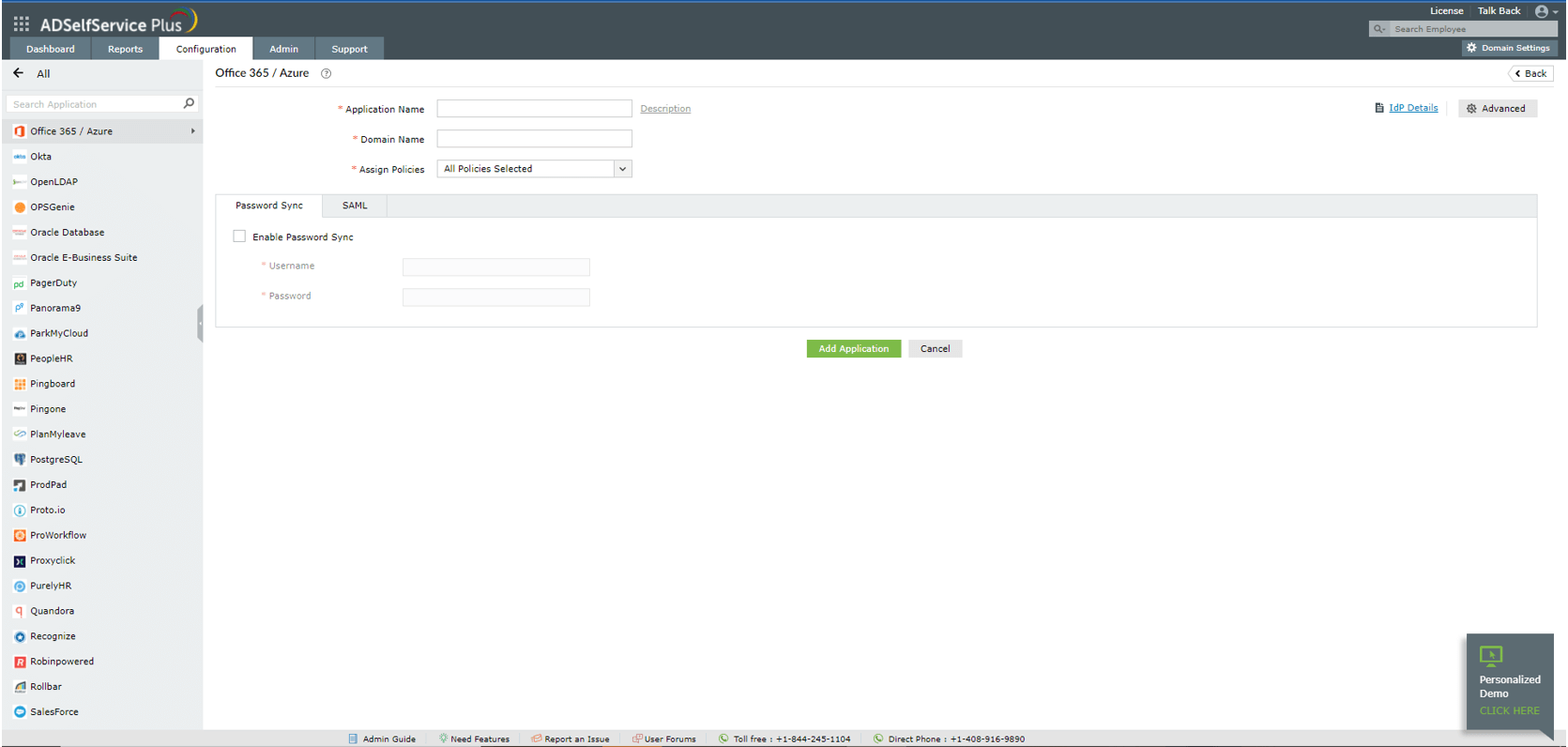
- Navigate to Configuration > Self-Service > Password Sync/Single Sign On.
- Select the Office 365/Azure accounts application.
- Enter the Application Name, Description, and Domain Name of your Azure account.
- In the Assign Policies field, select the policies for which password sync needs to be enabled.
Note: ADSelfService Plus allows you to create OU- and group-based policies for your AD domains. To create a policy, go to Configuration > Self-Service > Policy Configuration > Add New Policy.
- Select Enable Password Sync and enter the Username and Password of the Azure account.
- Click Add Application.
Step 2: Configure the Password Policy Enforcer
- Log in to ADSelfService Plus.
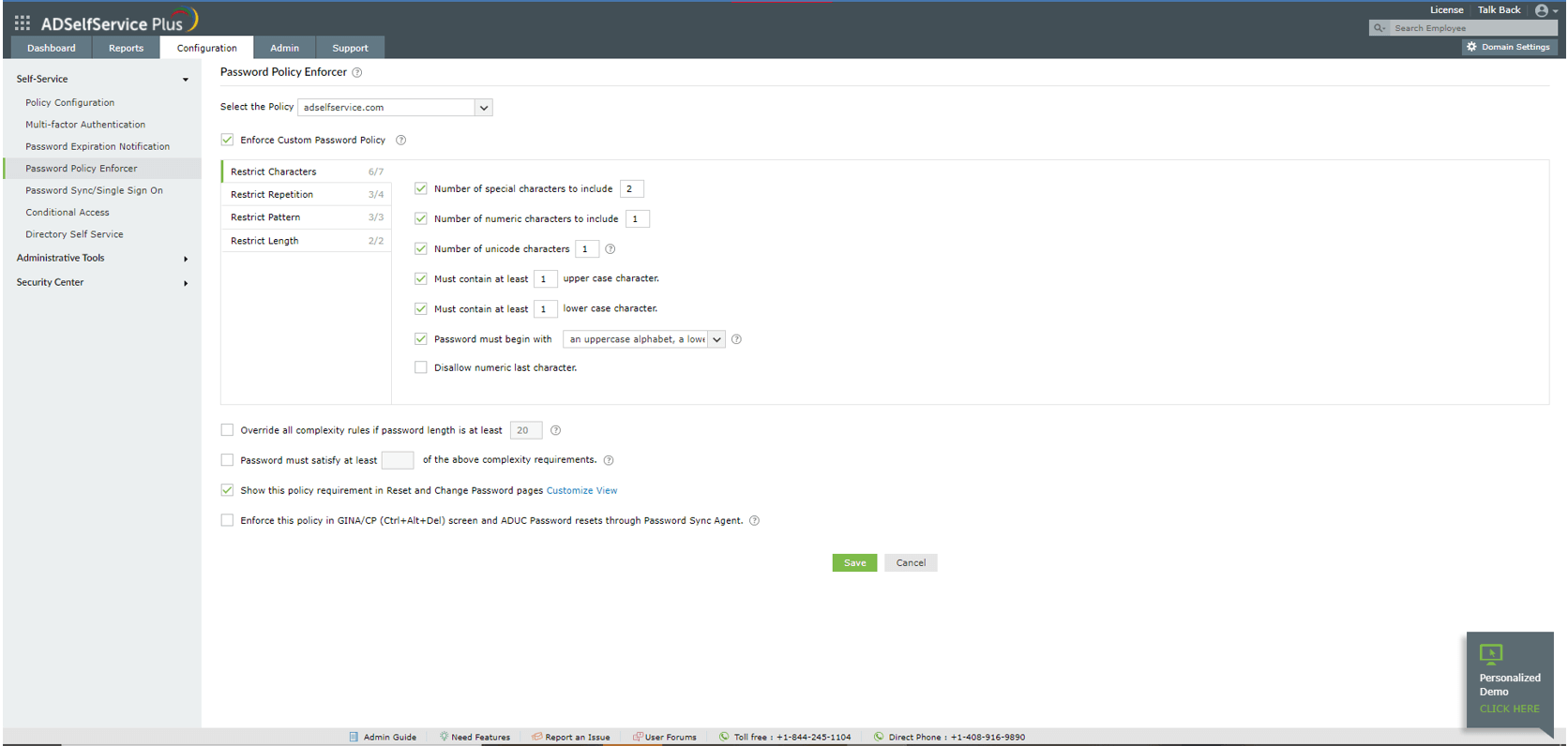
- Go to Configuration > Self-Service > Password Policy Enforcer. Enable Enforce Custom Password Policy.
- In this section, you can manage:
- Characters: Restrict the number of special characters, numbers, and Unicode characters used in passwords.
- Repetition: Enforce a password history check during password reset, and restrict the consecutive repetition of a specific character from the username.
- Patterns: Restrict keyboard sequences, dictionary words, and palindromes.
- Length: Specify the minimum and maximum password lengths.
- Click Save.
The following options can also be enabled if needed:
- Users can bypass the policy requirements when the password length exceeds a specific limit.
- Users must comply with at least a specific number of the configured password policy settings.
- The configured password policy requirements can be enforced during native password resets from the Active Directory Users and Computers console and the Change Password screen. This requires the Password Sync Agent.
- Display the password policy requirements on the Reset and Change Password pages.
Other features to ensure Azure AD password security include:
- Integration with Have I Been Pwned? uses the service to restrict users from employing previously exposed passwords.
- Password status reports display instances of password resets and changes, and their status with additional information including the time of the change and the device used.
- The Password Strength Analyzer graphically indicates how complex a password is to help users create strong and secure passwords.
In addition to features that promote password protection, ADSelfService Plus also offers MFA to secure Azure AD logins with support of up to 19 authenticators including biometrics, YubiKey Authenticator, and time-based one-time passcodes.
Highlights of ADSelfService Plus
Allow Active Directory users to self-service their password resets and account unlock tasks, freeing them from lengthy help desk calls.
Get seamless one-click access to 100+ cloud applications. With enterprise single sign-on, users can access all their cloud applications using their Active Directory credentials.
Intimate Active Directory users of their impending password and account expiry via email and SMS notifications.
Synchronize Windows Active Directory user passwords and account changes across multiple systems automatically, including Microsoft 365, Google Workspace, IBM iSeries, and more.
Strong passwords resist various hacking threats. Enforce Active Directory users to adhere to compliant passwords by displaying password complexity requirements.
Enable Active Directory users to update their latest information themselves. Quick search features help admins scout for information using search keys like contact numbers.
 Free Edition