Pricing  Get Quote


How to enable MFA for privileged accounts

In this article:

Objective

This article explains how to configure MFA for privileged Active Directory accounts using ADSelfService Plus to prevent unauthorized access and minimize the risk of account compromise. Enforcing multi-factor login for privileged access can significantly enhance the security of your critical systems and helps secure high-risk users such as IT admins, database administrators, and other users with elevated permissions in Active Directory environments. By enabling privileged access MFA, organizations can enforce strict access policies and enhance protection against credential-based attacks, even if passwords are compromised. With multi-factor login for privileged access, you can:

  • Protect administrator accounts: Ensure that even if an administrator's password is stolen, a second factor is required for login, safeguarding your infrastructure.
  • Secure critical application access: Implement privileged access MFA for accounts used to manage sensitive enterprise applications, preventing data breaches.
  • Strengthen Active Directory security: Bolster your MFA for privileged accounts in your Active Directory environment by enforcing additional authentication steps for users with elevated permissions, thus preventing lateral movement in the network.

Prerequisites

  • Administrative access to the ADSelfService Plus portal.
  • Permissions to manage users, groups, and OUs within your AD.

Steps to follow

Step 1: Create a policy for privileged users

To begin securing your privileged accounts with MFA, create a self-service policy within ADSelfService Plus. To do this:
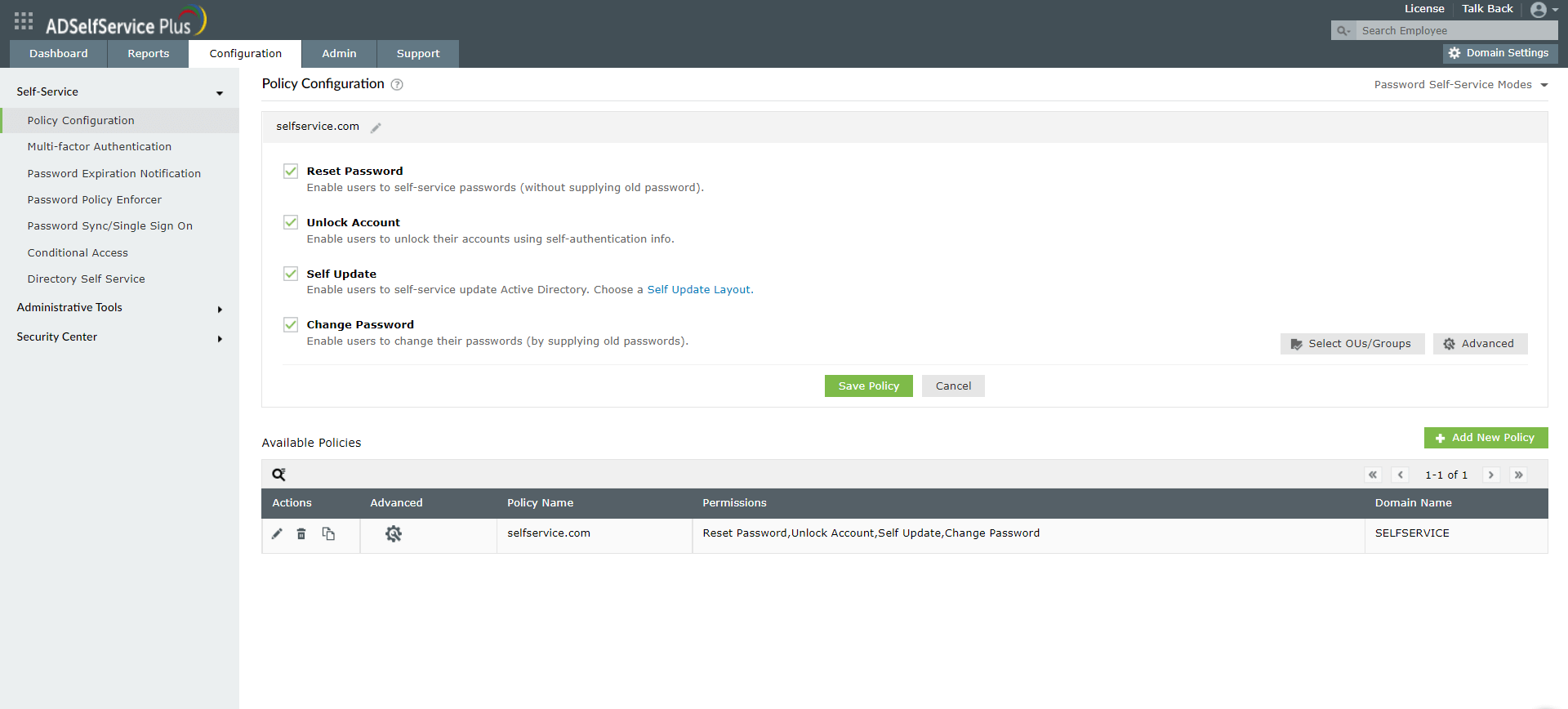
  1. Navigate to Configuration > Self-Service > Policy Configuration.
  2. Click Add New Policy, and choose the domain, OU, or security group for your privileged user accounts.

    create-policy-for-privileged-users

    Figure 1: Create a self-service policy for privileged user accounts in ADSelfService Plus.

Step 2: Configure authenticators for MFA

Next, associate stringent authentication methods for your privileged user account policy. It is recommended to choose strong authenticators such as biometric authentication, FIDO passkeys, or YubiKey Authenticator suitable for high-risk accounts with privileged access.
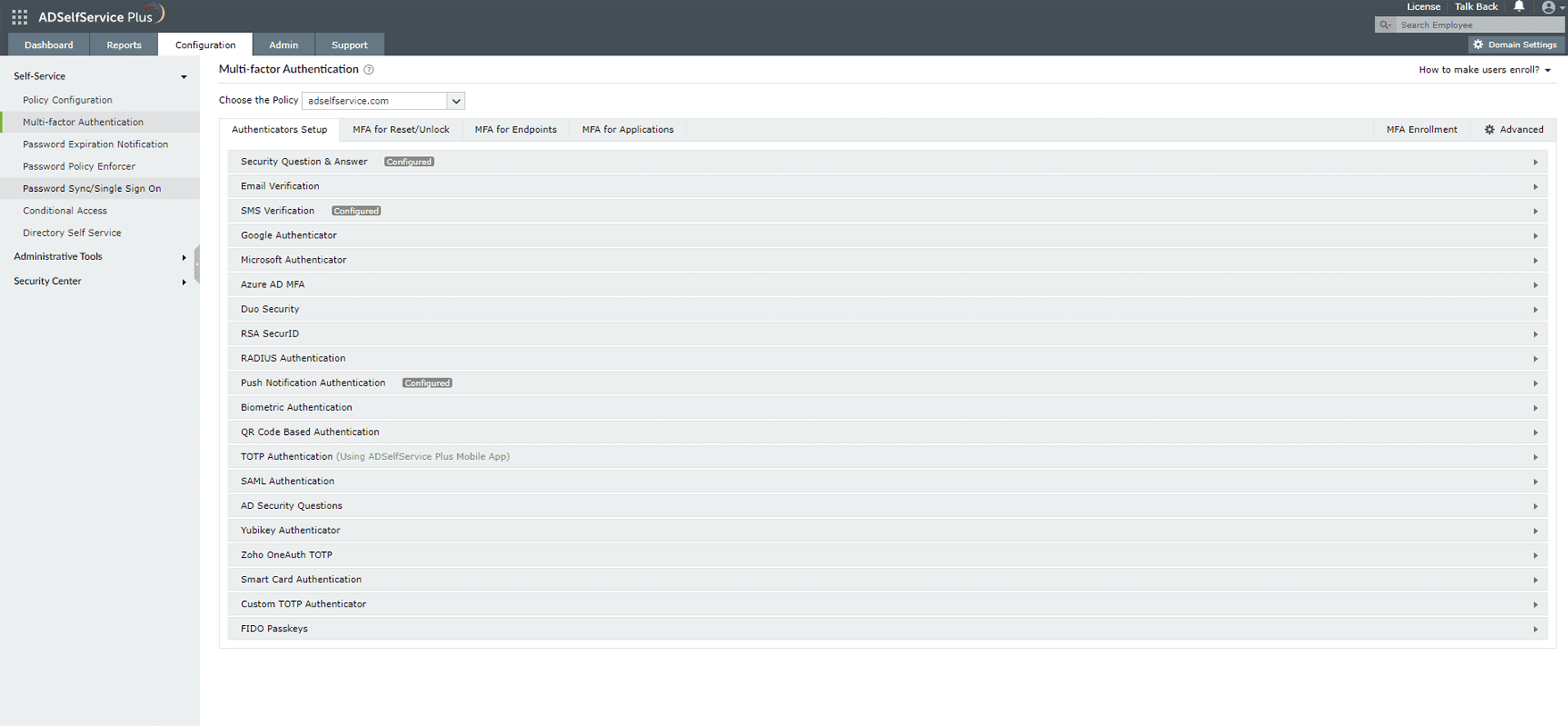
  1. Navigate to Configuration > Self-Service > Multi-factor authentication > Authenticators Setup.
  2. Configure the authenticators you wish to setup MFA for privileged accounts.
  3. Navigate to MFA for Endpoints.
  4. Select the access point you wish to secure (machine login, VPN, OWA, or enterprise application) and associate the policy created in Step 1.
  5. Configure the number of authentication factors required and the allowed authentication methods.

    configure-authenticators-for-multi-factor-authentication

    Figure 2: Configure authenticators for privileged access MFA.

Step 3: Enroll privileged accounts for MFA

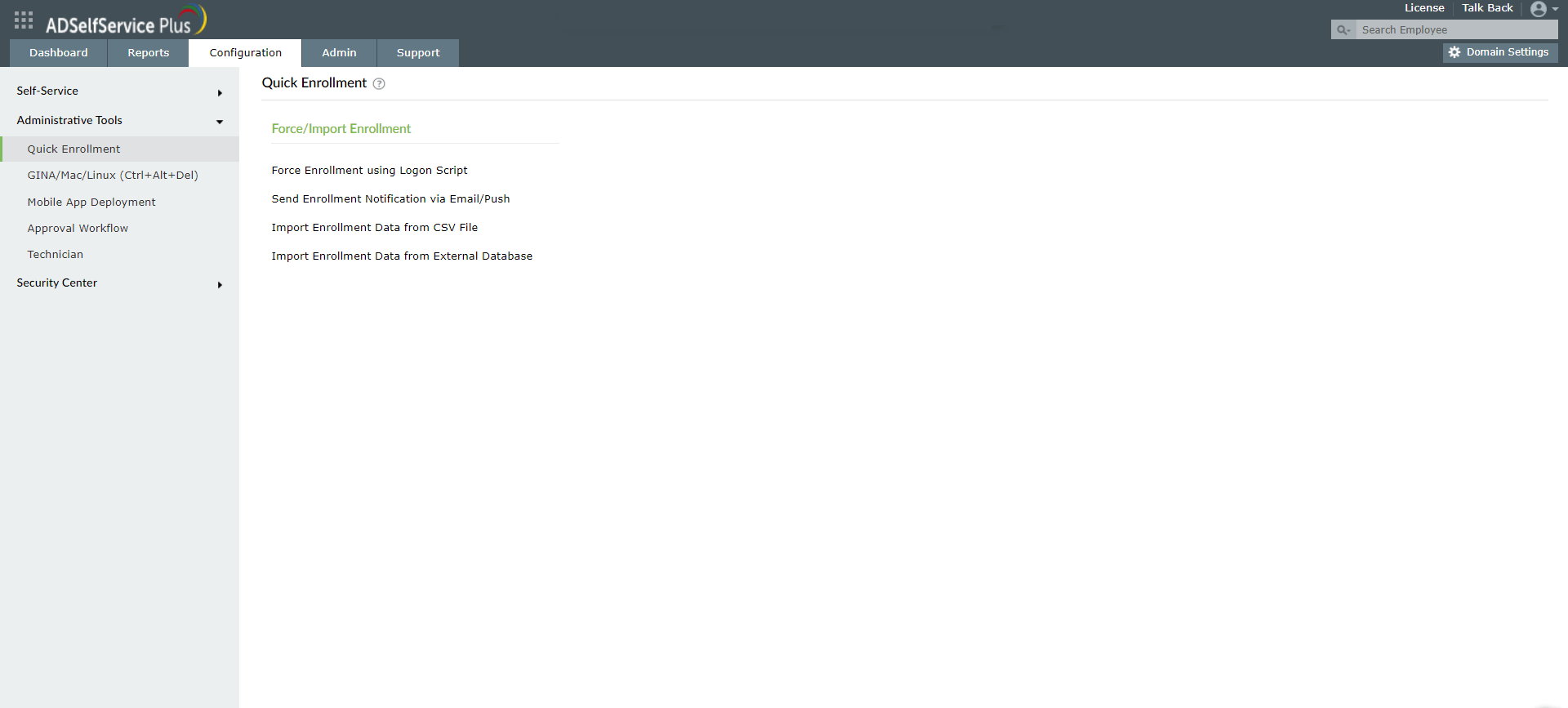
To ensure all privileged user accounts are protected by MFA, you can:

  • Enable forced user enrollment on login.
  • Send enrollment notifications via SMS or email.
  • Bulk enroll users into the product by importing data from CSV files or external databases.

This step is crucial for widespread adoption of MFA for privileged accounts, reducing gaps in protection.

This can be configured under Configuration > Administrative Tools > Quick Enrollment.
enable-forced-user-enrollment

Figure 3: Enable forced user enrollment for privileged access MFA.

Authentication methods supported for MFA for privileged accounts

ManageEngine ADSelfService Plus supports a wide range of authentication methods to implement robust MFA for privileged accounts:

  1. Security question and answer
  2. Email verification
  3. SMS verification
  4. Google Authenticator
  5. Microsoft Authenticator
  6. Microsoft Entra ID MFA
  7. Duo Security
  8. RSA SecurID
  9. RADIUS authentication
  10. Push notification authentication
  1. Biometric authentication
  2. FIDO passkeys
  3. QR code authentication
  4. TOTP authentication
  5. SAML authentication
  6. AD security questions
  7. YubiKey authentication
  8. Zoho OneAuth TOTP
  9. Smart card authentication
  10. Custom TOTP authenticator

Related topics and articles

2FA for Windows logins

How to secure privileged accounts with adaptive MFA

MFA for Active Directory accounts

Enable MFA for privileged user accounts using ADSelfService Plus

  Download a free trial now!  Request demo

Request for Support

Need further assistance? Fill this form, and we'll contact you rightaway.

  • Name
  •  
  • Business Email *
  •  
  • Phone *
  •  
  • Problem Description *
  •  
  • Country
  •  
  • By clicking 'Submit' you agree to processing of personal data according to the Privacy Policy.
Highlights of ADSelfService Plus

Password self-service

Allow Active Directory users to self-service their password resets and account unlock tasks, freeing them from lengthy help desk calls.

One identity with single sign-on

Get seamless one-click access to 100+ cloud applications. With enterprise single sign-on, users can access all their cloud applications using their Active Directory credentials.

Password and account expiry notification

Intimate Active Directory users of their impending password and account expiry via email and SMS notifications.

Password synchronization

Synchronize Windows Active Directory user passwords and account changes across multiple systems automatically, including Microsoft 365, Google Workspace, IBM iSeries, and more.

Password policy enforcer

Strong passwords resist various hacking threats. Enforce Active Directory users to adhere to compliant passwords by displaying password complexity requirements.

Directory self-update and corporate directory search

Enable Active Directory users to update their latest information themselves. Quick search features help admins scout for information using search keys like contact numbers.


ADSelfService Plus trusted by

Embark on a journey towards identity security and Zero Trust