Pricing  Get Quote


How to prevent brute-force attacks

In this article:

Objective

This article explains how to prevent brute-force attacks by using ADSelfService Plus' comprehensive security measures, including MFA, CAPTCHA implementation, strong password policies, and advanced monitoring capabilities. Learning how to prevent brute-force attacks is crucial for protecting your Active Directory environment from automated credential-based attacks that systematically attempt to crack user passwords.

Brute-force attack prevention involves implementing multiple security layers to detect, block, and stop brute force attack attempts. With ADSelfService Plus, you can prevent brute-force attacks through various security mechanisms that work together to create a robust defense against credential-based threats.

By implementing effective brute-force attack prevention strategies, you can:

  • Block automated login attempts: Implement CAPTCHA and account lockout mechanisms to prevent brute-force attacks from automated bots and scripts.
  • Strengthen authentication security: Deploy MFA to prevent unauthorized access, even when brute-force attacks successfully crack passwords.
  • Monitor for suspicious activities: Use detailed audit reports to identify patterns that indicate brute-force attack attempts and respond proactively to prevent brute-force attacks.
  • Enforce strong password policies: Implement advanced password complexity rules and banned password lists to prevent brute-force attacks that target weak credentials.

Steps to follow

Step 1: Configure MFA for identity verification

Implementing MFA for identity verification is crucial to prevent brute-force attacks. Even if attackers successfully crack passwords, MFA provides an additional security layer.
  1. Log in to ADSelfService Plus.
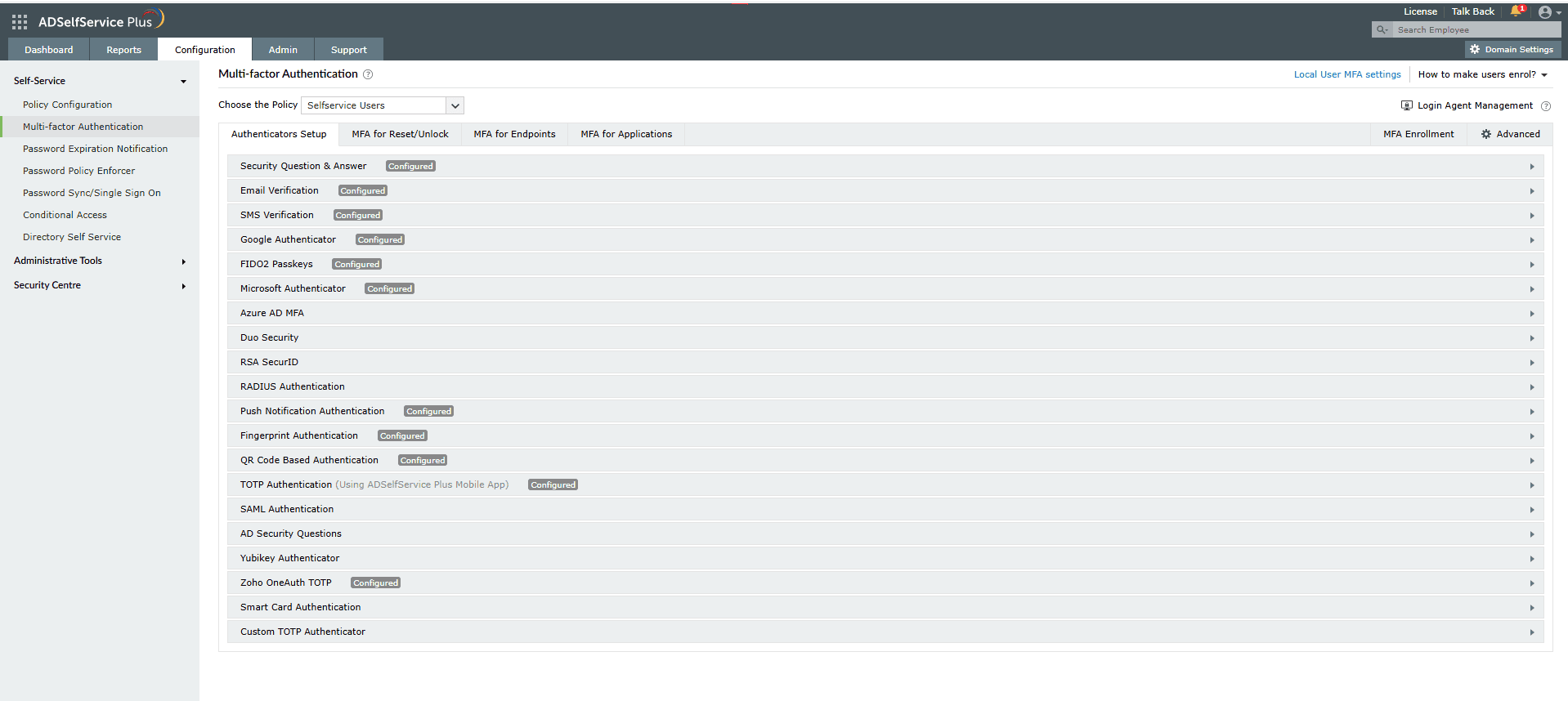
  2. Navigate to Configuration > Self-Service > Multi-factor Authentication > Authenticators Setup (Fig. 1).
  3. Configure strong authentication methods for identity verification:
    • Biometric authentication for high-security environments
    • YubiKey authentication for hardware-based security
    • Google Authenticator or Microsoft Authenticator for TOTPs
    • SMS verification or push notifications for mobile authentication
  4. Navigate to MFA for Endpoints.
  5. Enable MFA for critical access points:
    • Machine logins (Windows, macOS, and Linux)
    • VPN access
    • Outlook on the web
    • Enterprise applications via SSO
  6. Associate the configured MFA policy with the user groups or OUs most at risk from brute-force attacks.
  7. Set the number of authentication factors required (it is recommended to select at least two factors).

    The MFA Authenticators Setup interface displaying a plethora of authentication methods to keep brute-force attacks at bay.

    Figure 1. The MFA Authenticators Setup interface displaying a plethora of authentication methods to keep brute-force attacks at bay.

Step 2: Enable CAPTCHA protection

CAPTCHA is one of the most effective methods to stop brute force attack attempts as it prevents automated bots from making repeated login tries. To prevent brute-force attacks using CAPTCHA:
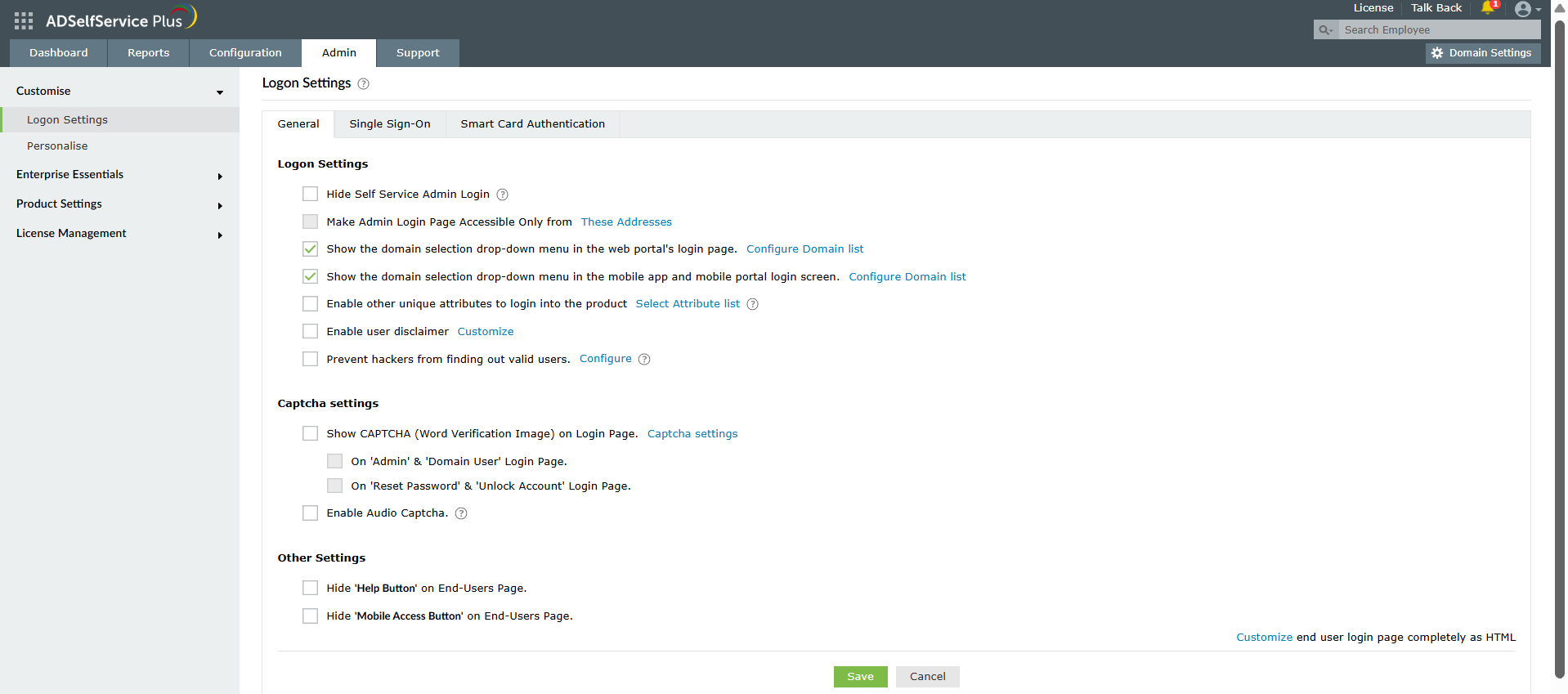
  1. Navigate to Admin > Customize > Login Settings (Fig. 2).
  2. Enable Show CAPTCHA (word verification image) on login page.
  3. Choose between the image CAPTCHA and audio CAPTCHA options.
  4. Configure when CAPTCHA should be displayed (after failed attempts or always).

    CAPTCHA configuration settings on ADSelfService Plus' Login Settings page to stop brute-force attacks in their tracks.

    Figure 2. CAPTCHA configuration settings on ADSelfService Plus' Login Settings page to stop brute-force attacks in their tracks.

Step 3: Configure user blocking for failed verification attempts

ADSelfService Plus allows you to block users who fail at the identity verification step, which helps prevent brute-force attacks on security questions and verification codes.
  1. Navigate to Configuration > Self-Service > Policy Configuration.
  2. Click the icon in the Advanced column.
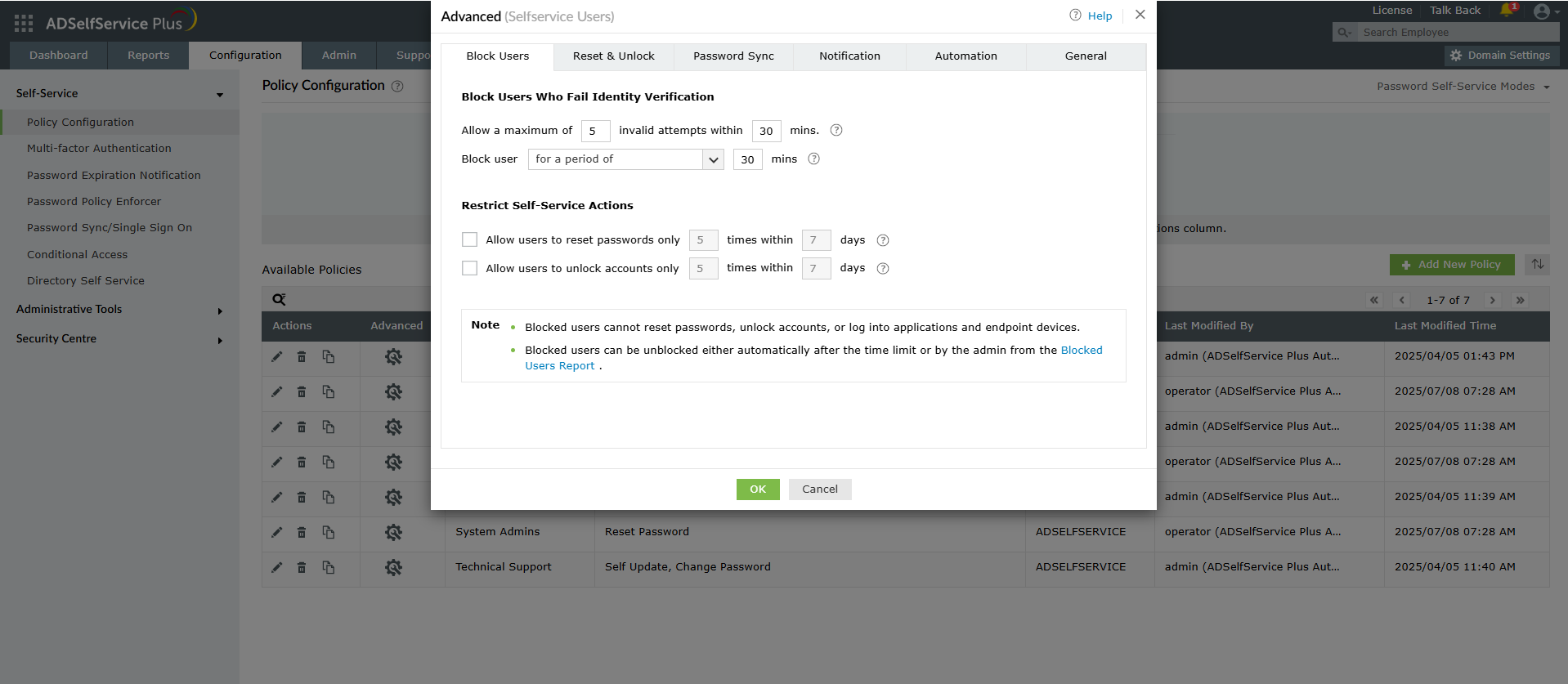
  3. Configure the Block Users settings (Fig. 3):
    • Set the maximum number of invalid attempts allowed within a given timeframe.
    • Define how long users should be blocked after exceeding the failed attempt limit.
  4. Navigate to Reports > MFA Reports > Blocked Users Report and review the report to monitor for potential brute-force attack attempts and unblock legitimate users if required.

    The user blocking configuration interface showing how to prevent brute-force attacks on identity verification.

    Figure 3. The user blocking configuration interface showing how to prevent brute-force attacks on identity verification.

Step 4: Enforce strong password policies

Strong password policies are crucial when learning how to prevent brute-force attacks as weak passwords are the primary target of these automated attacks. The Password Policy Enforcer feature helps prevent brute-force attacks by ensuring users create strong, unique passwords that resist automated cracking attempts.
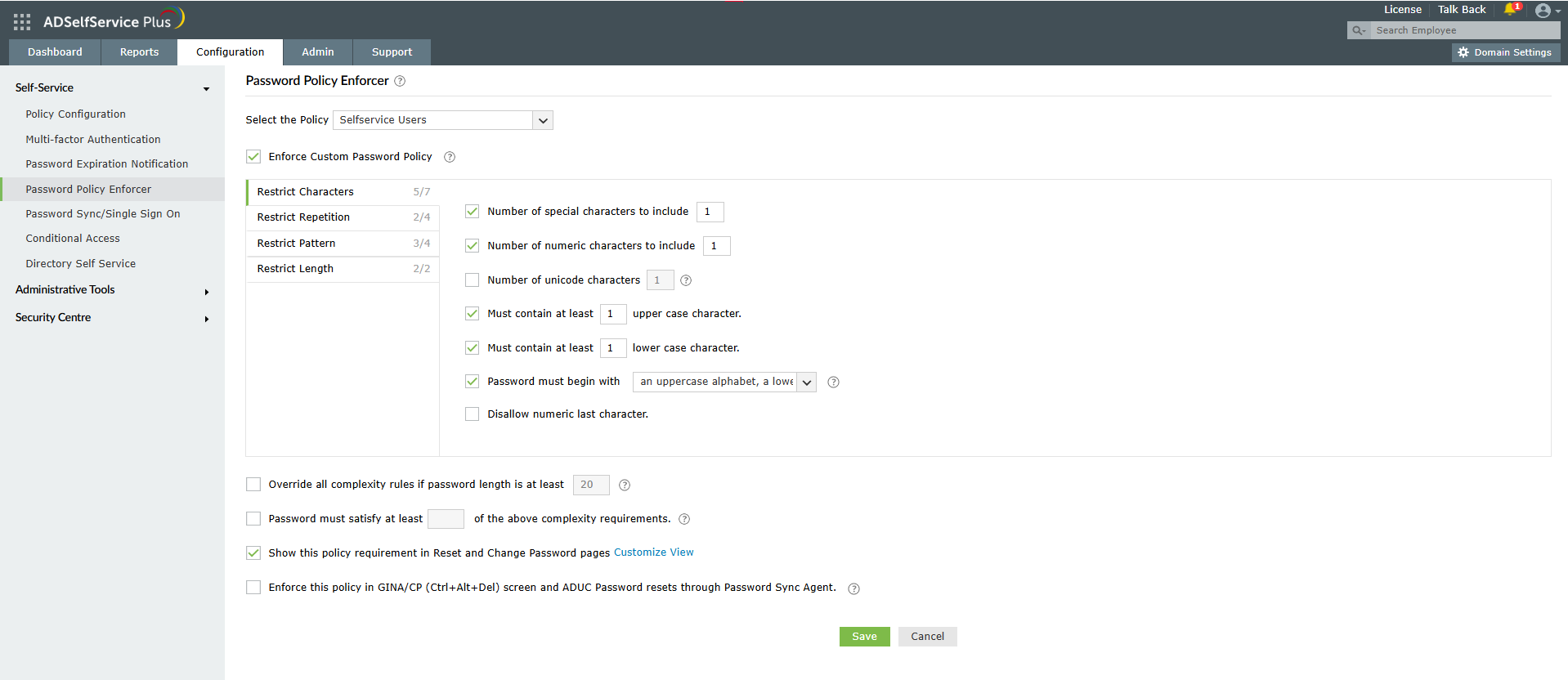
  1. Navigate to Configuration > Self-Service > Password Policy Enforcer (Fig. 4).
  2. Enable Enforce Custom Password Policy.
  3. Configure advanced settings to prevent brute-force attacks:
    • Set the minimum and maximum password length.
    • Ban dictionary words and common patterns.
    • Restrict keyboard sequences and palindromes.
    • Enable the integration with Have I Been Pwned to block compromised passwords.

    Password Policy Enforcer configuration helps you thwart brute-force attacks by enforcing strong password requirements.

    Figure 4. Password Policy Enforcer configuration helps you thwart brute-force attacks by enforcing strong password requirements.

Step 5: Enable conditional access controls

Risk-based policies are an advanced technique for administrators who want to know how to prevent brute-force attacks based on contextual factors. Conditional access helps prevent brute-force attacks by implementing risk-based authentication policies.
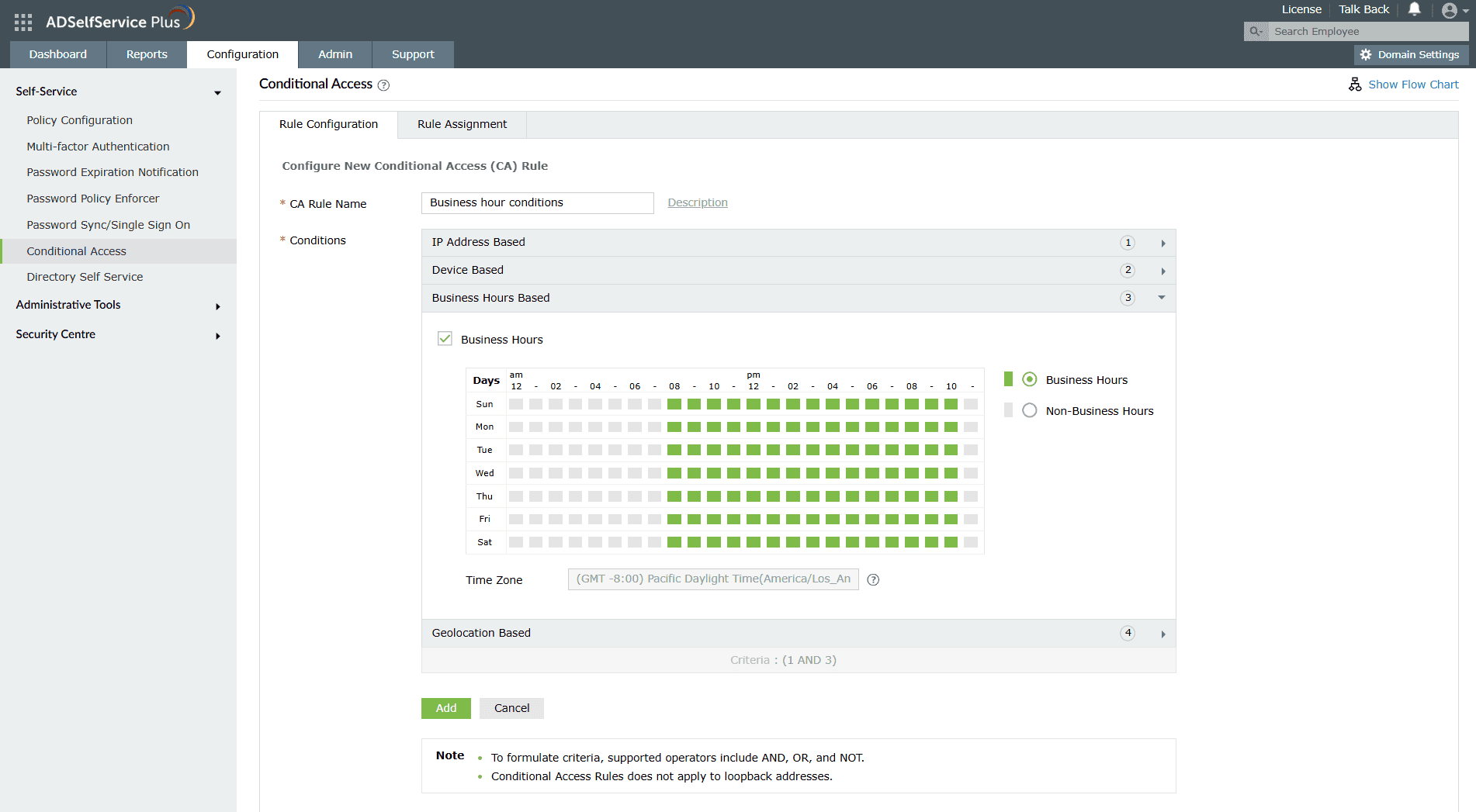
  1. Navigate to Configuration > Self-Service > Conditional Access (Fig. 5).
  2. Configure controls based on risk factors, including:
    • IP address restrictions.
    • Geolocation-based controls.
    • Device-based access policies.
    • Time-based access restrictions.
  3. Set stricter authentication requirements for suspicious login patterns that may indicate brute-force attacks.

    Conditional Access settings help in preventing brute-force attacks by implementing risk-based authentication policies.

    Figure 5. Conditional Access settings help in preventing brute-force attacks by implementing risk-based authentication policies.

Step 6: Monitor and audit login attempts

Knowing how to prevent brute-force attacks includes implementing effective monitoring, which requires continuous observation of login activities.
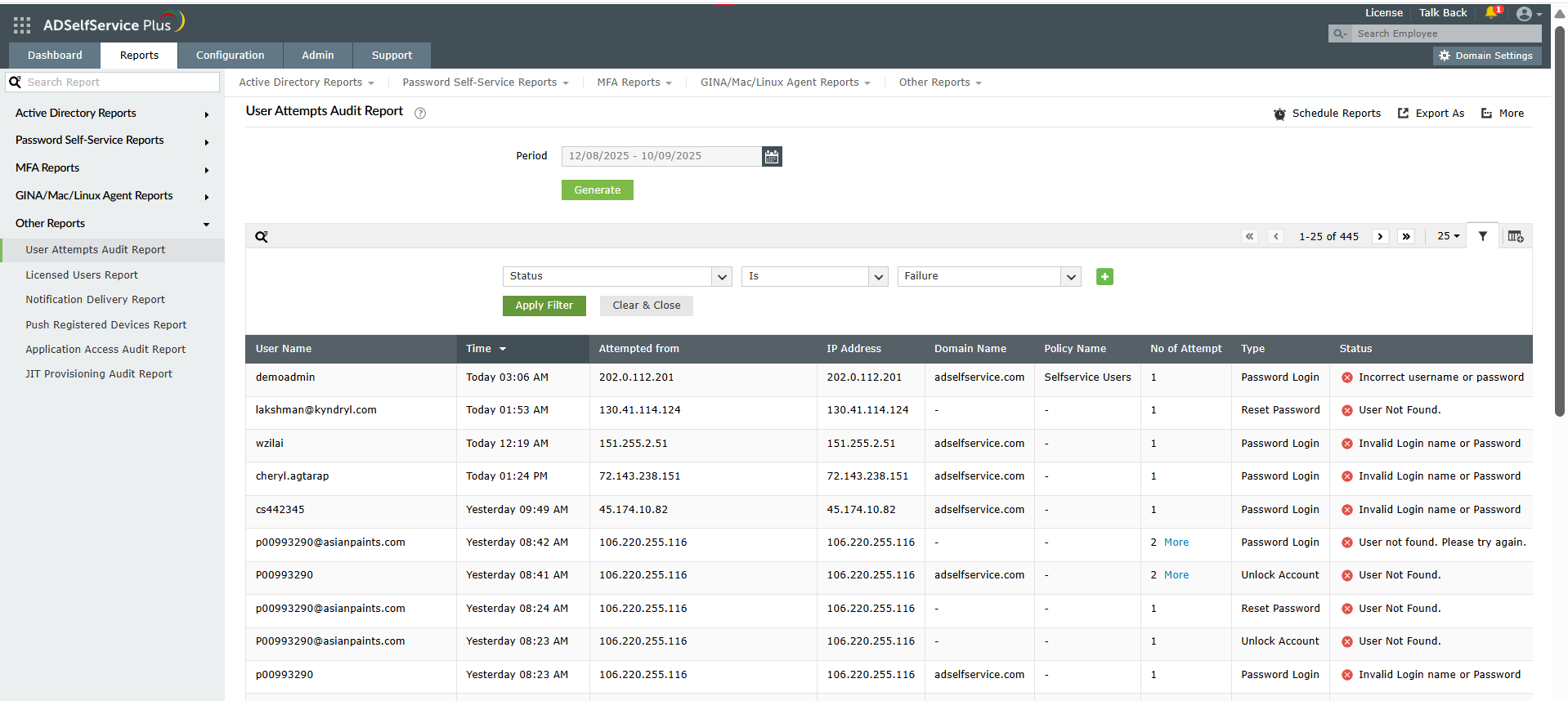
  1. Navigate to Reports > Other Reports > User Attempts Audit Report (Fig. 6).
  2. Review the failed login attempts to identify potential brute-force attack attempts.

    The User Attempts Audit Report helps prevent a brute-force attack through monitoring and analysis of failed login attempts.

    Figure 6. The User Attempts Audit Report helps prevent a brute-force attack through monitoring and analysis of failed login attempts.

Step 7: Implement session security controls

Effective session management is another crucial aspect when you want to know how to prevent brute-force attacks. To configure session security settings:
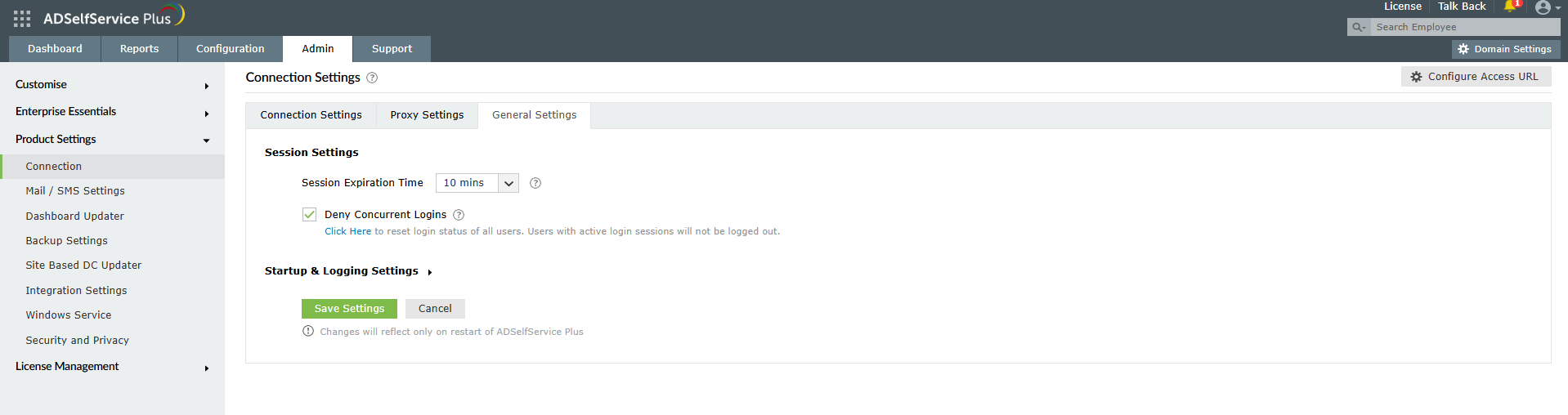
  1. Navigate to Admin > Product Settings > Connection > General Settings (Fig. 7)
  2. In the Session Settings section:
    • Configure the Session Expiration Time: Set an appropriate timeout (for example, 10 minutes) to limit idle sessions.
    • Enable Deny Concurrent Logins: This prevents users from logging in from multiple devices simultaneously.

    Session Settings configuration helps prevent a brute-force attack through concurrent login restrictions and session timeouts.

    Figure 7. Session Settings configuration helps prevent a brute-force attack through concurrent login restrictions and session timeouts.

How to prevent password spray attacks

How to secure RDP against brute-force attacks

MFA for Active Directory accounts

Request for Support

Need further assistance? Fill this form, and we'll contact you rightaway.

  • Name
  •  
  • Business Email *
  •  
  • Phone *
  •  
  • Problem Description *
  •  
  • Country
  •  
  • By clicking 'Submit' you agree to processing of personal data according to the Privacy Policy.
Highlights of ADSelfService Plus

Password self-service

Allow Active Directory users to self-service their password resets and account unlock tasks, freeing them from lengthy help desk calls.

One identity with single sign-on

Get seamless one-click access to 100+ cloud applications. With enterprise single sign-on, users can access all their cloud applications using their Active Directory credentials.

Password and account expiry notification

Intimate Active Directory users of their impending password and account expiry via email and SMS notifications.

Password synchronization

Synchronize Windows Active Directory user passwords and account changes across multiple systems automatically, including Microsoft 365, Google Workspace, IBM iSeries, and more.

Password policy enforcer

Strong passwords resist various hacking threats. Enforce Active Directory users to adhere to compliant passwords by displaying password complexity requirements.

Directory self-update and corporate directory search

Enable Active Directory users to update their latest information themselves. Quick search features help admins scout for information using search keys like contact numbers.


ADSelfService Plus trusted by

Embark on a journey towards identity security and Zero Trust