Assessing Automate Patch Deployment
After creating APD tasks you can view them listed under Threats & Patches → Deployment → Automate Patch Deployment.
As shown in the image below, this page displays the task name, deployment time, creation time, current deployment status, and the total number of targets associated with the task. The Current Status indicates the number of patches that have been successfully applied, failed, or are still in progress. It also shows if any patches are missing. Additionally, if the task has been suspended or expired, this status will be reflected under the same. Interpret Patching Completed together with the installed-patch count and Last deployment time. An installed-patch count indicates that deployment occurred. When no installed count is shown, review the deployment window and pending approved patches to determine whether the task completed its evaluation without installing a patch.
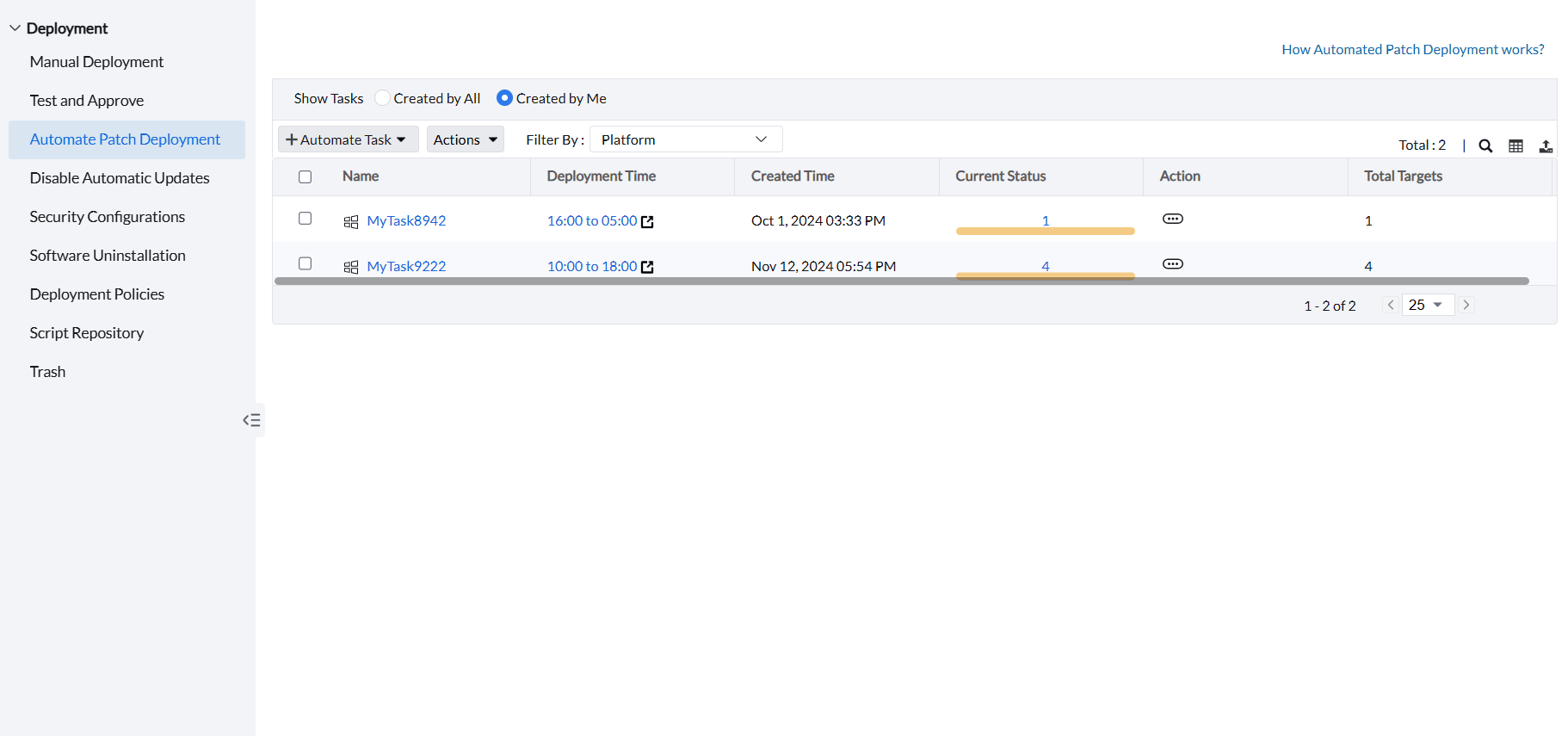
Click a task to open its details and monitor it.
APD tasks run cyclically. To check an upcoming run, open the task and review its deployment window and System View. Repeat this for each task you want to check.
To stop an active APD task from deploying its remaining patches, return to the APD task list and suspend the task. To prevent a particular missing patch from being deployed by other tasks, decline that patch separately.
System View
For Windows APD tasks, the configured retry limit is not a history of attempts already made. Open the affected computer's task details and compare its status and last execution time. Use the retained agent deployment log to investigate individual attempts. Retry processing still depends on the task and deployment-policy conditions.
Counts reflect the current status of this task's targets and can change as computers report scan and deployment results. Compare the same task and view at the same time, then open the affected computer details.
Patches Missing indicates a pending target state; Patching Inprogress indicates processing; Patching Completed indicates completion; and Patching Failed indicates a failure state. Review the installed-patch count and remarks before treating completion as proof that patches were installed. It does not establish that every computer in the estate is fully patched.
For mismatched counts, follow APD missing-patch count checks. For failed computers, use deployment troubleshooting.
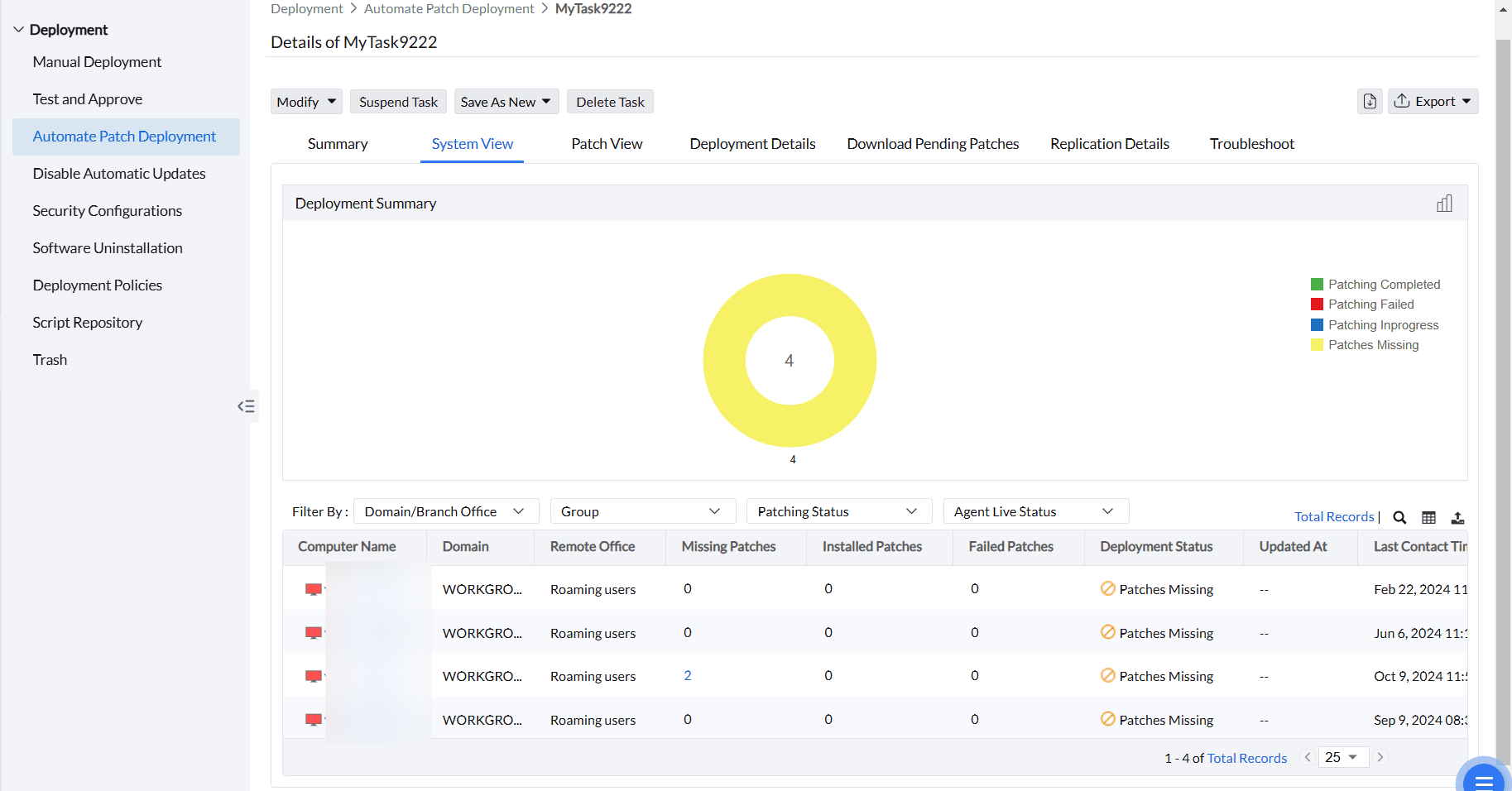
Under System View, you can see the number of patches installed, missing, and their deployment status in individual targets' perspective. If the latest application version is already installed on a computer, that application is not listed in the APD task for that computer. Last deployment time shown as -- means the APD task has not started. Installed-patch counts are current status, not live deployment outside the window.
If an online target remains pending after the applicable deployment window opens, modify the APD task and save it to trigger the task again, then monitor its System View. To verify whether a particular patch was installed through Vulnerability Manager Plus, use the Deployed Time, Deployed Using, and Deployed By columns described in Installed Patches.
Patch View
Removing a patch from this task does not create a decline rule for other tasks. To prevent automatic deployment of matching application patches in the required group, configure Decline Patch for that application and group.
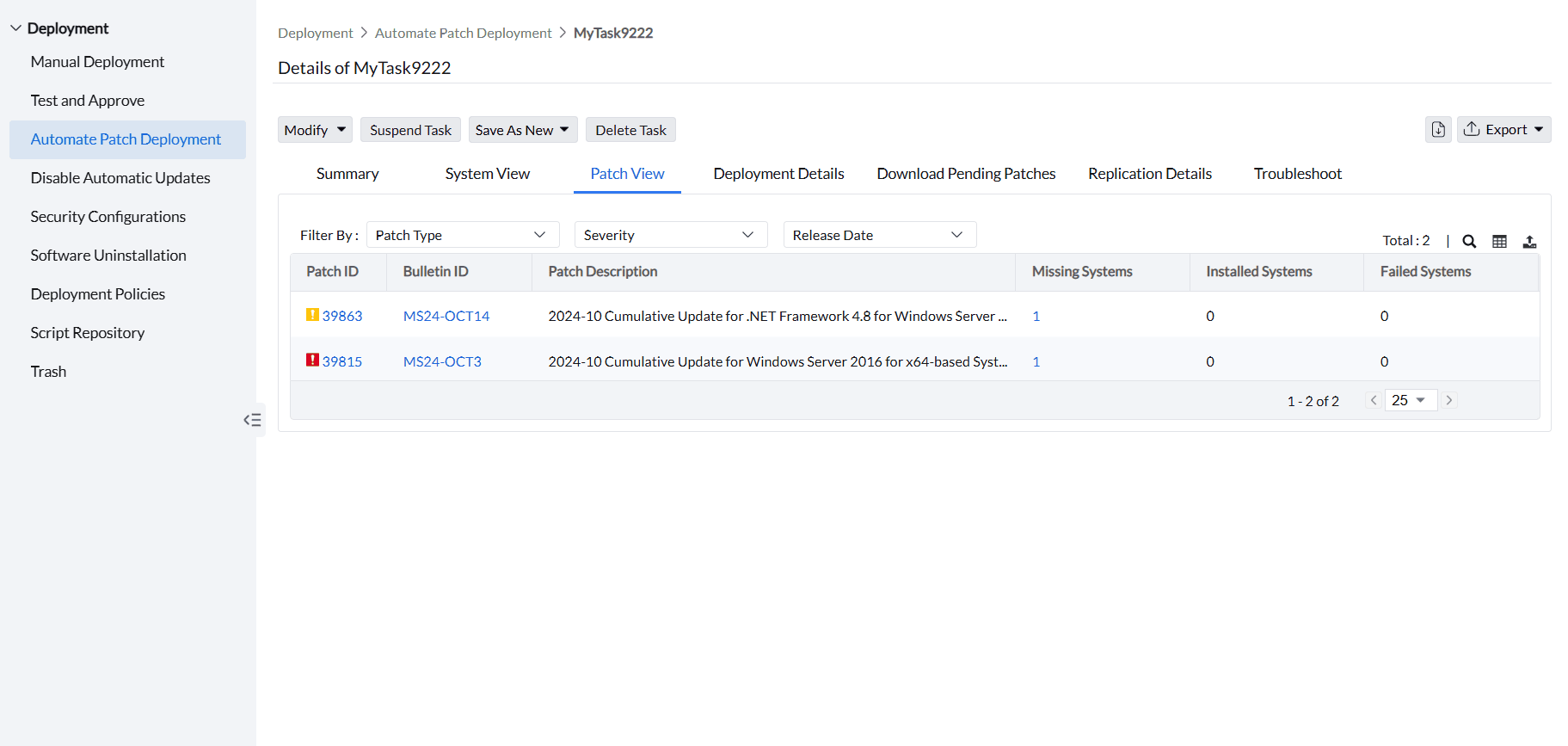
Under Patch View, you can see patching information from each patch's perspective. It shows which patches need to be deployed, the number of systems where those patches are missing, and the number of systems where installation succeeded or failed.
An APD task can show Patching Completed with zero installed patches when no eligible approved patches match the task criteria. The Summary count can still include all target computers even when Deployment Details is empty because no missing patch has reached the configured Deploy patches after age. Confirm the patch release or approval date, approval status, selected patch types, and the deployment criteria.
Download Pending Patches
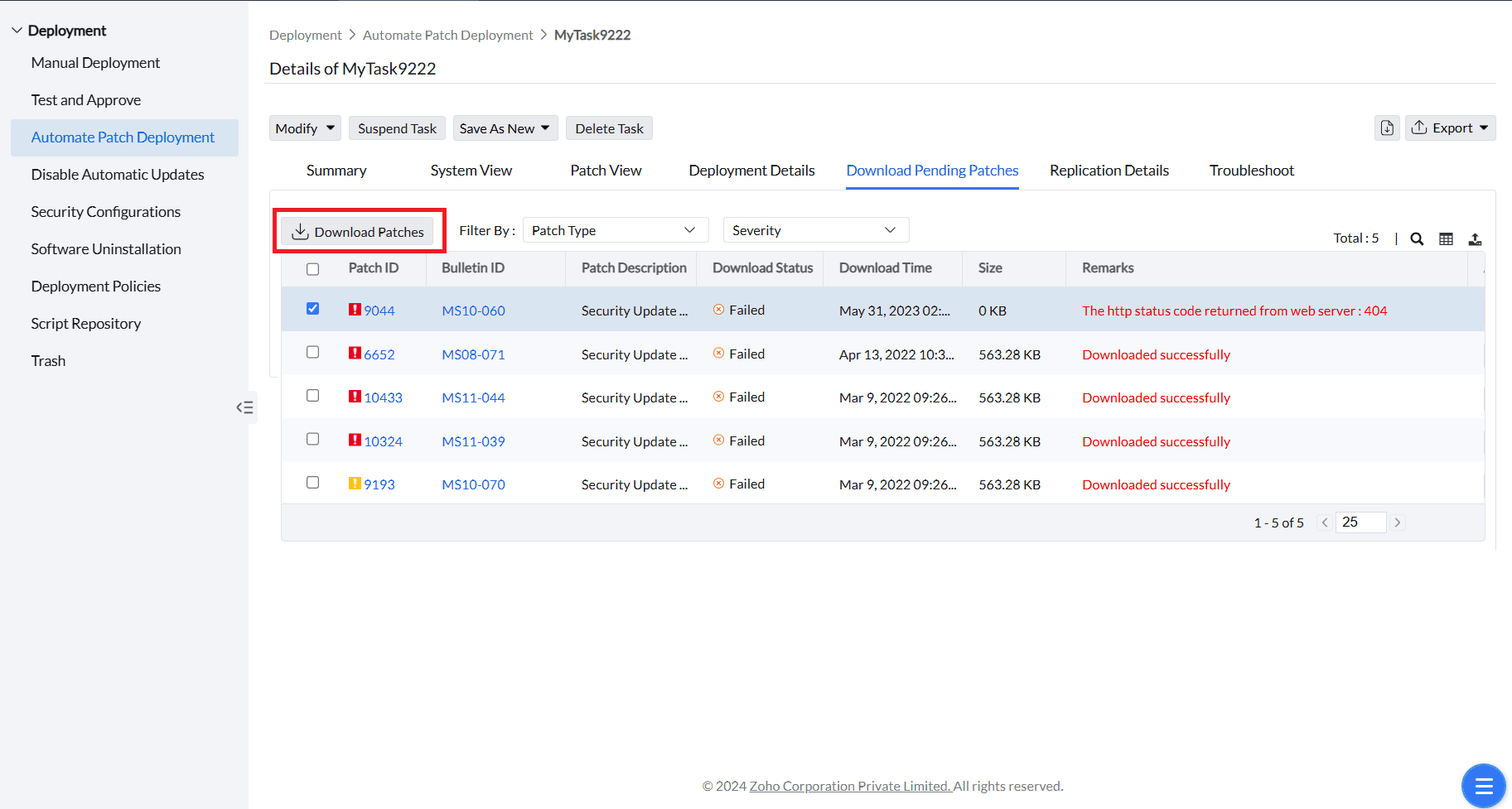
Under this section, you can see the download status of each patch, mentioned under the Remarks section. To download the pending patches, select those patches and click Download Patches.
Summary
If Deployed By or the deployment time is blank, compare the APD task result with the latest patch scan. Use the Installed Patches audit details to investigate the installation source. A blank product-attribution field alone does not prove that the update is absent from Windows.
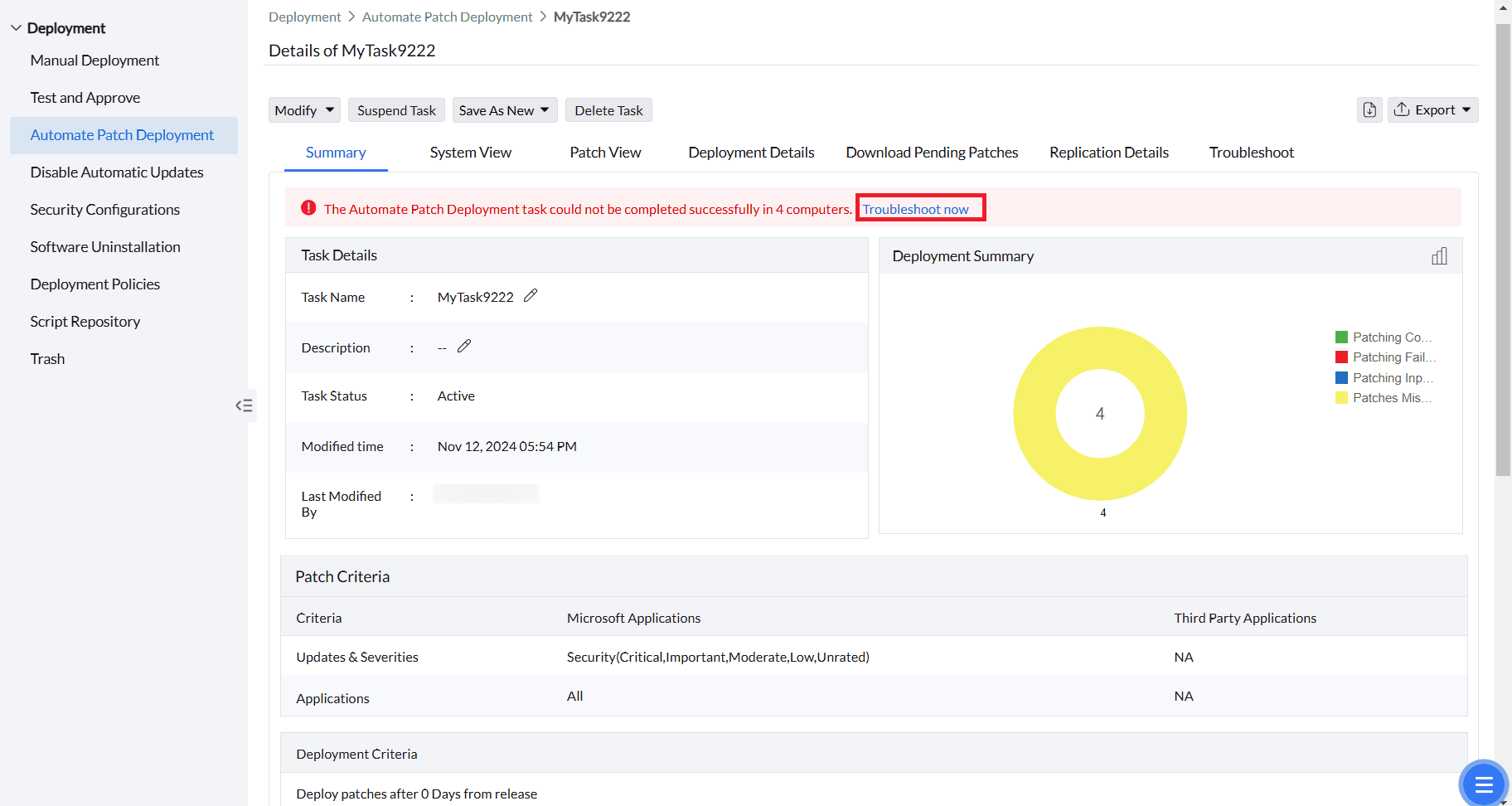
By clicking on Summary, you can see the overall briefing about this particular APD task. If the patching has failed in any computers, it will also be mentioned in this section. To address the failure, click on Troubleshoot Now; you will be redirected to the Troubleshoot section.
To export a task report:
- Open the APD task and select the Summary tab.
- Click Export in the upper-right corner of the task details view.
- Select APD task summary or Deployment Troubleshooting summary. The selected report is exported as a PDF.
For a patch-level export with computer names but without domain names, use Detailed View and filter by Deployed Using for the APD task. In the column chooser, enable Computer Name, disable Domain, and export the results.
Troubleshoot
For an Office deployment that reports Unknown error code -1, follow the instructions for your edition: Microsoft 365 on-premises or Microsoft 365 Cloud. Record the task report, Patch ID and endpoint installation log to identify the failed stage.
If System View remarks report a patch-scan failure before the task was processed, verify the current patch-scan status and Remote Office replication first. After those checks succeed, modify and redeploy the APD task, then monitor its status after the next refresh and replication cycle.
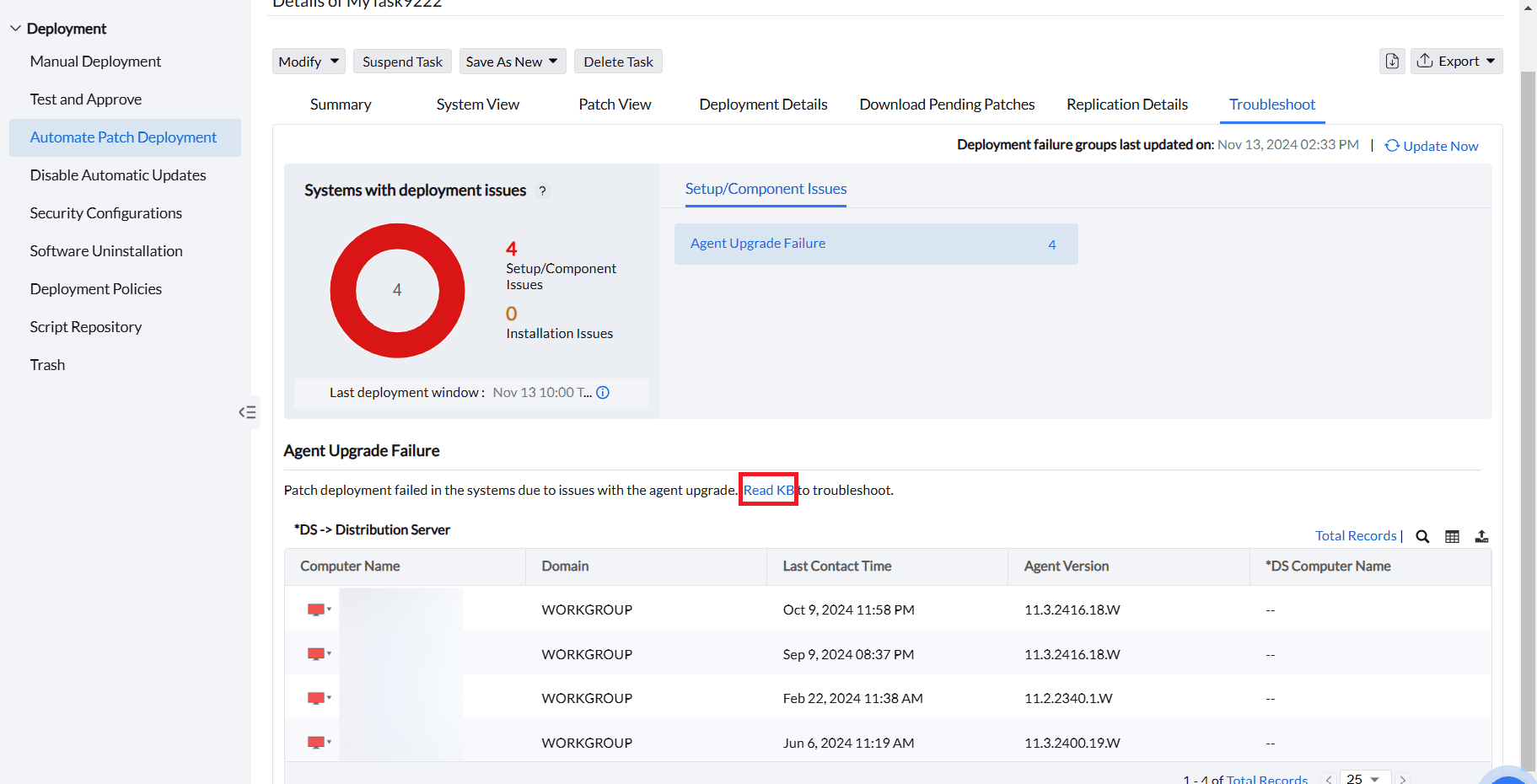
This section shows the reported failure reason for each affected computer. Click Read KB to open the Knowledge Base article for that failure. To learn more about troubleshooting failures, refer to this page.
If you have any further questions, please refer to our Frequently Asked Questions section for more information.