Patch Management FAQ
Patch Detection and Deployment
Yes. An external scheduler can call the documented patch-installation API to create a product-managed deployment. Select the required patch IDs and target computers, and use the appropriate deployment policy. Submit Windows and Linux deployments separately.
For severity and patch-age requirements, select matching patch IDs from the information returned by the supported read APIs. Use the installation request's approved-only option when approval is required.
Configure reboot behavior through the deployment policy. Monitor deployment status and individual patch results after you submit the request. A successful API response does not confirm that patch installation has completed.
Use the API documentation for your product and edition for authentication and request details: Endpoint Central Cloud, Patch Manager Plus, or Vulnerability Manager Plus.
- Create a script that generates a system restore point on the target Windows device.
- Add that script to the product and select it under the Deployment Policy as a pre-deployment script.
- Test the policy on a pilot group first, verify restore point creation, and then roll it out to the wider environment.
Some third-party Mac installers can request administrator authorization for a privileged helper. See Mac application helper prompts.
An advisory or detection identifier is not itself a deployable package. For Secure Boot certificate readiness and updates, see Secure Boot advisory checks.
In Patch Manager Plus, open Patches > Supported Patches to find the configuration patch. Open Patch Database Settings from the patch settings or Admin entry available in your interface. Enable the required update category. Other product interfaces can use Threats & Patches as the module name. See Patch Database Settings.
Coordinate native Windows automatic updates with your centrally managed patching policy to avoid overlapping deployments. Disabling automatic updates does not deploy replacement patches; maintain the required patch deployment tasks.
If Configurations is unavailable in your product or edition, see the patch-based Windows automatic-update control. Check existing domain or device policies before applying either method.
To turn off macOS automatic updates, open Patches → Supported Patches. Find Turn off Mac Automatic Update (Deployment-Only), Patch ID 604011, and deploy it to the required Macs through Manual Deployment.
This control turns off automatic update checks, downloads and installation, including critical updates and configuration-data updates. It is not a major-upgrade-only control. Continue to deploy the required security updates through your managed patching workflow. Verify the automatic-update settings on the target Mac after deployment, and check any device-management policy if the settings do not take effect.
The agent handles supported package dependencies and deployment priority. Do not use a task as a guarantee that every application version installs in release-date order. If an older version appears after a newer one, review the package, task results, other tasks and native application updaters. See Manual Deployment.
Endpoint update history can include installed or superseded updates that do not appear in Missing Patches. Compare the exact Patch ID or KB, installed version and the latest completed patch scan. The Missing, Applicable and Installed Patches views answer different questions.
If an older update is superseded, review the N-1 eligibility and retention settings rather than assuming that a missing entry means the endpoint still needs that update. For a persistent mismatch, follow patch visibility checks and collect the scan evidence.
If the product reports Installed but Windows Update or Get-HotFix shows a different result, compare the exact KB, operating-system build, reboot result and latest successful patch scan. Get-HotFix is not a complete inventory of every Windows update. Do not infer a false positive or select Install Now solely from one view. If the results still disagree, collect the product report, Windows servicing evidence and agent logs using Patch Issues. See patch detection results.
In these sections you can filter the patches based on:
1.Patches: Operating System, Application, Severity, Hardware, Bulletin ID, KB Number, CVE ID, Vendor, Patch Type, Approved Status, Approved Time, Download Status, Patch Uninstallation, Deployment Status, Release Date, Supported Date, Deployed Date and Supersede Status
2. Systems: Computer Name, Platform, Domain Name, Branch Office, Custom Group, Operating System, Language and Agent Live Status.
These scripts run as part of a patch task. A maintenance patch is not a no-operation carrier for a standalone script. See pre/post-deployment script scope.
Ensure the agent is in contact with the server after rebooting. To verify machines that still require a reboot, navigate to Systems > Attention Required > Reboot Pending, which lists devices flagged with this status.
Even after a restart, Windows may still report a “pending reboot” if certain registry keys or Windows Update operations remain uncleared. Vulnerability Manager Plus detects this status based on these system flags, so running a fresh scan after verifying them can help update the status.
A current system reboot flag and a manual task's historical execution remark are different. A later reboot or scan does not guarantee that every historical manual-deployment remark is rewritten. Compare the latest scan and System requiring reboot report with the task result and timestamp. See current state and execution history.
Go to Patches → Detailed View, apply the filter Patch Status = Installed, and search for the machine name to see all patches installed on that system.
The Deployed Using column shows the task used to deploy the patch, Deployed Date shows when it was installed, and Deployed By indicates the administrator who created the deployment task. This helps confirm the installation and identify the patch associated with the pending reboot.
Yes, this can be achieved using custom scripts. Although Vulnerability Manager Plus does not provide a native option to trigger patch deployment based on user inactivity, you can use the custom script option available in the Patch Deployment Policy. By configuring a pre-deployment script, you can check the system’s idle time and ensure that the patch installation proceeds only when there has been no user activity for the defined duration (for example, 10 minutes). If the system is not idle, the script can delay or skip the deployment until the condition is met. This approach allows you to incorporate idle-time based logic into the deployment workflow, ensuring patches are applied with minimal impact to active users.
This issue occurs in certain builds where patches that include pre-dependency patches fail during installation. Due to changes in the lib files directory structure in the affected build, the agent is unable to locate the required library files while processing the dependency patches. As a result, the patch installation fails and returns the error code -1073741515.
To resolve this issue, upgrade the Vulnerability Manager Plus server to the latest available build, which includes the required fixes for the library directory changes and ensures that dependency patches are installed correctly.
For Class does not exist or an unlisted installer result, follow Other Installation Failures and collect the exact numeric result, Patch ID, application/version and setup logs before selecting a repair.
Yes, an approved patch can be deployed to machines that are excluded from an APD task. You can create a manual deployment task and deploy the patch to those specific machines that were excluded from the custom groups in the APD task.
Yes, you can ignore patches from specific vendors or applications by declining them. Configure them under the Decline Patches section. When a patch or an application's patches are declined, they will not be considered missing, will not impact the system health status, and will not be deployed through automated patch deployment. This allows you to exclude those patches from regular patch management workflows and manage them using another method as required.
Automatic Patch Deployment
For separate server and workstation administration, review approval permissions and computer scope before changing portals.
Test patches before deployment. You can approve patches manually based on the test results or automatically after a specified number of days. For automatic approval, specify the testing period. If no failures are found during that period, the tested patches are approved automatically.
For regular operating-system and third-party patches, Approve Patches uses one approval mode within the customer environment. You cannot use Test and Approve for operating-system patches while automatically approving third-party patches without testing. To use different testing schedules, configure separate test groups with the required application selections and deployment policies. Review Patch Approval Settings before changing the approval mode.
Editing a custom group changes its computer membership. To change applications tested by an existing Test and Approve task, open that task and use Modify → Task. Follow Test and Approve for application selection, separate Microsoft and third-party validation, and PDF export. If a valid selection still fails, give Support the full validation message.
BIOS and Driver Updates
Capture the complete prompt, computer name and time. Review the affected computer's deployment history and Detailed Resource Report. If no task matches the prompt, provide the screenshot, report and agent logs to Support. Use unexpected notification diagnostics. A disappearing prompt alone does not identify its source or confirm that a restart occurred.
Adding a BIOS credential does not confirm that the computer has reported its protection status. A missing computer row differs from a BIOS version that is not detected as missing. Follow BIOS status reporting checks to check filters, agent contact and endpoint reporting.
For an installation failure, collect the vendor result using BIOS failure troubleshooting.
BIOS installation support does not establish unattended password authentication for every package. See password-protected BIOS guidance.
For the icon beside a Patch ID, point to its tooltip or read the Severity column. See patch severity versus system health; the icon does not indicate approval or deployment status.
- BIOS and Driver categories are not enabled in Patch Database Settings.
- Patch Database synchronization has not completed successfully.
- Endpoint refresh and patch scan have not run after the latest sync.
- The vendor-released version is still in catalog processing.
- Navigate to Threats & Patches > Settings > Patch Database Settings.
- Ensure BIOS and Driver categories are enabled.
- Click on Sync Now to sync Patch Database.
- Trigger a fresh Patch Scan on the same endpoint.
- Compare the following values:
- BIOS/Firmware version currently installed on the endpoint.
- BIOS/Firmware version currently shown in Vulnerability Manager Plus.
- Latest BIOS/Firmware version published by the vendor.
- Vendor release date.
If a deployed BIOS update reports This version already exists but the versions differ, compare its deployment time with the computer's last boot time. If a required restart has not occurred since deployment, arrange that restart. After the computer returns online, run a fresh patch scan and compare the BIOS version again. If the mismatch continues, provide Support with the model, both versions, boot and deployment times, full remark and firmware logs.
Microsoft 365 Deployment
Review the Office Click-to-Run setting for applications that are in use. It controls whether to close the applications, defer installation while they are open, or let the user choose. See Microsoft 365 patch deployment. Supersedence alone does not explain an application crash. For a crash after updating, retain the application event and setup logs for investigation.
Compare the installed Office edition, architecture, update channel and build with the selected update. Run a fresh patch scan after the channel change and use a currently applicable update. Follow Office update-channel mismatch troubleshooting. Do not use a patch ID or channel configuration for a different Office channel.
When you use a Distribution Server, patches download to the configured repositories on both the Central Server and Distribution Server.
The language packs and proofing tools selected in Click-to-Run Settings are automatically applied to the configuration files. This changes their size.
For Office download failures, follow Office Patch Download Failure. Use the complete error and failed download stage to select the relevant checks.
Linux Patch Management
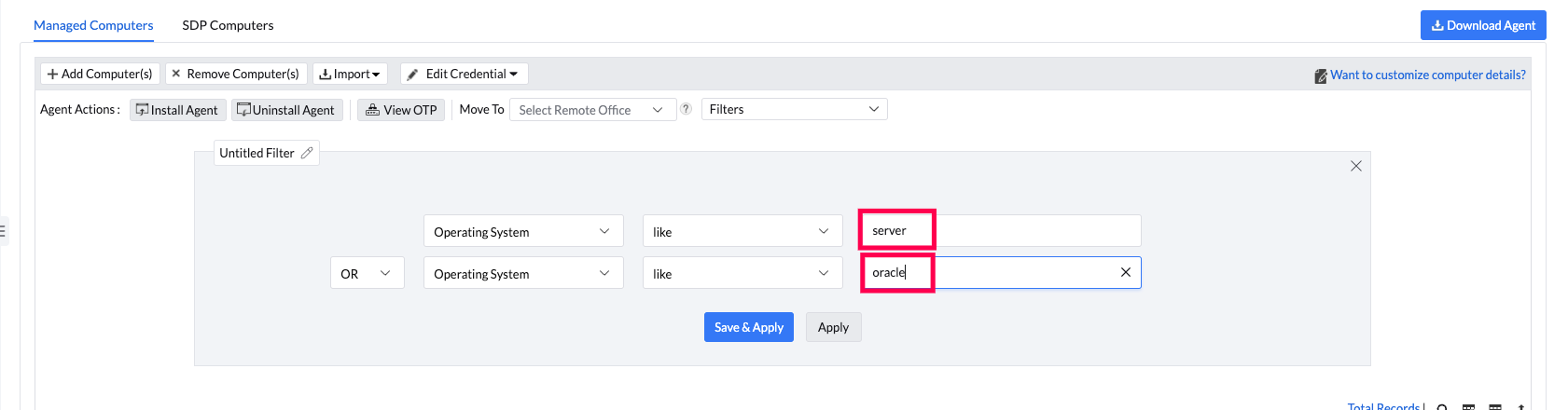
- If the operating systems' name contains the keyword "server"
- If the machine with Red Hat Enterprise Linux OS has a Server subscription
- If the machine has Oracle Linux OS
We recommend purchasing server licenses for any Linux machine when deploying them as servers within the organization.
Patch Audit & Reports
Integrations
- Threats detected by Tenable, with the patch availability, will be listed under Threats & Patches > Tenable.io Threats. Users can also deploy patches for vulnerabilities from this view.
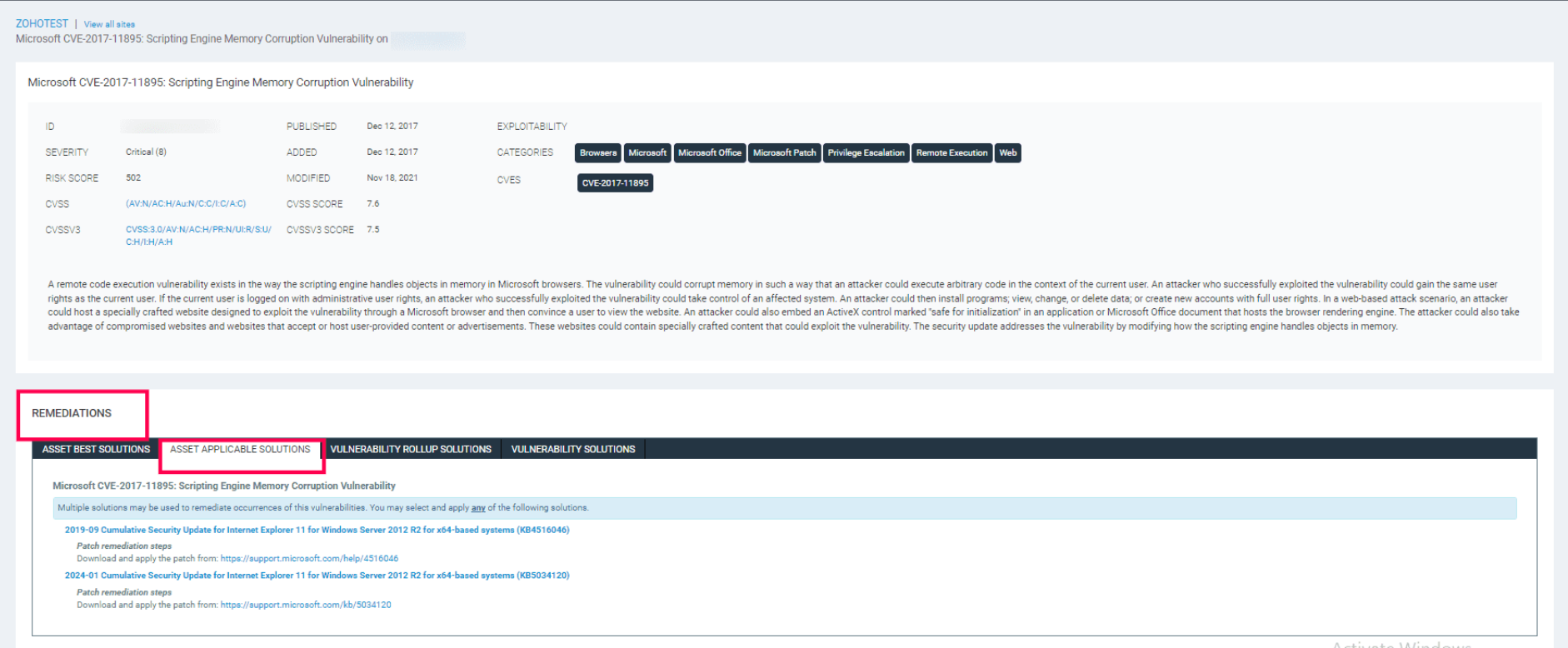
For configuration findings, review Preventing Security Misconfigurations or Web Server Hardening if those features apply to the finding. See Vulnerability Management availability for the add-on or edition prerequisite. The year in a CVE identifier does not establish that the finding is a false positive.
Miscellaneous
Vulnerability Manager Plus is a full endpoint management solution that includes patching along with many other device management features. Its patch management is a module within the platform, alongside capabilities such as application control, BitLocker management, browser security, and other endpoint security features.
Vulnerability Manager Plus is a standalone product focused primarily on patch management, offering automated operating system and third-party application patching along with related patch management capabilities.
In Patch Manager Plus, open Patches. For per-computer patch details, see Detailed View. The Endpoint Central add-on requirement above does not apply to opening the patch module in Patch Manager Plus.
Kindly contact vulnerabilitymanagerplus-support@manageengine.com for any queries.