How to Configure Customized Rule Categories for Linux?
Table of Contents
- Introduction
- Common Parameters across Categories
- DEB Package Existence
- Partition Information
- File Properties Information
- Text File Content
- RPM Package Existence
- AppArmor Status Information
- User Information
- Kernel Parameters Information
- Script Information
- Systemd Unit Property Information
- Password Policy Information
Introduction
After creating or modifying a rule for Linux, select a Rule Category under individual check settings based on the compliance requirement. Available categories include DEB Package Existence, Partition Information, File Properties Information, Script Information, Systemd Unit Property Information, Password Policy Information and more. These categories help organize checks, simplify policy management, and maintain compliance consistency across your Linux endpoints.
Customize compliance checks to align with your organization's security requirements
Create Custom PoliciesCommon Parameters across Categories
Key Operator
The Key Operator defines how the specified key path or identifier should be matched during compliance evaluation.
- Pattern Match — Matches values using wildcard or pattern-based evaluation.
- Case Insensitive Equals — Matches the value regardless of letter casing.
- Case Insensitive Not Equal — Validates that the value does not match, regardless of letter casing.
- Equals — Matches the exact value.
- Not Equal — Validates that the detected value differs from the configured value.
Select the appropriate operator based on how the key or identifier should be validated during scanning.
Value Operator
The value operator defines how the detected endpoint value should be compared with the configured expected value during compliance evaluation. It determines the condition that must be satisfied for the check to be marked as compliant.
- Equals — Validates whether the detected value exactly matches the configured value.
- Not Equal — Validates whether the detected value differs from the configured value.
- Greater Than — Checks whether the detected value is greater than the configured value.
- Greater Than Or Equal — Checks whether the detected value is greater than or equal to the configured value.
- Less Than — Checks whether the detected value is less than the configured value.
- Less Than Or Equal — Checks whether the detected value is less than or equal to the configured value.
Select the appropriate operator based on the compliance condition you want to enforce.
Existence
The Existence Check determines whether the specified item is present on the endpoint before performing any value-based evaluation.
For example, existence checks can verify:
- Whether a registry key exists
- Whether a file or folder path exists
- Whether a user account exists
The existence check only validates the presence of the item and does not validate its configured value. Value-based evaluation is performed separately only after the existence condition is satisfied.
- At Least One Exists (Default) — Passes if one or more matching items are found on the endpoint.
- All Exist — Passes only if all expected items are present. The check fails if even one item is missing.
- None Exist — Passes only when no matching items are found. This is commonly used to detect and restrict unwanted or risky items.
- Only One Exists — Passes only if exactly one matching item is found.
- Any Exist — Passes regardless of whether matching items are found. If items are present, their values are evaluated.
DEB Package Existence
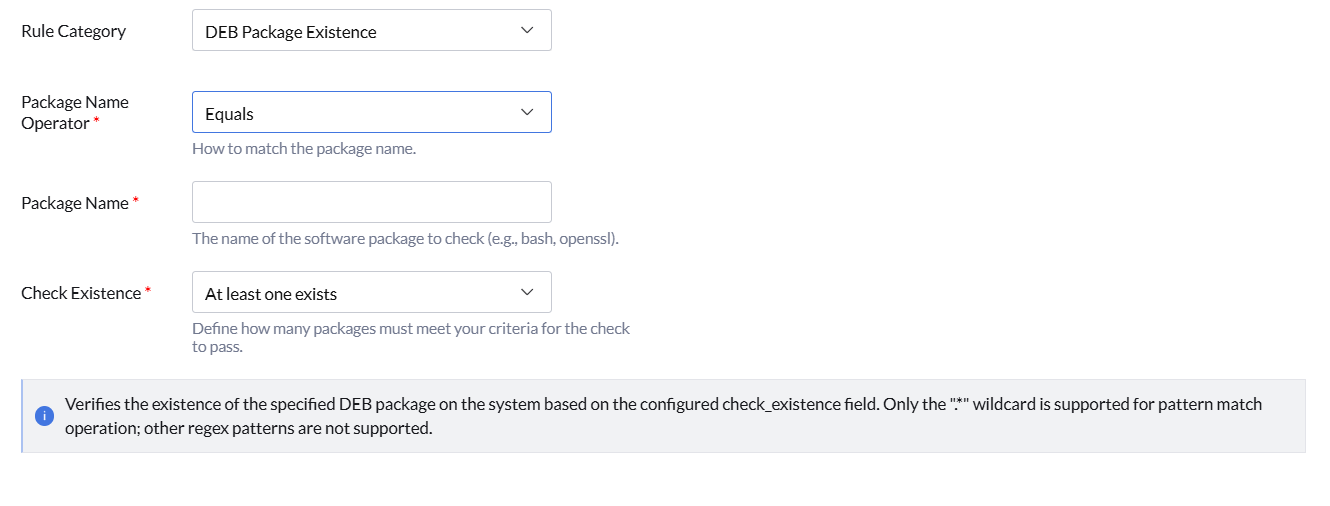
The DEB Package Existence category is used to validate whether specific DEB packages are installed on Linux endpoints. These checks help ensure required software packages are available and unauthorized packages are restricted across managed endpoints. You can configure the following settings for the DEB Package Existence:
- Package Name Operator — Select how the package name should be matched during evaluation. For more information, see Key Operator.
Example: Equals - Package Name — Enter the name of the software package to validate.
Example: openssh-server - Check Existence — Select how package existence should be validated before evaluation. For more information, see Existence.
Example: At Least One Exists
This check verifies the existence of the specified DEB package on the system based on the configured check_existence field. Only the * wildcard is supported for pattern match operations; other regex patterns are not supported.
Example use case: Validate whether approved DEB packages such as OpenSSH are installed consistently across Debian-based Linux endpoints.
Partition Information
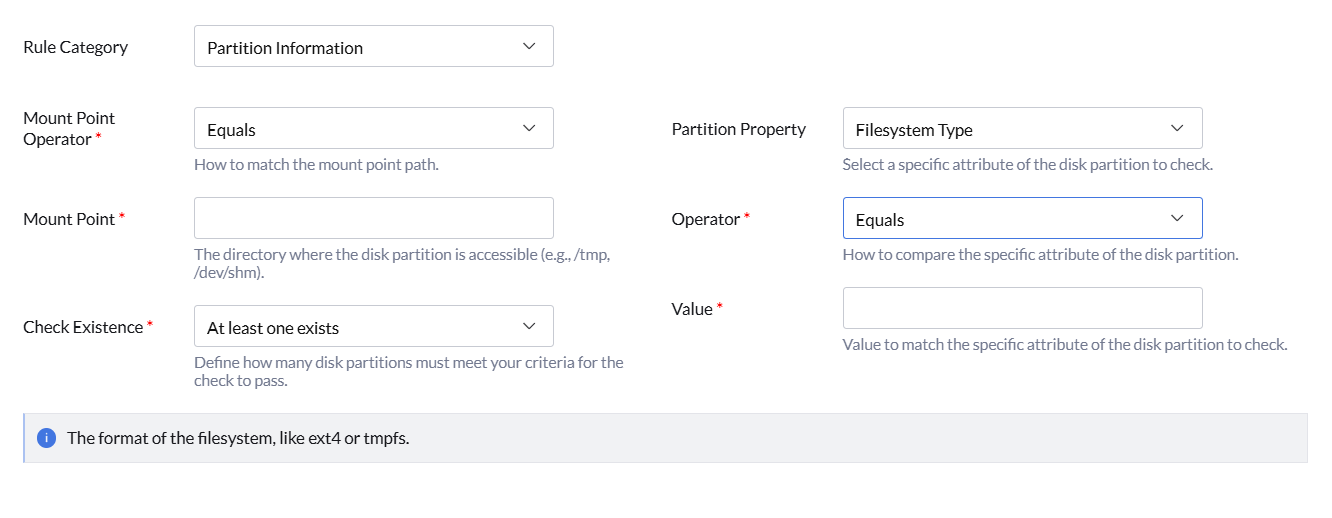
The Partition Information category is used to validate disk partition configurations on Linux endpoints. These checks help ensure partitions are mounted correctly, use approved filesystem configurations, and comply with organizational security requirements. You can configure the following settings for the Partition Information:
- Mount Point Operator — Select how the mount point path should be matched during evaluation. For more information, see Key Operator.
Example: Equals - Mount Point — Enter the directory where the disk partition is accessible.
Example: /tmp - Check Existence — Select how partition existence should be validated before evaluation. For more information, see Existence.
Example: At least one exists - Partition Property — Select the partition property to validate.
- Device
- Filesystem Type
- Mount Options
- None
- Operator — Select how the detected partition property value should be compared with the configured value. For more information, see Key Operator.
Example: Equals
The Device property validates the system device file associated with the partition.
Example: /dev/sda1
Example use case: Validate whether the /tmp partition is mounted from the expected device with approved filesystem settings across Linux endpoints.
File Properties Information
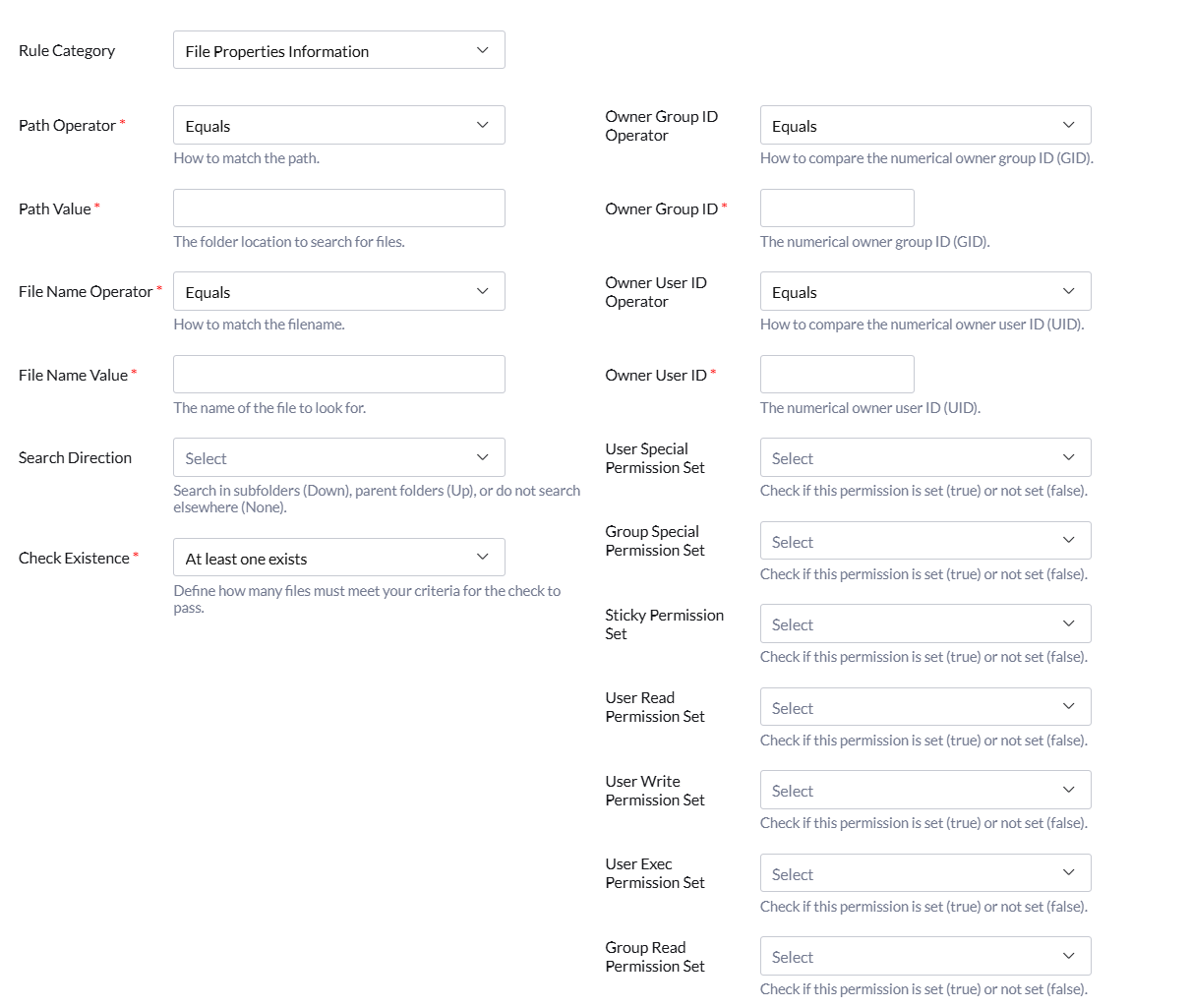
The File Properties Information category is used to validate file existence, ownership, and permission settings on Linux endpoints. These checks help ensure sensitive files and directories are configured securely and comply with organizational security standards. You can configure the following settings for the File Properties Information:
- Path Operator — Select how the file path should be matched during evaluation. For more information, see Key Operator.
Example: Equals - Path Value — Enter the folder location to search for files.
Example: /etc/ssh - File Name Operator — Select how the filename should be matched during evaluation. For more information, see Key Operator.
Example: Equals - File Name Value — Enter the name of the file to look for.
Example: sshd_config - Search Direction — Select where the scan should search for matching files relative to the specified path.
- Down — Searches within subfolders under the specified path.
- Up — Searches parent folders above the specified path.
- None — Searches only within the exact specified path without traversing other directories.
- Search Only — Select whether the scan should follow directory folders, symbolic links, or both during the search operation.
- Directories — Searches only through directory folders.
- Symbolic Links and Directories — Searches only through symbolic links.
- Max Depth — Specify how many folder levels should be searched from the selected path.
Use -1 for unlimited depth.
Example: 0 - Check Existence — Select how file existence should be validated before evaluation. For more information, see Existence.
Example: Only one exists - Owner Group ID Operator — Select how the numerical owner group ID (GID) should be compared. For more information, see Value Operator.
Example: Not Equal - Owner Group ID — Enter the numerical owner group ID (GID).
Example: 0 - Owner User ID Operator — Select how the numerical owner user ID (UID) should be compared. For more information, see Value Operator.
Example: Equals - Owner User ID — Enter the numerical owner user ID (UID).
Example: 0 - Permission Set Validation — Configure whether specific file permissions should be present or absent for the selected file or directory.
- True — Permission is set.
- False — Permission is not set.
- User Special Permission Set — Validates the special permission for the file owner.
- Group Special Permission Set — Validates the special permission for the file group.
- Sticky Permission Set — Validates whether the sticky bit permission is configured.
- User Read Permission Set — Validates the user read permission.
- User Write Permission Set — Validates the user write permission.
- User Exec Permission Set — Validates the user execute permission.
- Group Read Permission Set — Validates the group read permission.
- Group Write Permission Set — Validates the group write permission.
- Group Exec Permission Set — Validates the group execute permission.
- Others Read Permission Set — Validates the read permission for others.
- Others Write Permission Set — Validates the write permission for others.
- Others Exec Permission Set — Validates the execute permission for others.
- Path Operator — Select how the file path should be matched during evaluation. For more information, see Key Operator.
Example: Equals - Path — Enter the folder location where the search for files should begin.
Example: /etc/ssh - File Name Operator — Select how the filename should be matched during evaluation. For more information, see Key Operator.
Example: Equals - File Name — Enter the name of the file to search.
Example: sshd_config - Pattern — Enter the text or regular expression to search for within the file.
Example: PermitRootLogin no - Text Comparison Operator — Select how the detected text content should be compared. For more information, see Value Operator.
Example: Case Insensitive Equals - Text Comparison Value — Enter the expected text value to compare against the detected content.
Example: PermitRootLogin no - Search Direction — Select where the scan should search for matching files relative to the specified path.
- Down — Searches within subfolders under the specified path.
- Up — Searches parent folders above the specified path.
- None — Searches only within the exact specified path without traversing other directories.
- Search Only — Select whether the scan should follow directories, symbolic links, or both during the search operation.
- Directories — Searches only through directories.
- Symlinks and directories — Searches through both symbolic links and directories.
- Max Depth — Specify how many folder levels should be searched from the selected path.
Use -1 for unlimited depth.
Example: 0 - Check Existence — Select how file existence should be validated before evaluation. For more information, see Existence.
Example: At least one exists - Package Name Operator — Select how the package name should be matched during evaluation. For more information, see Key Operator.
Example: Equals - Package Name — Enter the name of the software package to validate.
Example: openssh-server - Check Existence — Select how package existence should be validated before evaluation. For more information, see Existence.
Example: At Least One Exists - AppArmor Status — Select the AppArmor security statistic to validate.
Available options:- Loaded Profiles Count
- Enforced Profiles Count
- Complain Mode Profiles Count
- Processes with Profiles Count
- Enforce Mode Processes Count
- Complain Mode Processes Count
- Unconfined Mode Processes Count
- Operation — Select how the detected AppArmor statistic should be compared with the configured value. For more information, see Value Operator.
Example: Greater Than - Value — Enter the expected numerical value for the selected AppArmor statistic.
Example: 2 - User Name Operator — Select how the username should be matched during evaluation. For more information, see Key Operator.
Example: Equals - User Name — Enter the name of the user account to validate from the /etc/passwd file.
Example: root - Check Existence — Select how user account existence should be validated before evaluation. For more information, see Existence.
Example: At least one exists - User ID Operator — Select how the numerical user ID (UID) should be compared. For more information, see Value Operator.
Example: Equals - User Id — Enter the numerical user ID (UID).
Example: 0 - Group ID Operator — Select how the numerical primary group ID (GID) should be compared. For more information, see Value Operator.
Example: Equals - Group Id — Enter the numerical primary group ID (GID).
Example: 0 - Home Directory Operator — Select how the user home directory path should be compared. For more information, see Value Operator.
Example: Not Equal - Home Directory — Enter the user home directory path.
Example: /root - Login Shell Operator — Select how the user login shell path should be compared. For more information, see Value Operator.
Example: Not Equal - Login Shell — Enter the user's default command shell.
Example: /bin/bash - Kernel Param Name — Enter the name of the kernel parameter to validate.
Example: net.ipv4.ip_forward - Check Existence — Select how kernel parameter existence should be validated before evaluation. For more information, see Existence.
Example: At least one exists - Kernel Param Value Operator — Select how the detected kernel parameter value should be compared. For more information, see Value Operator.
Example: Case Insensitive Equals - Kernel Param Value — Enter the expected value for the kernel parameter.
Example: 0 - Script Name — Select the custom script that should run on the target endpoint during compliance evaluation.
Example: systemd_service_enabled.sh - Script Value — Enter an optional input value that the selected script uses during execution.
Example: sshd.service - Systemd Unit Name — Enter the name of the systemd service or unit to validate.
Example: sshd.service - Systemd Unit Property Name — Enter the property of the systemd service to validate.
Example: ActiveState - Check Existence — Select how service or unit existence should be validated before evaluation. For more information, see Existence.
Example: At least one exists - Systemd Unit Property Value Operator — Select how the detected property value should be compared. For more information, see Value Operator.
Example: Equals - Systemd Unit Property Value — Enter the expected value for the selected property.
Example: active - User Name Operator — Select how the username should be matched during evaluation. For more information, see Key Operator.
Example: Equals - User Name — Enter the name of the user account to validate from the /etc/shadow file.
Example: root - Check Existence — Select how user account existence should be validated before evaluation. For more information, see Existence.
Example: At least one exists - Maximum Password Age Operator — Select how the maximum password age should be compared. For more information, see Value Operator.
Example: Less Than Or Equal - Maximum Password Age — Enter the maximum number of days a password can be used.
Limit: Maximum 365 days
Example: 90 - Minimum Password Age Operator — Select how the minimum password age should be compared. For more information, see Value Operator.
Example: Greater Than Or Equal - Minimum Password Age — Enter the minimum number of days before a password can be changed.
Limit: Minimum 1 day, Maximum 90 days
Example: 7 - Password Expiration Warning Operator — Select how the password expiration warning days should be compared. For more information, see Value Operator.
Example: Greater Than Or Equal - Password Expiration Warning Days — Enter the number of days users are warned before password expiration.
Limit: Minimum 7 days, Maximum 90 days
Example: 14 - Account Inactive Lockout Operator — Select how the inactive account lockout days should be compared. For more information, see Value Operator.
Example: Less Than Or Equal - Account Inactive Lockout Days — Enter the number of inactive days after password expiration before the account is locked.
Limit: Maximum 45 days
Example: 30
Note: The Search Only and Max Depth options are available only when the Search Direction is configured as Up or Down.
This rule checks file existence and associated permission settings. Search operations work only when the Path Operator is configured as Equals.
Example use case: Validate whether critical configuration files such as /etc/ssh/sshd_config have secure ownership and permission settings across Linux endpoints.
Text File Content
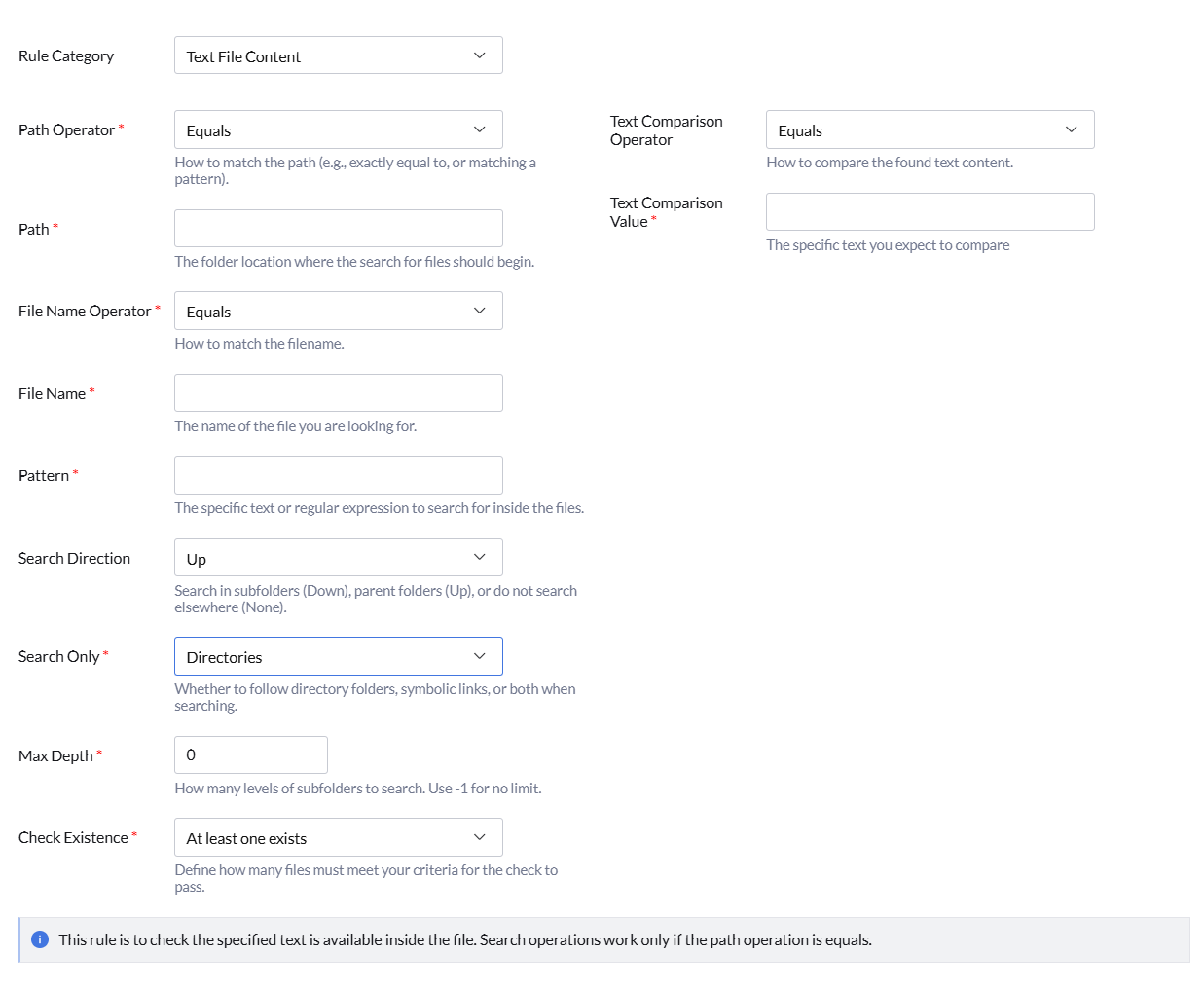
The Text File Content category is used to validate whether specific text or patterns exist within files on Linux endpoints. These checks help ensure configuration files contain approved values and detect insecure or unauthorized entries. You can configure the following settings for the Text File Content:
Note: The Search Only and Max Depth options are available only when the Search Direction is configured as Up or Down.
This rule checks whether the specified text is available inside the file. Search operations work only when the Path Operator is configured as Equals.
Example use case: Validate whether the SSH configuration file contains secure settings such as disabling root login across Linux endpoints.
RPM Package Existence
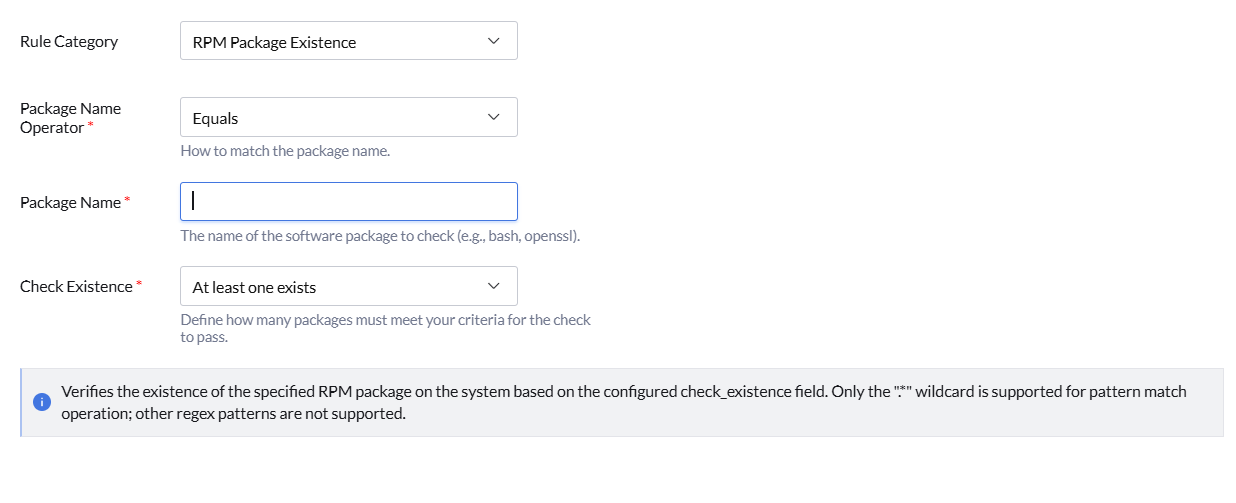
The RPM Package Existence category is used to validate whether specific RPM packages are installed on Linux endpoints. These checks help ensure approved software packages are installed and unauthorized packages are restricted across managed endpoints. You can configure the following settings for the RPM Package Existence:
This check verifies the existence of the specified RPM package on the system based on the configured check_existence field. Only the * wildcard is supported for pattern match operations; other regex patterns are not supported.
Example use case: Validate whether required RPM packages such as OpenSSL are installed consistently across RPM-based Linux endpoints.
AppArmor Status Information
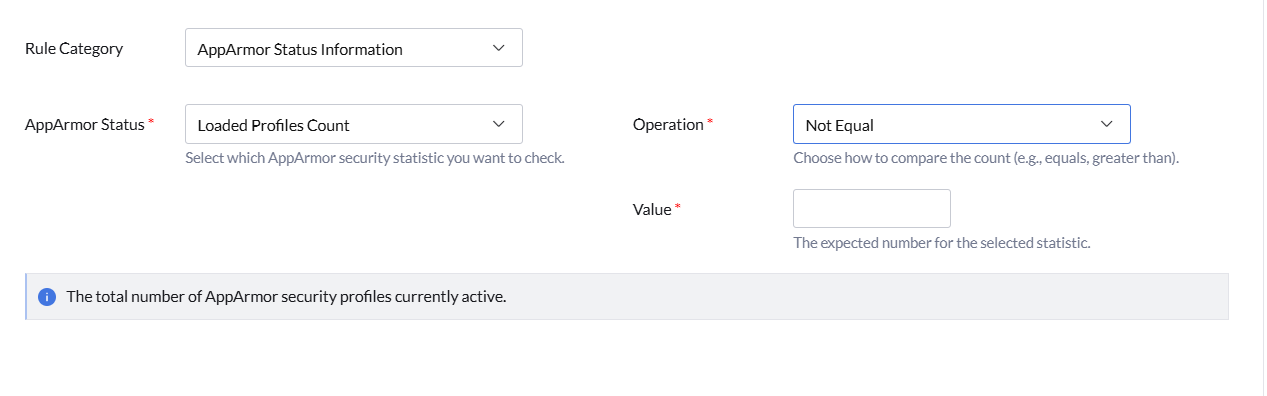
The AppArmor Status Information category is used to validate the operational status and profile statistics of AppArmor on Linux endpoints. These checks help ensure AppArmor security policies are active and functioning correctly across managed systems. You can configure the following settings for the AppArmor Status Information:
The Profiles Count statistic represents the total number of AppArmor security profiles currently active on the endpoint.
Example use case: Validate whether AppArmor security profiles are loaded and actively enforced across Linux endpoints.
User Information
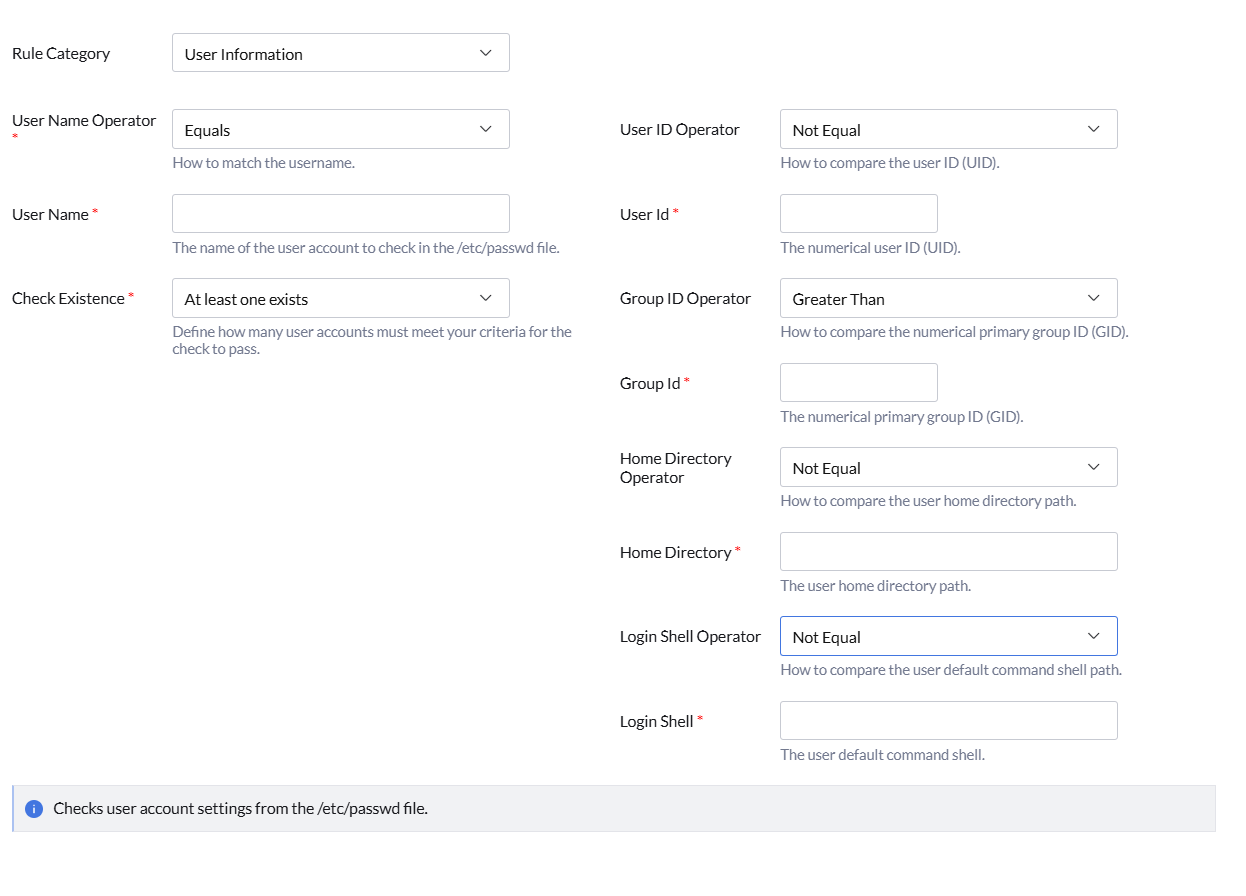
The User Information category is used to validate user account settings configured on Linux endpoints. These checks help ensure user accounts comply with organizational security policies by validating user IDs, group IDs, home directories, and login shell configurations. You can configure the following settings for the User Information:
This rule validates user account configuration details from the /etc/passwd file.
Example use case: Validate whether privileged accounts such as root use approved user IDs, group IDs, home directories, and login shells across Linux endpoints.
Kernel Parameters Information
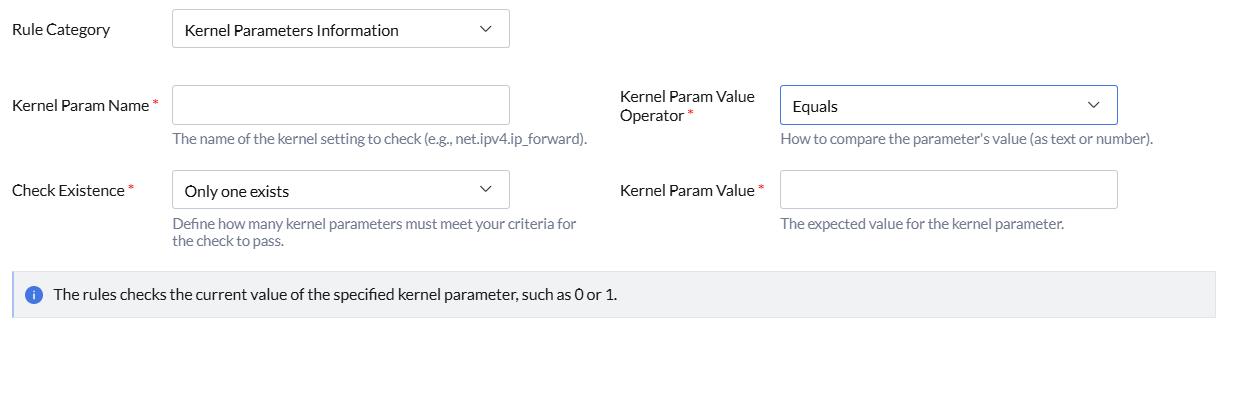
The Kernel Parameters Information category is used to validate Linux kernel parameter configurations on endpoints. These checks help ensure system-level security and networking parameters are configured according to organizational compliance requirements. You can configure the following settings for the Kernel Parameters Information:
This rule checks the current value of the specified kernel parameter, such as 0 or 1.
Example use case: Validate whether kernel parameters such as net.ipv4.ip_forward are configured securely across Linux endpoints.
Script Information
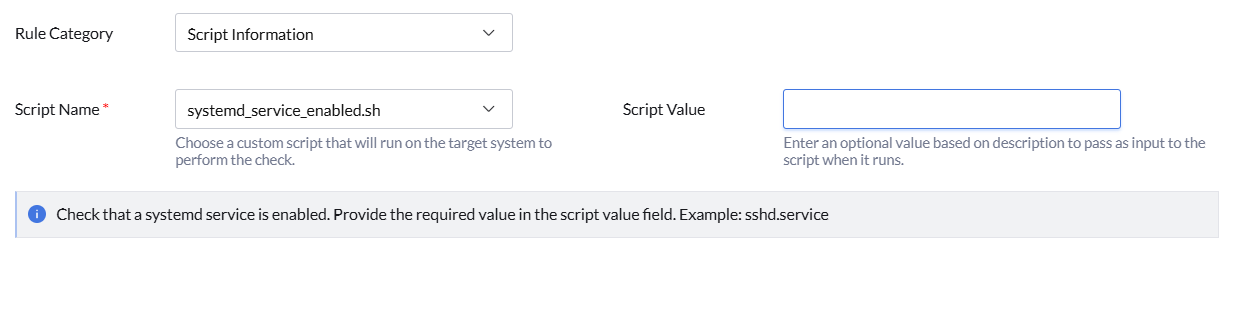
The Script Information category is used to execute predefined compliance scripts on Linux endpoints and validate their output. These checks help perform custom validations that are not covered by standard rule categories. You can configure the following settings for the Script Information:
This rule checks whether a systemd service is enabled using the selected script. Provide the required value in the script value field.
Example use case: Validate whether critical services such as sshd.service are enabled across Linux endpoints.
Systemd Unit Property Information
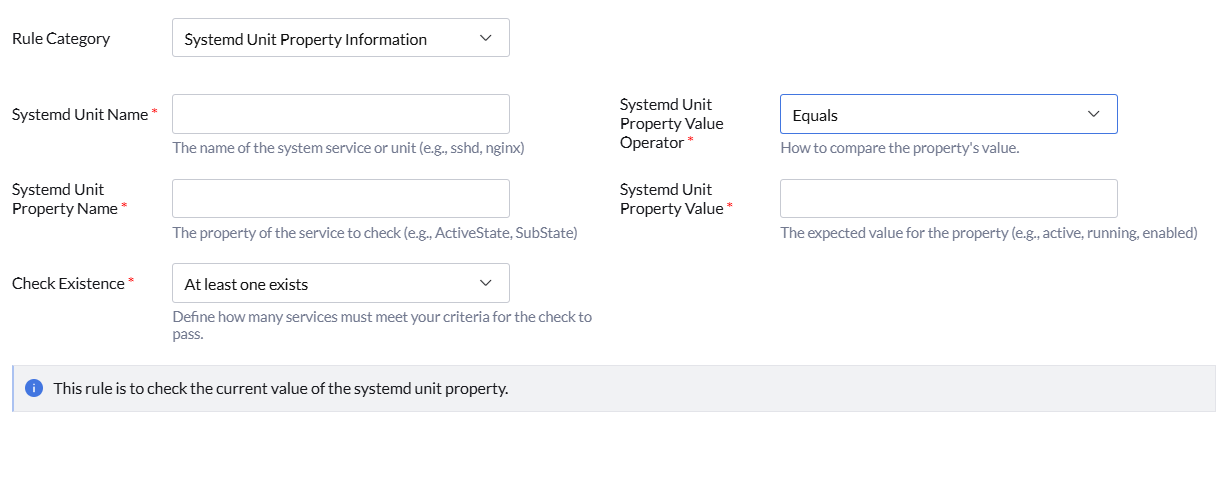
The Systemd Unit Property Information category is used to validate the current properties and states of systemd services or units on Linux endpoints. These checks help ensure critical services are configured and operating according to organizational security requirements. You can configure the following settings for the Systemd Unit Property Information:
This rule validates the current value of the selected systemd unit property.
Example use case: Validate whether critical services such as sshd.service are active and running across Linux endpoints.
Password Policy Information
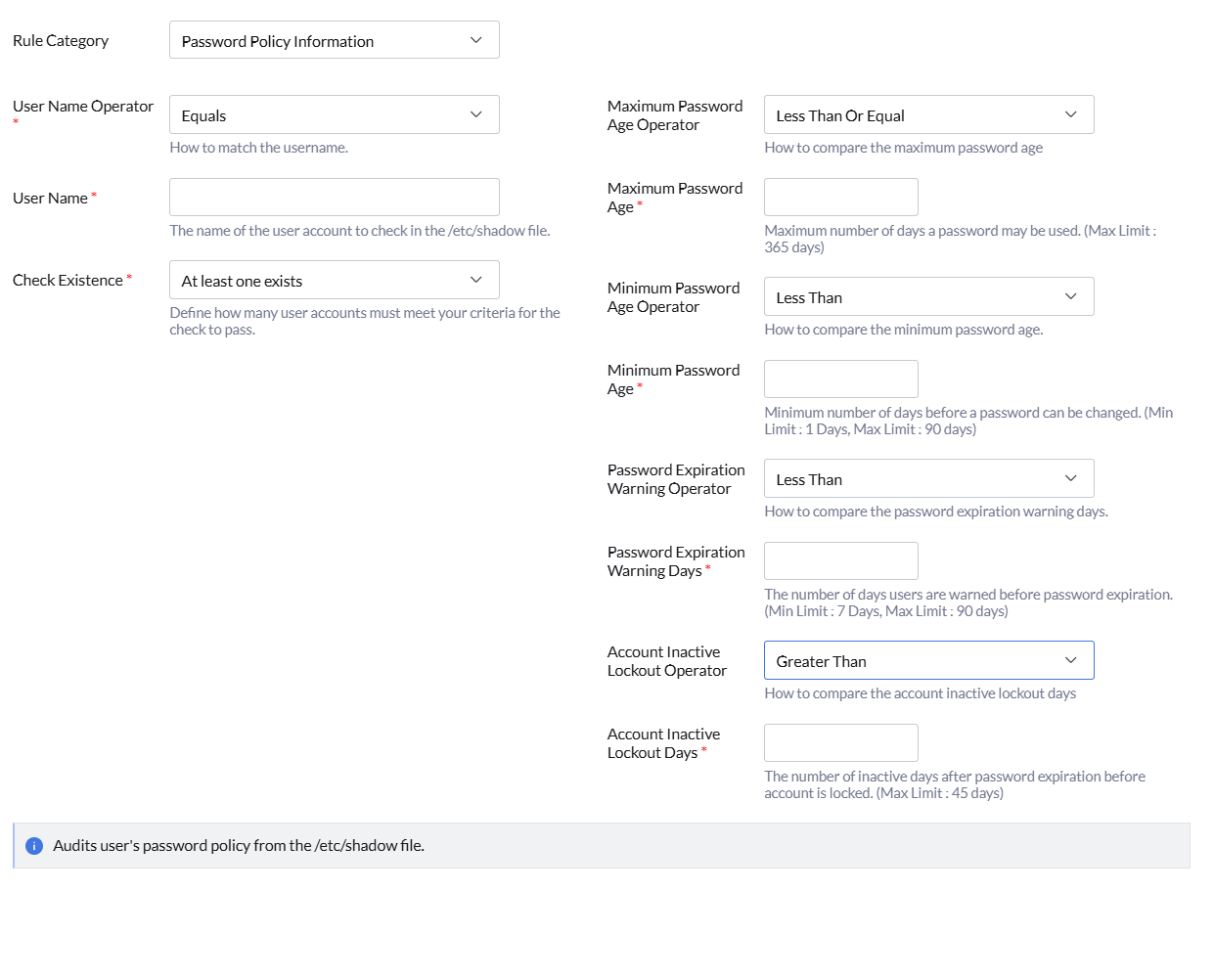
The Password Policy Information category is used to validate password aging and account lockout settings for user accounts on Linux endpoints. These checks help ensure password policies comply with organizational security standards and reduce the risk of unauthorized access. You can configure the following settings for the Password Policy Information:
This rule audits user password policy settings from the /etc/shadow file.
Example use case: Validate whether user accounts enforce secure password aging, warning periods, and inactive account lockout settings across Linux endpoints.