How to Configure Customized Rule Categories for Windows?
Table of Contents
Introduction
After creating or modifying a rule for Windows, select a Rule Category under individual check settings based on the compliance requirement. Available categories include User Registry Policy, User SID Validation, Password Policy, Registry Policy, Account Lockout Policy, Trustee SID Validation, Advanced Audit Policy Configuration and more . These categories help organize checks, simplify policy management, and maintain compliance consistency across your Windows endpoints.
Customize compliance checks to align with your organization's security requirements
Create Custom PoliciesCommon Parameters across Categories
Key Operator
The Key Operator defines how the specified key path or identifier should be matched during compliance evaluation.
- Pattern Match — Matches values using wildcard or pattern-based evaluation.
- Case Insensitive Equals — Matches the value regardless of letter casing.
- Case Insensitive Not Equal — Validates that the value does not match, regardless of letter casing.
- Equals — Matches the exact value.
- Not Equal — Validates that the detected value differs from the configured value.
Select the appropriate operator based on how the key or identifier should be validated during scanning.
Value Operator
The value operator defines how the detected endpoint value should be compared with the configured expected value during compliance evaluation. It determines the condition that must be satisfied for the check to be marked as compliant.
- Equals — Validates whether the detected value exactly matches the configured value.
- Not Equal — Validates whether the detected value differs from the configured value.
- Greater Than — Checks whether the detected value is greater than the configured value.
- Greater Than Or Equal — Checks whether the detected value is greater than or equal to the configured value.
- Less Than — Checks whether the detected value is less than the configured value.
- Less Than Or Equal — Checks whether the detected value is less than or equal to the configured value.
Select the appropriate operator based on the compliance condition you want to enforce.
Existence
The Existence Check determines whether the specified item is present on the endpoint before performing any value-based evaluation.
For example, existence checks can verify:
- Whether a registry key exists
- Whether a file or folder path exists
- Whether a user account exists
The existence check only validates the presence of the item and does not validate its configured value. Value-based evaluation is performed separately only after the existence condition is satisfied.
- At Least One Exists (Default) — Passes if one or more matching items are found on the endpoint.
- All Exist — Passes only if all expected items are present. The check fails if even one item is missing.
- None Exist — Passes only when no matching items are found. This is commonly used to detect and restrict unwanted or risky items.
- Only One Exists — Passes only if exactly one matching item is found.
- Any Exist — Passes regardless of whether matching items are found. If items are present, their values are evaluated.
User Registry Policy
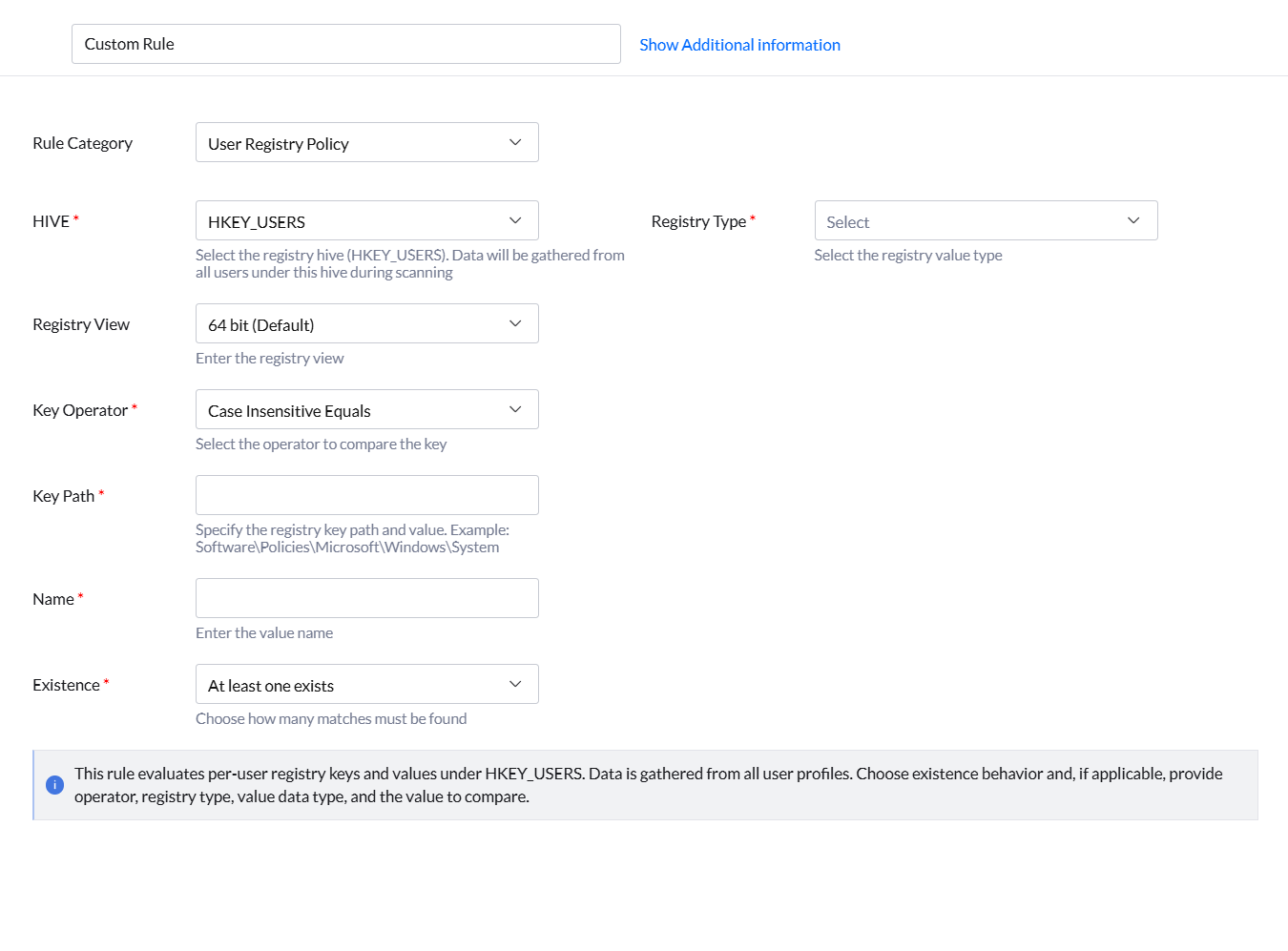
The User Registry Policy category is used to validate registry settings configured under Windows user profiles. These checks help ensure user-specific security settings, application configurations, and policy restrictions are consistently enforced across endpoints. You can configure the following settings for the User Registry Policy:
- HIVE — Select the registry hive where the registry path exists.
- HKEY_USERS (HKU) — Scans all user profiles on the endpoint.
- Registry Type — Select the datatype of the registry value being validated. For Example:
- REG_DWORD
- REG_SZ
- REG_MULTI_SZ
- REG_BINARY
- REG_QWORD
- REG_EXPAND_SZ
- Registry View — Select the registry view to scan.
- 64 bit (Default) — Scans the 64-bit registry view.
- Key Operator — Select how the registry key path should be matched during evaluation.
For more information, see Operator. - Key Path — Enter the registry path relative to the selected hive.
Example: Software\Policies\Microsoft\Windows\System - Name — Enter the registry value name to validate.
Example: DisableCMD - Value Operator — Select how the detected registry value should be compared with the configured value.
For more information, see Operator. - Value Data Type — Select the format of the value used for comparison, such as Integer or String.
- Expected Value — Enter the value that should exist for the endpoint to be marked compliant.
- Existence Check — Select how the existence of the registry key or value should be validated before value comparison.
For more information, see Existence.
Example use case: Validate whether user-level registry settings like command prompt restrictions are enforced consistently across all user profiles.
User SID Validation
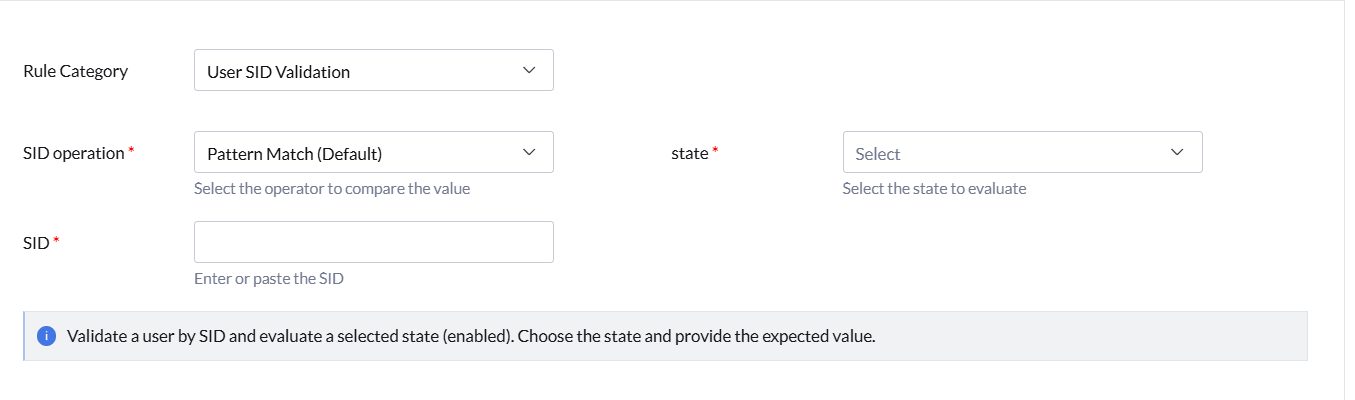
The User SID Validation category is used to validate user accounts based on their Windows Security Identifier (SID). This check helps verify whether specific built-in, local, or domain user accounts exist and whether their account state matches the expected compliance condition. Use this category to validate account properties such as whether a user account is enabled or disabled using its SID value. You can configure the following settings for the User SID Validation category:
For more information, see Operator.
Example: S-1-5-21-*
Example: Enabled
- Equals — Validates whether the detected state exactly matches the configured value.
- Not Equal — Validates whether the detected state differs from the configured value.
Example use case: Validate whether built-in guest or service accounts identified by SID are disabled as required by your security baseline.
Password Policy
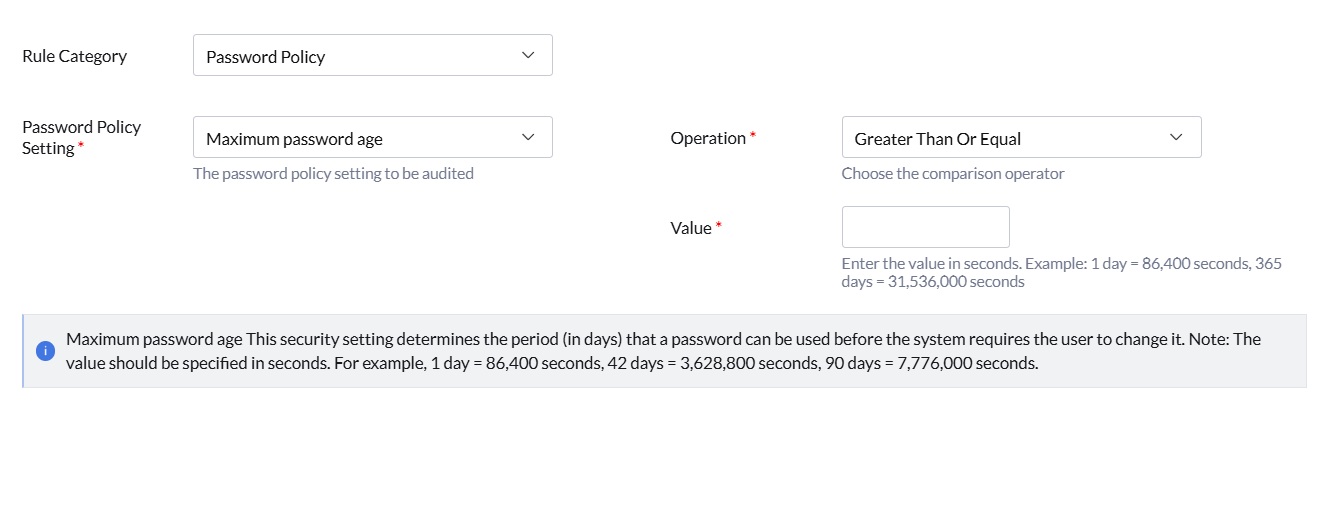
The Password Policy category is used to validate Windows password policy settings configured on endpoints. These checks help enforce password security requirements such as password age, password length, password history, complexity requirements, and encryption settings.
Use this category to ensure password-related security configurations comply with organizational or regulatory standards.
- Password Policy Setting — Select the password policy setting to validate.
- Maximum password age
- Minimum password age
- Minimum password length
- Enforce password history
- Password must meet complexity requirements
- Store passwords using reversible encryption
- Operation — Select the comparison operator used to evaluate the configured policy value.
For more information, see Operator. - Value — Enter or select the expected value for the selected password policy setting.
Maximum Password Age
Defines the maximum duration a password can be used before the user is required to change it.
- Operation — Select the comparison operator for password age validation.
- Value — Enter the expected password age in seconds.
Examples:- 1 day = 86,400 seconds
- 42 days = 3,628,800 seconds
- 90 days = 7,776,000 seconds
Minimum Password Age
Defines the minimum duration a password must be used before the user can change it.
- Operation — Select the comparison operator for password age validation.
- Value — Enter the expected password age in seconds.
Examples:- 1 day = 86,400 seconds
- 7 days = 604,800 seconds
Minimum Password Length
Defines the minimum number of characters required for a password.
- Operation — Select the comparison operator for password length validation.
- Value — Enter the minimum required password length.
Example: 14 characters
The allowed value range is between 0 and 14 characters. 0 means no password is required.
Enforce Password History
Defines the number of unique passwords that must be used before a previously used password can be reused.
- Operation — Select the comparison operator for password history validation.
- Value — Enter the number of passwords to remember.
Example: 24 passwords
The allowed value range is between 0 and 24. 0 means that the user is not required to change passwords.
Password Must Meet Complexity Requirements
Determines whether passwords must satisfy Windows password complexity requirements.
- Operation — Use Equals or Not Equal for policy evaluation.
- Value — Select the expected policy state.
- True
- False
When enabled, passwords must contain a combination of uppercase letters, lowercase letters, numbers, and special characters.
Store Passwords Using Reversible Encryption
Determines whether passwords are stored using reversible encryption.
- Operation — Use Equals or Not Equal for policy evaluation.
- Value — Select the expected policy state.
- True
- False
Reversible encryption is similar to storing passwords in plaintext and should generally remain False unless specifically required.
Example use case: Validate whether endpoints enforce minimum password length, complexity, and password history requirements to meet compliance standards.
Registry Policy
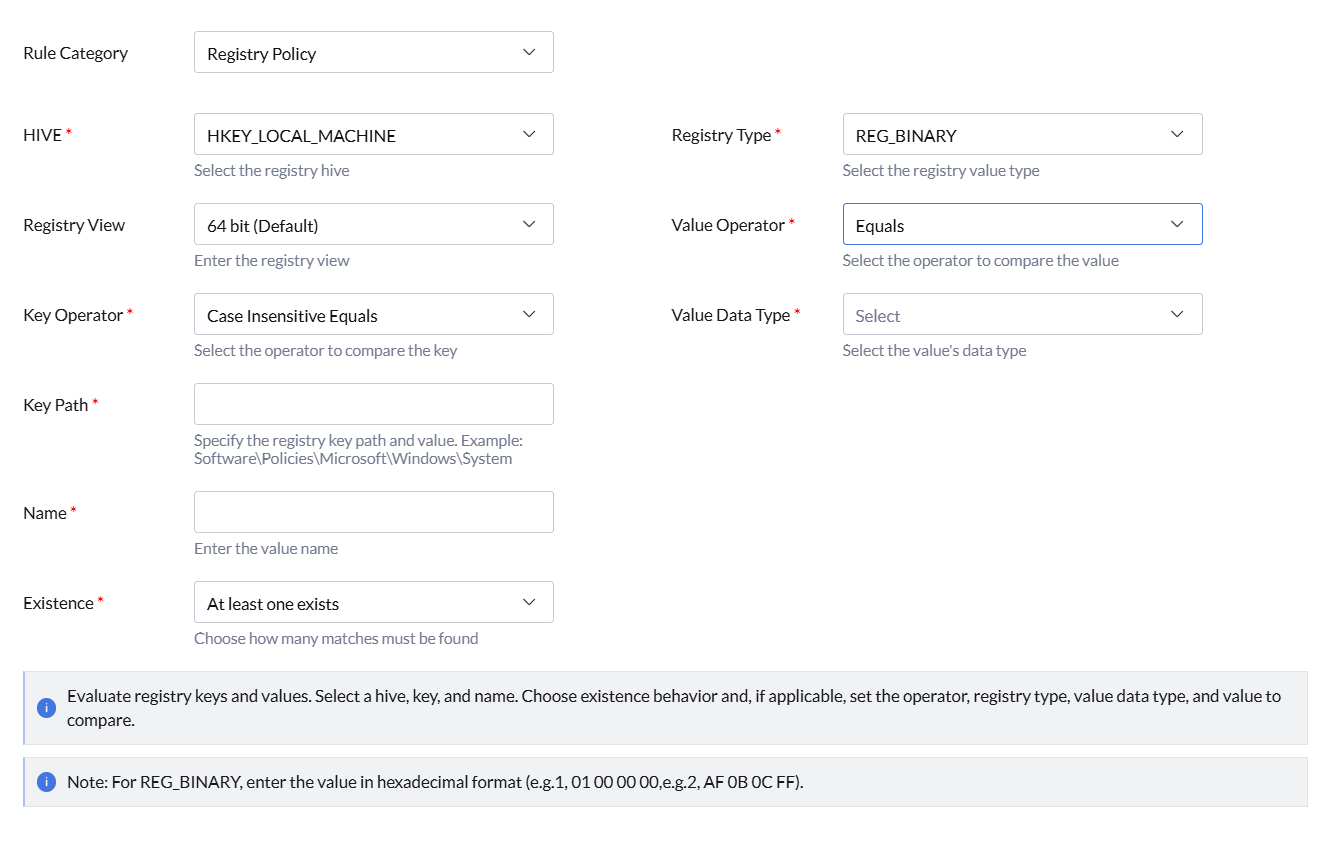
The Registry Policy category is used to validate Windows registry keys and values configured under system-level registry hives. These checks help ensure security settings, application configurations, and operating system policies comply with organizational requirements.
Use this category to evaluate the existence of registry keys and validate registry values against expected conditions.
- HIVE — Select the registry hive where the registry path exists.
- HKEY_LOCAL_MACHINE (HKLM) — Validates system-wide registry settings.
- Registry View — Select the registry view to scan.
- 64 bit (Default) — Scans the native 64-bit registry view.
- 32 bit — Scans the redirected 32-bit registry view.
- Key Operator — Select how the registry key path should be matched during evaluation.
For more information, see Key Operator. - Key Path — Enter the registry path relative to the selected hive.
Example: Software\Policies\Microsoft\Windows\System - Name — Enter the registry value name to validate.
- Existence — Select how the existence of the registry key or value should be validated.
For more information, see Existence. - Registry Type — Select the datatype of the registry value being validated.
- REG_DWORD
- REG_SZ
- REG_MULTI_SZ
- REG_BINARY
- REG_QWORD
- REG_EXPAND_SZ
- Value Operator — Select how the detected registry value should be compared with the configured value.
For more information, see Operator. - Value Data Type — Select the datatype used for value comparison.
Examples: Int - Value — Enter the expected registry value used for compliance evaluation.
The endpoint is marked compliant only when the registry key existence and value conditions satisfy the configured policy settings.
Example use case: Validate whether system-level registry controls such as Windows security policy keys are configured to approved values.
Account Lockout Policy
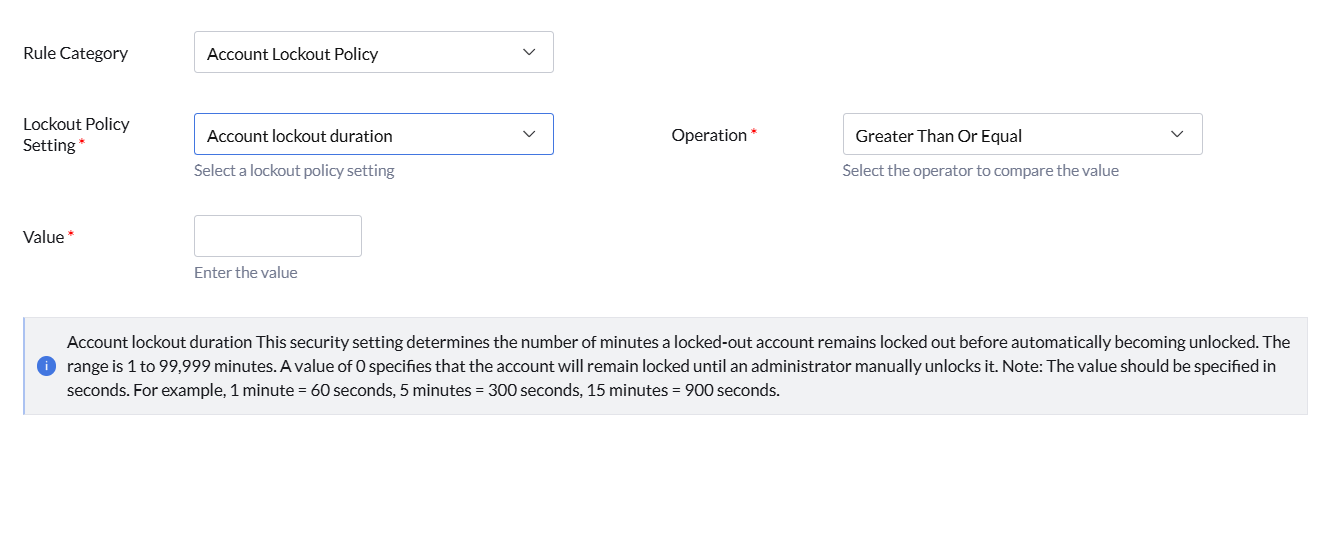
The Account Lockout Policy category is used to validate Windows account lockout settings configured on endpoints. These checks help protect user accounts against unauthorized access and brute-force password attacks by controlling lockout behavior after failed sign-in attempts.
Use this category to validate lockout duration, failed logon attempt thresholds, and counter reset settings.
- Rule Name — Enter a unique name for the compliance check.
- Rule Category — Select Account Lockout Policy to validate Windows account lockout settings.
- Lockout Policy Setting — Select the account lockout setting to validate.
- Account lockout duration
- Reset account lockout counter after
- Account lockout threshold
- Operation — Select the comparison operator used to evaluate the configured policy value.
For more information, see Value Operator. - Value — Enter the expected value for the selected lockout policy setting.
Account Lockout Duration
Defines the number of minutes a locked account remains locked before it is automatically unlocked.
- Operation — Select the comparison operator for lockout duration validation.
- Value — Enter the expected lockout duration in seconds.
Examples:- 1 minute = 60 seconds
- 5 minutes = 300 seconds
- 15 minutes = 900 seconds
The allowed value range is between 1 and 99,999 minutes. A value of 0 indicates that the account remains locked until manually unlocked by an administrator.
Reset Account Lockout Counter After
Defines the duration after which the failed logon attempt counter is reset to 0.
- Operation — Select the comparison operator for lockout counter reset validation.
- Value — Enter the expected counter reset duration in seconds.
Examples:- 1 minute = 60 seconds
- 5 minutes = 300 seconds
- 15 minutes = 900 seconds
The allowed value range is between 1 and 99,999 minutes.
Account Lockout Threshold
Defines the number of failed logon attempts allowed before a user account is locked.
- Operation — Select the comparison operator for failed logon attempt validation.
- Value — Enter the maximum number of failed logon attempts allowed.
The allowed value range is between 0 and 999 failed logon attempts. A value of 0 indicates that accounts will never be locked.
Example use case: Validate whether account lockout threshold and reset durations are configured to reduce brute-force login attempts.
Trustee SID Validation
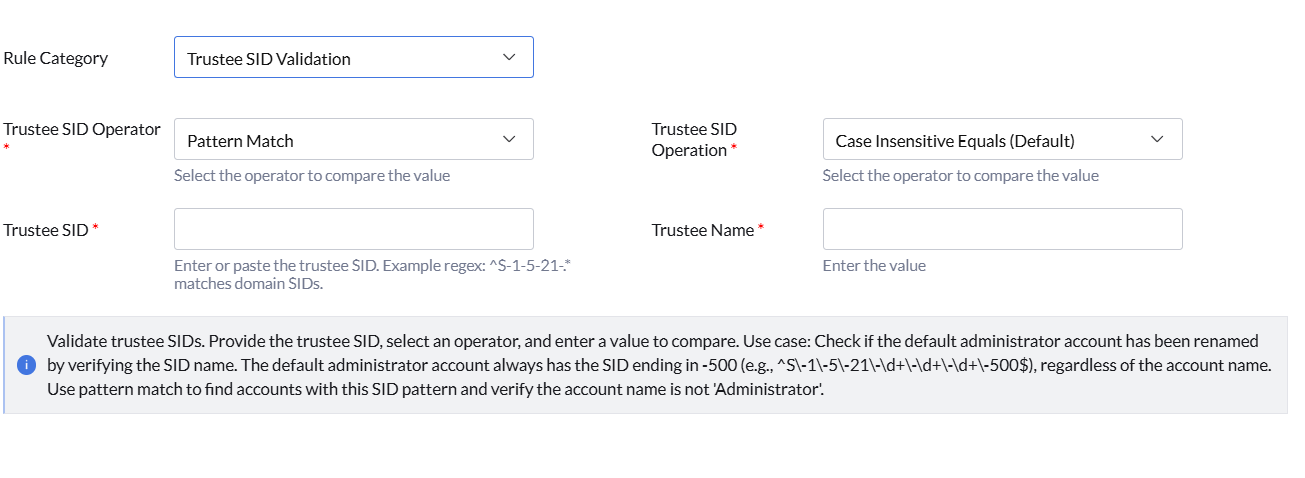
The Trustee SID Validation category is used to validate trustee accounts using their Security Identifier (SID) and associated account names. These checks help verify whether specific built-in, local, or domain accounts are correctly configured and renamed according to security requirements.
Use this category to validate trustee account names against SID-based identification.
- Trustee SID Operator — Select how the trustee SID should be matched during evaluation.
For more information, see Key Operator. - Trustee SID — Enter the SID value or SID pattern to validate.
Example: S-1-5-21-\d+\-\d+\-\d+\-\d+\-500 - Trustee SID Operation — Select how the trustee account name should be compared with the configured value.
For more information, see Key Operator. - Trustee Name — Enter the expected trustee account name for validation.
Example: Administrator
Example use case: Validate whether the default administrator account has been renamed by identifying the built-in administrator SID ending in -500 and verifying that the associated account name is not Administrator.
Advanced Audit Policy Configuration
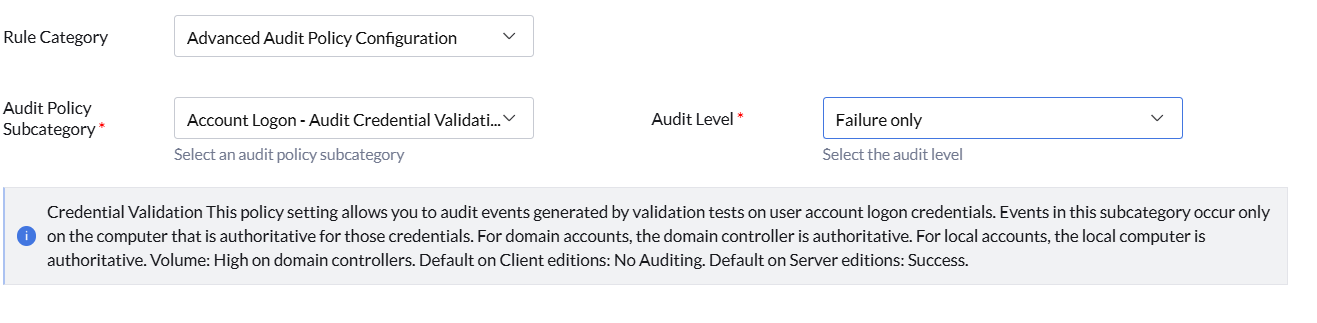
The Advanced Audit Policy Configuration category is used to validate Windows advanced auditing settings configured on endpoints. These checks help organizations monitor security-related activities, track authentication events, detect suspicious behavior, and maintain compliance with security standards.
Advanced audit policies provide granular control over which system and user activities are logged in Windows Event Logs. This helps security teams investigate incidents, identify unauthorized access attempts, and maintain visibility into critical system events.
Use this category to validate whether specific audit policy subcategories are configured with the required audit level.
- Audit Policy Subcategory — Select the audit policy subcategory to validate. We provide about 50 sub-categories such as:
- Account Logon
- Account Management
- Detailed Tracking
- Directory Service Access
- Logon/Logoff
- Object Access
- Policy Change
- Privilege Use
- System
- Audit Level — The Audit Level defines which types of events should be recorded for the selected audit policy subcategory. Select the appropriate audit level based on the monitoring and compliance requirements of your organization.
- None — No audit events are logged for the selected policy.
- Success and Failure — Logs both successful and failed events.
- Failure only — Logs only failed events such as failed authentication or denied access attempts.
- Success only — Logs only successful events such as successful authentication or access operations.
Example use case: Validate whether critical audit subcategories such as Logon/Logoff and Policy Change are configured to log success and failure events.
User Rights Assignment
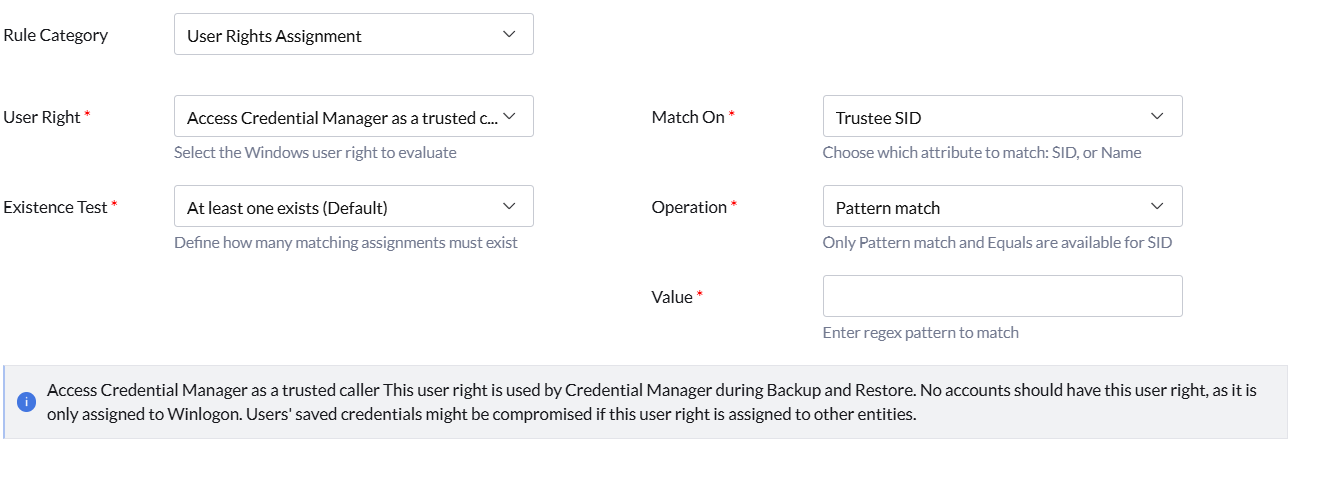
The User Rights Assignment category is used to validate Windows user rights and privileges assigned to users or groups on endpoints. These checks help ensure that only authorized accounts have access to sensitive system privileges and administrative operations.
Use this category to verify whether specific users, groups, or SIDs are assigned or restricted from critical Windows privileges.
- User Right — Select the Windows privilege or right to validate.
Examples:- Access this computer from the network
- Allow log on locally
- Act as part of the operating system
- Add workstations to domain
- Adjust memory quotas for a process
- Match On — Select the attribute used for comparison.
- Trustee SID — Validates accounts using Security Identifiers (SID).
- Trustee Name — Validates accounts using usernames or group names.
- Existence Test — Select how the assigned user rights should be validated.
For more information, see Existence.
Example use case: Validate whether only authorized administrator groups are allowed to log on locally or access the system over the network.
File Folder Check
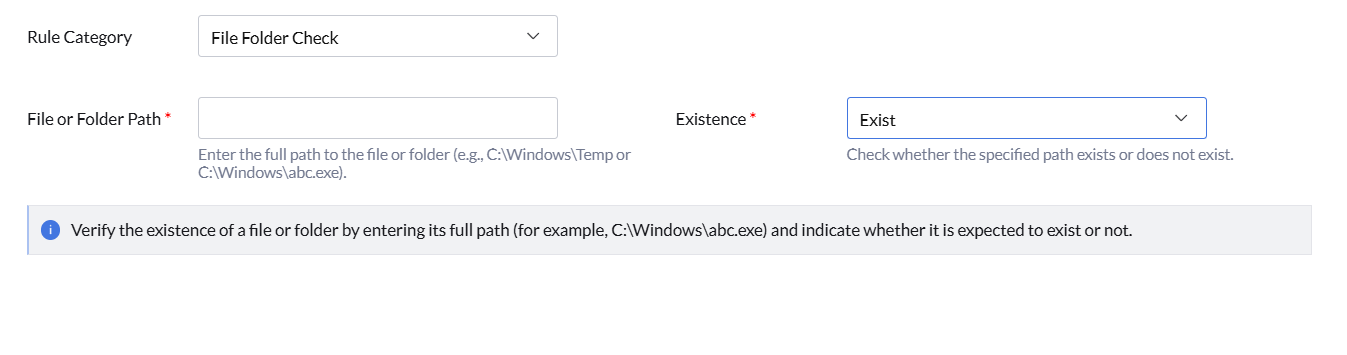
The File Folder Check category is used to validate the existence of specific files or folders on endpoints. These checks help verify whether required files, application directories, or restricted files are present or absent based on organizational security requirements.
Use this category to detect unauthorized files, validate application installations, or confirm the presence of required directories and executables.
- File or Folder Path — Enter the full path of the file or folder to validate.
Examples:- C:\Windows\Temp
- C:\Windows\abc.exe
- Existence — Select whether the specified file or folder is expected to exist or not exist on the endpoint.
For more information, see Existence.
Example use case: Validate whether unauthorized executable files are absent or confirm that required application directories exist on managed endpoints.
System Services

The System Services category is used to validate Windows service configurations on endpoints. These checks help ensure that critical services are running with the expected status and startup configuration based on organizational security and operational requirements.
Use this category to validate service runtime states and startup types for Windows services.
- Service Name — Enter the Windows service name to validate.
Enter the actual service name and not the display name. - Operation — Select how the service name should be matched during evaluation.
- Case Insensitive Equals (Default) — Matches the service name regardless of letter casing.
- Service Property — Select the service property to validate.
- Status — Validates the current runtime state of the service.
- Start Type — Validates how the service is configured to start.
- Value — Select the expected value based on the selected service property.

Status
The Status property validates the current runtime state of the Windows service.
- Running — The service is currently active.
- Stopped — The service is not running.
- Start Pending — The service is in the process of starting.
- Stop Pending — The service is in the process of stopping.
- Paused — The service is temporarily suspended.
If the rule checks whether a service is Stopped and the service is not installed on the endpoint, the check is considered passed.
Start Type
The Start Type property validates how the Windows service is configured to start.
- Auto — The service starts automatically during system boot or when required.
- Manual — The service starts only when manually triggered or required by another process.
- Disabled — The service cannot be started.
Example use case: Validate whether critical security services are running and configured to start automatically on managed endpoints.
File Version Check
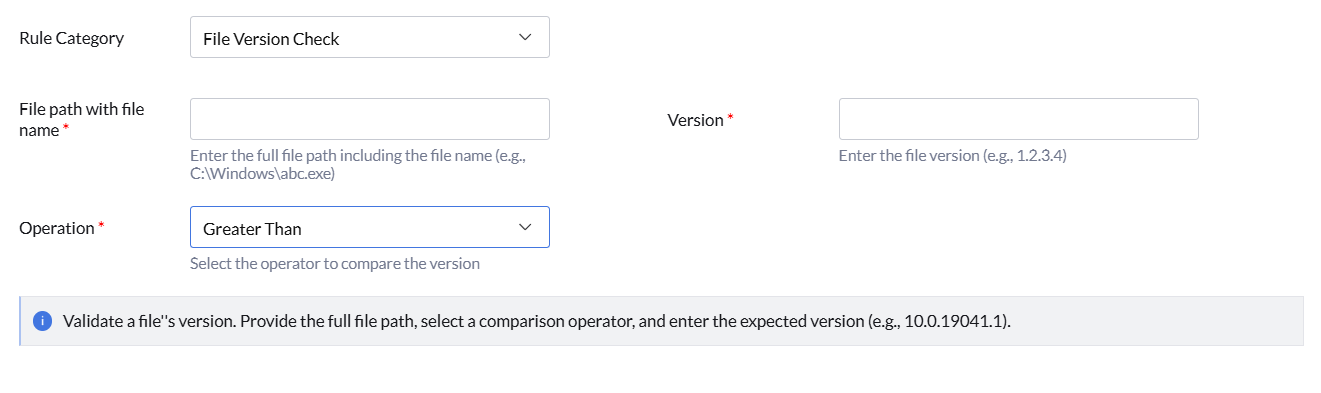
The File Version Check category is used to validate the version of specific files on endpoints. These checks help ensure that required software versions, security patches, or application binaries are installed and compliant with organizational standards.
Use this category to verify whether a file version matches the expected version requirement.
- File Path with File Name — Enter the complete file path including the file name.
Example: C:\Windows\abc.exe - Operation — Select the comparison operator used to compare the detected file version with the configured version.
For more information, see Value Operator. - Version — Enter the expected file version.
Examples:- 1.2.3.4
- 10.0.19041.1
Example use case: Validate whether a critical application executable is running the approved secure version across managed endpoints.